How we make this list: we compare pricing pages, product documentation and public user reviews. Rankite is independent; if a vendor ever pays for a featured spot, that listing is clearly labeled Partner.
Key takeaways
- You do not need professional software to trim a video well; CapCut, Clipchamp and iMovie cover most beginner jobs for free.
- The real cost of "free" editors is usually a watermark, an export limit or locked features, so check the export terms before you invest hours learning.
- DaVinci Resolve is the only free editor here that grows into professional work, but it demands a stronger computer and real patience.
- If you hate subscriptions, OpenShot, Shotcut and the free tier of DaVinci Resolve cost nothing, ever.
Quick comparison
| Tool | Best for | Starting price | Free plan |
|---|
 CapCut CapCut | creators cutting short-form social video | Free (Pro $19.99/month or $179.99/year) | Yes |
 Clipchamp Clipchamp | Windows users who want a free editor already installed | Free (Premium $11.99/month or via Microsoft 365) | Yes |
 iMovie iMovie | Mac and iPhone owners editing family or YouTube videos | Free on Apple devices | Yes (free on Mac, iPhone and iPad) |
 Canva Canva | marketers trimming clips inside a design workflow | Free (Pro $15/month or $120/year) | Yes |
 Filmora Filmora | YouTubers who want templates and AI tools without a learning cliff | From $49.99/year (annual plan) | Free trial (watermarked exports) |
 Movavi Video Editor Movavi Video Editor | beginners who want a guided, simple desktop editor | From $54.95/year (Video Editor Plus, annual) | Free trial (7 days) |
 OpenShot OpenShot | anyone who wants a free and open-source editor | Free | Yes |
 Shotcut Shotcut | beginners who want more control without paying anything | Free | Yes |
 DaVinci Resolve DaVinci Resolve | beginners planning to grow into professional work | Free (Studio $295 one-time) | Yes |
 Adobe Premiere Elements Adobe Premiere Elements | hobbyists who want Adobe polish without a Creative Cloud subscription | $99.99 (3-year license) | Free trial (7 days) |
Is your product missing or out of date?
We review this list regularly. Vendors can request a listing, send updated pricing or ask about featured placement.
The top video trimming software for beginners
Starting priceFree (Pro $19.99/month or $179.99/year)
Free planYes
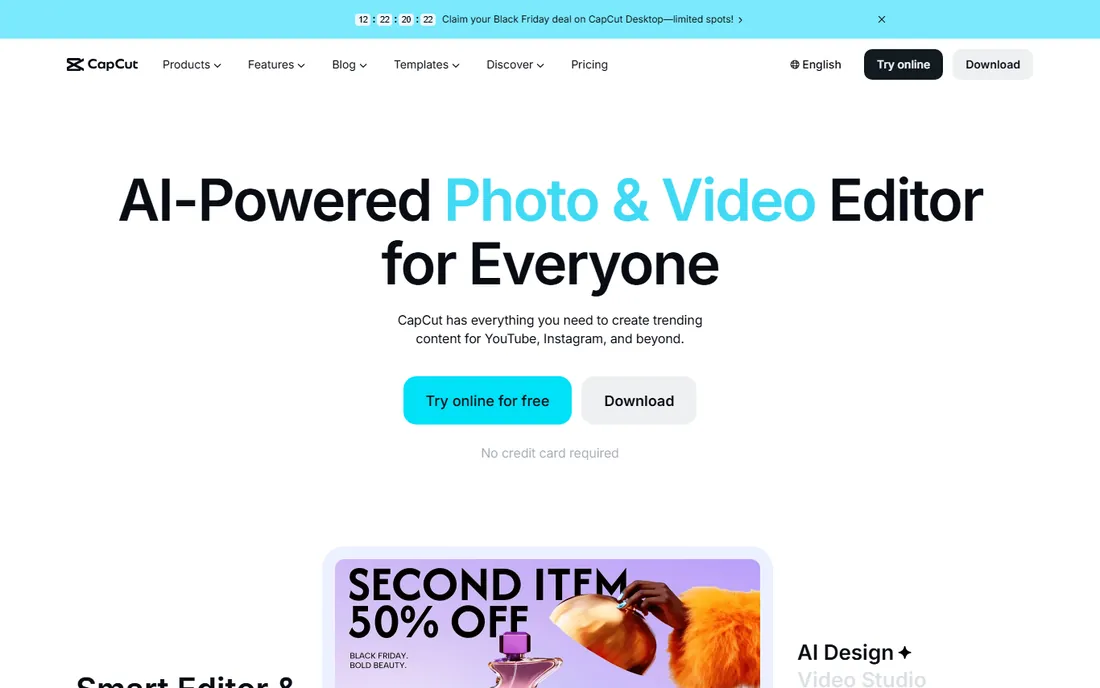
CapCut is the editor most beginners actually finish videos in, and there is a reason its maker gives the core away free. The free editor covers the full timeline, effects, transitions and text tools, exports up to 1080p, and syncs projects across phone, desktop and browser, which makes it the default choice for TikTok, Reels and Shorts creators.
The free tier is generous but not unconditional. Exports can include a CapCut-branded end clip you delete before exporting, templates and effects marked Pro stay locked, and advanced AI tools need the Pro plan at $19.99 a month or $179.99 a year, which also adds 4K export and 1TB of cloud storage. Prices shift between the website and app stores, so subscribe on the web if you upgrade.
What we like- Auto-captions and background removal
- Huge template library
- Mobile, desktop and web sync
Watch out for- Free exports carry a removable end clip and Pro assets stay locked
- Prices vary by platform
#2
Clipchamp
Best for: Windows users who want a free editor already installed
Visit clipchamp.com
Starting priceFree (Premium $11.99/month or via Microsoft 365)
Free planYes
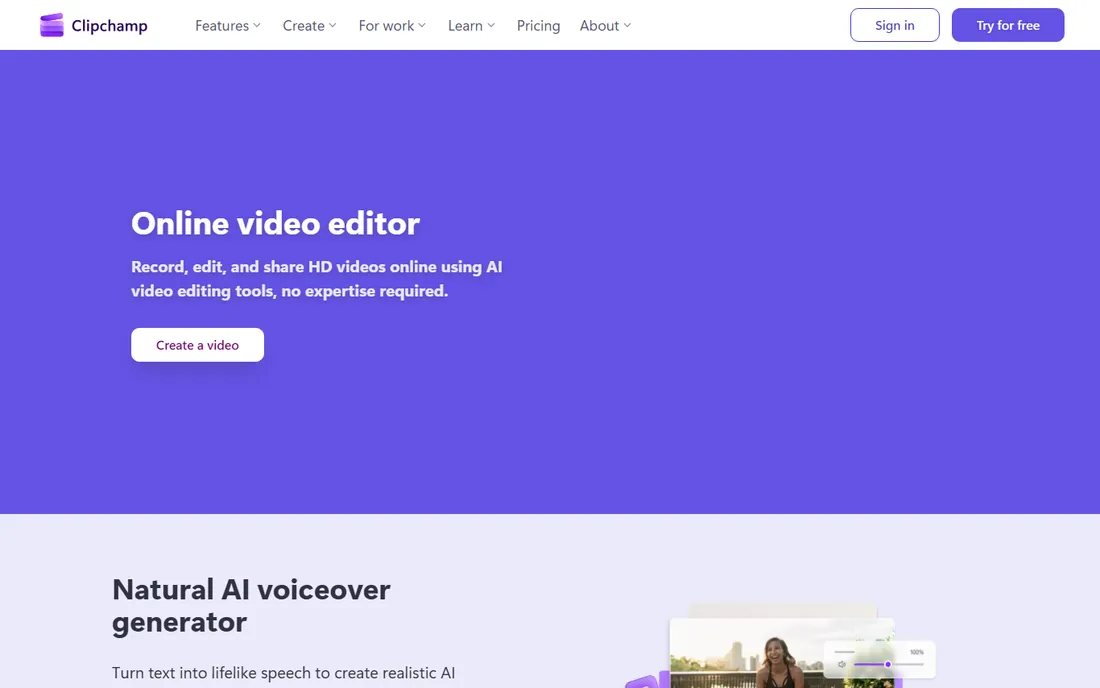
Clipchamp is Microsoft's answer to the beginner editor, and its biggest advantage is distribution: it ships with Windows 11, so many readers already have it. The free plan is unusually honest, with unlimited projects, 1080p exports and no watermark, plus genuinely useful tools like AI subtitles in 80 plus languages, text-to-speech voiceovers and silence removal. The drag-and-drop timeline takes minutes to learn.
The ceiling arrives with resolution and assets. 4K export, the full premium stock library, brand kit and content backup sit behind Premium at $11.99 a month, which is also included with Microsoft 365 Personal and Family subscriptions. It runs in Chrome and Edge on any operating system, but Safari and Firefox are not supported, and Microsoft recommends 16GB of RAM for smooth work. For simple trimming jobs on a Windows PC, it is the path of least resistance.
What we like- No watermark on free 1080p exports
- Auto-captions and text-to-speech
- Runs in the browser
Watch out for- No Safari or Firefox support
- 4K and premium stock need a paid tier
#3
iMovie
Best for: Mac and iPhone owners editing family or YouTube videos
Visit apple.com
Starting priceFree on Apple devices
Free planYes (free on Mac, iPhone and iPad)
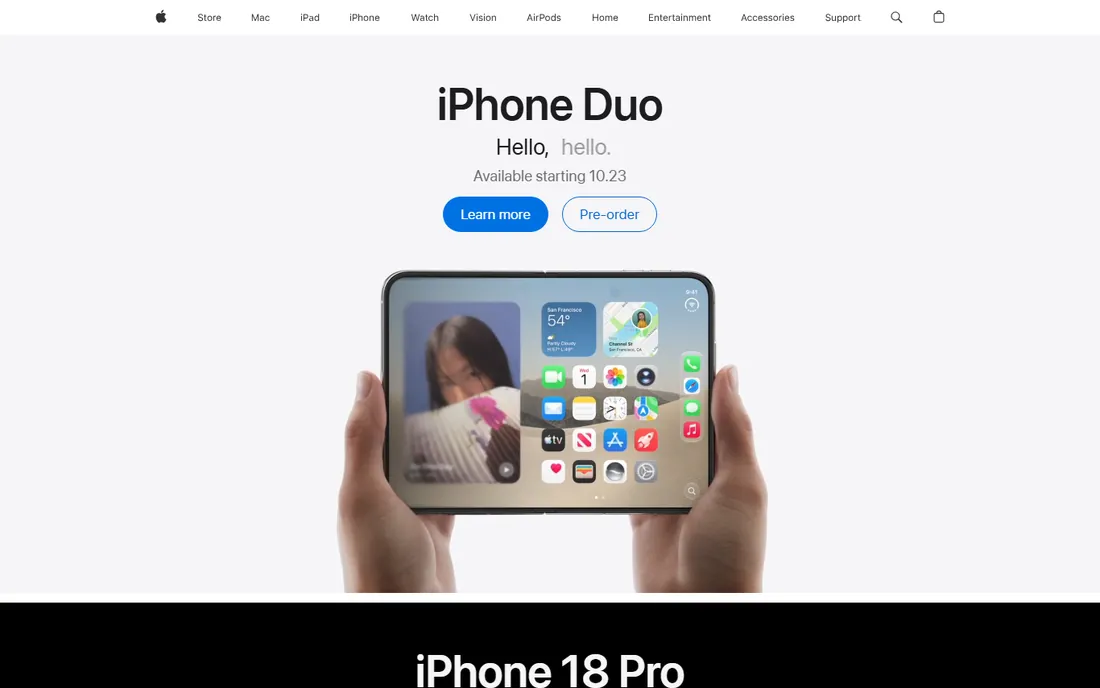
iMovie is the quietest recommendation on this list and often the right one. It comes free with every Mac, iPhone and iPad, exports without a watermark, handles 4K on recent hardware, and its interface has maybe a dozen buttons that matter. Trimming a clip is literally dragging its edges. For family videos, school projects and straightforward YouTube uploads, most beginners never outgrow it.
The limits are the platform lock and the ceiling. There is no Windows or Android version, and compared to DaVinci Resolve or even Filmora, the effects library, audio tools and color controls are thin. If you own Apple hardware and your needs are trimming, titles and simple assembly, start here.
What we like- Completely free with no watermark
- Simplest interface here
- 4K support on modern devices
Watch out for- Apple devices only
- Limited next to full desktop editors
#4
Canva
Best for: marketers trimming clips inside a design workflow
Visit canva.com
Starting priceFree (Pro $15/month or $120/year)
Free planYes
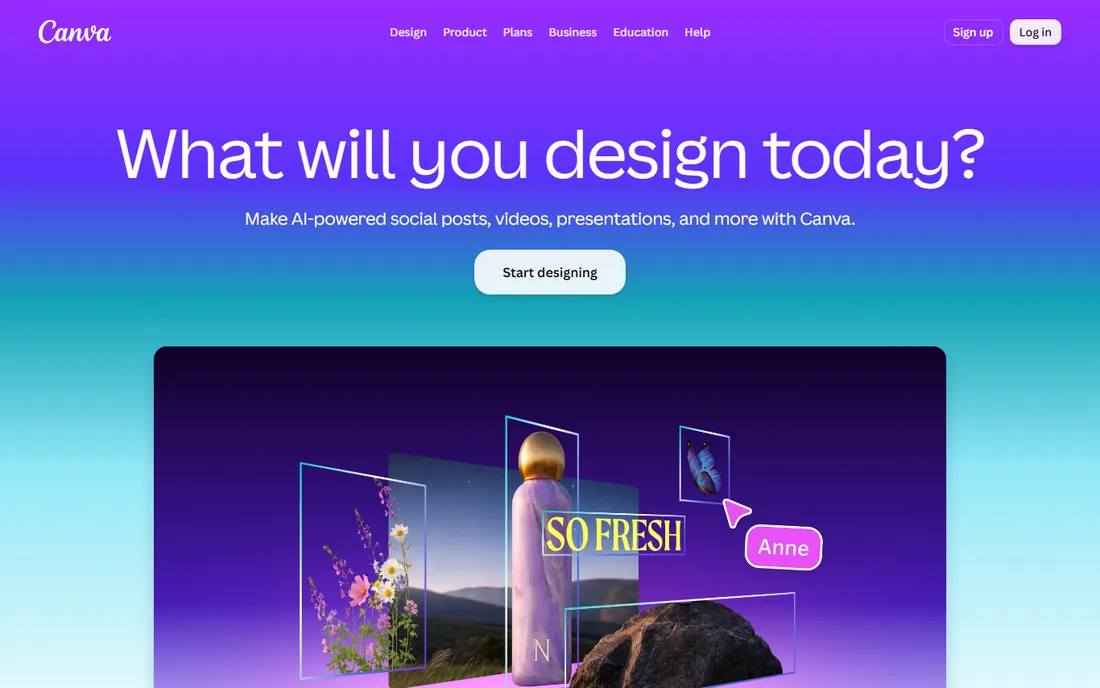
Canva is a design platform first, and its video editor makes sense when your clips live next to everything else your brand makes. Trimming, splitting and rearranging clips happens in the same canvas as your thumbnails, social posts and decks, with templates for every platform size and one-click background removal on Pro. Beat Sync, which cuts clips to the rhythm of a music track, is genuinely fun for promo videos.
Do not mistake it for a dedicated editor. Long footage, precise audio work and multi-track timelines feel cramped, and the free tier's AI credit allowance runs out quickly if you lean on generation features. Pro at $15 a month or $120 a year adds the premium stock library, background remover, Magic Resize and brand kits, with a 30-day trial. For marketers who trim short clips between design tasks, it removes the need for a second app entirely.
What we like- Trimming next to templates and brand assets
- Beat Sync cuts clips to music
- Huge stock library
Watch out for- Not a real timeline editor for long footage
- Free AI credits run out fast
Starting priceFrom $49.99/year (annual plan)
Free planFree trial (watermarked exports)
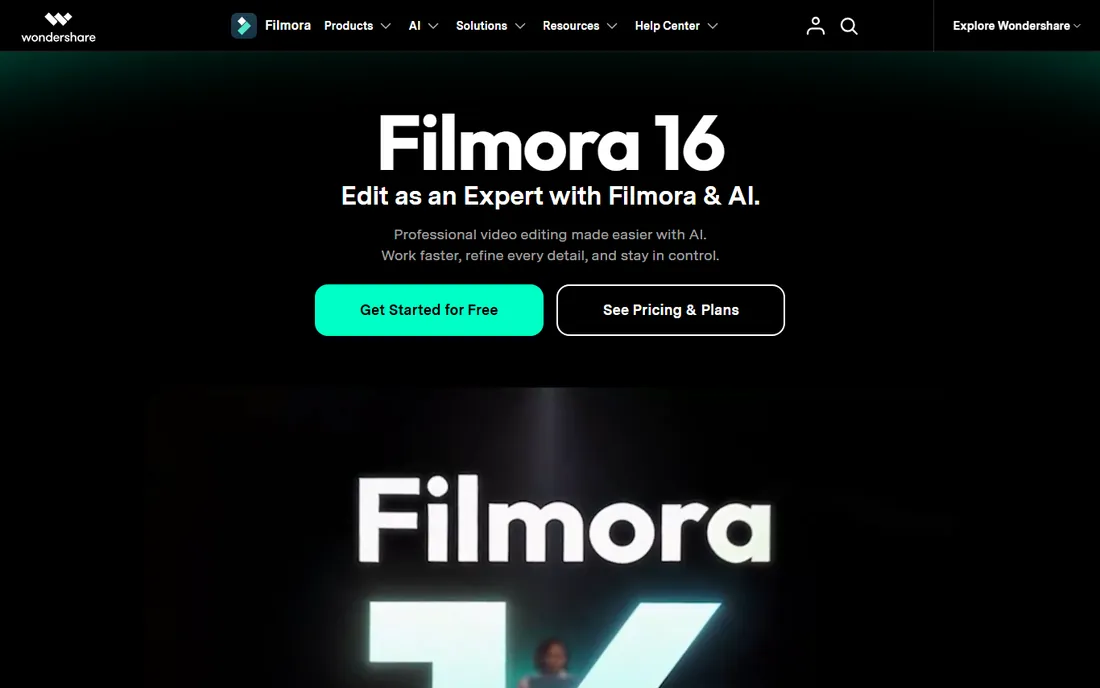
Filmora has spent a decade refining the exact middle ground between toy editors and professional ones, and its 2026 version leans hard into AI assistance. Auto captions, silence removal, smart cutout and text-to-video sit next to a deep library of templates, transitions and royalty-free music, and the built-in screen recorder makes it a natural pick for tutorial creators. Most beginners go from install to a finished-looking video in an afternoon.
The pricing has more layers than it should. The annual plan starts around $49.99 a year, a perpetual license around $79.99 locks you to the current version without future updates, and some AI features consume credits from a monthly pool on top of the subscription. The free download includes full features but stamps a watermark on every export, so it is a trial in practice. It is the right pick when templates and guided AI speed matter more than absolute control.
What we like- AI auto cut, captions and smart short clips
- Large template and asset library
- Built-in screen recorder
Watch out for- Watermark on free exports
- AI features draw from a separate credit pool
#6
Movavi Video Editor
Best for: beginners who want a guided, simple desktop editor
Visit movavi.com
Starting priceFrom $54.95/year (Video Editor Plus, annual)
Free planFree trial (7 days)
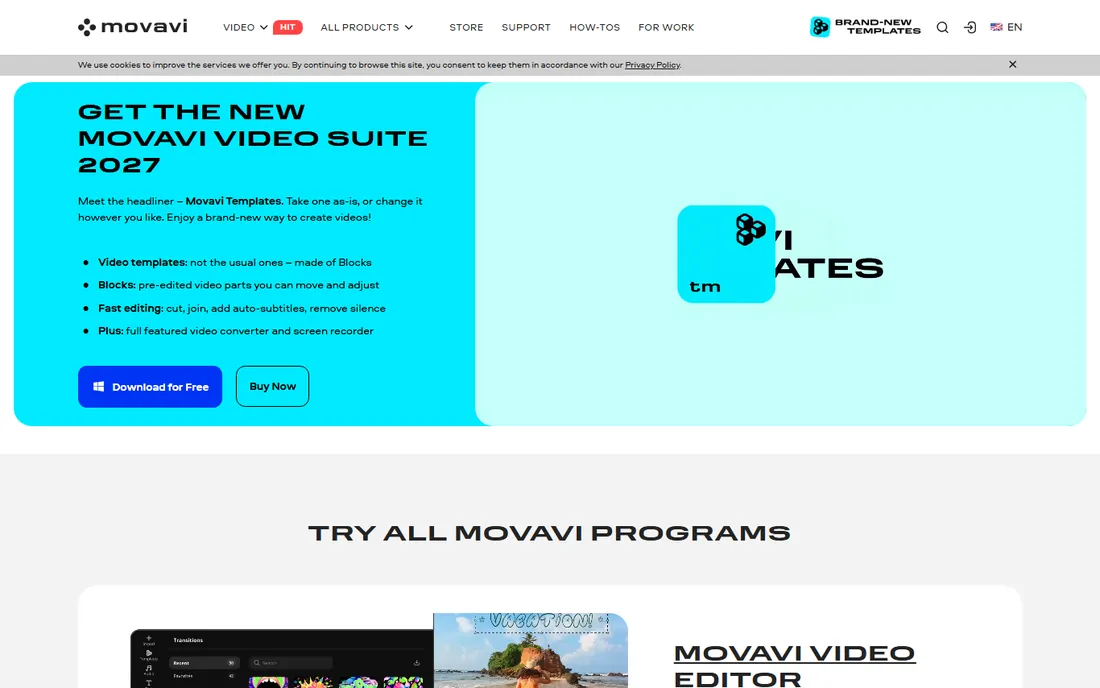
Movavi targets the beginner who opens DaVinci Resolve, closes it, and wants something kinder. The interface is plain and guided, the Montage Wizard assembles clips, music and transitions into a finished video with minimal input, and trimming, chroma key, stabilization and titles are all a click or two away. Vertical video presets for TikTok and Reels are built in rather than bolted on.
Pricing options multiply quickly: Video Editor Plus runs about $54.95 a year, a lifetime license around $74.95 covers the current version only, and the full effects store is a separate subscription. The free trial lasts 7 days with full features. It is a solid pick for casual creators who want hand-holding without a subscription they will forget to cancel.
What we like- Montage Wizard builds videos automatically
- Very gentle learning curve
- Vertical video presets
Watch out for- Lifetime license excludes future updates
- Extra effects sold separately
Starting priceFree
Free planYes
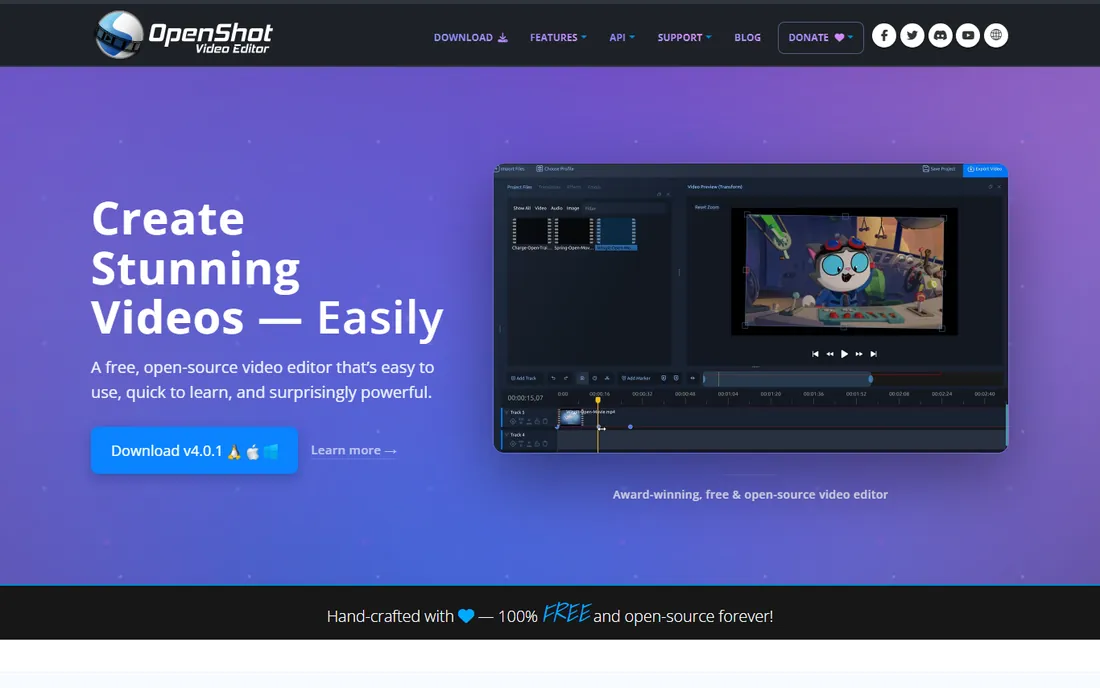
OpenShot is the honest free option: open source, cross-platform for Windows, Mac and Linux, no watermark, no account, no upsell screen. Trimming, splitting, transitions, title templates and basic animation are all present, and for simple jobs it does exactly what the name on the box says. There is something reassuring about software that cannot surprise you with a price change.
The trade is polish and performance. Large projects and 4K timelines can feel sluggish next to CapCut or DaVinci Resolve, and there are no AI captions, no template marketplace and no guided wizards. Development moves at open-source pace. For a student, a nonprofit or anyone philosophically opposed to subscriptions, it trims video perfectly well, and the price will never change.
What we like- Free forever with no watermark
- Cross-platform
- No account or subscription
Watch out for- Slower on large projects
- Fewer guided features than commercial rivals
#8
Shotcut
Best for: beginners who want more control without paying anything
Visit shotcut.org
Starting priceFree
Free planYes
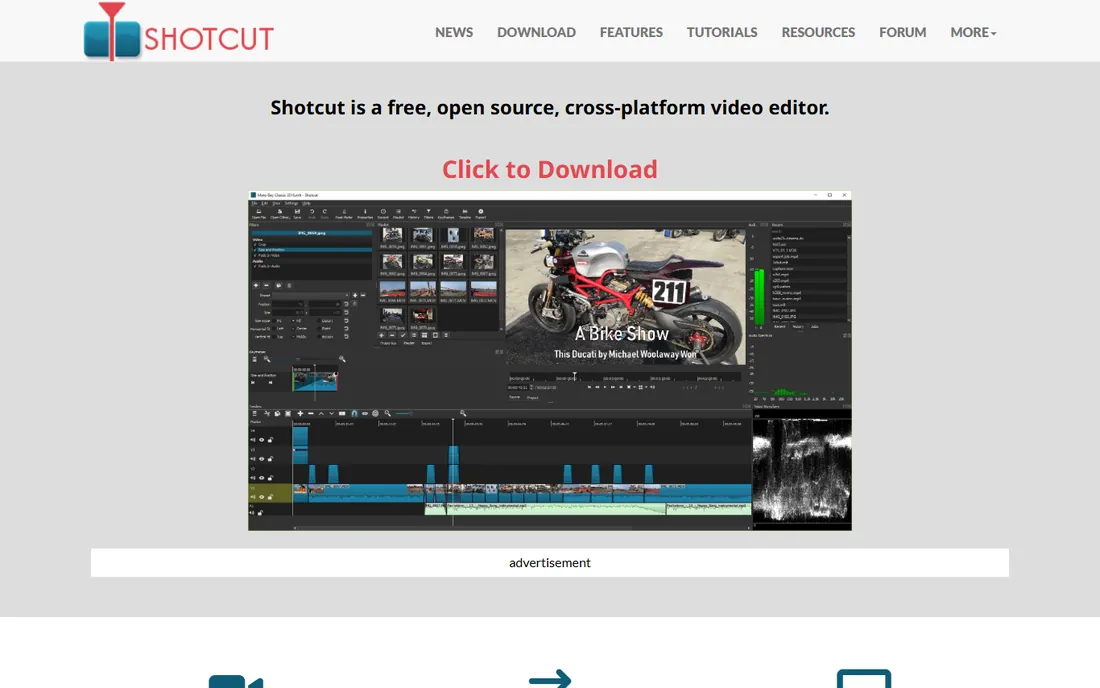
Shotcut is the other serious free, open-source editor, and it aims a notch higher than OpenShot on capability. It opens just about any format natively with no import step, supports 4K, offers real filters, color tools and audio scopes, and exports without watermarks or restrictions. For a beginner willing to spend an evening learning, it covers jobs that would otherwise need paid software.
The interface shows its open-source roots: functional rather than friendly, with panels and terminology that assume some patience. It is less guided than Movavi and less instant than CapCut, but more capable than both once learned. If your budget is zero and your ambition extends past simple trims, Shotcut is the free editor that grows with you furthest before you hit a wall.
What we like- Wide format support with no importing
- 4K capable
- No watermark or limits
Watch out for- Interface less polished than CapCut
- Steeper learning curve than iMovie
Starting priceFree (Studio $295 one-time)
Free planYes
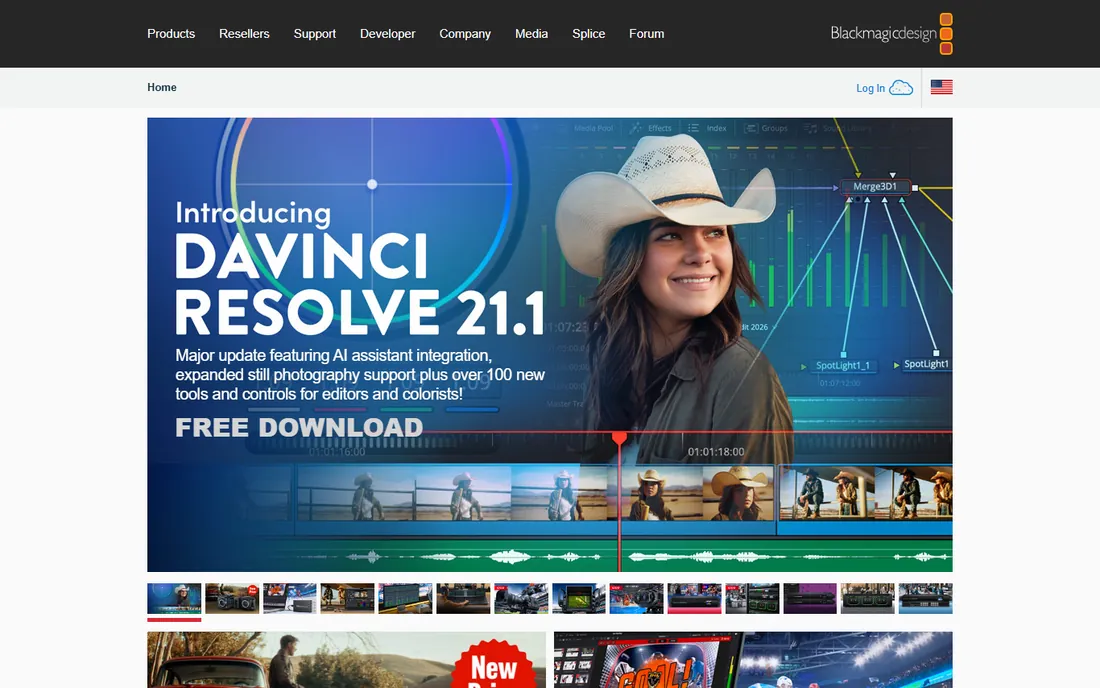
DaVinci Resolve is the strange one on a beginner list: professional software used on Hollywood films, with a free version so complete that most beginners never need the paid Studio upgrade at $295 one-time. The free edition includes the full editor, legendary color grading tools, Fairlight audio and Fusion effects, with no watermark and no subscription. If you learn trimming here, every skill transfers upward with no relearning.
The price of all that power is intimidation and hardware. The interface presents editing, color, effects and audio as separate pages, which overwhelms first-timers, and smooth 4K work wants 16GB of RAM and a decent GPU. Beginners should start on the Cut page and ignore the rest until needed.
What we like- Free version is genuinely professional grade
- Best color tools anywhere
- No watermark or subscription
Watch out for- Demanding on hardware
- Overwhelming interface at first
#10
Adobe Premiere Elements
Best for: hobbyists who want Adobe polish without a Creative Cloud subscription
Visit adobe.com
Starting price$99.99 (3-year license)
Free planFree trial (7 days)
Premiere Elements is Adobe's consumer editor, a simplified cousin of Premiere Pro with guided edits that walk beginners through effects step by step. Smart Trim finds the best footage automatically, the organizer keeps growing media libraries manageable, and the interface stays friendly where Premiere Pro gets dense. For family documentaries and hobby projects, it hits a sweet spot of capability and approachability.
Read the license terms before buying, because they changed. Since the 2025 release, the $99.99 purchase covers three years of use, not a lifetime license; when the term ends, editing stops, though the organizer keeps working for viewing files. The 7-day trial watermarks exports. It remains the only Adobe video editor without a monthly fee, but buyers should know they are renting for three years, not buying forever.
What we like- Guided edits walk you through effects
- Elements Organizer manages media
- No monthly subscription
Watch out for- License expires after 3 years
- Trial exports carry a watermark
How we chose
We tested the question from a beginner's chair: install it, trim a talking-head clip, add a title, and export something watchable, then checked what the free tier actually allows. Every tool here exists today, runs on current operating systems, and can trim video without professional training. Prices come from vendor pricing pages and checkout flows checked in October 2026, cross-checked against recent reviews on G2, Capterra and Reddit. We excluded mobile-only apps, online converters with no editing, and professional tools with no beginner path. Export terms, watermarks and hardware demands weighed as heavily as features, because those are what actually stop beginners.
Free vs paid: where the real catch hides
Free video editors are real, but each one funds itself somehow, and knowing the mechanism saves frustration. CapCut and Filmora monetize through Pro tiers, so free exports carry watermarks or end clips and premium assets stay locked. Clipchamp and iMovie are loss leaders for Microsoft and Apple ecosystems, which is why their free tiers are the most generous. OpenShot, Shotcut and DaVinci Resolve's free edition have no monetization angle at all, open source or a paid Studio upsell most users never need, so their free tiers have no traps.
The practical rule: check the export dialog before you invest hours learning. Confirm the maximum resolution, whether a watermark appears, which formats are available and whether your hardware handles the preview smoothly. An editor that is free but watermarks exports is a trial, not a free tool.
What to check before you download
Start with your computer. Video editing is one of the most hardware-hungry things a normal PC does, and the minimum specs on a download page describe the machine that can launch the app, not edit smoothly. For 1080p work, 8GB of RAM and a recent processor suffice for CapCut, Clipchamp, iMovie and Filmora; DaVinci Resolve and 4K timelines want 16GB and a discrete GPU. When in doubt, pick the lighter editor.
Next, match the editor to the job. Trimming interview clips and assembling vlogs needs a timeline, which rules out Canva as the primary tool. Vertical social video favors CapCut, Movavi or Clipchamp with their platform presets. Family archiving favors iMovie or Premiere Elements with their organizers. Learning the craft properly favors DaVinci Resolve.
Finally, check the money terms the way you would any subscription. Note whether "free" means watermark-free, whether annual billing is required for the advertised price, and whether a "lifetime" or "one-time" license has an expiry, as Premiere Elements now does. A 7-day trial is enough to trim a real project, so test with your actual footage before paying anything.
Frequently asked questions
What is the easiest video trimming software for a complete beginner?
iMovie if you own Apple hardware, CapCut otherwise. iMovie has the fewest buttons and no watermark; CapCut adds auto-captions and works everywhere. Both let you trim a clip within minutes of opening them, which is the real test of beginner-friendliness.
Can I trim videos without downloading software?
Yes. Clipchamp and Canva both run in the browser, and CapCut has a web editor. Browser editors suit quick trims and depend on a stable internet connection, since uploads and previews happen online. For regular editing, a desktop app is faster and more reliable.
Why do free editors add watermarks?
The watermark is the business model. Editors like Filmora and Movavi give you full features in the trial so you can evaluate properly, then require payment to remove the watermark from exports. Truly free editors, iMovie, OpenShot, Shotcut and DaVinci Resolve's free edition, have no watermark because they monetize differently or not at all.
Is my computer powerful enough for DaVinci Resolve?
For 1080p editing, most machines from the last five years with 16GB of RAM manage acceptably, though the free version leans heavily on the GPU. With 8GB of RAM or integrated graphics, expect stuttering previews on complex timelines. If your machine struggles, CapCut or Shotcut will feel dramatically lighter.
Do I need 4K export as a beginner?
Almost certainly not. Most beginners watch their work on phones, where 1080p looks identical to 4K, and 4K files are four times larger and much harder to edit smoothly. Learn on 1080p, and only pay for 4K export when a client or platform specifically requires it.
Can I use these editors for client or commercial work?
It depends on the license. CapCut Pro includes commercial rights for most exports, DaVinci Resolve's free version allows commercial use, and Canva Pro covers commercial projects. Free tiers of CapCut and Filmora have limited commercial terms, so check the license for the exact plan you use before delivering paid work.
Sources we checked (12)
- https://www.capcut.com
- https://www.clipchamp.com
- https://www.apple.com/imovie/
- https://www.canva.com/pricing/
- https://filmora.wondershare.com/
- https://www.movavi.com/video-editor/
- https://www.blackmagicdesign.com/products/davinciresolve
- https://www.adobe.com/products/premiere-elements.html
- https://costbench.com/software/video-editing/capcut/
- https://www.digitalcameraworld.com/tech/software/movavi-video-editor-2026-an-affordable-and-feature-packed-non-linear-video-editor
- https://petapixel.com/2024/10/01/adobe-cuts-perpetual-license-for-elements-down-to-just-three-years/
- https://markus-hagner-photography.com/davinci-resolve-free-vs-davinci-resolve-studio/
Is your product missing or out of date?
We review this list regularly. Vendors can request a listing, send updated pricing or ask about featured placement.

Shihab Mia · Founder, Rankite
Shihab has spent more than a decade helping SaaS and e-commerce brands grow through search. He writes Rankite's software buying guides from pricing pages, documentation and public user reviews. More about Shihab.