How we make this list: we compare pricing pages, product documentation and public user reviews. Rankite is independent; if a vendor ever pays for a featured spot, that listing is clearly labeled Partner.
Key takeaways
- TeamViewer and AnyDesk are the best-known options, with paid plans starting around $23 to $25 per month for individuals.
- RemotePC and Splashtop offer the lowest paid prices, starting under $7 per month for personal remote access.
- Chrome Remote Desktop and RustDesk are completely free, and RustDesk can be self-hosted for full data control.
- If you provide IT support to clients, look at Zoho Assist or ScreenConnect, which are built for technician workflows.
- Match the tool to the job: personal access, remote support, and unattended server management have different best picks.
Quick comparison
| Tool | Best for | Starting price | Free plan |
|---|
 TeamViewer TeamViewer | All-round remote access and support | $24.90 per month (Remote Access) | Yes (personal use) |
 AnyDesk AnyDesk | Fast, lightweight remote sessions | $23.12 per month (Solo, billed annually) | Yes (personal use) |
 RemotePC RemotePC | Affordable remote access for individuals | $1.84 per month (Solo, billed annually) | Free trial (7 days) |
 Splashtop Splashtop | High-performance remote access | $6 per month (Solo, billed annually) | Free trial |
 Zoho Assist Zoho Assist | IT support teams on a budget | $10 per technician/month (Standard, billed annually) | Yes (free plan) |
 ScreenConnect ScreenConnect | Professional IT support and MSPs | See website | Free trial (14 days) |
 Chrome Remote Desktop Chrome Remote Desktop | Free personal remote access | $0 | Yes |
 RustDesk RustDesk | Free open-source remote desktop | $0 | Yes |
Is your product missing or out of date?
We review this list regularly. Vendors can request a listing, send updated pricing or ask about featured placement.
The top remote software
Starting price$24.90 per month (Remote Access)
Free planYes (personal use)
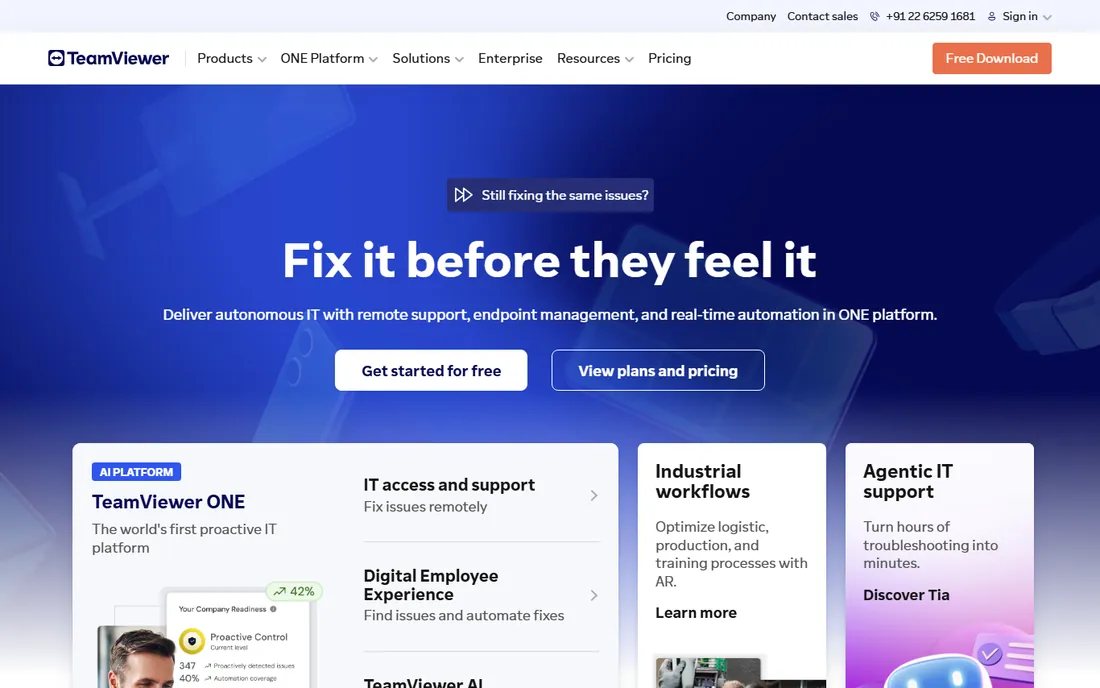
TeamViewer is the name most people think of for remote desktop, and its platform covers the full range from personal access to enterprise IT. The Remote Access plan at $24.90 per month suits individuals, while Business, Premium, and Corporate tiers scale up to large IT departments with more sessions, users, and management features.
Security is a genuine strength. TeamViewer holds ISO 27001, SOC 2, and HIPAA-aligned certifications, which matters for healthcare, finance, and other regulated industries. Features like session recording, multi-monitor support, file transfer, and mobile-to-mobile support come standard on paid plans.
The honest catch is price and contract terms. TeamViewer is among the most expensive options here, and subscriptions auto-renew with cancellation notice requirements that have frustrated buyers. For personal, non-commercial use it is free, which is generous. For business use, compare the total cost against cheaper rivals before signing.
What we like- Works on nearly every platform
- Strong security certifications
- Free for personal non-commercial use
Watch out for- Commercial pricing is premium
- Contracts auto-renew with strict cancellation terms
Starting price$23.12 per month (Solo, billed annually)
Free planYes (personal use)
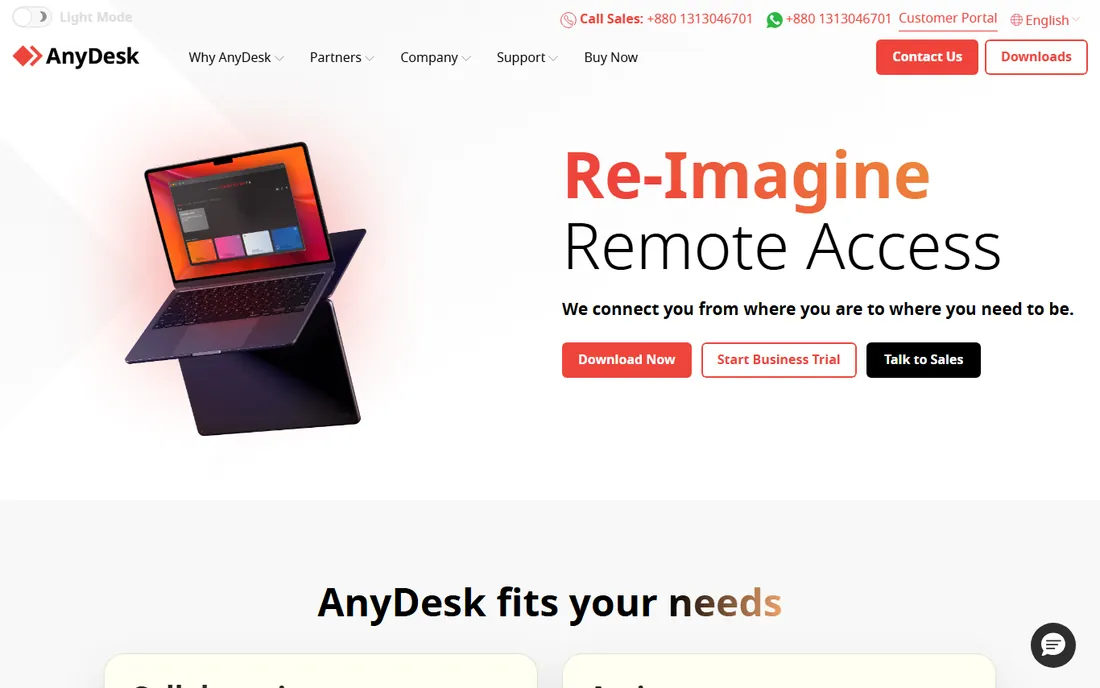
AnyDesk built its reputation on speed. Its proprietary codec delivers responsive remote sessions even on weak connections, and the app is small enough to run without installation, which clients appreciate during support calls. The Solo plan at $23.12 per month on annual billing covers one user with up to 100 managed devices for unattended access.
For IT support and remote work, the feature set covers the essentials: file transfer, remote printing, session recording on higher tiers, and mobile device support. Standard and Advanced plans scale to teams with user management and mass deployment options.
The tradeoff is breadth. AnyDesk has fewer third-party integrations and compliance certifications than TeamViewer, and a 2024 security incident still makes some buyers cautious, though the company responded and hardened its systems. For speed-focused individuals and small teams, it remains an excellent value.
What we like- Very fast connections even on poor bandwidth
- Tiny app that runs without installation
- Affordable Solo plan
Watch out for- Fewer enterprise integrations than TeamViewer
- Past security incident still concerns some buyers
Starting price$1.84 per month (Solo, billed annually)
Free planFree trial (7 days)
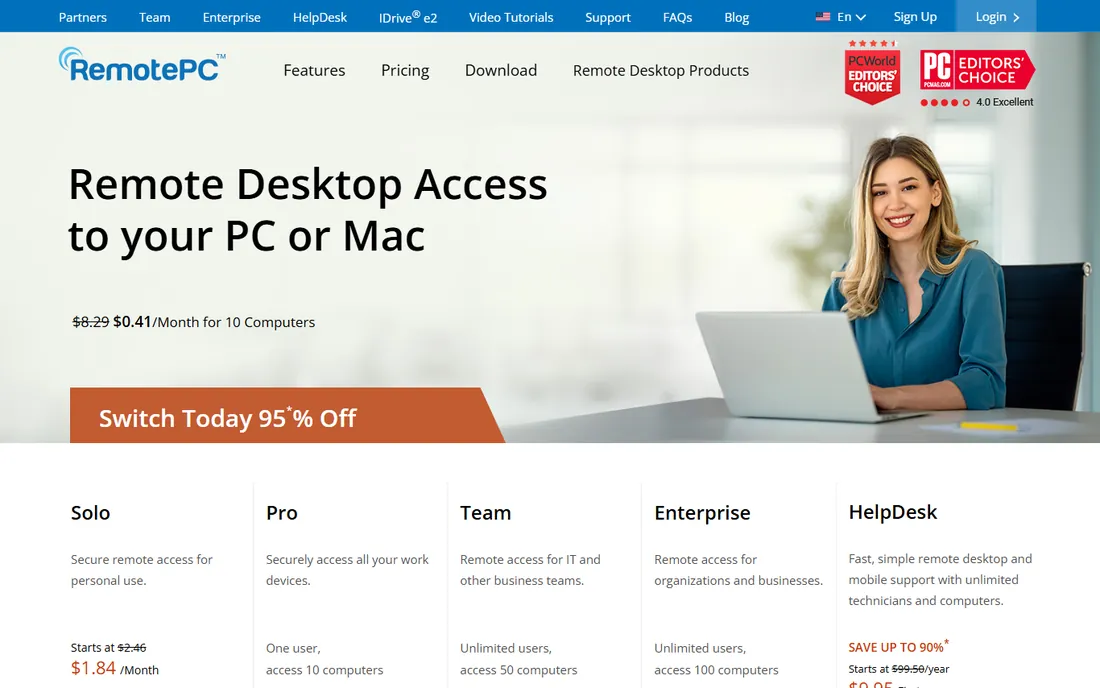
RemotePC, from the makers of IDrive backup, competes aggressively on price. The Solo plan starts at $1.84 per month on annual billing for personal access, and the Team plan covers 50 computers with unlimited users at a flat rate that undercuts per-seat competitors significantly. A 7-day free trial lets you test before paying.
Features are surprisingly complete for the money: file transfer, remote printing, session recording, multi-monitor support, chat, and browser-based access through Viewer Lite. HelpDesk, a separate product for support teams, starts at $99.50 per year with unlimited technicians.
The honest catch is polish. The interface looks older than TeamViewer or Splashtop, and session performance on weak connections is not class-leading. But if your priority is reliable remote access at the lowest possible price, RemotePC is hard to argue with.
What we like- Extremely low prices
- Unlimited users on Team plans
- Browser-based access with no install
Watch out for- Interface feels dated
- Performance lags the fastest rivals on poor connections
Starting price$6 per month (Solo, billed annually)
Free planFree trial
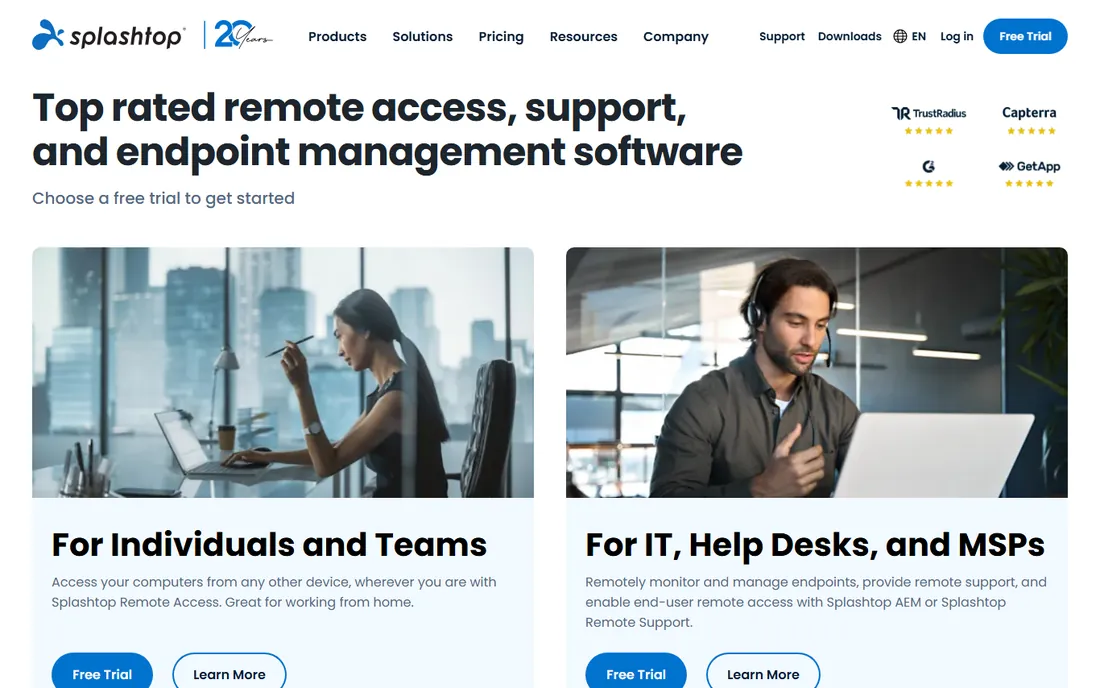
Splashtop is the performance pick for people who need their remote desktop to feel local. The Solo plan at $6 per month on annual billing gives individuals fast, secure access to their computers from any device, with file transfer, remote printing, and chat included. Pro and Performance tiers add multi-monitor support, session recording, and high-fidelity audio and video.
The company has invested heavily in security, with SOC 2, ISO 27001, and GDPR compliance, and its remote support products serve IT departments, help desks, and MSPs with endpoint management and patching built in. Thirty million users and broad Fortune 500 adoption suggest the platform is proven at scale.
The tradeoff is the pricing model. Per-user pricing means costs grow linearly with team size, while flat-rate rivals like RemotePC stay cheap for large groups. For individuals and small teams who value speed and quality, though, Splashtop hits a sweet spot.
What we like- Excellent speed and video quality
- Strong security certifications
- Good value for individuals and teams
Watch out for- Per-user pricing adds up for large teams
- Advanced features need higher tiers
Starting price$10 per technician/month (Standard, billed annually)
Free planYes (free plan)
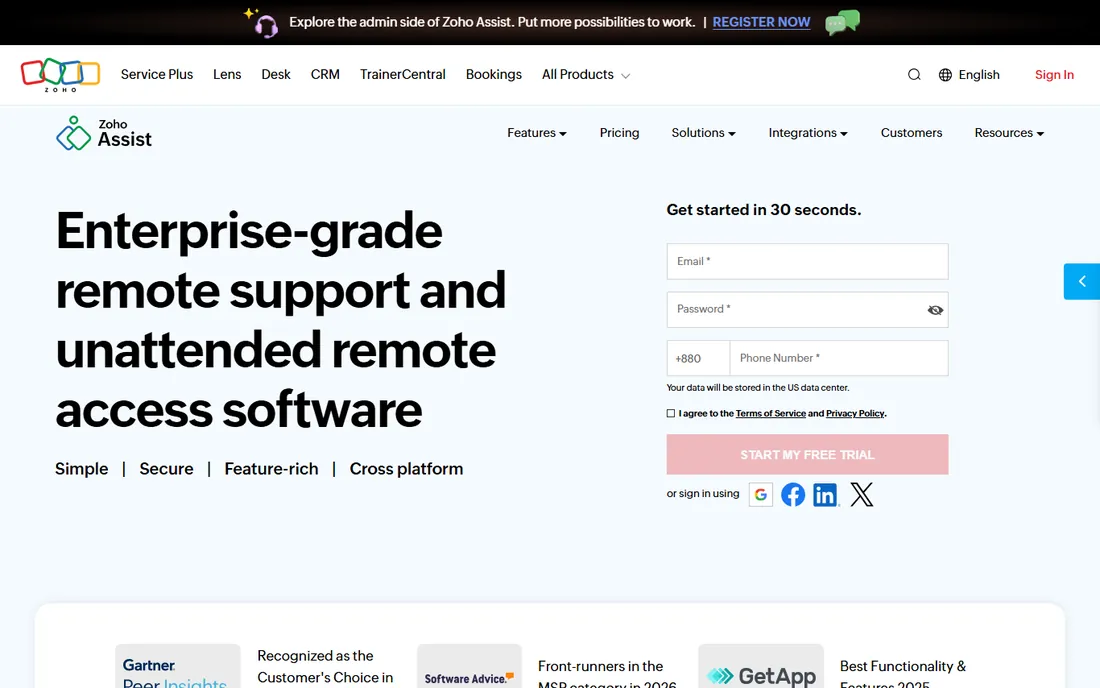
Zoho Assist is the remote support tool for teams watching their budget. Standard starts at $10 per technician per month on annual billing for unlimited ad-hoc support sessions, and a free plan covers basic needs. Unattended access plans start at the same $10 for 25 computers, which is remarkable value.
The feature list punches above the price: file transfer, multi-monitor navigation, reboot and reconnect, session transfer, voice chat, and integrations with Zendesk, Jira, and ServiceNow. Higher tiers add session recording, remote printing, mobile device support, and rebranding. For Zoho users, the ecosystem integration is a bonus.
The honest catch is refinement. The interface and session quality are good but not quite at TeamViewer or Splashtop levels, and some advanced capabilities sit in the Professional and Enterprise tiers. For small IT teams and MSPs starting out, the price-to-feature ratio is the best here.
What we like- Very affordable per-technician pricing
- Free plan available
- Integrates with the Zoho ecosystem
Watch out for- Less polished than premium rivals
- Advanced features require higher tiers
Starting priceSee website
Free planFree trial (14 days)
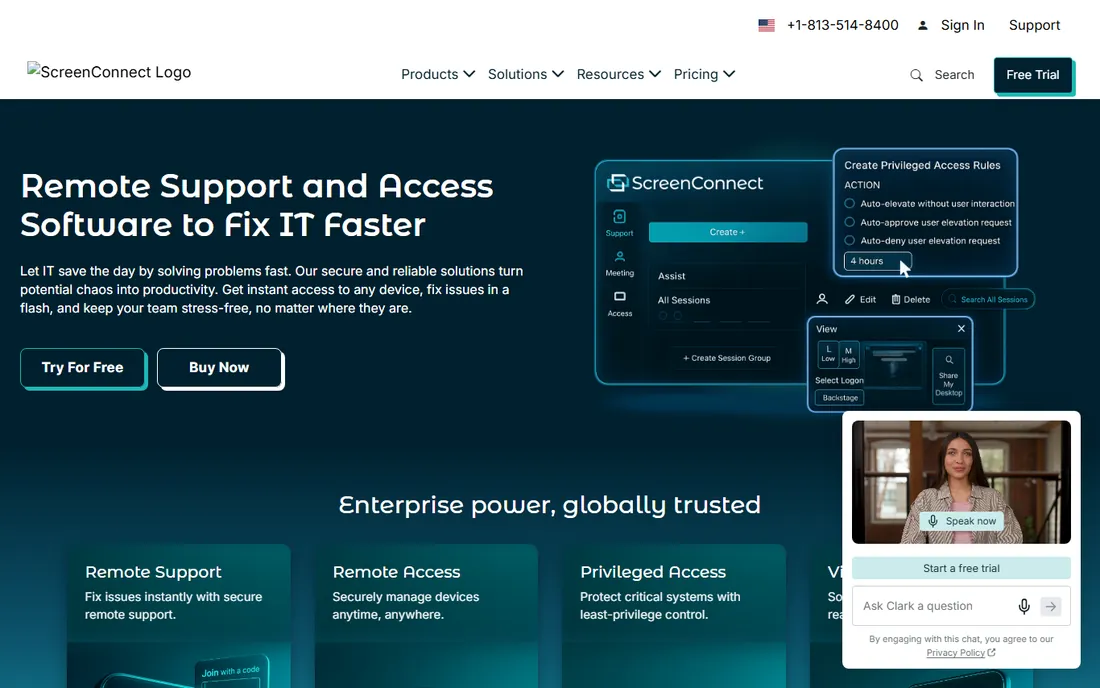
ScreenConnect, from ConnectWise, is remote support software designed by and for IT professionals. It goes beyond screen sharing with background troubleshooting tools, command-line access, script execution, and event-driven automations that can resolve issues before users notice them. A 14-day free trial is available.
What sets it apart is depth for technicians. The Toolbox lets teams share scripts and tools across sessions, Backstage enables invisible background access, and extensions add over a hundred integrations. Cloud or on-premises hosting gives security-conscious organizations full control over their data.
The catch is accessibility. Pricing is not published, and everything about ScreenConnect assumes a professional IT audience. Casual users wanting to access their home PC will find it overkill. For MSPs and internal IT departments that live in remote support, it is one of the most capable tools available.
What we like- Built for IT professionals with deep tools
- On-premises or cloud hosting
- Strong automation and scripting
Watch out for- Pricing not published
- Aimed at technicians, not casual users
Starting price$0
Free planYes
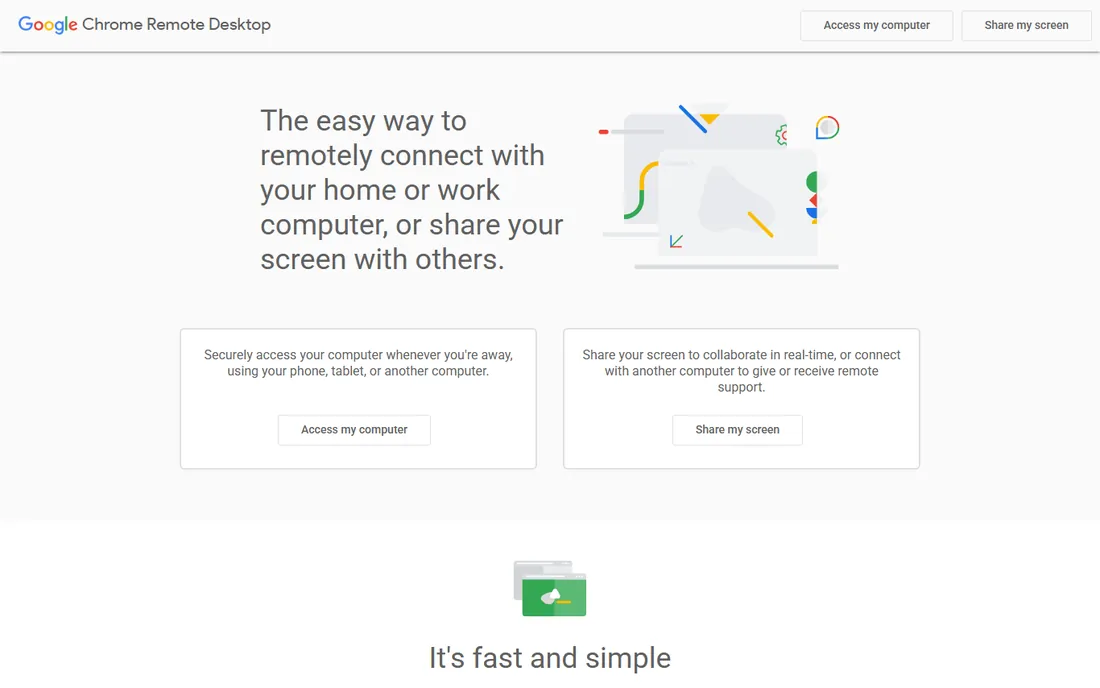
Chrome Remote Desktop is Google's free remote access tool, and its appeal is simplicity. Install the extension, set a PIN, and you can reach your computer from any browser or the mobile app. There are no plans, no trials, and no feature gates. It just works.
For personal use, occasional remote work, or helping a family member with their computer, it covers the core need: seeing and controlling a distant screen securely over Google's infrastructure. Setup takes minutes and there is nothing to configure.
The limits are clear. There is no chat during sessions, no session recording, no remote printing, and no multi-user management. It is not a tool for IT departments or support businesses. But for free personal remote access, nothing is easier.
What we like- Completely free with no limits
- Simplest setup of any tool here
- Works in the browser
Watch out for- No chat, session recording, or remote printing
- Not suited for professional IT support
Starting price$0
Free planYes
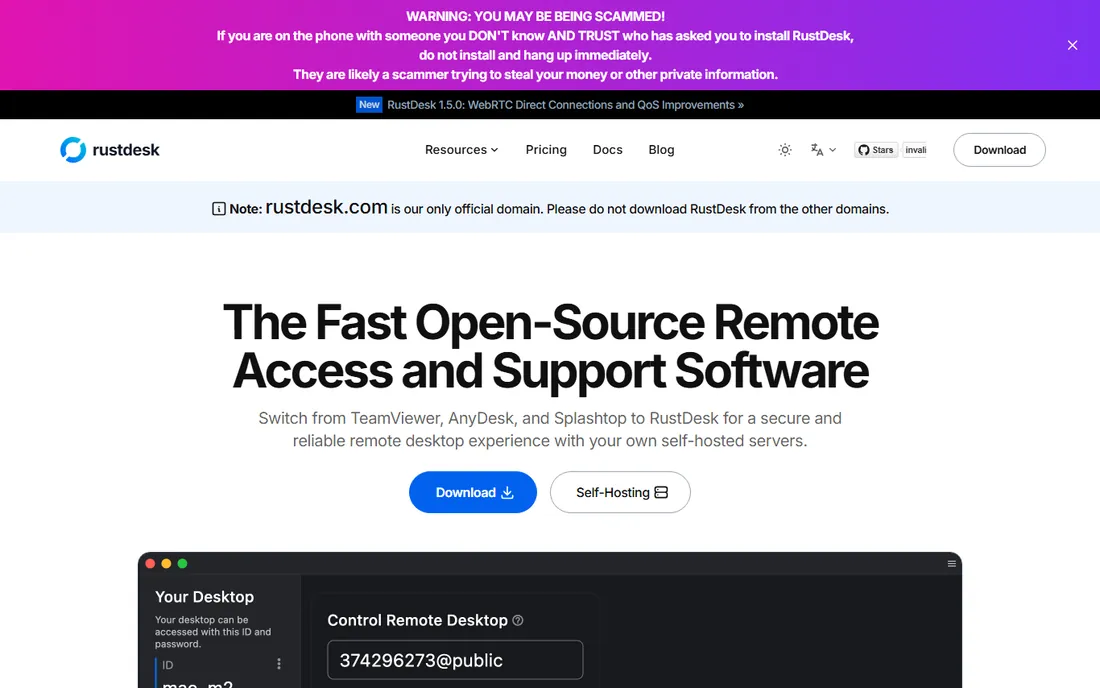
RustDesk is the open-source answer to TeamViewer, and it has grown fast, with over 113,000 GitHub stars and millions of downloads. The software is free, and its standout feature is self-hosting: run the relay server on your own infrastructure with Docker, and your remote sessions never touch a third party's servers.
For privacy-conscious businesses, that control is the whole point. Data stays in your network, which simplifies compliance, and there are no subscription fees or session limits imposed by a vendor. The client runs on Windows, Mac, Linux, and Android, with a web client available for self-hosted setups.
The tradeoff is effort. Self-hosting requires someone comfortable with servers and networking, and the free public relay can be slower than commercial alternatives. Support comes from the community, not a help desk. For teams with the technical chops, RustDesk offers remarkable capability at zero cost.
What we like- Free and open source
- Self-hosting keeps data fully under your control
- No vendor lock-in
Watch out for- Self-hosting requires technical skill
- Public servers can be slower
- Smaller support ecosystem
How we chose
We focused on remote desktop and remote access software that small and mid-size businesses can buy and deploy without enterprise sales cycles. We checked current pricing on vendor homepages, read documentation for platform support and security features, and weighed public reviews from G2, Capterra, and Reddit. We included both commercial and free options since many small teams mix them, and we left out products with no verifiable current homepage.
What to check before you buy remote access software
Decide whether you need access or support. Remote access means reaching your own computers unattended, which suits remote workers. Remote support means helping other people with their computers, which needs invitation links, session tools, and technician workflows. Some tools do both well; others specialize.
Check the security story. Remote access software is a prime target for attackers, so look for encryption standards, two-factor authentication, and compliance certifications that match your industry. Free tools are fine for personal use but rarely carry the certifications businesses need.
Count your devices and users honestly. Pricing models vary wildly: per user, per technician, per computer, or flat rate. A five-person team accessing ten computers pays very different amounts across these vendors, so model your actual usage against each pricing page.
Test performance on your real network. Remote desktop quality depends on bandwidth and latency, and marketing claims do not always hold up. Run trials from the actual locations where people will work, including home internet connections, before committing.
Attended vs unattended access: what is the difference
Attended access means someone is at the remote computer to accept the connection. This is the model for IT support: the user shares a code or clicks accept, and the technician takes over. Every tool on this list supports it.
Unattended access means connecting to a computer with nobody there, using stored credentials. This is the model for remote work: you reach your office PC from home at midnight. Most tools support it, but some restrict it to paid plans or specific products.
Many businesses need both. Victor's agents need unattended access to their office machines, while Victor himself needs attended sessions to support them. When comparing plans, confirm that both modes are included in the tier you plan to buy.
Frequently asked questions
Is free remote desktop software safe to use?
Reputable free tools like Chrome Remote Desktop and RustDesk use strong encryption and are safe for personal use. The bigger risk is social engineering: scammers often ask victims to install remote access software. Only grant access to people you trust, and use strong unique passwords or PINs.
What is the cheapest remote desktop software for business?
RemotePC has the lowest paid prices, starting at $1.84 per month for individuals, and Splashtop Solo at $6 per month is also affordable. Zoho Assist starts at $10 per technician per month for support teams. Free options like RustDesk cost nothing but require more setup.
Can I use TeamViewer for free commercially?
No. TeamViewer's free license covers personal, non-commercial use only. Business use requires a paid plan, and TeamViewer actively detects commercial use on free accounts. If you need free commercial remote access, consider RustDesk or Chrome Remote Desktop within their terms.
Do I need a VPN for remote desktop software?
No. Modern remote desktop tools establish encrypted connections through the vendor's servers or your own relay, so no VPN is needed. Some security-conscious organizations still prefer self-hosted options like RustDesk or ScreenConnect's on-premises version for full control.
How many devices can I access with remote software?
It depends on the plan. AnyDesk Solo allows up to 100 managed devices, RemotePC Team covers 50 computers with unlimited users, and Zoho Assist's unattended plan starts at 25 computers. Check the device limits on the tier you are considering, since overage policies vary.
Will remote desktop work on a slow internet connection?
It depends on the tool. AnyDesk and Splashtop are known for performing well on limited bandwidth thanks to efficient codecs. Chrome Remote Desktop and basic tools may feel laggy. If your team works from areas with poor connectivity, prioritize tools known for low-bandwidth performance and test during the trial.
Sources we checked (10)
- https://teamviewer.com/
- https://anydesk.com/
- https://www.remotepc.com/
- https://www.splashtop.com/
- https://www.zoho.com/assist/
- https://screenconnect.com/
- https://remotedesktop.google.com/
- https://rustdesk.com/
- https://www.zoho.com/assist/pricing.html
- https://www.splashtop.com/pricing
Is your product missing or out of date?
We review this list regularly. Vendors can request a listing, send updated pricing or ask about featured placement.

Shihab Mia · Founder, Rankite
Shihab has spent more than a decade helping SaaS and e-commerce brands grow through search. He writes Rankite's software buying guides from pricing pages, documentation and public user reviews. More about Shihab.