How we make this list: we compare pricing pages, product documentation and public user reviews. Rankite is independent; if a vendor ever pays for a featured spot, that listing is clearly labeled Partner.
Key takeaways
- Most people do not need to buy anything: OBS Studio, Xbox Game Bar and ShareX record for free with no watermark.
- Loom wins for quick team updates because the share link matters more than the recording itself.
- Camtasia is the pick when the recording needs real editing afterward; it is priced for professionals who produce tutorials regularly.
- Game capture has its own demands (high frame rates, low overhead), and Bandicam and OBS handle those better than meeting-oriented tools.
Quick comparison
| Tool | Best for | Starting price | Free plan |
|---|
 OBS Studio OBS Studio | free pro-level capture and streaming | Free | Yes |
 Camtasia Camtasia | tutorials with polished editing | See website | Free trial |
 Loom Loom | fast async team messages | $18 per user/month | Yes |
 Snagit Snagit | short clips plus screenshots | See website | Free trial |
 Bandicam Bandicam | game and high-FPS capture | $33.26 per year | Free trial |
 Xbox Game Bar Xbox Game Bar | zero-install quick capture | Free | Yes |
 ShareX ShareX | lightweight capture and GIFs | Free | Yes |
 ScreenRec ScreenRec | instant cloud sharing | Free | Yes |
 ScreenPal ScreenPal | affordable all-rounder | See website | Yes |
Is your product missing or out of date?
We review this list regularly. Vendors can request a listing, send updated pricing or ask about featured placement.
The top recording software for PC
Starting priceFree
Free planYes
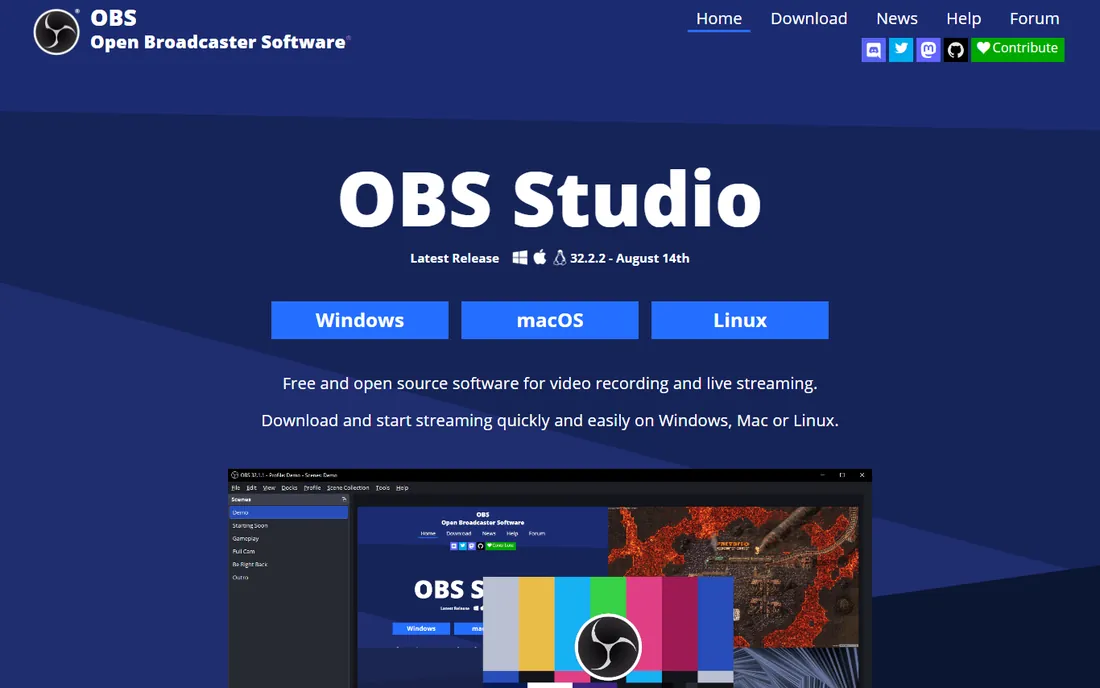
OBS Studio is the answer when someone asks for the best free screen recorder, and it has been for years. It captures your screen, webcam, audio sources and even capture cards, mixes them into scenes, and records or streams at whatever quality your hardware can handle. There is no watermark, no time limit and no paid tier. The project is backed by sponsors including YouTube, Twitch, NVIDIA and AMD, and the current 32.x releases keep it modern.
The catch is that OBS is a production tool, not a messaging tool. Setting up your first scene takes some learning, and when you finish recording you get a video file, not a share link. If you want to record a polished tutorial or stream gameplay with overlays, nothing free touches it. If you want to send a two-minute update to a coworker, Loom or ScreenRec will get you there faster.
What we like- Completely free and open source
- Unlimited recording with no watermark
- Scenes, sources and plugins for advanced setups
Watch out for- Intimidating first-run experience
- No built-in editor or cloud sharing
- You configure everything yourself
Starting priceSee website
Free planFree trial
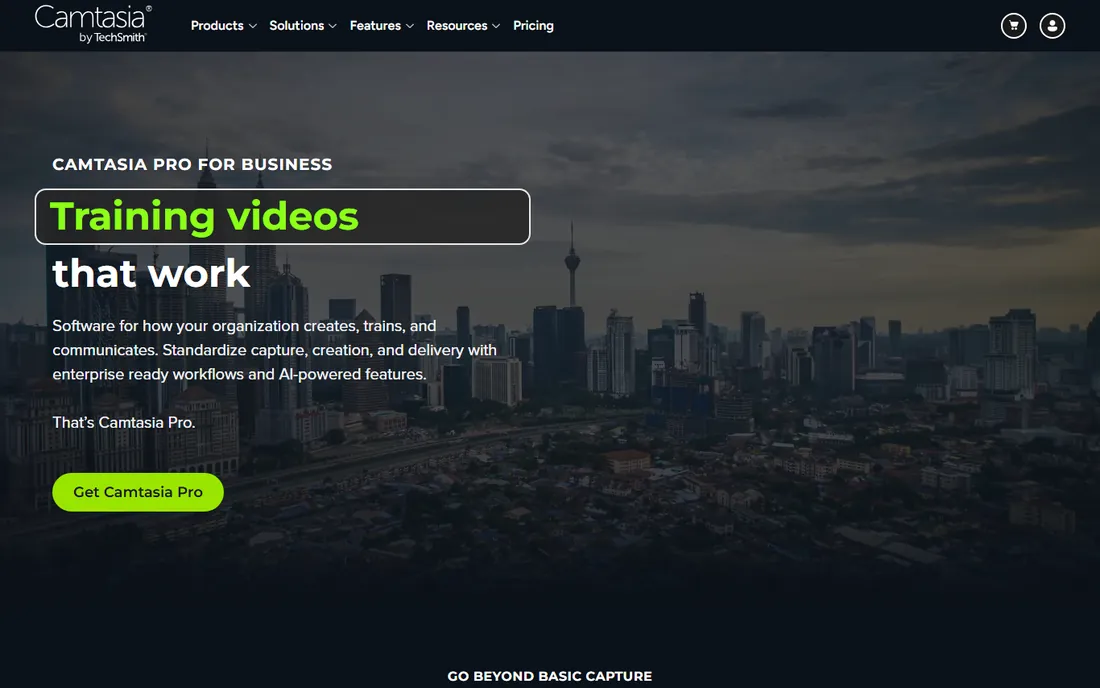
Camtasia is built for people who make tutorials for a living. You record your screen, and then you stay in the same app to edit: cut mistakes, zoom to focus attention, add callouts, captions and quizzes. The recording and the editing are designed as one workflow, which is exactly what course creators and corporate trainers need.
TechSmith now sells Camtasia as a subscription (the Essentials tier is the entry point), and the price reflects its professional positioning. A free trial lets you test the full workflow before committing. If you record occasionally, this is more tool and more money than you need. If you produce training content weekly, the editing side is what you are paying for.
What we like- Recorder plus real video editor in one package
- Great for courses and training libraries
- Reliable TechSmith support and updates
Watch out for- Priced for professionals
- Heavier than single-purpose recorders
- The subscription model replaced the old one-time purchase
Starting price$18 per user/month
Free planYes
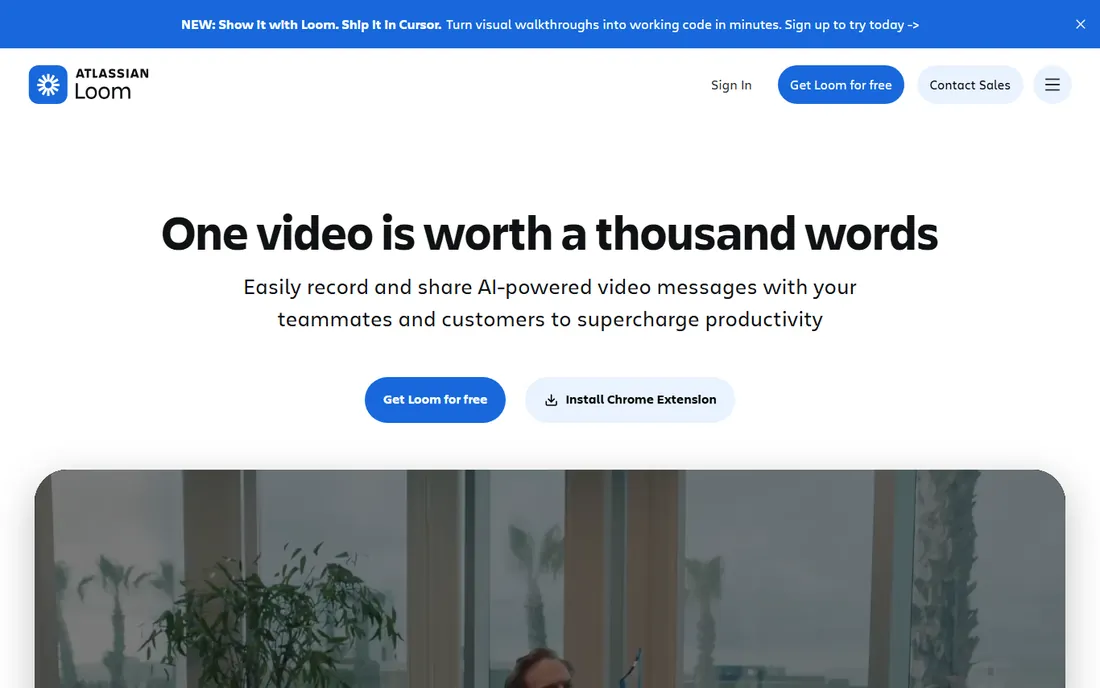
Loom understood something the other tools missed: the recording is not the product, the link is. You record your screen and camera, and Loom hands you a URL you can paste into Slack or email. Viewers watch in the browser, react with emoji, and leave timestamped comments. For remote teams, that loop replaces a shocking number of meetings.
The free Starter plan gives you 25 videos at up to 5 minutes each in 720p. Business at $18 per user per month removes the caps, adds 4K, editing, branding and downloads; a Business + AI tier at $24 adds AI summaries, chapters and filler-word removal. Check their pricing page for current terms. Loom is not the tool for hour-long tutorials or 120 FPS gameplay, but for async communication it is in a class of its own.
What we like- Record and get a share link in seconds
- Viewer analytics show who watched
- Strong integrations with Slack, Gmail and Jira
Watch out for- Free plan caps videos at 25 and 5 minutes each
- Recordings live in Loom's cloud
- Not built for long-form or game capture
Starting priceSee website
Free planFree trial
Snagit is TechSmith's other capture tool, now branded as Camtasia Snagit, and it serves a different job than Camtasia. It is the tool for "let me show you" moments: capture a region, annotate it with arrows and steps, record a quick clip, share. Support teams and technical writers live in it.
It records short videos well but it is not a video editor, so anything needing real post-production goes to Camtasia. The subscription is modest compared with Camtasia but still real money for what is essentially a capture utility. A free trial is available. If your work is documentation with occasional clips, Snagit fits; if your work is video, look at Camtasia or OBS.
What we like- Best-in-class screenshot annotation
- Quick short recordings without a learning curve
- Templates and stamps for documentation
Watch out for- Not a full video editor
- Annual subscription
- Overkill if you only need screenshots occasionally
Starting price$33.26 per year
Free planFree trial
Bandicam has been the gamer's recorder for over a decade because it does one hard thing well: capturing DirectX, OpenGL and Vulkan games at high frame rates without tanking performance. It also handles screen, webcam and device capture, with scheduled recording for hands-off jobs. Recent versions add AI transcription and webcam background removal.
The official store sells an Annual license at $33.26 per year and a Perpetual license for the current version at $53.90, with business licenses priced higher. The free version works but watermarks recordings and limits their length. Note the license terms: the Personal license is for non-commercial use, so businesses need the Business license. For gameplay on Windows, it remains one of the best values in the category.
What we like- Excellent game capture with low overhead
- Scheduled recording and device capture
- Cheap annual license
Watch out for- Windows only
- Free version watermarks and limits recording length
- Interface is functional, not beautiful
Starting priceFree
Free planYes
The fastest screen recorder on your PC is the one you already have. Press Win+G and the Xbox Game Bar overlay appears; press Win+Alt+R and it starts recording. No download, no account, no watermark. For capturing a quick bug repro or a game clip to send a friend, nothing beats it for speed.
It is honest about its limits. Game Bar records the active app well but it is not a tutorial studio: annotation, editing and multi-source mixing are absent, and it can be finicky with some full-screen applications. Think of it as the always-available backup. When you need more, graduate to OBS or Bandicam; until then, Game Bar is free and instant.
What we like- Already installed on Windows 10 and 11
- Win+G shortcut, instant recording
- No watermark, no account, no cost
Watch out for- Basic features only
- Game-focused, awkward for full tutorials
- Recording length and quality options are limited
Starting priceFree
Free planYes
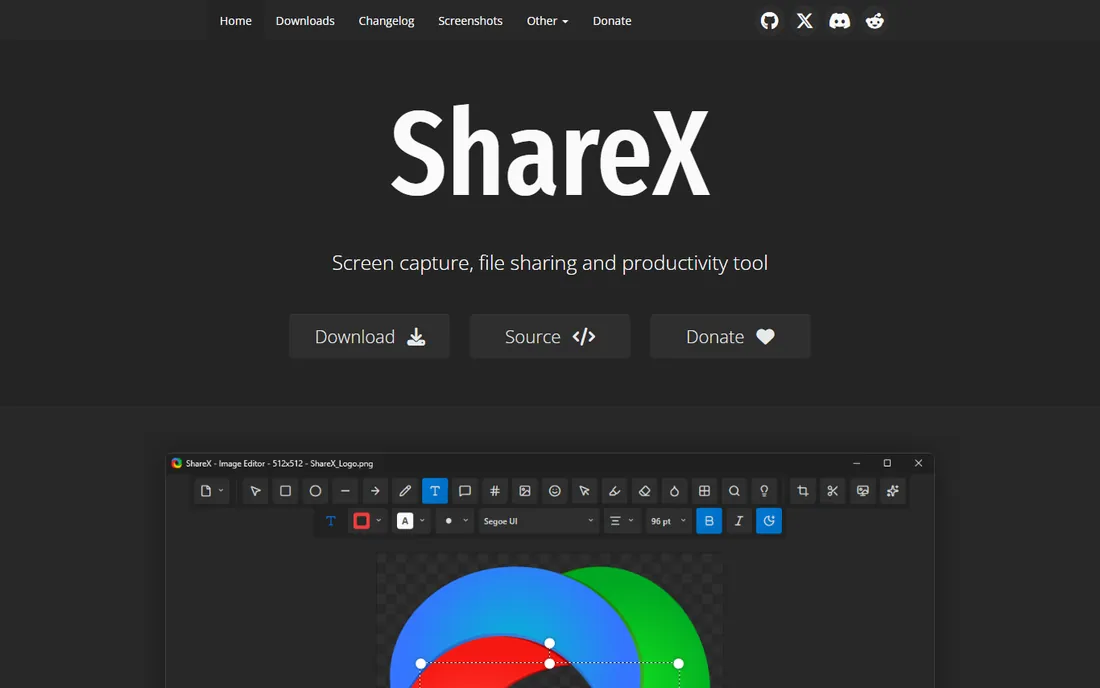
ShareX is famous as a screenshot tool, but its screen recording deserves more attention. It captures regions or full screen to video or animated GIF, and it does it inside a free, open-source app that also handles color picking, image effects, OCR and uploads to dozens of destinations. On an older PC where OBS feels heavy, ShareX sips resources.
The interface is pure utility: powerful, but nobody will call it pretty. Recording options are straightforward rather than deep, so streamers and tutorial producers will want more. For quick captures, GIFs for documentation, and bug reports on Windows, it is the lightest serious option here.
What we like- Free and open source
- Screen recording plus GIF capture plus a huge toolset
- Tiny footprint on old PCs
Watch out for- Windows only
- Utilitarian interface
- Recording features are simpler than dedicated recorders
Starting priceFree
Free planYes
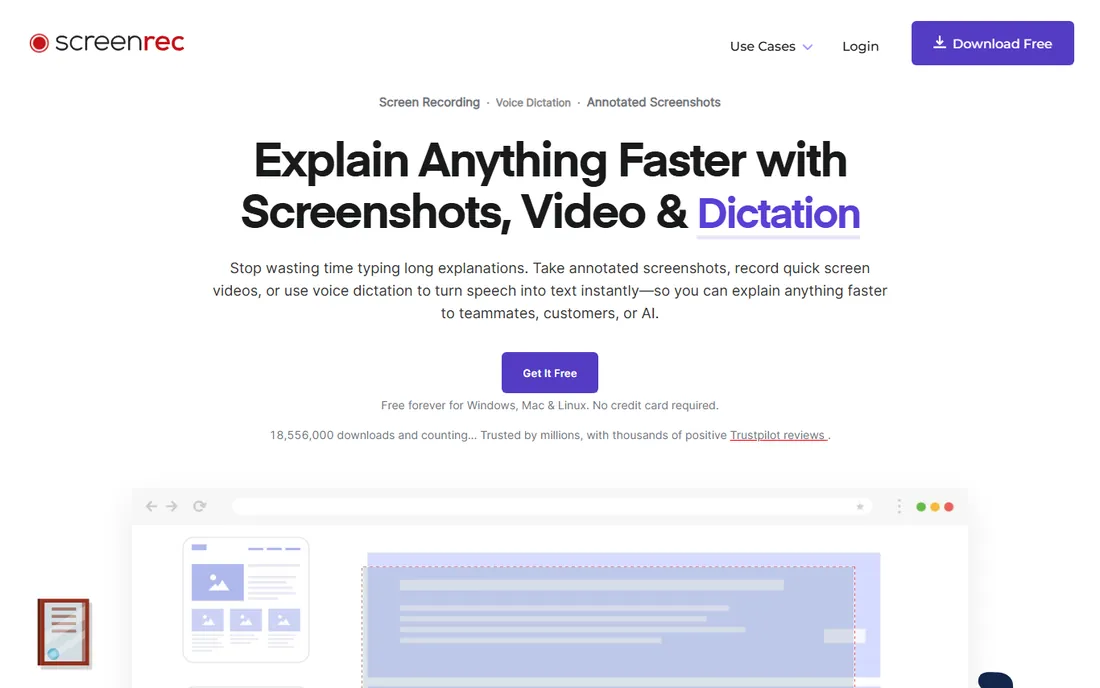
ScreenRec takes the Loom idea and makes it free. Record your screen, microphone and webcam, and the moment you stop, a private share link is copied to your clipboard. The video uploads to ScreenRec's encrypted cloud as you record, so there is no waiting around for a render and upload step.
The free plan is genuinely usable with no watermark, which makes it the budget answer to Loom for quick sharing. The trade-offs: your recordings live on their servers by default, and the editing tools are basic. If you need deep editing, pair it with something else; if you need "record, link, done," it is hard to beat at the price.
What we like- Free with no watermark
- Private share links the moment you stop recording
- Encrypted cloud storage included
Watch out for- Cloud-first model means recordings upload by default
- Editing is minimal
- Business features need a paid plan
Starting priceSee website
Free planYes
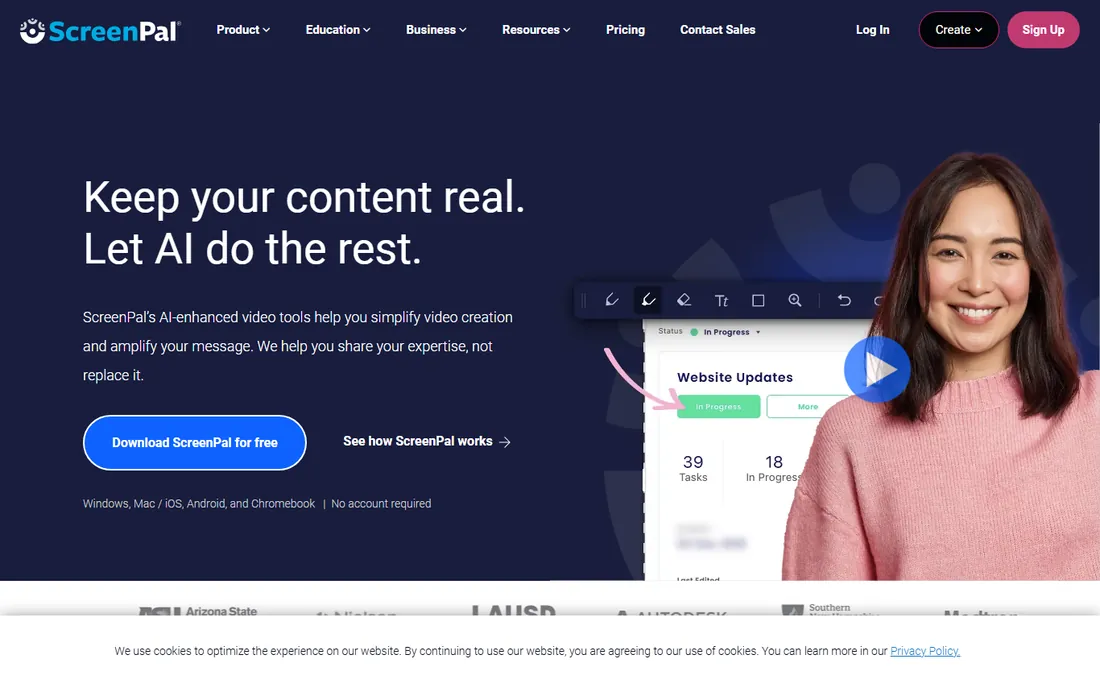
ScreenPal (formerly Screencast-O-Matic) is the value all-rounder. It records screen and webcam, offers a straightforward editor with AI captions and transcripts, hosts your videos, and shares them with a link. It runs on Windows, Mac, Chromebook and mobile, which makes it popular in schools and distributed teams.
The free plan covers short recordings with limits on length and hosting; paid tiers start at a few dollars a month and stay cheap compared with Camtasia or Loom Business. Check their current pricing page for the exact tiers. It will not replace a real editor for ambitious projects, but as the one tool that does everything adequately for very little money, it earns its place.
What we like- Recorder, editor, hosting and sharing in one
- Very affordable paid tiers
- Strong in education
Watch out for- Editing is simpler than Camtasia
- Free plan limits recording length and hosting
- Interface shows its age
Pick by recording job, not by feature list
Screen recorders look similar on a feature table and feel very different in use. The right choice follows the job.
Tutorials and courses
You need editing, captions and a clean final file. Camtasia is the purpose-built answer; OBS plus a separate editor is the free answer; ScreenPal is the budget middle ground.
Game capture
You need high frame rates with minimal performance hit. Bandicam and OBS are the Windows answers; Xbox Game Bar is the instant free fallback.
Team updates and async messages
You need a link, not a file. Loom leads, ScreenRec is the free alternative, and both beat "record, export, upload to Drive, share" by minutes per message.
Quick bug reports and documentation
You need speed and annotation. Xbox Game Bar for instant capture, ShareX for GIFs and uploads, Snagit when the capture needs markup.
The hidden costs: storage, editing and sharing
The recorder is often the cheapest part of the workflow. A month of tutorials can eat hundreds of gigabytes, so check where recordings live: local disk (OBS, Bandicam, ShareX), vendor cloud (Loom, ScreenRec, ScreenPal) or your choice. Cloud hosting is convenient until you hit the plan's storage cap.
Editing is the second hidden cost. Tools with real editors (Camtasia, ScreenPal, Loom Business) save you buying or learning separate software. Tools without one (OBS, Game Bar, ShareX) hand you a file and wish you luck. Sharing is the third: link-based tools remove the upload step entirely, which matters more than any feature when you share ten videos a day.
How we chose
We started from the recorders people actually use on Windows: community recommendations, existing roundups and download charts. Each tool was verified to exist today and to fit PC screen recording (game capture, tutorials or meetings). We opened every vendor homepage, read the pricing pages that rendered (Loom and Bandicam show current prices directly), and checked plan limits, free tiers and license terms. We cross-checked capabilities against documentation and public reviews on G2, Capterra and Reddit. We did not run hands-on recording benchmarks; this is a comparison of published specs, terms and long-term user feedback.
Frequently asked questions
What is the best free screen recorder for PC?
OBS Studio, for full control with no watermark or time limit. If OBS feels like too much, Xbox Game Bar is already on your PC and records instantly, and ShareX is the lightest free option for quick captures and GIFs.
Do I need a powerful PC to record my screen?
Not for basic recording. Xbox Game Bar, ShareX and ScreenRec run fine on modest hardware. OBS and game capture at high frame rates benefit from a decent CPU or GPU with hardware encoding (NVIDIA NVENC, AMD or Intel Quick Sync), which most PCs from the last several years have.
Can I record my screen and webcam at the same time?
Yes, in most tools here. OBS, Camtasia, Loom, Bandicam, ScreenRec and ScreenPal all support picture-in-picture webcam overlays. Xbox Game Bar and ShareX are more limited here, focused on the screen itself.
How do I record a Zoom or Teams meeting?
Use any screen recorder and set the audio source to capture system sound. OBS and Bandicam handle this well; Loom and ScreenRec work too. Note the legal side: meeting recording consent laws vary by US state, so tell participants you are recording.
Why does my recording lag or drop frames?
Usually the encoder cannot keep up. Lower the recording resolution or frame rate, switch to hardware encoding if available, close heavy background apps, and record to an SSD rather than a nearly full hard drive. Game capture is the most demanding case.
Which recorder is best for YouTube tutorials?
Camtasia if you want recording and editing in one paid package. OBS Studio if you want the best free option and do not mind learning it. Either way, plan for editing time: the recording is usually the quick part.
Sources we checked (10)
- https://obsproject.com/
- https://techsmith.com
- https://loom.com/
- https://www.loom.com/pricing
- https://bandicam.com/
- https://www.bandicam.com/buy/
- https://www.xbox.com/
- https://getsharex.com
- https://screenrec.com/
- https://screenpal.com/
Is your product missing or out of date?
We review this list regularly. Vendors can request a listing, send updated pricing or ask about featured placement.

Shihab Mia · Founder, Rankite
Shihab has spent more than a decade helping SaaS and e-commerce brands grow through search. He writes Rankite's software buying guides from pricing pages, documentation and public user reviews. More about Shihab.