How we make this list: we compare pricing pages, product documentation and public user reviews. Rankite is independent; if a vendor ever pays for a featured spot, that listing is clearly labeled Partner.
Key takeaways
- Ezgif is the fastest no-signup converter: upload an MP4, set start and end points, download the GIF.
- MakeAGif pulls from YouTube links, uploads and your webcam, with a free account that stores everything.
- CloudConvert gives the most control over quality, resolution and frame rate, with 25 free conversions a day.
- Kapwing and Adobe Express wrap the converter in a real editor, so you can trim, caption and resize first.
- Canva and Piktochart Video suit teams that design the GIF, not just convert it.
Quick comparison
| Tool | Best for | Starting price | Free plan |
|---|
 Ezgif Ezgif | Quick no-signup MP4 to GIF conversion with frame controls | Free | Yes |
 MakeAGif MakeAGif | GIFs from YouTube links, uploads and webcam captures | Free (Premium available) | Yes |
 CloudConvert CloudConvert | High-quality conversions with quality and format settings | Free (25 conversions/day) | Yes |
 Kapwing Kapwing | Editing the clip before converting (trim, captions, resize) | Free (watermarked); Pro from $16/month billed annually | Yes |
 Adobe Express Adobe Express | Polished GIFs with trim and aspect-ratio tools | Free (video-to-GIF quick action) | Yes |
 Canva Canva | Designing GIFs with text, graphics and brand elements | Free; Pro from $144/year billed annually | Yes |
 Convertio Convertio | Simple drag-and-drop conversion with no learning curve | Free (100MB file limit) | Yes |
 Piktochart Video Piktochart Video | Repurposing webinar and training clips into GIFs | Free (no watermark) | Yes |
Is your product missing or out of date?
We review this list regularly. Vendors can request a listing, send updated pricing or ask about featured placement.
The best free MP4 to GIF software
#1
Ezgif
Best for: Quick no-signup MP4 to GIF conversion with frame controls
Visit ezgif.com
Starting priceFree
Free planYes
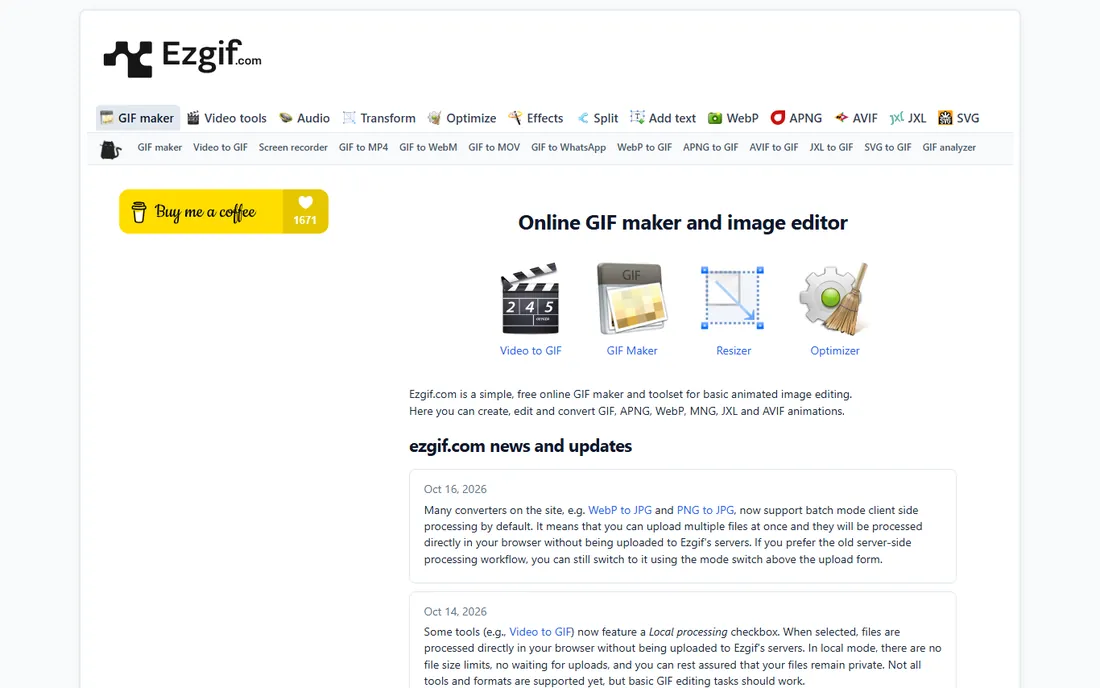
When speed is all that matters, Ezgif wins. Open the video-to-GIF page, upload your MP4 or paste a video URL, set the start and end points, pick a frame rate and size, and download the result. There is no account, no trial clock and no watermark. Behind the plain interface sit serious open source engines: FFmpeg for video handling, gifsicle and gifski for the actual GIF encoding, which is why the output quality holds up.
The limits are the ones you would expect from a free utility. Files much over 100MB may need trimming first, and the site earns its keep through ads. There is also no cloud library or project saving: convert, download, done. For a marketer or support writer who needs a GIF in two minutes, that is exactly right.
What we like- No account or installation needed
- Precise control over start time, duration, frame rate and size
- Handles MP4, AVI, MOV, WebM and more
Watch out for- Interface looks dated
- Uploads capped around 100MB
- Ads sit around the tools
#2
MakeAGif
Best for: GIFs from YouTube links, uploads and webcam captures
Visit makeagif.com
Starting priceFree (Premium available)
Free planYes
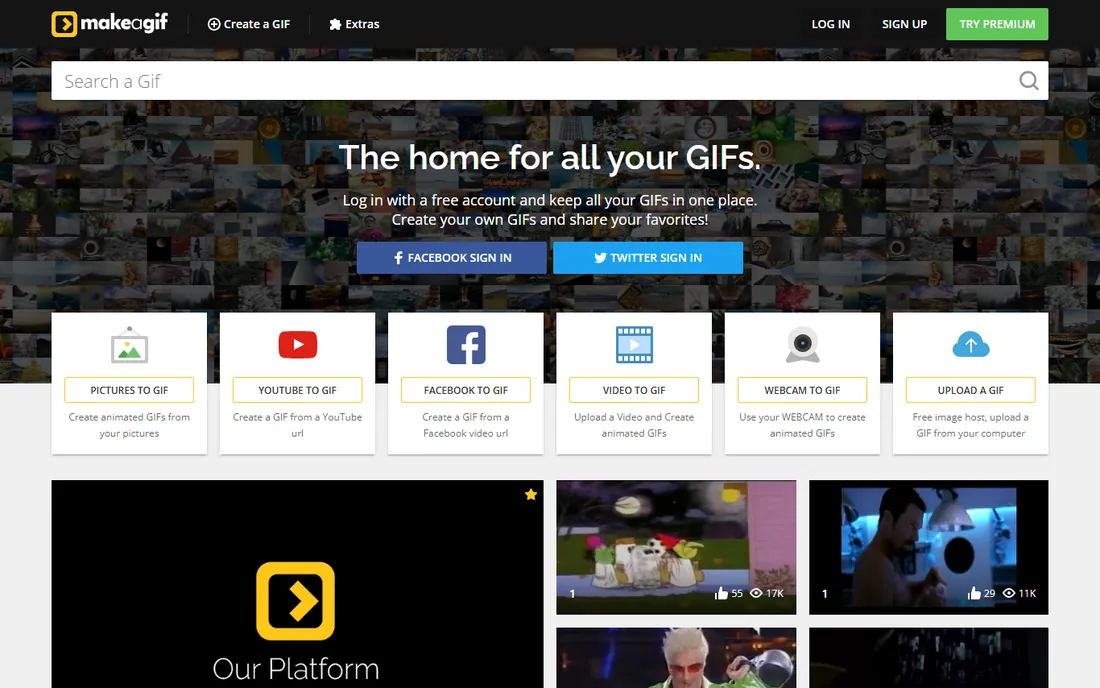
MakeAGif is the multi-source option. Instead of only accepting an uploaded file, it converts YouTube and Facebook video URLs, webcam recordings, pictures and straight video uploads into GIFs. Paste a YouTube link, mark the start time and length (up to about 10 seconds for that route), and the GIF is ready. A free account keeps every GIF you make in one library, which is handy when the team reuses the same clips.
The free tier covers the core job well, with captions, cropping and rotation included. High-definition output, custom watermarks and faster processing sit behind the Premium plan, whose current price is on the vendor site. Editing depth is lighter than Kapwing or Adobe Express: this is a converter with a few extras, not an editor. When the source is a YouTube clip or a webcam take rather than a file on your disk, MakeAGif is the shortest path.
What we like- Converts YouTube and Facebook URLs, video uploads and webcam footage
- Free account stores all your GIFs in one place
- Captions, cropping and rotation built in
Watch out for- Free GIFs are standard definition, HD needs Premium
- Fewer editing tools than full editors
Starting priceFree (25 conversions/day)
Free planYes
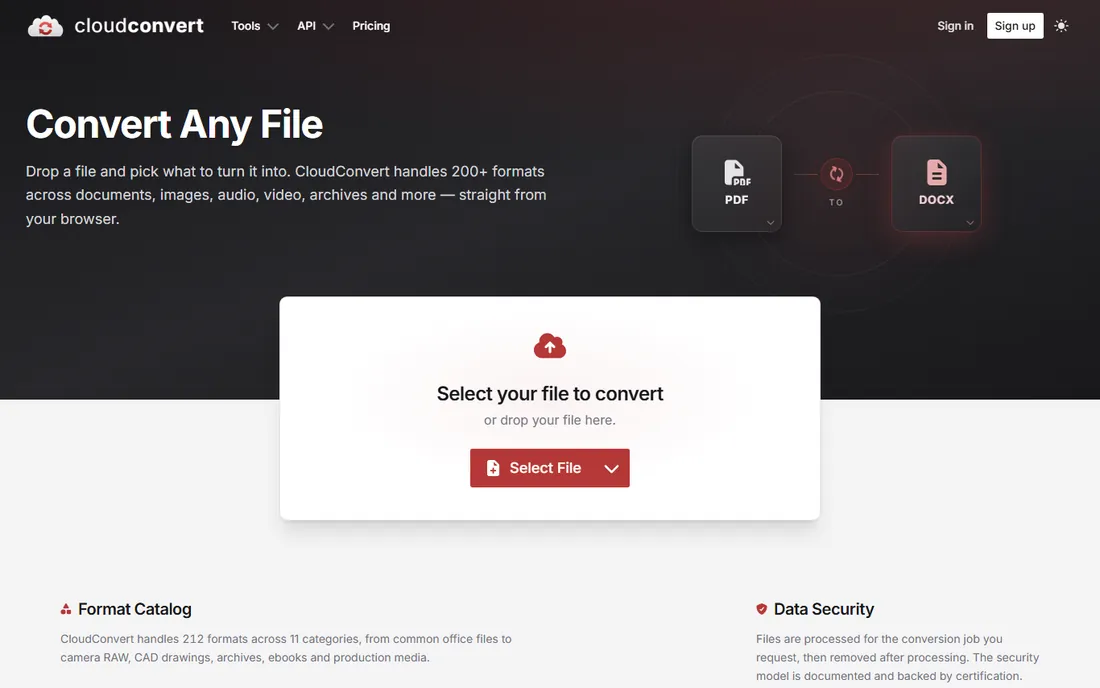
CloudConvert is the converter for people who care about output quality. The free tier gives you 25 conversions a day, and unlike most free tools there is no watermark on the result. Before converting you can set the resolution, frame rate, aspect ratio and quality, which matters when a GIF has to look sharp on a retina display without ballooning to ten megabytes. It handles far more than MP4 to GIF: hundreds of audio, video, document and image formats.
The business model is conversion minutes rather than a flat subscription, with one-time packages and monthly plans for heavier use. For occasional GIF work the free tier is plenty, and the API makes it a good fit for teams that need to convert user-uploaded videos automatically. The interface is utilitarian, and support on the free tier is limited to docs and forums, but the conversions themselves are reliable.
What we like- 25 free conversions per day with no watermark
- Control over resolution, frame rate, codec and quality
- API available for automated workflows
Watch out for- Heavy users need a paid plan (see website)
- The conversion-minutes pricing model takes a minute to understand
#4
Kapwing
Best for: Editing the clip before converting (trim, captions, resize)
Visit kapwing.com
Starting priceFree (watermarked); Pro from $16/month billed annually
Free planYes
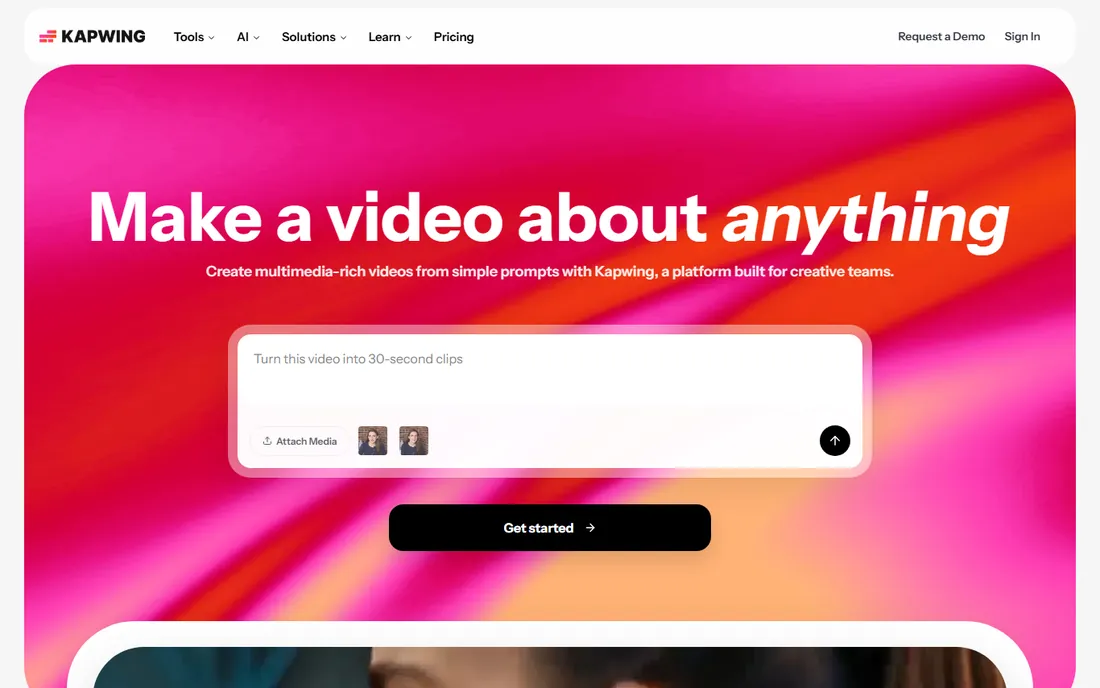
Kapwing treats GIF conversion as one step inside a bigger editing workflow. Upload your MP4, trim it on a timeline, add auto-generated subtitles, drop in text or effects, resize for the platform, then export as a GIF. For social teams that produce a lot of short video content, doing the edit and the conversion in one browser tab saves real time. The free plan includes most core tools and AI features on a credit system.
The catch is the free export: every free download carries a Kapwing watermark and is capped at one minute and 720p. The Pro plan, $16 per month billed annually (or $24 month to month), removes the watermark, raises exports to 4K and extends length to two hours. If you only need a quick clean GIF now and then, the watermark is a dealbreaker and Ezgif is the better call. If you edit video weekly, Kapwing earns its keep.
What we like- Full browser editor around the converter: trim, subtitles, effects and resize
- Clean exports up to 4K on paid plans
- Collaboration and templates for teams
Watch out for- Free exports carry a watermark and cap at one minute
- The Pro plan is the realistic minimum for regular use
#5
Adobe Express
Best for: Polished GIFs with trim and aspect-ratio tools
Visit adobe.com
Starting priceFree (video-to-GIF quick action)
Free planYes
Adobe's free video-to-GIF converter lives inside Adobe Express and asks for nothing: no install, no payment, just an upload. Drop in an MP4, AVI, MKV, WEBM or FLV clip up to a minute long, choose a size preset based on where the GIF will live (large for quality, medium for social, small for easy sharing), trim the clip, adjust the aspect ratio to square, wide or portrait, and download. The tool is powered by Premiere-grade encoding, so quality is consistently good.
Because it is a quick action rather than a full editor, you will not find frame-by-frame control or advanced optimization settings here. If you want those, open the result in the Adobe Express editor and keep working. For business users the appeal is trust and convenience: it is Adobe, it is free, it works on a phone, and the output looks professional without any fiddling.
What we like- Free quick-action converter with size presets for sharing destinations
- Trim and aspect-ratio controls built in
- Same workflow on desktop and mobile
Watch out for- Clips limited to one minute
- The full Adobe Express Premium plan is separate (see website)
#6
Canva
Best for: Designing GIFs with text, graphics and brand elements
Visit canva.com
Starting priceFree; Pro from $144/year billed annually
Free planYes
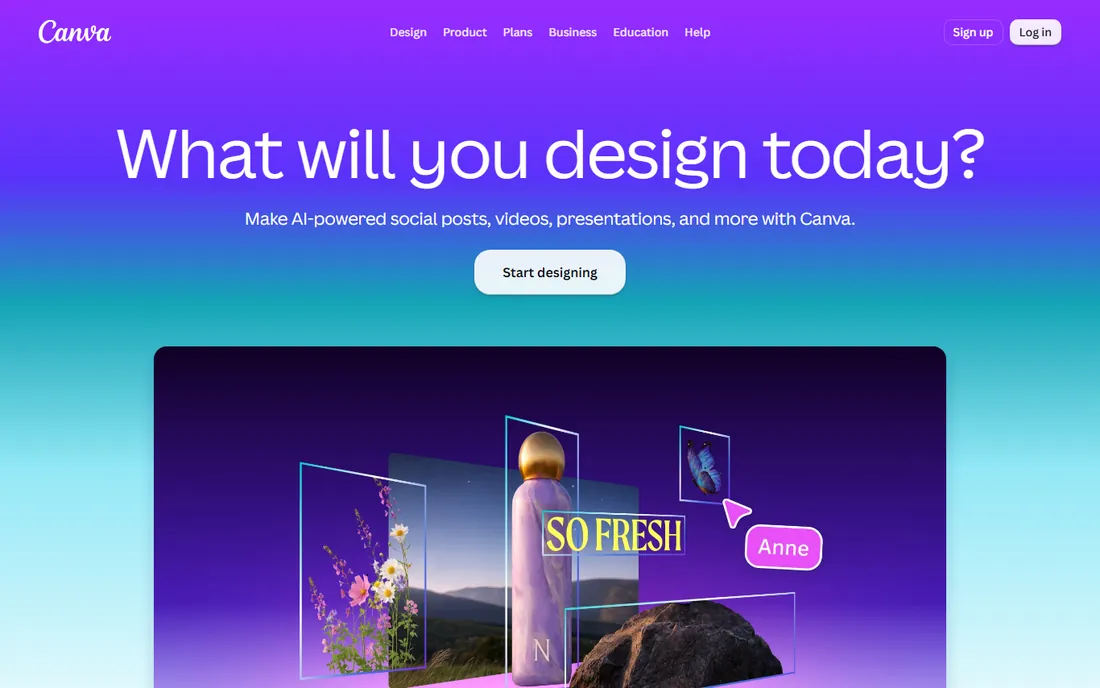
Canva approaches GIFs from the design side rather than the conversion side. You build the animation from templates, stock video, text and graphics, then export as a GIF. That makes it the right tool when the GIF needs your brand fonts, a headline overlay and a call to action, like a promo banner or an email header. The free plan includes thousands of templates, millions of stock assets and 5GB of storage, which covers a lot of marketing work.
As a straight MP4-to-GIF converter it is less precise than Ezgif or CloudConvert: you are designing rather than transcoding, and fine control over frame rate and dithering is limited. The Pro plan at $144 per year billed annually adds the full stock library, background remover and 100GB of storage. Use Canva when the GIF is a designed asset. Use a converter when the GIF is a faithful clip of a video.
What we like- Huge template and stock library for designed GIFs
- Simple animation and text tools
- Free plan is genuinely usable for everyday work
Watch out for- GIF export is basic next to dedicated converters
- Premium stock and brand tools need Pro
#7
Convertio
Best for: Simple drag-and-drop conversion with no learning curve
Visit convertio.co
Starting priceFree (100MB file limit)
Free planYes
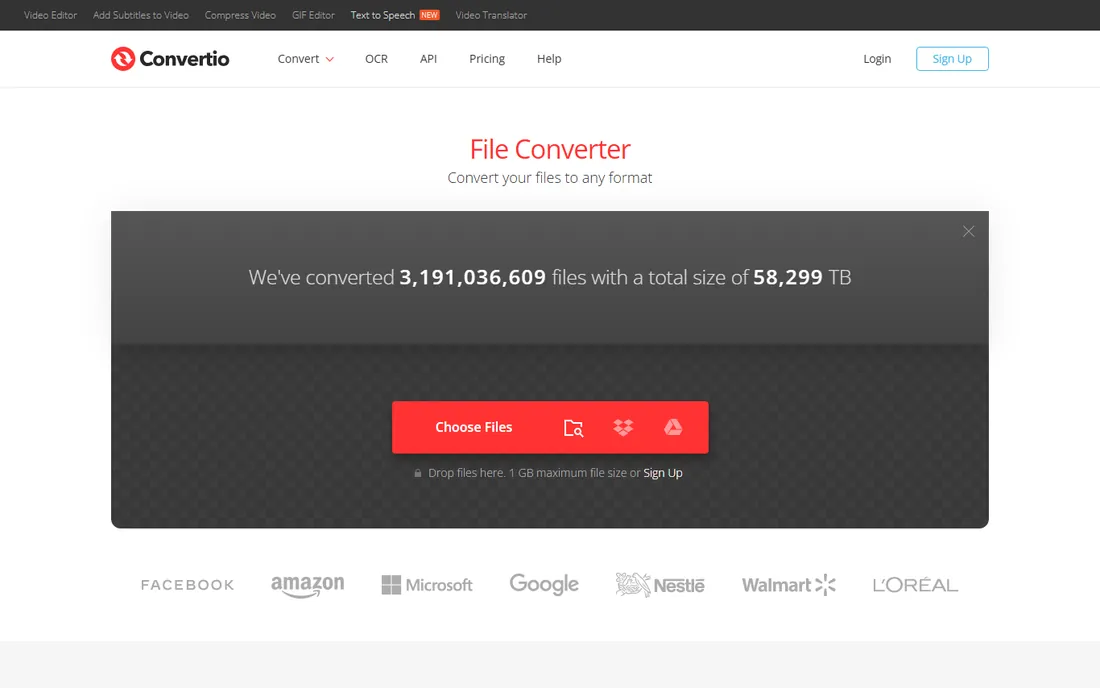
Convertio is the simplest tool on this list. Drag an MP4 onto the page, choose GIF as the target, hit convert, download. There are no settings to learn and no account needed for the occasional file, which makes it a good bookmark for non-technical teammates. The free tier handles files up to 100MB with a daily conversion allowance, and files are deleted from the servers after processing.
The simplicity is also the ceiling. You get none of Ezgif's frame controls or CloudConvert's quality settings, and the free limits arrive quickly if you convert daily. Paid plans raise the caps for regular users. For the one-off conversion where you just need it done, Convertio is hard to beat. For anything repeated or quality-sensitive, graduate to a tool with real settings.
What we like- Extremely simple: upload, pick GIF, download
- Supports a huge range of formats
- Nothing to install
Watch out for- Free tier caps file size and daily conversions
- Paid plans needed for regular use (see website)
Starting priceFree (no watermark)
Free planYes
Piktochart Video earns its spot with an unusual combination: a free plan that exports without a watermark and includes monthly AI credits. It is designed for turning longer content like webinars, demos and training recordings into short clips, with auto-captioning and formatting for different platforms, and GIF is one of the export options. If your GIFs come from slicing up a 30-minute recording rather than converting a 5-second clip, this workflow fits better than a bare converter.
It is not a precision GIF tool. You will not find dithering controls or per-frame editing, and the feature set beyond the free tier requires a paid plan. But for content teams that live in repurposing mode, getting watermark-free GIFs out of the same tool that cuts the clips is a genuine advantage.
What we like- Free plan exports with no watermark
- Monthly AI credits for captions and repurposing
- Exports MP4 and GIF from the same project
Watch out for- Built for repurposing long videos, not precision GIF tuning
- Advanced features sit behind paid plans
How we chose
We compared the conversion flow each tool documents on its own site: upload an MP4, convert to GIF, and what you get for watermarks, quality options and download friction. We read each vendor's pricing and limits pages, plus current reviews on G2, Capterra and Reddit, to confirm the free tiers are real in 2026 and not trials in disguise. Tools whose free tier turned out to be a time-limited trial, or that shut down, were excluded. We favored tools a small business team can actually use: no mandatory installs, honest free tiers and exports that look decent.
Every tool on this list runs in the browser, and for MP4 to GIF work that is the right call. Browser converters need no install, work on any machine including a borrowed laptop, and handle the occasional GIF perfectly well. Upload speeds are the only real constraint: a 500MB screen recording will take a while to upload, and some tools cap uploads around 100MB on free tiers.
Desktop apps like Photoshop or dedicated GIF software make sense in exactly one situation: you convert GIFs all day and want batch processing, keyboard shortcuts and offline work. For everyone else, the browser wins on convenience. One caution applies to all online converters: your video uploads to someone else's server during conversion. For public marketing clips that is fine. For unreleased product footage or anything confidential, convert locally or check the vendor's file-deletion policy first.
What to check before you convert
A bad GIF is almost always a settings problem, not a tool problem. Run through these checks and your output will look twice as good.
Match the clip length to the job
GIFs have no audio and get heavy fast. Five to ten seconds is the sweet spot for demos and reactions. Longer clips balloon in file size and lose viewers. Trim ruthlessly before converting: most tools on this list include a trimmer, and cutting dead air at the start and end of the clip is the single biggest quality win.
Watch the frame rate and dimensions
A 30fps full-HD clip makes a gorgeous GIF that weighs eight megabytes and loads slowly on mobile. Dropping to 15fps and 480 to 720 pixels wide usually looks nearly identical in a chat window or help doc at a fraction of the size. Ezgif and CloudConvert expose these settings directly. If your tool does not, keep clips short instead.
Check for watermarks before you commit
Free plans pay their bills somehow. Ezgif, MakeAGif, CloudConvert, Adobe Express and Piktochart Video export clean GIFs on their free tiers. Kapwing watermarks free exports, and Convertio keeps its free tier clean but small. If the GIF represents your company, a watermark is not acceptable, so verify this before you build a workflow around a tool.
Frequently asked questions
Can I convert MP4 to GIF without installing software?
Yes. Every tool on this list runs in a browser: upload the MP4, convert, download the GIF. Ezgif and Convertio need no account at all, while MakeAGif and Adobe Express ask for a free account. You only need desktop software if you convert in bulk daily or work fully offline.
Why do my GIFs look blurry or huge?
Blur comes from downscaling too aggressively or from a low frame rate on fast motion. Huge files come from long clips at high resolution and frame rate. Fix it by trimming the clip to the essential seconds, exporting around 480 to 720 pixels wide, and using 12 to 15 frames per second. Tools like Ezgif and CloudConvert let you set all three directly.
What is the best free MP4 to GIF converter with no watermark?
Ezgif is the best pure converter with no watermark and no account. CloudConvert also exports watermark-free on its free tier with better quality controls. Adobe Express and Piktochart Video are watermark-free too. Avoid Kapwing's free tier for final output, since every free export carries its watermark.
How long can a GIF be?
Technically there is no hard limit, but practical GIFs stay under 10 to 15 seconds. Beyond that, file sizes explode and most platforms and tools cap uploads. MakeAGif's YouTube route targets clips of about 10 seconds, Adobe Express caps input at one minute, and Kapwing's free tier caps exports at one minute. Trim first, convert second.
Are online GIF converters safe for business videos?
For public marketing material, yes. Your file uploads to the vendor's server for conversion, so check the file-deletion policy if the footage is sensitive. CloudConvert and Convertio delete files after processing, typically within hours. For unreleased products or confidential recordings, use a desktop tool or a vendor whose policy you have read.
Sources we checked (9)
- https://ezgif.com/about
- https://www.cyberlink.com/blog/photo-editing-best-software/751/best-gif-makers
- https://www.getapp.ie/software/121895/cloudconvert
- https://toolradar.com/tools/kapwing
- https://www.adobe.com/express/feature/video/convert/mp4-to-gif
- https://siteefy.com/tools/convertio
- https://piktochart.com/piktochart-video-vs-kapwing/
- https://procurementvms.com/vendors/canva-pricing-guide.html
- https://www.makeuseof.com/ways-to-turn-video-into-gif/
Is your product missing or out of date?
We review this list regularly. Vendors can request a listing, send updated pricing or ask about featured placement.

Shihab Mia · Founder, Rankite
Shihab has spent more than a decade helping SaaS and e-commerce brands grow through search. He writes Rankite's software buying guides from pricing pages, documentation and public user reviews. More about Shihab.