How we make this list: we compare pricing pages, product documentation and public user reviews. Rankite is independent; if a vendor ever pays for a featured spot, that listing is clearly labeled Partner.
Key takeaways
- Photoshop remains the professional standard, cheapest through the $9.99 per month Photography plan, but it is overkill for cropping alone.
- Photopea and GIMP give you pro-grade cropping free: Photopea in the browser, GIMP on the desktop.
- Fotor, Pixlr and BeFunky are the fast browser options for social sizes, collages and quick marketing graphics.
- iLoveIMG is the pick for batch work: crop, compress and convert folders of images without opening an editor.
- Paint.NET is the lightweight Windows classic: free, fast and complete.
Quick comparison
| Tool | Best for | Starting price | Free plan |
|---|
 Adobe Photoshop Adobe Photoshop | Professional cropping inside a full photo-editing workflow | $9.99/month (Photography plan, billed annually) | Free trial (7 days) |
 Photopea Photopea | Photoshop-style cropping free in the browser | Free; Premium from $5/month | Yes |
 GIMP GIMP | Free desktop cropping with pro-grade control | Free (open source) | Yes |
 Fotor Fotor | Fast browser cropping with batch processing | Free; Pro from $8.99/month | Yes |
 Pixlr Pixlr | Quick in-browser crops without an account | Free; Plus from $2.49/month | Yes |
 BeFunky BeFunky | Cropping plus collages and graphic design in one tab | Free; Plus from $6.99/month billed annually | Yes |
 iLoveIMG iLoveIMG | Cropping and batch-processing images at speed | Free; Premium $9/month or $60/year | Yes |
 Paint.NET Paint.NET | Windows users who want a fast free desktop cropper | Free | Yes |
Is your product missing or out of date?
We review this list regularly. Vendors can request a listing, send updated pricing or ask about featured placement.
The best image cropping software
#1
Adobe Photoshop
Best for: Professional cropping inside a full photo-editing workflow
Visit adobe.com
Starting price$9.99/month (Photography plan, billed annually)
Free planFree trial (7 days)
Nobody buys Photoshop just to crop, but if you already pay for it, its crop tool is the benchmark everything else is measured against. You get rule-of-thirds and golden-ratio overlays, one-click straightening, perspective crop for fixing skewed shots, and content-aware fill that rebuilds the background when you expand the canvas instead of shrinking it. Cropping is non-destructive, so the pixels outside the frame stay available if you change your mind.
The pricing reality: the single-app plan runs $22.99 per month, but photographers should take the Photography plan at $9.99 per month billed annually, which bundles Photoshop with Lightroom and Lightroom Classic for less money. There is a 7-day free trial and no free tier. For a business already in the Adobe ecosystem, cropping here keeps everything in one workflow. For everyone else, the free tools below do the same ten-second job.
What we like- Crop tool with content-aware fill, straightening and perspective correction
- Non-destructive cropping with full canvas control
- Pairs with Lightroom and the Adobe suite
Watch out for- Subscription only with no free tier
- Overkill and overpriced if cropping is all you do
Starting priceFree; Premium from $5/month
Free planYes
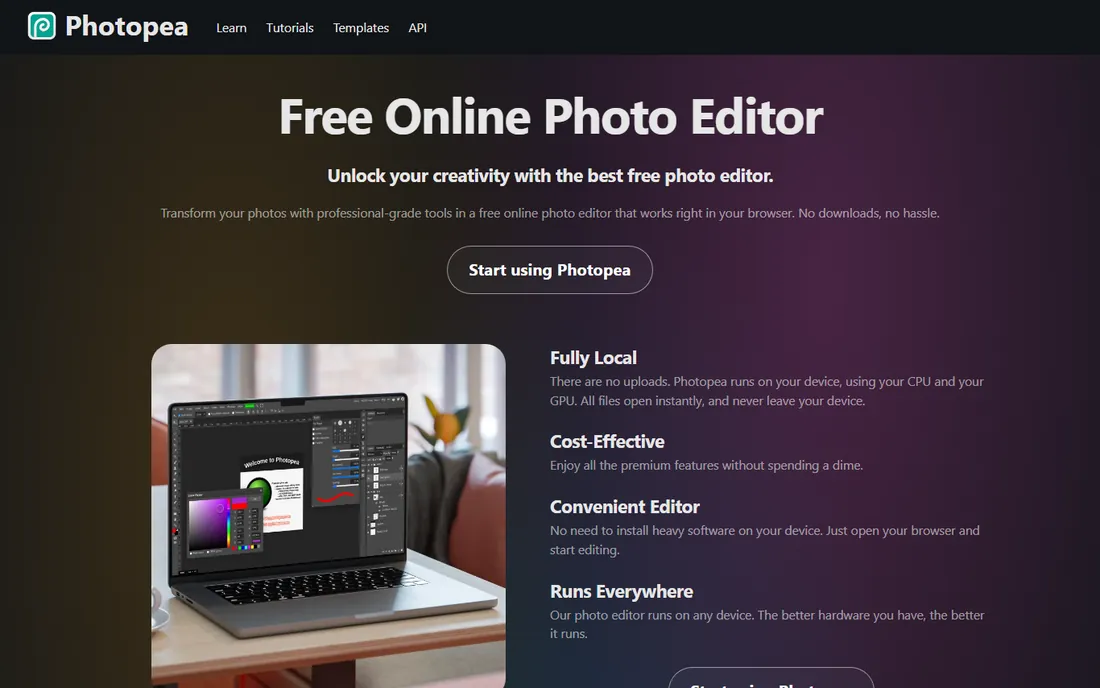
Photopea is the closest thing to Photoshop that costs nothing. It runs entirely in the browser, mirrors Photoshop's layout and toolset, and handles the files Photoshop users actually receive: PSD with layers intact, plus XCF, Sketch, XD, PDF, SVG and RAW formats. The crop tool includes straightening, perspective correction and fixed-ratio presets, and because files are processed locally in your browser rather than uploaded, it works for sensitive images too.
The free tier shows ads along the side of the editor, which some people find distracting while working. The Premium plan at $5 per month removes ads and adds cloud storage, AI credits and extra undo steps. Performance depends on your machine: everyday photos fly, while 500MB PSDs with a hundred layers can chug. For cropping product shots, screenshots and web graphics without installing anything, it is the best free option available.
What we like- Full crop, straighten and perspective tools in a Photoshop-like interface
- Opens PSD, XCF, Sketch, PDF and RAW files
- Everything processed locally in your browser
Watch out for- Ad-supported free tier can distract
- Very large multi-layer files can slow down
#3
GIMP
Best for: Free desktop cropping with pro-grade control
Visit gimp.org
Starting priceFree (open source)
Free planYes
GIMP has been the free desktop answer to Photoshop since 1995, and version 3.x brought a long-overdue interface refresh. For cropping specifically, it is precise: fixed aspect ratios, a library of composition guides, the ability to crop to selection, and full control over whether cropped pixels are deleted or kept. It runs on Windows, macOS and Linux, opens virtually every format including RAW, and the plugin ecosystem adds anything missing.
The honest cost is learning time. GIMP does not hold your hand, and simple tasks can hide behind unfamiliar menus until you learn them. There is also no cloud sync or mobile app to speak of. But nothing here phones home, shows ads or asks for money, ever. If you crop images regularly on a desktop and want a tool that respects both your wallet and your privacy, GIMP earns the afternoon it takes to learn.
What we like- Precise crop with guides, fixed aspect ratios and composition overlays
- Extensible with community plugins and scripts
- No account, no ads, no limits of any kind
Watch out for- Noticeable learning curve for beginners
- The interface shows its age
#4
Fotor
Best for: Fast browser cropping with batch processing
Visit fotor.com
Starting priceFree; Pro from $8.99/month
Free planYes
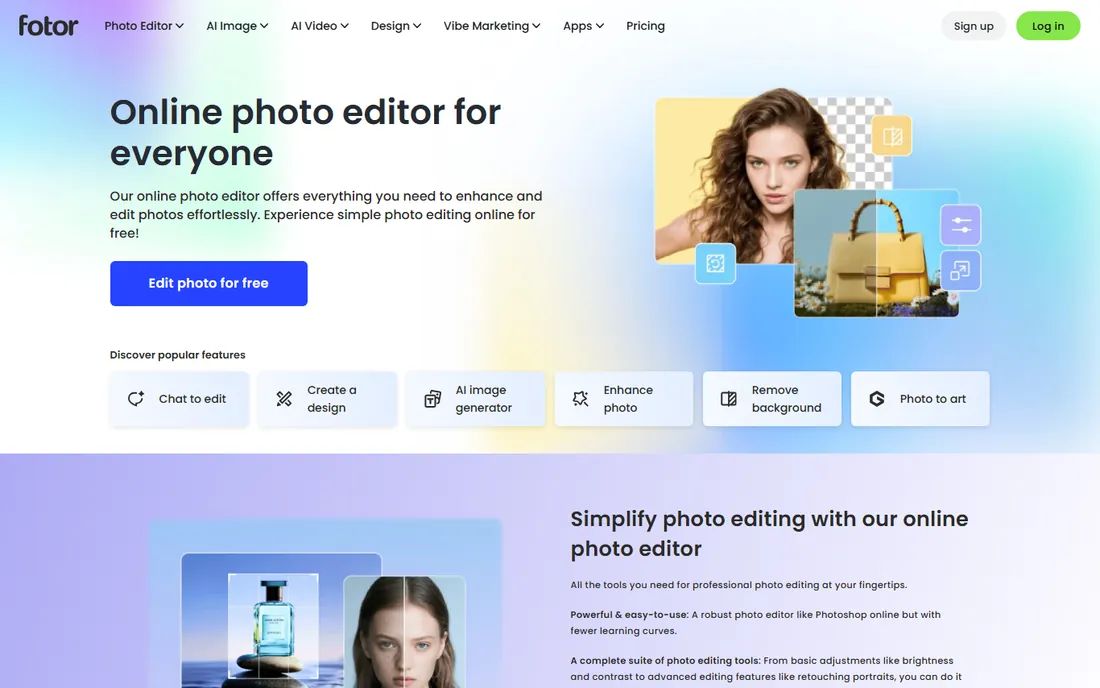
Fotor is built for speed. Open a photo, hit crop, pick a preset for Instagram, Facebook, YouTube or a custom ratio, and export. The whole flow takes under a minute, which is why social media managers and bloggers like it. Beyond cropping you get collage layouts, design templates, background removal and a growing set of AI editing tools, so it covers the full quick-marketing-graphic workflow in one browser tab.
The free tier is genuinely usable but watermarked, with HD exports and batch processing reserved for paid plans. Pro costs $8.99 per month, or $3.33 per month billed annually, and the Pro+ tier adds batch editing and bigger cloud storage for high-volume users. If you crop one image at a time for social posts, the free tier suffices. If you process product catalogs, the annual Pro plan is cheap for what it does.
What we like- One-click crop presets for every social platform size
- Batch cropping and editing on paid plans
- Collages, templates and AI tools in the same tab
Watch out for- Free exports carry watermarks and resolution limits
- The best AI features need a paid plan
#5
Pixlr
Best for: Quick in-browser crops without an account
Visit pixlr.com
Starting priceFree; Plus from $2.49/month
Free planYes
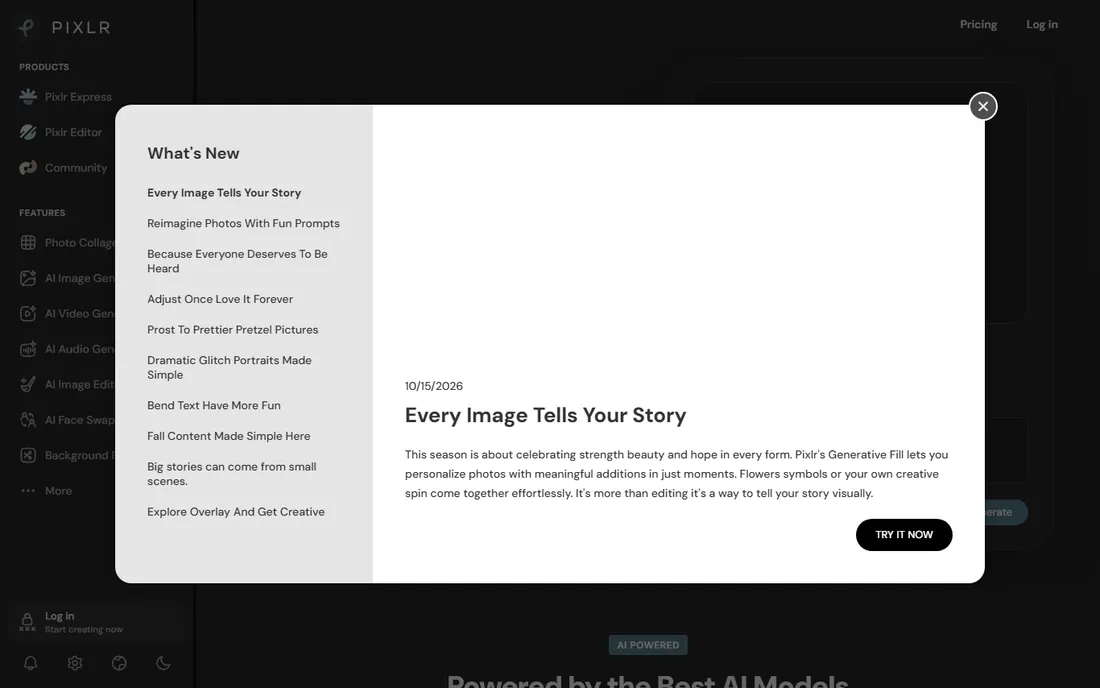
Pixlr gives you two tools for the price of none. Pixlr X (now Express) handles fast jobs with a clean interface, while Pixlr E (Editor) offers layers, masks and a deeper toolset for bigger edits. Both crop well, with social-size presets and freeform cropping, and both run in any modern browser with no install. The free tier includes AI background removal and a monthly AI credit pool, which is generous for a free product.
Ads fund the free tier, and there is a daily cap on saves that heavy users will hit. The Plus plan at $2.49 per month ($1.99 billed annually) removes ads and the save cap, while Premium and Ultra tiers add AI credits for generative work. Pixlr has operated since 2008 under the Inmagine Group, so it is a stable bookmark rather than a startup gamble. For quick crops on a borrowed computer, it is hard to beat.
What we like- Two editors in the browser: a quick one and a Photoshop-style advanced one
- Crop presets plus freeform with ratio locks
- Free tier covers most everyday edits
Watch out for- Ads on the free tier
- Daily save limits nudge regular users toward paid plans
#6
BeFunky
Best for: Cropping plus collages and graphic design in one tab
Visit befunky.com
Starting priceFree; Plus from $6.99/month billed annually
Free planYes
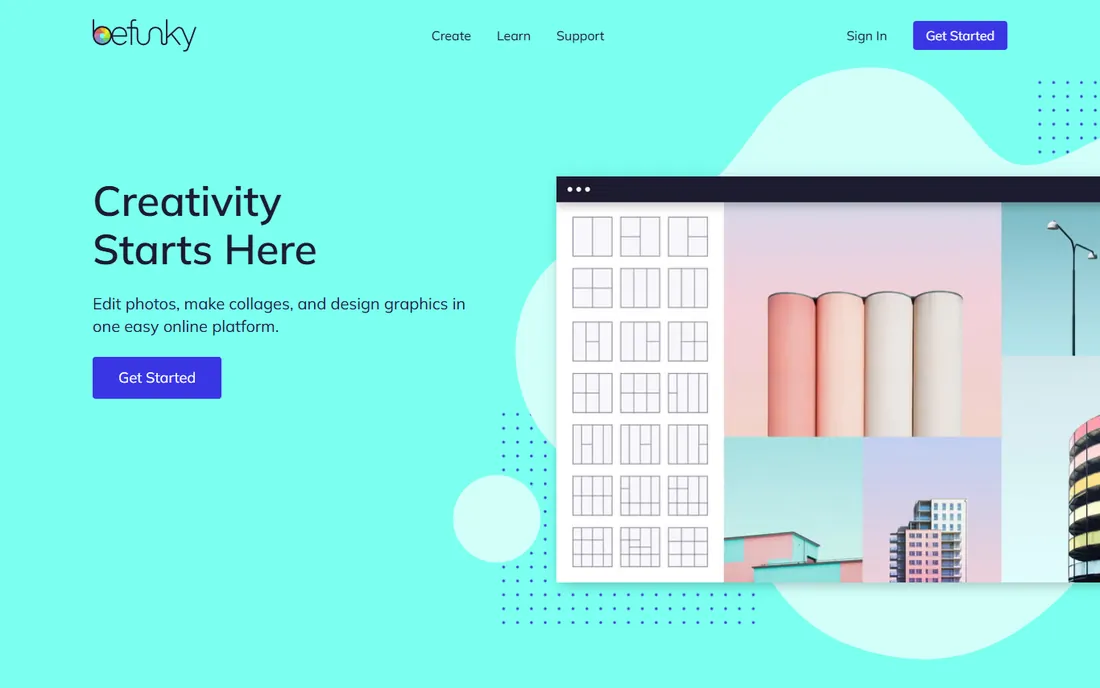
BeFunky bundles three tools that small businesses usually buy separately: a photo editor, a collage maker and a graphic designer. Crop a headshot, drop it into a collage layout, add text and export a promo graphic without leaving the tab. The interface is friendly to non-designers, with batch editing, AI background removal and portrait touch-up tools on the paid tier.
Pricing is simple: a free plan with limited features and watermarked exports, and BeFunky Plus at $6.99 per month billed annually ($14.99 month to month) removing every limit. There is no cheaper middle tier, which stings if you only want watermark-free cropping. For teams that make collages, social graphics and cropped photos in equal measure, the all-in-one workflow justifies it. For pure cropping, the free tools above do the job.
What we like- Photo editor, collage maker and graphic designer in one place
- Batch photo editing on the Plus plan
- Approachable enough for non-designers
Watch out for- Free plan watermarks exports and limits features
- A single paid tier means no middle ground
Starting priceFree; Premium $9/month or $60/year
Free planYes
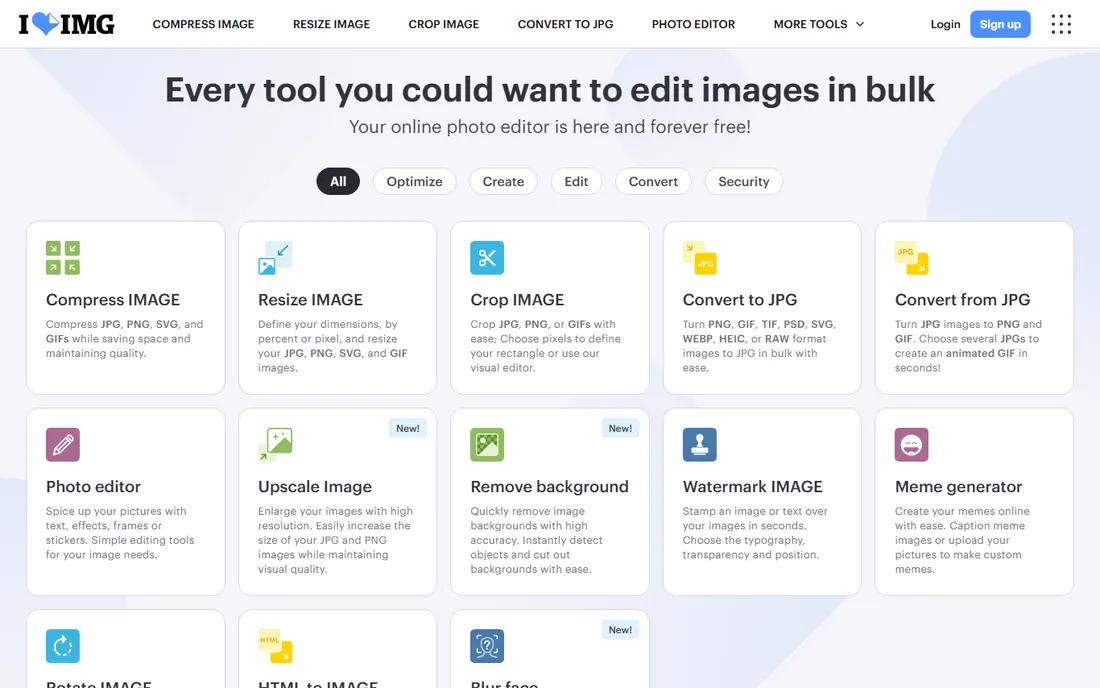
iLoveIMG is a toolbox, not an editor, and that is its strength. The crop tool does one thing: upload, drag the crop box, download. Around it sit a dozen sibling tools for compressing, resizing, converting, watermarking and removing backgrounds, all with the same zero-learning-curve interface. It is the fastest way to process a folder of images without opening Photoshop.
The free tier limits each crop task to one image and caps file sizes, with ads in the mix. Premium at $9 per month or $60 per year lifts batch limits to 120 files per task, removes ads, raises file-size ceilings and covers the sister site iLovePDF under one subscription. If your cropping work is really batch work, compressing and resizing product photos by the dozen, iLoveIMG on Premium is one of the cheapest productivity buys in this list.
What we like- Dead-simple crop tool alongside compress, resize, convert and watermark
- Batch processing up to 120 files on Premium
- No learning curve at all
Watch out for- Free crop handles one image per task
- Ads and file-size caps without Premium
#8
Paint.NET
Best for: Windows users who want a fast free desktop cropper
Visit paint.net
Starting priceFree
Free planYes
Paint.NET occupies the gap between Microsoft Paint and Photoshop, and it has done so since 2004. For cropping, it is instant: open, select, crop, save, with layers and a deep plugin library when the job grows. It launches in seconds, runs well on older hardware, and the free download from the official site is the complete program with no watermarks, trials or locked features.
The project is Windows-only, which rules out Mac and Linux users. Development is funded partly through a Microsoft Store edition that costs around $7 and adds automatic updates; the free and paid versions are functionally identical. In 2026 the developer finally secured the paint.net domain after a 22-year dispute, so the official download now lives at the obvious address. For Windows users who crop daily and want a tool that simply works, it remains a classic.
What we like- Lightweight and fast even on modest hardware
- Layers, selection tools, effects and a large plugin library
- The free version is complete with nothing locked
Watch out for- Windows only, no Mac or Linux version
- A paid Microsoft Store edition (around $7) exists for automatic updates
What actually matters when you crop images
Cropping looks simple, which is why people buy the wrong tool for it. These are the three things that separate a good cropping workflow from a frustrating one.
Precision controls
A serious crop tool offers fixed aspect ratios (1:1, 4:5, 16:9), composition overlays like rule-of-thirds, straightening and the choice between destructive and non-destructive crops. Photoshop, Photopea and GIMP give you all of this. Browser utilities like Fotor and Pixlr cover the common ratios with presets, which is enough for social media work. If you regularly prepare images for print or client delivery, precision matters and the desktop tools win.
Batch and presets
Cropping fifty product photos one by one is a morale problem. iLoveIMG and Fotor (on paid plans) batch-process folders, applying the same crop or resize to everything. BeFunky also batches on Plus. Before you pay, check whether your real need is cropping or resizing: many "crop fifty images" jobs are actually "resize fifty images to 1200px," which batch tools handle in seconds.
Where the file goes
Browser tools upload your image to a server, process it and let you download the result. For marketing assets that is fine. For unreleased products, client work under NDA or personal photos, prefer a tool that processes locally: GIMP and Paint.NET never upload anything, and Photopea runs the editing in your browser. Check the vendor's file-deletion policy before uploading anything sensitive.
How we chose
We compared each tool's crop workflow from its documentation and current reviews: cropping a product photo to 1:1, a headshot to 4:5 and a banner to 16:9, and what the export options allow. We verified pricing on each vendor's own pricing page or current published pricing guides, and read recent reviews on G2, Capterra and Reddit to confirm the tools are maintained in 2026. We excluded tools that were discontinued or whose free tier turned out to be a short trial. The final list mixes free browser utilities, free desktop editors and paid professional tools so every budget is covered.
The free tier is enough for most cropping work. Photopea handles anything Photoshop's crop tool does, GIMP and Paint.NET cover desktop workflows, and Fotor or Pixlr handle quick social crops. You hit the paywall in three situations: batch processing at volume (iLoveIMG Premium, Fotor Pro), watermark-free exports from the template-driven tools (BeFunky Plus, Canva Pro) and professional color management plus RAW workflows (Photoshop via the Photography plan).
For a small business, the sensible stack is a free tool for daily crops plus one paid subscription only if batch work justifies it. iLoveIMG Premium at $60 per year is the cheapest upgrade that saves real hours. Photoshop's Photography plan at $9.99 per month makes sense only when cropping is one small part of a larger photo-editing workflow.
Frequently asked questions
What is the best free image cropping software?
Photopea is the best free all-rounder: Photoshop-style crop tools in the browser with no install. GIMP is the best free desktop editor for precise work, and Paint.NET is the fastest free option on Windows. For quick social-media crops, Fotor and Pixlr need no account and finish the job in under a minute.
Can I crop images online without losing quality?
Yes, if you export at the right settings. Crop first, then export at the dimensions you actually need rather than uploading a huge file and letting the tool downscale it. Photopea and CloudConvert-style tools preserve quality well; avoid screenshotting or re-compressing an already compressed JPEG multiple times, since each save loses detail.
How do I crop a photo to a specific size for social media?
Use a tool with crop presets. Fotor, Pixlr, BeFunky and Canva all offer one-click presets for Instagram square (1:1), portrait (4:5), stories (9:16) and YouTube thumbnails (16:9). Pick the preset, adjust the frame, export. In Photoshop or GIMP, set a fixed aspect ratio in the crop tool options before dragging.
Is GIMP as good as Photoshop for cropping?
For the crop operation itself, yes. GIMP offers fixed ratios, composition guides, crop-to-selection and non-destructive options that match Photoshop's core functionality. Where Photoshop pulls ahead is the surrounding workflow: content-aware fill, Camera Raw integration and cloud documents. If cropping is the job, GIMP is not the compromise it is sometimes assumed to be.
Can I crop multiple images at once?
Yes, with batch tools. iLoveIMG processes up to 120 files per task on Premium, Fotor offers batch editing on its Pro+ plan and BeFunky batches on Plus. Photoshop users can record an Action and run it as a batch. Free single-image croppers cannot batch, so pick the tool that matches your volume.
Sources we checked (9)
- https://www.sawahits.com/adobe-photoshop-free-trial/
- https://smartupworld.com/adobe-photoshop-pricing-plans-and-smart-alternatives/
- https://www.onlinephotosoft.com/photopea/
- https://www.gimp.org?ref=toolsforyoutube.com
- https://www.fahimai.com/fotor
- https://www.fastlancer.org/en/fastlancer-blog/pixlr-review/
- https://www.saasworthy.com/product/befunky/pricing
- https://www.saasworthy.com/product/iloveimg/pricing
- https://www.filehorse.com/download-paintdotnet/
Is your product missing or out of date?
We review this list regularly. Vendors can request a listing, send updated pricing or ask about featured placement.

Shihab Mia · Founder, Rankite
Shihab has spent more than a decade helping SaaS and e-commerce brands grow through search. He writes Rankite's software buying guides from pricing pages, documentation and public user reviews. More about Shihab.