How we make this list: we compare pricing pages, product documentation and public user reviews. Rankite is independent; if a vendor ever pays for a featured spot, that listing is clearly labeled Partner.
Key takeaways
- GIMP is the most capable fully free desktop editor, with layers, masks and plugins, but its interface takes real time to learn.
- Photopea is the closest thing to free Photoshop in a browser, opening PSD files with layers intact and running entirely on your device.
- Paint.NET is the lightest Windows-only option for quick edits, free forever with an active plugin community.
- Fotor, Pixlr and Polarr pair generous free tiers with cheap paid upgrades (from $1.99 to $8.99 per month) for AI tools and watermark-free HD exports.
- For RAW photography, RawTherapee is the free specialist; for digital painting alongside photo work, Krita is the free pick.
Quick comparison
| Tool | Best for | Starting price | Free plan |
|---|
 GIMP GIMP | Full Photoshop-style editing at zero cost | Free | Yes |
 Paint.NET Paint.NET | Light, fast edits on Windows | Free | Yes |
 Photopea Photopea | Editing PSD files without Photoshop or an install | Free (Premium $5/month) | Yes |
 Fotor Fotor | One-click enhancement, portraits and social graphics | Free (Pro $8.99/month) | Yes |
 Pixlr Pixlr | AI-assisted editing and fast touch-ups in the browser | Free (plans from $1.99/month) | Yes |
 PhotoScape X PhotoScape X | Batch editing, collages, GIFs and quick fixes | Free (X Pro $39.99 one-time) | Yes |
 Polarr Polarr | Filters and pro-level color tools across every device | Free (Pro from $2.49/month billed annually) | Yes |
 Krita Krita | Digital painting with solid photo retouching on the side | Free | Yes |
 RawTherapee RawTherapee | Free RAW photo development for photographers | Free | Yes |
Is your product missing or out of date?
We review this list regularly. Vendors can request a listing, send updated pricing or ask about featured placement.
The best free photo editing software for PC
#1
GIMP
Best for: Full Photoshop-style editing at zero cost
Visit gimp.org
Starting priceFree
Free planYes
A small business owner who needs real editing power without a subscription keeps coming back to GIMP, and for good reason. It handles layers, masks, selections, curves, levels and color management, and the plugin library extends it into retouching, batch processing and file format support. It runs on Windows, Mac and Linux, so the skills transfer if you ever change machines.
The tradeoff is the learning curve. GIMP's idiosyncratic menus confuse Photoshop converts for the first week or two. Certain modern conveniences, like fully non-destructive adjustment layers, are weaker than in paid tools. But for cutouts, compositing, restoration and web graphics, it does the job at a price no subscription can beat. Documentation and community tutorials are extensive, which matters more than most buyers expect when learning free software.
What we like- Layers, masks, curves and full plugin ecosystem
- Cross-platform (Windows, Mac, Linux)
- Scriptable in Python and Scheme
Watch out for- Interface and workflow feel dated
- Some pro features (non-destructive adjustment layers) lag Photoshop
Starting priceFree
Free planYes
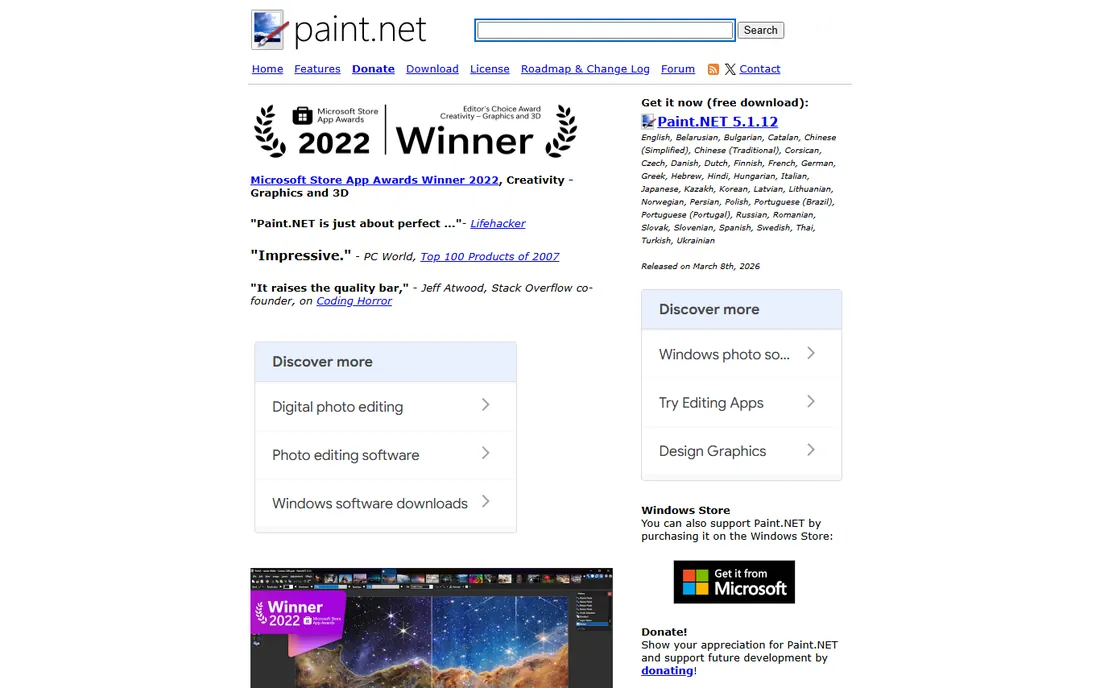
Paint.NET started as a college project meant to replace Microsoft Paint, and it grew into the default recommendation for anyone who finds GIMP intimidating. It opens fast, edits are snappy even on modest hardware, and the tabbed interface will feel familiar to anyone who has used a modern app. Layers, unlimited undo, special effects and a wide toolset cover 90 percent of everyday jobs: cropping, resizing, red-eye, levels, watermarks and simple compositing.
The plugin community is the secret weapon. Free plugins add everything from advanced blur to perspective correction, and the built-in forum offers friendly help and tutorials. The current release (5.1.12, March 2026) keeps it current with Windows 10 and 11.
Limits are real but narrow. There is no Mac or Linux version, RAW support is basic, and color management is not in Photoshop's league. It is also worth noting the Microsoft Store sells a paid copy; the identical program is free on getpaint.net, and buying the Store version is purely a way to support the developer.
What we like- Tiny, fast install with an intuitive tabbed interface
- Unlimited undo and solid layer support
- Huge free plugin library
Watch out for- Windows only
- Weaker for RAW files and high-end color work
Starting priceFree (Premium $5/month)
Free planYes
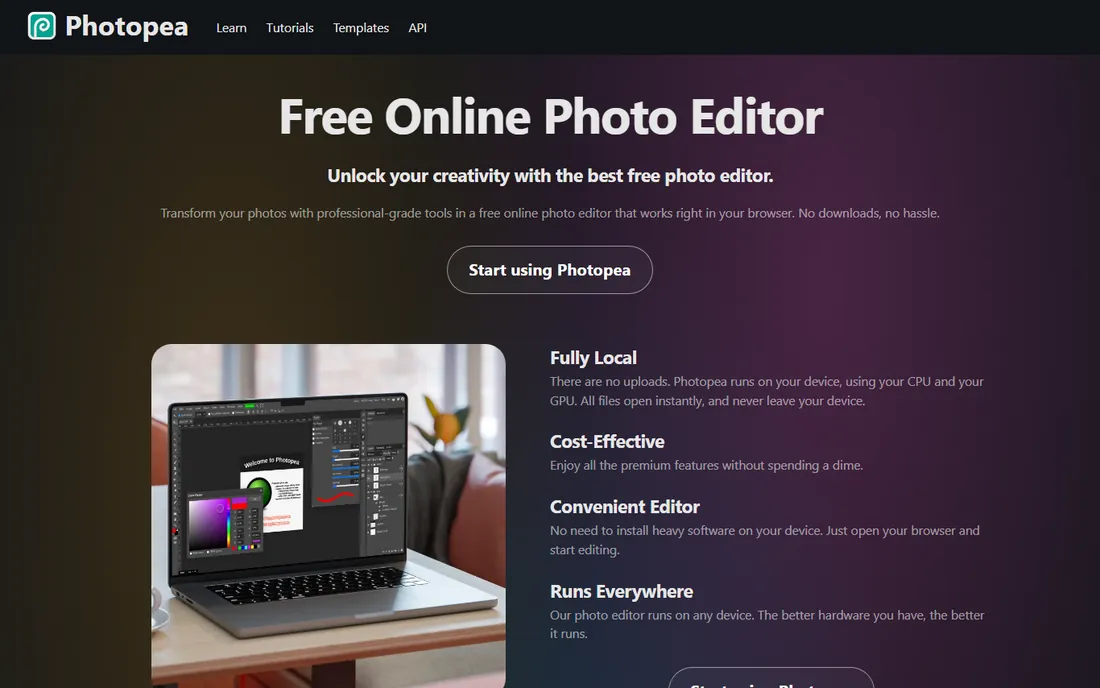
Photopea looks like Photoshop, works like Photoshop, and opens Photoshop files with their layers intact, all inside a browser tab. For a freelancer who receives PSDs from clients but will not pay Adobe's subscription, that compatibility is the whole pitch. It also handles AI, SVG, Sketch, XD, PDF and RAW formats, which makes it a genuine Swiss-army file converter as well as an editor.
Privacy is a real advantage here. Photopea runs on your device's CPU and GPU; files never upload to a server. The free tier is fully featured for editing, with the ad panel as the price of admission. Premium at $5 per month removes ads, doubles undo history, raises cloud storage to 5 GB and adds monthly AI credits for generative fill and background removal.
The catch is performance and screen space. Complex documents with dozens of layers can slow down on older laptops, and the Photoshop-style interface feels cramped on small displays. If your PC is reasonably modern and your screen is 13 inches or larger, it is the strongest free Photoshop alternative available.
What we like- Opens and saves real PSD files with layers, masks and smart objects
- Runs fully locally in the browser, nothing uploads
- 40 plus file formats including RAW, AI and Sketch
Watch out for- Ad-supported interface on the free tier
- Heavy files can strain low-end machines
#4
Fotor
Best for: One-click enhancement, portraits and social graphics
Visit fotor.com
Starting priceFree (Pro $8.99/month)
Free planYes
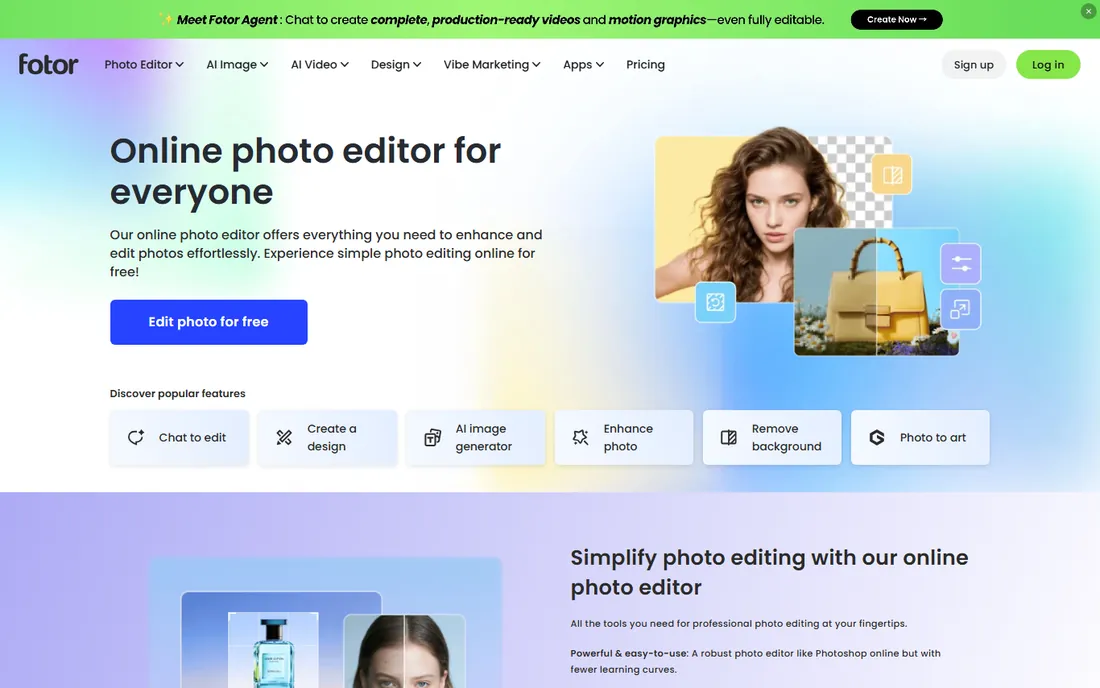
Fotor aims at a different buyer than GIMP: the person who wants a good result in two minutes, not a two-hour editing session. Its AI enhance fixes exposure and color in one click, the portrait tools handle skin retouching and blemish removal cleanly, and the background remover works well enough for product photos and headshots. The template library (collages, social posts, cards) makes it a light design tool as well as an editor.
The free plan is genuinely usable, with unlimited editing and watermark-free basic exports, though resolution and AI access are limited. Pro at $8.99 per month (or $3.33 per month billed annually) removes the limits, adds HD watermark-free exports, batch editing of up to 50 images, and a much larger template and font library.
The weakness is depth. You will not find layered compositing or precise masking here, and heavy AI users will burn through the included credits. For quick enhancement and social content, though, it is one of the fastest free starting points.
What we like- Excellent AI enhance, background remover and portrait retouch
- Batch editing and 100,000 plus templates on Pro
- Works on Windows, Mac, iOS and Android
Watch out for- Free exports are limited and ad-supported
- The best AI features sit behind Pro
#5
Pixlr
Best for: AI-assisted editing and fast touch-ups in the browser
Visit pixlr.com
Starting priceFree (plans from $1.99/month)
Free planYes
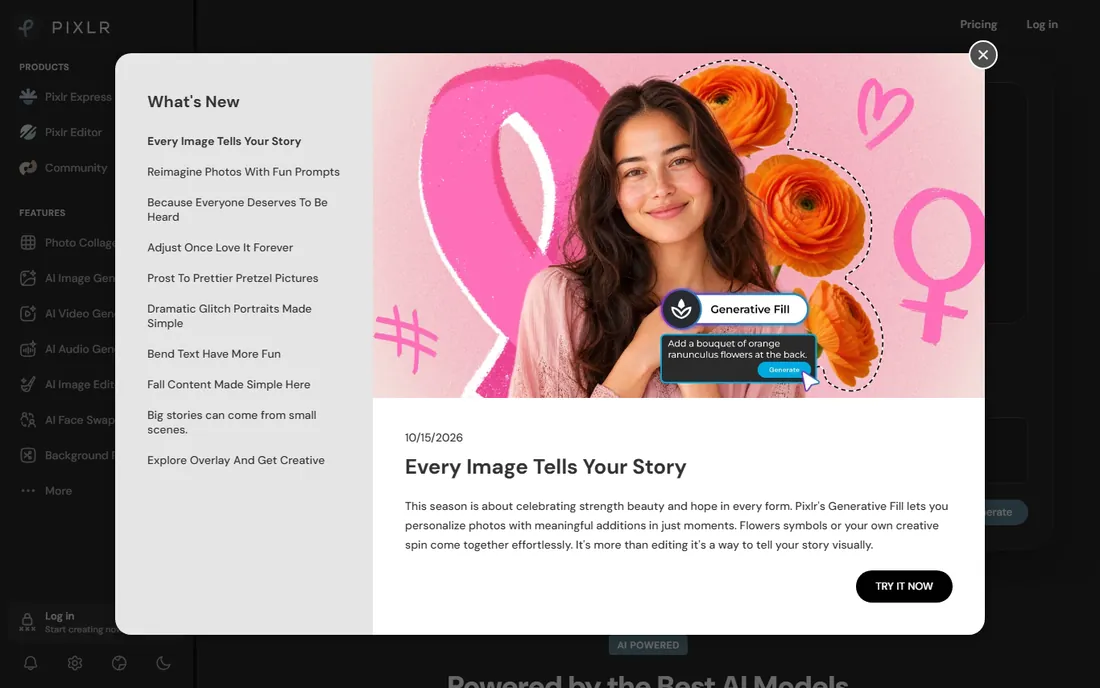
Pixlr has been a browser-based Photoshop alternative for over 15 years, and it has evolved into an AI-first editing suite. The current lineup covers generative fill, object removal, background removal, AI upscaling to 25 megapixels, face swap and even text-to-image generation, alongside the classic Editor (layered, Photoshop-like) and Express (quick fixes) modes.
The free tier needs no account and covers a strong feature set, which is why it remains popular for quick jobs on shared or low-spec machines. Paid plans start at just $1.99 per month and add ad-free editing, AI credits, premium models, private mode and priority generation.
Two things to know before committing. AI features are metered, so batch AI work can get expensive in credits. And while the classic editor is capable, it is not a full Photoshop replacement for print production or deep compositing. As a free, no-install editor with modern AI tools, it is hard to fault.
What we like- Strong AI toolkit (generative fill, background removal, upscaling)
- Free version works without an account
- 15 plus years of continuous development
Watch out for- Ads on the free tier
- Advanced AI features consume credits or need a plan
Starting priceFree (X Pro $39.99 one-time)
Free planYes
PhotoScape X is the multi-tool of free photo editors: viewer, editor, batch editor, collage, combine, animated GIF creator, screen capture, color picker and RAW converter in one download. For a small business processing event photos, that batch editor alone justifies the download: resize, rename and apply filters to hundreds of images at once.
The free version handles the vast majority of everyday work, and the interface, while busy, is approachable for beginners. PhotoScape X Pro (around $39.99 as a one-time purchase through the app stores) adds curves, levels, more filters and expanded batch options without any subscription.
The honest limitation is the editing model. PhotoScape X is largely destructive: edits bake into the image, so correcting a mistake means undoing step by step. RAW shooters will get better highlight and shadow recovery from RawTherapee or darktable. For JPEG workflows, collages and GIFs, it is fast, free and refreshingly straightforward.
What we like- All-in-one toolkit (viewer, editor, batch, collage, GIF, screen capture)
- Free version covers most everyday tasks
- One-time Pro upgrade, no subscription
Watch out for- Destructive editing workflow
- RAW development weaker than dedicated tools
#7
Polarr
Best for: Filters and pro-level color tools across every device
Visit polarr.com
Starting priceFree (Pro from $2.49/month billed annually)
Free planYes
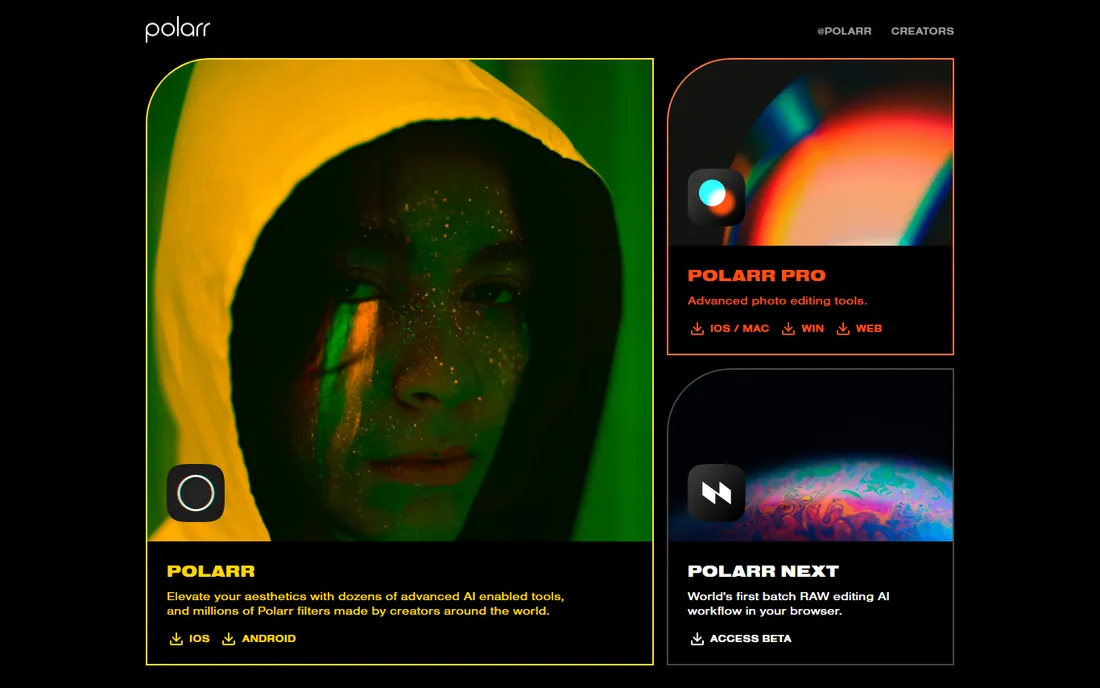
Polarr built its reputation on mobile, where its filter ecosystem and precise color controls made it a favorite of creators who outgrew Instagram's editor. The desktop and web versions bring the same engine: 8-channel HSL, channel curves, highlight and shadow toning, dehaze, perspective correction and 3D LUT import. Selective adjustments with brush, radial and color masks, plus AI subject and face detection, cover most portrait work.
The pricing is the friendliest among the freemium picks. The free plan includes the core adjustments and a solid filter set, while Pro starts at $2.49 per month on annual billing and opens everything on all five platforms with one account. That cross-device subscription is genuinely useful for someone who edits on a phone and finishes on a PC.
What it is not: a compositor. No Photoshop-style layers, no content-aware fill, no advanced cloning. Use it for color and look development, and pair it with GIMP or Photopea for cut-and-composite work.
What we like- Deep color toolkit (HSL, curves, toning, denoise, LUT support)
- One Pro subscription covers iOS, Android, Mac, Windows and web
- Millions of community filters
Watch out for- Interface skews toward filter culture over precise retouching
- Best masking tools need Pro
#8
Krita
Best for: Digital painting with solid photo retouching on the side
Visit krita.org
Starting priceFree
Free planYes
Krita is a painting program first, and it is one of the best free ones ever made. But its layer system, masks, filters, clone brush and transform tools make it a capable photo retoucher too, especially for creative work: compositing, matte painting, texture work and stylized edits. The brush engine, with stabilizers and dozens of brush types, is simply better than anything else free.
For a small business, the realistic use case is marketing graphics with a hand-made feel: illustrated social posts, touched-up product shots, thumbnails with painted elements. Everything is free and open source under the GPL, with no tiers, no ads and no upsells.
It is no Lightroom replacement. RAW development, batch processing and photo library management are not its strengths; RawTherapee or digiKam fit those jobs. But as the creative companion to a photo editor, installed alongside GIMP or PhotoScape X, it fills a gap nothing else free touches.
What we like- Professional brush engine and painting tools
- Layers, masks and filters good enough for retouching
- Completely free and open source, forever
Watch out for- Photo-specific workflow (RAW, batch, asset management) is thin
- Interface is built for artists first
Starting priceFree
Free planYes
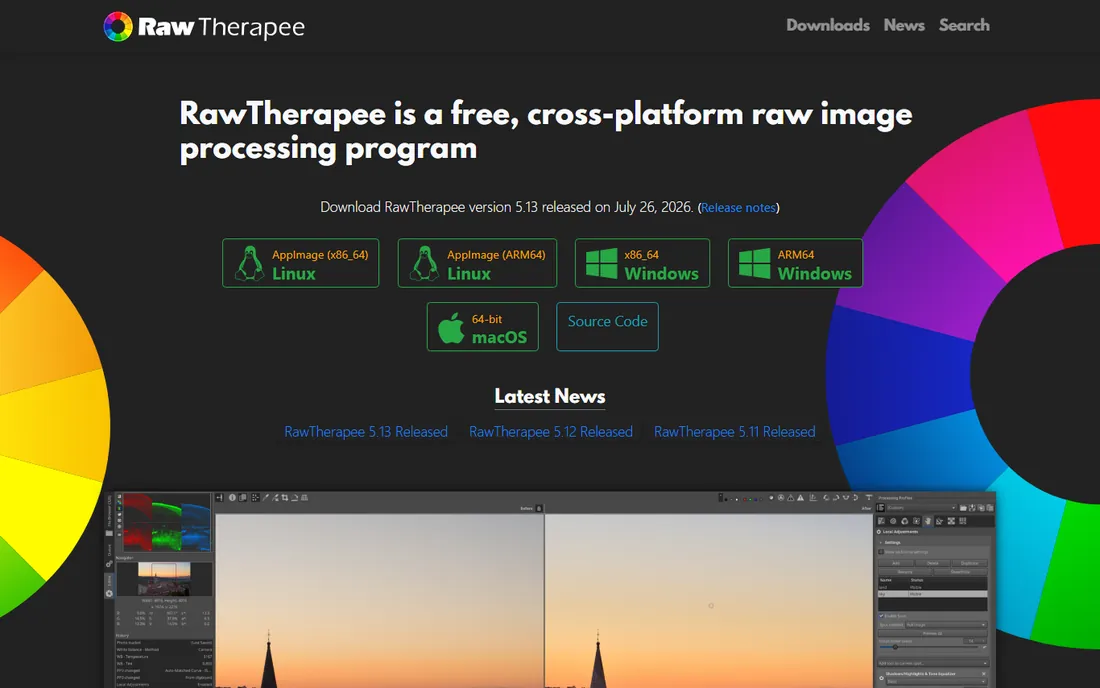
If you shoot RAW, the editor that matters most is the RAW developer, and RawTherapee is the strongest free one. Its demosaicing algorithms squeeze remarkable detail from raw files, with dual-demosaic compositing, pixel-shift support, dark frame subtraction and flat-field correction that rival paid converters. The 32-bit floating point pipeline keeps highlight and shadow recovery clean.
It is non-destructive: edits live as sidecar instructions, so the original file is never touched. It runs on Windows, Mac and Linux and costs nothing, with an active forum and the RawPedia manual for learning.
The price of that power is complexity. The interface exposes everything, which overwhelms newcomers, and there is no catalog or library module, so most users pair it with a file manager or digiKam for organization. For JPEG shooters it is overkill; for RAW photographers on a budget, it is the free tool that professionals actually respect.
What we like- Best-in-class demosaicing and detail recovery
- Non-destructive 32-bit processing engine
- Cross-platform and completely free
Watch out for- Steep learning curve
- No photo library management like Lightroom
How we chose
We picked tools people actually download when they search for free photo editing software: the open-source stalwarts (GIMP, Krita, RawTherapee, Paint.NET), the dominant browser editors (Photopea, Pixlr, Fotor, Polarr), and the all-in-one desktop toolkit (PhotoScape X). Each was verified on the vendor's own site in October 2026, and every price above comes from vendor pages or vendor-published pricing, with "one-time" or billing terms noted where confirmed.
We weighed four things: how much editing power the free tier actually gives you, whether the tool fits a Windows PC workflow (the keyword's promise), how honest the upgrade path is, and what real users report on Reddit, G2 and Capterra. We did not claim hands-on testing. The result favors tools with genuinely usable free tiers over trials dressed up as free plans.
Desktop program or browser editor
The first decision is where the editor lives. Desktop programs (GIMP, Paint.NET, PhotoScape X, Krita, RawTherapee) install on your PC, work offline, and handle large files without breaking a sweat. They suit slow connections, big RAW libraries and anyone who edits daily. The cost is disk space and, for GIMP and RawTherapee, a real learning investment.
Browser editors (Photopea, Pixlr, Fotor, Polarr's web app) need nothing installed and follow you across machines, which suits shared computers, Chromebooks and quick jobs. Photopea even runs locally in the browser, so files never leave your device. The tradeoff is dependence on a decent connection and, on low-end hardware, slower performance with heavy files.
A practical small-business setup is one of each: GIMP or Paint.NET installed for serious work, plus Photopea bookmarked for PSD compatibility and quick jobs on any machine.
What the free tiers actually limit
Free photo editors limit four things, and knowing which one matters to you picks the tool. Resolution and watermarks: Fotor and Pixlr gate HD watermark-free exports behind paid plans, while GIMP, Krita, Paint.NET, RawTherapee and PhotoScape X export full quality free forever. AI features: background removal, generative fill and enhance tools are the most commonly paywalled features across Fotor, Pixlr, Polarr and Photopea Premium.
Batch and workflow: PhotoScape X's batch editor is free and excellent; Fotor reserves batch editing above 3 images for Pro. Platform: Paint.NET is Windows-only, GIMP and RawTherapee cover all desktops, and the browser tools cover everything with a modern browser. Match the limit to your work: a blogger batch-processing product shots cares about batch; a designer delivering client files cares about watermark-free export.
Frequently asked questions
Is GIMP really as good as Photoshop?
For many jobs, close enough. GIMP handles layers, masks, retouching, compositing and web graphics at a professional level with a deep plugin ecosystem. Photoshop still leads in non-destructive workflows, CMYK print production, and integration with the rest of Adobe's suite. For a small business doing web and social graphics, GIMP covers the need.
Which free photo editor is best for beginners on Windows?
Paint.NET for the simplest start: it installs in seconds, the interface is intuitive, and it handles everyday edits well. PhotoScape X is the next step up, with batch tools and collages. Fotor or Pixlr in the browser are good if you prefer one-click AI enhancement over manual controls.
Can I edit RAW photos for free?
Yes. RawTherapee is the strongest free RAW developer, with excellent detail recovery and a non-destructive workflow. Photopea and Polarr also open RAW files, and PhotoScape X includes a basic RAW converter. For a full free photography workflow, pair RawTherapee (development) with GIMP (retouching).
Do free photo editors put watermarks on exports?
The fully free open-source tools (GIMP, Krita, Paint.NET, RawTherapee, PhotoScape X) never watermark. Among the freemium tools, Fotor and Pixlr reserve watermark-free HD exports for paid plans, though Fotor's free basic exports are watermark-free at standard quality. Always check the export terms of the specific plan before delivering client work.
Is Photopea safe to use for client work?
Photopea runs entirely on your device, so files never upload to a server, which is good for privacy. It opens and saves real PSD files with layers intact. The free tier is ad-supported; Premium ($5 per month) removes ads and adds AI credits. For commercial delivery, the paid tier is the professional choice.
What is the best free photo editor for quick social media graphics?
Fotor and Pixlr are built for speed: templates, one-click enhance, background removal and AI tools, all in the browser. Polarr is the pick when the look matters most, with its deep filter and color system. All three have free tiers; expect to pay $2 to $9 per month to remove the limits that matter for daily posting.
Sources we checked (9)
- https://www.gimp.org/
- https://getpaint.net/
- https://www.photopea.com/
- https://www.fotor.com/
- https://pixlr.com/
- https://photoscape.org/
- https://polarr.com/
- https://krita.org
- https://rawtherapee.com/
Is your product missing or out of date?
We review this list regularly. Vendors can request a listing, send updated pricing or ask about featured placement.

Shihab Mia · Founder, Rankite
Shihab has spent more than a decade helping SaaS and e-commerce brands grow through search. He writes Rankite's software buying guides from pricing pages, documentation and public user reviews. More about Shihab.