How we make this list: we compare pricing pages, product documentation and public user reviews. Ratings come from G2, Capterra or Trustpilot, with the date we checked them.
Key takeaways
- Descript is the easiest pick for teams that edit talking-head video, podcasts and webinars. It has a free plan, and paid seats start at $16 per person per month on annual billing.
- OpusClip has the cheapest paid entry ($15 per month) for turning long recordings into short social clips. Its free plan adds a watermark, though, and clips can no longer be exported after three days.
- Most AI editors now limit usage with credits or media hours on top of the seat price, so the plan limit matters more than the sticker price.
- Runway is the strongest option here for generating new footage, but it is a generation tool first and a timeline editor second.
- Adobe Premiere Pro and CapCut cover the full-editor end of the market. Premiere offers only a 7-day trial, while CapCut keeps a usable free tier.
Quick comparison
| Tool | Best for | Starting price | Free plan |
|---|
 Descript Descript | Editing talking-head video by transcript | $16 per person/month (billed annually), $24 billed monthly | Yes |
 Adobe Premiere Pro Adobe Premiere Pro | In-house editors who need a pro timeline | See website | Free trial (7 days) |
 CapCut CapCut | Fast social video on a small budget | See website | Yes |
 OpusClip OpusClip | Turning long videos into short clips | $15/month (Starter, billed monthly) | Yes |
 Runway Runway | Generating B-roll and new shots with AI | See website | Yes (125 one-time credits) |
 VEED VEED | Browser-based editing with subtitles and translation | See website | Yes |
 Kapwing Kapwing | Small teams editing together in a browser | See website | Yes |
 Pictory Pictory | Turning scripts and articles into stock-footage videos | $25/month (billed annually), $29 billed monthly | Free trial (14 days) |
Is your product missing or out of date?
We review this list regularly. Vendors can request a listing, send updated pricing or ask about featured placement.
The best AI video editing software
#1Descript
Best for: Editing talking-head video by transcript4.6/5 on
G2 (928 reviews, checked Oct 2026)
Visit descript.com
Starting price$16 per person/month (billed annually), $24 billed monthly
Free planYes
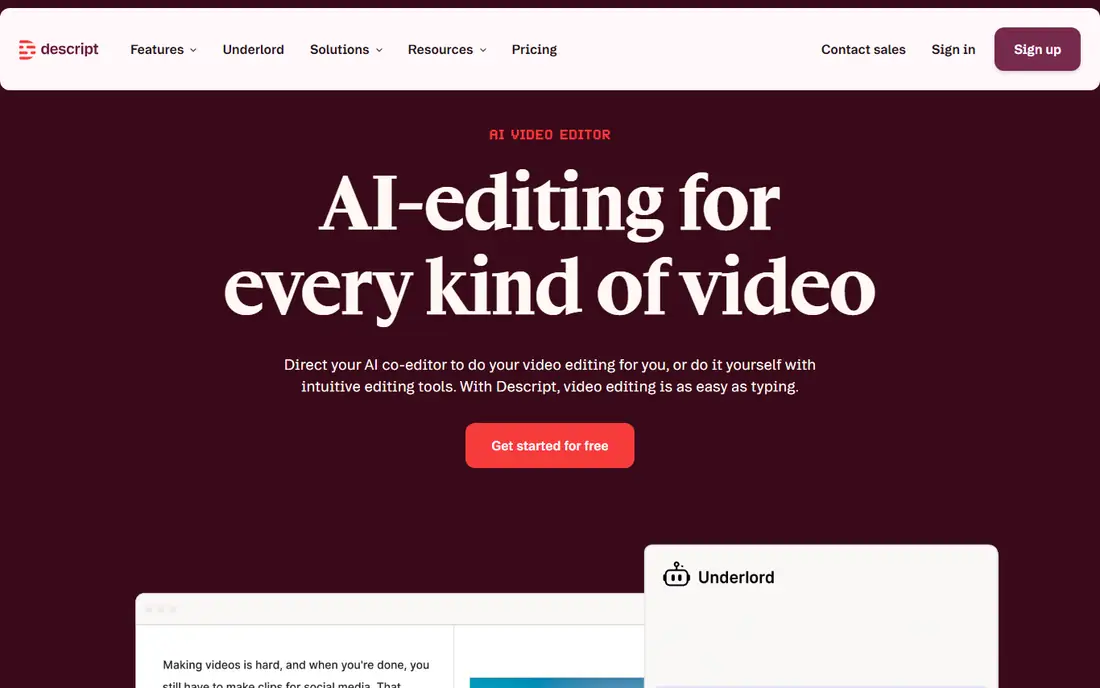
Descript suits marketing teams, founders and customer education leads who record a lot of people talking: webinars, product walkthroughs, interviews and podcasts. You edit by deleting words in a transcript, and the video follows. New users can be productive on day one.
The AI tools are aimed at fixing real recording problems. Studio Sound cleans up audio, filler-word removal strips out the "ums", and Underlord, Descript's AI co-editor, can handle multi-step edits on request. The Hobbyist plan includes 10 media hours and 400 AI credits per month, with watermark-free 1080p export. Creator ($24 per person per month on annual billing) moves you to 30 media hours, 800 credits and 4K export. Business ($50) adds Brand Studio, translation and dubbing in 30+ languages, and priority support with an SLA.
The catch is the usage limits. Media hours and AI credits reset monthly, and heavy users will end up buying top-ups. Descript is also less comfortable with heavy motion graphics or color work, so agencies producing polished ads usually pair it with a traditional editor.
What we like- Edit video by editing a text transcript
- Studio Sound and filler-word removal clean up rough recordings
- Clear team tiers, with SSO and SOC 2 Type II on Enterprise
Watch out for- Hobbyist plan caps you at 10 media hours and 1080p export
- AI credits run out quickly if you lean on generation features
#2Adobe Premiere Pro
Best for: In-house editors who need a pro timeline4.5/5 on
G2 (1,675 reviews, checked Oct 2026)
Visit adobe.com
Starting priceSee website
Free planFree trial (7 days)
If you already employ a video editor, or plan to hire one, Premiere Pro is the safe choice. It is the industry-standard timeline editor. Adobe has added AI features on top of it rather than replacing the workflow: transcript-based editing, automatic captions, speech enhancement and Firefly-powered generative tools that can extend a clip by a few frames to cover a cut.
The practical advantage for a business is hiring. Freelancers and agencies know Premiere, project files move between people easily, and it sits next to Photoshop, After Effects and Adobe Express if your design team already pays for Creative Cloud. Adobe sells a single-app plan, a Creative Cloud bundle and separate teams licenses. Prices vary by commitment, so check the current plan page before you budget.
The honest weakness is that Premiere Pro is subscription only, with a 7-day trial and no free tier. It also assumes skill. A marketing coordinator who just needs captioned clips for LinkedIn will spend more time learning the interface than editing, and would be better served by Descript, CapCut or VEED.
What we like- Full professional timeline with color, audio and multicam tools
- AI features such as text-based editing and generative clip extension built into a standard editor
- Fits easily into existing Adobe workflows and teams plans
Watch out for- Subscription only, with no free tier
- Steep learning curve for non-editors
Starting priceSee website
Free planYes
For a two-person social team putting out a lot of short vertical video, CapCut is hard to beat on value. The free version handles multi-track editing, keyframes, chroma key, templates and auto captions. The same project can move between phone, browser and desktop.
CapCut's paid plans changed during 2026. The tier formerly called Pro was renamed Standard, and a new, pricier Pro tier now sits above it, along with team and higher-volume options. Mobile app store prices can differ from the web checkout, so if cost matters, buy from the CapCut site and confirm the current price there.
The concern for business buyers is governance, not features. CapCut is owned by ByteDance, and legal or IT teams at regulated companies may not approve it. Read the terms of service on content licensing before you put client footage or unreleased product video through it.
What we like- Generous free tier across desktop, web and mobile
- Large library of templates, effects and auto-captions built for TikTok and Reels
- Fast to learn for anyone who has used a phone editor
Watch out for- Paid tiers were restructured in 2026, and app store prices can run higher than web checkout
- Ownership by ByteDance raises data and compliance questions for some companies
#4OpusClip
Best for: Turning long videos into short clips4.6/5 on
G2 (123 reviews, checked Oct 2026)
Visit opus.pro
Starting price$15/month (Starter, billed monthly)
Free planYes
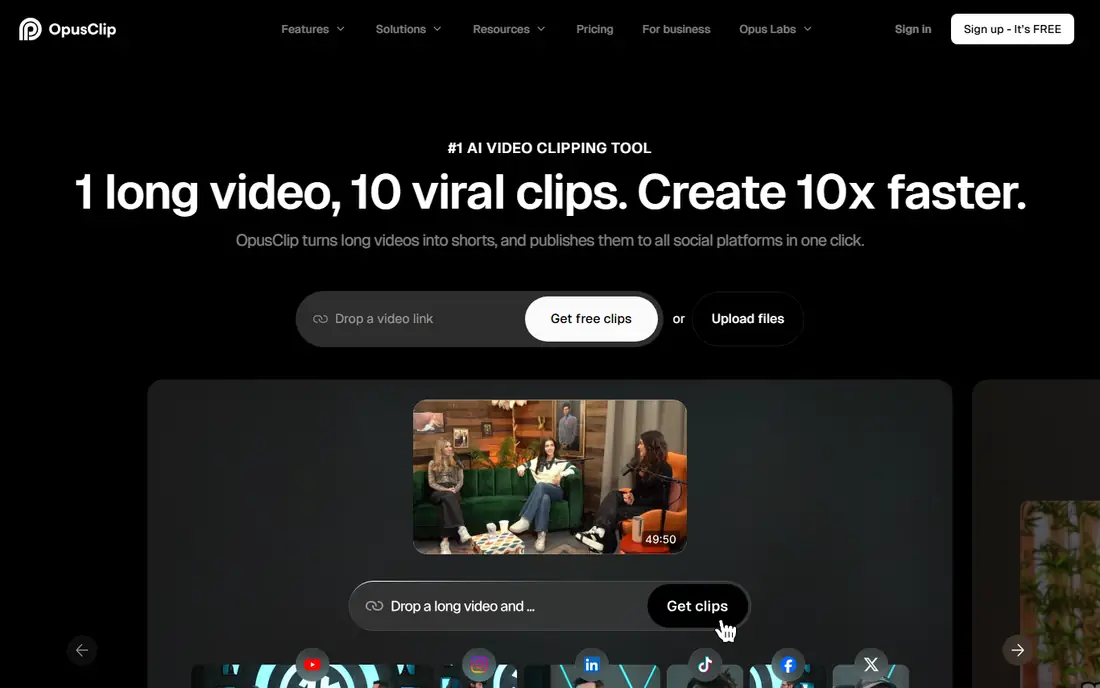
OpusClip does one job: it takes a webinar, podcast or livestream and cuts it into short, captioned clips ready for social. You upload or link the video, the AI finds the strongest moments, reframes them for vertical screens and adds animated captions. That is the whole value for a company that records a weekly show but has nobody to clip it.
Pricing is credit based. The free plan gives 60 credits per month. Starter costs $15 per month (monthly billing only) for 150 credits. Pro is $29 per month or $174 per year ($14.50 per month), with 300 monthly credits that roll over for two months and a team workspace with two seats. Starter also adds filler and silence removal, a brand template and watermark removal.
The limits on the free plan are real: clips are watermarked, you cannot edit them, and they can no longer be exported after three days. And because the AI chooses the moments, you will still want a person to review its picks before anything goes out under your brand.
What we like- Picks highlight moments from long videos and reframes them for vertical formats automatically
- Captions in 20+ languages and auto-posting to YouTube Shorts, TikTok and Instagram Reels
- Pro plan works out to $14.50 per month on annual billing, with a two-seat workspace
Watch out for- Free plan exports carry a watermark and expire after three days
- Not a general-purpose editor, so you still need another tool for long-form work
#5Runway
Best for: Generating B-roll and new shots with AI4.1/5 on
G2 (105 reviews, checked Oct 2026)
Visit runwayml.com
Starting priceSee website
Free planYes (125 one-time credits)
Runway belongs on this list for a different reason than the others. Creative teams use it to generate footage that does not exist yet: an establishing shot, an abstract background, a product in a setting you never filmed. Its current Gen-4.5 model handles text-to-video and image-to-video, and the platform adds editing tools for jobs like removing backgrounds and extending shots.
The free tier is a one-time allowance of 125 credits with watermarked video. That is enough to judge output quality but not to produce work. Paid plans are priced per user with a monthly credit allowance, and the number of seconds you get depends on the model and resolution you choose. Plan names and credit amounts have shifted during 2026, so confirm current tiers on Runway's pricing page.
The trade-off is that Runway does not replace a timeline editor. Most teams generate clips in Runway and assemble them in Premiere, CapCut or Descript.
What we like- Among the strongest text-to-video and image-to-video generation available to small teams
- Useful for B-roll, product concept shots and visual effects you could not afford to film
- Per-user plans that scale from solo to team and enterprise
Watch out for- Credit-based plans burn quickly on longer or higher-resolution generations
- Free plan is a one-time test allowance with watermarked output
#6VEED
Best for: Browser-based editing with subtitles and translation4.6/5 on
G2 (2,175 reviews, checked Oct 2026)
Visit veed.io
Starting priceSee website
Free planYes
VEED is built for marketers and trainers who need professional-looking video without a desktop editor. Everything happens in a browser tab: trimming, auto subtitles, translations, AI voiceovers, avatars and screen recording. If your company produces content in more than one language, the translation and subtitle tools are the main draw.
Plans are priced per user. Paid tiers include AI credits, and higher tiers add brand kits, translation minutes and larger AI voice allowances. VEED's free plan is useful for testing, but it exports at 720p with a VEED watermark, so it is not suitable for client-facing work.
The weakness is cost at scale. Every editor needs a seat and the AI features use credits, so a team of five can end up paying more than it expected. Run a real project through the free plan before you commit to seats.
What we like- Runs entirely in the browser with nothing to install
- Strong subtitle, translation and AI voice tools for multilingual content
- Brand kits on higher plans keep team output consistent
Watch out for- Free plan exports at 720p with a watermark
- Per-user pricing gets expensive as the team grows
#7Kapwing
Best for: Small teams editing together in a browser3.9/5 on
G2 (40 reviews, checked Oct 2026)
Visit kapwing.com
Starting priceSee website
Free planYes
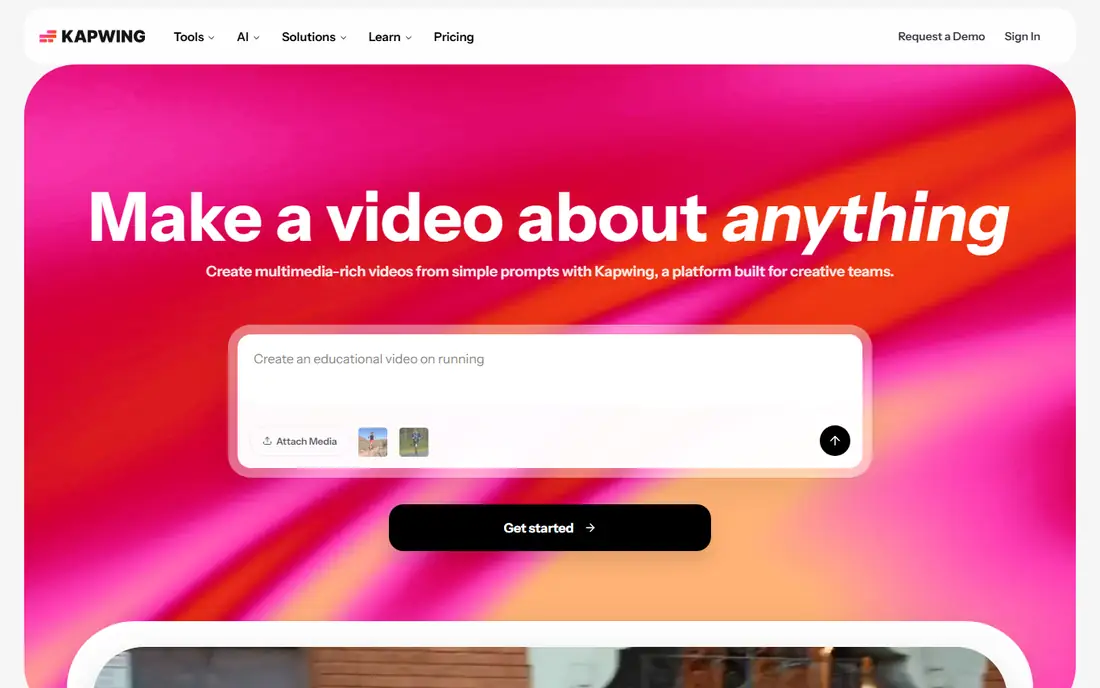
Kapwing feels closest to a shared document for video. Several people can work in the same workspace, leave comments and reuse brand assets. That makes it a good fit for a small marketing team where a manager reviews and a coordinator edits. It also handles the repetitive jobs well: auto subtitles, cutting silences, and resizing one video into square, vertical and widescreen versions.
Pricing is per member, with Pro and Business tiers and a custom Enterprise plan. Annual billing is noticeably cheaper than monthly. The free plan lets you try the editor, but exports are watermarked and limited.
Kapwing falls short on long, complex edits and advanced color and audio work, which it is not designed for. AI credits are also limited, so if you plan to rely on generation features, check plan allowances against your monthly volume.
What we like- Real-time collaboration in a shared browser workspace
- AI tools for subtitles, smart cutting and resizing for different platforms
- Simple, low-friction interface for occasional editors
Watch out for- Free plan adds watermarks and limits exports
- AI credit allowances can run down faster than expected on higher-volume teams
#8Pictory
Best for: Turning scripts and articles into stock-footage videos4.6/5 on
G2 (81 reviews, checked Oct 2026)
Visit pictory.ai
Starting price$25/month (billed annually), $29 billed monthly
Free planFree trial (14 days)
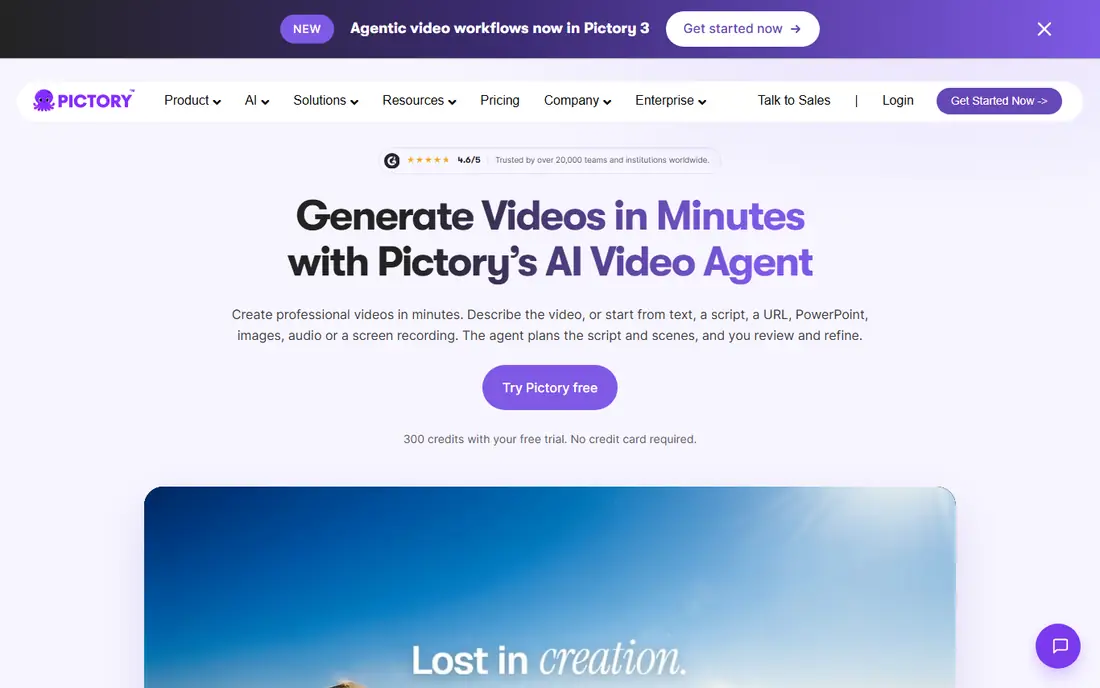
Pictory is for teams that have more written content than footage. Paste in a blog post, script or webinar transcript, and it builds a video with matching stock clips, captions and an AI voiceover.
The Starter plan costs $25 per month on annual billing ($29 monthly). It includes one user, one brand kit, stock avatars, all AI models and up to 30 minutes of video per month. Professional ($35 per month annually) triples the allowance and adds voice clones, cloned avatars and five brand kits. Teams ($119 per month annually) covers three or more users with shared brand assets and onboarding. Annual plans grant all credits upfront.
The honest catch is the look. Stock-footage videos can feel interchangeable, and they work better for explainers and blog recaps than for brand campaigns. Pictory also does not replace a real editor when you have original footage that needs precise cutting.
What we like- Turns scripts, blog posts and existing footage into videos with matched stock clips
- Includes stock video from Getty Images and Storyblocks plus ElevenLabs AI voices
- Annual plans include a consultation with a video expert
Watch out for- Starter covers only one user and up to 30 minutes of video per month
- Output relies on stock footage, which can look generic
How we chose
We started with a long list of tools marketed as AI video editors. We kept only products that edit or assemble video with meaningful AI help, can be bought today and are realistic for small and mid-size US companies. For each one, we read the vendor's own pricing page where we could access it, along with product documentation and help pages, to check plan limits, free tiers, credit systems and team features.
We then compared that information with public reviews on G2, Capterra and Reddit, plus recent independent pricing breakdowns, to see where users run into limits. Where we could not confirm a current price on the vendor's own pricing page, we list it as "See website" rather than repeat a number that may be out of date. We did not test these tools ourselves for this guide.
What to check before you buy an AI video editor
Match the tool to the job
AI video editors fall into roughly four groups. Transcript-first editors (Descript) suit spoken content. Full timeline editors with AI features (Premiere Pro, CapCut) suit teams with editing skill. Repurposing tools (OpusClip, Pictory) turn existing recordings or text into new videos. Generators (Runway) create footage from scratch. Many teams end up with two tools: one editor and one specialist.
Check the usage limits, not just the price
Almost every product here limits usage through credits, media hours or minutes of output. A $15 plan with 150 credits may cost more per finished video than a $29 plan with rollover. Before you sign up, estimate how many hours of footage you process and how many clips you publish each month. Then check what happens when you run out: top-ups, overage pricing or a hard stop.
Per-seat costs add up
Most of these tools charge per editor. Count who actually needs to edit and who only needs to review. Some tools let reviewers comment without a paid seat, which can cut the bill a lot for a team of five or more.
Watermarks, export quality and file ownership
Free plans almost always watermark exports, and lower paid tiers often cap resolution at 1080p or 720p. Confirm you can download your project files and source media if you cancel. Read the AI and content terms so you know if your footage can be used to train models. Enterprise tiers (Descript is one example) often add training opt-outs and custom data retention.
Security and procurement
If IT or legal needs to sign off, look for SSO, SOC 2 reports, audit logs and the option of an annual contract with an invoice. These features usually sit on business or enterprise tiers. Ask for a quote early rather than finding out after your team is already using a personal plan.
Frequently asked questions
What is the best AI video editing software for beginners?
Descript is the easiest for spoken content because you edit a transcript instead of a timeline. For short social video, CapCut's free tier is very approachable. Both let you start without paying.
Can AI video editors replace a human editor?
They can replace a lot of repetitive work, such as cutting filler words, captioning, resizing and finding highlight clips. They do not replace judgment on story, pacing and brand fit.
Are free AI video editors good enough for business use?
Free plans are good for testing. Most add watermarks, lower export quality or make exports expire quickly (OpusClip's free clips can't be exported after three days). For anything customers will see, budget for at least an entry-level paid plan.
How much should a small business expect to pay?
For the tools whose prices we could verify, entry plans start around $15 to $25 per month for one user, and team plans cost considerably more. Expect to buy AI credit top-ups if you produce a lot of video. Annual billing usually saves 20 percent or more compared with monthly.
Which tool is best for repurposing webinars and podcasts?
OpusClip is built specifically for cutting long recordings into short vertical clips. Descript is the better choice if you also need to clean up and publish the full-length episode. Pictory works when your starting point is a transcript or article rather than video.
Sources we checked (14)
- https://www.descript.com/pricing
- https://www.opus.pro/pricing
- https://pictory.ai/pricing/
- https://saascrmreview.com/runway-ml-pricing/
- https://magichour.ai/blog/runway-ml-pricing
- https://www.eesel.ai/blog/runway-ai-pricing
- https://magichour.ai/blog/veed-pricing
- https://www.capterra.com/p/193780/VEED/pricing/
- https://socialrails.com/blog/kapwing-pricing
- https://costbench.com/software/video-editing/kapwing/
- https://socialrails.com/blog/capcut-pricing-guide
- https://costbench.com/software/video-editing/capcut/
- https://morphic.com/resources/compare/premiere-pro-price
- https://photutorial.com/premiere-pro-pricing-explained/
Is your product missing or out of date?
We review this list regularly. Vendors can request a listing, send updated pricing or ask about featured placement.

Shihab Mia · Founder, Rankite
Shihab has 5+ years in B2B and SaaS SEO. He writes Rankite's software buying guides from pricing pages, documentation and public user reviews. More about Shihab.