How we make this list: we compare pricing pages, product documentation and public user reviews. Rankite is independent; if a vendor ever pays for a featured spot, that listing is clearly labeled Partner.
Key takeaways
- Descript's text-based editing is the easiest way to edit talking-head video, starting at $16 per month billed annually with a free plan.
- CapCut, VEED, and Runway all offer genuinely useful free tiers, so you can publish before spending anything.
- Opus Clip turns long recordings into short clips automatically at $15 per month, ideal for TikTok, Reels, and Shorts.
- Pictory and InVideo generate full videos from a script or prompt, so you can create without filming at all.
- Filmora gives beginners a classic timeline editor with AI assists if you want to grow into deeper editing.
Quick comparison
| Tool | Best for | Starting price | Free plan |
|---|
 Descript Descript | Editing video like a document | $16 per month (billed annually) | Yes |
 CapCut CapCut | Free mobile and desktop editing | See website | Yes |
 VEED VEED | Browser-based AI editing | See website | Yes |
 Filmora Filmora | Classic timeline with AI assists | See website | Free trial |
 Pictory Pictory | Script-to-video generation | See website | Free trial |
 InVideo InVideo | AI-generated marketing videos | See website | Yes |
 Opus Clip Opus Clip | Long video to short clips | $15 per month | Yes |
 Runway Runway | AI video generation and editing | See website | Yes |
Is your product missing or out of date?
We review this list regularly. Vendors can request a listing, send updated pricing or ask about featured placement.
The best AI video editing software for beginners
Starting price$16 per month (billed annually)
Free planYes
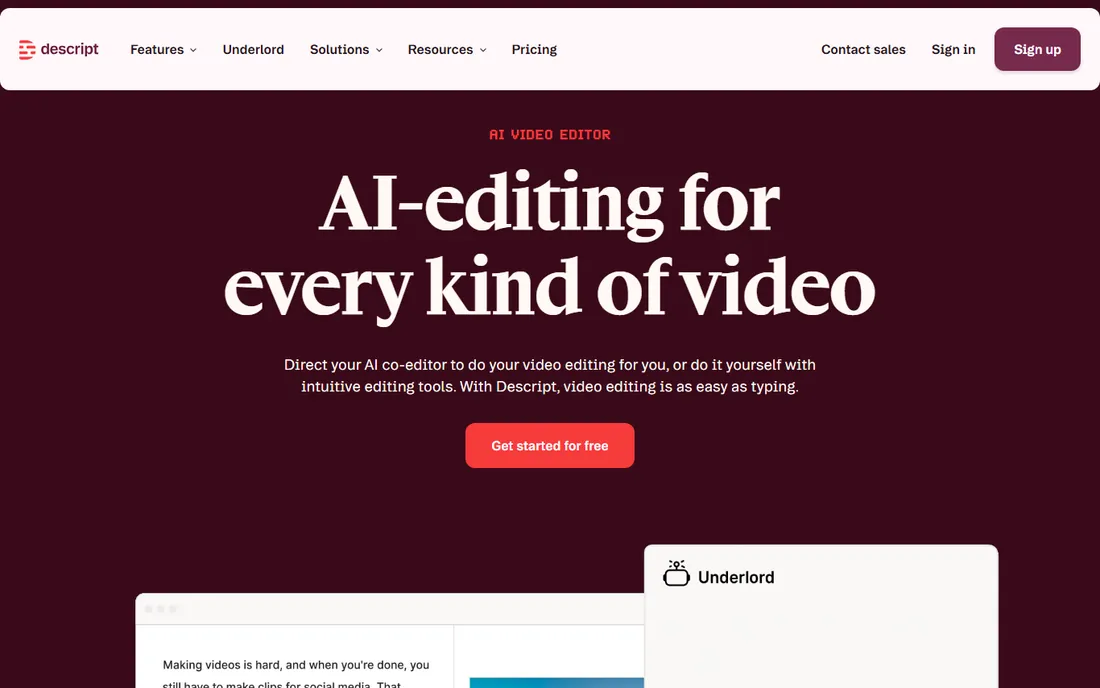
Descript is the beginner pick for anyone who talks to a camera. You record or upload a video, Descript transcribes it, and then you edit the transcript like a document. Delete a sentence and it disappears from the video. Move a paragraph and the footage moves with it. Most people make their first cut within minutes.
The AI handles the tedious parts: removing filler words, silences, and retakes; cleaning audio with Studio Sound; generating captions; and even cloning your voice to fix a flubbed word with Overdub. The Underlord AI agent can take a rough cut from raw recording to tight edit from a plain-language instruction.
The honest catch is ceiling. Descript is not built for cinematic effects, motion graphics, or complex compositing. It is a spoken-word editor first. For podcasts, tutorials, courses, and YouTube talking-head content, that is exactly the right shape.
What we like- Text-based editing eliminates the timeline learning curve
- Studio Sound cleans audio with one click
- Free plan needs no credit card
Watch out for- Video-centric effects are thinner than classic editors
- AI credits limit heavy generative use
Starting priceSee website
Free planYes
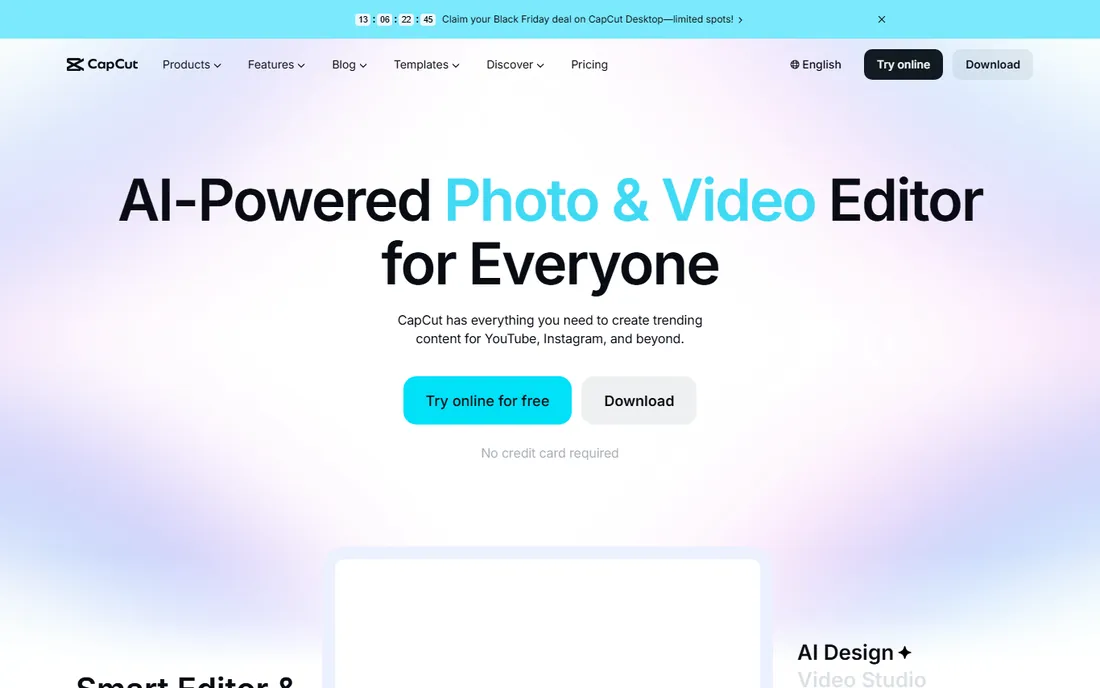
CapCut is where most beginners start, and for good reason. It is free on mobile, desktop, and web, with no credit card required, and the core editor exports HD video without a watermark for basic edits. The template library means you can start from a trending Reels or TikTok format instead of a blank timeline.
The AI toolset is broad: auto captions in multiple languages, background removal, text-to-speech voices, noise removal, and an AI video generator that builds clips from text or images. For a beginner posting on social media, it covers the full workflow from edit to publish.
The tradeoff is the paywall map. Premium templates, effects, and some AI features need CapCut Pro, and pricing varies by region and whether you subscribe via the app store or the website. Check the export screen before you publish, since some premium assets add a watermark. As a free starting point, nothing else is this complete.
What we like- Generous free tier on phone, desktop, and web
- Huge template library
- Built for vertical social video
Watch out for- Some AI features and templates are paywalled
- Pricing varies by region and platform
Starting priceSee website
Free planYes
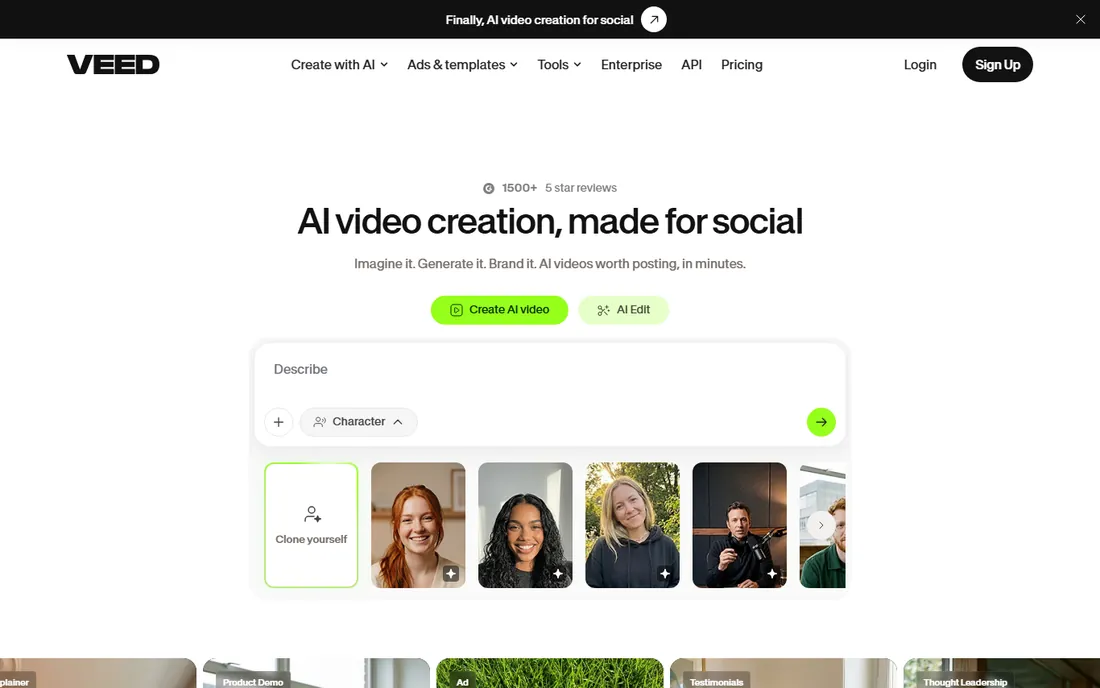
Some beginners never want to install software. VEED is built for them: it runs entirely in the browser. Upload footage, edit on a simple timeline, and the AI handles subtitles, audio cleanup, background removal, and translation into 50-plus languages with dubbing.
The auto subtitles are the standout. They are accurate, beautifully styled, and exportable in one click, which matters since most social video is watched on mute. Edit-by-script lets you cut the video by editing text, Descript-style, for talking-head content.
The honest catch is the free plan. Every free export carries a VEED watermark and tops out at 720p, so it works for practice but not publishing. Paid plans remove the watermark and open up the deeper AI tools like avatars and text-to-video. For a beginner testing the waters, it is an easy try.
What we like- Nothing to install
- Best-in-class auto subtitles
- Edit-by-script for transcript-style editing
Watch out for- Free exports carry a watermark
- Heavy AI generation needs a higher tier
Starting priceSee website
Free planFree trial
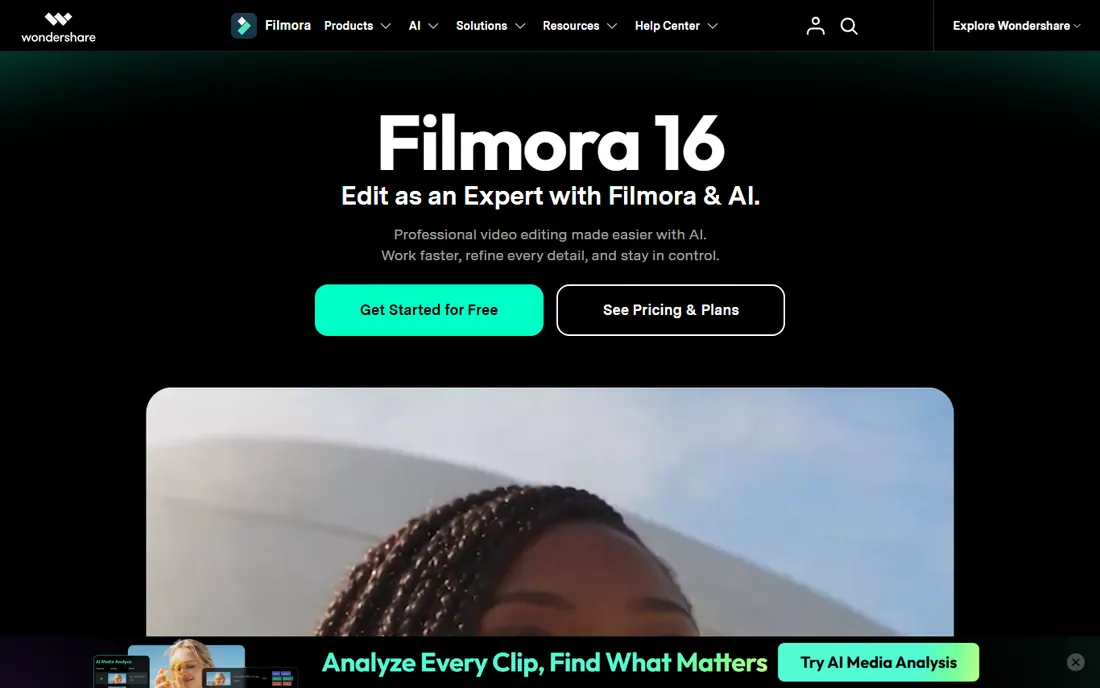
Filmora is the bridge between beginner and serious editor. It looks and works like a classic timeline editor, so the skills transfer to Premiere Pro or DaVinci Resolve later, but the AI assists handle the beginner-hostile parts: auto captions, silence detection, text-based editing, background removal, and a Smart Short Clip tool that cuts highlights from long videos.
The creative library is enormous, with millions of templates, effects, transitions, and stock assets. Features like AI video enhancement, motion tracking, and multi-camera editing would cost much more in pro software. It runs on Windows, Mac, and mobile.
The tradeoff is the free tier. You can use everything, but exports carry a watermark until you pay, and the AI tools run on credits that the cheapest plan does not include. For a beginner who wants to actually learn editing while AI smooths the path, Filmora is the best classroom.
What we like- Familiar timeline that teaches real editing skills
- Strong AI tools like Smart Short Clip and video enhancer
- Huge effects library
Watch out for- Free exports are watermarked
- AI features consume credits not included in the basic plan
Starting priceSee website
Free planFree trial
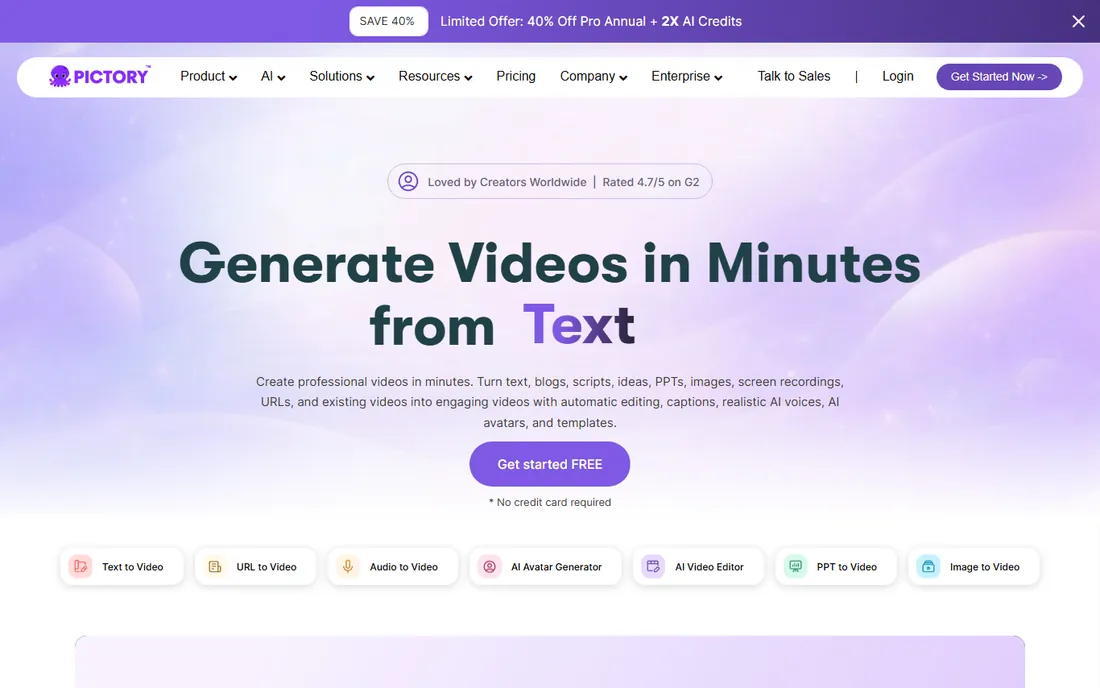
Pictory is for beginners who want videos without a camera. Paste a script, a blog post, or a URL, and it builds a finished video: scenes matched from millions of stock clips, a realistic AI voiceover, and synced captions. You edit by editing text, just like Descript.
It suits content marketers, course creators, and faceless YouTube channels. The brand kit applies your logo, fonts, and colors across every scene automatically, and the highlights feature pulls shareable clips from long webinars or recordings.
The honest catch is the look. AI-matched stock footage has a recognizable template feel, and it will never look like footage you shot. There is a free trial rather than a lasting free plan. If you have ideas but no footage and no desire to film, Pictory is the fastest route to a finished video.
What we like- Turns scripts, articles, and URLs into finished videos
- 170-plus AI voices
- No filming required
Watch out for- Stock-footage style feels templated
- Limited free trial rather than a free plan
Starting priceSee website
Free planYes
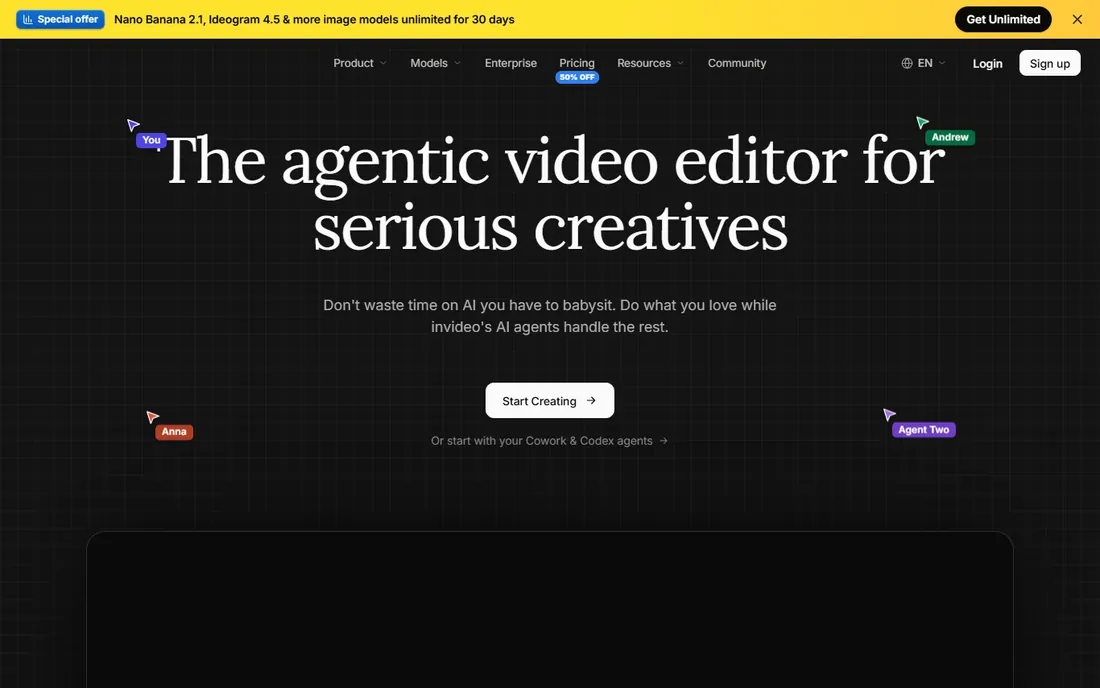
InVideo has rebuilt itself around AI agents. Describe the video you want and its agents handle the script, visuals, voiceover, and music, pulling from models like Veo and Seedance alongside a huge stock library. The new browser-based timeline editor then lets an AI assistant make direct cuts on your timeline from chat commands.
For a small business owner, this is close to a production team in a tab: product demos, ads, explainers, and social videos from a paragraph of direction. The free plan lets you test the full workflow before committing.
The tradeoff is the credit economy. Generations consume credits at rates that vary by model and resolution, so the real monthly cost depends on how much you experiment. The Starter tier's Lite agent is also limited. Start on free, track what each finished video costs in credits, then choose a plan with data.
What we like- Agentic AI builds full videos from a prompt
- Free plan available
- New browser timeline editor with AI assistant
Watch out for- Credit system makes costs hard to predict
- Advanced models need higher tiers
Starting price$15 per month
Free planYes
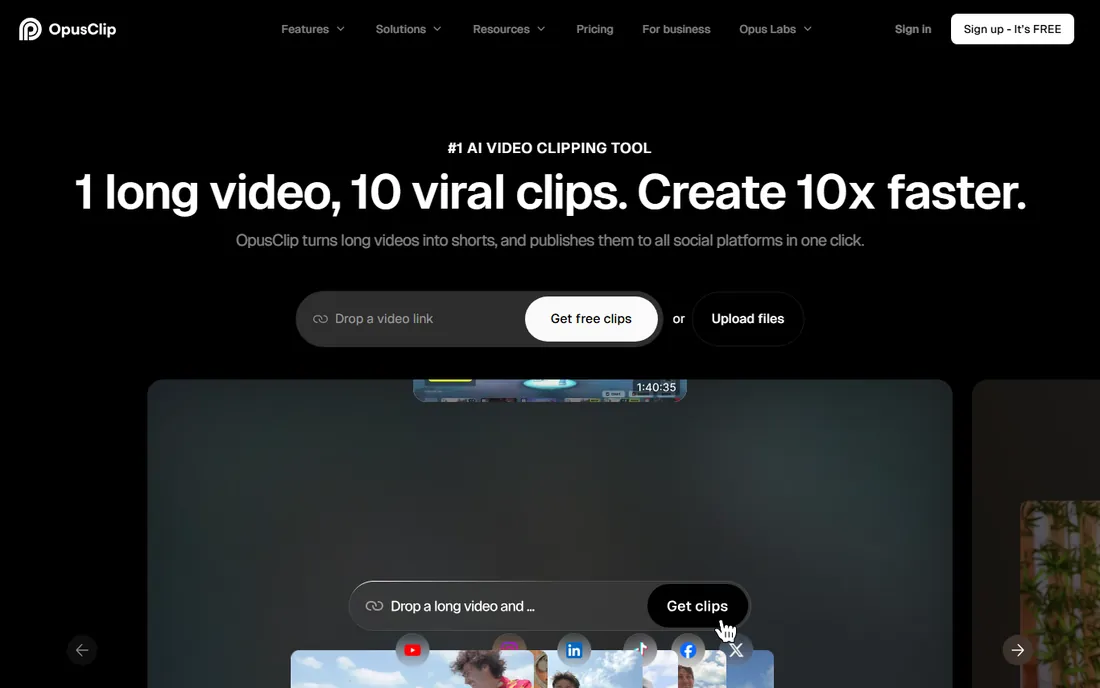
Opus Clip solves one problem beautifully: turning long videos into short ones. Upload a podcast, webinar, or vlog, and its ClipAnything model finds the best moments, reframes them vertically with subject tracking, adds animated captions, and scores each clip's viral potential. What took hours now takes minutes.
For a beginner growing on TikTok, Reels, or Shorts, this is the highest-impact tool here. The free plan gives 60 minutes of processing a month with a watermark; Starter at $15 a month removes the watermark with 150 minutes. Used by over 20 million creators, it has the most battle-tested clipping AI in the category.
The honest catch is scope. Opus Clip is a repurposing engine, not a full editor: you will still want another tool for building videos from scratch. But if you already make long content, nothing multiplies your output like it.
What we like- One-click repurposing of long videos into Shorts and Reels
- Virality score ranks clip potential
- Free plan refreshes monthly
Watch out for- Specialized for clipping, not full editing
- Most plans cap exports at 1080p
Starting priceSee website
Free planYes
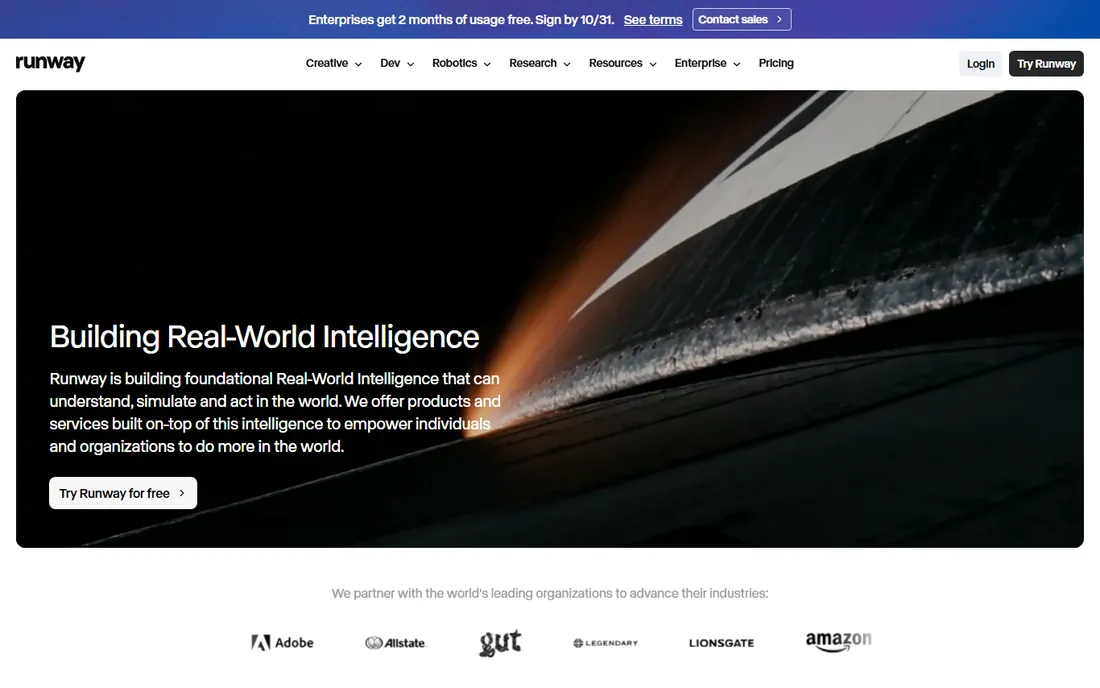
Runway is the most advanced AI video tool here, and the one professionals reach for. Its generative models create video from text or images, extend shots, remove objects from footage, and relight scenes. The new Runway Creative suite wraps generation and editing into one cloud workspace.
For a beginner, the value is experimental: generate B-roll you could never film, remove a distracting object from a shot, or restyle footage with AI. The free plan includes starter credits to learn the tools.
The tradeoff is cost control. Credits burn quickly when you iterate on generations, and power users often need the higher tiers. It is also simply more tool than a beginner needs for talking-head social content. Come to Runway when you want to make things that do not exist yet.
What we like- State-of-the-art generative video models
- Inpainting and background removal on real footage
- Used by professional filmmakers
Watch out for- Credit costs add up fast when experimenting
- Overkill for simple social edits
How we chose
We focused on editors a true beginner can open and use: generous free tiers, AI that replaces skills rather than adding menus, and tools that export finished video without a tutorial marathon. We checked vendor pricing pages and documentation for current plans, and weighed public reviews from G2, Capterra, and Reddit.
Picking the right beginner editor for your content
Match the tool to what you actually make. If you talk to a camera, pick Descript or VEED and edit by text. If you post vertical social video, start with CapCut free and add Opus Clip when you have long content to repurpose. If you want videos without filming, choose Pictory or InVideo.
Check the free plan before anything else. Watermarked exports are fine for learning but not for publishing, so confirm what free really includes. CapCut and Runway have the most usable free tiers; VEED and Filmora watermark free exports.
Watch the AI credit model. Descript, InVideo, Runway, and Filmora all ration generative features with credits or allowances. If your workflow is heavy on AI generation, the entry plan may not be enough. Start free, measure your usage for a month, then buy the tier that fits.
Plan your export needs early. If every video needs captions, VEED or Opus Clip will save you hours. If you need 4K, confirm which tier includes it. And if you expect to graduate to pro software later, Filmora's timeline teaches transferable skills that pure AI generators do not.
What beginners get wrong about AI editing
The biggest mistake is expecting one click to finish a video. AI handles the repetitive 70 percent: transcription, silence removal, captions, rough cuts. The remaining 30 percent, choosing the story, the pacing, and what to leave out, is still yours. Tools like Descript and Opus Clip get you to a rough cut fast, but review the result before publishing.
The second mistake is ignoring audio. Viewers forgive average video but leave for bad audio. Run everything through an AI audio cleanup, Descript's Studio Sound, CapCut's noise removal, or VEED's clean audio, before you touch a single effect.
Frequently asked questions
What is the easiest AI video editor for a complete beginner?
CapCut is the easiest free start, with templates and auto captions on phone, desktop, and web. For talking-head video, Descript is even simpler because you edit by deleting words in a transcript instead of touching a timeline.
Can I edit videos for free with AI tools?
Yes. CapCut's free tier exports HD video without a watermark for basic edits. Descript, VEED, InVideo, Runway, and Opus Clip all have free plans or trials, though some watermark exports or limit AI usage.
Do AI video editors replace human editors?
No. They take over repetitive work like transcription, silence removal, captions, and rough cuts. Choosing the story, pacing, and final polish still needs a person. Think of them as a fast assistant, not a replacement.
Which AI editor is best for YouTube Shorts and TikTok?
CapCut is the natural home for vertical social video, with templates and trending effects built in. Opus Clip is the best companion if you already make long videos and want to turn them into Shorts automatically.
Can AI video editors add captions automatically?
Yes, all eight tools here generate captions from speech. VEED and Opus Clip are the standouts for styled, animated captions, which matter because most social video is watched with the sound off.
Will my videos look obviously AI-generated?
Not if you use AI for editing rather than generation. Cleanup, captions, and cuts are invisible to viewers. Fully AI-generated footage from tools like Runway or InVideo can still have a synthetic look, so review before publishing.
Sources we checked (12)
- https://www.descript.com/
- https://www.capcut.com/
- https://veed.io/
- https://filmora.wondershare.com/
- https://pictory.ai/
- https://invideo.io/
- https://opus.pro/
- https://runwayml.com/
- https://www.itechguides.com/best/ai-video-generation-and-editing-software/
- https://max-productive.ai/ai-tools/video-editing/
- https://www.opus.pro/pricing
- https://fluxnote.io/guides/veed-io-pricing-2026
Is your product missing or out of date?
We review this list regularly. Vendors can request a listing, send updated pricing or ask about featured placement.

Shihab Mia · Founder, Rankite
Shihab has spent more than a decade helping SaaS and e-commerce brands grow through search. He writes Rankite's software buying guides from pricing pages, documentation and public user reviews. More about Shihab.