How we make this list: we compare pricing pages, product documentation and public user reviews. Rankite is independent; if a vendor ever pays for a featured spot, that listing is clearly labeled Partner.
Key takeaways
- DaVinci Resolve is the most capable free editor by a wide margin, with professional color tools and no watermark, but it wants a strong computer.
- CapCut is the fastest route from raw phone footage to a captioned social clip, and its desktop app has grown into a real editor.
- Shotcut and Kdenlive are fully open-source desktop editors with no accounts, no watermarks, and no upsell screens.
- Clipchamp is the simplest start for Windows teams, especially ones already paying for Microsoft 365.
- OpenShot has the gentlest learning curve of the desktop editors, while VSDC packs the most effects into a free Windows app.
Quick comparison
| Tool | Best for | Starting price | Free plan |
|---|
 DaVinci Resolve DaVinci Resolve | Serious editing and color grading at zero cost | Free (DaVinci Resolve Studio costs $295 one-time) | Yes |
 CapCut CapCut | Fast social video with captions and templates | Free (CapCut Pro is a paid upgrade) | Yes |
 Clipchamp Clipchamp | The simplest start for Windows teams | Free (premium features come with Microsoft 365) | Yes |
 Shotcut Shotcut | No-account desktop editing on any platform | Free (open source) | Yes |
 Kdenlive Kdenlive | Open-source editing with pro-style timeline tools | Free (open source) | Yes |
 OpenShot OpenShot | The easiest free editor to learn | Free (open source) | Yes |
 VSDC Free Video Editor VSDC Free Video Editor | Feature-packed free editing on Windows | Free (Pro is a paid upgrade) | Yes |
Is your product missing or out of date?
We review this list regularly. Vendors can request a listing, send updated pricing or ask about featured placement.
The top 7 free video editing software
Starting priceFree (DaVinci Resolve Studio costs $295 one-time)
Free planYes
Blackmagic Design makes its money selling cameras and control panels, so it can afford to give away a remarkable editor. The free version of DaVinci Resolve includes the full cut and edit pages, the Fusion visual effects page, Fairlight audio mixing, and the color page that made the software famous in post-production houses. There is no watermark on exports and no time limit on the free version, which puts it in a different class from most free editors.
The paid Studio upgrade costs $295 as a one-time purchase and adds extras like stereoscopic 3D tools, additional effects, and higher frame-rate support. Most small business work, from YouTube videos to course content, never needs it. What you do need is hardware. Resolve is the most demanding editor on this list, and an older laptop will struggle with 4K timelines, so check the system requirements before you commit to a project.
Expect a learning curve measured in days, not minutes. The interface was built for professionals, and the first week involves a lot of searching for where things live. If you plan to edit regularly, that investment pays off in speed and quality. If you need one quick video finished this afternoon, pick something simpler from this list and come back to Resolve later.
What we like- Professional color grading tools
- No watermark on exports
- Runs on Windows, Mac, and Linux
Watch out for- Demanding on hardware
- The interface takes real time to learn
#2
CapCut
Best for: Fast social video with captions and templates
Visit capcut.com
Starting priceFree (CapCut Pro is a paid upgrade)
Free planYes
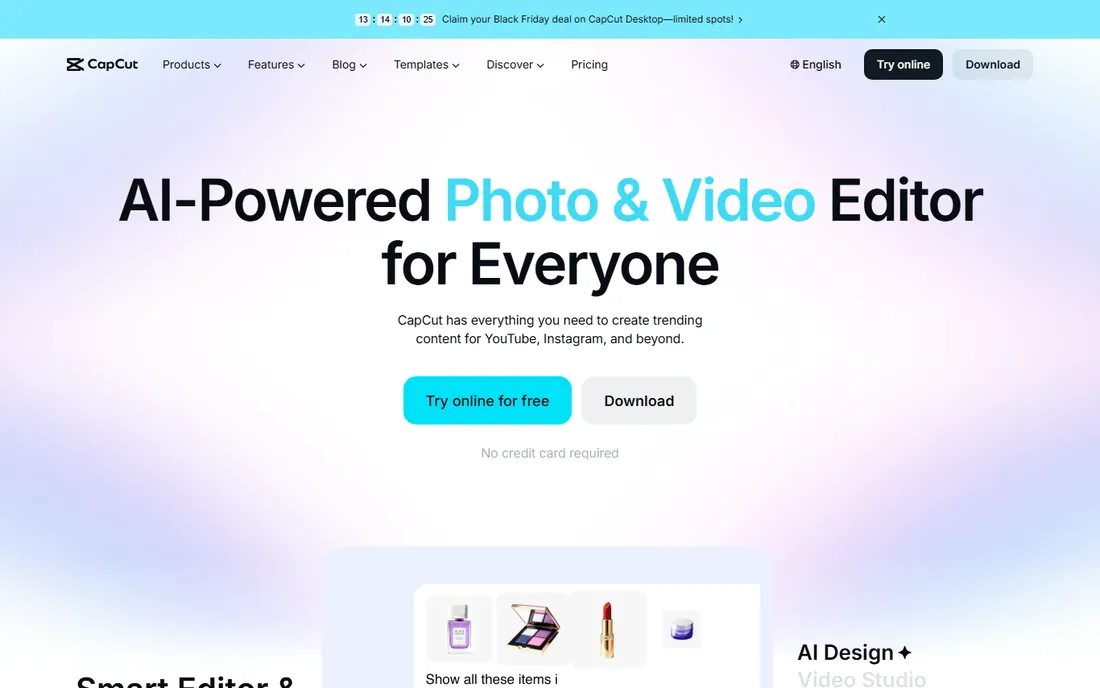
CapCut started as a mobile companion to short-form video apps, and it still thinks in vertical video. Auto-captions are excellent, templates turn a rough clip into something watchable in minutes, and the desktop and web apps have grown far past their mobile roots. For social content, nothing free gets you from footage to posted faster.
The business model is freemium. Core editing costs nothing, but some effects, transitions, and cloud storage sit behind CapCut Pro, and pricing varies by region, so check the pricing page for your market. You will also need an account to use cloud projects and some of the AI features, which is worth knowing if your company has strict rules about new logins.
CapCut is the right pick when speed matters more than precision. A marketing manager can caption and post a clip between meetings without touching a timeline manual. It is the wrong pick for long-form work, where the timeline tools feel thin next to desktop editors, and for anyone who wants to avoid another subscription prompt.
What we like- Excellent auto-captions and templates
- Works on phone, desktop, and web
- Easy to learn
Watch out for- Some advanced effects sit behind Pro
- An account is required for cloud features
Starting priceFree (premium features come with Microsoft 365)
Free planYes
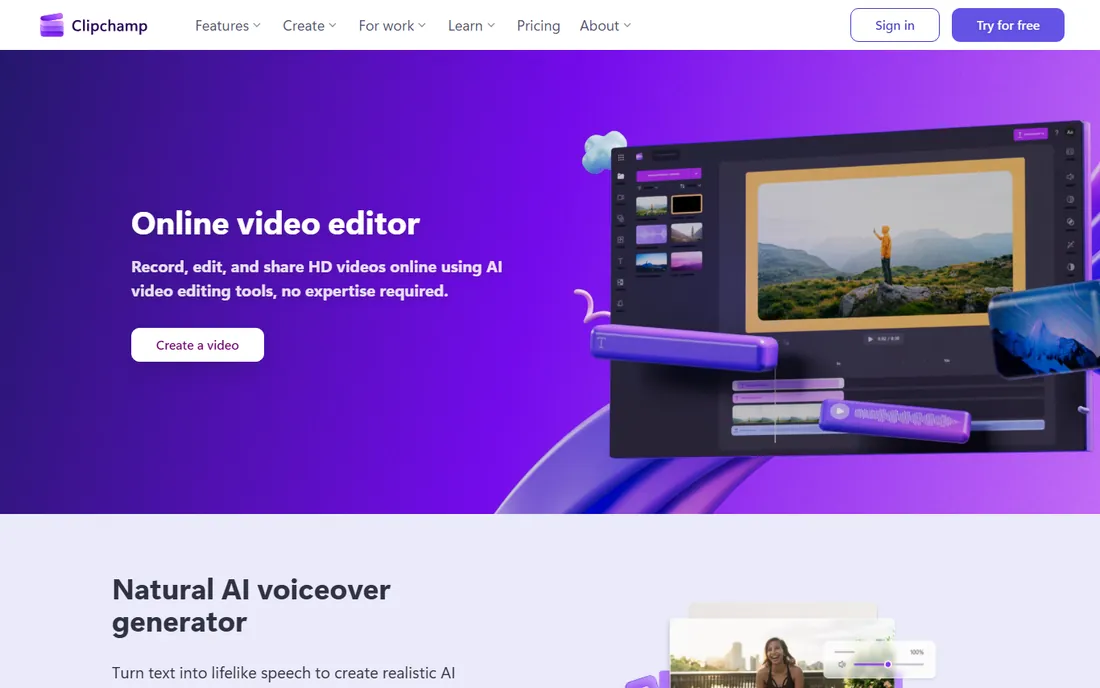
Clipchamp is Microsoft's editor, and it shows. It runs in the browser, saves straight to OneDrive, and feels designed for people who edit video twice a year rather than twice a week. Text-to-speech voiceovers and automatic captions are built in, which covers the two features small businesses ask for most often. If your team already uses Microsoft 365, there is nothing new to install and nothing new to learn administratively.
The free tier covers the basics well, including 1080p exports. Moving to higher resolutions, the full stock video and audio library, and brand kit features requires a paid plan, usually through a Microsoft 365 subscription. That is a fair trade for casual use, but check which 365 plan your company already has before assuming the premium features are included.
Choose Clipchamp if your team lives in Windows and Microsoft 365 and wants the shortest path from idea to finished video. Choose something else if you need 4K delivery, a deep stock library without paying, or fine control over color and audio.
What we like- Runs in the browser with nothing to install
- Text-to-speech and auto-captions built in
- Saves to OneDrive
Watch out for- Higher resolutions and the full stock library need a paid plan
- Fewer advanced controls
Starting priceFree (open source)
Free planYes
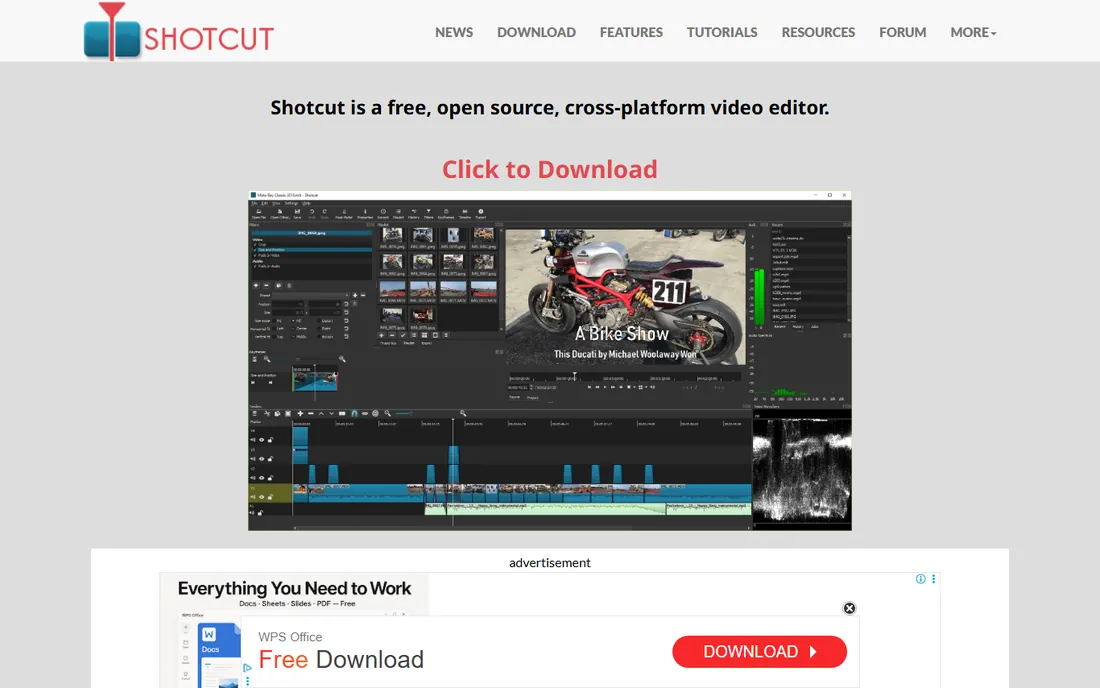
Shotcut is the quiet workhorse of free editing. It is open source, it runs on Windows, Mac, and Linux, and it asks for nothing in return: no account, no watermark, no ads, no upsell screens. Under the hood it uses FFmpeg, so it opens just about any format a client or a camera can produce, which removes a whole category of conversion headaches.
The interface will not win design awards. Panels and filters are powerful but plainly presented, and there are few hand-holding templates for titles or transitions. That is the trade for software that never tries to sell you anything. The documentation is solid, the forum community answers questions quickly, and new versions arrive steadily from a small, focused team.
Shotcut suits a business that wants one dependable editor installed on office computers with no licensing to track and no renewals to forget. It is less suited to anyone who wants guided, template-driven creation or a polished first-run experience.
What we like- No watermark, no account, no ads
- Opens almost any format via FFmpeg
- Cross-platform
Watch out for- The interface feels dated
- Fewer guided templates than commercial rivals
Starting priceFree (open source)
Free planYes
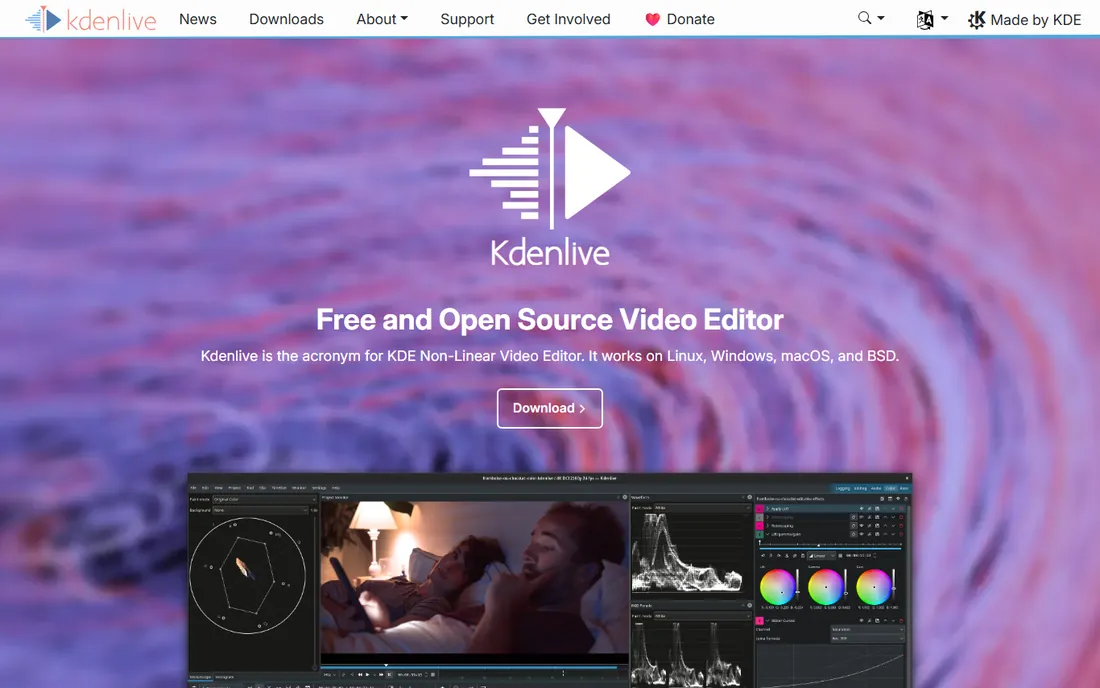
Kdenlive comes from the KDE open-source community and punches above its weight. The multitrack timeline supports keyframes, effects, transitions, and color tools that cover most business video needs, from interview edits to product explainers. Like Shotcut, it is free and open source with no watermark and no account, and it runs on Windows, Mac, and Linux.
Development moves fast, which is both the appeal and the risk. New features and fixes arrive regularly, but some Windows users report occasional crashes, so save often on long projects and keep the app updated. The documentation can be uneven, though community video tutorials fill most of the gaps for common tasks.
Pick Kdenlive if you want pro-style timeline editing without paying and you are comfortable with open-source software's rough edges. If stability on Windows is the top priority, Shotcut is the calmer choice. Either way, you get a full editor that respects your privacy and your budget.
What we like- Multitrack timeline with effects and keyframes
- Active community
- No watermark
Watch out for- Occasional instability reported on some Windows setups
- Documentation is uneven
Starting priceFree (open source)
Free planYes
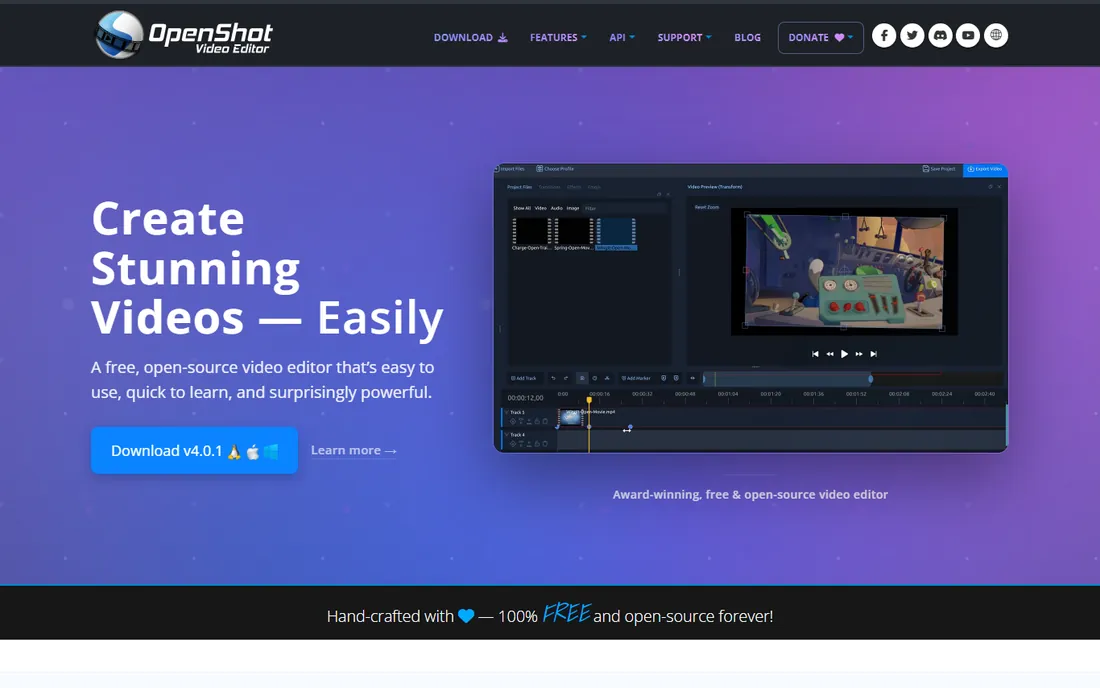
OpenShot is the friendliest door into desktop video editing. The timeline works the way you expect: drag clips in, trim them, drop on titles and transitions, and export. There is no account to create, no watermark on exports, and no upsell screen interrupting your work. For a first project, or for a colleague who has never edited before, that lack of friction matters more than any feature list.
Under the surface it is more capable than it looks, with keyframe animation, chroma key, and a solid set of effects. The honest catch is performance. Long timelines with many clips can feel sluggish, and the color tools are basic next to DaVinci Resolve. Think of OpenShot as the editor you hand to someone on day one, then graduate them to Kdenlive or Resolve when their projects outgrow it.
What we like- Simple drag-and-drop timeline
- No watermark or account
- Runs on Windows, Mac, and Linux
Watch out for- Can feel slow on long timelines
- Fewer advanced color tools than Resolve
Starting priceFree (Pro is a paid upgrade)
Free planYes
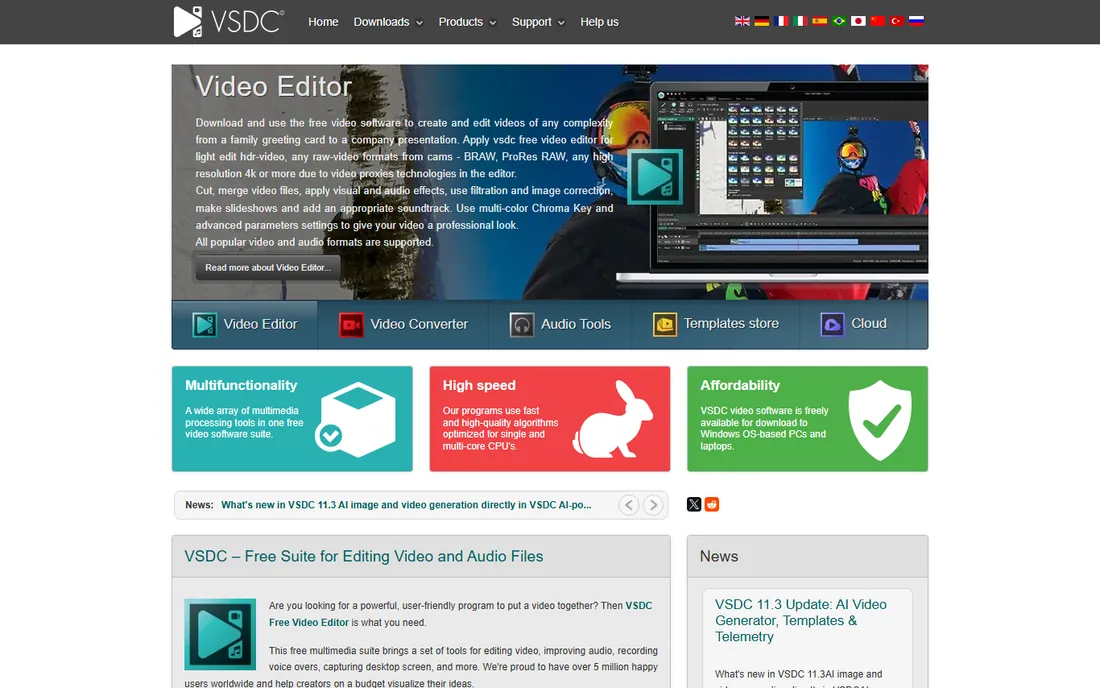
VSDC crams an unusual amount of capability into a free Windows download. Chroma key, motion tracking style effects, 360-degree video tools, and 4K exports all work without paying, and the hardware requirements are modest enough for older office PCs. Few free editors give you this much to play with, which is why it has stayed popular for years.
The trade is the interface. Panels, submenus, and toolbars crowd the screen, and the learning curve is steeper than the feature list suggests. There is also a paid Pro version with extras like advanced masking and hardware acceleration, but the free tier stands on its own for most business work. Pick VSDC if you are on Windows and want maximum features for zero cost, and budget an afternoon to learn where everything lives.
What we like- No watermark on free exports
- Strong effects, chroma key, and 4K support
- Runs on modest hardware
Watch out for- Windows only
- The interface is busy and takes learning
How we chose
We did not install and benchmark every editor hands-on for this guide. Instead we compared the current pricing pages, read each vendor's feature documentation, and looked for patterns in public reviews on G2, Capterra, and Reddit, with special attention to complaints about watermarks, export limits, and stability. We favored editors that stay free for real work rather than acting as trial versions, and we weighted fit for small business use: reasonable learning curves, common format support, and export options that work for the web and social media.
What to check before you download
Watermarks and export caps
This is where free editors differ most. DaVinci Resolve, Shotcut, and Kdenlive export clean video with no watermark at any resolution your hardware can handle. CapCut's free exports are clean for core editing, while Clipchamp's free tier tops out at 1080p. Always test an export before you build a whole project around an editor.
Hardware requirements
DaVinci Resolve is the outlier here. It benefits from a discrete GPU and plenty of RAM, and integrated graphics will struggle with 4K. The other six are far lighter. If the office computers are a few years old, start with Shotcut, OpenShot, or Clipchamp and only move up when the work demands it.
Platform and installation
Clipchamp runs in the browser, which makes it the easiest to deploy across a team. CapCut covers phone, desktop, and web with cloud sync between them. Shotcut, Kdenlive, OpenShot, and DaVinci Resolve are desktop installs on Windows, Mac, and Linux, which suits fixed workstations but not Chromebooks. VSDC is Windows only.
Learning curve versus frequency
Match the tool to how often you edit. Weekly editors should invest in DaVinci Resolve or Kdenlive and grow into them. Occasional editors should pick CapCut or Clipchamp and stay there, because a powerful tool you avoid using is worse than a simple one you actually open.
Commercial use and stock assets
If client work is involved, skim the license terms for stock music, templates, and footage, since those often carry separate rules from the editor itself. Keep your own licenses for any paid stock you use, and export a clean master file so you are never locked into one app.
Frequently asked questions
Is DaVinci Resolve really free?
Yes. The free version includes the full editor, color page, visual effects, and audio tools with no watermark and no expiry. The $295 Studio version adds high-end extras most businesses never need. The real cost is hardware, since Resolve needs a capable computer.
Which free video editor has no watermark?
DaVinci Resolve, Shotcut, Kdenlive, OpenShot, and VSDC all export without watermarks. CapCut's free tier also exports clean video for core editing features. Be cautious with any editor not on this list that advertises itself as free, since watermarks are the most common catch.
Can I edit videos on my phone for free?
CapCut is the strongest free option here, with a full-featured mobile app for iOS and Android. Kdenlive and Shotcut are desktop only, DaVinci Resolve has a tablet-oriented layout but is desktop software, and Clipchamp works through a mobile browser with limited editing.
Will these editors run on an older computer?
Shotcut and Clipchamp are the safest bets for older hardware. CapCut's desktop app is moderately light. Kdenlive runs acceptably on most machines from the last five years. DaVinci Resolve is the exception and genuinely needs a modern CPU, plenty of RAM, and ideally a discrete GPU.
Can I use free video editing software for client work?
Yes for all seven editors, since none of them restrict commercial use of the software itself. The separate question is stock assets: music, templates, and footage inside these apps may have their own licenses. When in doubt, use your own licensed assets for anything a client will publish.
Sources we checked (7)
- https://www.blackmagicdesign.com/products/davinciresolve
- https://www.capcut.com/
- https://clipchamp.com/en/
- https://shotcut.org/
- https://kdenlive.org
- https://www.openshot.org/
- https://videosoftdev.com/
Is your product missing or out of date?
We review this list regularly. Vendors can request a listing, send updated pricing or ask about featured placement.

Shihab Mia · Founder, Rankite
Shihab has spent more than a decade helping SaaS and e-commerce brands grow through search. He writes Rankite's software buying guides from pricing pages, documentation and public user reviews. More about Shihab.