How we make this list: we compare pricing pages, product documentation and public user reviews. Ratings come from G2, Capterra or Trustpilot, with the date we checked them.
Google Docs vs Notion at a Glance
Google Docs is the top pick for people who want a free word processor that opens in any browser, with real-time collaboration and comments built in. Notion is the top pick for people who want a shared workspace with databases, wikis and team pages. Docs is a document, while Notion is a workspace that happens to hold documents. The right pick depends on whether you write drafts or run a team hub.
Key takeaways:
- Google Docs is free with a Google account, with Workspace Starter at 7 dollars per user per month.
- Notion is free for one person, with Plus at 10 dollars per user per month billed annually.
- Docs wins on free access and live editing, while Notion wins on databases and structure.
- Docs suits shared drafts and school work, while Notion suits wikis and project tracking.
- Microsoft Word is the best alternative for deep formatting, and Coda is the best pick for docs with automations.
Which is better for documents, Google Docs or Notion?
Google Docs and Notion both hold writing, but they organise it in opposite ways. Docs is a word processor first. It opens in any browser, saves every change as you type, and lets several people edit the same document at once with comments and suggestions. It is free with a Google account, and it opens on any device with no install. Notion is a workspace first. A page can hold text, tables, boards, calendars and databases, so one workspace can replace a notes app, a wiki and a simple tracker. The right pick depends on the job. Choose Docs if you draft with others, share links instead of files, and want a free tool that is always in step. Choose Notion if you work with a team, manage projects in databases, or want templates that set up a workspace in minutes. Speed and simplicity favour Docs, while structure and shared work favour Notion.
How much do Google Docs and Notion cost?
Google Docs costs nothing. It is free with a Google account, with no limit on documents, and it runs in any browser. Google Workspace adds business features, with Starter at 7 dollars per user per month, Standard at 14 dollars and Plus at 22 dollars. Notion has a free plan for one person with unlimited pages and blocks, which covers most personal use. Plus costs 10 dollars per user per month billed annually, and Business costs 20 dollars, adding more admin controls and AI features. Over three years, one person pays nothing for Docs and 360 dollars for Notion Plus. A five-person team pays nothing for Docs, 1,260 dollars for Workspace Starter, and 1,800 dollars for Notion Plus over three years. For a solo user who only needs personal writing, both are free, and the choice comes down to how you organise rather than what you pay.
For teams, Notion is the stronger default. Databases can track projects, tasks and docs in one place, templates give each type of page a ready structure, and permissions control who sees what. Comments and mentions keep discussion inside the page, and the free plan covers a small group trying it out. Google Docs is the best free team option for shared drafts, with real-time editing, comments and suggestions, and sharing is a link. Coda suits teams that want docs with tables and automations, while Confluence suits teams that want a structured wiki with deep permissions. Microsoft Word fits teams that exchange files with clients, since DOCX is the standard format and track changes is the strongest in this list. For a wider look at no-cost options, see our guide to the best free note-taking apps.
Google Docs vs Notion Compared Side by Side
The table below puts the eight tools side by side on starting price, free plan and best use, so you can shortlist in a minute.
| Tool | Starting price | Free plan | Best for |
| Google Docs | Free | Yes, free with a Google account | Shared drafts and live collaboration |
| Notion | $10 per user per month billed annually | Yes, free for one person | Notes plus databases and wikis |
| Microsoft Word | $9.99 per month or $99.99 per year | No, web version only with a free account | Deep formatting and DOCX compatibility |
| Coda | $12 per user per month billed annually | Yes, free for small teams | Docs with tables and automations |
| Evernote | $14.99 per month or $99 per year | Yes, 50 notes and one notebook | Web clipping and PDF search |
| Obsidian | Free, Sync from $4 per user per month billed annually | Yes, full app free | Local Markdown notes and linking |
| Zoho Writer | Free | Yes, free for personal use | Clean writing with Zoho integration |
| Confluence | Free up to 10 users | Yes, free for up to 10 users | Team wikis and documentation |
Quick comparison
| Tool | Best for | Starting price | Free plan |
|---|
 Google Docs | Shared drafts, live collaboration and free writing in the browser | Free, Google Workspace from $7 per user per month (Starter plan) | Yes, free with a Google account |
 Notion | Notes plus databases, wikis and team workspaces | $10 per user per month billed annually (Plus plan) | Yes, free for one person with unlimited pages and blocks |
 Microsoft Word | Deep formatting, DOCX compatibility and offline desktop work | $9.99 per month or $99.99 per year (Microsoft 365 Personal) | No, web version only with a free Microsoft account |
 Coda | Docs with tables, buttons and automations for teams | $12 per user per month billed annually (Pro plan) | Yes, free for small teams with limited doc size |
 Evernote | Web clipping, PDF search and structured notebooks | $14.99 per month or $99 per year (Starter plan) | Yes, free plan with 50 notes, one notebook and one synced device |
 Obsidian | Local Markdown notes with backlinks and a knowledge graph | Free, Sync from $4 per user per month billed annually | Yes, the full app is free for personal and commercial use |
 Zoho Writer | Clean writing with Zoho apps and simple collaboration | Free | Yes, free for personal use |
 Confluence | Team wikis, documentation and structured knowledge bases | Free up to 10 users, Standard from $7.15 per user per month on monthly billing | Yes, free for up to 10 users with 2 GB of file storage |
Is your product missing or out of date?
We review this list regularly. Vendors can request a listing, send updated pricing or ask about featured placement.
The eight tools below cover free browser writing, workspaces, desktop formatting and team wikis. Prices were checked 18 November 2026.
#1Google Docs
Best for: Shared drafts, live collaboration and free writing in the browser4.6/5 on
G2 (114 reviews, checked Oct 2026)
Visit docs.google.com
Starting priceFree, Google Workspace from $7 per user per month (Starter plan)
Free planYes, free with a Google account
Google Docs is the simplest tool in this list, and that is its strength. It is free with a Google account, it opens in any browser, and several people can edit the same document at once with comments and suggestions. For short notes, meeting minutes and shared drafts, it is faster to open than any dedicated app. Google Workspace adds business features, with Starter at 7 dollars per user per month, Standard at 14 dollars and Plus at 22 dollars. The trade-offs are formatting and offline depth. Docs handles everyday documents well, but long reports with complex styles, cross-references and tables of contents are harder than in Word. Offline use works through the browser extension, but the full feature set needs a connection.
What we like- Free, real-time collaboration, comments and suggestions, strong search, works in any browser
Watch out for- Formatting is weaker than Word for long reports, and it needs a connection for the full feature set
#2Notion
Best for: Notes plus databases, wikis and team workspaces4.6/5 on
G2 (13,834 reviews, checked Oct 2026)
Visit notion.com
Starting price$10 per user per month billed annually (Plus plan)
Free planYes, free for one person with unlimited pages and blocks
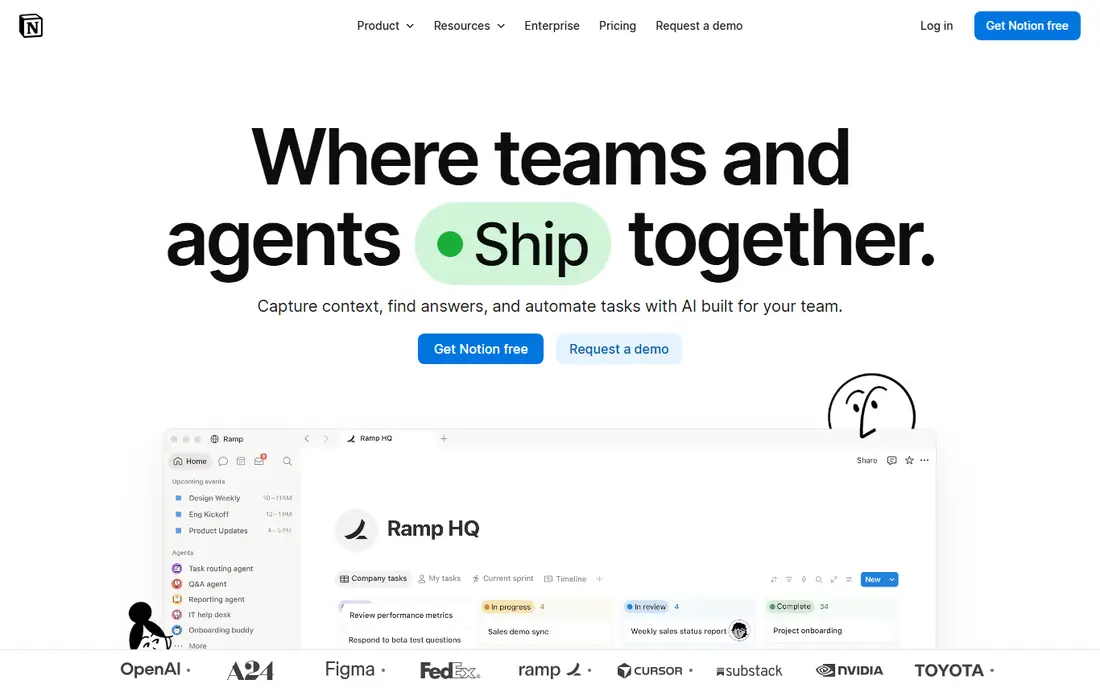
Notion is the most flexible tool in this list. A page can hold text, tables, boards, calendars and databases, so one workspace can replace a notes app, a wiki and a simple tracker. The free plan covers one person with unlimited pages and blocks, which is enough for most personal use. Plus costs 10 dollars per user per month billed annually, and Business costs 20 dollars, adding more admin controls and AI features. The trade-off is that Notion is a cloud app first. Offline access is limited, and a big workspace with many linked databases can load slowly. It is also weaker than Docs for simple document writing, since Notion pages follow a block layout and export to Word can need tidying.
What we like- Databases, templates and wikis in one workspace, strong sharing, huge template library
Watch out for- Needs an internet connection for the best experience, and large workspaces can feel slow
#3Microsoft Word
Best for: Deep formatting, DOCX compatibility and offline desktop work4.7/5 on
G2 (2,062 reviews, checked Oct 2026)
Visit microsoft.com
Starting price$9.99 per month or $99.99 per year (Microsoft 365 Personal)
Free planNo, web version only with a free Microsoft account
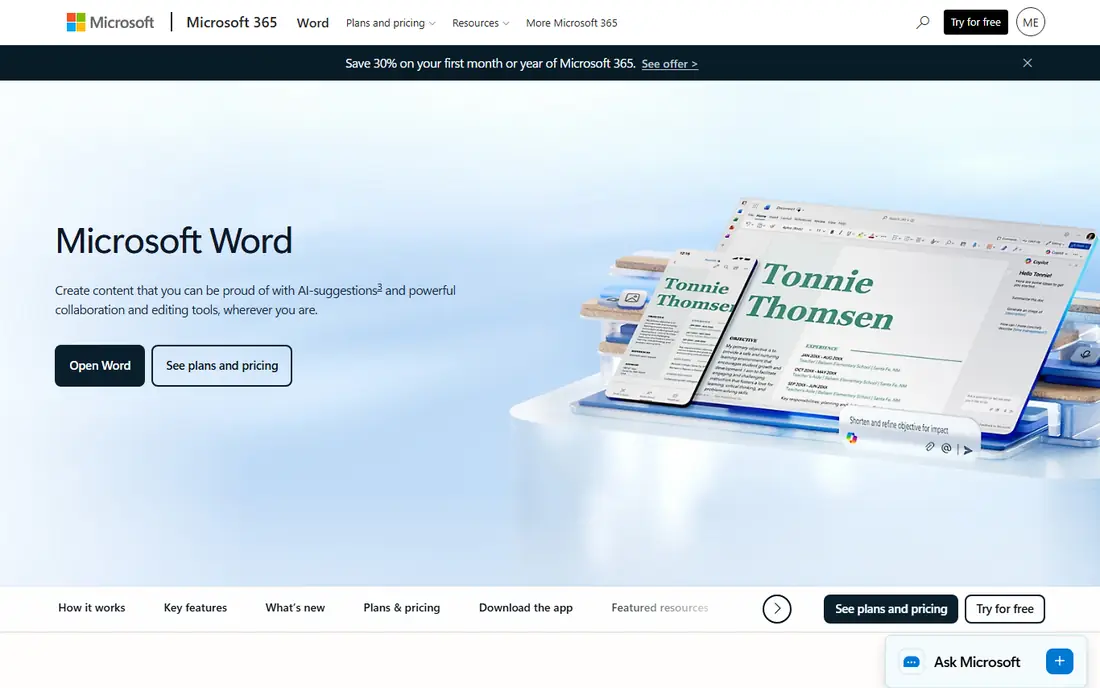
Microsoft Word is the standard that every other word processor is measured against. It has the deepest formatting in this list, from styles and section breaks to tables of contents, footnotes, mail merge and field codes, and it reads and writes the DOCX format that most of the world uses. Track changes is the strongest in this list, which is why editors, lawyers and publishers still ask for Word files. It comes with Microsoft 365 Personal at 9.99 dollars a month or 99.99 dollars a year, with 1 TB of OneDrive storage and the desktop apps on up to five devices. The trade-offs are cost and the web version. The desktop app needs a paid subscription, and the free web version is weaker than the desktop app, with fewer formatting tools and no full offline use.
What we like- The deepest formatting in this list, track changes, mail merge, full offline use, DOCX is the world standard
Watch out for- The desktop app needs a paid subscription, and the web version is weaker than the desktop app
#4
Coda
Best for: Docs with tables, buttons and automations for teams
Visit coda.io
Starting price$12 per user per month billed annually (Pro plan)
Free planYes, free for small teams with limited doc size
Coda turns documents into small apps. A page can hold tables that behave like a database, buttons that run actions, and automations that send reminders or update rows. That makes it a strong pick for team hubs, project trackers and meeting systems that outgrow a plain document. Pro costs 12 dollars per user per month billed annually, and Business costs 33 dollars, adding more automations and admin controls. The free plan covers small teams with limited doc size, which is enough to test the model. The trade-off is the learning curve. Coda asks you to think in tables and formulas, which feels strange at first, and a simple letter can take longer to set up than in Docs or Notion.
What we like- Docs that work like apps, with tables, buttons and automations, strong templates, good for team hubs
Watch out for- The doc-as-app model takes time to learn, and paid plans start higher than Notion
#5Evernote
Best for: Web clipping, PDF search and structured notebooks4.3/5 on
G2 (2,034 reviews, checked Oct 2026)
Visit evernote.com
Starting price$14.99 per month or $99 per year (Starter plan)
Free planYes, free plan with 50 notes, one notebook and one synced device
Evernote is still the strongest clipper in this list. The browser extension saves a full page, a simplified article or a screenshot, and it keeps the source address with the clip. Search is the other reason to pay. It reads text inside PDFs, images and Office files, so a receipt or a scanned contract turns up from one search box. Notes live in notebooks and stacks, with tags for cross-cutting topics. The trade-off is cost and lock-in. Notes sit in Evernote format, export takes effort, and the free plan is too small for real use. Paying 99 dollars a year for Starter is fair only if you clip and search every day.
What we like- Strong web clipper, search inside PDFs and images, sync across Windows, Mac, iOS, Android and web
Watch out for- The free plan holds only 50 notes, and paid plans cost more than most rivals in this list
#6Obsidian
Best for: Local Markdown notes with backlinks and a knowledge graph4.5/5 on
G2 (13 reviews, checked Oct 2026)
Visit obsidian.md
Starting priceFree, Sync from $4 per user per month billed annually
Free planYes, the full app is free for personal and commercial use
Obsidian stores notes as plain Markdown files in a folder you control, so your writing stays readable in any editor and survives any company shutdown. Links between notes build a graph that shows how ideas connect, and the plugin library adds calendars, task lists and daily notes. The app itself is free, even for commercial use. Sync costs 4 dollars per user per month billed annually, or 5 dollars monthly, and Publish costs 8 dollars per site per month billed annually. A commercial licence is 50 dollars per user per year for larger teams, though it is optional for most users. The cost is a steeper learning curve. Obsidian ships plain, and you shape it with settings and plugins, which takes an afternoon before it feels like yours.
What we like- Notes are plain Markdown files on your own disk, powerful linking and graph view, large plugin library
Watch out for- Sync and publishing cost extra, and the interface takes time to set up well
#7Zoho Writer
Best for: Clean writing with Zoho apps and simple collaboration4.4/5 on
G2 (97 reviews, checked Oct 2026)
Visit zoho.com
Starting priceFree
Free planYes, free for personal use
Zoho Writer is the quiet free option in this list. It is free for personal use, with a clean interface that stays out of the way, and it handles everyday documents, tables and images well. Real-time collaboration lets several people edit the same document, and it reads and writes DOCX files cleanly. It also fills and signs documents, which suits forms and contracts, and it works with other Zoho apps for mail, sheets and storage. The trade-offs are storage and scale. The free plan has storage limits, and business features need Zoho Workplace, with Standard at 3 dollars per user per month. For a solo writer who wants a free browser word processor with more polish than Docs, it is worth a look.
What we like- Free, clean interface, real-time collaboration, good DOCX support, fills and signs documents, works with other Zoho apps
Watch out for- The free plan has storage limits, and business features need a paid Zoho Workplace plan
#8Confluence
Best for: Team wikis, documentation and structured knowledge bases4.1/5 on
G2 (4,368 reviews, checked Oct 2026)
Visit atlassian.com
Starting priceFree up to 10 users, Standard from $7.15 per user per month on monthly billing
Free planYes, free for up to 10 users with 2 GB of file storage
Confluence is Atlassian's team wiki, built for documentation that many people read and few people write. Spaces hold pages in a clear tree, permissions control who sees what, and version history keeps every change. It fits product docs, handbooks and knowledge bases that need structure, and it works well with Jira for teams that already use Atlassian tools. The free plan covers up to 10 users with 2 GB of file storage. Standard costs 7.15 dollars per user per month on monthly billing for the first 100 users, after a price change on 13 October 2026, and Premium costs 14.10 dollars, adding analytics, unlimited storage and 24/7 support. The trade-offs are cost and weight. Per-user pricing adds up fast for large teams, and the interface can feel heavy for a simple shared document.
What we like- Structured spaces and pages, deep permissions, strong Jira integration, page version history
Watch out for- Per-user pricing adds up fast for large teams, and the interface can feel heavy for simple docs
Frequently asked questions
Is Google Docs really free?
Yes, Google Docs is free with a Google account, with no limit on documents and no paid tier for the core app. You can write, share and collaborate from any browser, and files save as you type. The only costs are optional, such as Google Workspace at 7 dollars per user per month for business features, or extra Google storage beyond the free 15 GB that is shared across Gmail, Drive and Photos.
Can I use Docs and Notion together?
Yes, many people use both, with Docs for shared drafts and Notion for team organisation. Draft a document in Docs, where real-time editing and comments are strongest, then link it from a Notion page that tracks the project, the deadline and the owner. Keep wikis, trackers and meeting notes in Notion, and keep the finished document in Docs, where formatting and sharing are simplest.
Does Notion work offline?
Notion works offline in a limited way. You can open pages you already loaded, but creating new pages, searching the whole workspace and syncing changes all need a connection, and the desktop app is a wrapper around the cloud service. Docs works offline through the browser extension, which lets you read and edit without a connection. If you write on planes or in places with weak wifi, Docs is the safer pick for daily drafting.
Which is better for students, Docs or Notion?
Docs suits students who draft with classmates, because real-time editing, comments and suggestions are free, and sharing is a link. Notion suits students who plan assignments and track deadlines, because databases, calendars and templates turn a workspace into a study planner. Both are free, so a student can run Docs for essays and Notion for planning in the same week, and neither costs anything to try.
Should I pay for Notion Plus?
Pay for Plus if you use Notion with a team, since it costs 10 dollars per user per month billed annually and adds unlimited file uploads, longer page history and more guests. A solo user can stay on the free plan, which gives unlimited pages and blocks and covers most personal use. Upgrade when you hit the free limits on uploads or history, or when you need the extra admin controls that Plus adds.
Sources we checked (8)
- https://docs.google.com
- https://www.notion.com
- https://www.microsoft.com/en-us/microsoft-365/word
- https://coda.io
- https://evernote.com
- https://obsidian.md
- https://www.zoho.com/writer/
- https://www.atlassian.com/software/confluence
Is your product missing or out of date?
We review this list regularly. Vendors can request a listing, send updated pricing or ask about featured placement.

Shihab Mia · Founder, Rankite
Shihab has 5+ years in B2B and SaaS SEO. He writes Rankite's software buying guides from pricing pages, documentation and public user reviews. More about Shihab.