How we make this list: we compare pricing pages, product documentation and public user reviews. Ratings come from G2, Capterra or Trustpilot, with the date we checked them.
Key takeaways
- DaVinci Resolve is the best free editor for creators who want professional color, audio, and effects without a subscription.
- Premiere Pro and Final Cut Pro remain the professional standards, with Premiere Pro winning on cross-platform work and Final Cut Pro on Mac speed and one-time pricing.
- CapCut is the fastest route to polished Shorts and vertical video, while Filmora is the easiest full desktop editor for beginners.
- iMovie and Clipchamp cost nothing to start and cover simple talking-head videos well, but both run out of room as projects grow.
- Compare total cost over two or three years, not just the first month, because subscriptions overtake one-time purchases quickly.
Quick comparison
| Tool | Best for | Starting price | Free plan |
|---|
 DaVinci Resolve DaVinci Resolve | Creators who want a full professional editor for free | $295 one-time | Yes |
 Adobe Premiere Pro Adobe Premiere Pro | Professional editors and creators who work across Mac and Windows | $22.99 per month | Free trial |
 Final Cut Pro Final Cut Pro | Mac creators who want speed and a one-time purchase | $299.99 one-time | Free trial |
 CapCut CapCut | Shorts, Reels, and fast vertical video | $19.99 per month | Yes |
 Filmora Filmora | Beginners who want a friendly full desktop editor | $49.99 per year | Free trial |
 iMovie iMovie | New Mac and iPhone creators making simple videos | $0 | Yes |
 Camtasia Camtasia | Tutorial and screen-recording creators on YouTube | $179.88 per year | Free trial |
 Clipchamp Clipchamp | Windows creators who want a free browser editor | $11.99 per month | Yes |
Is your product missing or out of date?
We review this list regularly. Vendors can request a listing, send updated pricing or ask about featured placement.
The best YouTube video editing software for creators
#1DaVinci Resolve
Best for: Creators who want a full professional editor for free4.7/5 on
G2 (221 reviews, checked Oct 2026)
Visit blackmagicdesign.com
Starting price$295 one-time
Free planYes
DaVinci Resolve is the rare free tool that professionals also use for paid work. One app covers editing on the Cut and Edit pages, color grading on the Color page, visual effects in Fusion, and audio mixing in Fairlight. The free version exports up to 4K at 60 frames per second with no watermark and no time limit, which covers almost every YouTube channel. Version 21 adds a Photo page and more than 100 new tools, including AI search and focus tools.
The paid Studio version costs $295 as a one-time license and adds AI tools such as Magic Mask and voice isolation, noise reduction, HDR grading, and exports above 4K. Most creators should start free and upgrade only when a Studio-only feature solves a repeated problem, such as noisy footage or a need for higher-resolution delivery. The honest catch is complexity. Resolve has more panels and settings than a beginner editor, and older machines will struggle with 4K timelines. Give it a week of regular use before judging it.
What we like- Free version covers editing, color, effects, and audio, no watermark, no subscription
Watch out for- Steep learning curve, needs a capable computer for smooth 4K work
#2Adobe Premiere Pro
Best for: Professional editors and creators who work across Mac and Windows4.5/5 on
G2 (1,675 reviews, checked Oct 2026)
Visit adobe.com
Starting price$22.99 per month
Free planFree trial
Premiere Pro is the default professional editor for YouTube teams, agencies, and freelancers who collaborate. Its track-based timeline handles complex projects with many layers, multicam shoots, and graphics with ease. Caption workflows, speech enhancement, and audio mixing are built in, and integration with After Effects, Photoshop, and Audition means graphics and sound work stays in the same ecosystem. A mobile Premiere app also exists for quick edits on phone and tablet.
Pricing is subscription only. The single-app plan costs $22.99 per month for individuals on an annual plan billed monthly, with a 7-day free trial. There is no permanent free version of the desktop app. Over three years that totals more than $800, so creators should weigh it against one-time purchases. Premiere Pro earns its price for editors who need cross-platform work, team review through Frame.io, and the widest plugin and template support. Solo creators on a tight budget will often do as well with Resolve.
What we like- Industry-standard timeline, strong caption and audio tools, deep Adobe app integration
Watch out for- Subscription only, no free plan beyond a 7-day trial, cost adds up over time
#3Final Cut Pro
Best for: Mac creators who want speed and a one-time purchase4.4/5 on
G2 (87 reviews, checked Oct 2026)
Visit apple.com
Starting price$299.99 one-time
Free planFree trial
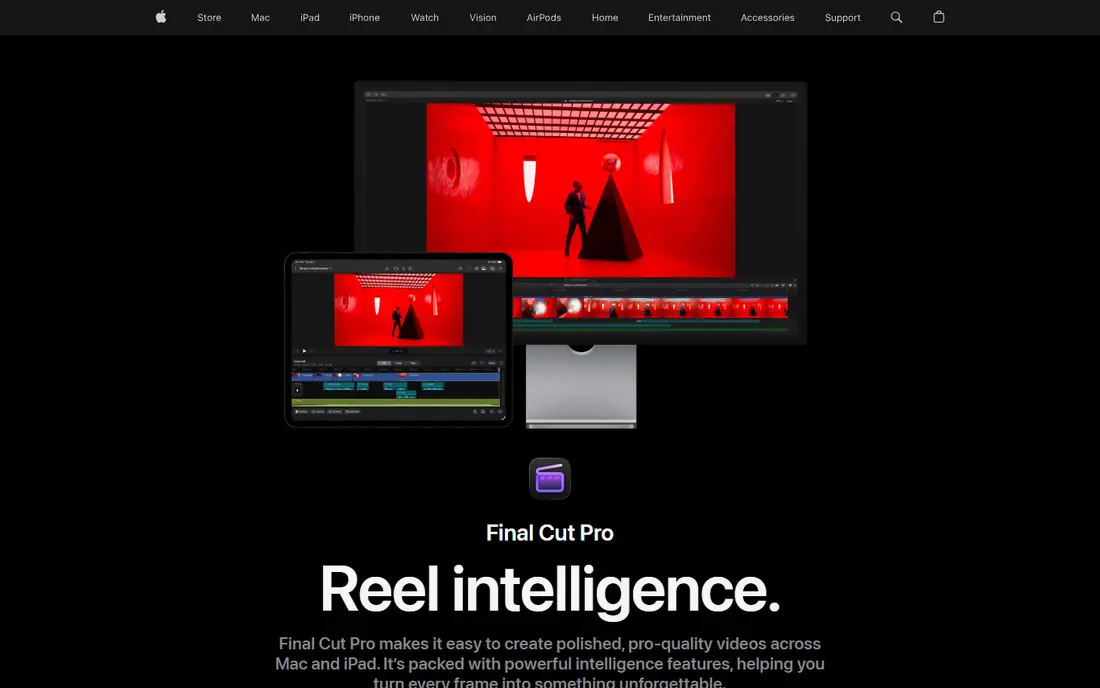
Final Cut Pro is built for Mac hardware, and it shows. On Apple silicon machines it plays back and exports 4K footage with less waiting than most rivals, and the magnetic timeline pulls clips together without leaving gaps, which makes rough cuts fast once the approach clicks. Recent updates add visual search for clips, transcript search for spoken words, and automatic caption tools that suit talking-head YouTube formats. Projects started in iMovie import directly, so Mac beginners have a clear upgrade path.
Apple still sells Final Cut Pro for Mac as a $299.99 one-time purchase on the Mac App Store, alongside the Creator Studio subscription at $12.99 per month or $129 per year. The one-time purchase excludes some premium content reserved for subscribers, and the iPad version is subscription-based rather than a one-time buy. For a Mac creator planning to edit for years, the one-time price pays for itself against subscriptions in about two years. Windows creators should look elsewhere, since there is no Windows version.
What we like- Very fast on Apple silicon, magnetic timeline speeds up assembly, one-time Mac purchase still offered
Watch out for- Mac only, some premium content requires the Creator Studio subscription
Starting price$19.99 per month
Free planYes
CapCut grew up with short-form video, and its workflow reflects that. Templates, auto captions, beat-synced cuts, and one-tap effects turn raw phone footage into a finished Short in minutes. The editor runs on mobile, desktop, and web under one account, so a project started on a phone can be finished on a computer. AI tools cover background removal, text to speech, and script-to-video drafting, which helps solo creators who film, edit, and publish alone.
Pricing changed in 2026 and buyers should check the current checkout figure. Pro costs $19.99 per month in the US app store listings, with an annual option listed around $179.99, and a cheaper Standard tier sits between free and Pro for mobile users. The free plan still handles 1080p edits, which is enough for most phone viewing, but premium templates and 4K export need Pro. CapCut is the best pick for creators whose main output is Shorts. For long-form YouTube videos, a desktop editor such as Resolve or Filmora gives more control.
What we like- Very fast for short-form video, auto captions and templates, works on phone, desktop, and web
Watch out for- Pro price rose sharply in 2026, some assets and AI tools sit behind paywalls
Starting price$49.99 per year
Free planFree trial
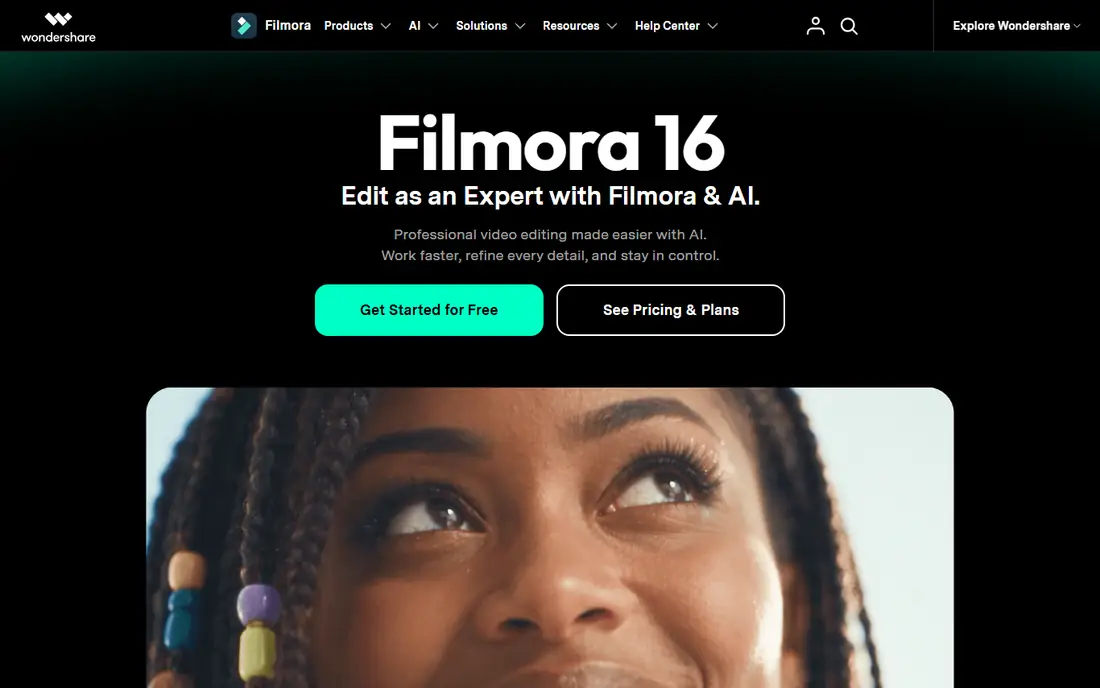
Filmora aims at the creator who wants a polished video on day one without learning a professional suite. Drag-and-drop editing, a familiar timeline, and a library of more than 2.9 million titles, effects, transitions, and royalty-free assets make assembly quick. AI features handle captions, silence removal, background removal, and audio cleanup, and screen recording is built in for tutorial creators. It runs on Windows and Mac, with companion mobile apps.
The annual plan starts at $49.99 per year for personal use, and a perpetual license around $79.99 covers the current major version. The free version lets users try the full editor, but exports carry a watermark, so it is a trial in practice rather than a publishing option. Creators who monetise videos should check the business license terms, since personal plans may not cover commercial use. Filmora will not match Resolve or Premiere Pro for advanced color work, but for weekly YouTube uploads it is one of the fastest routes to a clean result.
What we like- Easy to learn, strong AI captions and audio cleanup, large asset library
Watch out for- Free exports carry a watermark, AI credits can run out, business use needs a higher license
#6iMovie
Best for: New Mac and iPhone creators making simple videos4.3/5 on
G2 (568 reviews, checked Oct 2026)
Visit apple.com
Starting price$0
Free planYes
iMovie is the right starting point for anyone who owns a Mac, iPhone, or iPad and has never edited before. It covers trims, transitions, titles, speed changes, and music without charging anything, and its project files import into Final Cut Pro when a creator outgrows it. For simple talking-head videos, vlogs, and family-style edits, iMovie finishes the job with little fuss and no watermark on exports.
Limits appear as soon as projects get ambitious. iMovie allows a main storyline plus a single connected overlay clip, so stacked graphics, picture-in-picture plus titles, and complex layering are not possible. There is no multicam editing, no LUT support, and no third-party plugin system. Creators who hit those walls should move to Final Cut Pro on Mac or Resolve on any platform rather than forcing iMovie to do work it was not built for. As a free first editor, though, it is hard to fault.
What we like- Free on Apple devices, very easy to learn, no watermark
Watch out for- Limited to one overlay layer, no multicam, no plugin support, Apple devices only
#7Camtasia
Best for: Tutorial and screen-recording creators on YouTube4.6/5 on
G2 (1,769 reviews, checked Oct 2026)
Visit techsmith.com
Starting price$179.88 per year
Free planFree trial
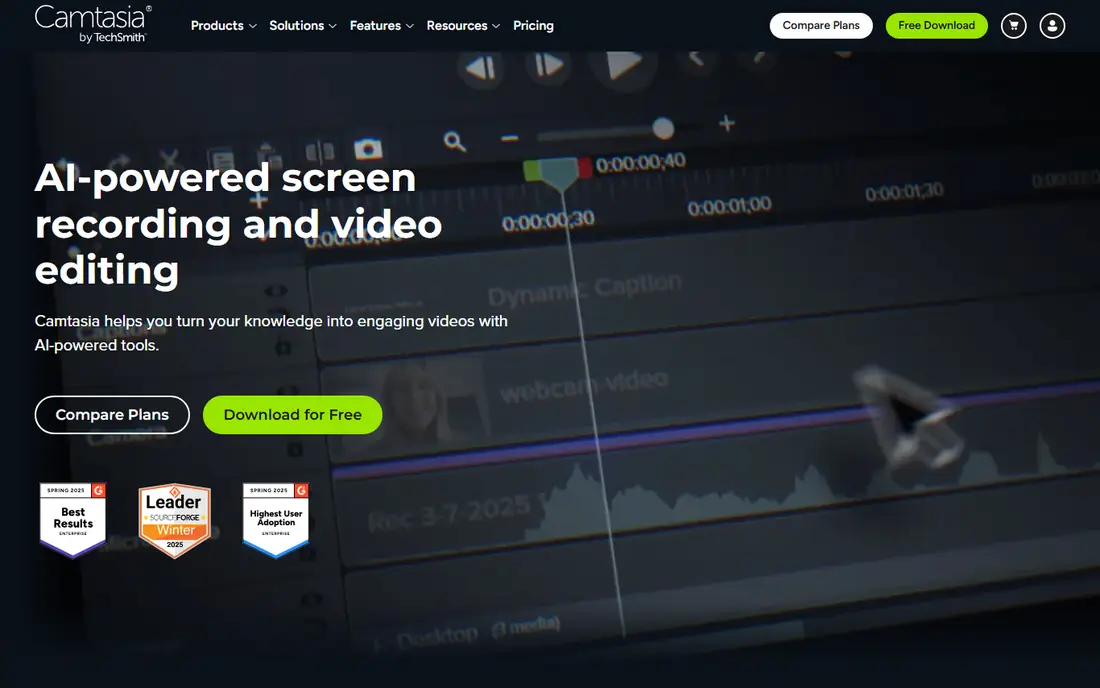
Camtasia is a screen recorder and editor in one package, which makes it a natural fit for tutorial channels. It records screen, webcam, microphone, and system audio on separate tracks, so a presenter can fix audio or swap a camera angle after recording. Cursor smoothing, callouts, and zoom effects help viewers follow on-screen steps, and text-based editing lets creators cut video by deleting words from a transcript. Caption export and quiz features suit course-style content that also lives on YouTube.
Pricing needs care. A Starter plan at $39 per year includes a watermarked editor, so the usable starting point for published videos is Essentials at $179.88 per year, which removes the watermark and adds Audiate text editing and captions. Higher tiers add AI scripts, voices, avatars, and translation. Camtasia is overpriced as a general vlog editor, but for channels built on software tutorials and training videos, its recording workflow saves enough time to justify the cost.
What we like- Screen and webcam recording on separate tracks, text-based editing, captions and quizzes
Watch out for- Cheapest tier exports carry a watermark, price is high for general vlog editing
#8Clipchamp
Best for: Windows creators who want a free browser editor4.1/5 on
G2 (49 reviews, checked Oct 2026)
Visit clipchamp.com
Starting price$11.99 per month
Free planYes
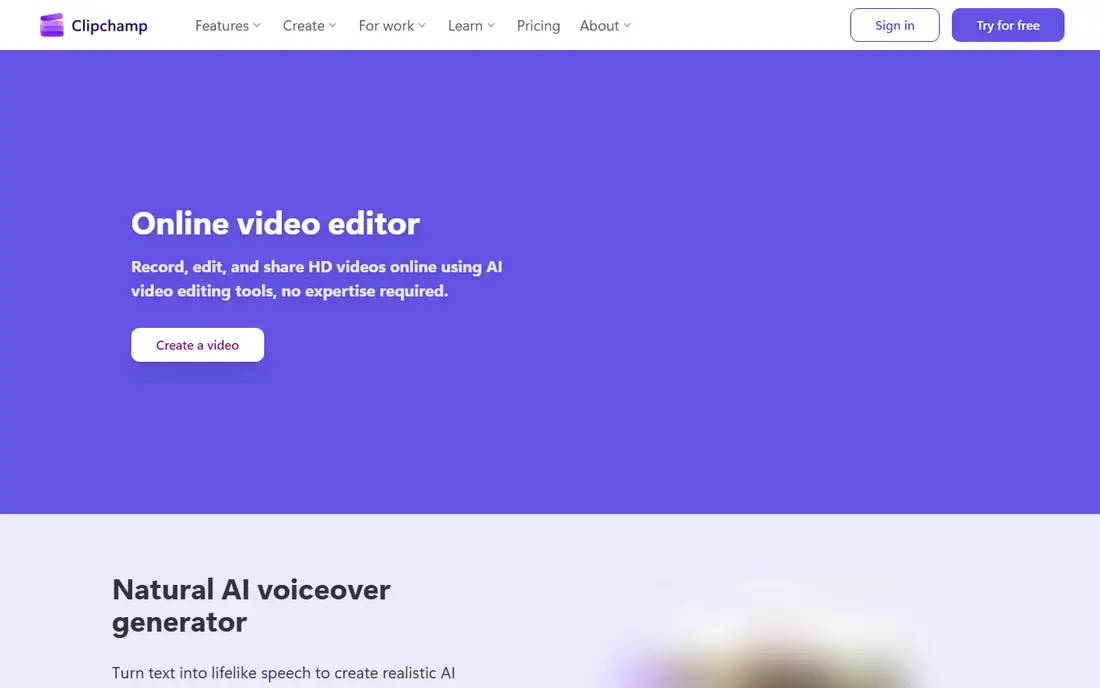
Clipchamp is Microsoft's browser-based editor, included with Windows 11 and also available on the web. The free plan exports up to 1080p without a watermark, includes AI silence removal, and covers trimming, text, transitions, stock assets, and text-to-speech voices. Because it runs in a browser, it works on modest Windows machines that would struggle with a heavy desktop editor, and projects stay accessible from any computer with a sign-in.
Premium features, including 4K export, premium filters, extra stock assets, and a brand kit, come with a Microsoft 365 subscription or a standalone Clipchamp Premium subscription listed at $11.99 per month. That bundling confuses pricing, so buyers should check which route they already pay for before adding a new subscription. Clipchamp will not replace a professional desktop editor for complex projects, but as a free starting point for Windows creators, it is stronger than most people expect.
What we like- Free 1080p exports without a watermark, runs in the browser, included with Windows 11
Watch out for- Premium features tie to Microsoft 365 or a separate subscription, needs a steady connection
How we chose
We started from vendor pricing pages and product documentation, then checked features against public reviews on G2 and Capterra and creator discussion on Reddit and YouTube forums. A tool made this list only if it is currently sold, runs on a common creator setup, and handles the core YouTube job of cutting, captioning, and exporting video. We favoured editors with a free plan or trial and published pricing, and we noted where pricing varies by store or region rather than copying a single checkout figure as universal. Platform fit mattered: a Mac-only or Windows-only tool stayed in the list only because its strengths justify the limit.
Which editor fits your channel
Start with your most common video, not the most impressive feature list. A talking-head channel needs clean audio, captions, and fast cuts, which iMovie, Clipchamp, or Filmora handle well. A tutorial channel needs screen recording and cursor work, which points to Camtasia. A Shorts channel needs templates and vertical speed, which points to CapCut. A channel aiming for a cinematic look needs color and audio depth, which points to Resolve or Premiere Pro.
Next, check your machine honestly. Resolve and Premiere Pro reward a modern processor, a capable graphics card, and at least 16GB of memory for smooth 4K work. On an older laptop, a browser editor or a lighter desktop editor will finish videos faster than a professional suite that stutters on every preview. Test with your own footage before buying. Export a real five-minute video, including captions and music, and time both the edit and the export.
Finally, count total cost over the time you expect to keep editing. A $22.99 monthly subscription costs about $276 in a year and $828 over three years, while a $295 or $299.99 one-time purchase stays flat. Free tools change the math again, but check what the free tier withholds. Watermarked exports, capped resolution, and metered AI credits can turn a free editor into a paid one at the worst moment, right before publishing.
Frequently asked questions
What is the best free YouTube video editing software?
DaVinci Resolve is the best free option for creators who want professional tools, since its free version covers editing, color, effects, and audio with 4K exports and no watermark. iMovie is the best free option for Apple users who want the simplest path to a finished video. Clipchamp is the best free browser option for Windows creators who prefer not to install software.
Is Premiere Pro or Final Cut Pro better for YouTube?
Premiere Pro suits creators who work across Mac and Windows, collaborate with teams, or rely on Adobe apps and plugins. Final Cut Pro suits Mac creators who value speed on Apple silicon and a one-time purchase. Both produce professional YouTube videos, so the choice usually follows platform and budget rather than output quality.
Can I edit YouTube videos on my phone?
Yes. CapCut, iMovie on iPhone, and the Premiere mobile app all handle phone editing, and CapCut is the strongest for Shorts. Phone editing works well for short videos and quick uploads, but long videos with many clips, captions, and audio tracks are still easier to finish on a desktop editor with a larger screen and faster export.
Do I need 4K export for YouTube?
Not always. YouTube viewers on phones often cannot tell 1080p from 4K after compression, and 1080p files upload and process faster. 4K matters for channels that crop heavily, publish cinematic footage, or want future-proof masters. Most editors on this list export 1080p on free or low-cost plans, with 4K reserved for paid tiers in some cases.
What specs do I need for video editing?
For 1080p editing, a modern laptop with 8GB of memory and a solid-state drive is usually enough. For smooth 4K work in Resolve or Premiere Pro, 16GB of memory, a capable graphics card, and fast storage make a clear difference. Check each vendor's published system requirements before buying, and test with your own camera files rather than sample clips.
Should beginners start with a free or paid editor?
Start free unless a specific paid feature solves a problem you already have. Free editors such as Resolve, iMovie, and Clipchamp teach the core skills of cutting, pacing, and audio, and they reveal what you actually miss before you spend money. Pay when a limit blocks published work, such as a watermark, a missing caption tool, or a format your channel needs every week.
Sources we checked (10)
- https://www.blackmagicdesign.com/products/davinciresolve
- https://www.adobe.com/products/premiere.html
- https://www.apple.com/final-cut-pro/
- https://www.capcut.com
- https://filmora.wondershare.com
- https://www.apple.com/imovie/
- https://www.techsmith.com/camtasia/
- https://clipchamp.com
- https://www.adobe.com/creativecloud/plans.html
- https://www.techsmith.com/store/camtasia
Is your product missing or out of date?
We review this list regularly. Vendors can request a listing, send updated pricing or ask about featured placement.

Shihab Mia · Founder, Rankite
Shihab has 5+ years in B2B and SaaS SEO. He writes Rankite's software buying guides from pricing pages, documentation and public user reviews. More about Shihab.