How we make this list: we compare pricing pages, product documentation and public user reviews. Rankite is independent; if a vendor ever pays for a featured spot, that listing is clearly labeled Partner.
Key takeaways
- OBS Studio is the free, open-source powerhouse for streaming and recording; SplitCam is the free all-rounder with multistreaming and a virtual camera.
- ManyCam, XSplit and CyberLink YouCam are the established paid options for virtual cameras, effects and polished streaming.
- Streamlabs Desktop suits streamers who want overlays, alerts and multistreaming in one free package.
- SparkoCam and FineCam focus on webcam effects and DSLR-as-webcam workflows.
The best webcam software
Your webcam is capable of more than the flat, gray box your video app gives you. Webcam software adds virtual backgrounds, effects and beauty filters, turns your stream into a virtual camera for Zoom and Teams, splits one camera across multiple apps, or runs a full multi-scene broadcast. Whether you are presenting, teaching, streaming or just tired of looking washed out on calls, these eight tools cover the category.

#1
OBS Studio
Best for: Free, professional streaming and recording with total control
Visit obsproject.com
Starting priceFree (open source)
Free planYes
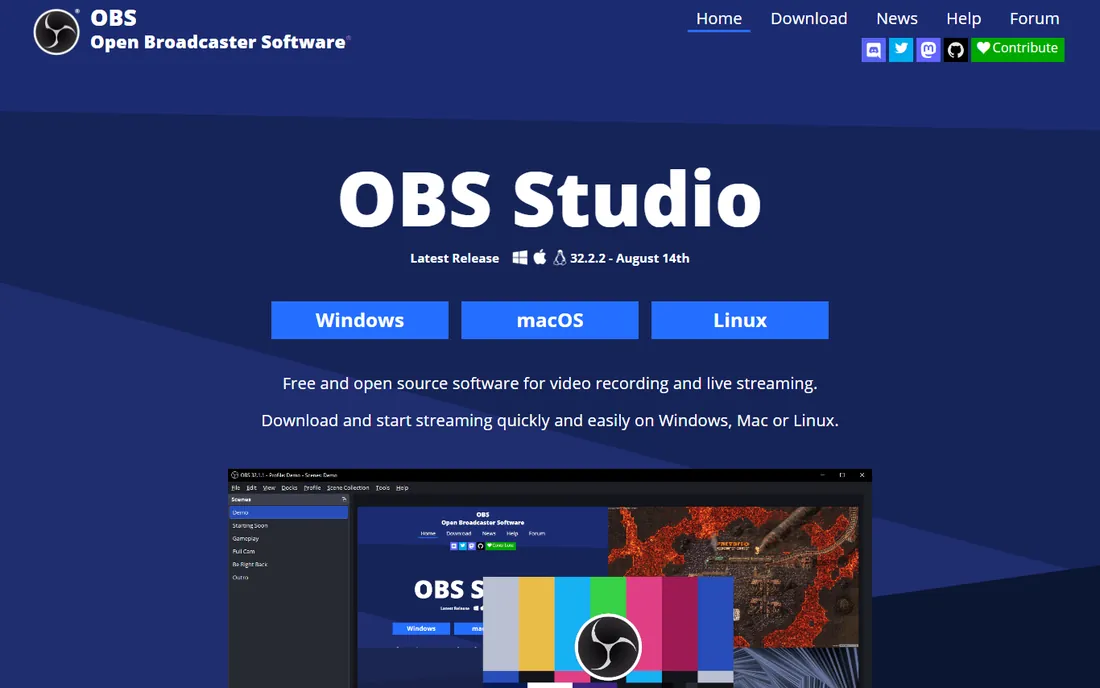
OBS Studio is the free standard for serious video work: high-performance capture and mixing, scenes built from webcams, windows, images, browser sources and capture cards, an audio mixer with VST support, and Studio Mode for previewing before going live. It streams to every major platform and records locally, all without costing a cent.
It is not the simplest tool here: expect an evening of tutorials before it feels natural. But for streamers, educators and presenters who want professional production for free, OBS is the answer, and its virtual camera output feeds Zoom, Teams and Meet too.
What we like- Completely free and open source on Windows, Mac and Linux
- Unlimited scenes, sources, transitions and audio mixing
- Huge plugin ecosystem and sponsor backing from YouTube, Twitch and NVIDIA
Watch out for- The learning curve is real for beginners
- No built-in virtual backgrounds as polished as paid rivals
- The interface prioritizes power over friendliness

#2
ManyCam
Best for: Easy virtual camera with effects for calls, teaching and streaming
Visit manycam.com
Starting priceSee website
Free planSee website
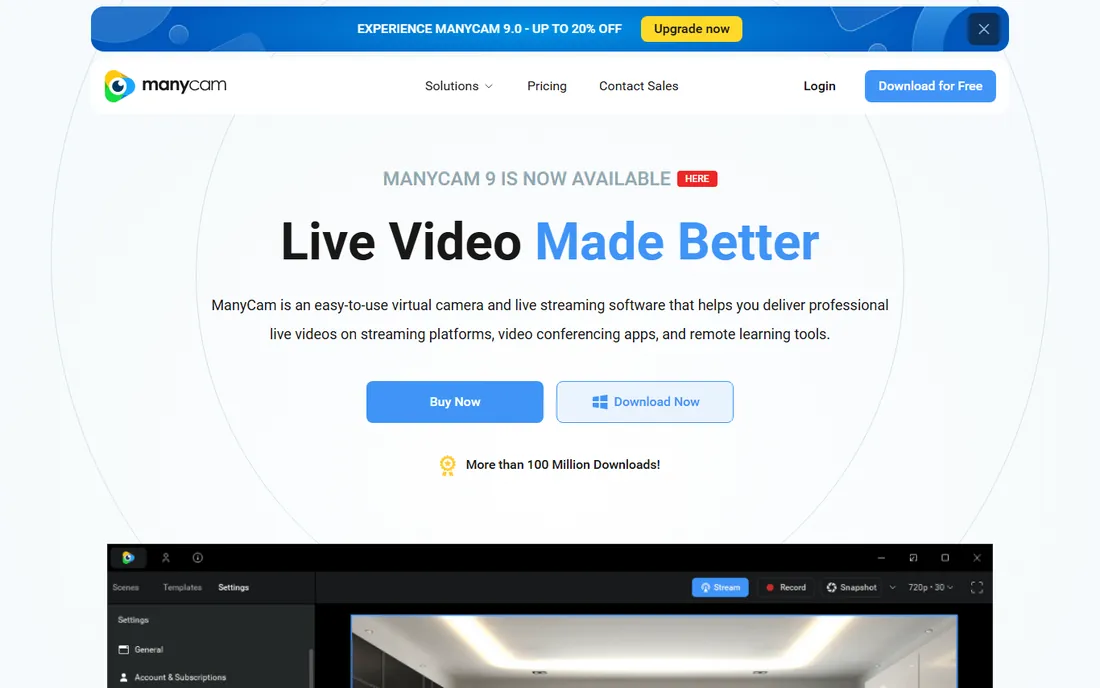
ManyCam's pitch is "live video made better": use it as a virtual camera in any video app and get professional polish, virtual backgrounds, picture-in-picture layouts, media switching and effects. It also streams to multiple platforms at once, which makes it a genuine OBS alternative for simpler productions.
The vendor's site pushes "Buy Now" and "Open up all the live video tools," with pricing on the purchase page rather than the homepage. For teachers, coaches and business presenters who want better calls without learning broadcast software, ManyCam is the established, friendly choice.
What we like- Virtual camera works in Zoom, Teams, Meet and more
- AI virtual backgrounds without a green screen
- Picture-in-picture layers, lower thirds and mobile-as-camera
Watch out for- Pricing is not published on the homepage
- The best features sit in paid tiers
- The interface carries years of accumulated features

#3
XSplit
Best for: Streamers who want guided, polished production without the OBS learning curve
Visit xsplit.com
Starting priceSee website
Free planSee website
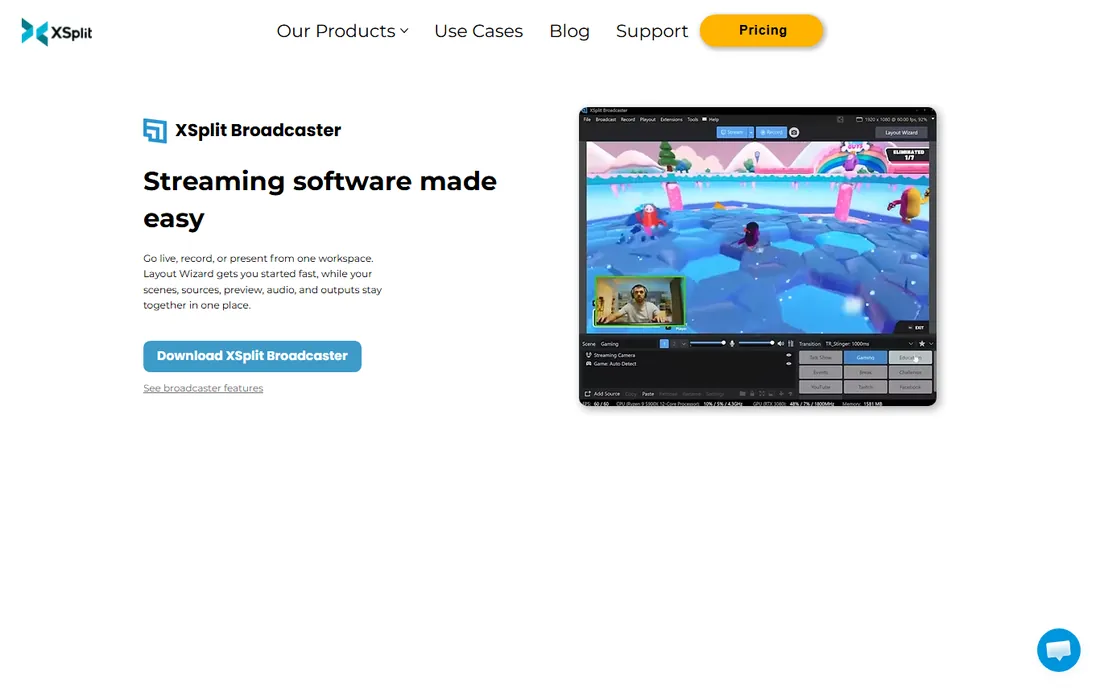
XSplit Broadcaster is the friendlier face of streaming software: one workspace for scenes, sources, preview, audio and outputs, with a Layout Wizard that builds your first scene for you. It covers game streaming, podcasts, tutorials and live events, and the free Media Manager turns recordings into finished videos with cue points intact.
The vendor claims 15 million signups. Pricing details live on the pricing page rather than the homepage. For creators who bounced off OBS's complexity but want more than a virtual camera app, XSplit sits in the sweet spot.
What we like- Layout Wizard and guided setup get beginners live fast
- XSplit Media Manager (for editing recordings) is free with no login
- VCam background removal from the same company
Watch out for- Broadcaster pricing is not published on the homepage
- The free tier's limits need checking on the pricing page
- Windows-centric history, though the site now covers broader use

#4
CyberLink YouCam
Best for: Webcam effects, beauty filters and virtual backgrounds for everyday calls
Visit cyberlink.com
Starting priceSee website
Free planNo
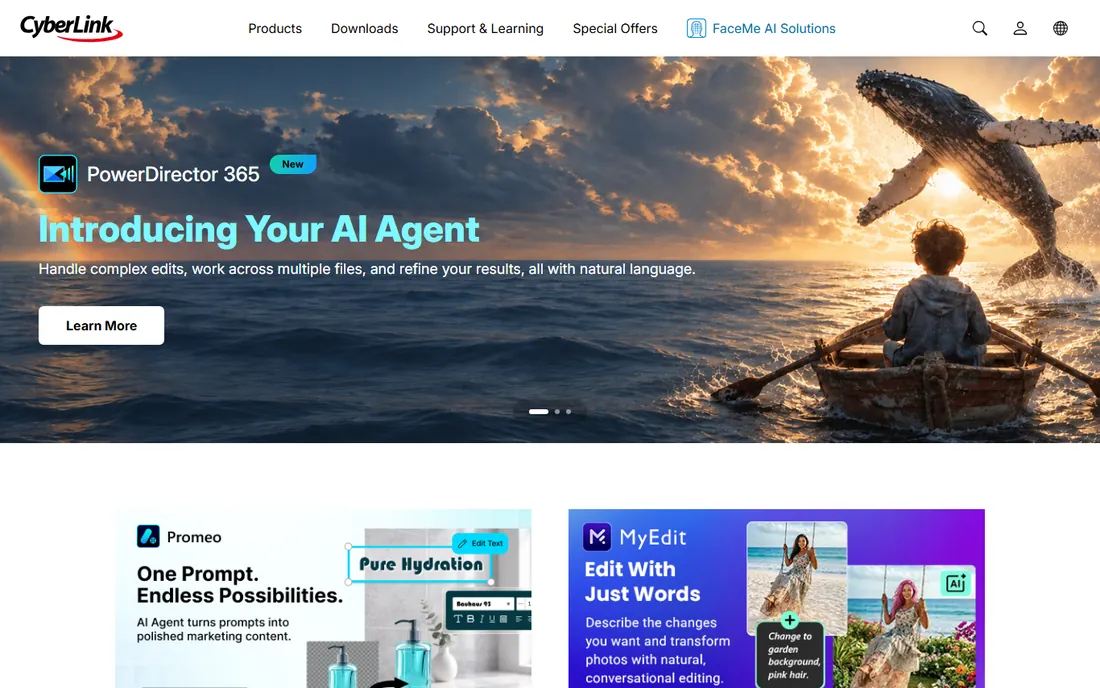
CyberLink's YouCam is the classic webcam enhancer: AR effects, beauty filters, virtual backgrounds and fun avatars that layer over your camera feed in video calls and recordings. It is lighter than a streaming suite and simpler than OBS, aimed at the everyday user who wants to look better on camera.
It is paid software; check the vendor's site for current pricing and trial options. For pure "make my webcam feed nicer" duty, YouCam remains a solid pick, though free alternatives now cover virtual backgrounds well.
What we like- Long-running webcam effects suite with avatars, filters and backgrounds
- Integrates with Zoom, Teams and other call apps
- From an established multimedia software company
Watch out for- Pricing is not published on the homepage
- It is effects software, not a streaming studio
- Windows-focused

#5
Streamlabs Desktop
Best for: Streamers who want overlays, alerts and multistreaming free
Visit streamlabs.com
Starting priceFree (Ultra subscription available, see website for current pricing)
Free planYes
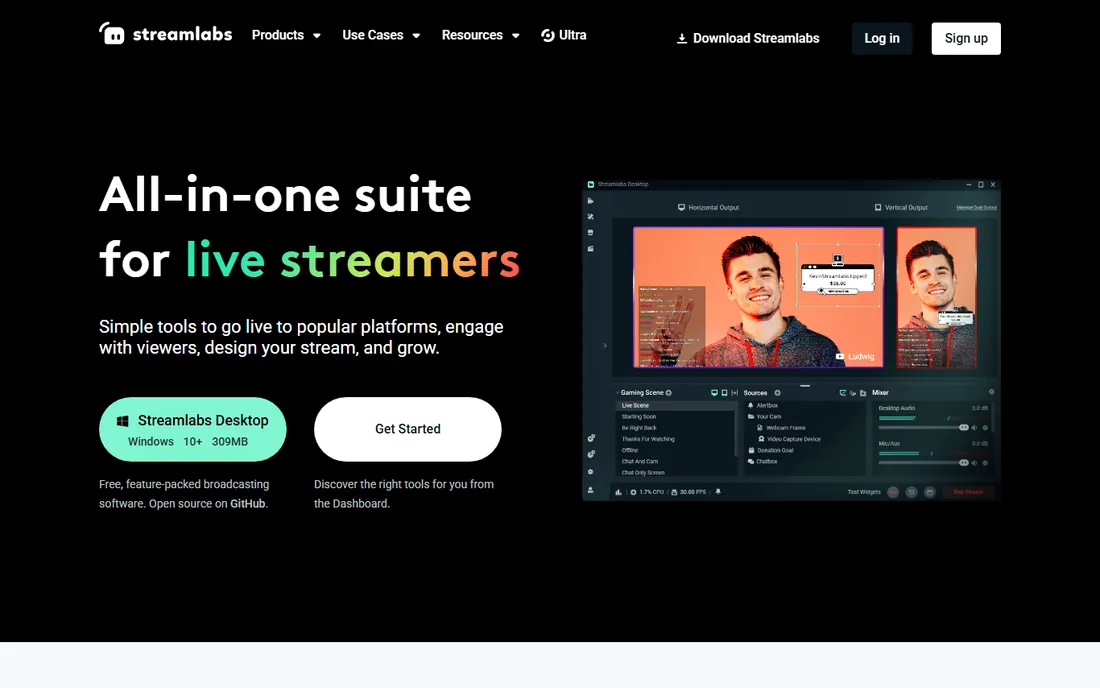
Streamlabs Desktop (built on OBS) packages streaming for creators who want it all in one login: go live, add alerts and overlays, multistream to YouTube, Twitch and Facebook, take tips with no fees, and grow with the app store. The free tier is genuinely usable; Ultra opens the full overlay library, more destinations and pro tools.
For streamers focused on audience growth rather than production tinkering, Streamlabs' integrated alerts, tipping and merch tools are the differentiator. Pure production minimalists should still compare OBS Studio itself.
What we like- Free streaming software with alerts, overlays, widgets and multistreaming
- No-fee tipping and a creator app ecosystem
- Ultra adds 1,000+ overlays and pro features
Watch out for- The free tier limits destinations and features versus Ultra
- The upsell to Ultra is persistent
- Heavier than OBS for the same core job

#6
SplitCam
Best for: Free multistreaming, virtual camera and effects with no watermark
Visit splitcamera.com
Starting priceFree
Free planYes
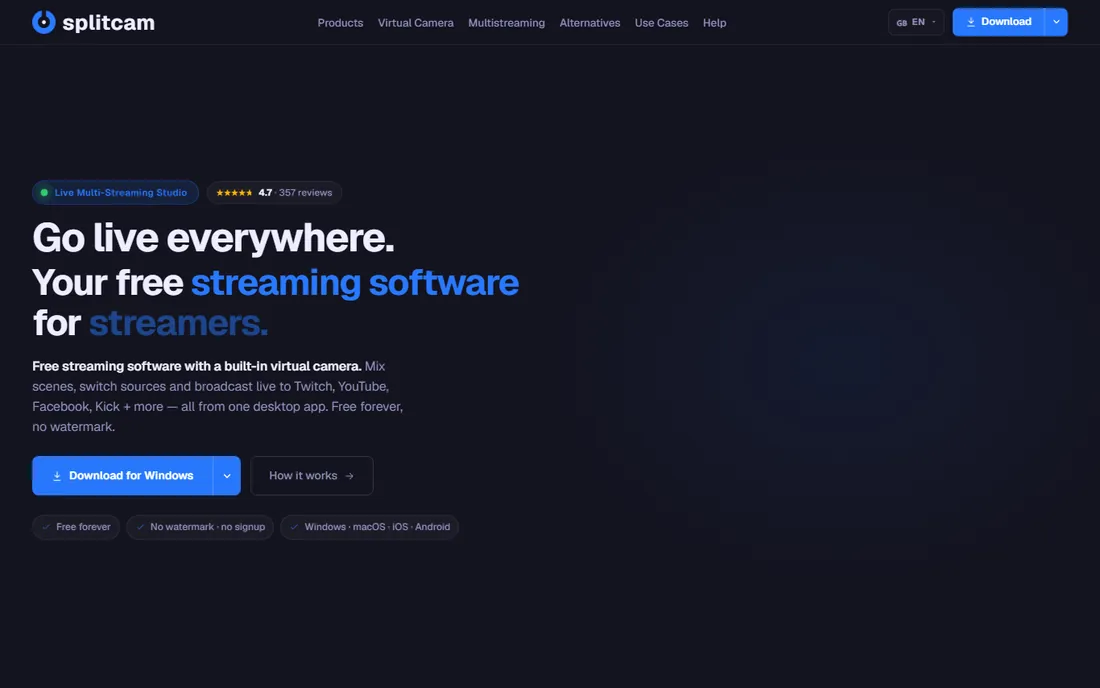
SplitCam is the free surprise of this list: full streaming software with scene mixing, a pro audio mixer with VST support, multistreaming to 84+ platforms with per-destination bitrates, a virtual camera for 60+ apps, AI background removal, beauty effects and phone-as-camera, all free forever with no watermark and no signup. In development since 2003, it is no fly-by-night.
The trade-off is ecosystem: fewer plugins and tutorials than OBS. But for the user who wants one free app that streams everywhere, feeds every call app, and costs nothing, SplitCam is remarkably complete. It deserves a trial alongside OBS.
What we like- Completely free for personal and commercial use, no watermark, no time limit
- Multistreams to 84+ platforms direct from your PC
- Virtual camera for Zoom, Teams, Meet and 60+ apps
- AI background removal built in
Watch out for- Smaller community and plugin ecosystem than OBS
- OBS project import is Windows-only
- The brand is less known, so peer tutorials are fewer

#7
FineCam
Best for: Turning phones and DSLRs into high-quality webcams with effects
Visit finecam.com
Starting priceSee website
Free planSee website
FineCam (from Fineshare) targets a specific, popular workflow: use your phone or DSLR as a high-quality webcam, with effects, backgrounds and recording options. For users whose laptop webcam is the weak link, a phone-as-webcam app is the cheapest meaningful upgrade in video quality.
Note: the vendor's site returned no usable content during research, so verify current pricing, features and download safety directly before installing. For the phone-as-webcam job specifically, it is worth evaluating against the phone-camera features built into SplitCam and ManyCam.
What we like- Focused on the phone/DSLR-as-webcam workflow
- Webcam effects and backgrounds for calls and recording
- Lightweight compared with full streaming suites
Watch out for- The vendor site could not be fully verified during research
- Pricing and free-tier terms need confirmation
- Narrower scope than the streaming suites

#8
SparkoCam
Best for: Using a Canon or Nikon DSLR as a webcam with live effects
Visit sparkosoft.com
Starting priceSee website
Free planNo
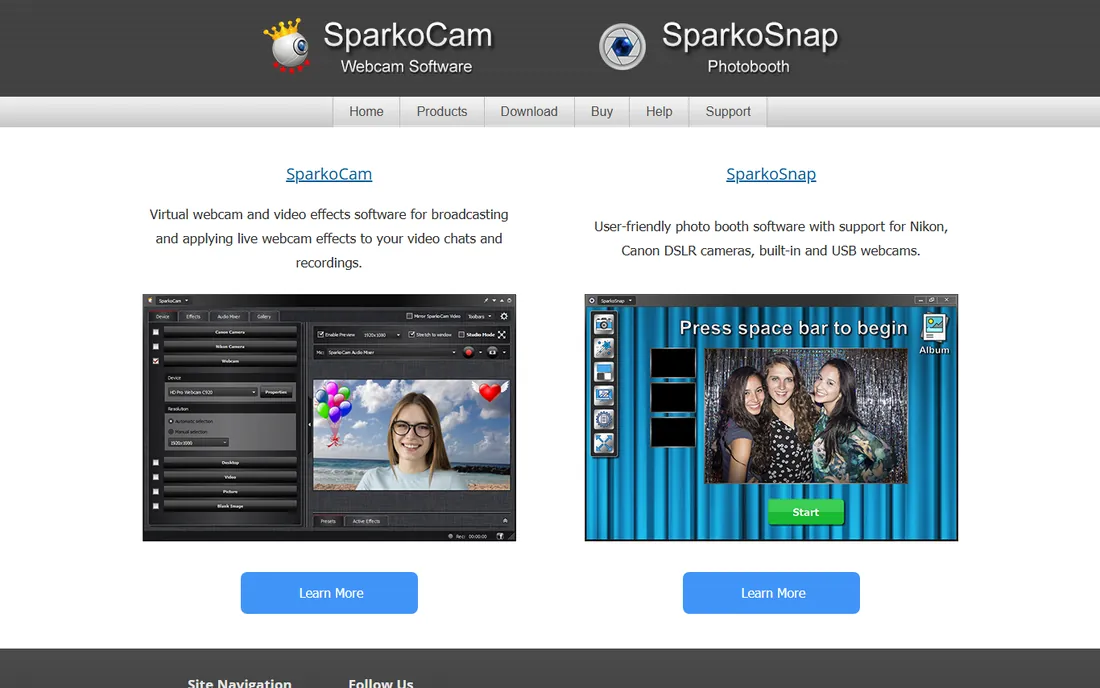
SparkoCam answers a specific question: how do I use my DSLR as a webcam? It connects Canon and Nikon cameras, applies live effects, virtual backgrounds and avatars, and presents the result as a virtual webcam to any call or streaming app. For streamers and presenters who own a good camera, the image quality jump over a USB webcam is dramatic.
It is paid software; check the vendor's site for pricing and trial terms. If you do not own a DSLR, the other tools here cover the same effects with regular webcams. If you do, SparkoCam (or your camera maker's free utility) is what makes it work.
What we like- Turns Canon/Nikon DSLRs into webcams with live effects and virtual backgrounds
- Also works with regular USB webcams
- Photo booth software (SparkoSnap) from the same vendor
Watch out for- Pricing is not published on the homepage
- DSLR-as-webcam is its niche, so general streaming features are thin
- The interface is dated
How we chose
We defined webcam software as tools that enhance, extend or produce webcam video: virtual cameras, effects, background removal, and streaming/production suites with webcam workflows. Pure video editors and conferencing apps did not qualify. For each candidate we opened the vendor's homepage, confirmed the product is current, and recorded pricing only where published; most paid tools in this category keep pricing on purchase pages.
Quick comparison
| Tool | Best for | Starting price | Free plan |
|---|
| OBS Studio | Free, professional streaming and recording with total control | Free (open source) | Yes |
| ManyCam | Easy virtual camera with effects for calls, teaching and streaming | See website | See website |
| XSplit | Streamers who want guided, polished production without the OBS learning curve | See website | See website |
| CyberLink YouCam | Webcam effects, beauty filters and virtual backgrounds for everyday calls | See website | No |
| Streamlabs Desktop | Streamers who want overlays, alerts and multistreaming free | Free (Ultra subscription available, see website for current pricing) | Yes |
| SplitCam | Free multistreaming, virtual camera and effects with no watermark | Free | Yes |
| FineCam | Turning phones and DSLRs into high-quality webcams with effects | See website | See website |
| SparkoCam | Using a Canon or Nikon DSLR as a webcam with live effects | See website | No |
Is your product missing or out of date?
We review this list regularly. Vendors can request a listing, send updated pricing or ask about featured placement.
Virtual camera versus streaming suite: pick your job
Two different jobs share this category. The virtual camera job is making Zoom, Teams and Meet look better: backgrounds, effects, framing, multiple cameras. ManyCam, YouCam, FineCam and SparkoCam live here, and OBS, XSplit, Streamlabs and SplitCam all offer virtual camera output too. The streaming suite job is producing a broadcast: scenes, overlays, alerts, multistreaming. OBS, XSplit, Streamlabs and SplitCam live here.
Most buyers need one job more than the other. Call-heavy workers should optimize for the virtual camera: ease of use and effect quality. Streamers should optimize for production: scenes, audio and platform support. The good news is the suites cover both, so a streamer who also takes calls can run one app for everything.
Choosing the right webcam software
Start with your primary use. Streaming to Twitch or YouTube: OBS Studio (free, maximum control), Streamlabs Desktop (free, creator tools) or SplitCam (free, multistreaming). Video calls and teaching: ManyCam or YouCam for polish, or any suite's virtual camera output. Phone or DSLR as webcam: FineCam or SparkoCam, or the phone-as-camera features in SplitCam and ManyCam.
Then test with your actual hardware. Webcam software interacts with real cameras, GPUs and call apps in ways spec sheets cannot predict: background removal quality, CPU load during calls, and virtual camera compatibility with your specific conferencing app. Install two finalists, run a test call, and keep the one that looks best and stays out of your way.
Frequently asked questions
Can I use my phone as a webcam?
Yes. SplitCam, ManyCam and FineCam all support phone-as-camera over your network, and Apple and Microsoft now offer built-in continuity camera features. A modern phone's camera beats most dedicated webcams, making this the cheapest quality upgrade available. Use Wi-Fi or USB depending on the app, and keep the phone charged.
Do I need a green screen for virtual backgrounds?
No, not anymore. AI background removal in ManyCam, XSplit's VCam, SplitCam, YouCam and the suites handles backgrounds without one. A green screen still gives cleaner edges and lower CPU usage, but for typical calls and streams, software removal is good enough.
What is the difference between OBS Studio and Streamlabs Desktop?
Streamlabs Desktop is built on OBS's foundation with a creator-focused layer: built-in alerts, overlays, tipping, multistreaming and an app store. OBS Studio is the leaner, fully open-source original with deeper customization and a plugin ecosystem. Choose Streamlabs for convenience, OBS for control and minimalism.
Will webcam software slow down my computer?
It uses CPU/GPU for effects, encoding and background removal, so yes, somewhat. AI background removal is the heaviest feature; on older machines, prefer a physical background or a green screen. Hardware encoding (NVENC, QuickSync, AMF) offloads streaming work to dedicated silicon. If calls stutter, reduce the camera resolution or disable effects first.
Can I use a DSLR or mirrorless camera as a webcam?
Yes. SparkoCam specializes in Canon/Nikon DSLRs; camera makers (Canon, Sony, Nikon, Fujifilm) offer free webcam utilities; and generic capture via HDMI capture cards works with any software here. DSLRs give dramatically better image quality but need power (dummy battery), clean HDMI output, and attention to overheating on long calls.
Sources we checked (8)
- https://obsproject.com
- https://manycam.com/
- https://xsplit.com/
- https://www.cyberlink.com
- https://streamlabs.com/
- https://www.splitcamera.com
- https://www.finecam.com
- https://sparkosoft.com/
Is your product missing or out of date?
We review this list regularly. Vendors can request a listing, send updated pricing or ask about featured placement.

Shihab Mia · Founder, Rankite
Shihab has spent more than a decade helping SaaS and e-commerce brands grow through search. He writes Rankite's software buying guides from pricing pages, documentation and public user reviews. More about Shihab.