How we make this list: we compare pricing pages, product documentation and public user reviews. Rankite is independent; if a vendor ever pays for a featured spot, that listing is clearly labeled Partner.
Key takeaways
- Premiere Pro and DaVinci Resolve cover traditional post-production, with Resolve free and Premiere at $22.99 per month on the Creative Cloud plan.
- OBS Studio is free and open source, and it handles most live streaming jobs well enough that many paid tools struggle to justify themselves.
- vMix at $60 one-time for Basic HD is the value pick for serious multi-camera Windows productions, while Ecamm Live at $20 per month is its Mac counterpart.
- Riverside and StreamYard solve the remote-guest problem: guests join from a browser, and you get separate high-quality tracks for editing.
- Camtasia remains the standard for screen-recorded training and tutorials, with a free watermarked version and paid plans on TechSmith's site.
Quick comparison
| Tool | Best for | Starting price | Free plan |
|---|
 Adobe Premiere Pro Adobe Premiere Pro | Professional editing teams in the Adobe workflow | $22.99 per month (single-app plan) | Free trial (7 days) |
 DaVinci Resolve DaVinci Resolve | Editors who want professional tools free | Free (Studio: $295 one-time) | Yes |
 Final Cut Pro Final Cut Pro | Mac editors who value speed | $299.99 one-time | Free trial |
 OBS Studio OBS Studio | Anyone streaming or recording on a budget | Free | Yes |
 vMix vMix | Multi-camera Windows productions | $60 one-time (Basic HD) | Free trial (60 days) |
 Ecamm Live Ecamm Live | Mac users running live shows | $20 per month (Standard) | Free trial (14 days) |
 Riverside Riverside | Remote interviews and podcast recording | See website | Yes |
 StreamYard StreamYard | Easy browser-based live shows | See website | Yes |
 Camtasia Camtasia | Screen-recorded training and tutorials | See website | Yes (watermarked exports) |
 Descript Descript | Editing talk-heavy video by transcript | See website | Yes |
Is your product missing or out of date?
We review this list regularly. Vendors can request a listing, send updated pricing or ask about featured placement.
The best video production software
#1
Adobe Premiere Pro
Best for: Professional editing teams in the Adobe workflow
Visit adobe.com
Starting price$22.99 per month (single-app plan)
Free planFree trial (7 days)
Premiere Pro is the editing half of most professional production pipelines. It handles everything from multicam event edits to social cuts, with proxy workflows that keep 4K and 8K timelines responsive. The Adobe ecosystem is the real lock-in: dynamic linking with After Effects, shared libraries with Photoshop, and team projects for collaborative editing. Recent versions added text-based editing, generative extend, and AI object removal, which cut real time from rough cuts.
What we like- Industry-standard timeline with deep After Effects and Audition integration
- Strong AI features like text-based editing
- Huge template and plugin ecosystem
Watch out for- Subscription only
- Can feel sluggish on modest hardware
- Rental pricing adds up over years
Starting priceFree (Studio: $295 one-time)
Free planYes
DaVinci Resolve is the most generous free software in this list. The free version includes a complete professional editor, the industry's best color grading tools, Fusion visual effects, and Fairlight audio post, with no watermarks and no export limits. For a solo creator or small team, it is hard to argue with paying nothing. The $295 one-time Studio license adds noise reduction, stereoscopic tools, HDR grading, and multi-user collaboration, and it never expires.
The cost is complexity. Resolve assumes you want to learn real editing, color science, and audio mixing, and its hardware appetite is serious: 16GB of RAM is the practical minimum. But if you are building a production skill set rather than just finishing one project, Resolve teaches you the craft while charging nothing. Pair it with OBS for capture and you have a full production pipeline for $0.
What we like- Full professional editor, color, VFX, and audio in one app
- Free version is genuinely complete
- One-time Studio price is a bargain
Watch out for- Steep learning curve for beginners
- Demanding on hardware
- Some advanced features locked to Studio
Starting price$299.99 one-time
Free planFree trial
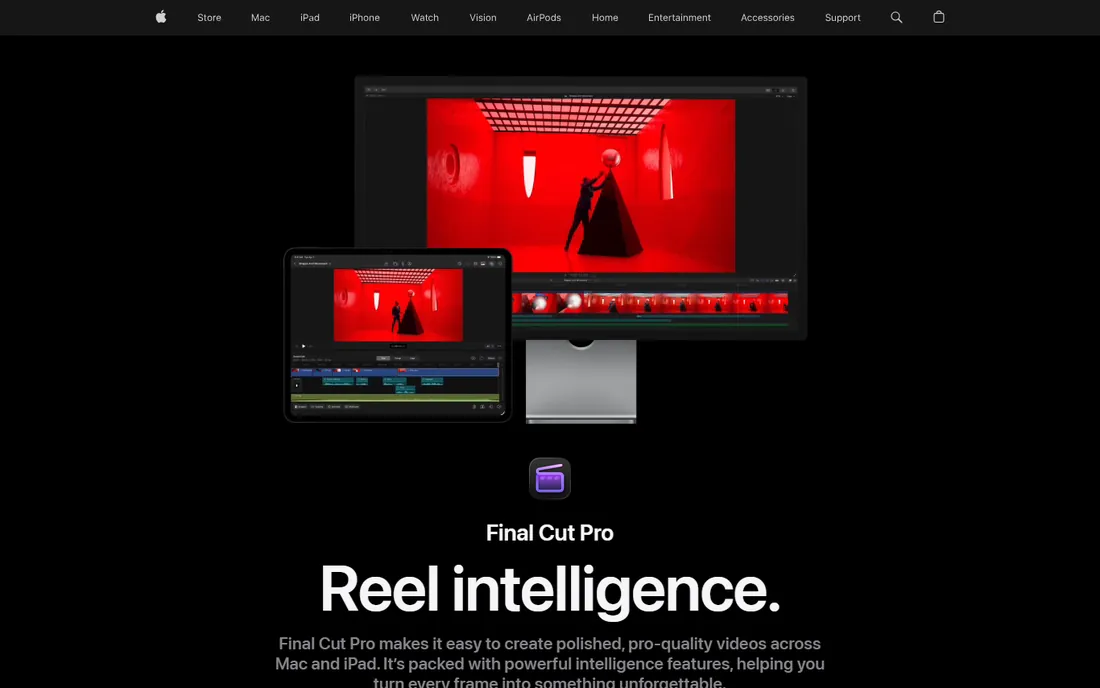
Final Cut Pro is the fastest-feeling editor on this list if you run a Mac. The magnetic timeline eliminates the track-management busywork of traditional NLEs, and on Apple silicon chips it scrubs 4K multicam timelines with a smoothness Premiere cannot match at the same price. The $299.99 one-time purchase includes updates, which makes it dramatically cheaper than Premiere over a few years.
The limitations are real. Final Cut is Mac only, its template and plugin ecosystem is smaller than Premiere's, and multi-editor collaboration is less developed. Multicam editing and roles-based organization are strong, though, and the iPad version extends the workflow for field work. For a Mac-based solo producer or small team that values editing speed over Adobe integration, it is the rational buy.
What we like- Extremely fast on Apple silicon
- Magnetic timeline speeds up assembly
- One-time purchase with free updates
Watch out for- Mac only
- Smaller plugin and template market than Premiere
- Collaboration features lag behind
Starting priceFree
Free planYes
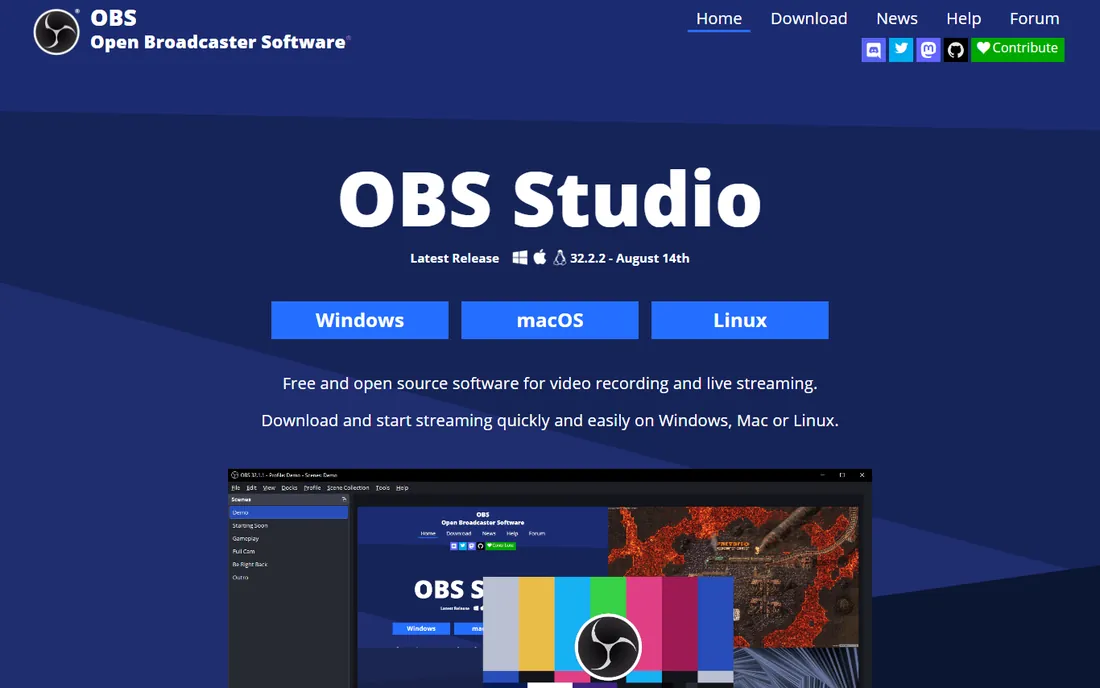
OBS Studio is the reason half the paid tools on this list have to work hard to justify their prices. It is free, open source, and capable of professional broadcast work: unlimited scenes, custom transitions, Studio Mode preview, multiview monitoring, per-source audio filters, and plugin support for almost anything you can imagine. It streams to every major platform and records locally in high quality.
What you do not get is convenience. Remote guests require third-party plugins, multistreaming to several platforms at once needs plugins or external services, and the settings panel assumes you know what an encoder preset is. For a technical user, OBS plus a few plugins replaces tools costing hundreds per year. For a non-technical team that needs to be live tomorrow, a guided tool like StreamYard or Ecamm pays for itself in saved setup time.
What we like- Completely free and open source
- Unlimited scenes, sources, and transitions
- Huge plugin ecosystem
- Runs on Windows, Mac, and Linux
Watch out for- Learning curve is real
- No built-in remote guests or multistreaming
- You configure everything yourself
Starting price$60 one-time (Basic HD)
Free planFree trial (60 days)
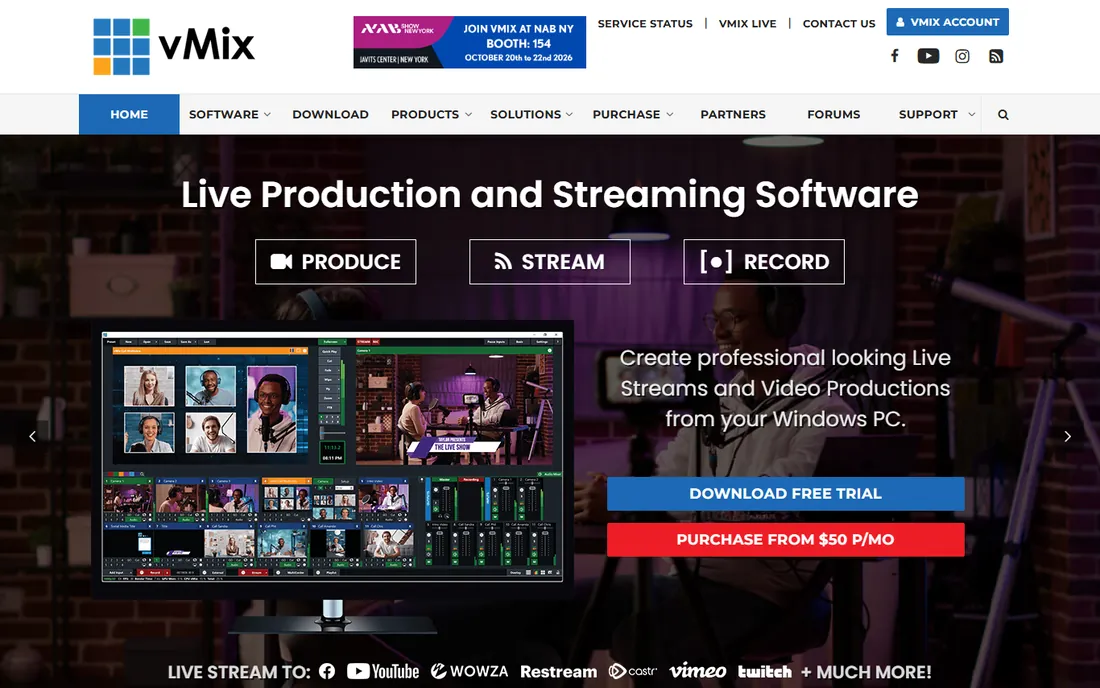
vMix is what you graduate to when OBS starts feeling limiting. It is a complete live production switcher for Windows: multi-camera switching, NDI inputs, instant replay, virtual sets, video calls with up to 8 guests, PTZ camera control, and streaming to multiple destinations at once. Churches, schools, sports streamers, and small studios run real productions on it.
The pricing model is refreshingly old-school: one-time licenses from $60 for Basic HD up to $1,200 for Pro, with a $50 per month subscription option and a generous 60-day free trial of the Pro edition. Start with the trial, and buy only the edition your production actually needs. The honest warning: vMix wants a serious Windows PC, and it does not run on Mac at all. If your workflow is Mac-based, look at Ecamm instead.
What we like- Broadcast-grade switching, replay, and NDI on one PC
- One-time licenses
- Scales from $60 to full Pro production
Watch out for- Windows only
- Hardware demands are serious
- Basic HD limited to 4 inputs
Starting price$20 per month (Standard)
Free planFree trial (14 days)
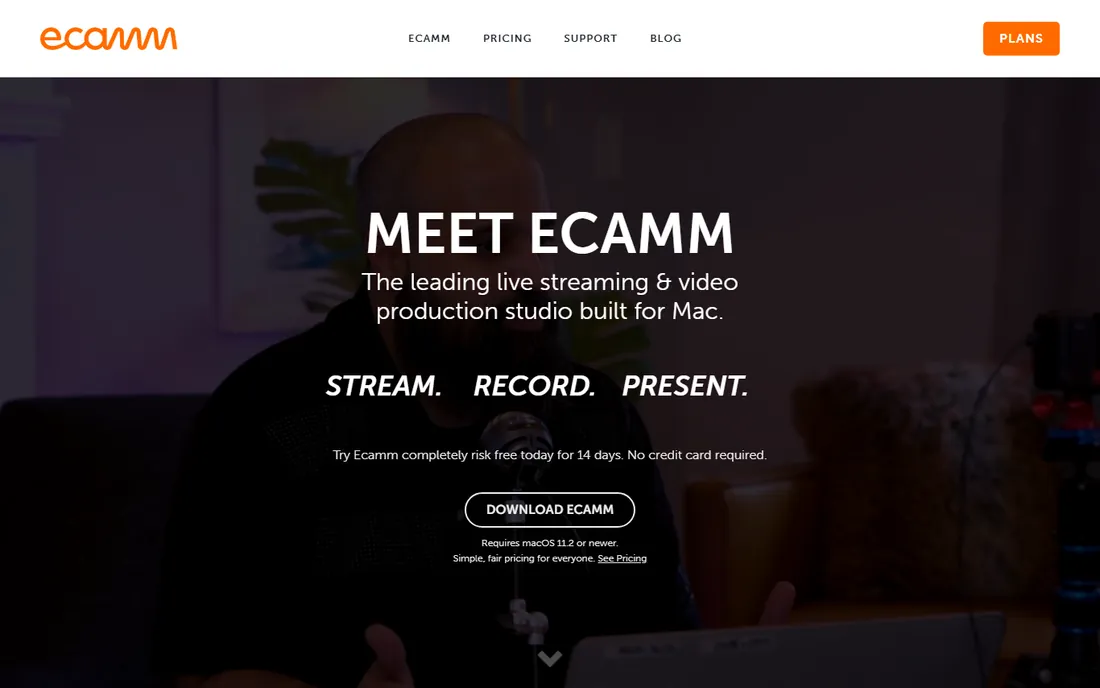
Ecamm Live is the answer to "vMix, but for Mac." It turns a Mac into a live production studio: connect DSLRs and mirrorless cameras over USB, build scenes with overlays and lower thirds, switch cameras live, pull in up to ten remote guests from their browsers, and stream to multiple platforms at once. The virtual camera output also upgrades your Zoom and Teams calls.
Pricing is $20 per month for Standard or $40 for Pro, with a 14-day free trial that needs no credit card. The Standard plan covers most solo creators; Pro adds 4K streaming, NDI, and isolated recordings. The Mac-only limitation is absolute, and Windows users should look at vMix or OBS. But for a Mac-based podcaster, coach, or marketer who goes live regularly, Ecamm's polish justifies the subscription.
What we like- Polished Mac-native production studio
- Camera switcher with scenes, overlays, and green screen
- Remote guests and multistreaming built in
Watch out for- Mac only
- Subscription only
- Pro features like 4K need the $40 plan
Starting priceSee website
Free planYes
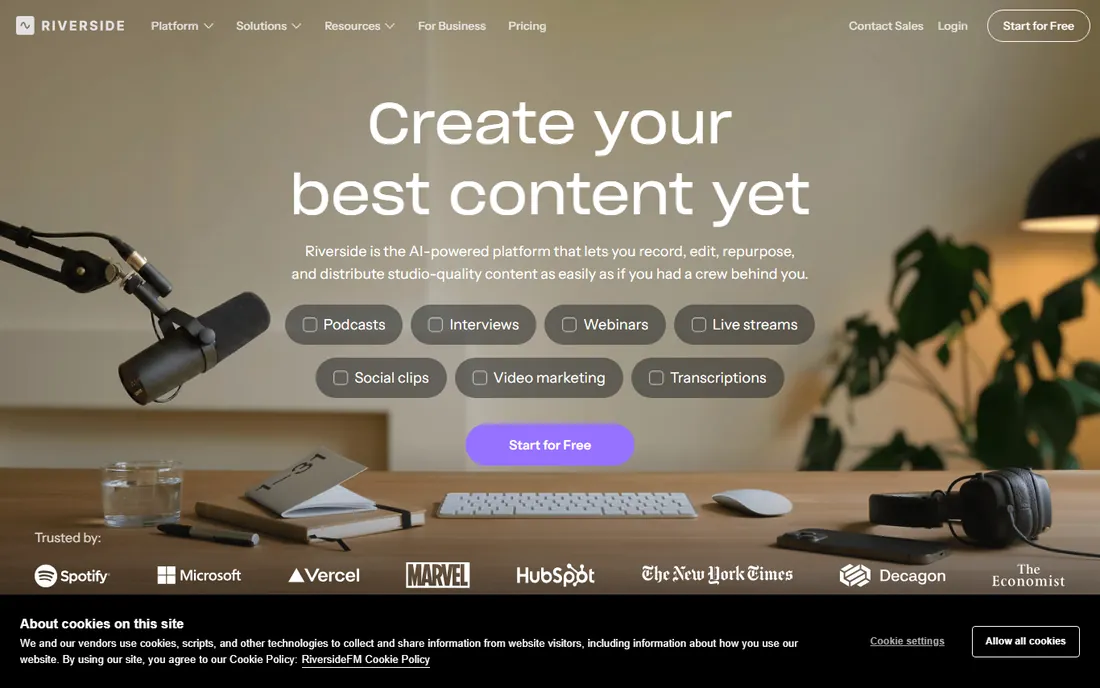
Riverside solved the problem every remote interview had: the guest's bad internet used to ruin the recording. Riverside records each participant locally in up to 4K with separate audio and video tracks, then uploads in the background, so the final quality never depends on the connection. Guests join from a browser link with nothing to install. After recording, the text-based editor, AI show notes, and Magic Clips turn one session into a finished episode plus social content.
The free plan lets you test the workflow, with paid plans scaling by recording hours and AI usage. Check the current pricing page for your expected volume. Riverside is not a live switcher: for going live to an audience, pair it with StreamYard or restream its output. For interviews, podcasts, and testimonial videos, its local-recording architecture is the right tool.
What we like- Local 4K recording per guest, unaffected by bad internet
- Text-based editing and AI clips
- Guests join from a browser with no install
Watch out for- Built for recording, not full live production
- Pricing climbs with recording hours and AI features
Starting priceSee website
Free planYes
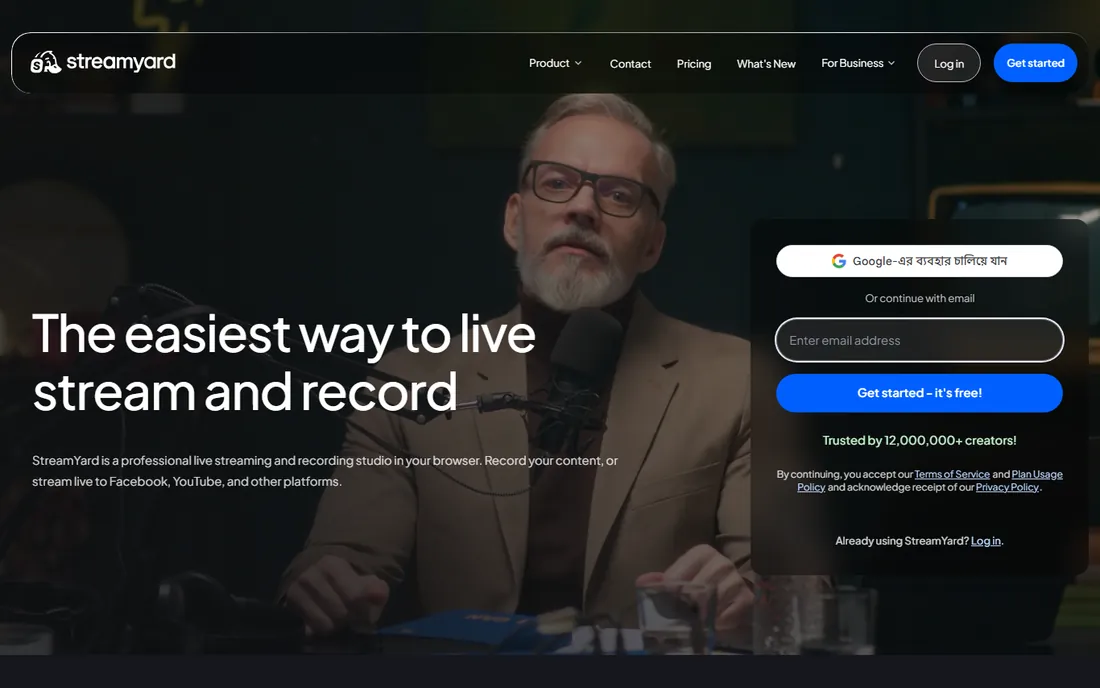
StreamYard is the easiest path from zero to a live show. Everything runs in the browser: the host opens a studio link, guests click their invitation, and the audience watches on YouTube, Facebook, LinkedIn, or Twitch simultaneously. Layouts, lower thirds, screen sharing, and comments on screen are all a click away. For a marketing team that needs a weekly live show without hiring a producer, that simplicity is the whole pitch.
The free plan covers basic streaming with StreamYard branding; paid plans add custom branding, higher quality, and more destinations. Check the current plans page, as pricing has shifted over time. Power users will feel the ceiling: no NDI, no instant replay, no deep audio mixing. But StreamYard never claimed to be a broadcast truck. It claims to make live video easy, and it delivers.
What we like- Nothing to install for host or guests
- Multistreaming built in
- Simple enough for non-technical teams
Watch out for- Less production depth than OBS or vMix
- Branding and quality limits on cheaper tiers
Starting priceSee website
Free planYes (watermarked exports)
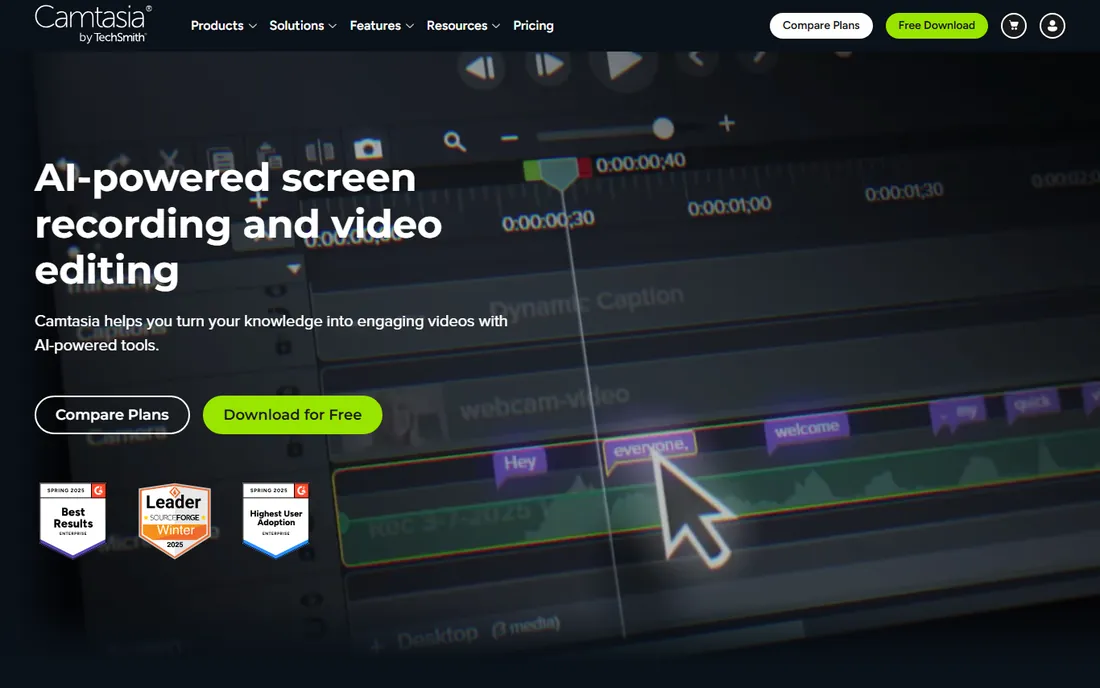
Camtasia owns the tutorial niche. It records your screen, webcam, microphone, and system audio on separate tracks, then gives you an editor purpose-built for instructional video: cursor smoothing, click effects, callouts, quizzes, and captions. The recent versions added AI narration voices, avatars, background removal, and text-based editing, which modernize the workflow without losing the simplicity.
The free version includes the full editor with watermarked exports, and paid plans (Essentials, Create, Pro) are listed on TechSmith's pricing page. Camtasia is not the tool for cinematic editing or live production, and buyers sometimes overpay when a simpler recorder would do. But for teams producing software tutorials, onboarding videos, and customer education at volume, the purpose-built tooling saves real editing hours.
What we like- Screen recording and editing in one app
- Cursor effects and callouts made for tutorials
- Now with AI voices, avatars, and text-based editing
Watch out for- Not a full creative editor
- Pricing is on the higher side for the feature set
Starting priceSee website
Free planYes
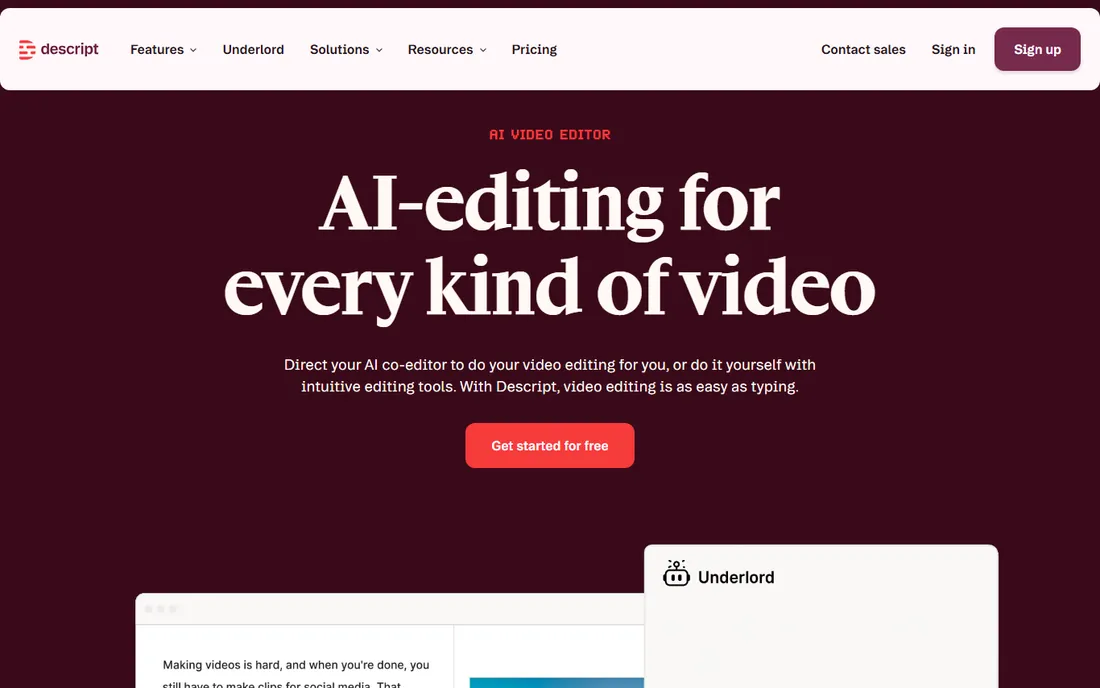
Descript changed how talk-heavy video gets edited. Record or import your footage, get an instant transcript, and edit by deleting words in the text: cut a sentence and the video follows. Studio Sound cleans up bad audio with one click, filler words vanish automatically, and the Underlord AI assistant can assemble a rough cut from your raw recording. For podcasts, interviews, webinars, and course videos, it is dramatically faster than timeline editing.
The free plan covers basic recording and editing without a credit card; paid plans add transcription hours, AI features, and 4K export. Check the pricing page for current plan details. Descript is not a replacement for Premiere on a cinematic project, but most production teams do not edit cinematic projects. They edit people talking, and for that, Descript is the fastest tool here.
What we like- Edit video by editing text
- AI voice cleanup and filler-word removal
- Screen recording and publishing built in
Watch out for- Timeline purists may find it limiting for complex edits
- AI features consume credits on paid plans
How we chose
We mapped the real production workflows first: post-production editing, live switching and streaming, remote recording, and screen-based tutorials. Then we picked the strongest tool in each lane, weighted toward tools that actual small teams and solo producers use daily. We verified each vendor homepage, checked current pricing on vendor pages or marked it honestly when pricing sits behind a quote or changed recently, and noted platform limits like Mac-only or Windows-only before they can surprise you. We did not run test productions in each tool. The reliable test is the same across all ten: run one real project end to end on the free tier or trial before you pay.
Editing suites vs. live production vs. recording studios
These tools look similar on a feature list but do different jobs. Editing suites (Premiere, Resolve, Final Cut, Descript) shape recorded footage into finished videos. Live production tools (OBS, vMix, Ecamm, StreamYard) mix cameras, graphics, and guests in real time for streaming. Recording studios (Riverside, Camtasia) capture high-quality source material: remote interviews and screen tutorials.
Most buyers need one tool from two columns, not one tool that does everything. A common stack: Riverside for guest recording, Descript for the rough cut, Resolve for finishing. Another: OBS for the live show, Resolve for the highlight reel. Buying a single expensive tool to cover all three jobs usually means paying for features you never touch.
Frequently asked questions
Do I need separate tools for recording and editing?
Usually yes, but the line is blurring. Riverside and Camtasia both include basic editing, and Descript includes recording. Dedicated editors like Premiere and Resolve still give you far more finishing control. Start with the all-in-one workflow, and add a dedicated editor when you hit its limits.
Which tool is best for a beginner with no budget?
OBS Studio for live streaming and recording, DaVinci Resolve for editing, both free. The learning curve is real, but the price is zero and the skills transfer to paid tools later. Descript's free plan is the gentlest on-ramp if editing by transcript appeals to you.
Can I produce professional videos with free software?
Yes. OBS plus DaVinci Resolve is a complete professional pipeline that costs nothing, and plenty of working creators use exactly that stack. Paid tools buy convenience, collaboration, and specific features like local guest recording, not basic quality.
Mac or Windows: does it matter?
It narrows your options. Final Cut Pro and Ecamm Live are Mac only; vMix is Windows only. Premiere, Resolve, OBS, Riverside, StreamYard, Camtasia, and Descript run on both. Choose your platform first, then your tools, not the other way around.
How much should a small team budget for video production software?
A realistic range is $0 to $100 per month. Free stacks cover most needs. A typical paid stack might be Descript or Riverside for recording plus Resolve free for editing, or a single Ecamm or StreamYard subscription for live shows. One-time purchases like Final Cut Pro ($299.99) or vMix ($60+) can beat subscriptions over time.
When does it make sense to hire instead of buying software?
When the project needs skills, not tools: motion design, color grading, or broadcast directing. Software is cheap; expertise is not. If you find yourself fighting the tool for more than a week on a single project, price out a freelancer before buying another subscription.
What to check before you buy
First, confirm the platform. vMix is Windows only, Ecamm and Final Cut are Mac only, and discovering this after purchase is an avoidable headache. Check the system requirements page, not just the marketing headline.
Second, map your actual workflow. If your videos are remote interviews, Riverside's local recording matters more than any editing feature. If you go live weekly, multistreaming and guest handling matter more than color grading. Buy for the job you do every week, not the job you might do once.
Third, test with real material. A trial that only lets you click around is not a test. Record one real episode, edit one real tutorial, or run one real live show on the free tier. Export it, publish it, and see where the workflow breaks.
Fourth, read the pricing fine print. Several tools here price by recording hours, transcription minutes, or AI credits, which can surprise heavy users. "See website" in our table means the pricing was not on a public page we could verify today, so check before you budget.
Finally, count the total stack cost. A $20 per month tool plus a $25 per month tool plus stock music is $540 per year. One-time purchases like DaVinci Resolve Studio ($295) or vMix ($60+) can undercut subscriptions within a year for steady users.
Sources we checked (12)
- https://www.adobe.com/products/premiere.html
- https://www.blackmagicdesign.com/products/davinciresolve
- https://www.apple.com/final-cut-pro/
- https://obsproject.com
- https://vmix.com/
- https://www.saasworthy.com/product/vmix/pricing
- https://ecamm.com/
- https://www.getapp.com/website-ecommerce-software/a/ecamm-live/
- https://riverside.fm/
- https://streamyard.com/
- https://www.techsmith.com/video-editor.html
- https://www.descript.com
Is your product missing or out of date?
We review this list regularly. Vendors can request a listing, send updated pricing or ask about featured placement.

Shihab Mia · Founder, Rankite
Shihab has spent more than a decade helping SaaS and e-commerce brands grow through search. He writes Rankite's software buying guides from pricing pages, documentation and public user reviews. More about Shihab.