How we make this list: we compare pricing pages, product documentation and public user reviews. Rankite is independent; if a vendor ever pays for a featured spot, that listing is clearly labeled Partner.
Key takeaways
- Most people overbuy video editing software. If you only need to trim clips, CapCut, Clipchamp, or iMovie do it free in minutes.
- DaVinci Resolve is the best free editor on desktop, full stop. It has no watermark and no export limits.
- Premiere Pro and Final Cut Pro are for people who edit video for money. Everyone else should start free and upgrade only when they hit a wall.
- Filmora and Movavi sit in the middle: easier than the pro tools, more capable than the free ones, with honest one-time or yearly pricing.
- Shotcut and OpenShot are free and open source, best for older computers and anyone who dislikes subscriptions.
Quick comparison
Is your product missing or out of date?
We review this list regularly. Vendors can request a listing, send updated pricing or ask about featured placement.
The best video trimming software, from free to pro
Starting priceFree
Free planYes
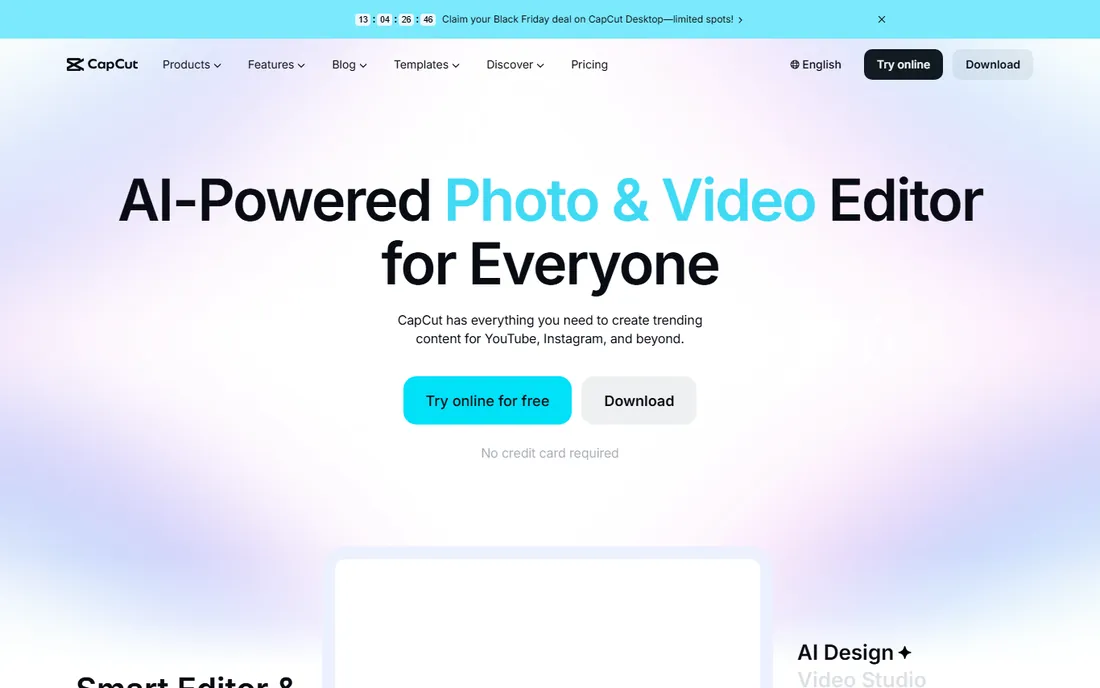
CapCut is the fastest path from a raw clip to a trimmed, captioned, exported video. The trim interface is drag-and-drop simple on both phone and desktop, and the auto-caption tool is accurate enough that many creators never type subtitles by hand. Projects sync between devices, so you can rough-cut on the phone and finish on the computer.
The free tier covers nearly everything a trimmer needs, which is why it dominates short-form video. The tradeoff is the ecosystem: the app nudges you toward templates and effects that all look alike, and a few newer AI features sit behind CapCut Pro. If your goal is clean trims and quick exports rather than a unique style, nothing is faster.
What we like- Genuinely free with no watermark on most exports
- Excellent auto-captions
- Phone and desktop stay in sync
Watch out for- Template-heavy culture pushes trendy styles
- Some advanced features need the paid Pro tier
Starting priceFree
Free planYes
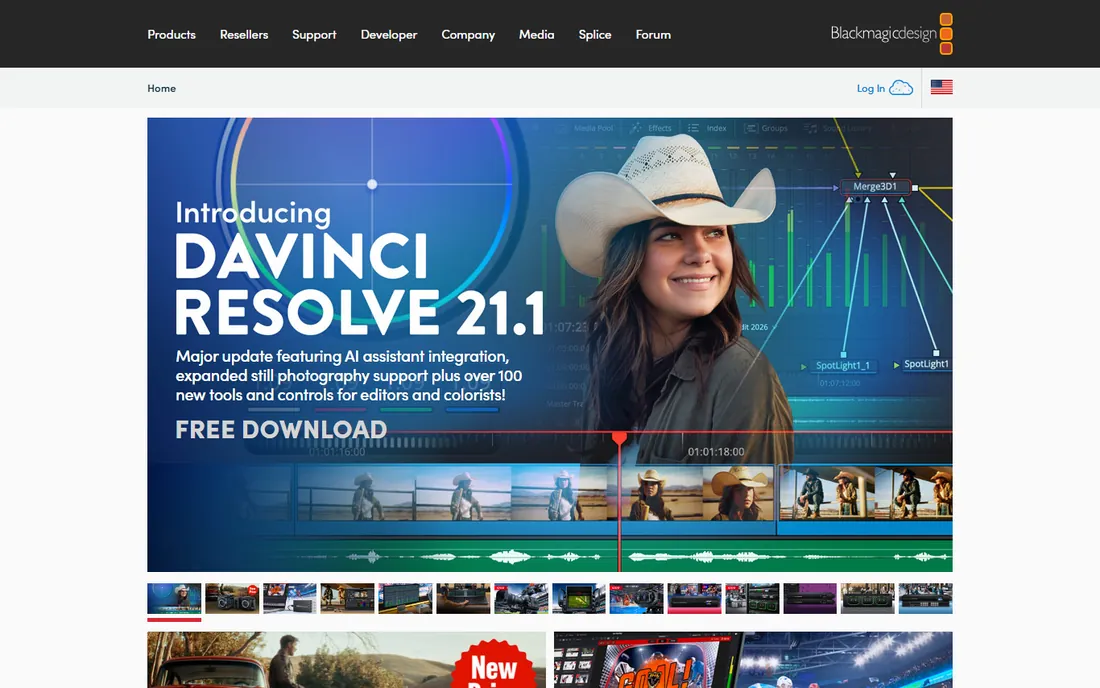
DaVinci Resolve's free version is almost absurdly generous. You get a full non-linear editor, Hollywood-grade color correction, Fairlight audio, and Fusion visual effects, with no watermark and no export restrictions. The Cut page is specifically designed for fast trimming: you can slice a long recording into clips in a fraction of the time a traditional timeline takes.
The cost is complexity and hardware. The interface assumes you will learn it properly, and 4K work wants a decent GPU. But for trimming, you can ignore 90 percent of the app and just use the Cut page. If you want one free desktop tool that can grow with you from trims to full productions, this is it.
What we like- Professional-grade color and editing tools free
- No watermark or export limits
- Runs on Windows, Mac, and Linux
Watch out for- Demanding on older hardware
- The interface overwhelms first-timers
Starting priceFree
Free planYes
iMovie is already on your Mac, iPhone, and iPad, and for basic trimming it is all many people need. Drag a clip in, drag the edges to trim, add a title or transition, and export. The magnetic timeline keeps everything tidy without you thinking about tracks, and 4K export looks clean. It handles the job in minutes with zero learning curve.
The limits appear quickly if you grow ambitious: two video tracks, basic color tools, and little control over bitrates or formats. There is no Windows or Android version. But as a free trimmer for Apple users, it is the path of least resistance, and projects can move up to Final Cut Pro later if you outgrow it.
What we like- Preinstalled on every Mac and iPhone
- The simplest trim workflow here
- Clean 4K exports
Watch out for- Apple devices only
- Limited control over export settings
Starting priceFree
Free planYes
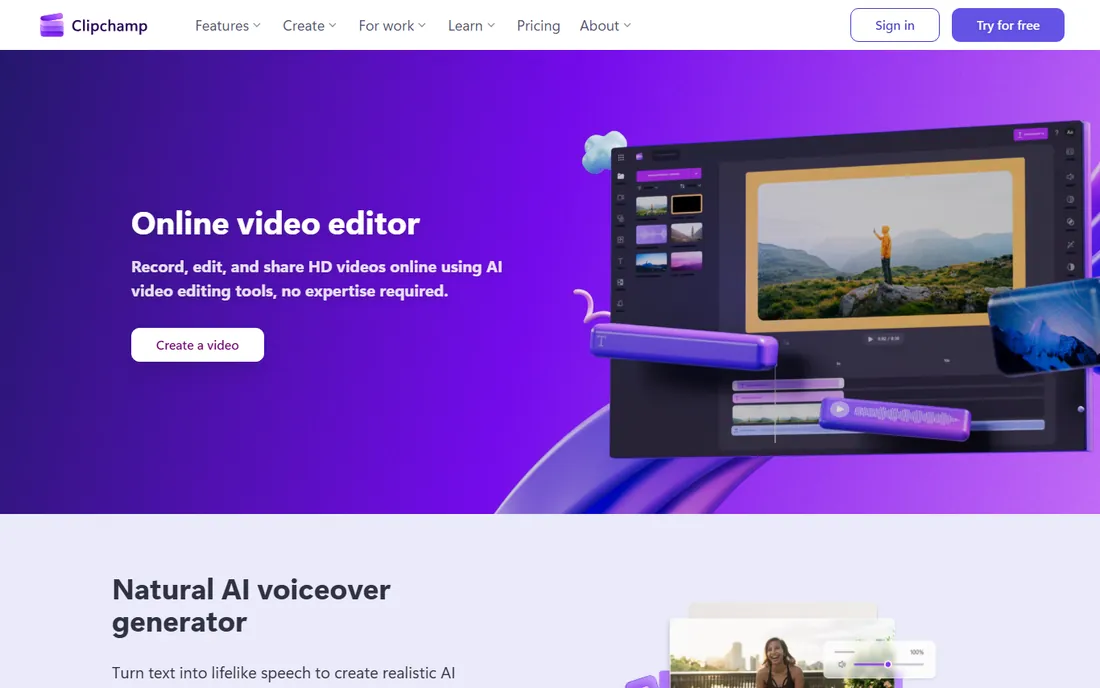
Clipchamp runs in the browser, which makes it the easiest trimmer to start: open the site, drop in a clip, trim, export. Microsoft's free tier includes unlimited 1080p exports without a watermark, which covers YouTube, social, and internal business video. Auto-captions and text-to-speech are genuinely useful for quick corporate clips.
The browser is also the limitation. Large 4K files and long timelines feel sluggish without a fast connection, and you need a Microsoft account. Brand kits, 4K export, and premium stock sit in the paid Premium plan. For Chromebook users or anyone who cannot install software, it is the most capable free option.
What we like- Nothing to install
- Solid free tier with 1080p exports
- Handy text-to-speech and auto-caption tools
Watch out for- Needs a good internet connection
- Microsoft account required
Starting priceFree
Free planYes
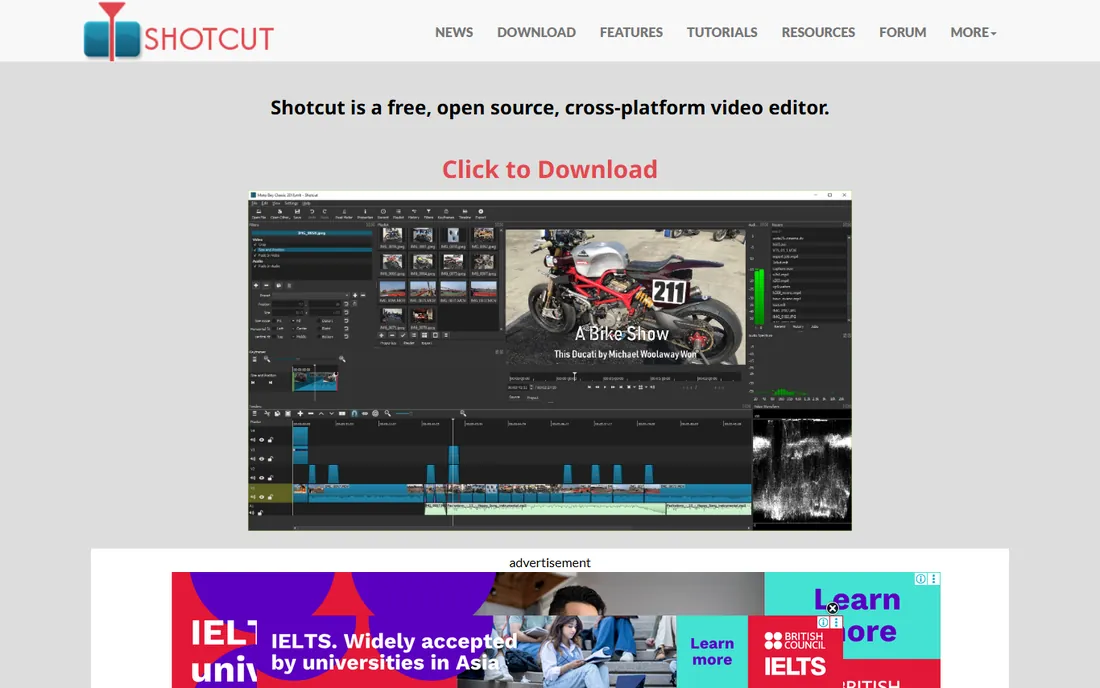
Shotcut is a free, open-source editor that does the fundamentals well. Trimming is straightforward on a multi-track timeline, and because it is built on FFmpeg, it opens just about any format you throw at it without conversion. It is lighter than DaVinci Resolve, so older laptops handle it better, and there is no account, no watermark, and no paid tier waiting to ambush you.
The interface will not win design awards, and the learning resources are thinner than CapCut's or Premiere's. Color and audio tools are serviceable rather than great. But for free, private, no-strings trimming and editing on Windows, Mac, or Linux, Shotcut is a workhorse that respects your machine and your wallet.
What we like- Completely free with no upsell
- Wide format support through FFmpeg
- Runs well on modest hardware
Watch out for- Interface feels dated
- Fewer guided tutorials than the big brands
Starting priceFree
Free planYes
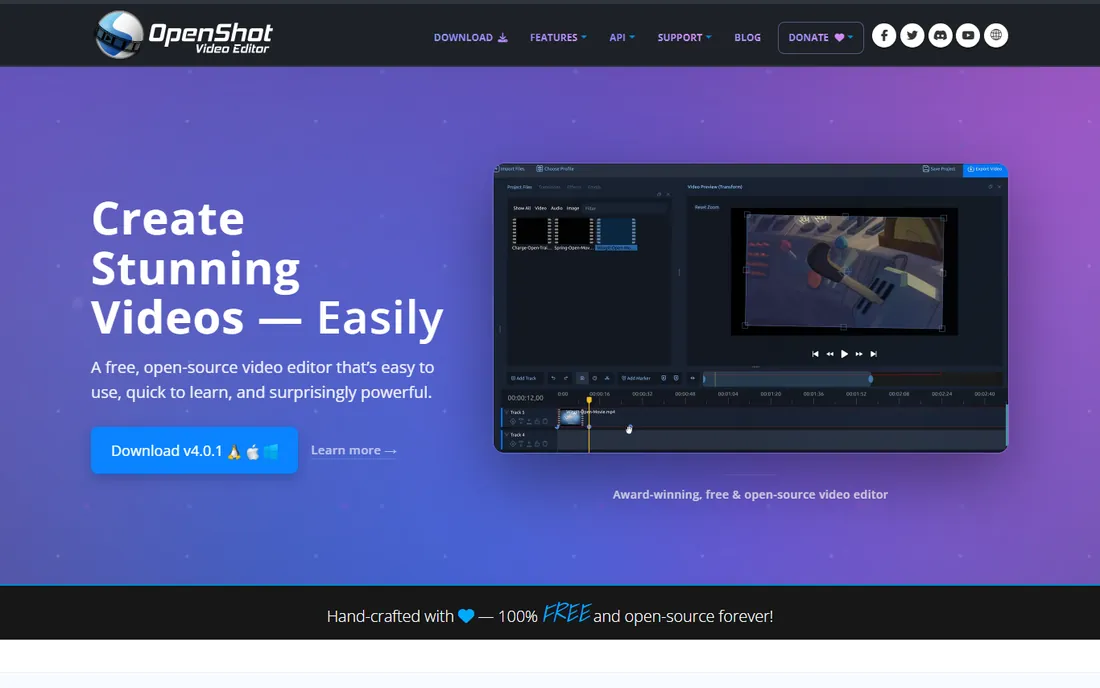
OpenShot trades power for approachability. The interface is the simplest of any desktop editor here: drag clips onto a timeline, trim the edges, add transitions from a clear menu. Unlimited tracks mean you are not boxed in as projects grow, and it runs on Windows, Mac, and Linux. Like Shotcut, it is free and open source with no watermark.
Stability is the honest weakness. Very long timelines or heavy effects can make it sluggish or crash, so save often. Export is slower than hardware-accelerated paid tools. For short trims, school projects, and simple YouTube videos, though, it is the gentlest introduction to desktop editing.
What we like- The easiest open-source editor to learn
- Unlimited tracks
- Cross-platform
Watch out for- Can be unstable with very long projects
- Rendering is slower than paid tools
Starting priceSee website
Free planFree trial
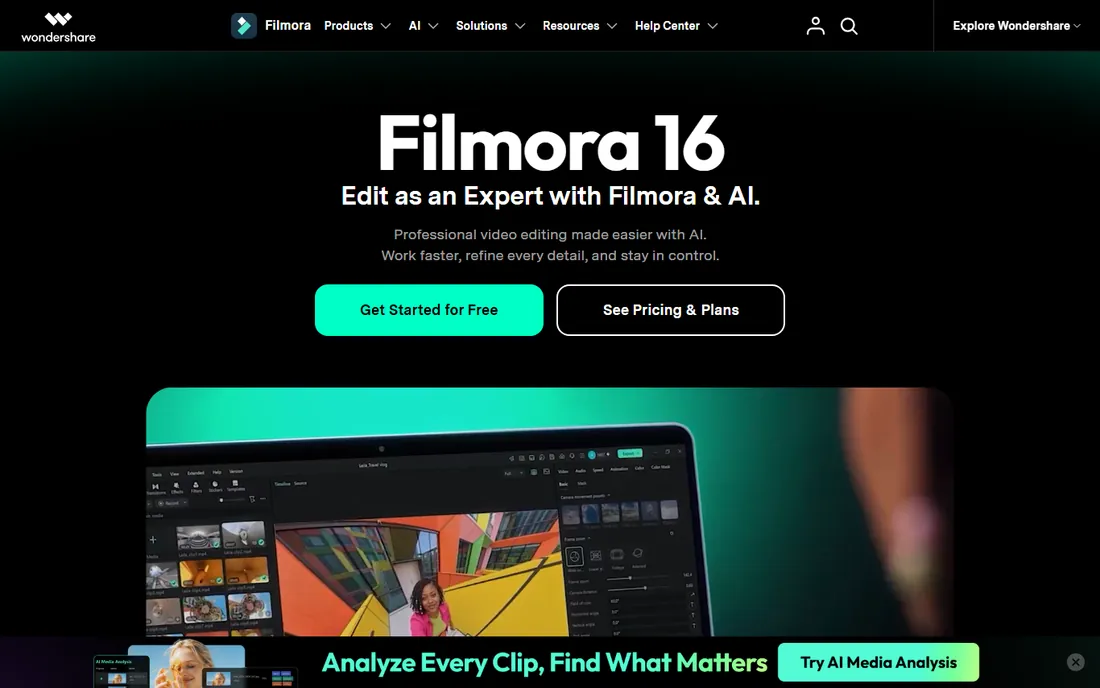
Filmora is built for creators who want their videos to look polished without learning a pro tool. The effects store has thousands of transitions, titles, and overlays, and the trim workflow stays simple underneath the gloss. Screen recording with webcam overlay is built in, which suits tutorial makers. AI tools for silence detection and background removal speed up common jobs.
The free trial watermarks exports, so you will pay to publish anything. Wondershare pushes the subscription plan, though a perpetual license is usually available if you look for it. If CapCut feels too template-driven but Premiere feels like overkill, Filmora is the middle ground, provided you are comfortable with the yearly cost.
What we like- Huge built-in effects and template library
- Gentle learning curve
- Good screen recording tools
Watch out for- Free exports carry a watermark
- Subscription pricing adds up over the years
Starting priceSee website
Free planFree trial
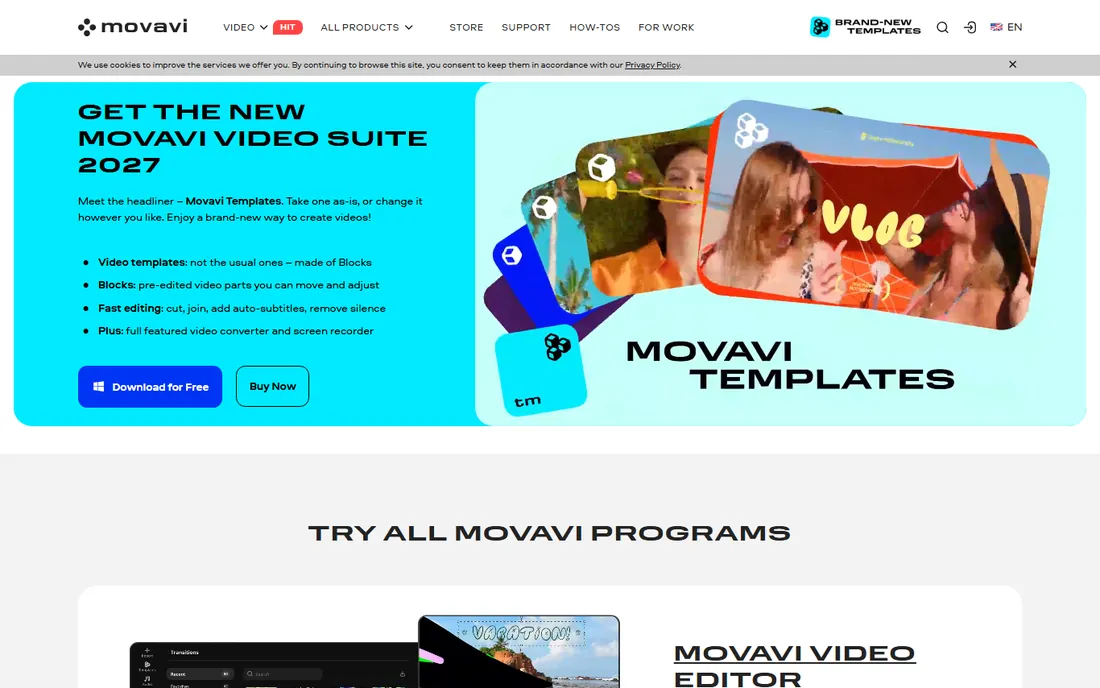
Movavi takes the opposite approach from Filmora: fewer effects, more focus on a clean editing experience. Trimming, splitting, and arranging clips feels immediate, and the program renders quickly even on mid-range laptops. The built-in titles, transitions, and filters cover the basics well, and the interface never buries common actions in submenus.
The trial version watermarks exports, and the tutorial ecosystem is smaller than the big names, so obscure problems take longer to solve. Pricing is typically a yearly subscription or lifetime license per the vendor's site. For a beginner who wants a calm, paid editor without the noise of an effects marketplace, Movavi is a solid pick.
What we like- Clean, uncluttered interface
- Fast rendering on average hardware
- Good built-in titles and transitions
Watch out for- Trial watermarks exports
- Smaller community means fewer tutorials
Starting priceSee website
Free planFree trial
Premiere Pro is the professional standard for a reason. The trimming tools are precise down to the frame, with ripple, roll, slip, and slide edits that free tools lack. Integration with After Effects, Photoshop, and Audition keeps entire productions inside Adobe's ecosystem, and the plugin market covers every niche workflow. Team Projects and Productions handle multi-editor work that would break simpler apps.
None of that matters if you just trim clips. The subscription is perpetual: stop paying and the software stops working. It is also heavier and more complex than any casual user needs. Buy Premiere Pro when video pays your bills or when a client demands project files in its format. For trimming alone, it is the wrong purchase.
What we like- Industry-standard toolset and integrations
- Unmatched third-party plugin ecosystem
- Strong team collaboration
Watch out for- Subscription only, and it never ends
- Overkill for simple trimming
Starting priceSee website
Free planFree trial
Final Cut Pro is Apple's professional editor and the rare pro tool without a subscription. On Apple silicon Macs it is remarkably fast, chewing through 4K and 8K timelines that choke other editors. The magnetic timeline makes assembly and trimming fluid once you adapt to it, and the 90-day free trial is generous enough to finish real projects before deciding.
The lock-in is total: Mac only, with no Windows version and no path to move projects to Premiere. The plugin ecosystem is smaller than Adobe's. But for Mac-based creators who want professional power with a single payment, it is the best value in pro editing, and iMovie users graduate into it naturally.
What we like- One-time purchase, no subscription
- Blazing speed on Apple silicon
- Magnetic timeline speeds up assembly
Watch out for- Mac only
- Smaller plugin ecosystem than Premiere
What actually matters when you only need to trim
Start with the free tier, always
Trimming is the most basic editing operation, and every tool here does it. The differences that matter are export quality, watermarks, and how fast you can work. Run your real footage through the free version first. If the trim feels fast and the export looks clean, you are done shopping.
Check the export terms
Free is not always free. Some tools watermark exports, cap resolution at 720p, or limit monthly exports on the free plan. For YouTube and social, 1080p without a watermark is the minimum acceptable bar, and several free tools here clear it.
Match the tool to the device
Phone-first creators should look at CapCut. Chromebook or locked-down work computers point to Clipchamp in the browser. Mac owners already have iMovie. Only reach for a desktop install when you regularly edit long or high-resolution footage.
Think about where you will be in a year
If trimming is a stepping stone to real editing, pick a tool with headroom. DaVinci Resolve's free version grows into professional work. iMovie grows into Final Cut Pro. CapCut grows into CapCut Pro. Starting over in a new app costs more time than the software ever will.
How we chose
We compared vendor product and pricing pages with public reviews on G2, Capterra, and Trustpilot, plus creator community discussions about real export limits and watermark policies. We weighted actual trimming speed and export terms over feature checklists, since most buyers never touch advanced tools. We excluded pure mobile-only toy apps and enterprise video platforms. No hands-on testing was performed.
Free versus paid: where the line really is
The free tools in 2026 are good enough that paid software needs to justify itself. DaVinci Resolve, CapCut, iMovie, Clipchamp, Shotcut, and OpenShot all trim and export without charging you, and several have no watermark. Paid tools earn their money in three places: speed on big projects, advanced color and audio, and collaboration features.
Filmora and Movavi charge for convenience: a friendlier experience and ready-made effects. Premiere Pro and Final Cut Pro charge for professional depth. The honest test is whether the free tools slow you down in a way you can name. "Rendering takes too long," "I need multicam," and "my client needs project files" are reasons to pay. "It might be better" is not.
Frequently asked questions
What is the easiest video trimming software for beginners?
CapCut on phone or desktop, iMovie on Apple devices, and Clipchamp in the browser are the easiest. All three let you trim a clip within minutes of opening them, and all three are free for basic use.
Can I trim videos without a watermark for free?
Yes. DaVinci Resolve, CapCut, iMovie, Clipchamp, Shotcut, and OpenShot all export without watermarks on their free tiers. Filmora and Movavi watermark trial exports, and most paid tools require a subscription or license for clean exports.
Is DaVinci Resolve really free?
The base version is free with no watermark, no export limits, and no time limit. Blackmagic sells a paid Studio version with advanced features like stereoscopic 3D, extra effects, and AI tools, but most trimmers and editors never need it.
Do I need Premiere Pro just to trim videos?
No. Premiere Pro is built for professional productions with complex timelines, color work, and team collaboration. For trimming clips, the free tools here are faster to learn and cost nothing. Buy Premiere when video work pays for it.
Which trimmer works best on a slow computer?
Shotcut and OpenShot are the lightest desktop options. Clipchamp runs in the browser but needs a good connection. CapCut's desktop app is reasonably light. DaVinci Resolve and Premiere Pro want modern hardware, especially for 4K.
Sources we checked (9)
- https://www.capcut.com
- https://www.blackmagicdesign.com
- https://www.apple.com
- https://www.clipchamp.com
- https://shotcut.org
- https://openshot.org
- https://filmora.wondershare.com
- https://www.movavi.com
- https://www.adobe.com
Is your product missing or out of date?
We review this list regularly. Vendors can request a listing, send updated pricing or ask about featured placement.

Shihab Mia · Founder, Rankite
Shihab has spent more than a decade helping SaaS and e-commerce brands grow through search. He writes Rankite's software buying guides from pricing pages, documentation and public user reviews. More about Shihab.
 CapCut
 DaVinci Resolve
 iMovie
 Clipchamp
 Shotcut
 OpenShot
 Filmora
 Movavi Video Editor
 Adobe Premiere Pro
 Final Cut Pro