How we make this list: we compare pricing pages, product documentation and public user reviews. Rankite is independent; if a vendor ever pays for a featured spot, that listing is clearly labeled Partner.
Key takeaways
- Loom is the fastest path from recording to a shareable link, with Business at $18 per user per month ($15 billed annually) and a limited free Starter plan.
- Camtasia remains the desktop standard for polished tutorials, starting at $39 per year for the Starter tier and $179.88 per year for Essentials.
- Descript is the best pick when you edit by transcript instead of a timeline. Hobbyist costs $16 per person per month billed annually, with a free plan.
- ScreenPal, CapCut and Clipchamp all offer genuinely useful free tiers, making them the budget picks for teams that record often.
- One-time licenses still exist: Bandicam at $39 and Movavi Screen Recorder at $39.95 avoid subscriptions entirely.
Quick comparison
| Tool | Best for | Starting price | Free plan |
|---|
 Loom Loom | quick async team videos | $18 per user/month ($15 per user/month billed annually) | Yes (Starter, 25 videos per person, 5-minute cap) |
 Camtasia Camtasia | polished tutorials and courses | $39/year (Starter) | No (free trial) |
 Descript Descript | editing by transcript | $16 per person/month (billed annually) | Yes (1 media hour per month, watermarked) |
 ScreenPal ScreenPal | budget record-and-edit all-rounder | $4/month (Solo Deluxe, billed annually) | Yes (15-minute recordings) |
 Snagit Snagit | quick captures and documentation | $39/year | No (free trial) |
 Bandicam Bandicam | high-frame-rate screen capture | $39 one-time | No (free trial with watermark) |
 Movavi Screen Recorder Movavi Screen Recorder | simple local recording | $39.95 one-time (Personal) | No (7-day trial) |
 CapCut CapCut | free editor for creators | Free (Pro $19.99/month) | Yes |
 Clipchamp Clipchamp | Windows and Microsoft 365 shops | Free (Premium bundled with Microsoft 365) | Yes |
Is your product missing or out of date?
We review this list regularly. Vendors can request a listing, send updated pricing or ask about featured placement.
The best video recording and editing software
Starting price$18 per user/month ($15 per user/month billed annually)
Free planYes (Starter, 25 videos per person, 5-minute cap)
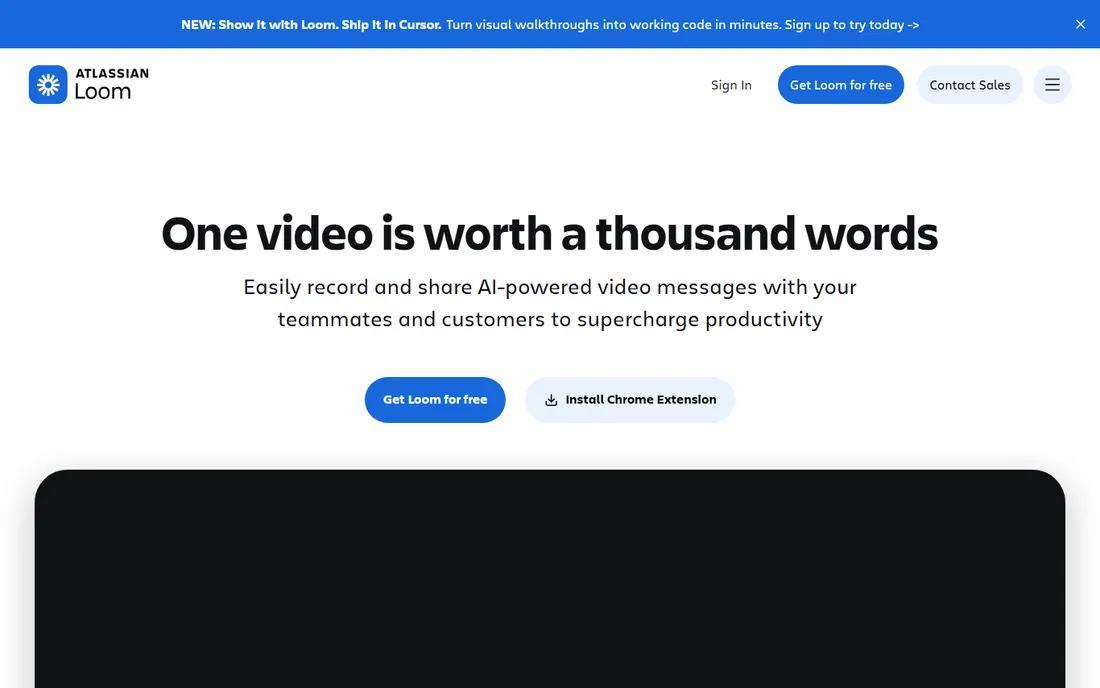
Loom wins on speed. Hit record, capture your screen with a camera bubble, and the video is already hosted with a shareable link the moment you stop. Comments, emoji reactions and viewer insights live on the link, which is why product, support and sales teams use it for async updates instead of meetings. Business at $18 per user per month ($15 billed annually) removes the limits: unlimited videos, unlimited length and 4K recording.
The editing ceiling is low. You can trim and stitch clips, but there is no multi-track timeline, and the useful AI features (summaries, chapters, filler-word removal, edit by transcript) sit on Business + AI at $24 per user per month. The Starter free plan caps recordings at five minutes and 25 videos per person, which runs out fast for a team. Loom is a communication tool first and an editor second; buy it for the workflow, not the post-production.
What we like- Fastest record-to-share-link workflow
- 4K recording on Business
- Deep Atlassian integrations
Watch out for- Editing is basic (trim and stitch)
- AI features need the pricier Business + AI plan
Starting price$39/year (Starter)
Free planNo (free trial)
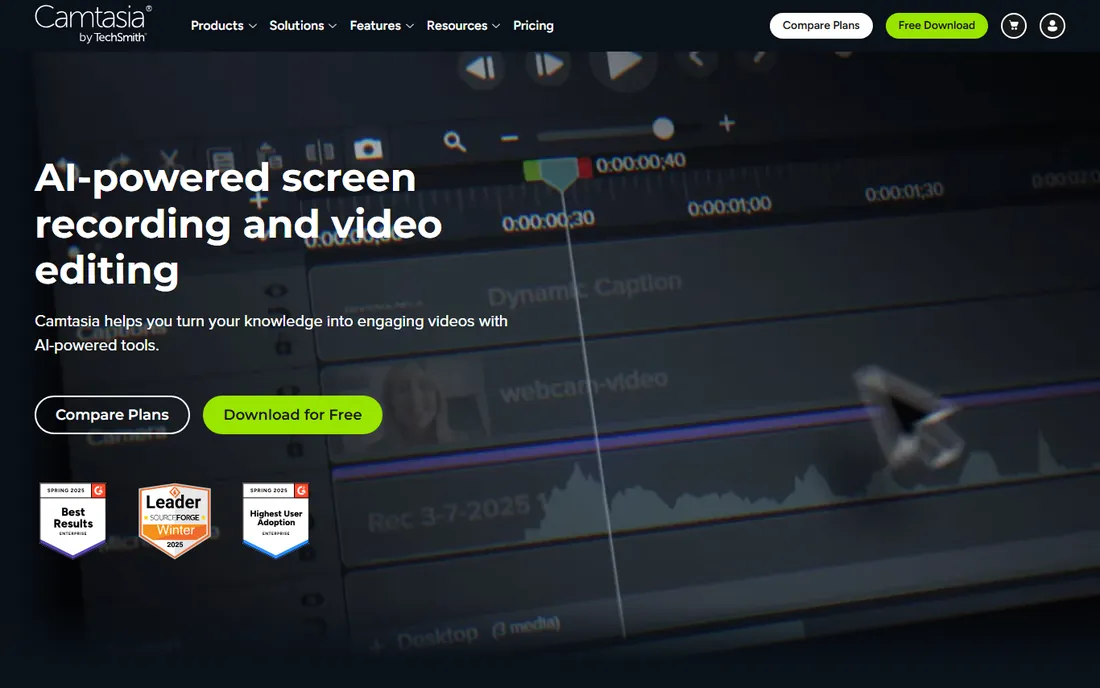
Camtasia has been the default desktop recorder-editor for tutorial makers for years, and it still earns the spot. Recording captures screen, camera, system audio and mic on separate tracks, and the timeline gives frame-level control: detach audio, fix cursor movements after the fact, add quizzes and interactive hotspots, export SCORM packages for an LMS. The 2026 tiers added AI script generation, automatic um-removal and text-based editing, where deleting words in the transcript cuts the video.
Pricing moved to subscription. Starter at $39 per year covers basic capture with limited editing, while Essentials at $179.88 per year is the real standard version with full editing. Create at $249 per year adds AI voice generation and text-based editing; Pro at $599 per year is aimed at enterprises. There is no Linux version, and macOS users get slightly fewer features than Windows users. For course creators and training teams, the depth justifies the price.
What we like- Professional multi-track timeline
- Text-based editing and AI voice tools on higher tiers
- SCORM support for courses
Watch out for- Subscription model now, no more perpetual license
- Higher tiers get expensive fast
Starting price$16 per person/month (billed annually)
Free planYes (1 media hour per month, watermarked)
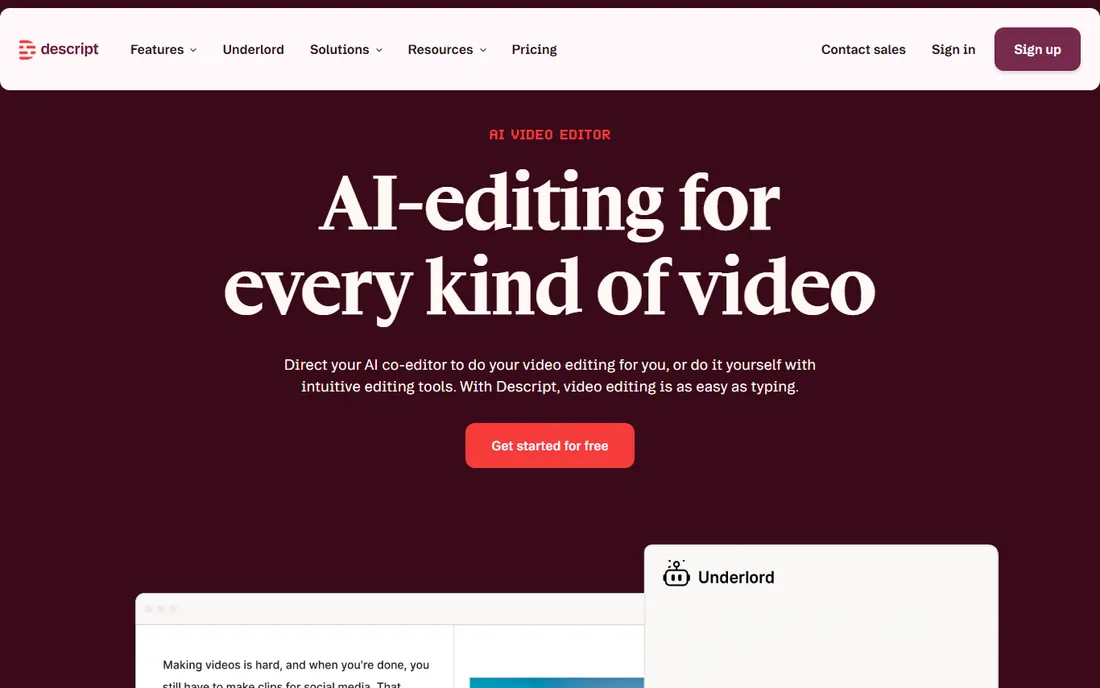
Descript flips the editing model: it transcribes your recording, and from then on you edit the text. Delete a rambling sentence and the video is gone; drag a paragraph and the scene moves with it. For talking-head videos, podcasts, webinars and product walkthroughs, this is dramatically faster than scrubbing a timeline. It also records your screen, hosts remote recording rooms, generates captions, removes filler words and cleans audio with Studio Sound.
The meter to watch is media hours, not export length. Every minute of raw footage you upload or record counts against the allowance, transcribed or not: Hobbyist gives 10 hours a month at $16 per person billed annually, Creator gives 30 hours at $24. AI credits are a second meter for generative features. The free plan offers one media hour with watermarked 720p exports. Descript is cloud-based, so client-call recordings and sensitive content sit on its servers, which matters for some teams.
What we like- Transcript is the timeline
- Studio Sound audio cleanup
- Screen recording plus full editing in one app
Watch out for- Media-hour metering punishes long raw footage
- No mobile editing app
- Cloud processing has privacy implications
Starting price$4/month (Solo Deluxe, billed annually)
Free planYes (15-minute recordings)
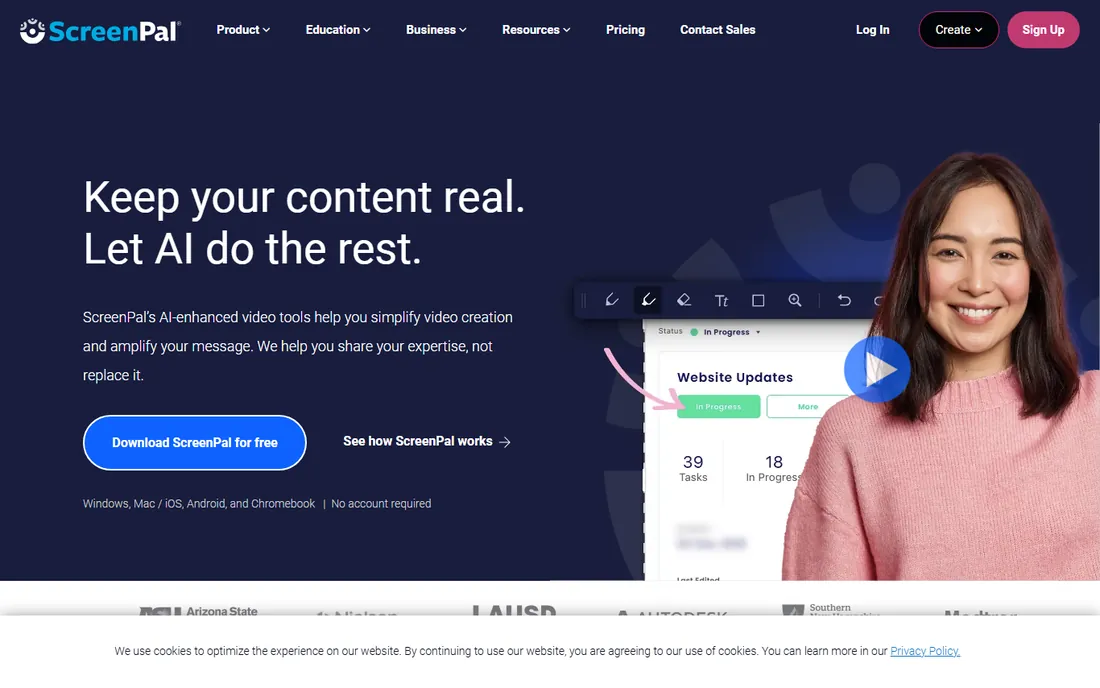
ScreenPal, formerly Screencast-O-Matic, is the value pick that keeps surprising people. For $4 a month, Solo Deluxe gives unlimited recording, the full track-based editor with green screen and automated captions, and unlimited video hosting. The free plan allows 15-minute recordings, which is generous. It runs on Windows, Mac, Chromebook, iOS and Android, so recording on a tablet and editing on a laptop works fine.
The tradeoff is ceiling. The editor handles everyday training videos and tutorials well but lacks Camtasia's precision: no frame-by-frame cursor editing, no SCORM export, fewer advanced effects. Max at $10 a month adds AI features, quizzes and stock content; Team Business at $8 per user per month adds collaboration and SAML SSO. For schools, small businesses and solo creators on a tight budget, ScreenPal covers 90 percent of the job at a tenth of the price.
What we like- Extremely cheap
- Unlimited hosting included
- Works across desktop, web and mobile
Watch out for- Editing depth is intermediate, not professional
- AI features need the Max tier
Starting price$39/year
Free planNo (free trial)
Snagit is the capture tool for people who live in screenshots. Scrolling capture grabs entire web pages, panoramic capture stitches wide images, and the annotation tools (arrows, callouts, blur, stamps) are the best in the business. Short screen recordings with live drawing turn into GIFs or quick videos, and the newest version auto-generates step-by-step documentation from a recording, which support teams love. It integrates with Slack, Teams and Screencast for sharing.
This is not a video editor. If you need multi-track editing, pair Snagit with Camtasia, which is exactly how TechSmith sells the bundle. At $39 per year per user, Snagit is cheap for what it does, and the optional TechSmith cloud sharing tier at $139 per year adds replaceable shared links and branding. Buy Snagit when your output is mostly annotated images with short video clips, not when you need to produce finished videos.
What we like- Best-in-class screenshots with annotation
- Scrolling capture
- Auto-generates step-by-step docs from recordings
Watch out for- Video editing is minimal
- Desktop only
- Cloud sharing needs the pricier tier
Starting price$39 one-time
Free planNo (free trial with watermark)
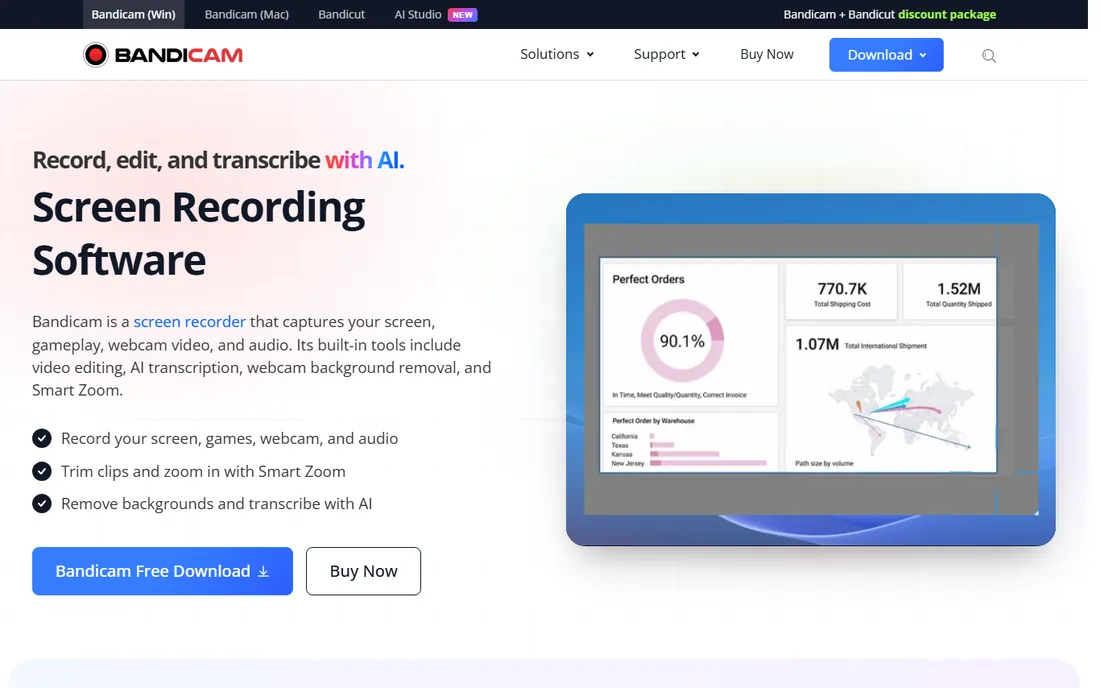
Bandicam is the recorder for demanding capture: games at high frame rates, long tutorials, webcam overlays, scheduled recordings, real-time drawing while you record. It is famously light on CPU, which is why gamers and tutorial makers with modest hardware keep it around. The $39 one-time license covers one PC with no subscription, a rarity in 2026.
Set expectations on editing. Bandicam trims and splits; it does not do multi-track editing, effects or captions. Most users record in Bandicam and edit elsewhere. It is Windows-only, so Mac teams should look at ScreenPal or Camtasia instead. The free trial watermarks exports, which is fine for testing capture quality. If your priority is reliable, high-quality raw footage at a flat price, Bandicam is hard to argue with.
What we like- One-time license, no subscription
- High-FPS game and screen recording
- Lightweight on system resources
Watch out for- Windows only
- Editing is limited to trim and split
- Free trial watermarks exports
Starting price$39.95 one-time (Personal)
Free planNo (7-day trial)
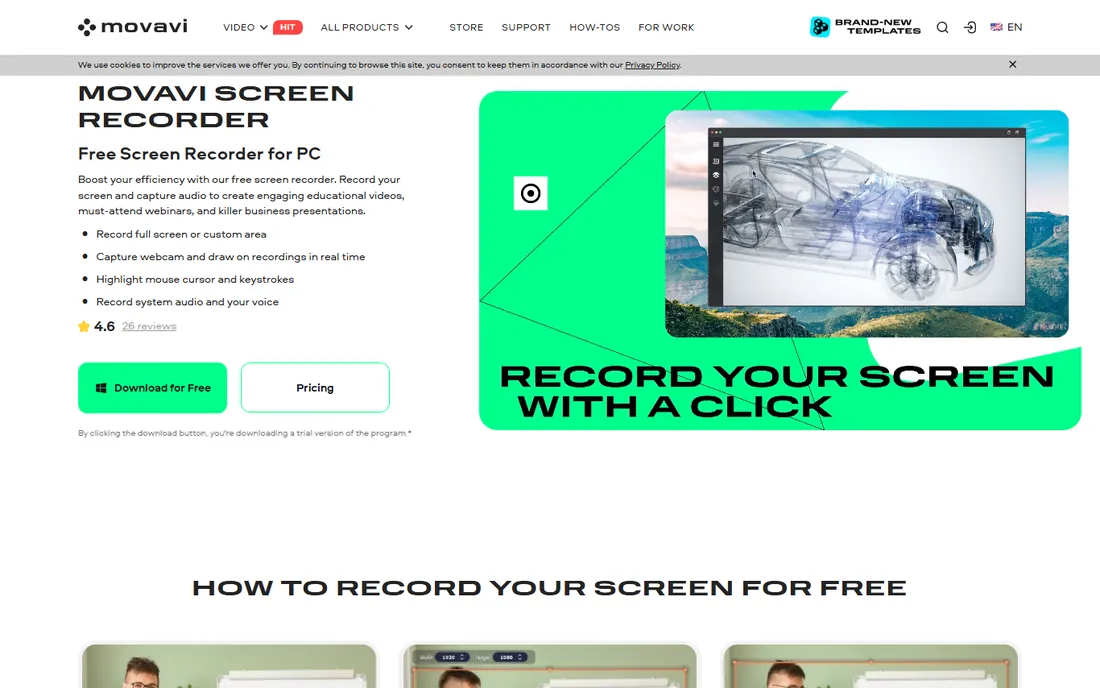
Movavi Screen Recorder is for the buyer who wants to press one button and get a file. Capture area selection, system audio, mic and webcam overlay all work without a manual, and scheduled recording handles webinars you cannot attend live. The Personal license at $39.95 is a one-time purchase for one PC, with a $49.95 per year business option for teams.
What you get is a local file and not much else. There is no hosting, no share links, no collaboration; you upload the result to YouTube, Drive or wherever yourself. The built-in editor covers cuts and basic tweaks only. The 7-day trial watermarks exports, so test capture quality but do not plan real output on it. Movavi suits individuals who record occasionally and already have somewhere to put the video.
What we like- Dead simple to use
- One-time license option
- Scheduled recording and webcam overlay
Watch out for- Trial watermarks everything
- No cloud hosting or sharing
- Basic editing only
Starting priceFree (Pro $19.99/month)
Free planYes
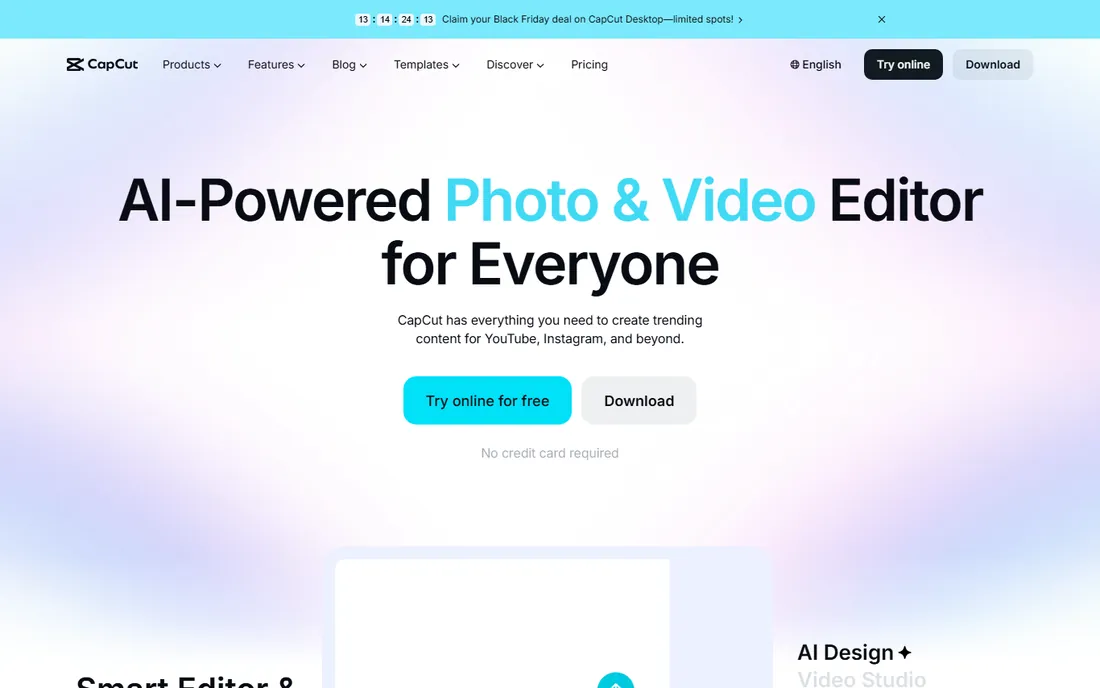
CapCut is the free option that embarrassed a lot of paid software. The free tier edits with no export watermark, up to 1080p, across desktop, web and mobile, with auto-captions, background removal and a huge template library. It also records your screen, which is why it belongs on this list: record, edit, caption and export without paying anything. Creators publishing daily to TikTok, Reels and YouTube Shorts get a complete workflow here.
The paid tiers add headroom rather than gating the basics. Standard at about $9.99 a month removes watermarks on premium templates and assets; Pro at $19.99 a month ($179.99 a year on the web) adds 4K export, the full AI toolkit, 100GB+ cloud storage and the 12-million-asset library. Prices vary by region and are higher in app stores than on capcut.com. CapCut is not a replacement for Premiere or DaVinci on complex timelines, but for record-and-publish speed it is unmatched at the price.
What we like- Genuinely capable free tier with no watermark on exports
- Strong AI tools
- Desktop, web and mobile apps
Watch out for- Pro pricing varies by region and platform
- Not a frame-accurate pro NLE
- Cloud storage is limited on free
Starting priceFree (Premium bundled with Microsoft 365)
Free planYes
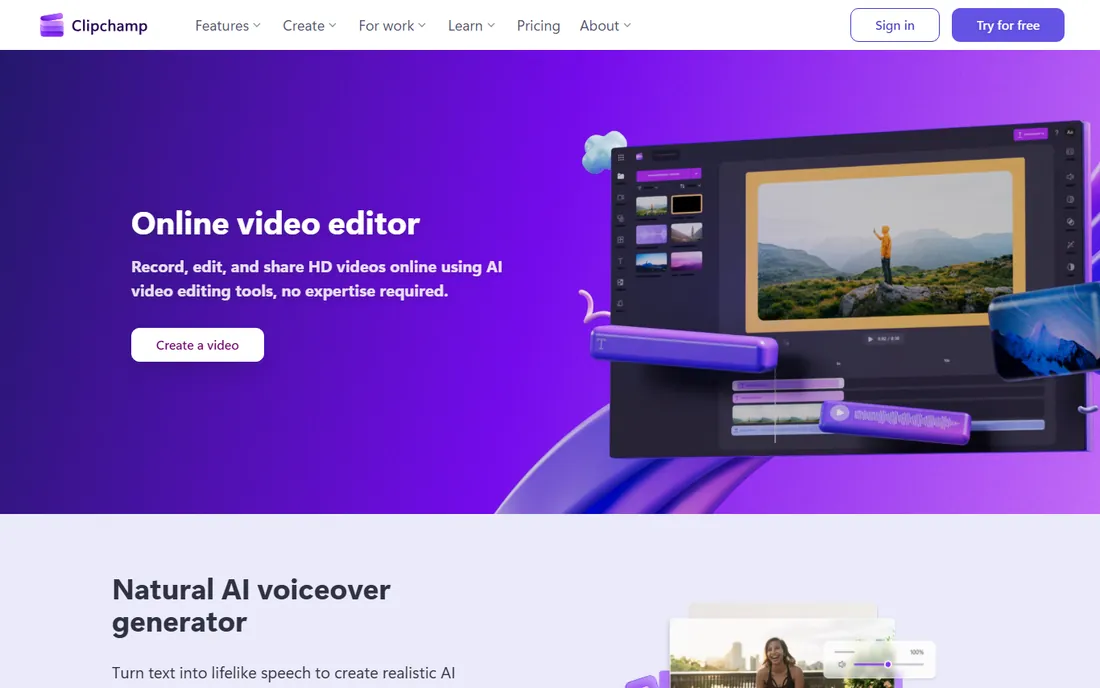
Clipchamp is Microsoft's answer to easy video, and its biggest advantage is distribution: it ships with Windows 11 and runs in Edge or Chrome with a Microsoft account. The free tier exports 1080p with no watermark, records screen and webcam, and includes templates, stock media and auto-captions. For a small business already paying for Microsoft 365, the Premium tier (bundled with Personal at $9.99 a month and business plans) adds premium stock, brand kits and more.
The catch is the bundle logic. Premium features are tied to your Microsoft 365 subscription, so the real cost depends on what you already pay Microsoft. Clipchamp is also a web-based editor, which means large projects and heavy effects run slower than in a desktop NLE. For internal training clips, social videos and quick screen recordings inside a Microsoft-centric company, it is the path of least resistance and it costs nothing extra to try.
What we like- Free with 1080p exports and no watermark
- Preinstalled on Windows 11
- Records screen and webcam
Watch out for- Premium features gated behind Microsoft 365
- Weaker than desktop editors for complex projects
How we chose
We looked for tools that both record and edit in 2026, excluding pure editors like Premiere and pure recorders with no editing at all. For each tool we checked the vendor's own pricing page, confirmed the free tier limits and trial terms, reviewed feature documentation and public reviews on G2, Capterra and Reddit, and noted platform support and sharing workflows. We favored tools with honest pricing pages and penalized vague quote-only tiers. We did not run hands-on recording tests; workflow notes come from published reviews and vendor documentation.
Start from the output, not the feature list. If your week is twenty quick explainers for colleagues, Loom or ScreenPal will save you hours over a desktop editor, because the share link is the product. If you produce courses or tutorials that carry your brand, Camtasia's timeline and Snagit's capture tools earn their keep. If you edit talking-head video, Descript's transcript workflow is the single biggest time saver in this list.
Consider where the video lives. Loom, ScreenPal and Clipchamp host and share for you; Bandicam and Movavi hand you a file and leave hosting to you. Teams that already live in Microsoft 365 get Clipchamp Premium effectively free, while Atlassian shops get more from Loom's integrations. And check platforms early: Bandicam is Windows-only, Descript has no mobile editor, and Camtasia's Mac version trails Windows. The wrong platform fit will cost more in workarounds than any subscription saves.
Where the money actually goes
Per-seat pricing is the quiet budget killer in this category. Loom at $18 a user and Descript at $16 a person look cheap until ten seats turn them into $180 and $160 a month. Before rolling out company-wide, count who records weekly versus who watches; most teams can keep half the staff on free tiers. Annual billing cuts roughly 15 to 20 percent off monthly rates on Loom, Descript and CapCut Pro.
One-time licenses are the escape hatch. Bandicam at $39 and Movavi at $39.95 cost less than three months of a per-seat subscription and never bill you again. They make sense for individuals and tiny teams with simple needs. The tradeoff is no hosting, no collaboration and no AI features, so weigh the subscription's workflow value honestly before dismissing it.
Frequently asked questions
What is the difference between a screen recorder and a video editor?
A screen recorder captures what happens on your display, optionally with webcam and audio. A video editor cuts, arranges and enhances footage afterward. The tools in this guide do both: they capture the recording and include an editor so you can trim, caption and export without a second app.
Is free screen recording software good enough for business use?
Often, yes. CapCut, Clipchamp and ScreenPal's free tiers handle everyday training clips, demos and social videos without watermarks. Paid plans become worth it when you need 4K exports, longer recordings, team collaboration, AI features or commercial asset libraries. Test the free tier against your actual output before paying.
Which tool is best for recording software tutorials?
Camtasia is the traditional answer: separate audio tracks, cursor editing after recording and quiz hotspots. Descript is the faster modern answer if your tutorials are mostly talking head with screen inserts, since transcript editing cuts production time. ScreenPal covers the basics at a fraction of either price.
Can I record my screen on a Mac with these tools?
Yes, except Bandicam, which is Windows-only. Camtasia, ScreenPal, Movavi, Snagit, Loom, Descript, CapCut and Clipchamp all support macOS. Note that Camtasia's Mac version has slightly fewer features than its Windows version, and Descript editing happens in its desktop app or browser, not on phones.
Do any of these tools offer one-time pricing instead of subscriptions?
Bandicam ($39) and Movavi Screen Recorder ($39.95) sell one-time licenses. Camtasia, Loom, Descript, ScreenPal, Snagit and CapCut Pro are subscription-only now. One-time licenses suit individuals with simple needs; subscriptions buy hosting, collaboration and AI features that one-time tools lack.
How do I choose between Loom and a full editor like Camtasia?
Choose Loom when the goal is fast async communication: record, share a link, get comments. Choose Camtasia when the video is a durable asset, like a course module or a public tutorial, that needs precise editing, branding and captions. Many teams use both: Loom for internal updates, Camtasia for customer-facing content.
Sources we checked (15)
- https://smartkeys.org/loom-vs-soapbox-2/
- https://trainn.co/blog/loom-vs-tella/
- https://www.guidde.com/tool-comparison/camtasia-vs-screenpal-pricing-comparison
- https://www.guidde.com/tool-comparison/camtasia-vs-screenpal-features-pricing-2026
- https://1of10.com/blog/descript-pricing/
- https://www.jellypod.com/blog/descript-pricing
- https://www.softwaresuggest.com/compare/bandicam-vs-snagit
- https://www.techsmith.com/blog/review-of-snagit-alternatives-camtasia-alternatives/
- https://www.guidde.com/tool-comparison/scribe-vs-movavi-screen-recorder-pricing-comparison-2026
- https://www.g2.com/products/movavi-screen-recorder/pricing
- https://www.accio.com/plp/capcut-pro-2026
- https://www.linkedin.com/pulse/capcut-pro-worth-okulu-ebubechukwu-wvwfe
- https://en.wikipedia.org/wiki/Clipchamp
- https://support.microsoft.com/en-us/Clipchamp/what-is-clipchamp
- https://slashdot.org/software/comparison/Descript-vs-Loom/
Is your product missing or out of date?
We review this list regularly. Vendors can request a listing, send updated pricing or ask about featured placement.

Shihab Mia · Founder, Rankite
Shihab has spent more than a decade helping SaaS and e-commerce brands grow through search. He writes Rankite's software buying guides from pricing pages, documentation and public user reviews. More about Shihab.