How we make this list: we compare pricing pages, product documentation and public user reviews. Rankite is independent; if a vendor ever pays for a featured spot, that listing is clearly labeled Partner.
Key takeaways
- OBS Studio is the free starting point that beats most paid tools at pure capture quality. If you can leave your computer running, it records anything on screen at up to 4K with no watermark or time limit.
- Cloud recorders like StreamRecorder.io capture streams on a schedule without your computer running, which is the only practical way to archive broadcasts that air while you sleep.
- Audials One and PlayOn Home specialize in recording streaming video and music with automatic naming and ad skipping, aimed at building a personal offline library.
- Downloaders such as StreamFab and 4K Video Downloader suit on-demand video, while live-oriented recorders suit Twitch, YouTube Live and Kick broadcasts. Match the tool to the content type.
- Record responsibly: capture your own streams, public broadcasts you have the right to save, and content within each platform's terms. The tools are neutral; how you use them is not.
Quick comparison
Is your product missing or out of date?
We review this list regularly. Vendors can request a listing, send updated pricing or ask about featured placement.
The best stream capture software
Starting priceFree
Free planYes
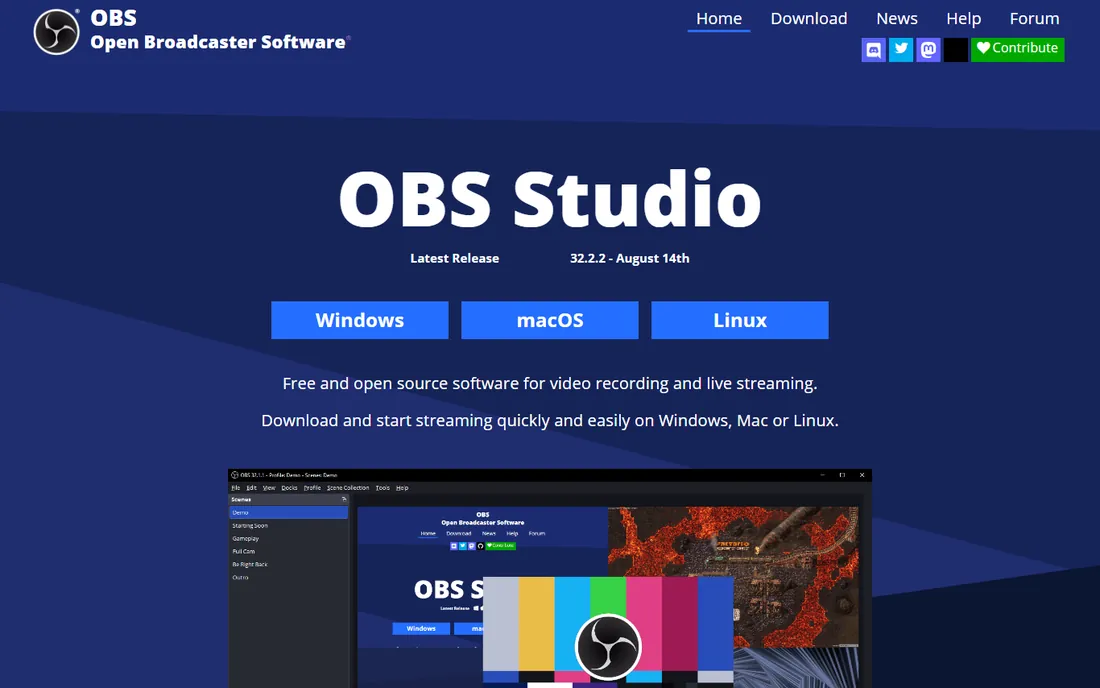
OBS Studio is the tool most streamers already have installed, and it doubles as an excellent stream recorder. Point it at a browser window playing a live broadcast, hit record, and you get a clean local file at whatever quality your machine can handle, with separate audio tracks and no watermark. It costs nothing and restricts nothing.
The honest limitations are workflow ones. There is no editor, so trimming happens in another program, and the computer must stay awake for the whole broadcast, which rules out overnight captures unless you schedule carefully. For real-time recording of anything on your screen, though, nothing free comes close.
What we like- Completely free and open source with no watermark or time limits
- Records up to 4K from screen, window, webcam or capture card
- Huge plugin and community ecosystem
Watch out for- No built-in video editor
- The scene-based interface overwhelms beginners
- Your computer must be on and running during the capture
Starting priceFree
Free planYes
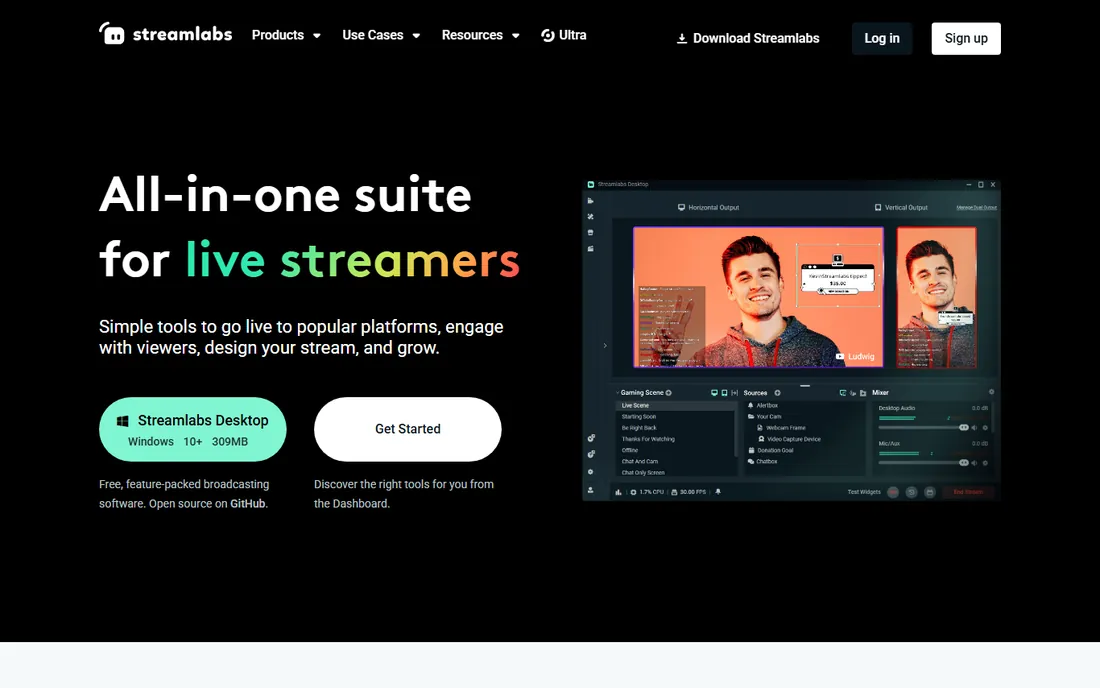
Streamlabs Desktop takes the OBS engine and wraps it in an interface beginners can actually navigate. Setup wizards, one-click themes and built-in widgets get a recording or stream running in minutes rather than an evening of configuration. Recording quality matches OBS since the underlying capture technology is the same.
It uses more CPU and RAM than vanilla OBS, which matters on older machines, and features like multistreaming and extra themes require the Ultra subscription at $27 a month or $189 a year. For creators who want OBS power without the OBS learning curve, it is the pragmatic choice.
What we like- Built on OBS with a much friendlier interface
- Free themes, overlays and alerts
- Simple recording alongside streaming
Watch out for- Heavier on system resources than plain OBS
- Premium features sit behind the Ultra subscription
- Windows and Mac only
Starting priceFree
Free planYes
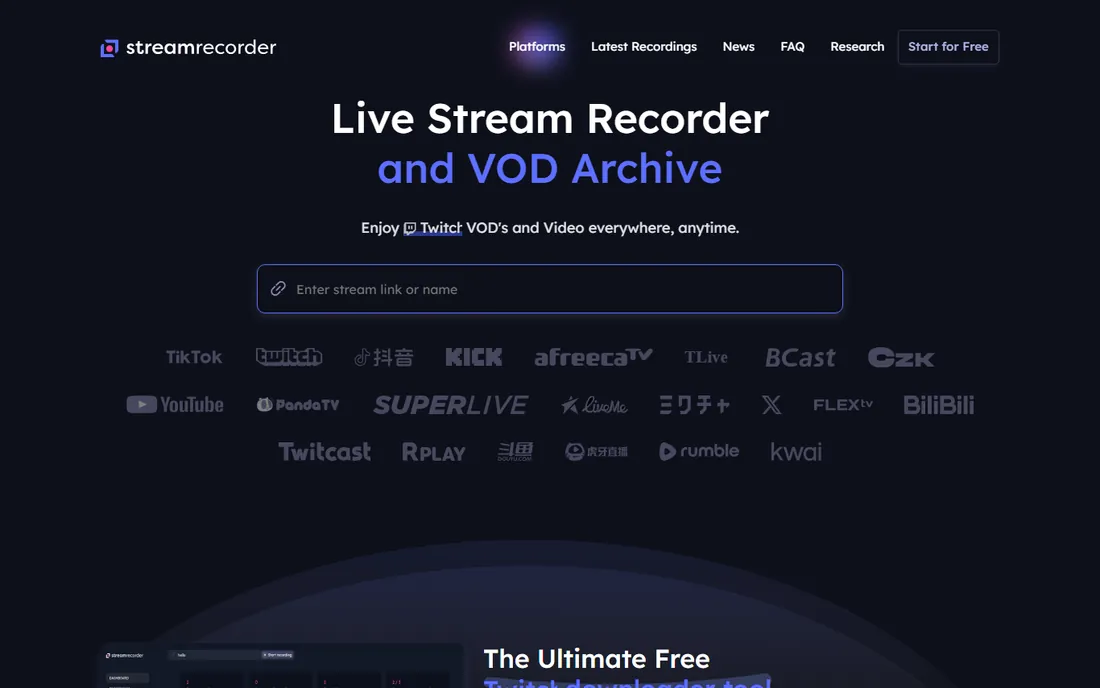
StreamRecorder.io solves the problem OBS cannot: capturing a stream while you sleep. Add the streamers you follow, and the cloud service records every broadcast automatically from Twitch, YouTube, Kick, TikTok and eighteen other platforms, storing MP4 files you can watch or download later. Nothing runs on your computer.
The free tier caps quality at 720p, keeps recordings for five days and covers three streamers at once. Premium raises quality to source resolution, extends retention to sixty days and covers up to one hundred streamers. For archiving favorite creators without babysitting a PC, the model is hard to beat.
What we like- Records streams automatically on a schedule from 22 platforms
- No software to install and no computer needed
- Free tier includes 720p recording
Watch out for- Free recordings are kept only 5 days
- Full quality and longer retention need premium
- Account required
Starting priceFrom $39.90/year
Free planFree trial
Audials One is built for people assembling a personal media library. It records video and music from streaming sources, tags and names files automatically, and manages the resulting collection with conversion and playback tools. The recording engine handles adaptive streams smoothly, which is where simpler recorders stumble.
The interface tries to do everything at once, so new users face a learning curve, and the subscription model means ongoing cost. But for systematic archiving of streams into an organized, named library, its automation saves real time over manual capture.
What we like- Records movies, series and music from streams with automatic naming
- Handles adaptive streaming at high quality
- Large built-in media management
Watch out for- The interface packs in a lot and feels busy
- Annual pricing rather than one-time
- Some features overlap with free tools

#5
PlayOn Home
Best for: DVR-style recording of streaming services
Visit playon.tv
Starting priceFrom $39.99
Free planFree trial
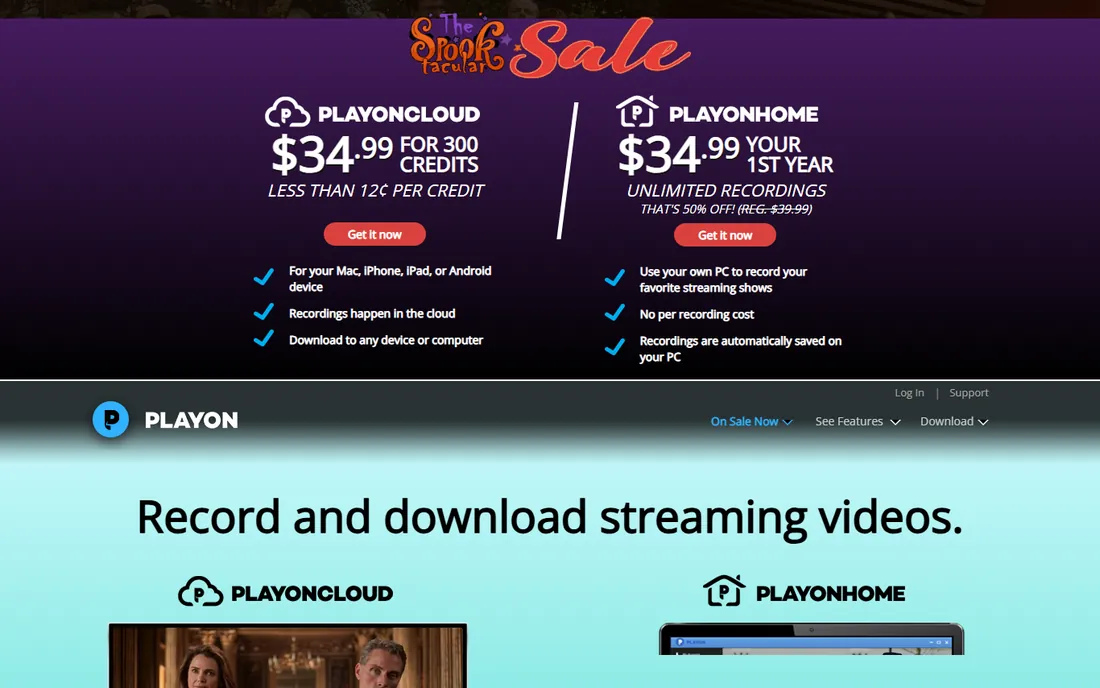
PlayOn Home brings the DVR concept to streaming video. It records shows and movies from major streaming services to your PC, skips commercials automatically on playback, and lets you watch offline on phones, tablets and TVs. For households that want their streaming library available without an internet connection, it fills a genuine gap.
Recording happens in real time, so a two-hour movie takes two hours to capture, and the Windows-only software must run on a PC. Streaming services also change their delivery regularly, which means occasional breakage. As a personal DVR for cord-cutters, though, it remains unique.
What we like- Turns a PC into a DVR for streaming services
- Automatic commercial skipping
- Recordings play offline on any device
Watch out for- Windows only
- Recordings happen in real time
- Service availability varies as streaming platforms change

#6
Jaksta Media Recorder
Best for: Downloading from thousands of sites
Visit jaksta.com
Starting priceSee website
Free planFree trial
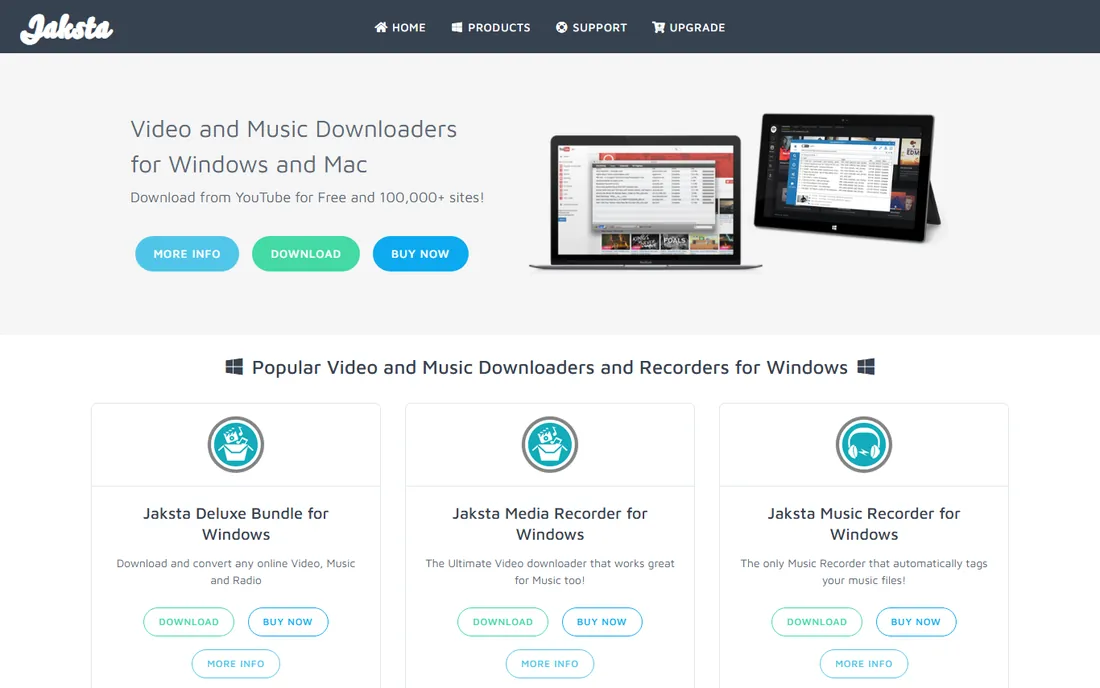
Jaksta has been in the stream capture business for years, and its Media Recorder detects downloadable media across an enormous range of websites, saving video, music and radio with automatic tagging. The radio recorder can even capture scheduled shows automatically, a niche feature few competitors offer.
The website and interface both show their age, and pricing requires digging rather than reading a clear pricing page. But the detection engine is the product here, and for grabbing media from sites where other tools fail, Jaksta's long track record counts.
What we like- Detects and downloads video, music and radio from a huge range of sites
- Automatic file tagging
- Scheduled recording for radio shows
Watch out for- Interface looks dated
- Pricing is not transparent on the homepage
- Windows and Mac only

#7
StreamFab Downloader
Best for: Downloading streaming video in high quality
Visit streamfab.com
Starting priceSee website
Free planFree trial
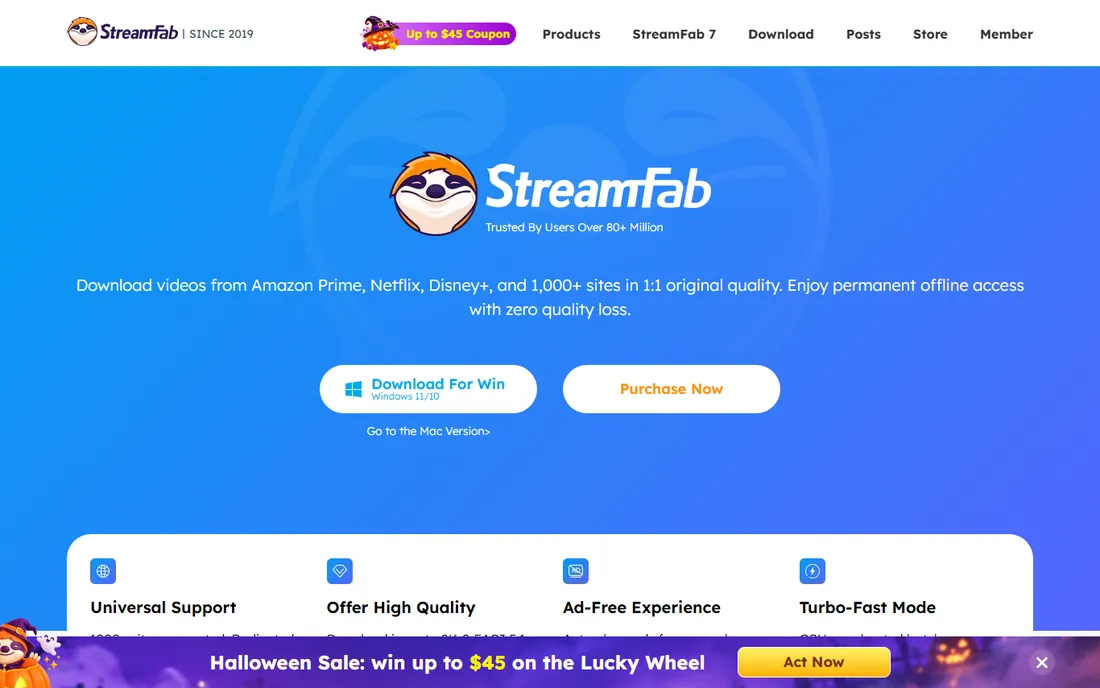
StreamFab focuses on quality downloads from streaming services, with modules for individual platforms that download in high resolutions with subtitles and metadata preserved. Batch and scheduled downloading suit users building libraries systematically, and the vendor updates modules as services change their delivery.
The modular store is the catch: each service module is priced separately, so covering several platforms gets expensive. Check the total for the modules you actually need before committing. For high-quality offline copies from specific services, it is among the most capable options.
What we like- Downloads from major streaming services in high resolutions
- Batch downloading and scheduled downloads
- Regular updates for service changes
Watch out for- Modular pricing means costs add up per service
- The feature set can confuse new users
- Windows and Mac only
Starting priceSee website
Free planYes, limited
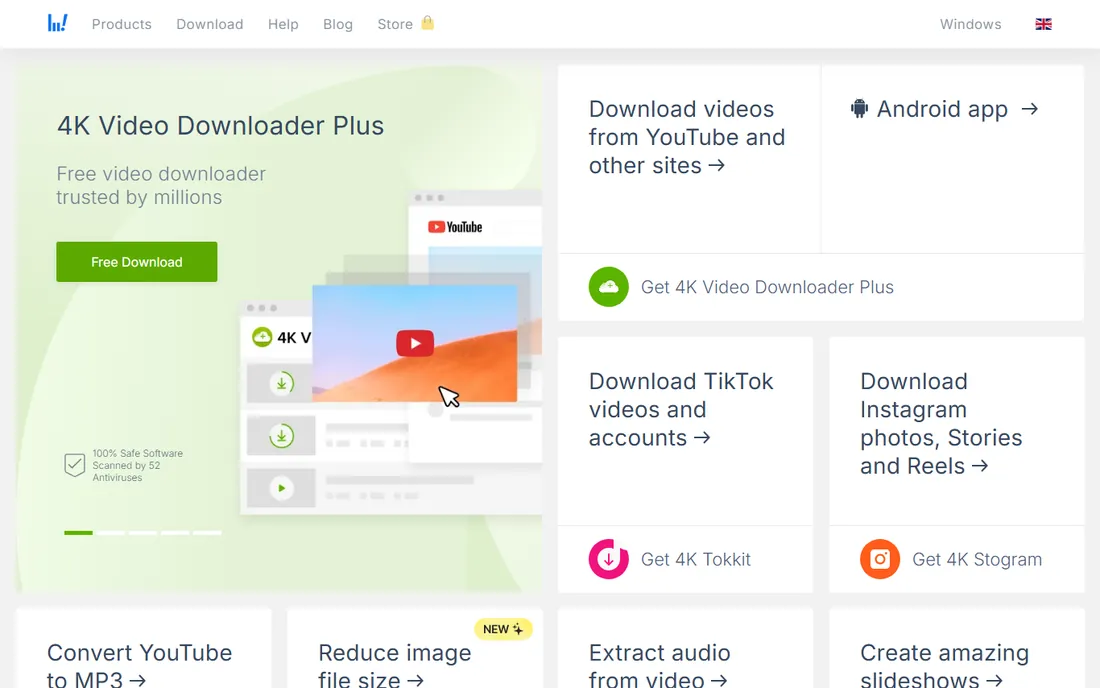
4K Video Downloader does one thing well: paste a link, get the video. It handles individual videos, playlists and whole channels from popular sites, with quality options up to 4K where the source allows. The free tier is genuinely useful for occasional downloads.
It is weaker for live streams than the dedicated recorders above, since its strength is on-demand video rather than scheduled live capture. Daily limits on the free tier push heavy users toward paid. As the simple downloader in a capture toolkit, it earns its place.
What we like- Extremely simple paste-and-download workflow
- Downloads playlists and channels in bulk
- Free tier covers casual use
Watch out for- Focused on on-demand video rather than live streams
- Free tier has daily limits
- Advanced features need the paid version
Starting priceSee website
Free planFree trial
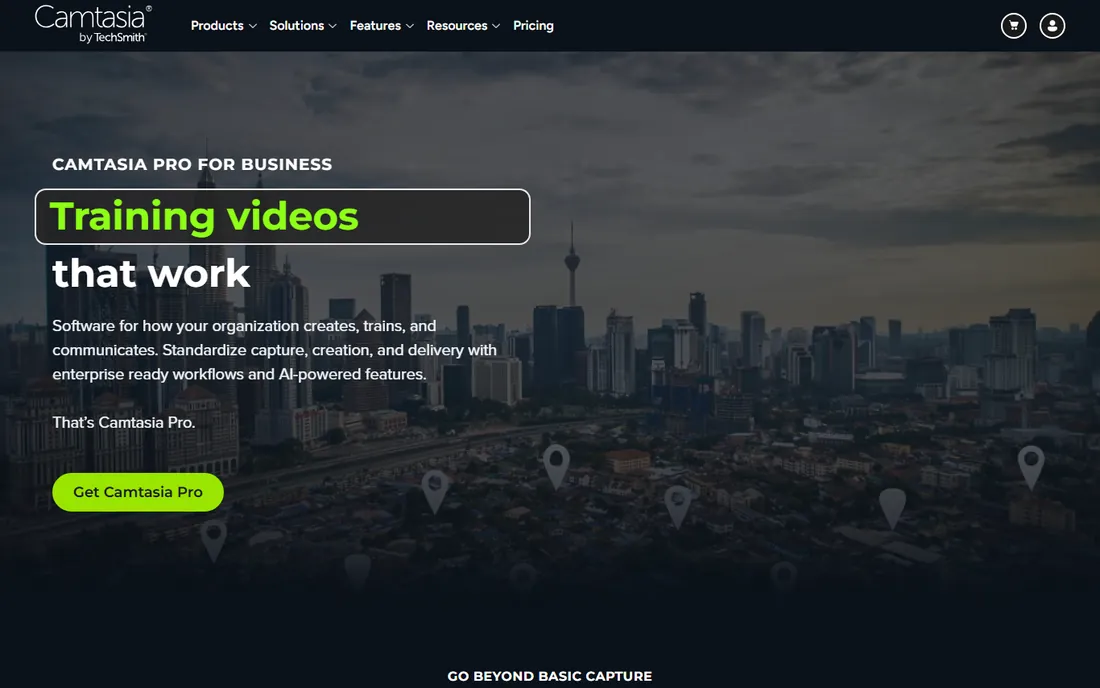
Camtasia approaches capture from the creator side: record a stream, a webinar or a presentation, then edit it into a polished video without leaving the program. The editor includes annotations, transitions, animations and quizzing, which makes it the standard choice for tutorial and training producers who capture live content as source material.
For pure archiving it is overkill and overpriced. But when the recording is raw material for a finished video, the record-then-edit workflow in one package saves the round trip through separate tools, and the output quality shows it.
What we like- Screen recording paired with a genuinely good editor
- Annotations, quizzes and effects built in
- Excellent for tutorials and training
Watch out for- Priced as a premium product
- Overkill for simple archiving
- Heavier system requirements than pure recorders
Starting priceSee website
Free planFree trial
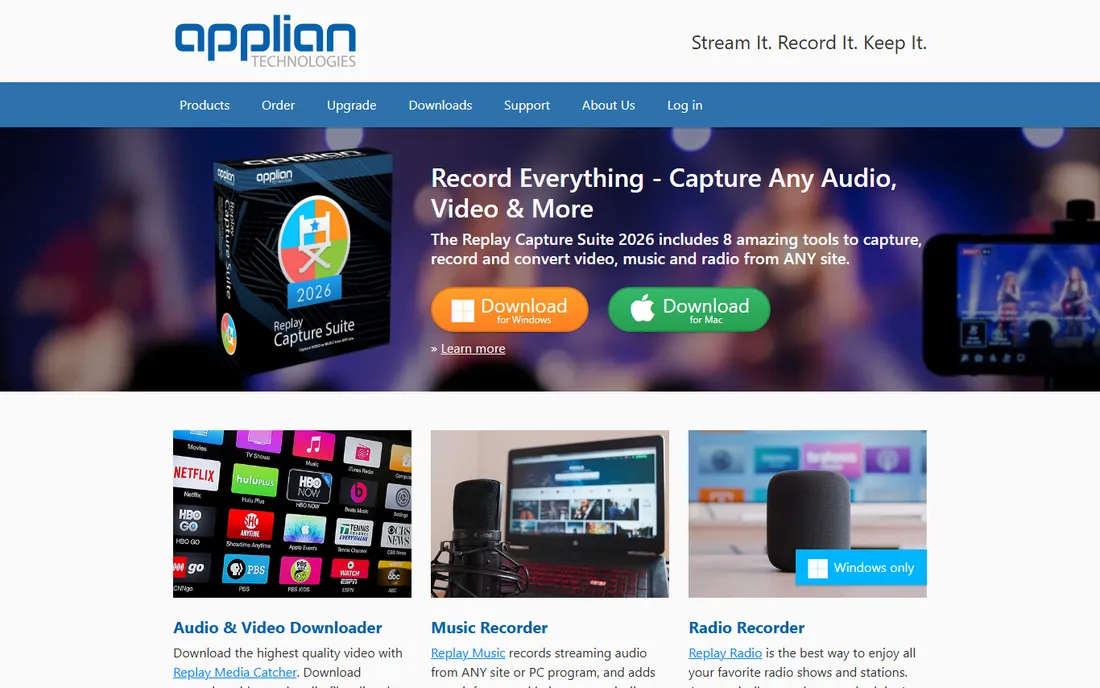
Applian's Replay Capture Suite bundles its capture tools into one package: screen and stream recording, audio capture and video downloading with scheduling. As a long-running specialist vendor, Applian has refined these tools over many years, and the bundle suits users who want one purchase covering every capture scenario.
Individual tools in the bundle may overlap with free alternatives buyers already use, so check for duplication before buying the suite. The interfaces prioritize function over modern design. For a single-vendor capture toolkit with scheduled recording, it remains a solid option.
What we like- Bundle covers screen capture, audio recording and video downloading
- Long-established vendor in the capture space
- Scheduled recordings
Watch out for- The suite bundles overlap for some users
- Interface feels dated
- Pricing details require visiting the store
How we chose
We defined stream capture as recording live streams and streaming video for later viewing, covering both real-time recorders and downloaders. We read current vendor pages and documentation, checked which platforms each tool actually supports in 2026, and weighed user reports about reliability as streaming services change their delivery. Tools that no longer work with major platforms or have been abandoned were excluded.
Recording a stream is a technical act with legal context. Your own broadcasts are yours to save however you like. Public streams from creators who permit archiving, educational content and fair-use purposes are generally fine. Ripping copyrighted movies and shows from subscription services against their terms is not.
Platform terms of service also matter independently of copyright law. Some services prohibit downloading even of freely available content. Read the terms of the platform you record from, keep captures for personal use unless you have permission to do more, and when in doubt, ask the creator. The tools above are neutral; staying on the right side of the rules is your job.
What to look for before you buy
First, decide whether you need real-time recording or direct downloading. Live broadcasts from Twitch, YouTube Live or Kick need a recorder running during the event or a cloud service capturing on schedule. On-demand video from streaming services suits downloaders that grab the file directly.
Second, check platform support specifically. "Supports streaming sites" is vague; confirm the exact services you care about, since each platform's delivery changes regularly and breaks tools that are not maintained. Vendor changelogs and update frequency tell you whether a tool keeps up.
Third, consider scheduling. If the streams you want air while you work or sleep, only scheduled or cloud-based capture works. Real-time screen recording demands your computer be on, awake and undisturbed for the whole broadcast.
Finally, weigh quality against convenience. Direct downloads preserve source quality and finish fast; real-time recording takes as long as the broadcast and depends on your machine's performance. For archival purposes, direct capture wins whenever the tool supports the platform.
Frequently asked questions
Is it legal to record live streams?
It depends on what you record and why. Recording your own streams or public broadcasts for personal use is generally fine. Recording copyrighted content from subscription services against their terms of service can violate both the terms and copyright law. When in doubt, check the platform's terms and the creator's permissions.
What is the difference between a stream recorder and a stream downloader?
A recorder captures the stream in real time as it plays, which works on any platform but takes as long as the broadcast. A downloader grabs the video file directly from the service, which is faster and preserves quality but only works where the tool supports that platform.
Can I record a stream while my computer is off?
Only with a cloud-based service like StreamRecorder.io, which records on its own servers. Desktop tools such as OBS Studio require your computer to be on and running for the entire broadcast.
Do I need a powerful computer to capture streams?
For basic recording, no. OBS Studio runs on modest hardware for 1080p capture. High-resolution recording, simultaneous streaming and recording, or software encoding at high bitrates benefit from a stronger CPU or a GPU with hardware encoding.
Why do some stream downloaders stop working?
Streaming platforms regularly change how they deliver video, which breaks downloaders until vendors update them. Tools with active development and frequent updates recover quickly; abandoned tools stay broken. Check a tool's update history before buying.
Can stream capture software record DRM-protected content?
Most legitimate tools record what plays on screen but cannot strip digital rights management from protected streams. Tools that claim to bypass DRM operate in a legal gray area; screen recording your own viewing for personal use is the safer path.
Sources we checked (13)
- https://streamrecorder.io/
- https://obsproject.com
- https://www.streamlabs.com
- https://www.abijita.com/best-streaming-software-for-2025/
- https://sourceforge.net/software/screen-recording/uk/?page=2
- https://elearningsupporter.com/2026/06/05/best-screen-recorder-for-pc-2026-7-honest-picks-that-actually-work/
- https://www.audials.com
- https://playon.tv
- https://jaksta.com/
- https://www.streamfab.com
- https://www.4kdownload.com
- https://www.techsmith.com
- https://www.applian.com
Is your product missing or out of date?
We review this list regularly. Vendors can request a listing, send updated pricing or ask about featured placement.

Shihab Mia · Founder, Rankite
Shihab has spent more than a decade helping SaaS and e-commerce brands grow through search. He writes Rankite's software buying guides from pricing pages, documentation and public user reviews. More about Shihab.
 OBS Studio
 Streamlabs Desktop
 StreamRecorder.io
 Audials One
 4K Video Downloader
 Camtasia
 Replay Capture Suite