How we make this list: we compare pricing pages, product documentation and public user reviews. Rankite is independent; if a vendor ever pays for a featured spot, that listing is clearly labeled Partner.
Key takeaways
- DaVinci Resolve is the best free video editing software without watermark for serious work, with a professional editor and color suite at zero cost.
- CapCut is the easiest start for social video on PC, with free HD exports and no watermark, plus AI captions and effects.
- Shotcut, OpenShot and Kdenlive are fully free and open source with no export limits, ideal if you want no account and no upsell.
- Lightworks free is watermark-free but caps exports at 720p, so check the resolution limit before you invest learning time.
Quick comparison
| Tool | Best for | Starting price | Free plan |
|---|
 DaVinci Resolve DaVinci Resolve | Professional editing for free | Free (Studio version $295 one-time) | Yes |
 CapCut CapCut | Social video and quick edits | Free (paid plans available) | Yes (no watermark on exports) |
 Shotcut Shotcut | No-nonsense open source editing | Free | Yes |
 OpenShot OpenShot | Beginners who want simple | Free | Yes |
 Kdenlive Kdenlive | Full-featured open source timeline | Free | Yes |
 VSDC Free Video Editor VSDC Free Video Editor | Windows users on weak hardware | Free (Pro version available) | Yes |
 Lightworks Lightworks | Learning pro-style editing | Free (paid Create and Pro tiers) | Yes (720p export, no watermark) |
 Clipchamp Clipchamp | Browser editing with no install | Free (premium features via Microsoft 365) | Yes (HD exports, no watermark) |
 Blender Blender | Editing plus 3D and effects | Free | Yes |
Is your product missing or out of date?
We review this list regularly. Vendors can request a listing, send updated pricing or ask about featured placement.
The best free video editing software without watermark
Starting priceFree (Studio version $295 one-time)
Free planYes
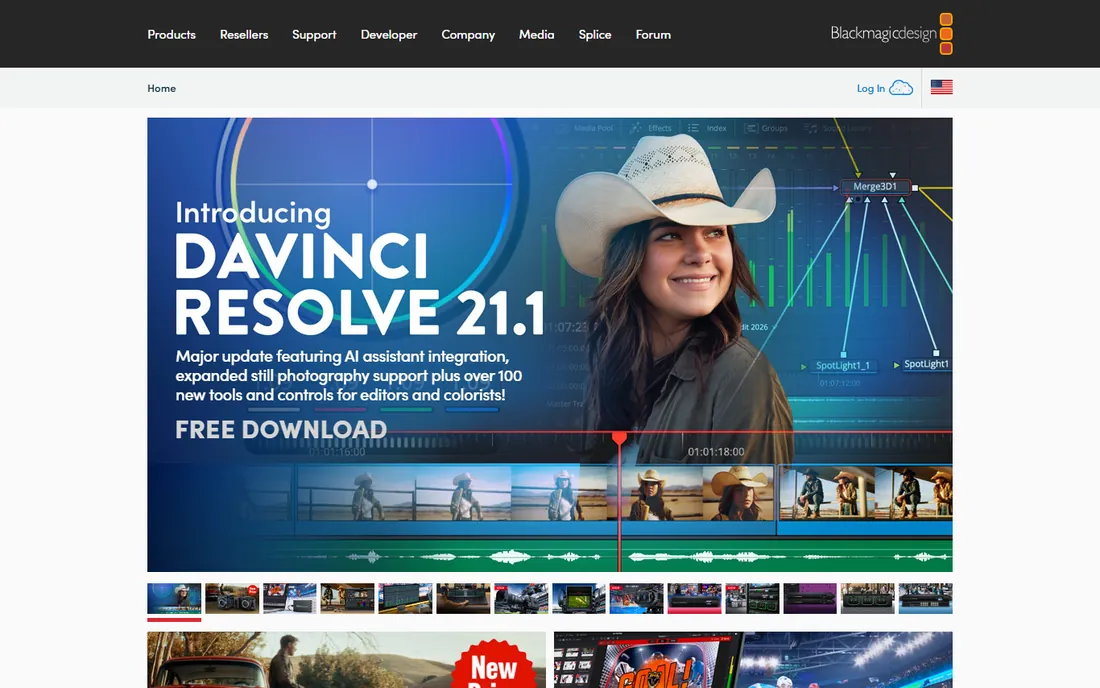
DaVinci Resolve is the reason the phrase free video editor no longer means compromise. Blackmagic gives away a genuinely professional non-linear editor, the same core software used on commercial productions, with cutting, color grading, Fairlight audio and effects pages included. Exports carry no watermark, and the free version handles 4K timelines that paid consumer editors charge for.
The honest catch is the learning curve and the hardware. Resolve wants a decent GPU and plenty of RAM, and its multi-page interface assumes you will spend a weekend learning it. The $295 Studio version adds neural-engine AI features and higher-end collaboration, but nothing in the free tier blocks you from finishing a real project. If you want the best free video editing software for PC without watermark and you are willing to learn, start here.
What we like- Full professional editor, color grading and audio tools free
- No watermark
- Exports up to 4K on the free tier
Watch out for- Demanding on hardware
- The interface overwhelms first-time editors
Starting priceFree (paid plans available)
Free planYes (no watermark on exports)
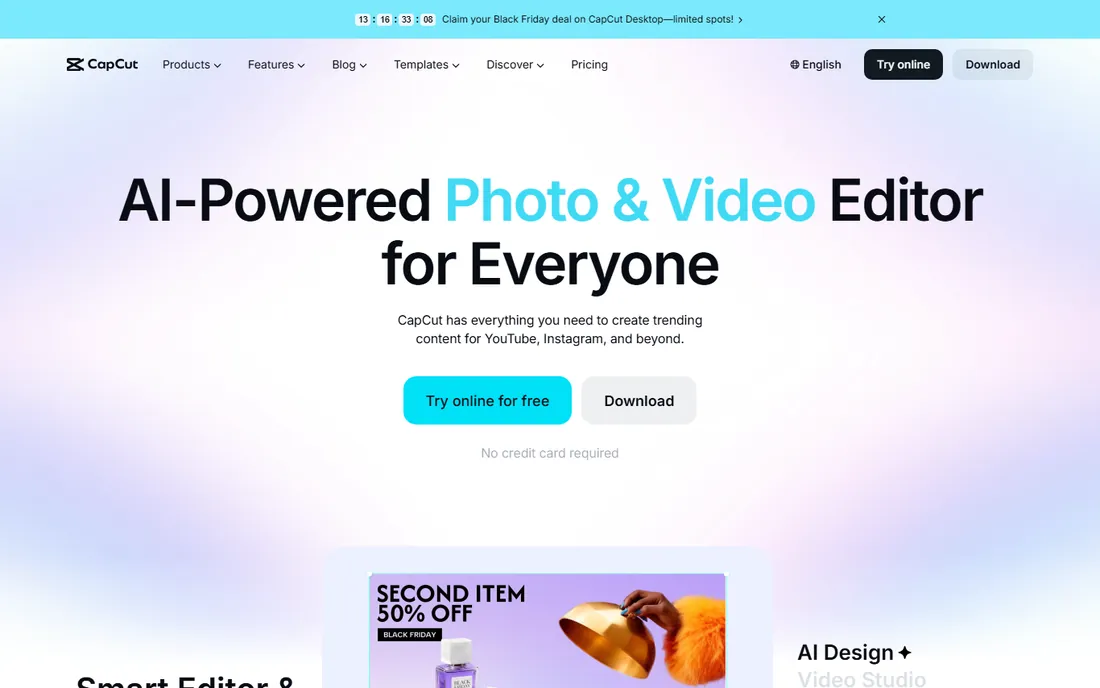
CapCut is where most beginners actually start, whether reviewers admit it or not. The ByteDance editor runs on Windows, Mac, mobile and the web, and its pitch is speed: trim clips, add auto captions in dozens of languages, drop in transitions and effects, and export HD video without a watermark. For YouTube, TikTok and Reels workflows, it removes every excuse between an idea and a published video.
The free tier is generous but not unlimited. Premium effects, some AI features and extra cloud storage live behind paid plans, so check whether the specific template or effect you want is free before building a project around it. You also need an account, and your projects live in CapCut's ecosystem. For fast social content, though, no free editor gets you to a finished video quicker.
What we like- Very easy to learn
- Free HD exports without watermark
- AI captions, effects and templates built in
Watch out for- Some advanced effects and assets sit behind paid tiers
- Requires an account
- Desktop app is heavier than it looks
Starting priceFree
Free planYes
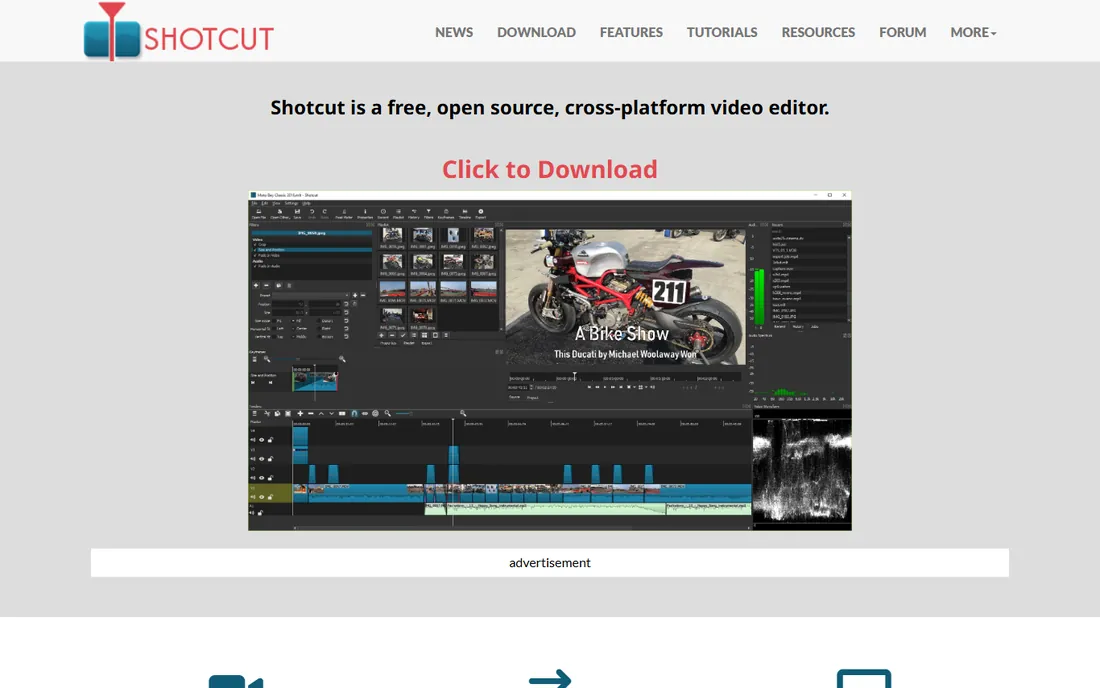
Shotcut is the workhorse nobody talks about. It is free, open source and cross-platform, built on the MLT framework, and it edits natively, which means no transcoding wait before you can start cutting. Format support is broad thanks to FFmpeg, the timeline handles 4K, and there is no account, no watermark and no premium tier trying to sell you anything.
What you give up is hand-holding. The interface is functional rather than friendly, and you will not find CapCut-style trending templates. Filters, transitions and color tools are all present but expect you to know what you want. For editors who value ownership over convenience, a free tool that never phones home and never watermarks, Shotcut is the honest pick.
What we like- Completely free with no upsell
- Wide format support via FFmpeg
- Native timeline editing without importing
Watch out for- Interface feels dated
- Fewer guided templates and effects than CapCut
Starting priceFree
Free planYes
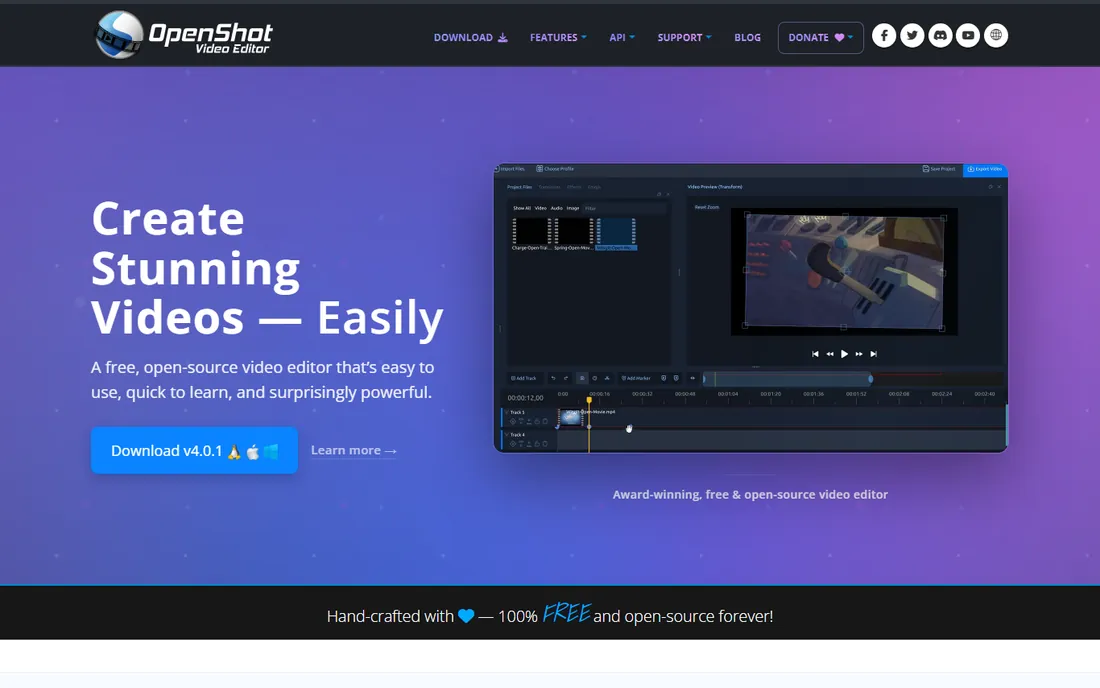
OpenShot is the friendliest timeline on this list. It strips video editing to the essentials: drag clips onto unlimited tracks, trim, add transitions, animate with keyframes, and export, all in an interface a beginner can understand in an hour. It is free and open source forever, with no watermark and no project limits, on Windows, Mac and Linux.
The trade is performance and depth. Large projects with many effects can slow down, and the built-in 3D animated titles need Blender installed to render. But for school projects, family videos, simple YouTube edits and anyone intimidated by Resolve, OpenShot is the gentlest on-ramp that still exports a clean, watermark-free file.
What we like- Easiest open source timeline to learn
- Unlimited tracks
- No watermark, no account, no limits
Watch out for- Can be slow on long projects
- 3D titles and some effects need extra setup
Starting priceFree
Free planYes
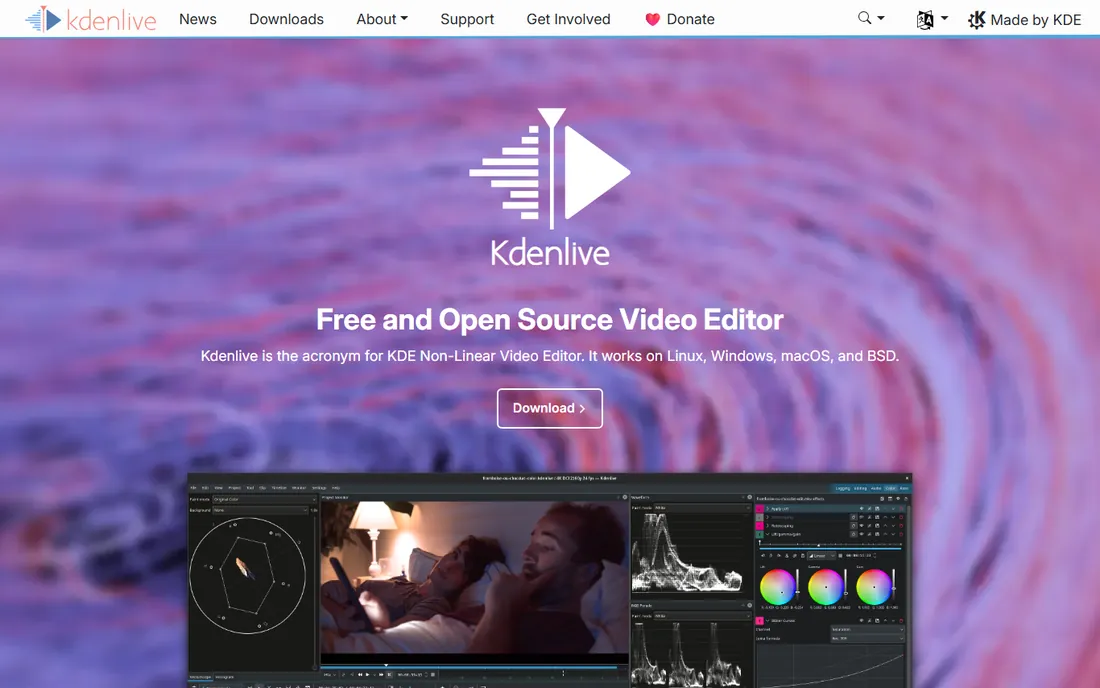
Kdenlive is the editor Linux users brag about, and Windows users keep discovering. Part of the KDE project, it offers a genuinely deep toolkit: multi-track timelines, hundreds of effects and transitions, audio mixing, color scopes, proxy editing for smooth 4K work, and a customizable layout that adapts to your workflow. Everything is free with no watermark.
Stability on Windows has improved markedly but still trails the Linux experience, so save often on long projects. The interface sits between OpenShot simplicity and Resolve complexity, which makes it the natural second step when you outgrow the basics. For a free editor that keeps growing with your skills, Kdenlive is hard to beat.
What we like- Deep feature set with multi-track editing and effects
- Customizable interface
- No watermark or cost
Watch out for- Historically less stable on Windows than Linux
- Interface takes time to learn
Starting priceFree (Pro version available)
Free planYes
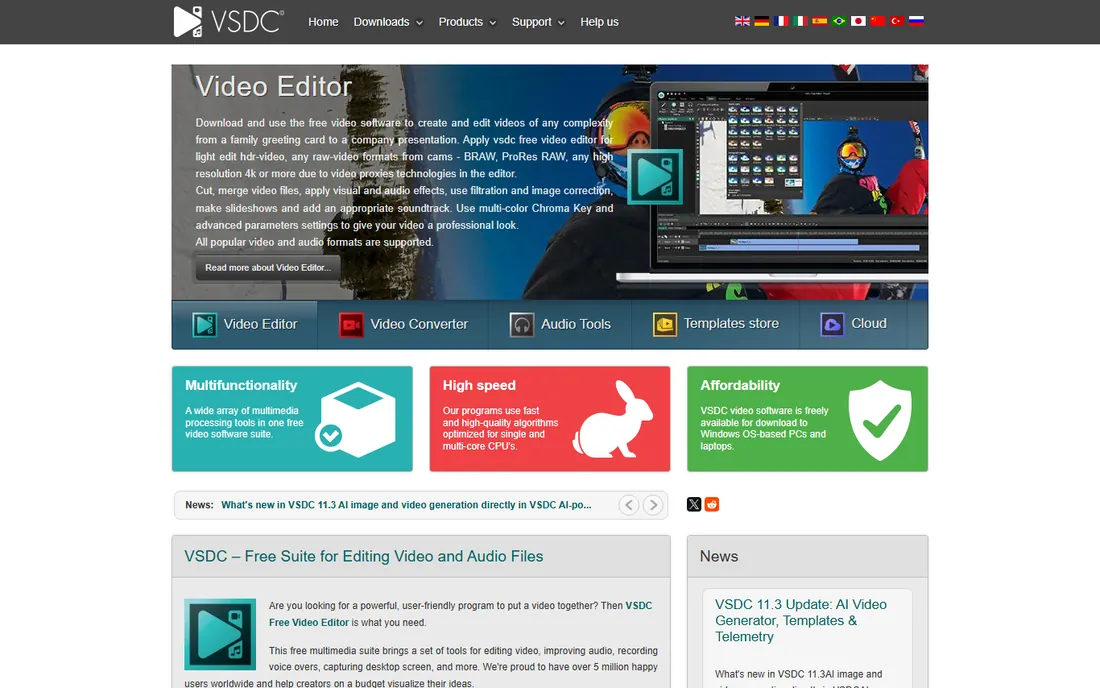
VSDC is the Windows-only editor that quietly does 4K without a watermark. Its calling card is efficiency: minimal system requirements let it run on old laptops that choke Resolve, while still offering non-linear multi-layer editing, chroma key, color correction and 4K export. The free version explicitly advertises no watermarks, which is exactly what this list is about.
The interface follows its own logic rather than Premiere conventions, so expect an adjustment period. Advanced tools like motion tracking, video stabilization and audio waveform editing sit in the paid Pro version. For Windows users with modest hardware who need a capable free editor now, VSDC fills a gap nothing else here covers as well.
What we like- Runs well on low-spec PCs
- Exports without watermark
- Chroma key and 4K support on the free tier
Watch out for- Windows only
- Interface is unconventional
- Pro-only features include motion tracking and stabilization
Starting priceFree (paid Create and Pro tiers)
Free planYes (720p export, no watermark)
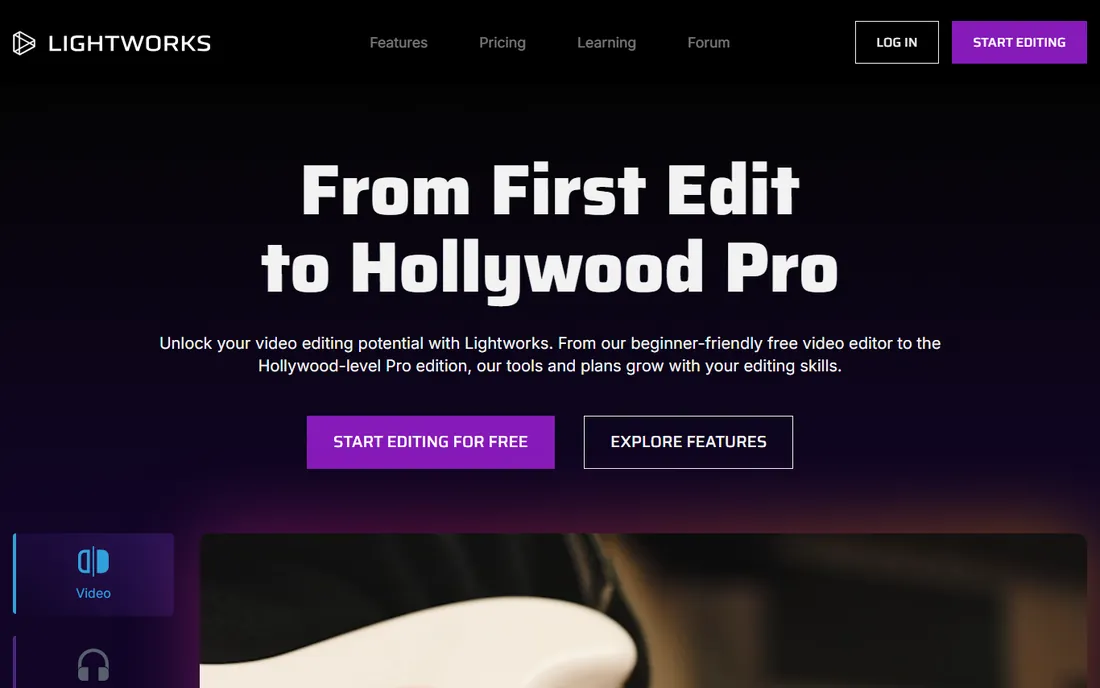
Lightworks has edited actual Hollywood films, and its free tier is the proof. The free plan gives you the real Lightworks editing experience, multicam, real-time effects, audio tools, direct social sharing, with no watermark on exports. For learning how professional editors think about timelines, it is a remarkable free education.
The fence is resolution. Free exports top out at 720p, which looks soft on modern screens and rules it out for serious YouTube work. Paid tiers add 4K and beyond. The workflow also follows film-editing conventions rather than YouTube-editor conventions, so the learning curve is real. Choose Lightworks to learn the craft, not to publish your channel.
What we like- Professional editing pedigree
- Free tier has no watermark
- Real-time effects and social export
Watch out for- Free exports capped at 720p
- Unusual workflow takes serious learning
- 4K needs a paid tier
Starting priceFree (premium features via Microsoft 365)
Free planYes (HD exports, no watermark)
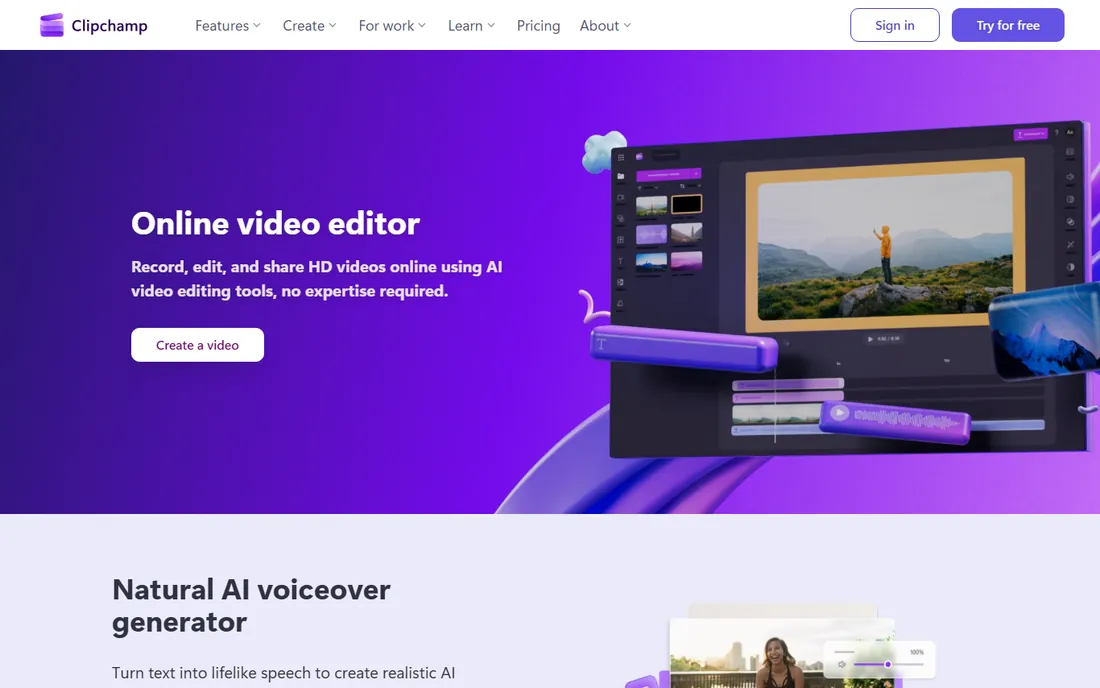
Clipchamp is the editor already sitting in your Windows Start menu. Microsoft's browser-based editor records screen, camera and voice, edits on a simple timeline, generates AI voiceovers and captions, and exports unlimited HD videos with no watermark on the free tier. For quick explainers, presentations and social clips, it removes installation entirely.
The limits are the browser itself. You need a Microsoft account and a solid connection, heavy projects can feel sluggish next to desktop apps, and premium stock assets and brand features tie into Microsoft 365. It will not replace Resolve for serious work. But for the fastest path from idea to watermark-free video on a Windows PC, Clipchamp is the path of least resistance.
What we like- Runs in the browser with nothing to install
- Unlimited HD exports without watermark
- AI voiceovers and captions
Watch out for- Needs a Microsoft account and good internet
- Advanced stock assets need paid plans
- Less deep than desktop editors
Starting priceFree
Free planYes
Blender earns its place here through its video sequence editor, a capable timeline hiding inside the famous 3D suite. You can cut, trim, add transitions, composite with masks, and render without a watermark, all free. Where it shines is hybrid projects: edit your footage, then add 3D titles, motion graphics or visual effects without leaving the app.
Nobody should learn Blender just to trim vlogs; Shotcut or CapCut will get you there faster. But if you already use Blender for 3D, or your videos need effects no normal editor offers, the sequence editor turns one free download into a complete production pipeline. It is the most powerful free option here for creators who outgrow conventional timelines.
What we like- Free video sequence editor inside a complete 3D suite
- No watermark
- Excellent for effects-heavy projects
Watch out for- The video editor is not Blender's main focus
- Learning curve is steep for pure editing tasks
How we chose
We verified each editor's current free-tier terms, export limits and watermark policies from the vendors' own sites, and checked public reviews and community discussion for stability and real-world usability. Every tool on this list exports without a watermark on its free tier today. We did not install or benchmark the editors ourselves; judgments about ease of use and fit come from documented features and the consensus of working creators.
How to tell a real free editor from a watermark trap
Not every free video editor deserves your time. Before you invest hours learning one, run this check.
First, export a ten-second test clip on the free tier and watch it end to end. Watermarks sometimes appear only on export, not in previews, and some tools stamp only longer videos. If the export is clean, the tool passes the only test that matters.
Second, read the export limits, not the feature list. Lightworks is watermark-free but caps free exports at 720p. Some editors limit export length, monthly exports or resolution on free tiers. A 720p cap is fine for drafts and social stories; it is not fine for a YouTube channel.
Third, check what the free tier withholds. AI captions, stock music, 4K export and cloud storage are the usual paywalls. Decide whether you need them before you learn the tool, because switching editors mid-project costs more time than the subscription would have.
Finally, prefer tools with no account requirement when you can. Shotcut, OpenShot, Kdenlive and Blender never ask you to sign in, which means your workflow cannot be revoked, repriced or shut down by a policy change.
What free editors still cannot do well
Free editors have closed the gap on cutting, transitions and color, but a few jobs still belong to paid software.
High-end effects and motion graphics remain thin. CapCut has the best free effects library here, but nothing free matches After Effects for serious motion design. Blender covers 3D effects if you invest the learning time.
Collaboration is mostly absent. Paid tools offer shared projects, review links and team libraries; free editors assume one person on one machine. Teams should budget for that.
Support is community-based. Forums, Reddit and YouTube tutorials replace the help desk, which is fine until a deadline breaks something. Keep project files backed up and export intermediates on long jobs.
None of this matters for most creators. Cutting, captions, music and clean exports, the actual work of YouTube and social video, are fully covered free. Pay only when a specific missing feature blocks a specific project.
Frequently asked questions
What is the best free video editing software without watermark?
DaVinci Resolve is the best overall, offering professional editing, color grading and 4K exports free with no watermark. For beginners, CapCut is easier and faster for social video. For a fully free and open source option with no account, Shotcut or Kdenlive are the picks.
Which free video editor is best for PC without watermark?
DaVinci Resolve and CapCut both run well on Windows PCs and export without watermarks. VSDC is the best choice for older or weaker Windows machines. Clipchamp works in the browser if you cannot install software. All four are free for PC users.
Is CapCut really free without watermark?
Yes, CapCut's free tier exports HD videos without a watermark, which its own site states directly. Some premium effects, assets and AI features require paid plans, but basic editing and clean exports cost nothing. You do need a free account.
Does DaVinci Resolve free have a watermark?
No. The free version of DaVinci Resolve exports without any watermark, including 4K projects. Blackmagic monetizes through the $295 Studio version, which adds AI features and collaboration tools, and through its hardware. The free editor is complete for most creators.
Why do some free editors limit exports to 720p?
Resolution caps are how freemium editors segment their market without watermarks. Lightworks gives away the full editing experience but reserves 4K for paid tiers. If your audience watches on phones, 720p is acceptable; for YouTube or client work, choose an editor with free 4K export like Resolve or Shotcut.
Sources we checked (9)
- https://www.blackmagicdesign.com
- https://www.capcut.com
- https://shotcut.org/
- https://openshot.org/
- https://kdenlive.org
- https://videosoftdev.com/
- https://lwks.com/
- https://clipchamp.com
- https://www.blender.org
Is your product missing or out of date?
We review this list regularly. Vendors can request a listing, send updated pricing or ask about featured placement.

Shihab Mia · Founder, Rankite
Shihab has spent more than a decade helping SaaS and e-commerce brands grow through search. He writes Rankite's software buying guides from pricing pages, documentation and public user reviews. More about Shihab.