How we make this list: we compare pricing pages, product documentation and public user reviews. Rankite is independent; if a vendor ever pays for a featured spot, that listing is clearly labeled Partner.
Key takeaways
- Short-form creators who post on TikTok, Reels, or Shorts will finish projects fastest in CapCut, which pairs auto-captions with templates built for vertical video.
- Windows 11 owners already have a capable editor installed: Clipchamp handles quick cuts, screen recordings, and 1080p exports at no cost.
- DaVinci Resolve is the only free editor in this list that scales from a first YouTube video to professional color grading, but it asks for a strong computer and a few hours of learning.
- Every open-source pick here (Shotcut, OpenShot, Kdenlive) exports with no watermark, which paid "free" plans sometimes restrict.
Quick comparison
| Tool | Best for | Starting price | Free plan |
|---|
 CapCut CapCut | TikTok, Reels, and Shorts creators | See website | Yes (free plan; Pro subscription adds premium assets) |
 Microsoft Clipchamp Microsoft Clipchamp | Windows users who need a quick edit now | Free (premium features via Microsoft 365 subscription) | Yes |
 Apple iMovie Apple iMovie | Mac and iPhone owners making their first videos | Free (included with Apple devices) | Yes |
 DaVinci Resolve DaVinci Resolve | Creators who want pro tools without a subscription | Free (DaVinci Resolve Studio $295 one-time) | Yes |
 Shotcut Shotcut | Unusual formats and modest hardware | Free | Yes (free and open source) |
 OpenShot OpenShot | Absolute beginners learning a timeline | Free | Yes (free and open source) |
 Kdenlive Kdenlive | Linux users and ambitious free projects | Free | Yes (free and open source) |
 VSDC Free Video Editor VSDC Free Video Editor | Older or low-spec Windows PCs | Free (Pro upgrade available) | Yes (free version; Pro adds motion tracking and hardware acceleration) |
 Lightworks Lightworks | Trying a professional editing workflow free | Free (paid Create and Pro plans raise export quality) | Yes (free tier exports at 720p) |
Is your product missing or out of date?
We review this list regularly. Vendors can request a listing, send updated pricing or ask about featured placement.
The best free simple video editing software
Starting priceSee website
Free planYes (free plan; Pro subscription adds premium assets)
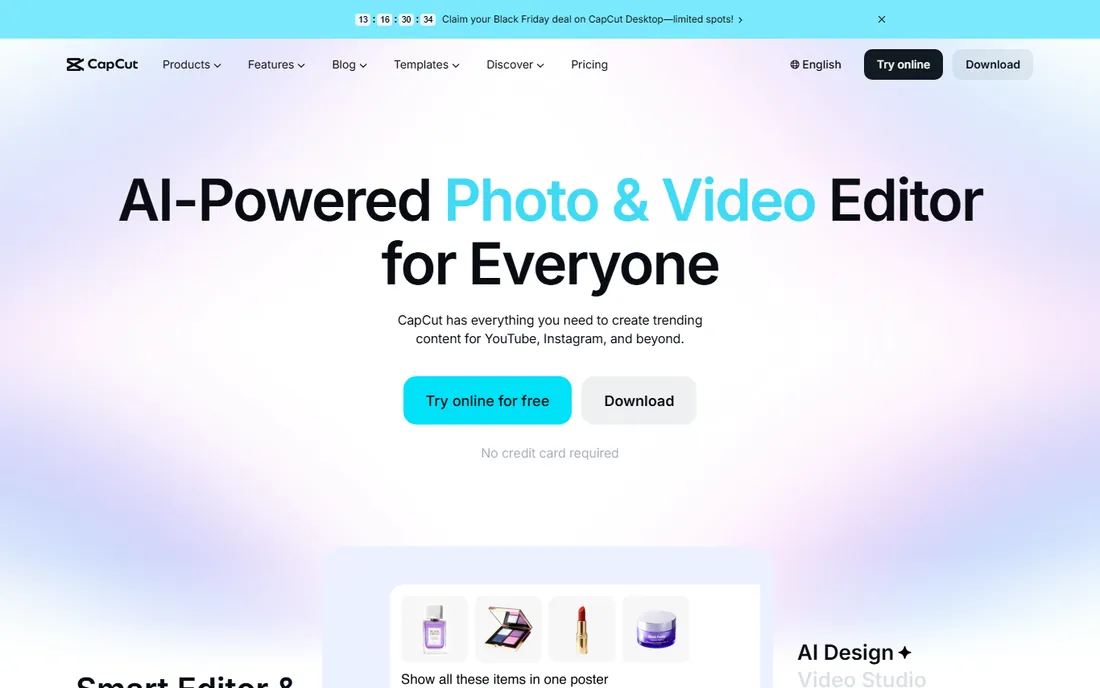
If the finished video is headed for TikTok, Instagram Reels, or YouTube Shorts, CapCut is the fastest way to get there. The workflow is built around what short-form creators actually do: drop clips on a timeline, tap auto-captions, pick a trending template, and export in the right aspect ratio. Background removal and text-to-speech run without plug-ins, which saves the round trips that slow beginners down.
The catch is the line between free and Pro. Core editing, captions, and most exports cost nothing, but premium effects, stock assets, and some templates sit behind the Pro subscription. For a business posting product clips or talking-head videos, the free tier usually covers everything. Check which assets your project uses before you fall in love with a template, so a paywalled element does not surprise you at export time.
What we like- Auto-captions and background removal built in
- Large template library for trends
- Desktop, web, and mobile apps stay in sync
Watch out for- Some templates and effects require Pro
- Desktop app pushes cloud features and sign-in
Starting priceFree (premium features via Microsoft 365 subscription)
Free planYes
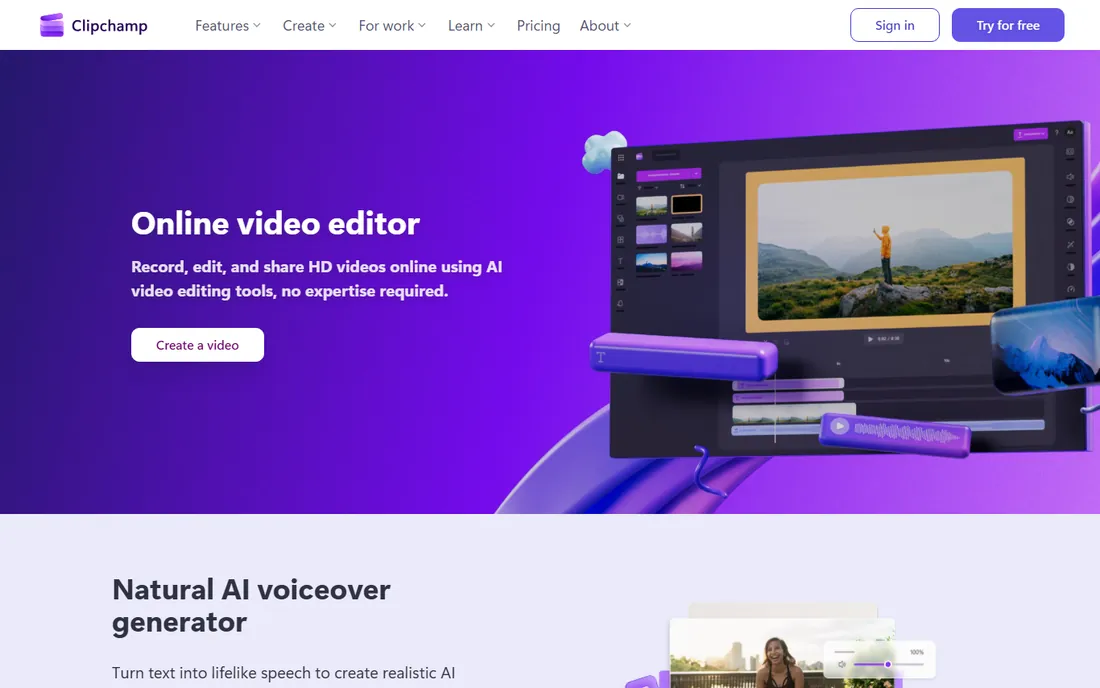
Windows 11 owners already have a video editor and may not know it. Clipchamp sits in the Start menu, opens in seconds, and walks you through trimming clips, adding text, and exporting in 1080p without asking for a credit card. The screen recorder is genuinely useful for tutorial videos and product demos, since capture and editing live in the same app.
Clipchamp is owned by Microsoft, and the free tier is generous: unlimited watermark-free exports in HD. The upsell is the Microsoft 365 bundle, which adds premium stock video, audio, and brand kit features. If you only need cuts, captions, and clean exports, you may never pay. One practical note: because much of the work happens in the browser, a slow connection makes the experience drag, so the desktop app on Windows 10 or 11 is the better choice for bigger projects.
What we like- Preinstalled on Windows 11
- Unlimited 1080p exports without watermark on the free tier
- Screen and webcam recording built in
Watch out for- Browser-based editor can feel slow on weak connections
- Premium stock and brand kit need Microsoft 365
#3
Apple iMovie
Best for: Mac and iPhone owners making their first videos
Visit apple.com
Starting priceFree (included with Apple devices)
Free planYes
For Mac and iPhone owners who want the shortest path from raw footage to a finished video, iMovie remains hard to beat. It is already on the device, it opens fast, and the storyboard templates turn a pile of clips into something watchable in an afternoon. Magic Movie can assemble a rough cut on its own, which is a kind way to start if timelines intimidate you.
The trade is control. iMovie gives you two video tracks, basic titles, and simple transitions, and that is the whole menu. Audio ducking, keyframing, and multicam are not here. For family videos, simple product clips, and school projects, those limits never matter. When you start wanting precision, the free upgrade path on Mac is DaVinci Resolve, which opens iMovie timelines through standard export.
What we like- Zero learning curve for basic edits
- Magic Movie assembles clips automatically
- Projects hand off between iPhone, iPad, and Mac
Watch out for- Apple devices only
- Limited control over audio mixing and effects compared with desktop editors
Starting priceFree (DaVinci Resolve Studio $295 one-time)
Free planYes
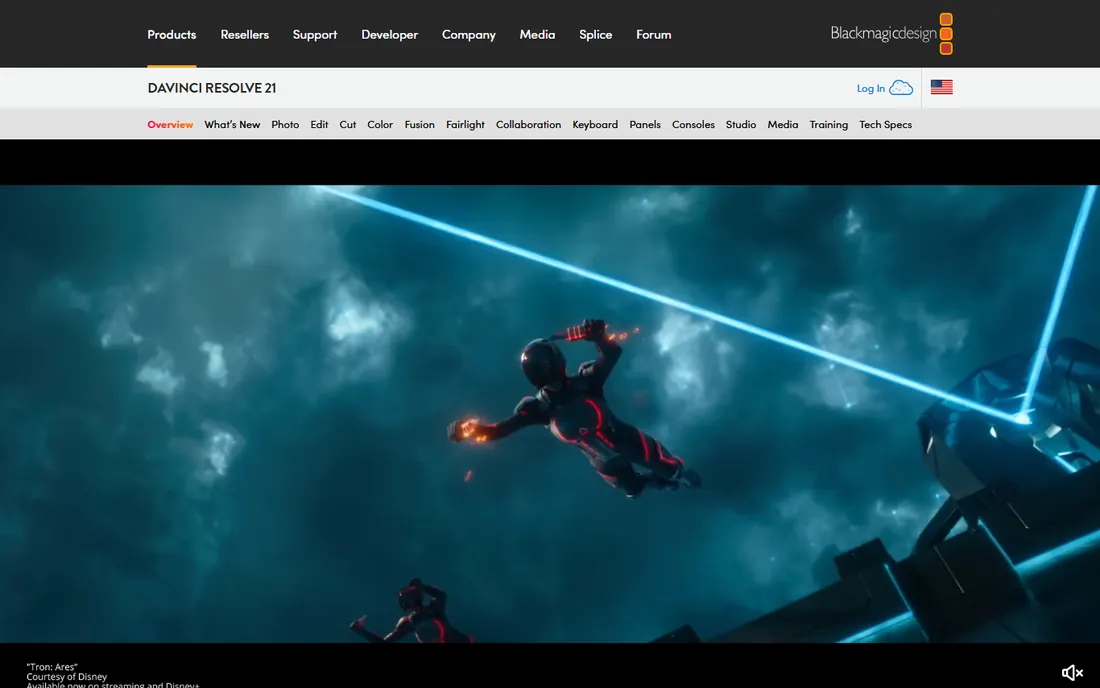
This is the free editor that professionals use on real films and streaming shows, and the free version is not a trial. You get the full edit page, the color page that made DaVinci famous, Fusion visual effects, and Fairlight audio post-production. For a YouTuber or small business, the meaningful point is that you never outgrow it: the same app that cuts a vlog can grade a commercial.
The price of all that power is hardware and patience. Resolve wants a modern GPU and plenty of RAM, and older laptops will stutter on 4K timelines even with proxy media turned on. The interface shows seven pages of tools, which is a lot when you only want to trim a clip. Budget three or four hours with tutorials before judging it. The paid Studio version is a one-time $295 purchase that adds features like noise reduction and stereoscopic 3D, but most creators never need it.
What we like- Professional color grading, Fusion effects, and Fairlight audio in one app
- Free version has no watermark
- No subscription
Watch out for- Demands a powerful computer
- Interface overwhelms first-timers
- Some advanced AI and 3D tools need Studio
Starting priceFree
Free planYes (free and open source)
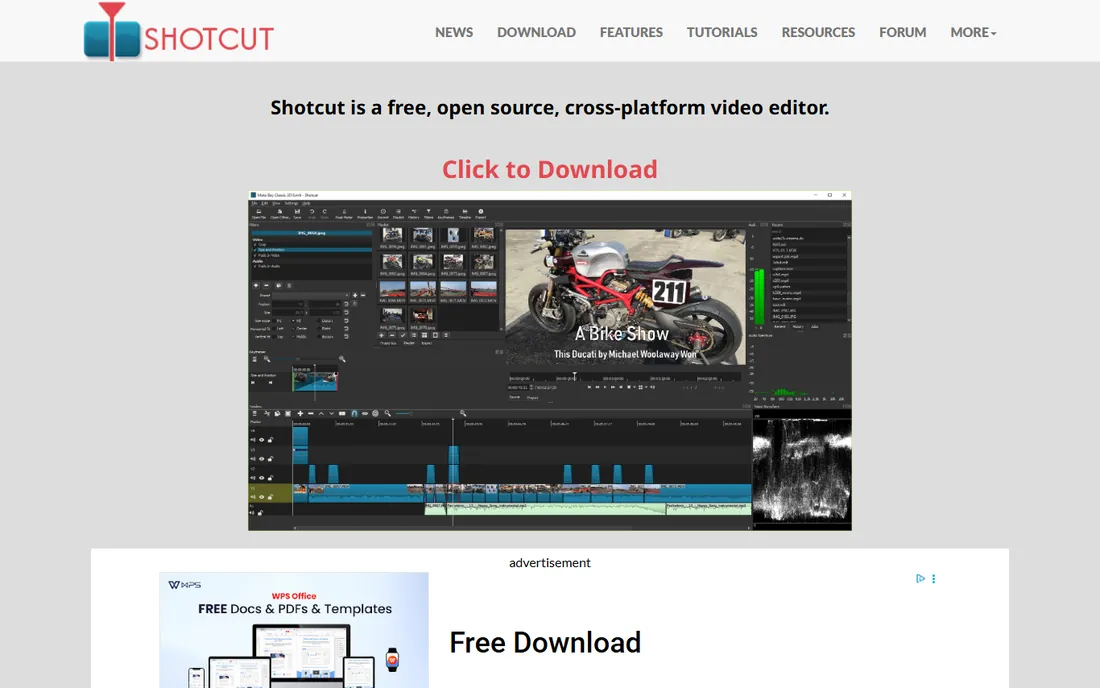
Shotcut is the pick when your footage arrives in odd formats. Because it is built on FFmpeg, it opens ProRes, DNxHD, and camera RAW files natively, with no import or transcoding step. Timelines accept mixed formats, resolutions, and frame rates in the same project, which is rare at any price and unheard of for free.
The interface will not win design awards, and beginners get fewer guided templates than in CapCut or Clipchamp. What you get instead is a stable, honest editor that respects your hardware: it runs acceptably on machines that choke on Resolve. Export presets cover YouTube, social platforms, and archival formats. If your work involves screen captures, drone footage, or client files in formats you did not choose, Shotcut quietly handles all of it.
What we like- Opens almost any format without conversion
- No watermark
- Portable version runs from a USB drive
Watch out for- Interface looks dated and offers little hand-holding
- Some filters are slower than in paid editors
Starting priceFree
Free planYes (free and open source)
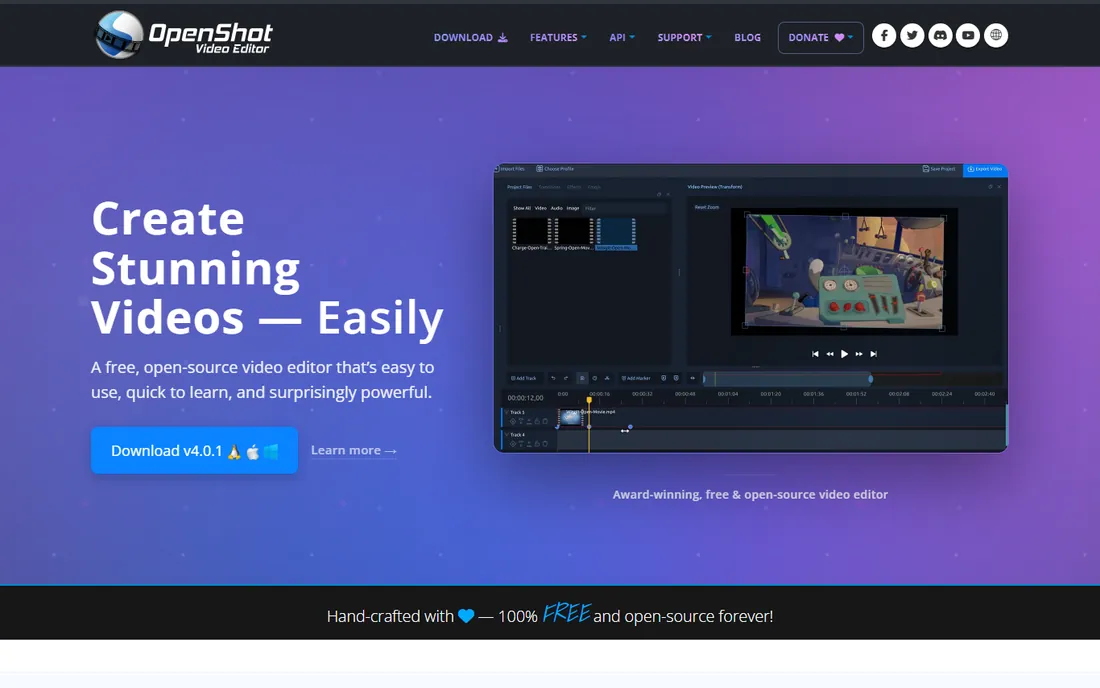
Total beginners who want a normal, understandable timeline should look at OpenShot first. Clips go on tracks, you drag the edges to trim, and transitions drop between clips with a click. The 3D animated titles, rendered through Blender, give small projects a polished intro without any design skill. There is no account, no upsell screen, and no watermark.
OpenShot shows its limits on bigger jobs. Stack several effects and long 4K clips and the preview can stutter, and the app has a reputation for the occasional crash on complex timelines. Save often. For short videos under ten minutes, which is where most beginners live, it is dependable and genuinely easy. Recent versions added color grading scopes and video masks, so the ceiling keeps rising.
What we like- Clean drag-and-drop timeline with unlimited tracks
- Animated 3D titles via Blender integration
- Available on Windows, Mac, Linux, and ChromeOS
Watch out for- Can lag or crash on long, effect-heavy projects
- Fewer built-in effects than Shotcut
Starting priceFree
Free planYes (free and open source)
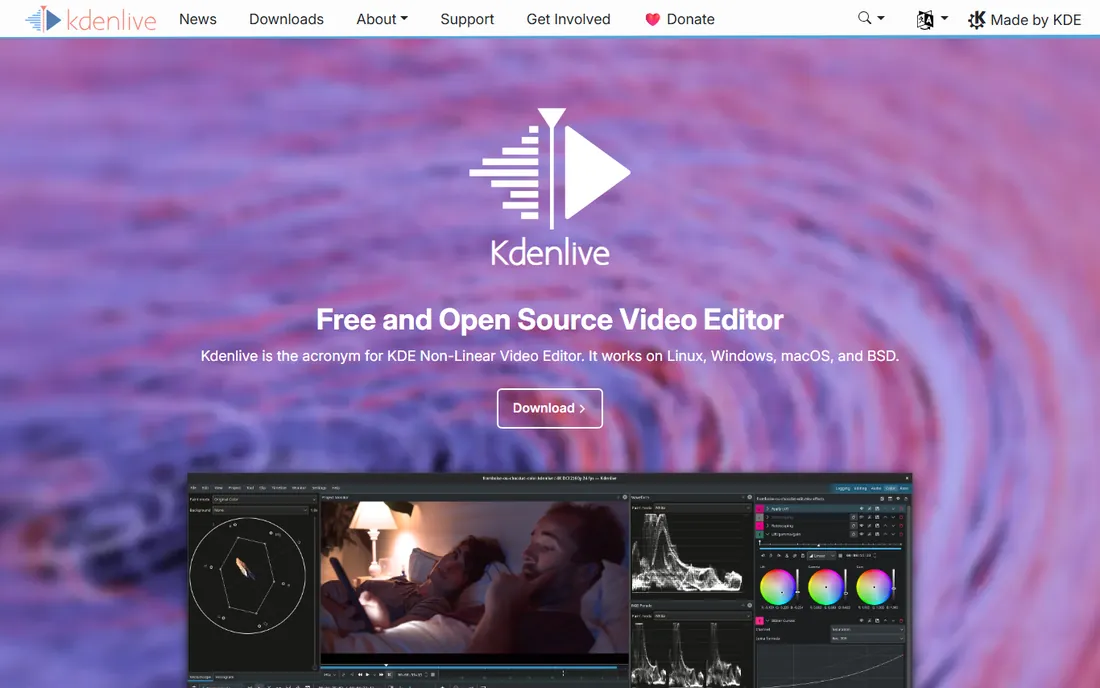
Linux users, this is your best free option, and it runs on Windows and Mac too. Kdenlive comes from the KDE community and behaves like a serious editor: multitrack timelines, proxy editing that keeps 4K footage smooth on modest machines, and deep keyframe control over effects. Volunteer developers ship updates every few months, so rough edges get fixed steadily.
The interface assumes you know what a timeline is, which makes the first hour harder than OpenShot. Push past that and you get features like rotoscoping, speed ramping, and audio mixing that the simpler free editors lack. Because it is open source, there is no company deciding which features are "pro" and paywalled. The honest weakness is polish: you may hit a quirk that a commercial QA team would have caught, so keep project backups.
What we like- Multitrack editing with proxy workflows for weak hardware
- Customizable interface
- Strong keyframe and effects controls
Watch out for- Interface feels technical for first-timers
- Occasional bugs typical of volunteer-driven software
Starting priceFree (Pro upgrade available)
Free planYes (free version; Pro adds motion tracking and hardware acceleration)
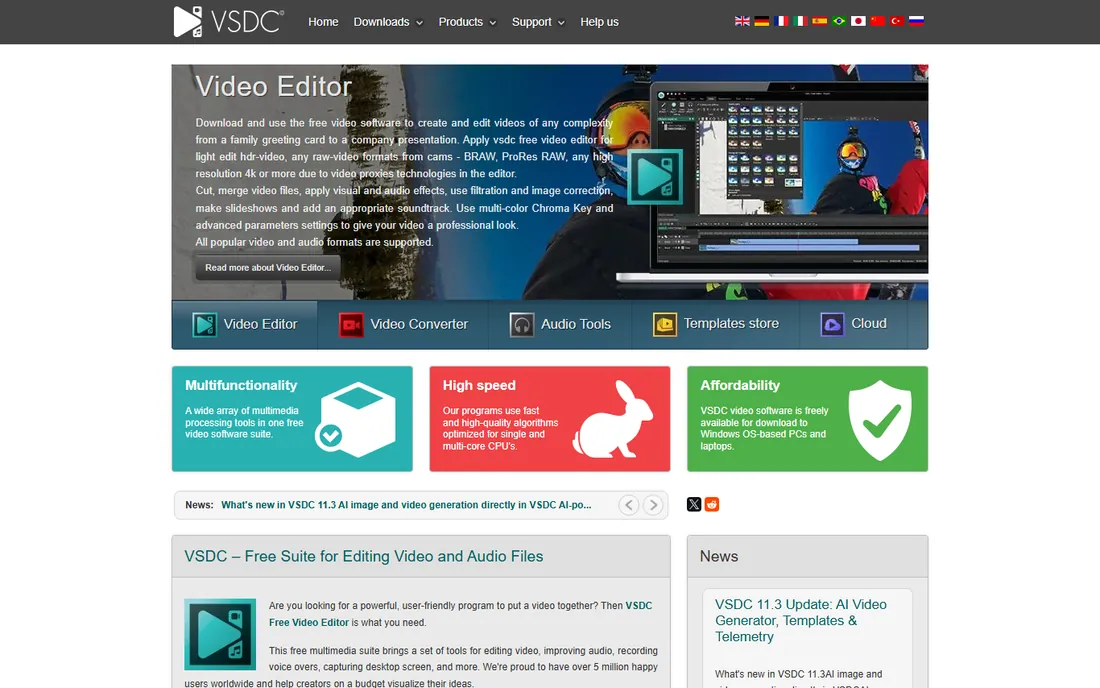
If your PC is old, VSDC was built for you. The system requirements are minimal by modern standards, yet the free version edits 4K footage, applies chroma key, and exports without a watermark. The non-linear approach means objects on the timeline can overlap and blend freely, which enables picture-in-picture and split-screen effects that simpler editors handle clumsily.
That power comes with a learning curve. VSDC does not work like a phone app; placing a clip requires understanding scenes and objects, and the documentation reads like a manual rather than a tutorial. Give it an evening and the logic clicks. The paid Pro version adds motion tracking, audio waveform editing, and faster processing, but the free tier is complete enough for most YouTube and social work. Note the platform limit: there is no Mac or Linux version.
What we like- No watermark on free exports
- Runs on very old hardware
- 4K and HDR support with export presets for devices and social
Watch out for- Windows only
- Non-linear interface confuses beginners used to simple timelines
- Pro features like motion tracking cost extra
#9
Lightworks
Best for: Trying a professional editing workflow free
Visit lwks.com
Starting priceFree (paid Create and Pro plans raise export quality)
Free planYes (free tier exports at 720p)
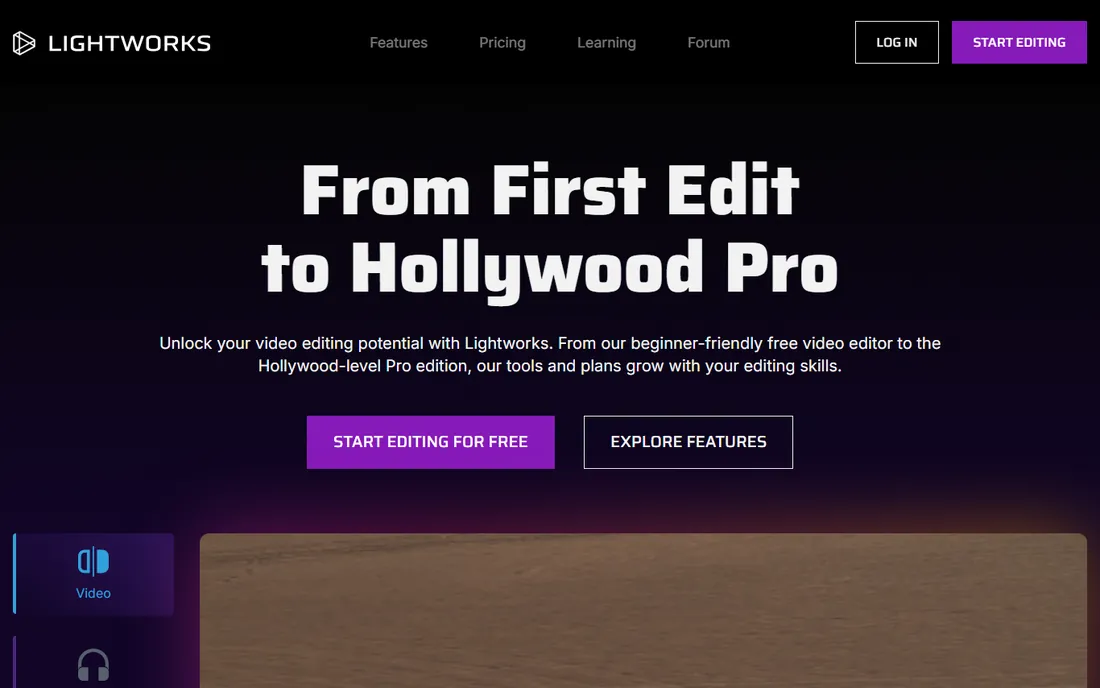
Lightworks is a former Hollywood-only tool with a free tier, and it shows in the workflow. The trimming tools are fast once learned, the timeline is precise, and editors who came from broadcast systems feel at home. The free version never expires, which makes it a fair way to learn professional habits without paying.
The catch is the 720p export cap on the free tier. That is fine for drafts, client reviews, and some social posts, but not for a finished YouTube video in 2026. Paid Create and Pro plans raise the ceiling to 4K and beyond. Beginners should also know the interface assumes editing vocabulary: bins, sequences, and marked ranges rather than friendly wizards. If your goal is to learn how pro editors think, Lightworks teaches it. If your goal is a finished video tonight, pick CapCut or Clipchamp instead.
What we like- Genuine pro editing heritage with fast trim tools
- Free tier has no time limit
- Direct YouTube export
Watch out for- Free exports capped at 720p
- Interface follows pro conventions that confuse beginners
- Paid tiers needed for 4K
How we chose
We started from pricing pages, documentation, and feature lists on each vendor's own site, then checked how real users describe the experience on G2, Capterra, and Reddit. Every tool here is free in a meaningful way: either fully free and open source, or a free tier that exports finished videos without forcing a watermark or a trial countdown. We weighted simplicity for beginners, because this guide is for people editing their first videos, not for post-production houses. We left out "free" editors whose free tier watermarks exports or expires after a trial, and we excluded tools that were shut down or folded into other products.
What to check before you pick a free editor
A free editor is only free if the export is free too. Read the fine print on three things before you invest a weekend learning a tool.
Watermarks and export limits
Some free plans add a logo to your video or cap exports at 720p. Lightworks limits free exports to 720p, while CapCut, Clipchamp, Shotcut, OpenShot, Kdenlive, and VSDC export full quality without watermarks. Always run a 30-second test export before editing a full project, so the limit shows up early.
Your computer matters more than the feature list
DaVinci Resolve is the most capable free editor here and the most demanding: a five-year-old laptop with integrated graphics will struggle. VSDC, Shotcut, and Kdenlive with proxy mode are kinder to weak hardware. Match the editor to the machine you own, not the machine you wish you owned.
Think about where the video will live
Vertical social video favors CapCut, with its 9:16 templates and auto-reframing. Talking-head YouTube videos fit Resolve, Shotcut, or OpenShot. Quick internal explainers fit Clipchamp's screen recorder. Picking by destination saves you from fighting aspect ratios and export presets later.
When a free editor stops being enough
Free editors cover an enormous range, but three signs mean it is time to pay for something. First, you are exporting in 4K for clients and your free tier caps at 720p or 1080p, which is the Lightworks free-tier situation. Second, you need collaboration: shared projects, review links, and brand kits are where paid plans earn their keep. Third, time costs more than software: if you spend an hour fighting a free tool to do what a $10-a-month editor does in ten minutes, the subscription is cheaper than your time.
That said, most small businesses never hit these walls. A real estate agent cutting listing videos, a coach posting Reels, or a nonprofit making explainers can run on the free tier for years. Upgrade when a specific limitation costs you money or hours, not because a feature list looks impressive.
Frequently asked questions
Is free video editing software really free?
The tools in this guide are free in the ways that matter: no expiring trial, no watermark forced on exports (except Lightworks' 720p cap on its free tier), and no credit card required to start. Some reserve premium effects, stock media, or higher export quality for paid plans. Read the pricing page before you commit to a workflow built on a premium feature.
Which free video editor is easiest for a complete beginner?
CapCut for phone-style social video, Clipchamp on Windows, and iMovie on Mac. All three open fast, guide you with templates, and export without a watermark. OpenShot is the easiest of the desktop open-source options if you want a traditional timeline.
Can I use free video editors for commercial or client work?
Yes, with attention to licenses. The open-source editors (Shotcut, OpenShot, Kdenlive) allow commercial use. CapCut, Clipchamp, and VSDC free tiers allow commercial exports, but check the license on stock music, templates, and effects inside the app, since some assets are cleared for personal use only.
Will free editors put a watermark on my video?
Not the ones listed here, with one exception: Lightworks free exports are capped at 720p. CapCut adds branding only if you use certain templates, so check before export. We excluded editors whose free tier watermarks everything.
Do I need a powerful computer for free video editing?
Only for DaVinci Resolve, which wants a modern GPU. Everything else here runs on ordinary laptops, and VSDC plus Kdenlive's proxy mode are specifically good on older machines. If your computer is more than six years old, start with VSDC or Shotcut.
What is the best free video editor for YouTube?
DaVinci Resolve if your computer can run it and you want room to grow, because the free version handles everything from cuts to color grading. For simpler talking-head videos, Shotcut or OpenShot get you published faster with less learning.
Sources we checked (11)
- https://www.capcut.com
- https://www.clipchamp.com
- https://www.apple.com/imovie/
- https://www.blackmagicdesign.com/products/davinciresolve
- https://shotcut.org/
- https://openshot.org/
- https://kdenlive.org
- https://videosoftdev.com/
- https://lwks.com/
- https://www.smashingapps.com/best-free-video-editing-software/
- https://www.technary.com/software/top-5-free-video-editing-software-for-youtube-beginners/
Is your product missing or out of date?
We review this list regularly. Vendors can request a listing, send updated pricing or ask about featured placement.

Shihab Mia · Founder, Rankite
Shihab has spent more than a decade helping SaaS and e-commerce brands grow through search. He writes Rankite's software buying guides from pricing pages, documentation and public user reviews. More about Shihab.