How we make this list: we compare pricing pages, product documentation and public user reviews. Rankite is independent; if a vendor ever pays for a featured spot, that listing is clearly labeled Partner.
Key takeaways
- Doing a single SSD upgrade? Start with a free option. Clonezilla, Rescuezilla, Samsung Data Migration and the free editions of AOMEI Backupper and DiskGenius move a full system without charging you.
- If you image machines regularly or manage backups for others, paid tools justify themselves with scheduling, incremental imaging and faster restores.
- Acronis True Image and Macrium Reflect are the premium names, but both now run on subscriptions, so check the renewal terms before you commit.
- DiskGenius is the value pick nobody talks about: free cloning plus partitioning and recovery tools that the pure cloners lack.
- Whatever you choose, boot from the new drive and confirm everything works before you wipe the old one. Every tool on this list can produce a perfect copy that still fails to boot if you skip that check.
Quick comparison
Is your product missing or out of date?
We review this list regularly. Vendors can request a listing, send updated pricing or ask about featured placement.
The best hard drive clone software

#1
Acronis True Image
Best for: Full backup suites that include cloning
Visit acronis.com
Starting priceFrom $49.99/year
Free planFree trial
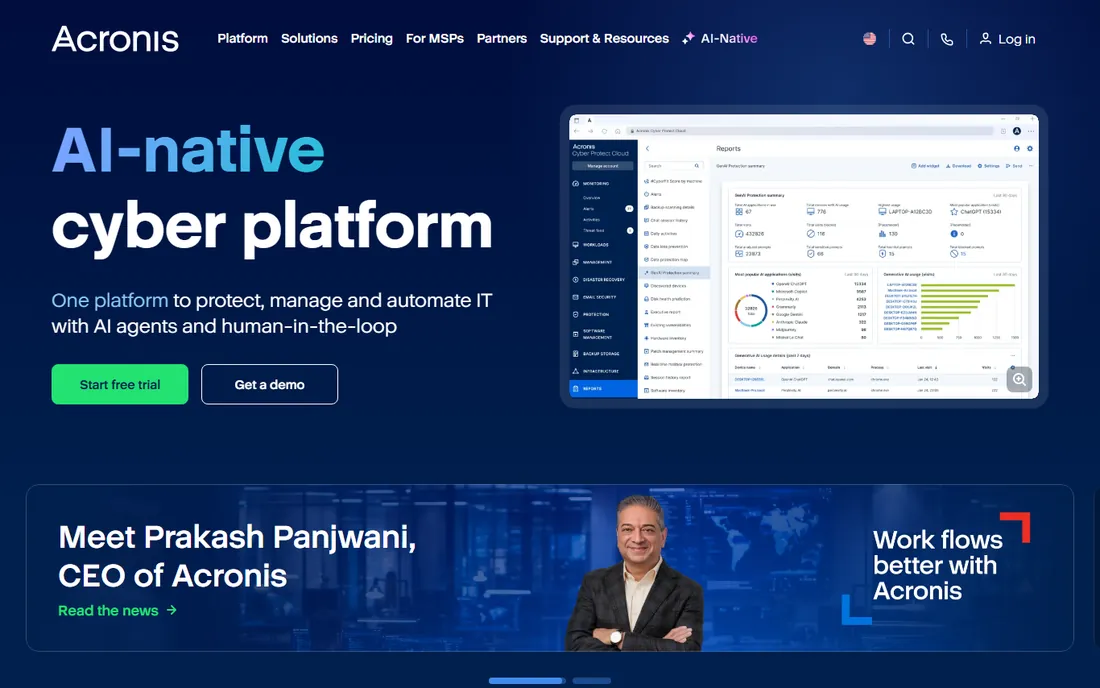
Acronis is the first name most people reach for, and the software earns the attention. True Image (sold under the Cyber Protect Home Office branding in recent years) clones disks, creates full system images, backs up to local drives and Acronis cloud storage, and layers on anti-ransomware protection. If you want one product that covers every "my drive died" scenario, this remains the most complete answer on the market.
The trade-off is that you are buying a backup platform, not a cloning tool. The subscription model means the price never stops, and the 30-day trial does not include disk cloning, so you cannot try the feature you probably came for. For a one-time SSD upgrade it is overkill. For a household or small business that wants set-and-forget protection with cloning as one feature among many, the completeness justifies the cost.
What we like- Complete package with cloning, imaging, cloud backup and ransomware protection
- Polished interface
- Strong scheduling and versioning
Watch out for- Subscription pricing with renewals that add up
- More product than a pure cloner needs
- The lineup and naming change often

#2
Macrium Reflect
Best for: Reliable imaging trusted by technicians
Visit macrium.com
Starting priceFrom $49.99/year
Free planFree trial
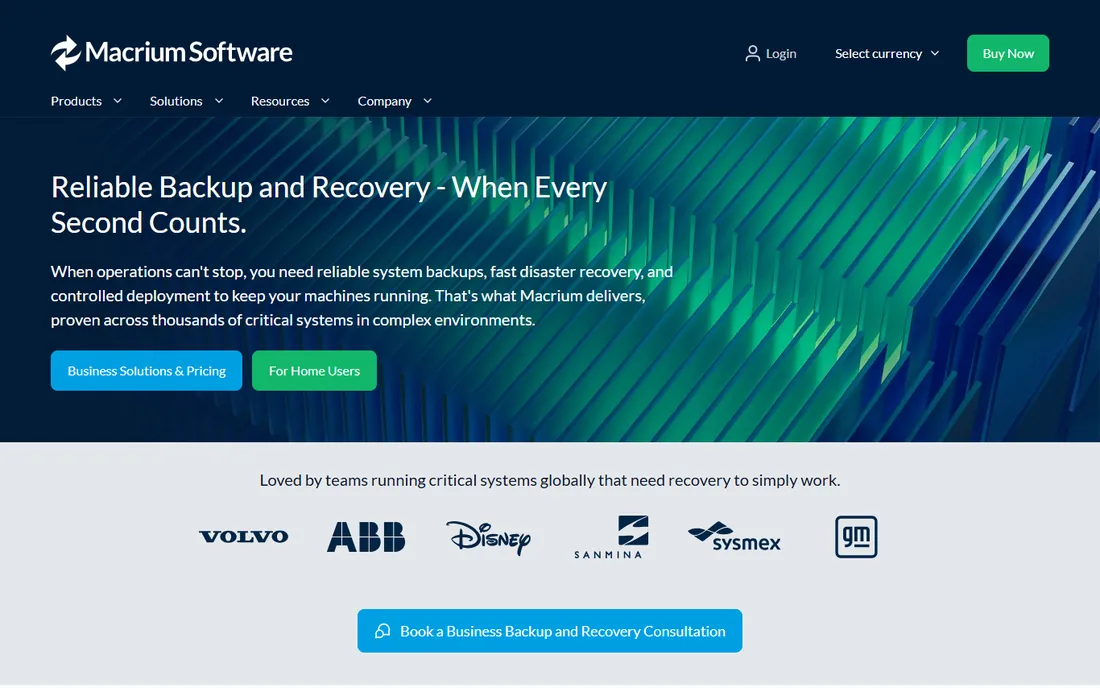
Ask working IT technicians which imaging tool has never let them down and Macrium Reflect wins that vote more often than not. Its engine is famous for restoring exactly what it backed up, and Rapid Delta Restore rewrites only changed blocks during recovery, which cuts restore times noticeably on large drives. It handles everything from legacy Windows installations to current releases, a real advantage in mixed environments.
The shift to subscription licensing in 2024 upset longtime owners of perpetual licenses. The software did not get worse, but the value math changed: you now rent reliability instead of owning it. Technicians and businesses that image machines regularly will still pay gladly. Home users cloning a single drive will find cheaper routes.
What we like- Imaging engine with a long reputation for reliable restores
- Rapid delta restore shortens recovery times
- Supports a wide range of Windows versions
Watch out for- Moved to subscription licensing
- Windows only
- The interface favors function over friendliness
Starting priceSee website
Free planYes, limited
When the task is "move everything from this old drive to this new SSD," EaseUS Disk Copy is refreshingly single-minded. Pick the source, pick the target, start the clone. It handles mismatched drive sizes sensibly and can create bootable media for systems that will not start on their own. For the classic hard-drive-to-SSD upgrade, which is most buyers' actual use case, the workflow takes minutes to learn.
EaseUS funds the free edition by nudging you toward its paid products, and both the installer and the interface carry that sales energy. Power users will miss the scheduling and incremental imaging of full backup suites. But as a dedicated, approachable cloning tool with a usable free tier, it does exactly what it promises.
What we like- Built for one job and does it simply
- Sector-by-sector and partition cloning
- Bootable media for systems that will not start
Watch out for- Free version has limits that push toward paid
- EaseUS promotes its other products aggressively
- Fewer advanced features than the full suites
Starting priceSee website
Free planYes
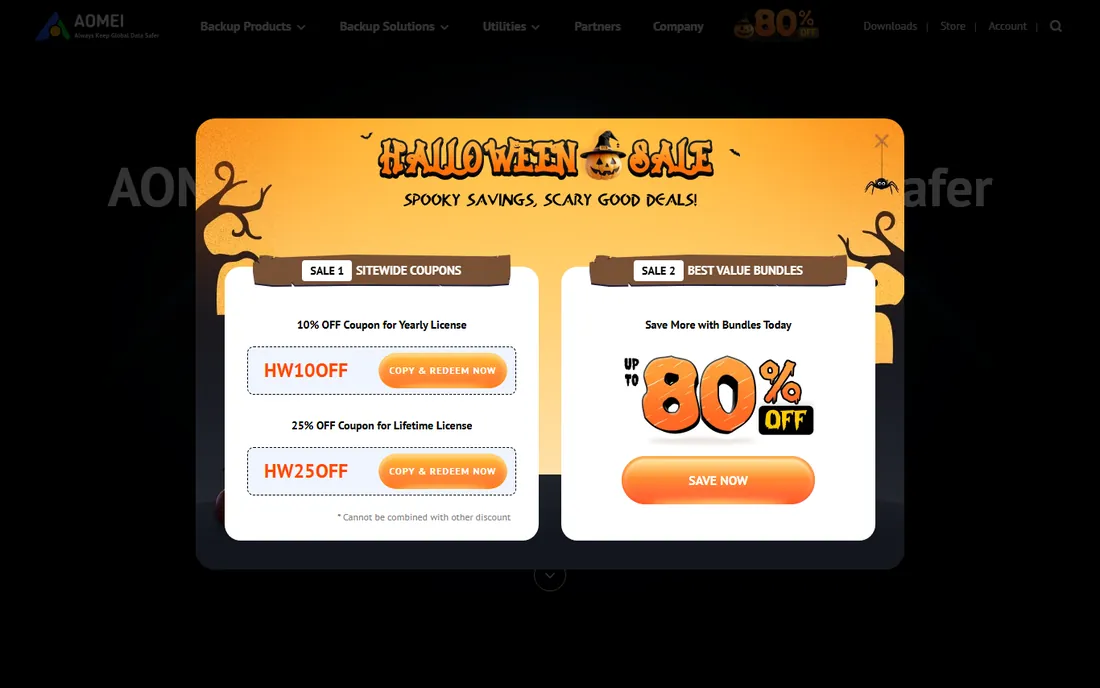
AOMEI Backupper's free Standard edition is one of the most generous in this category: real disk cloning, system backup, file sync and bootable rescue media without paying anything. That makes it a legitimate answer for anyone who clones occasionally and wants a basic backup safety net at the same time. The wizards walk through each job without assuming expertise.
The interface looks like it arrived from an earlier decade, which does not affect reliability but does not inspire confidence either. Features such as universal restore to different hardware, command-line backup and PXE boot require the paid Pro edition. Still, for free cloning that actually works, Backupper belongs on every shortlist.
What we like- Free Standard edition includes disk and partition cloning
- System backup and file sync included
- Straightforward wizard-driven interface
Watch out for- Dated interface
- Advanced features sit behind the Pro edition
- The product family is large and confusing
Starting priceFree
Free planYes
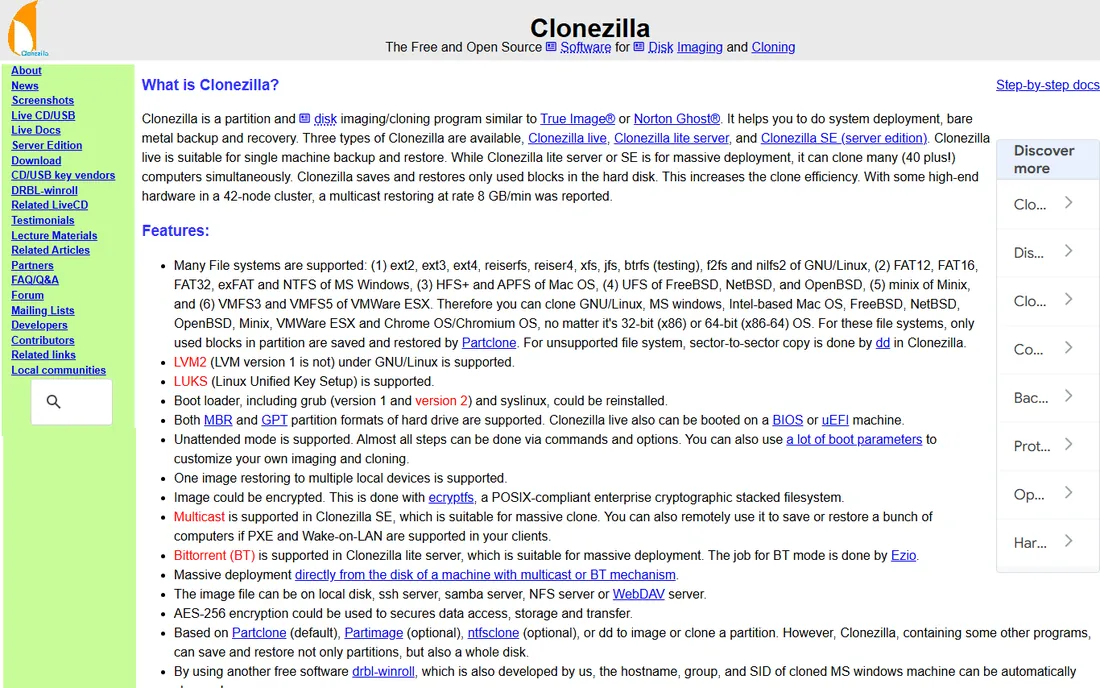
Clonezilla is the tool behind more successful migrations than any other free option, and it shows. It clones disks and partitions with a reliability that commercial vendors respect, supports an enormous range of filesystems, and costs nothing. IT departments have standardized on it for mass deployments because it simply works, every time.
The price of that reliability is the interface. Clonezilla runs in a text menu that asks questions beginners find cryptic, and one wrong answer about source and target can wipe the wrong drive. There is no scheduling and no incremental imaging. If you are comfortable with technical tools, it is unbeatable for the price. If not, Rescuezilla below gives you the same engine with a mouse.
What we like- Completely free and open source
- Extremely reliable once you learn it
- Handles nearly any filesystem and disk layout
Watch out for- Text-based interface intimidates beginners
- No scheduling or incremental imaging
- Documentation assumes technical comfort
Starting priceFree
Free planYes
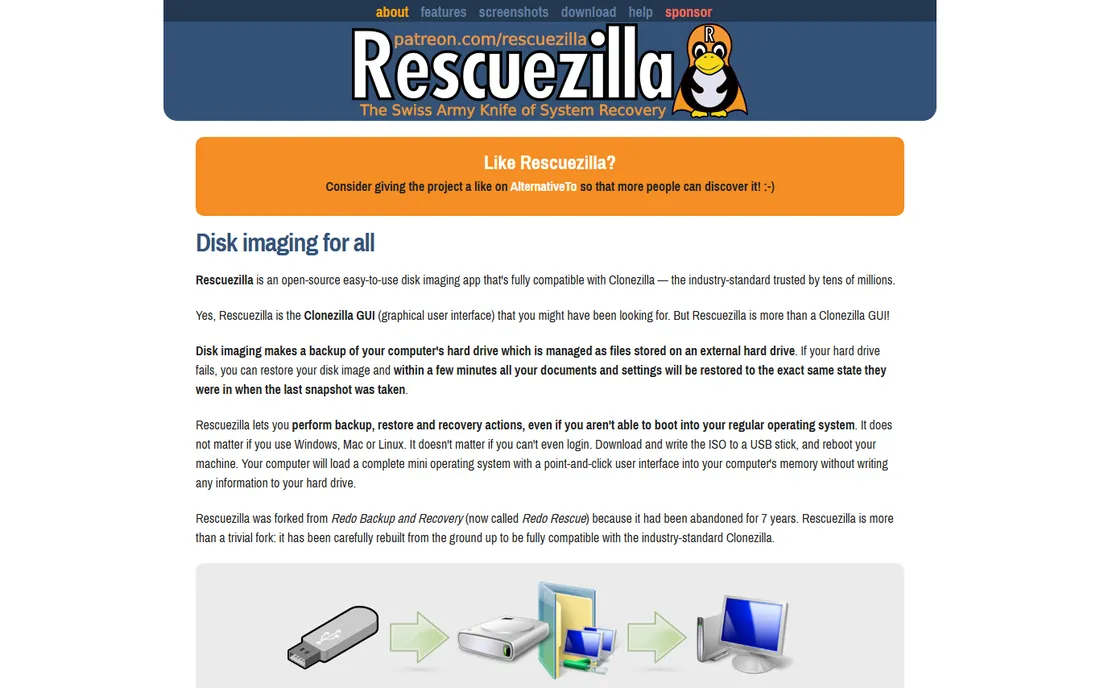
Rescuezilla answers the most common complaint about Clonezilla: the interface. It wraps the same proven imaging engine in a point-and-click interface that boots from a USB stick, so you get the reliability of the industry standard without the text menus. It can read and restore images created by Clonezilla itself, which makes it a practical companion in mixed environments.
Because it is a volunteer-driven open-source project, there is no support hotline when something unusual happens, and development moves at the pace volunteers allow. For home users and small shops doing occasional clones, those limits rarely matter. It is the easiest free path to a trustworthy clone.
What we like- Graphical interface over the trusted Clonezilla engine
- Boots from USB with no installation
- Fully compatible with Clonezilla images
Watch out for- Community-supported project with no paid support line
- Fewer enterprise features
- Release pace depends on volunteers
Starting priceSee website
Free planFree trial
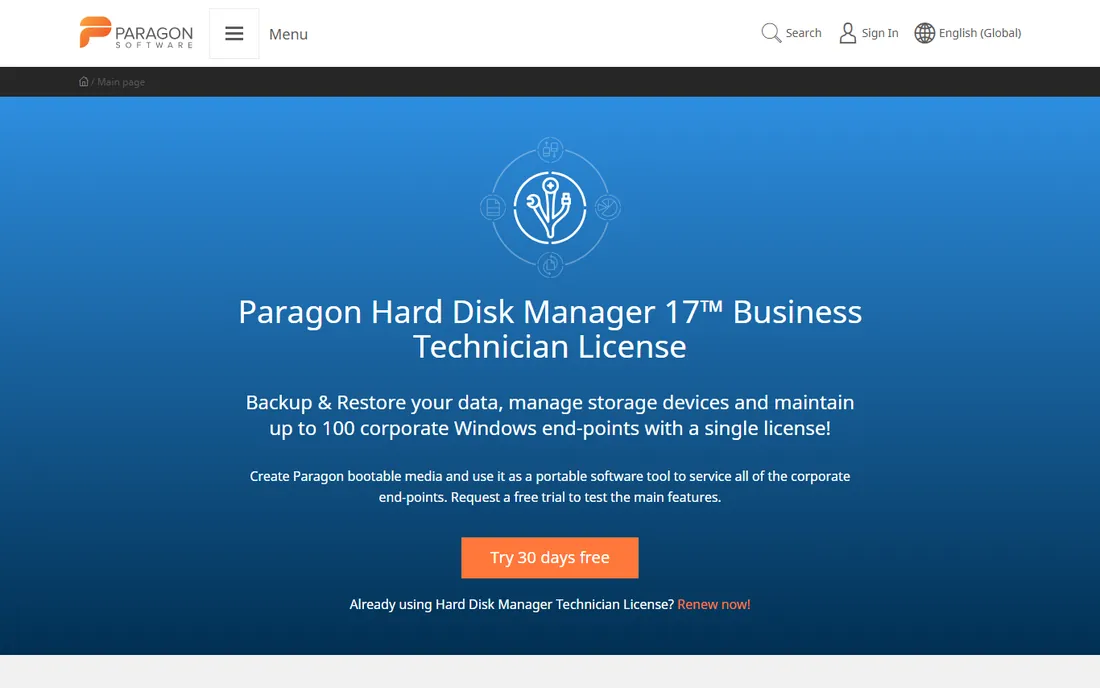
Paragon Hard Disk Manager treats cloning as one chapter of a larger disk-management story. Alongside disk and partition cloning you get imaging, partition management, OS migration to new hardware and recovery media built on Windows PE. For Windows shops that want a single toolkit covering maintenance as well as migration, the bundle makes sense.
The downside of the bundle is exactly that: if all you need is one clone, you are installing and learning a suite. The product lineup and pricing have shifted across releases, so check the current edition carefully before buying. As a do-everything Windows disk utility with dependable cloning inside, though, it is hard to fault.
What we like- Cloning, imaging, partitioning and migration in one package
- WinPE-based recovery media
- Solid handling of dynamic disks
Watch out for- Windows only
- The suite structure can feel bloated for a single clone
- Pricing tiers change between releases
Starting priceFree with Samsung SSDs
Free planYes
If your new drive is a Samsung SSD, stop reading and use Samsung Data Migration. It is free, it takes about three clicks, and it is tuned specifically for Samsung drives. For the single most common upgrade scenario in existence (old drive to new Samsung SSD), nothing is faster or simpler.
The limitation is absolute: the destination must be a Samsung SSD, and the software runs on Windows only. There are no advanced options for unusual layouts. But within its lane it is perfect, and since Samsung SSDs are among the best-selling drives in the US, that lane covers a huge number of upgraders.
What we like- Free with any Samsung SSD
- Extremely simple three-step process
- Optimized for Samsung drives
Watch out for- Only works when the target is a Samsung SSD
- Fewer options than general cloners
- Windows only
Starting priceFrom $69.90
Free planYes
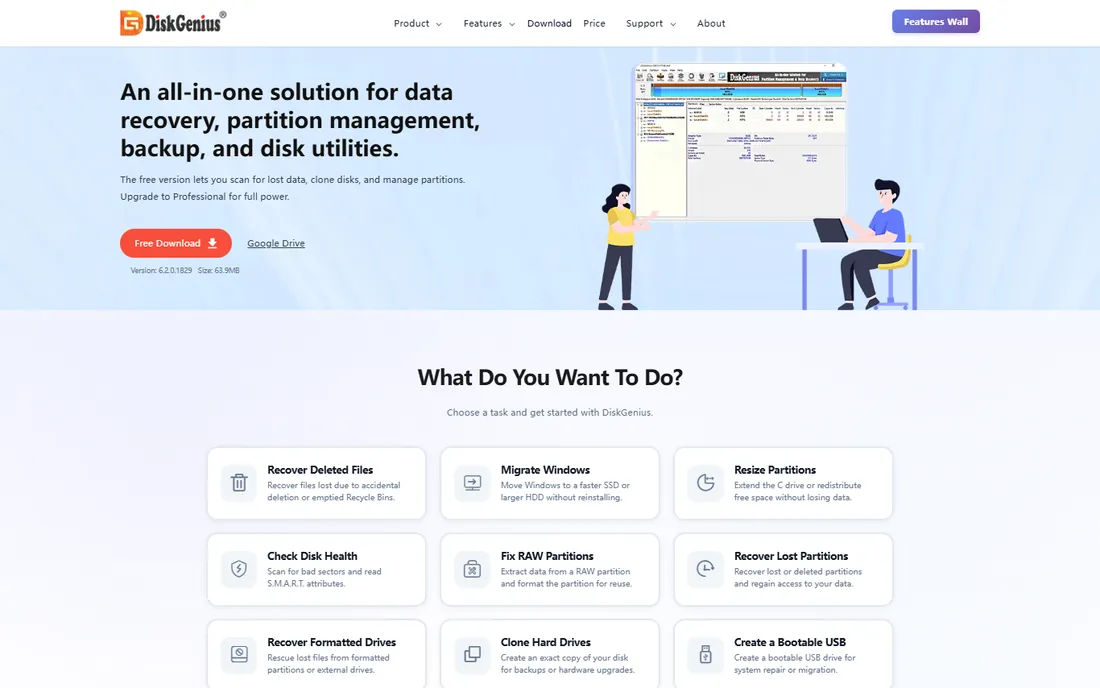
DiskGenius is the quiet overachiever of this list. Its free edition clones disks and migrates Windows to a new drive, which already covers most buyers. Around that core it packs partition management, data recovery, disk health checks and boot repair, making it the best single download for someone who maintains their own PCs. The vendor sells one-time licenses starting at $69.90 with no auto-renewal, a welcome contrast to subscription-only competitors.
The interface tries to surface everything at once, so first-time users face a learning curve. The free edition also limits the deeper recovery features. But if you want one Windows utility that clones today and fixes partitions tomorrow, nothing else at this price does as much.
What we like- Free edition includes disk cloning and OS migration
- Partitioning, data recovery and disk repair in one tool
- One-time licensing with no auto-renewal
Watch out for- Windows only
- The interface packs in a lot and can overwhelm
- Recovery features need the Pro edition for full use
Starting priceSee website
Free planFree trial
O&O Software has been building Windows utilities since 1997, and DiskImage reflects that steadiness. It handles disk imaging and cloning with an emphasis on doing the job correctly rather than quickly, including machine-independent restoration that moves a system to different hardware. The Premium edition released in October 2026 adds a redesigned interface and automatic backup chains.
The product feels conservative next to flashier rivals, and edition naming has changed across releases, so confirm what you are buying. For Windows users who value a careful, long-supported tool from an established vendor, DiskImage is a dependable pick.
What we like- Long-running German vendor with a careful approach to data
- Machine-independent restoration to different hardware
- New Premium edition released October 2026
Watch out for- Windows only
- The interface feels traditional
- Pricing and edition names shift between versions
How we chose
We started from the actual job buyers describe: moving a full system to a new drive, usually an SSD upgrade, without reinstalling anything. We read each vendor's current pricing and feature pages, checked documentation for how cloning handles mismatched drive sizes and boot partitions, and weighed public feedback from G2, Capterra and Reddit threads where users report what actually happened during their migrations. We favored tools that are still actively developed in 2026, excluded anything discontinued or merged away, and weighted one-time free options fairly against paid suites since most buyers clone rarely.
What to check before you buy
The first decision is how often you will clone. A one-time SSD upgrade almost never justifies a subscription, since the free tools produce identical results for that job. Regular imaging, multiple machines or business use is where paid tools earn their keep through scheduling and incremental backups.
Next, check the drive size rules. Cloning from a larger drive to a smaller SSD only works if the used space fits, and some tools handle partition resizing more gracefully than others. Confirm your tool supports your filesystems and your target size before you start.
Boot verification is the step everyone skips. After cloning, disconnect or remove the old drive and boot from the new one. Confirm your programs open and your files are intact. Only then should you repurpose or wipe the original drive. A clone you have not booted is a hope, not a backup.
Finally, match the license to your machines. Some tools license per computer, others per technician or per year. If you maintain family or client PCs, a technician license or a free tool may cost less than a stack of single-PC subscriptions.
Free vs paid: where the line really is
Free cloners move bytes just as accurately as paid ones. The differences show up around the edges: scheduling unattended images, incremental backups that only copy changes, universal restore to different hardware, and someone to call at midnight when a migration fails.
For most home users, the line is simple. Clone once with a free tool, verify the boot, and you are done. Pay when cloning is a recurring task, when downtime costs money, or when you also need the backup, ransomware protection and cloud storage that the suites bundle in.
Frequently asked questions
Is cloning a hard drive the same as copying files?
No. Copying files moves your documents but leaves the operating system, programs and boot information behind. Cloning creates an exact, bootable replica of the entire drive, so the new drive starts up exactly like the old one with everything installed and configured.
Can I clone a larger hard drive to a smaller SSD?
Yes, as long as the data actually used on the old drive fits on the SSD. Most cloning tools resize partitions automatically during the process. If your old 1TB drive holds 400GB of data, it will fit on a 500GB SSD without problems.
Will cloning work if I am switching from HDD to SSD?
Yes, this is the most common cloning job. The tools on this list handle HDD-to-SSD migration routinely, including partition alignment for SSD performance. Samsung Data Migration exists specifically for this scenario with Samsung drives.
Do I need to reinstall Windows after cloning?
No, that is the point of cloning. The new drive boots into your existing Windows installation with all programs, settings and files intact. In rare cases Windows may ask you to reactivate, which is a quick online step.
How long does cloning a hard drive take?
It depends on the amount of data and the speed of the drives. A typical 500GB migration between SSDs can finish in under an hour, while a full 2TB HDD-to-HDD clone can take several hours. USB connections are slower than direct SATA or NVMe connections.
Is free cloning software safe to use?
The free tools on this list, such as Clonezilla, Rescuezilla, AOMEI Backupper and DiskGenius, are established products used by millions of people. Download them only from the vendor's official site. As with any disk operation, keep a separate backup of important files before you start.
Sources we checked (13)
- https://acronis.com
- https://www.easeus.com/disk-copy/clone-resource/macrium-reflect-vs-acronis-true-image.html
- https://www.techradar.com/best/best-backup-software
- https://macrium.com
- https://www.easeus.com
- https://aomeitech.com/
- https://clonezilla.org
- https://rescuezilla.com/
- https://paragon-software.com
- https://www.samsung.com
- https://diskgenius.com/
- https://oo-software.com/
- https://www.easeus.com/disk-copy/clone-resource/acronis-true-image-alternatives.html
Is your product missing or out of date?
We review this list regularly. Vendors can request a listing, send updated pricing or ask about featured placement.

Shihab Mia · Founder, Rankite
Shihab has spent more than a decade helping SaaS and e-commerce brands grow through search. He writes Rankite's software buying guides from pricing pages, documentation and public user reviews. More about Shihab.
 EaseUS Disk Copy
 AOMEI Backupper
 Clonezilla
 Rescuezilla
 Paragon Hard Disk Manager
 Samsung Data Migration
 DiskGenius
 O&O DiskImage