How we make this list: we compare pricing pages, product documentation and public user reviews. Rankite is independent; if a vendor ever pays for a featured spot, that listing is clearly labeled Partner.
Key takeaways
- WinCDEmu is the best free ISO mounter: open source, one-click mounting from Windows Explorer, no ads.
- DAEMON Tools is the most full-featured option, with a free Lite version and paid tiers for advanced image work.
- PowerISO is the all-in-one: open, extract, burn, edit, convert and mount ISO files in one tool.
- AnyBurn, ImDisk Toolkit, ISO Workshop and OSFMount are all free and cover mounting plus burning or RAM-disk use.
- Windows 10 and 11 mount ISOs natively (right-click, Mount); these tools earn their place with extra formats and features.
Quick comparison
| Tool | Best for | Starting price | Free plan |
|---|
 WinCDEmu WinCDEmu | One-click ISO mounting with nothing extra | $0 (free, open source) | Yes |
 DAEMON Tools DAEMON Tools | The most complete disc image toolkit | See website | Free version |
 PowerISO PowerISO | Doing everything with ISO files in one program | See website | Free version |
 AnyBurn AnyBurn | Free burning and imaging without upsells | $0 (free) | Yes |
 ImDisk Toolkit ImDisk Toolkit | Virtual disks, RAM disks and advanced mounting | $0 (free, open source) | Yes |
 ISO Workshop ISO Workshop | Free ISO create, burn, extract and convert | $0 (free) | Yes |
 WinArchiver WinArchiver | Virtual drive plus archive mounting | See website | Free version |
 OSFMount OSFMount | Mounting images for forensic and technical work | $0 (free) | Yes |
Is your product missing or out of date?
We review this list regularly. Vendors can request a listing, send updated pricing or ask about featured placement.
The best ISO software
Starting price$0 (free, open source)
Free planYes
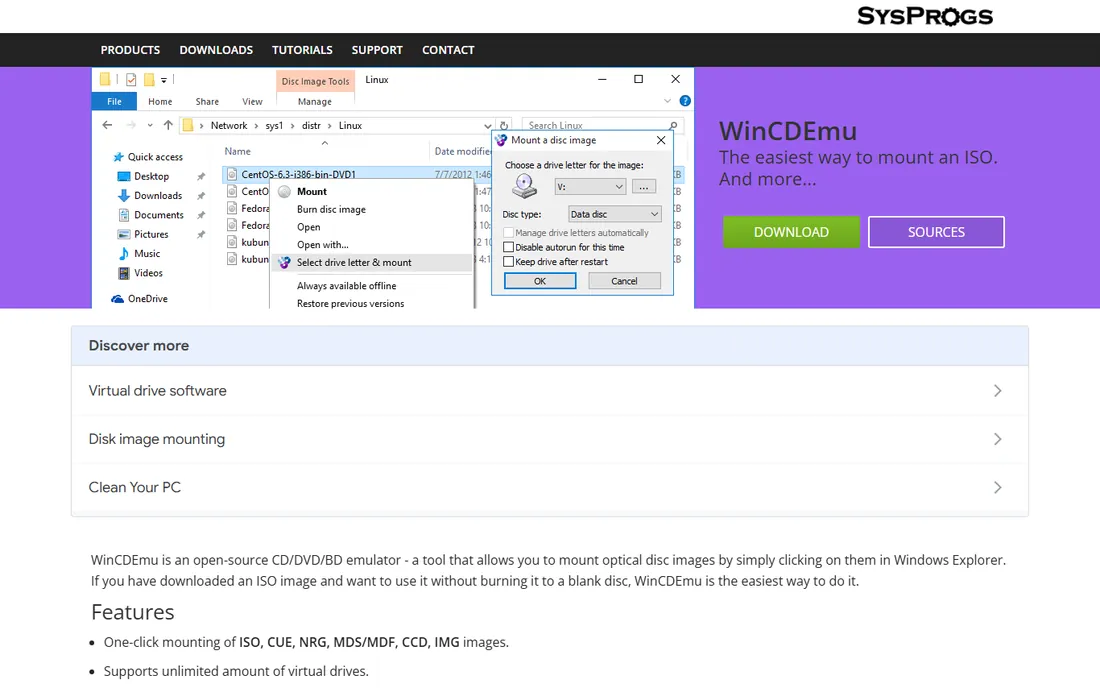
WinCDEmu does one thing perfectly: double-click any ISO, CUE, NRG, MDS or CCD image in Windows Explorer and it mounts as a virtual drive with an assigned letter. There is no main window to learn, no ads, no bundled offers, and the whole program is a few megabytes. It is open source and free forever.
What it does not do is everything else: no burning, no editing, no conversion, no image creation. For pure mounting, that focus is the appeal. Pair it with AnyBurn or ISO Workshop below if you also need to create discs.
It is the default recommendation for anyone who just needs ISOs to open like discs.
What we like- Double-click an ISO to mount it
- Tiny and fast
- No ads or bundled software
Watch out for- Mounting only
- No burning, editing or conversion
Starting priceSee website
Free planFree version
DAEMON Tools has been the disc image standard since the late 1990s. The Lite version mounts images free; paid tiers (Pro, Ultra) add advanced features: up to 32 virtual drives, image creation and editing, format conversion, disc burning and encrypted images. It handles virtually every image format in existence.
The free Lite version covers mounting well, which is all most users need. Watch the installer for optional bundled offers, a long-standing complaint. Check the vendor pricing page for current paid tier prices.
Choose DAEMON Tools when you want one toolkit for every disc image job, not just mounting.
What we like- Broad format support
- Up to 32 virtual drives
- Image creation and conversion
Watch out for- Paid features gated behind tiers
- Installer has offered bundled software historically
Starting priceSee website
Free planFree version
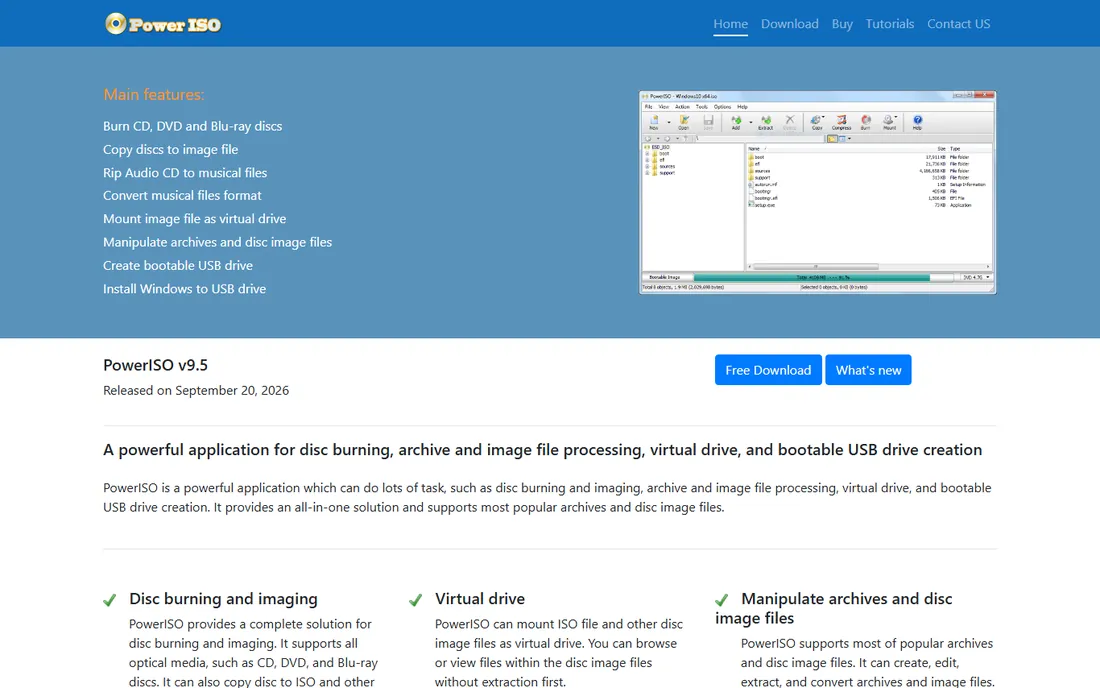
PowerISO is the Swiss army knife: open and extract ISOs with one click, burn to CD/DVD/Blu-ray, create audio and video discs, edit image contents directly, compress and encrypt images, split large files, and convert almost any image format to standard ISO. Mounting uses an internal virtual drive.
The unregistered version has limitations (300 MB file size cap on some operations), with paid registration removing every limit; check the vendor site for current pricing. The interface is functional rather than pretty. But no free tool matches its breadth.
It fits users who regularly create, edit and convert images, not just mount them.
What we like- Open, extract, burn, edit, compress, encrypt, split and convert
- Internal virtual drive
Watch out for- Paid for full features
- Interface looks dated
- Flagged as bundleware by some sources
Starting price$0 (free)
Free planYes
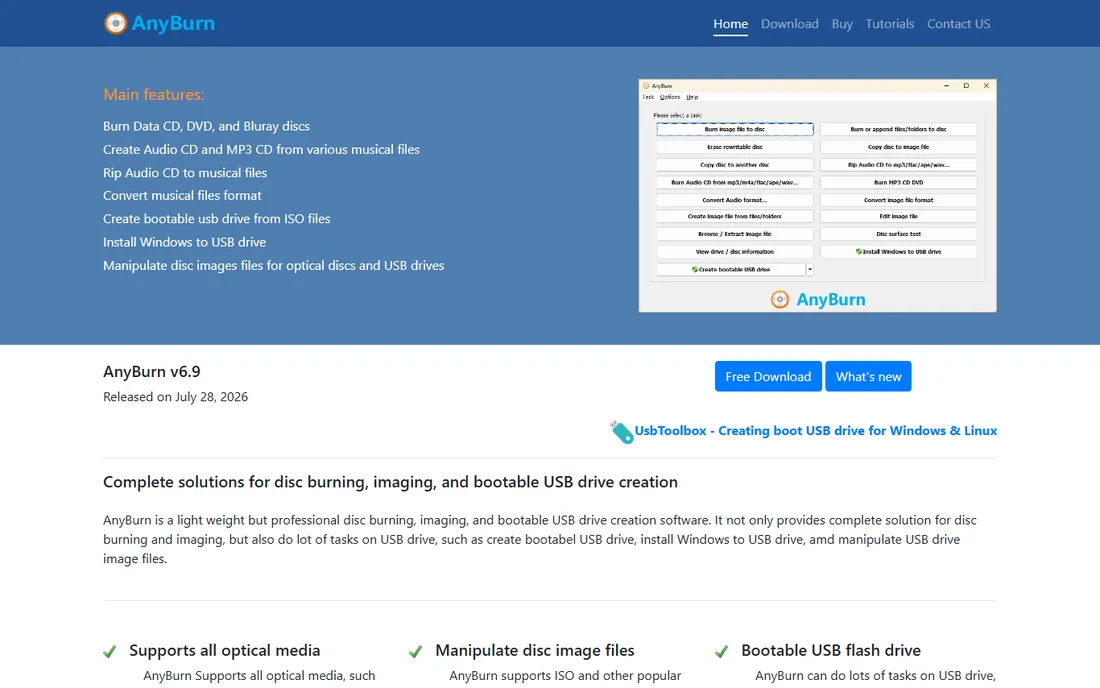
AnyBurn is free software that burns CDs, DVDs and Blu-ray discs, creates disc images from files or discs, burns images to disc, and converts between formats. There is no paid tier and no upsell: the free version is the whole product.
The interface is plain and the mounting features are basic next to dedicated mounters. But as a free companion to WinCDEmu (mounting) it completes the toolkit: WinCDEmu opens images, AnyBurn creates and burns them.
Use it when you need free, honest burning and image creation software.
What we like- Completely free
- Burns CDs, DVDs and Blu-rays
- Creates and burns images
Watch out for- Interface is utilitarian
- Mounting is basic compared to WinCDEmu
Starting price$0 (free, open source)
Free planYes
ImDisk Toolkit goes beyond optical disc images: it mounts disk images as virtual hard disks or floppies, creates RAM disks for speed, and handles raw image formats the simpler tools cannot. It is open source, free and scriptable, which makes it popular with technicians and developers.
The tradeoff is usability: this is a tool for people comfortable with disk concepts, not a double-click mounter. For mounting an ISO to install software, WinCDEmu is easier. For mounting forensic images, RAM disks or unusual formats, ImDisk is the answer.
It suits technical users who need virtual disk features beyond ISO mounting.
What we like- Mounts images as virtual disks
- RAM disk support
- Scriptable and lightweight
Watch out for- More technical than one-click tools
- Interface assumes knowledge
Starting price$0 (free)
Free planYes
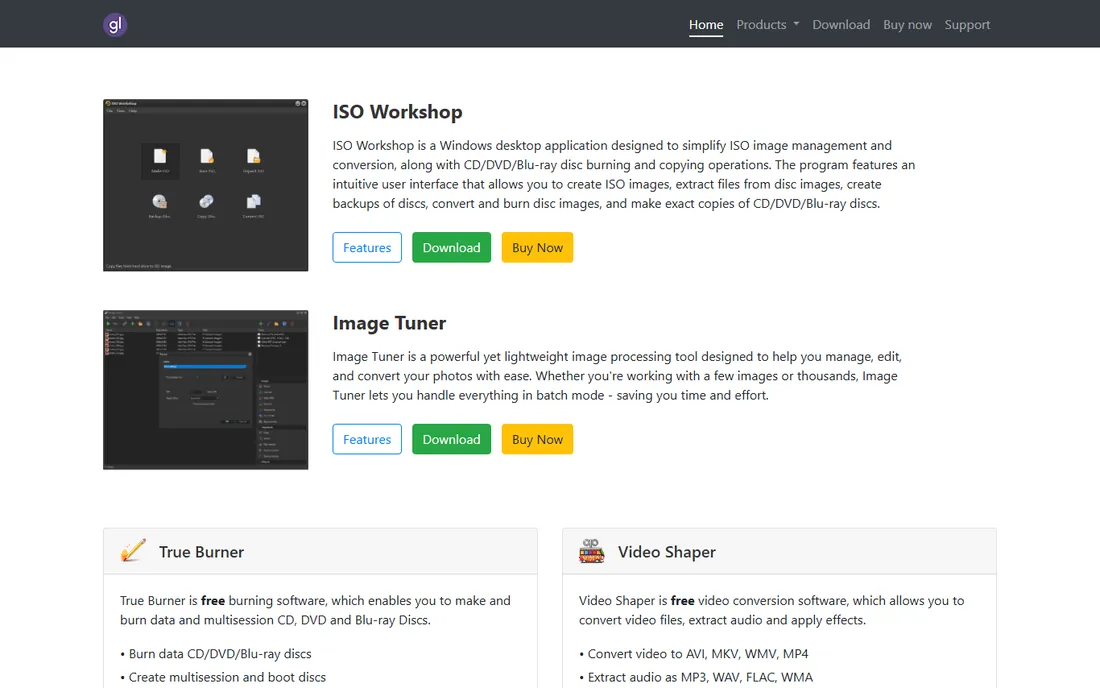
ISO Workshop is a free Windows tool for the core ISO jobs: make ISO images from files or discs, burn images to CD/DVD/Blu-ray, extract files from images, and convert between formats. The interface is cleaner than most free tools in this space.
Format support is narrower than PowerISO or DAEMON Tools, and it is Windows-only. But for the common tasks (make an ISO, burn an ISO, pull files out of one), it is free, simple and competent.
Pick it when you want a tidy free tool for everyday ISO tasks.
What we like- Free
- Clean interface
- Covers the core ISO tasks well
Watch out for- Windows only
- Narrower format support than PowerISO
Starting priceSee website
Free planFree version
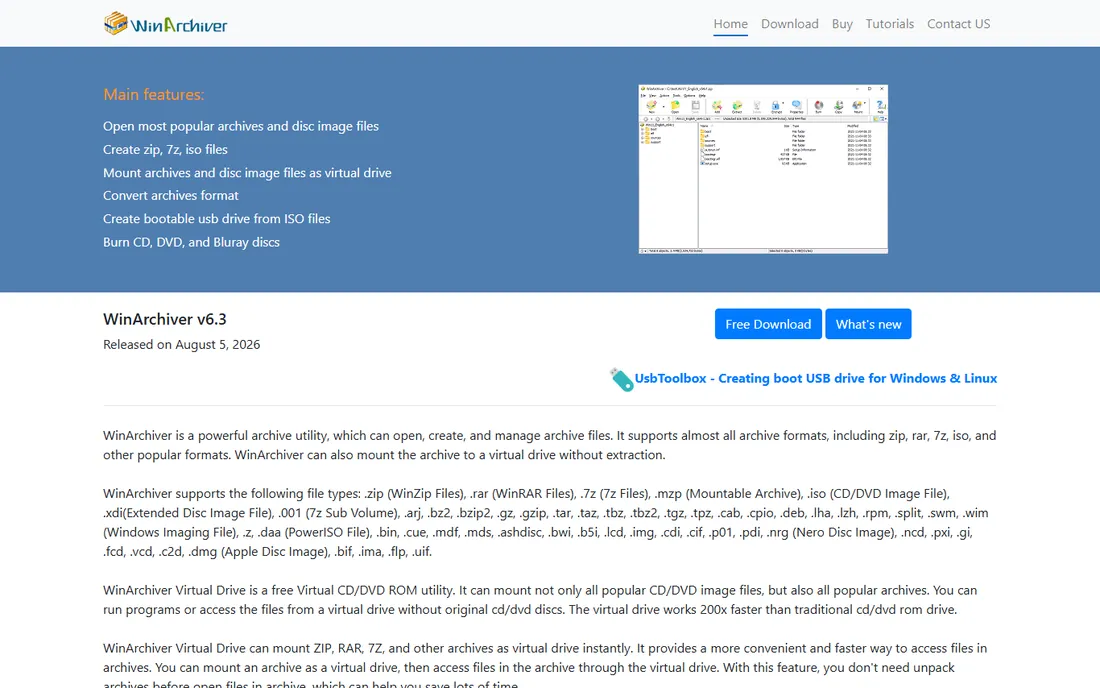
WinArchiver's distinctive trick is mounting archives as virtual drives: ZIP, RAR and 7z files appear as discs alongside ISOs, which is handy for installers distributed as archives. The virtual drive handles standard image formats as well.
A free version covers basic use, with paid tiers giving access to the full feature set; check the vendor site for current pricing. It is less widely used than DAEMON Tools or PowerISO, so community support is thinner.
It fits users who work with both disc images and compressed archives and want one mounter.
What we like- Mounts archives as virtual drives too
- Handles ZIP, RAR, 7z as discs
- Compact
Watch out for- Paid tiers for full features
- Less known than the leaders
Starting price$0 (free)
Free planYes
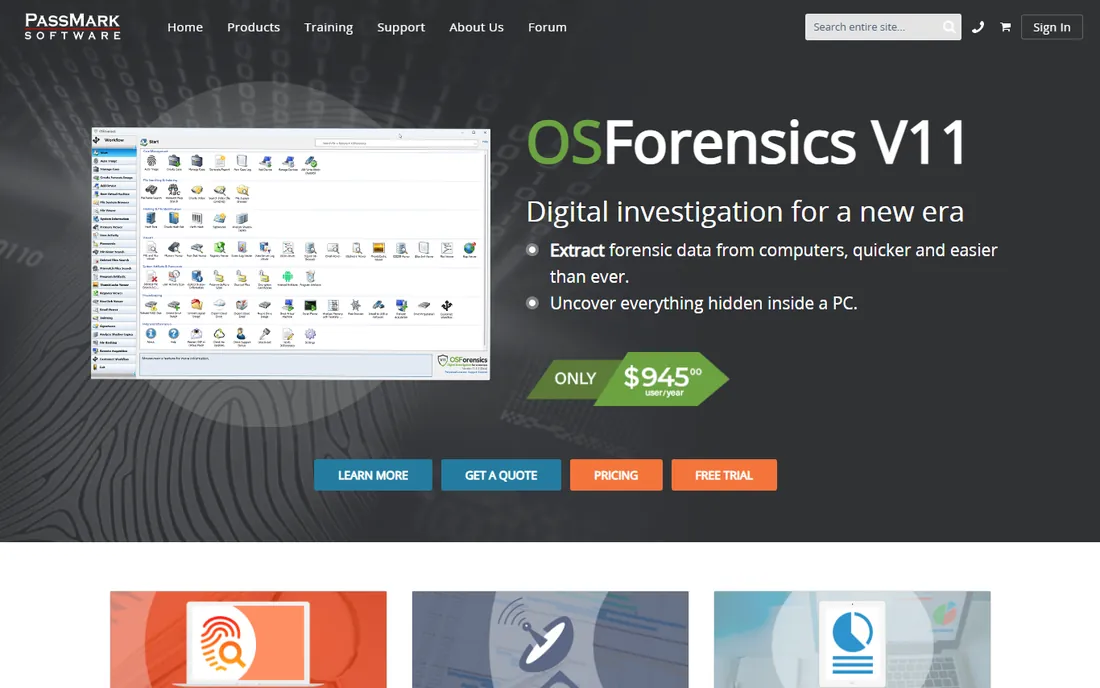
OSFMount from PassMount (of OSForensics) mounts disc and disk images with forensic-grade options: read-only mounting that preserves evidence integrity, read-write mounting for working with images, and RAM disk creation. It is free and widely used by digital forensics practitioners.
The interface is technical and the feature set is overkill for mounting an ISO to install a game. But when image integrity matters (forensics, data recovery, malware analysis), the read-only mounting and trusted provenance justify it.
Choose it for technical and forensic image work where integrity controls matter.
What we like- Free
- Mounts images read-only or read-write
- RAM disk option
- Trusted by forensics users
Watch out for- Technical interface
- Overkill for casual ISO mounting
Do you even need ISO software?
Windows 10 and 11 mount ISO files natively: right-click any ISO and choose Mount, and it appears as a virtual drive. If that is your entire need, you need nothing else. These tools earn their place when you need other formats (BIN, NRG, CCD), multiple virtual drives, burning, editing, conversion, or mounting archives and RAM disks. Start with the built-in mounting; add WinCDEmu when you hit its limits.
A word on download safety, since this category has a history of junkware: several classic tools (PowerISO, DAEMON Tools installers) have bundled optional offers at various points. Always download from the vendor's official site, choose custom installation, and decline anything that is not the program itself. The open-source options (WinCDEmu, ImDisk Toolkit) sidestep the issue entirely, which is one more reason they top this list. If an installer ever asks to change your search engine or install a "helper," that is the junkware: decline it and continue.
How we chose
We listed active ISO mounting and image tools with real 2026 availability, excluding discontinued products (Virtual CloneDrive, UltraISO, ImgBurn are no longer maintained). Pricing comes from vendor pages where published; several vendors do not show simple tier prices, so we state that directly. We weighted ease of mounting, format support, extra features (burning, conversion, editing) and the absence of bundled junkware. No hands-on testing was performed.
Frequently asked questions
What is ISO mounting software?
Software that presents a disc image file (ISO and similar formats) to Windows as a virtual CD/DVD drive, so you can install software or access disc contents without a physical disc or drive.
Is WinCDEmu safe?
Yes. It is open source, lightweight and free of ads or bundled software. Download it from the official site (wincdemu.sysprogs.org) rather than download portals.
Can Windows mount ISO files without extra software?
Yes. Windows 10 and 11 mount ISO files natively via right-click and Mount. Third-party tools add support for other formats, multiple drives and extra features.
What is the difference between mounting and burning?
Mounting presents the image as a virtual drive for immediate use. Burning writes the image to a physical CD, DVD or Blu-ray disc. Most tools here do both.
Which tool is best for old game discs (BIN/CUE)?
DAEMON Tools and PowerISO handle BIN/CUE and other legacy formats best. WinCDEmu also supports CUE, NRG, MDS and CCD for mounting.
Are these tools the same as ISO compliance software (ISO 27001)?
No. This article covers ISO disc image software. If you need ISO 27001 compliance software, look at GRC platforms like Vanta, Drata or Secureframe instead.
What happened to Virtual CloneDrive and ImgBurn?
Both still float around download sites but are no longer maintained: Virtual CloneDrive is discontinued and ImgBurn has not been updated in over a decade. They may still work on older systems, but unmaintained kernel-level drivers are a security risk on modern Windows. Use WinCDEmu or ImDisk Toolkit instead. When in doubt, prefer the tool that is still receiving updates. A maintained driver is a safer driver, especially one that runs at the kernel level where these virtual drives live.
Sources we checked (5)
- https://securitygladiators.com/software/iso-mounter/
- https://alternativeto.net/software/virtual-clonedrive/?feature=mount-image
- https://alternativeto.net/desktop/wincdemu/
- https://Sourceforge.net/software/compare/DAEMON-Tools-Lite-vs-PowerISO/
- https://sourceforge.net/software/product/DAEMON-Tools-Ultra/alternatives
Is your product missing or out of date?
We review this list regularly. Vendors can request a listing, send updated pricing or ask about featured placement.

Shihab Mia · Founder, Rankite
Shihab has spent more than a decade helping SaaS and e-commerce brands grow through search. He writes Rankite's software buying guides from pricing pages, documentation and public user reviews. More about Shihab.