How we make this list: we compare pricing pages, product documentation and public user reviews. Rankite is independent; if a vendor ever pays for a featured spot, that listing is clearly labeled Partner.
Key takeaways
- HandBrake and Shutter Encoder are free, open and excellent: most conversion jobs never need a paid tool.
- Wondershare UniConverter's Annual Plan is $49.99 (vendor press release) and Movavi's Video Converter lists at $19.95/month on its own store.
- Paid converters earn their price with AI upscaling, batch workflows, DVD ripping and download tools, not with basic format conversion.
- VideoProc, Movavi and UniConverter all offer limited free trials; test your actual files before paying.
- Any Video Converter and Freemake offer free versions, with paid tiers adding faster downloads, DVD burning and extras.
Quick comparison
| Tool | Best for | Starting price | Free plan |
|---|
 HandBrake HandBrake | Free, reliable conversion and compression on any desktop OS | Free | Yes |
 VideoProc Converter VideoProc Converter | GPU-accelerated conversion with AI upscaling and enhancement | See website | Free trial (limited to 5-minute files) |
 Wondershare UniConverter Wondershare UniConverter | An all-in-one video toolbox for creators and businesses | $49.99/year (Annual Plan) | Free trial (limited features, watermarked output) |
 Movavi Video Converter Movavi Video Converter | Beginners who want fast conversion with AI upscaling | $19.95/month | Free trial (7-day, watermarked output) |
 Any Video Converter Any Video Converter | Free conversion with optional paid extras | See website | Yes (free version) |
 Freemake Video Converter Freemake Video Converter | Simple free conversion of common formats | See website | Yes (free version with limitations) |
 Avidemux Avidemux | Free cutting, filtering and re-encoding without bloat | Free | Yes |
 Shutter Encoder Shutter Encoder | Free professional encoding with no watermarks or limits | Free | Yes |
Is your product missing or out of date?
We review this list regularly. Vendors can request a listing, send updated pricing or ask about featured placement.
The best video processing software
Video conversion used to be a dark art of codec settings and forum threads. Today the best tools hide all of that behind presets: pick your device or platform, press start, get a file that plays. But the market splits sharply between free tools that do the core job brilliantly and paid suites that add AI enhancement, batch automation and disc tools. These eight cover both, so you pay only for what free cannot do.
#1
HandBrake
Best for: Free, reliable conversion and compression on any desktop OS
Visit handbrake.fr
Starting priceFree
Free planYes
HandBrake is the converter everyone recommends first, and it earns it. It converts nearly any video file to MP4, MKV or WebM, compresses large files dramatically with modern codecs, and rips unprotected DVDs. Presets cover phones, tablets, consoles, YouTube and more, and the batch queue chews through folders unattended. It is free and open source with no paid tier, no trial and no watermarks.
Beginners should start with the presets and the quality slider rather than the codec tabs. HandBrake will not crack copy-protected DVDs, which is a legal and technical boundary, not a missing feature. For straight conversion and compression, paid tools rarely beat it. Download only from handbrake.fr.
What we like- Free and open source with excellent presets
- Great compression with H.264, H.265 and AV1
- Batch queue and watch folders
Watch out for- No DVD decryption for copy-protected discs
- Interface assumes you know basic video terms
#2
VideoProc Converter
Best for: GPU-accelerated conversion with AI upscaling and enhancement
Visit videoproc.com
Starting priceSee website
Free planFree trial (limited to 5-minute files)
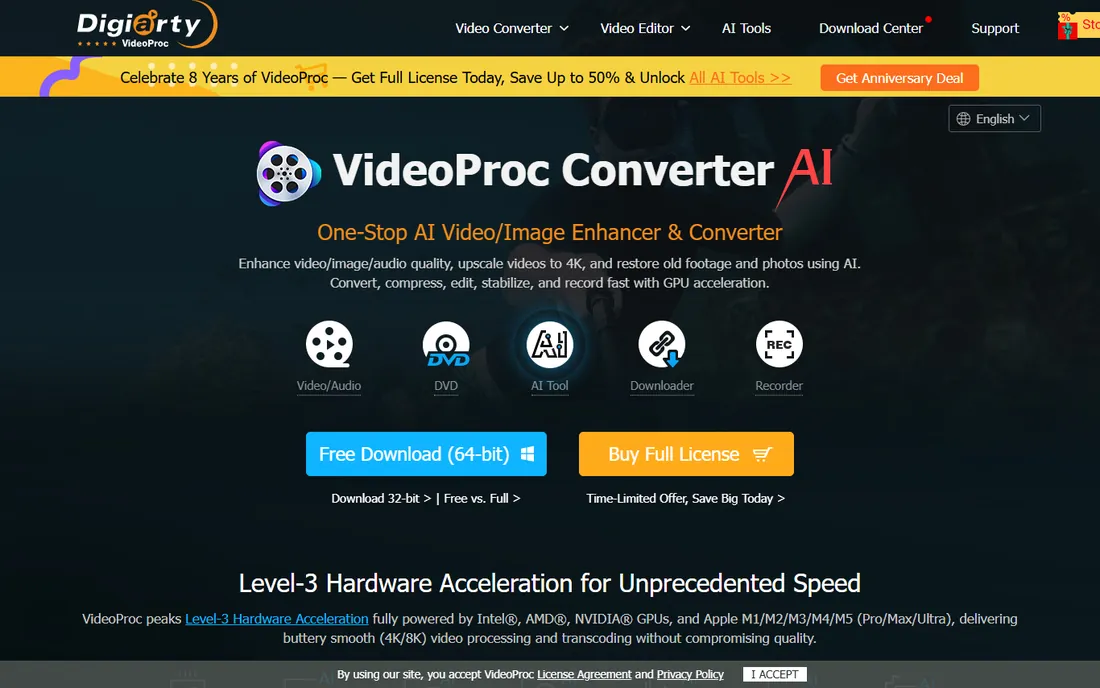
VideoProc Converter from Digiarty is the performance pick. Its hardware acceleration uses Intel, AMD and NVIDIA GPUs to convert and process 4K video far faster than CPU-only tools, and the AI features upscale old footage, smooth frame rates and stabilize shaky video. It also downloads online video, records the screen and digitizes DVDs, making it a toolkit rather than a single converter.
The free trial limits processing to 5-minute files, so test with a real clip. Pricing has shifted over the years between subscription and lifetime licenses, so check videoproc.com for current plans. Buy it when you process lots of 4K footage or want AI enhancement; for simple conversions, HandBrake is free.
What we like- Level-3 hardware acceleration for fast 4K processing
- AI upscaling, frame interpolation and stabilization
- Also downloads, records and digitizes DVDs
Watch out for- Paid plans needed for full use
- Mac version has lagged Windows on AI features
Starting price$49.99/year (Annual Plan)
Free planFree trial (limited features, watermarked output)
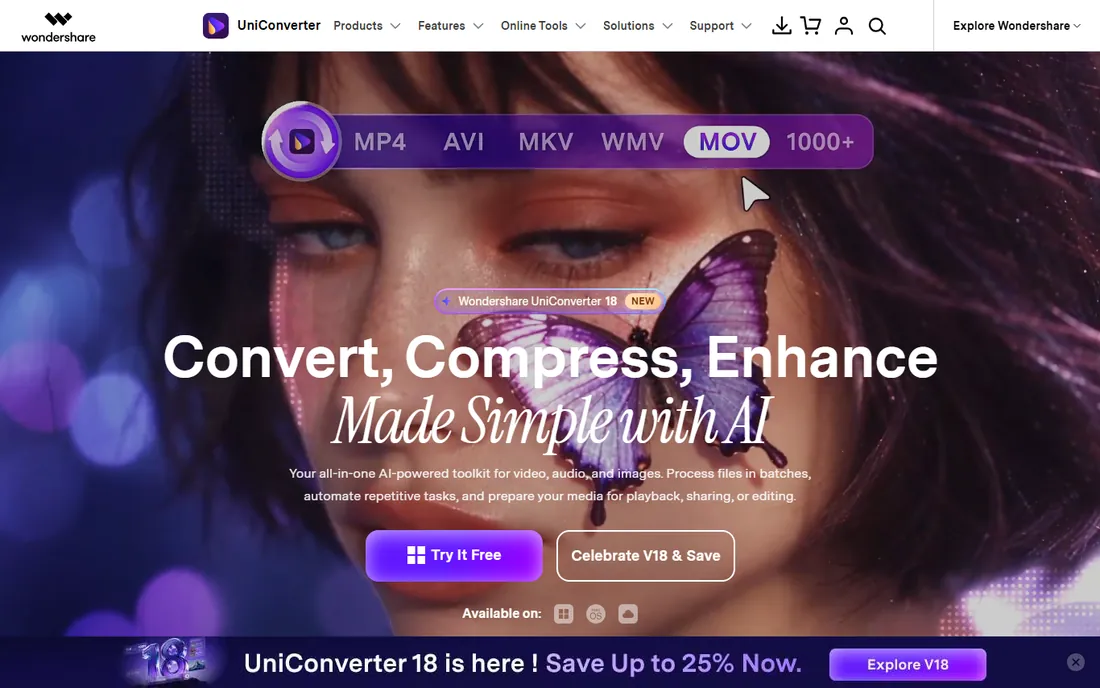
UniConverter is Wondershare's flagship video toolbox: conversion across more than a thousand formats, compression, trimming and merging, DVD burning, screen recording, and AI extras like vocal removal, subtitle generation and portrait mode. Per the company's own V15 launch announcement, the Annual Plan is $49.99, with 2-year and perpetual plans also available.
The interface is the friendliest of the paid tools, which matters for business users and creators who convert video as part of a bigger workflow. The trial is limited and watermarks output, so evaluate quickly. If you need one tool that converts, compresses, burns and records, this is the most complete package here.
What we like- Converts 1,000+ formats with compression, editing, DVD burning and screen recording
- AI tools like vocal remover and auto subtitles
- Polished interface
Watch out for- Subscription pricing adds up
- Free trial watermarks output
#4
Movavi Video Converter
Best for: Beginners who want fast conversion with AI upscaling
Visit movavi.com
Starting price$19.95/month
Free planFree trial (7-day, watermarked output)
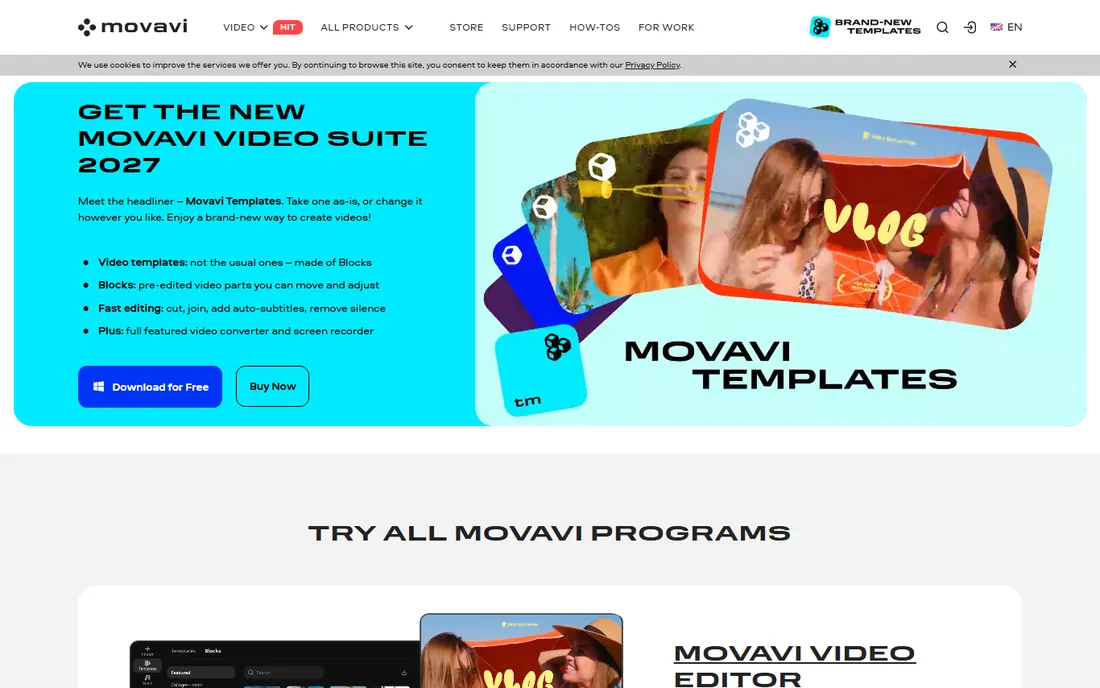
Movavi Video Converter is built for people who find HandBrake intimidating. Drag in a file, pick a preset for your phone, tablet or platform, and convert. It adds AI video upscaling, strong compression, and basic trimming and merging. Movavi's own store lists the Video Converter at $19.95 for a 1-month subscription, with annual and lifetime options typically cheaper per month.
The 7-day trial watermarks output and converts only half of audio files, so it is a look-but-verify trial. The monthly price is steep if you convert daily; the lifetime license is the sensible buy for regular users. Choose Movavi when ease matters more than cost, and HandBrake when it does not.
What we like- Very easy interface with device presets
- AI upscaling up to 8x
- Fast conversion with compression tools
Watch out for- Monthly pricing is expensive long-term
- Trial watermarks videos and limits audio conversion
Starting priceSee website
Free planYes (free version)
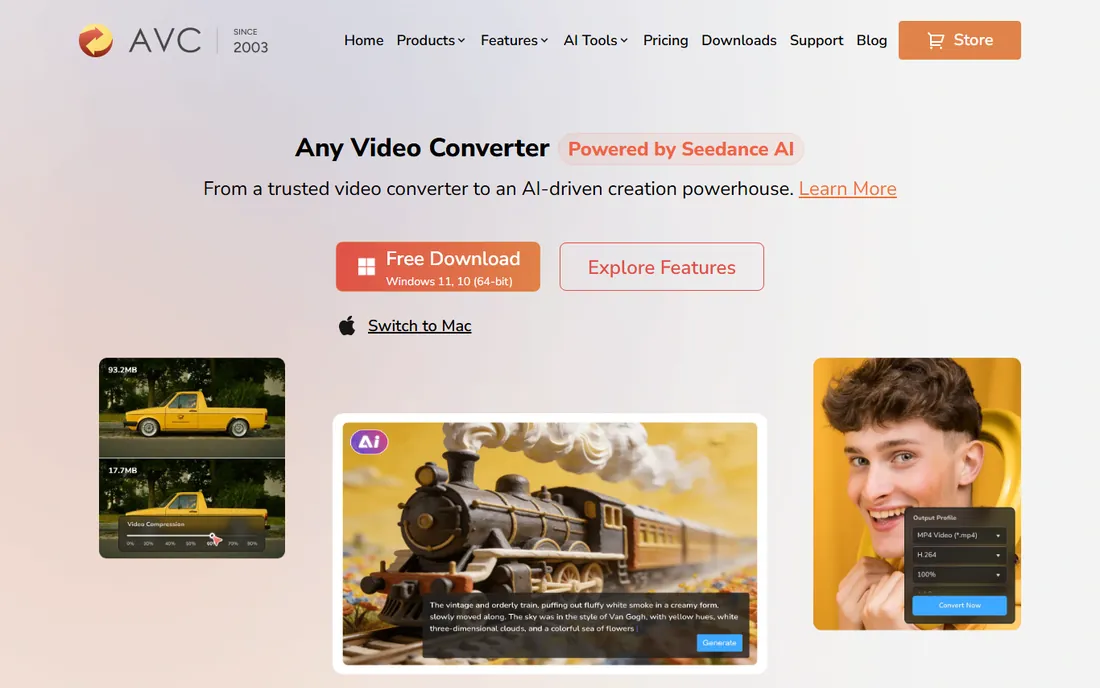
Any Video Converter (Anvsoft) takes the freemium route: the free version converts between video and audio formats with no trial clock, covering the core job. Paid Pro and Ultimate tiers add video downloading with custom settings, DVD burning, HD and 4K screen recording, and AI tools like audio splitting and speech to text.
The free version is genuinely usable for everyday conversion, which is why it has lasted so long. Power users who want the extras should check current pricing on the vendor site, since paid tiers were not listed there at check time. It sits between HandBrake's purity and the paid suites' feature lists.
What we like- Free version converts video and audio without time limits
- Paid tiers add DVD burning, HD screen recording and AI tools
- Simple interface
Watch out for- Free version nudges toward paid upgrades
- Paid pricing not published on the vendor site at check time
#6
Freemake Video Converter
Best for: Simple free conversion of common formats
Visit freemake.com
Starting priceSee website
Free planYes (free version with limitations)
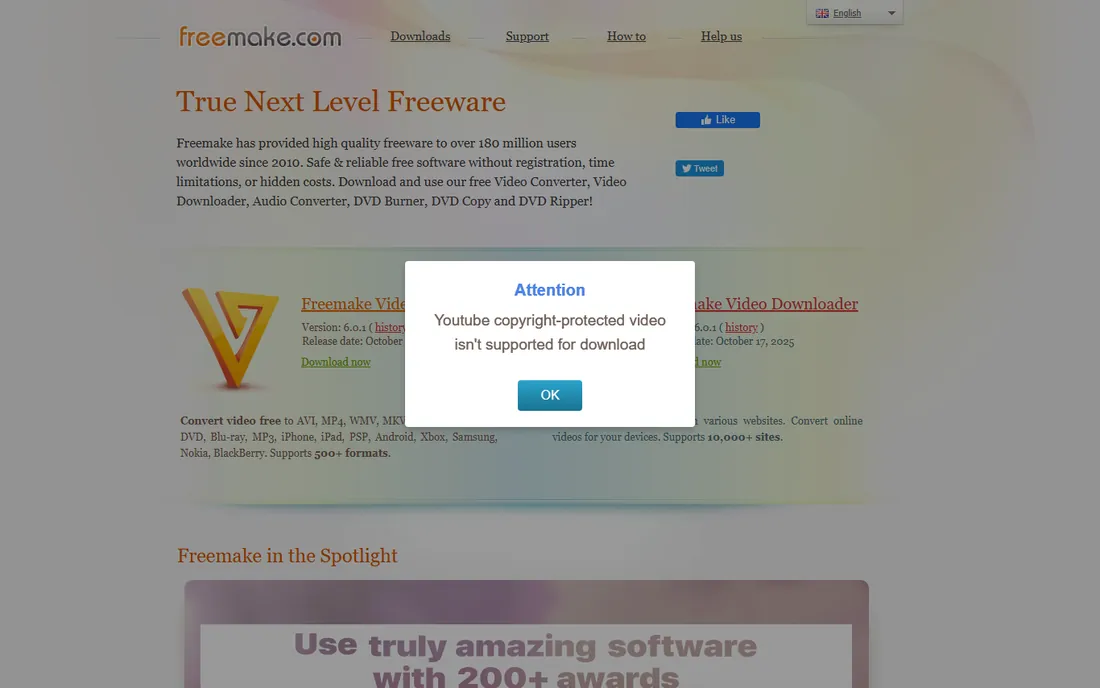
Freemake Video Converter has been the simple free option for years: drop in a video, pick MP4 or a device preset, convert. The free version covers common formats and basic DVD ripping, while a paid pack removes limitations and adds extras. It is less technical than HandBrake and less pushy than some freemium rivals.
The tradeoff is momentum: Freemake updates less often than HandBrake or Shutter Encoder, and the free version's limitations are designed to sell the upgrade. For quick, simple conversions on Windows it still does the job. Check the current free-versus-paid split on freemake.com before relying on it.
What we like- Dead-simple interface for common conversions
- Free version handles everyday formats
- DVD and Blu-ray ripping for unprotected discs
Watch out for- Free version has limitations that push toward the paid pack
- Development pace has slowed
#7
Avidemux
Best for: Free cutting, filtering and re-encoding without bloat
Visit avidemux.org
Starting priceFree
Free planYes

Avidemux is a different kind of tool: a free, open-source video editor focused on cutting, filtering and encoding. Its killer feature is cutting video without re-encoding, which is instant and lossless. It also applies filters for deinterlacing old footage, resizing, and fixing color, then encodes to common formats.
It is not a preset-driven converter like the others; there are no "iPhone" buttons, just codecs and containers. For archivists trimming and fixing old video, or anyone who needs fast lossless cuts, it is unmatched and free. Pair it with HandBrake: cut in Avidemux, convert in HandBrake.
What we like- Free and open source
- Fast cutting without re-encoding
- Useful filters for deinterlacing, resizing and color
- Runs on Windows, Mac and Linux
Watch out for- Dated interface
- Not a full converter with device presets
Starting priceFree
Free planYes
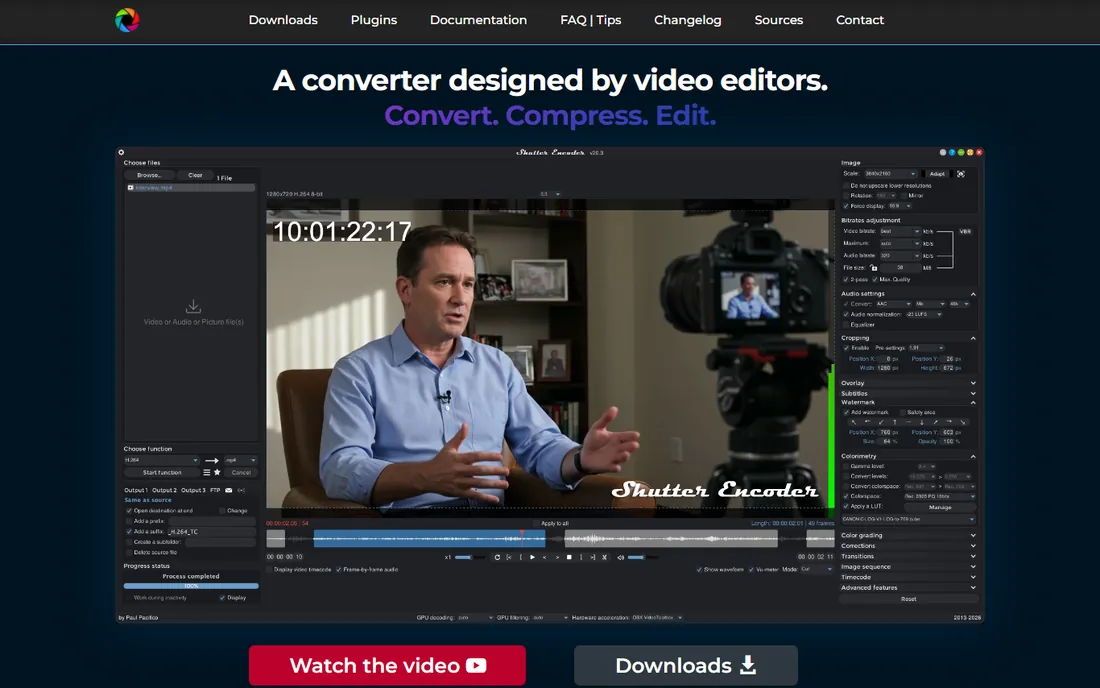
Shutter Encoder is the free tool professionals quietly use. Built on FFmpeg, it converts between a huge range of formats including professional broadcast codecs, handles image sequences, replaces audio, burns in subtitles, and compresses for the web, all without watermarks, limits or accounts. It is donation-supported freeware from an independent developer.
The interface packs in a lot, which can overwhelm first-timers; HandBrake's presets are friendlier for simple jobs. But when you need a codec HandBrake does not offer, or broadcast-standard output for free, Shutter Encoder is the answer. It is the most capable free encoder here, full stop.
What we like- Completely free with no watermarks
- Pro features like broadcast codecs, image sequences and audio tools
- Donation-supported by one developer
Watch out for- Interface is dense for beginners
- Documentation assumes some encoding knowledge
How we chose
We covered video converters and processors that real users install, from free open-source tools to paid AI-enhanced suites. We verified pricing on vendor sources where available: Wondershare's $49.99 Annual Plan from its own V15 launch announcement and Movavi's $19.95 monthly price from its own store. VideoProc's current plans were not on its vendor page at check time, so it is marked "See website." We compared conversion breadth, speed, AI features, trial limits and export quality using reviews from TechRadar, Larry Jordan and practitioner coverage. No hands-on testing was involved.
What to check before you convert
Match the tool to the source. Copy-protected DVDs and Blu-rays need dedicated ripping software; none of these converters crack modern disc encryption. For downloaded or recorded files, any tool here works. Check the output you actually need: social platforms want MP4/H.264, archives want high-bitrate or lossless, and old devices may need specific presets.
Then check the trial math. Paid converters watermark trial output, which makes them useless for real work until you buy. Test with a short clip, confirm the quality and speed on your hardware, and only then pay. And keep your originals: conversion is lossy by nature, so archive the source file before compressing it into oblivion.
Free vs paid: where the money goes
Free converters handle format conversion and compression as well as paid ones; HandBrake and Shutter Encoder prove it daily. Paid tools charge for three things: AI enhancement like upscaling and denoising, workflow features like batch automation and downloads, and convenience like one-click presets and support.
The honest test is volume. Converting a few videos a month? Free tools win. Processing 4K footage weekly, enhancing old archives, or running a content pipeline? A paid suite's speed and AI features pay back fast. Start free, upgrade when a specific limitation costs you real time.
Frequently asked questions
What is the best free video converter?
HandBrake for general conversion and compression, Shutter Encoder for professional codecs and formats. Both are free with no watermarks or limits, and together they cover nearly every conversion job.
Can video converters upscale old videos?
Yes, with AI tools: VideoProc Converter and Movavi Video Converter offer AI upscaling that enlarges and cleans old footage. Results vary by source quality; no upscaler creates detail that was never there.
Do I need a paid converter for YouTube?
No. HandBrake's YouTube and device presets produce excellent uploads for free. Paid tools help when you need batch processing, faster 4K encoding, or AI enhancement of the source footage.
Can these tools rip copy-protected DVDs?
No. None of the converters here defeat modern disc copy protection. They handle unprotected discs and your own recordings; protected commercial discs need dedicated ripping software.
What format should I convert videos to?
MP4 with H.264 for maximum compatibility, H.265 or AV1 for smaller files on modern devices, and MKV for archives with multiple audio tracks and subtitles. All the tools here support these.
Sources we checked (5)
- https://www.prnewswire.co.uk/news-releases/wondershare-uniconverter-v15-revolutionizes-video-conversion-industry-with-17-years-of-expertise-301886256.html
- https://www.movavi.com/store/?cartId=66ca19a3c1f3181e00f702d425d940591d1067d4
- https://www.techradar.com/reviews/digiarty-videoproc-review
- https://www.techradar.com/reviews/any-video-converter-free
- https://larryjordan.com/articles/first-look-videoproc-converter-from-digiarty-software/
Is your product missing or out of date?
We review this list regularly. Vendors can request a listing, send updated pricing or ask about featured placement.

Shihab Mia · Founder, Rankite
Shihab has spent more than a decade helping SaaS and e-commerce brands grow through search. He writes Rankite's software buying guides from pricing pages, documentation and public user reviews. More about Shihab.