How we make this list: we compare pricing pages, product documentation and public user reviews. Ratings come from G2, Capterra or Trustpilot, with the date we checked them.
Key takeaways
- DaVinci Resolve is the strongest free starting point for serious editing, because the free version exports in 4K without a watermark and includes professional colour tools.
- Premiere Pro still makes sense for teams that share projects with other Adobe users, but the subscription adds up to far more than a one-time purchase over five years.
- Final Cut Pro is the best value for Mac-only editors who want a single payment, while CapCut and Clipchamp win for fast social and browser-based edits.
- Free editors always have a limit somewhere, so check export resolution, watermarks, and hardware needs before you commit to a project in one of them.
- Your computer matters as much as the editor, since Resolve and Premiere Pro need a capable graphics card and plenty of memory for 4K work.
Quick comparison
| Tool | Best for | Starting price | Free plan |
|---|
 DaVinci Resolve DaVinci Resolve | Professional editing and colour at no cost | Free; Studio $295 one-time | Yes |
 Adobe Premiere Pro Adobe Premiere Pro | Industry-standard editing in Adobe workflows | $22.99 per month (annual plan) | No / Free trial (7 days) |
 Final Cut Pro Final Cut Pro | Fast Mac editing for a single payment | $299.99 one-time | No / Free trial |
 CapCut CapCut | Fast social and short-form video | See website | Yes |
 Clipchamp Clipchamp | Simple browser editing on Windows | Free; Premium via Microsoft 365 | Yes |
 Filmora Filmora | Beginner-friendly editing with AI helpers | $79.99 perpetual; annual plans also available | Yes (watermarked exports) |
 Lightworks Lightworks | Learning a professional workflow for free | Free; paid Create and Pro plans | Yes |
 OpenShot OpenShot | Simple free editing with no subscription | Free | Yes |
Is your product missing or out of date?
We review this list regularly. Vendors can request a listing, send updated pricing or ask about featured placement.
The best video editing software free and paid
#1DaVinci Resolve
Best for: Professional editing and colour at no cost4.7/5 on
G2 (221 reviews, checked Oct 2026)
Visit blackmagicdesign.com
Starting priceFree; Studio $295 one-time
Free planYes
DaVinci Resolve stands apart because its free version is not a teaser. Editors get a full timeline editor, the colour page that professionals use on films, Fusion effects, and Fairlight audio, all in one download for Windows, Mac, and Linux. For a YouTuber, wedding editor, or small studio, that combination removes the usual choice between paying a subscription and accepting a watermark.
The cost is learning time and hardware. Resolve rewards editors who learn its pages and shortcuts, and 4K projects run best with 16 GB of memory and a graphics card with at least 4 GB of video memory. The $295 Studio upgrade adds AI tools, noise reduction, and higher-end finishing features, but most creators should start free and pay only when a Studio feature blocks real work.
What we like- Free 4K export with no watermark
- Outstanding colour tools
- Editing, effects, and audio in one app
Watch out for- Steep learning curve
- Needs a capable computer for 4K and effects work
#2Adobe Premiere Pro
Best for: Industry-standard editing in Adobe workflows4.5/5 on
G2 (1,675 reviews, checked Oct 2026)
Visit adobe.com
Starting price$22.99 per month (annual plan)
Free planNo / Free trial (7 days)
Premiere Pro remains the default choice in many production teams for a practical reason: other editors, clients, and collaborators often use it too. Projects move between Premiere Pro, After Effects, and Audition without export loops, and the library of presets, templates, and tutorials is larger than for any rival here. Multicam editing, Productions for multi-project work, and Frame.io review links make it a solid team tool.
The subscription is the honest downside. At $22.99 per month on an annual plan, five years costs about $1,379 for Premiere Pro alone, against $295 once for Resolve Studio or $299.99 once for Final Cut Pro. Premiere Pro also benefits from 32 GB of memory and a fast graphics card on large 4K timelines. Buy it when Adobe collaboration is a real weekly need, not just a nice idea.
What we like- Largest tutorial and template library
- Tight After Effects and Audition links
- Strong multicam and Productions workflows
Watch out for- Subscription cost grows year after year
- Can feel heavy on modest computers
#3Final Cut Pro
Best for: Fast Mac editing for a single payment4.4/5 on
G2 (87 reviews, checked Oct 2026)
Visit apple.com
Starting price$299.99 one-time
Free planNo / Free trial
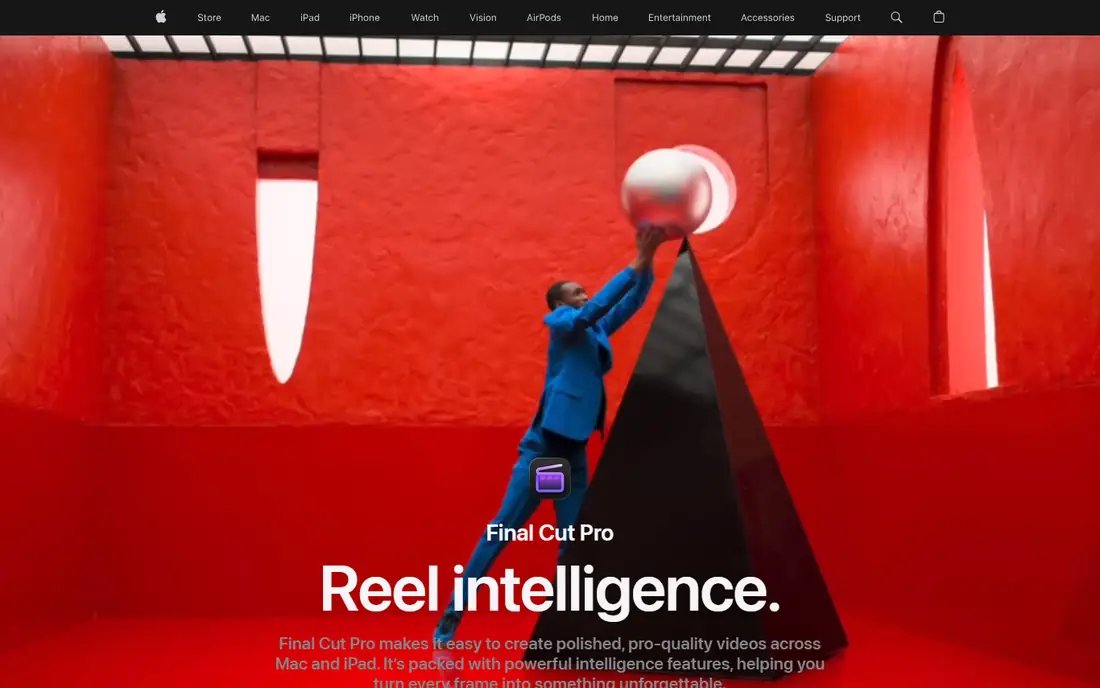
Final Cut Pro suits a Mac editor who wants speed without a monthly bill. The magnetic timeline keeps clips connected as you trim and move sections, which makes rough cuts faster than a traditional track layout for many editors. On Apple silicon, playback and export are quick, and ProRes handling is a genuine advantage for editors who shoot in Apple formats.
The limits are platform and subscription creep. Final Cut Pro does not run on Windows, so a team that mixes platforms cannot standardise on it. Apple also sells Creator Studio at $12.99 per month, which bundles Final Cut Pro with other apps and some premium content, while the $299.99 one-time purchase remains available. Check which route covers the content you need before you buy.
What we like- Very fast on Apple silicon
- Magnetic timeline speeds assembly
- One-time Mac purchase
Watch out for- Mac and iPad only
- Some premium content now sits behind Apple Creator Studio
Starting priceSee website
Free planYes
CapCut is the tool to reach for when the video is vertical, short, and needed today. Auto captions, trending templates, effects, and music help a creator turn phone footage into a finished Reel, Short, or TikTok clip in minutes, and the desktop and mobile versions share a familiar workflow. For social teams, that speed matters more than the deep colour and audio tools found in Resolve.
Long-form work exposes the limits. CapCut is not built for feature-length timelines, complex multicam, or detailed finishing, and some templates and premium assets require a Pro plan. A creator who mainly makes shorts can happily live in CapCut, while a creator who also edits weddings or documentaries should pair it with Resolve or Premiere Pro for longer projects.
What we like- Fastest route to a finished social clip
- Auto captions and templates
- Desktop, web, and mobile versions
Watch out for- Weaker for long-form projects
- Premium assets and some exports sit behind Pro
- Template quality varies
#5Clipchamp
Best for: Simple browser editing on Windows4.1/5 on
G2 (49 reviews, checked Oct 2026)
Visit clipchamp.com
Starting priceFree; Premium via Microsoft 365
Free planYes
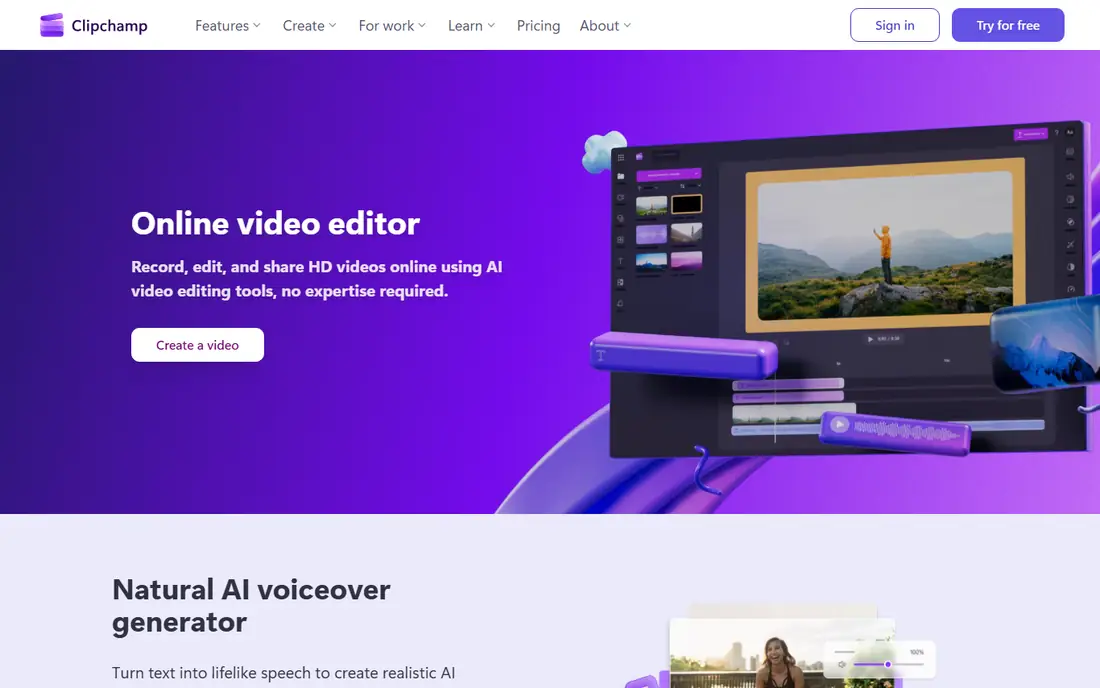
Clipchamp fits the editor who wants to open a browser, cut a video, and share it without installing software. It is built into Windows 11, offers templates, stock video and audio, AI captions, and text-to-speech voices, and the free plan exports at 1080p without a watermark. For school, workplace, and simple marketing videos, that is often enough.
The ceiling appears on larger projects. The free plan caps exports at 1080p, and 4K plus premium stock sit behind a Microsoft 365 subscription, so the true cost depends on whether you already pay for Microsoft 365. Clipchamp also lacks the deep colour, effects, and multicam depth of desktop editors. Use it for quick, clean edits, and move to Resolve or Filmora when a project grows complex.
What we like- Runs in the browser with no install
- Free 1080p exports
- Easy templates and stock library
Watch out for- 4K export and premium stock need Microsoft 365
- Weaker than desktop editors for complex projects
Starting price$79.99 perpetual; annual plans also available
Free planYes (watermarked exports)
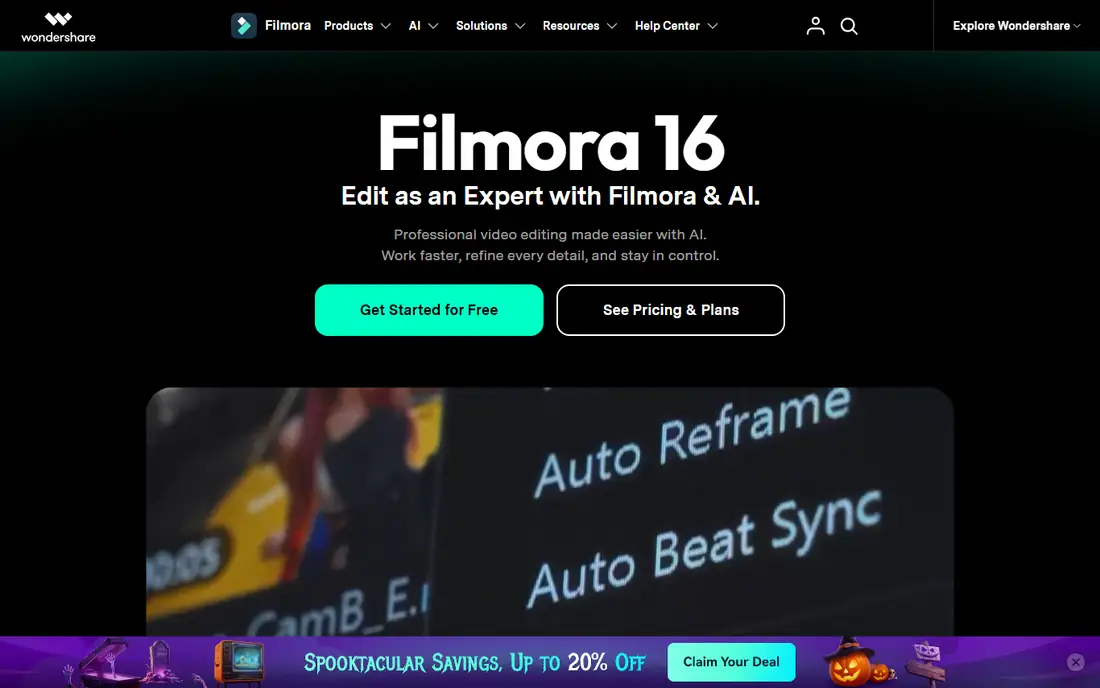
Filmora bridges the gap between CapCut and a full professional editor. The timeline is easy to learn, yet it offers keyframes, camera tracking, colour tools, and a library of more than two million creative assets. AI helpers handle rough cuts, captions, and audio cleanup, which helps a marketing creator or educator finish polished videos without learning Resolve first.
Pricing needs a careful read. The free version exports with a watermark, so it is a trial in practice, and the $79.99 perpetual licence covers Filmora 16 only, not future major versions. Annual plans are also available, and some AI features use credits that can run out. Filmora is still good value for a creator who wants guided editing, but compare the annual plan against Resolve free before paying.
What we like- Gentle learning curve
- Large effects and template library
- AI tools for captions, cutting, and audio
Watch out for- Free exports carry a watermark
- Perpetual licence covers one version only
- AI credits can add cost
#7Lightworks
Best for: Learning a professional workflow for free3.6/5 on
G2 (31 reviews, checked Oct 2026)
Visit lwks.com
Starting priceFree; paid Create and Pro plans
Free planYes
Lightworks carries real professional history, having been used on major films, and its free version gives beginners a taste of that workflow without a time limit. The timeline, trim tools, and multicam support feel more like a cutting room than a template app, which suits an editor who wants to learn proper technique rather than rely on presets. It runs on all three desktop platforms, which helps mixed households and classrooms.
The free plan caps exports at 1080p, and higher resolutions, more formats, and fuller delivery options require Create or Pro plans. The interface also takes longer to learn than Filmora or Clipchamp, and the effects and template library is smaller. Lightworks is best for a patient learner who wants professional habits at no cost, with a paid upgrade path when 1080p stops being enough.
What we like- Professional timeline heritage
- Free version is not time-limited
- Runs on Windows, Mac, and Linux
Watch out for- Free exports capped at 1080p
- Interface takes time to learn
- Fewer templates than Filmora or CapCut
#8OpenShot
Best for: Simple free editing with no subscription4.5/5 on
G2 (31 reviews, checked Oct 2026)
Visit openshot.org
Starting priceFree
Free planYes
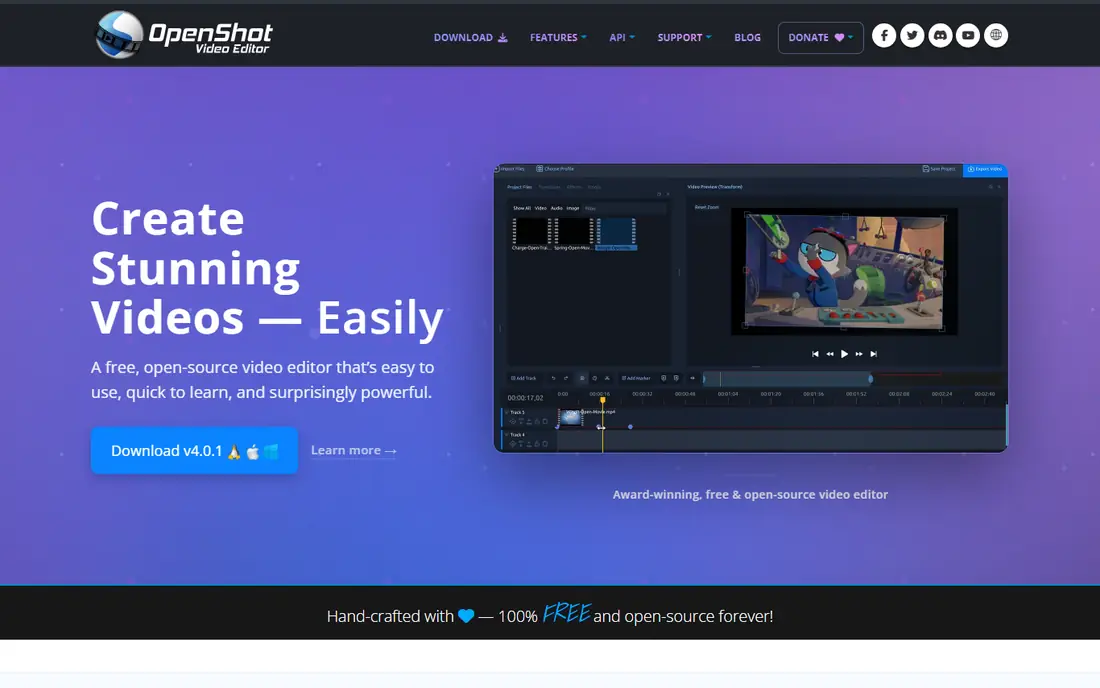
OpenShot is the simplest honest free editor here. It costs nothing, has no watermark, and offers unlimited tracks, keyframe animation, 3D titles, and effects that cover most beginner and school projects. For a student, hobbyist, or small charity that needs to cut interviews, slideshows, and simple YouTube videos, OpenShot removes price from the decision entirely.
Performance is the trade-off. Large projects with many effects can export slowly, and OpenShot lacks the colour depth, AI tools, and template libraries of paid rivals. Editors who hit those limits should move to DaVinci Resolve free, which keeps the price at zero while adding professional depth, rather than paying for a mid-range editor first.
What we like- Completely free and open source
- Unlimited tracks
- No watermark and no subscription
Watch out for- Slower exports on large projects
- Fewer advanced effects
- Stability varies on heavy timelines
How we chose
We compared pricing pages, product documentation, and public reviews on G2, Capterra, and Reddit, and we kept only editors that are available today on at least one major platform. We weighed free export limits, watermarks, platform support, hardware needs, and the total cost over five years, not just the first-year price. We did not claim hands-on testing, and prices should be confirmed on the vendor pricing page before purchase, since subscription prices change.
Picking by job, not by feature list
Start from the video you make most often. Short social clips point to CapCut or Clipchamp, simple YouTube and marketing videos point to Filmora or OpenShot, and longer, colour-sensitive work points to DaVinci Resolve, Premiere Pro, or Final Cut Pro. A feature list will tempt you toward the most powerful editor, but the editor you open every day is the one that matches your usual job, your computer, and your patience for learning.
Check three limits before you choose. First, export resolution and watermarks on the free plan, since a 720p cap or a watermark can ruin an otherwise good editor. Second, hardware, since Resolve and Premiere Pro need a stronger computer than Clipchamp or OpenShot. Third, total cost, since a $22.99 monthly subscription passes $1,300 in five years while a $295 one-time purchase does not. Run a real project, not a demo clip, through your top two choices before paying.
Frequently asked questions
What is the best free video editing software?
DaVinci Resolve is the best free editor for serious work, because it exports in 4K without a watermark and includes professional colour, effects, and audio tools. OpenShot and Clipchamp are simpler free options, while Lightworks free is a good way to learn a professional workflow at 1080p.
Is paid video editing software worth it?
Paid software is worth it when a free editor blocks your work, such as when you need 4K exports from Lightworks, watermark-free exports from Filmora, or Adobe collaboration in Premiere Pro. If Resolve free already covers your projects, paying adds little, so upgrade only for a specific missing feature.
Can I edit 4K video for free?
Yes, DaVinci Resolve free exports in 4K without a watermark, and CapCut free can handle 4K in some cases depending on device and plan. You still need a capable computer, with plenty of memory and a decent graphics card, or 4K editing will feel slow no matter which editor you choose.
Which video editor is best for beginners?
Filmora and Clipchamp are the easiest paid and browser options for beginners, thanks to templates, guided tools, and AI helpers. OpenShot is the easiest fully free desktop option, while CapCut is the easiest choice for short social videos made on a phone.
Do I need a powerful computer for video editing?
For simple 1080p edits in Clipchamp, CapCut, or OpenShot, a modest modern computer is enough. For 4K work in Resolve or Premiere Pro, aim for at least 16 GB of memory, a graphics card with 4 GB or more of video memory, and fast storage, and use proxy editing when the timeline stutters.
Can I switch editors later without losing projects?
Switching is possible but rarely clean, since timelines, effects, and colour work do not transfer perfectly between editors. Some tools support XML export and import, which helps move a basic timeline, but complex projects usually need rebuilding, so choose with your next year of work in mind.
Sources we checked (8)
- https://www.blackmagicdesign.com/products/davinciresolve
- https://www.adobe.com/products/premiere/pricing
- https://www.apple.com/final-cut-pro/
- https://www.capcut.com/pricing
- https://www.clipchamp.com/pricing
- https://filmora.wondershare.com/pricing.html
- https://lwks.com/pricing
- https://www.openshot.org/download/
Is your product missing or out of date?
We review this list regularly. Vendors can request a listing, send updated pricing or ask about featured placement.

Shihab Mia · Founder, Rankite
Shihab has 5+ years in B2B and SaaS SEO. He writes Rankite's software buying guides from pricing pages, documentation and public user reviews. More about Shihab.