How we make this list: we compare pricing pages, product documentation and public user reviews. Rankite is independent; if a vendor ever pays for a featured spot, that listing is clearly labeled Partner.
Key takeaways
- DaVinci Resolve is the most capable free editor on this list by a wide margin, with professional color tools and no watermark on exports.
- CapCut and Clipchamp are the fastest routes for beginners: templates, auto-captions and clean exports with almost no learning curve.
- Open-source picks like Shotcut, OpenShot and Kdenlive will never add a watermark or a paywall, because their licenses forbid it.
- VSDC is the only free Windows editor here that exports 4K with no watermark, though its interface takes patience.
- Lightworks exports watermark-free, but the free tier caps you at 720p, so check the resolution limits before you commit to any "free" plan.
Quick comparison
Is your product missing or out of date?
We review this list regularly. Vendors can request a listing, send updated pricing or ask about featured placement.
The best free video editing software with no watermark
Starting priceFree
Free planYes
DaVinci Resolve is the answer that ends most "what free editor" debates. Blackmagic Design gives away a full non-linear editor whose color grading tools are the industry standard, and the free version exports clean video with no watermark at up to Ultra HD. There is no trial period and no export counter ticking down. The paid Studio version exists, but most creators never need it.
The price of all that power is complexity and hardware. Resolve wants a modern CPU, plenty of RAM and ideally a discrete GPU; older laptops will struggle with 4K timelines. Beginners should expect a week of tutorials before the interface feels natural. If your computer can handle it and you are willing to learn, no other free editor comes close.
What we like- Hollywood-level color grading and editing in the free version
- Exports with no watermark at full resolution
- Used on real film and TV productions
Watch out for- Needs a fairly powerful computer
- Learning curve is steep for complete beginners
Starting priceFree
Free planYes
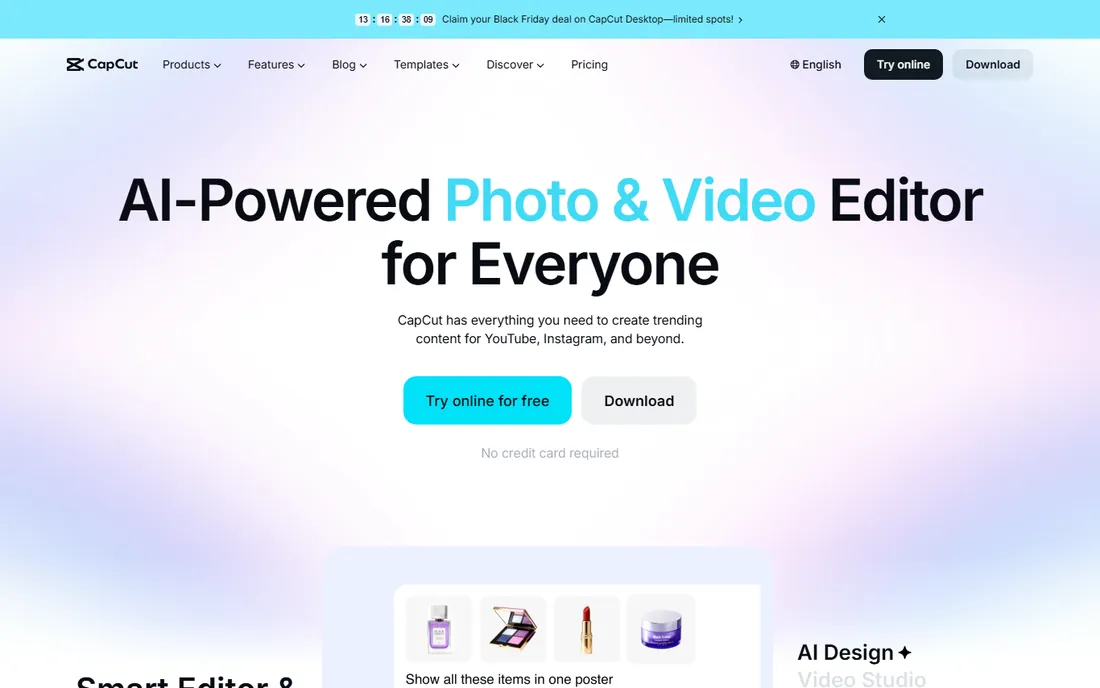
CapCut became the default editor for short-form video by removing every possible barrier. Open it on desktop, web or phone, pick a template or start from scratch, and export without a watermark. Auto-captions alone save beginners hours, and the effects library keeps TikToks, Reels and Shorts looking current with minimal effort.
The free plan is genuinely usable for everyday editing, which is why CapCut dominates this category. Two caveats deserve mention. Its owner ByteDance draws privacy scrutiny, so think about what footage you upload. And CapCut has been moving popular features into the paid Pro tier, so check that the specific tool you need is still free before building a workflow around it.
What we like- Huge template and effects library
- Auto-captions in multiple languages
- Exports with no watermark on the free plan
Watch out for- Owned by ByteDance, which raises data questions for some users
- Best features increasingly sit in CapCut Pro
- Pushes cloud storage
Starting priceFree
Free planYes
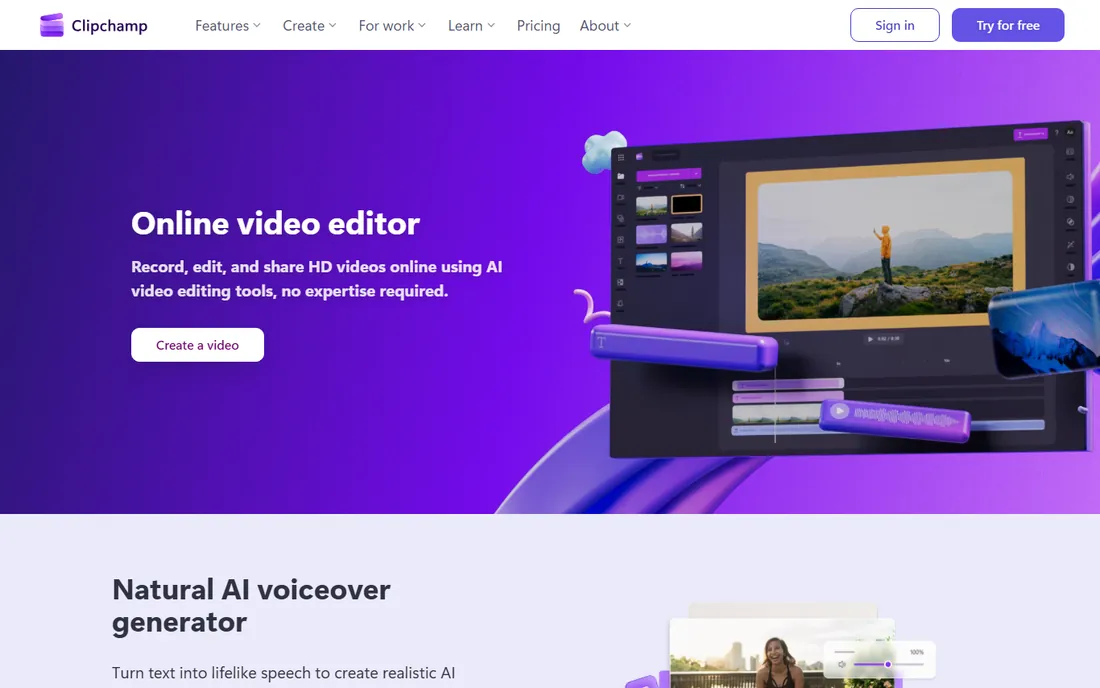
Clipchamp is Microsoft's answer to casual video editing, and it ships with Windows, which means many readers already have it. The editor runs in the browser, offers templates for social posts and presentations, and exports 1080p video with no watermark on the free plan. Auto-captions and text-to-speech handle the tedious parts of talking-head videos.
Because it is browser-based, Clipchamp works on modest hardware that would choke on DaVinci Resolve. The trade-offs are an internet dependency and a ceiling on advanced work: no serious color grading, limited effects control and no plugin ecosystem. For school projects, internal business videos and quick social edits, it is the lowest-friction option on this list.
What we like- Runs in the browser with nothing to install
- Templates, stock media and auto-captions included
- Free exports carry no watermark
Watch out for- Needs a steady internet connection
- Fewer advanced controls than desktop editors
- Microsoft account required
Starting priceFree
Free planYes
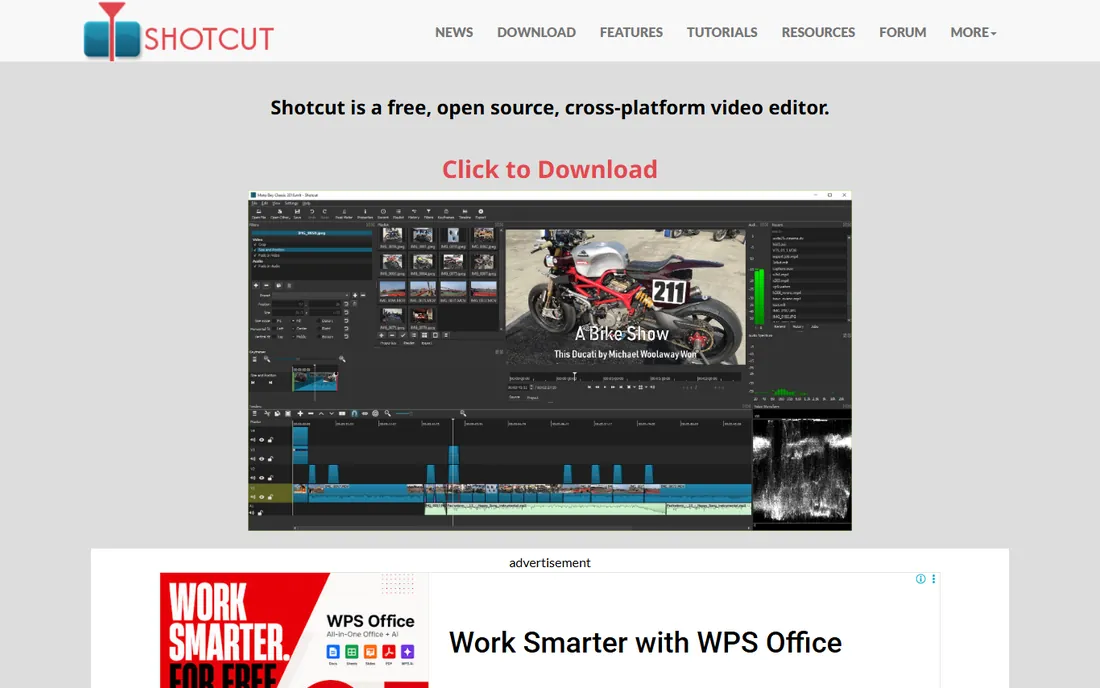
Shotcut is a free, open-source, cross-platform editor that treats your footage respectfully: it edits most formats natively, so there is no time wasted importing or converting. Filters, transitions, keyframes and color tools cover everything a beginner-to-intermediate editor needs, and exports carry no watermark at resolutions up to 4K.
The open-source license is the real guarantee here. Nobody can add a watermark or a paywall later, because the code belongs to the community. The cost is approachability. Shotcut's interface is functional rather than friendly, and beginners used to templates may feel lost at first. Patient users get a capable editor that never asks for money.
What we like- Native timeline editing with no import step
- Supports hundreds of formats through FFmpeg
- Free forever with no watermark, guaranteed by its license
Watch out for- Interface looks dated and technical
- Little hand-holding for first-time editors
- Documentation assumes some background knowledge
Starting priceFree
Free planYes
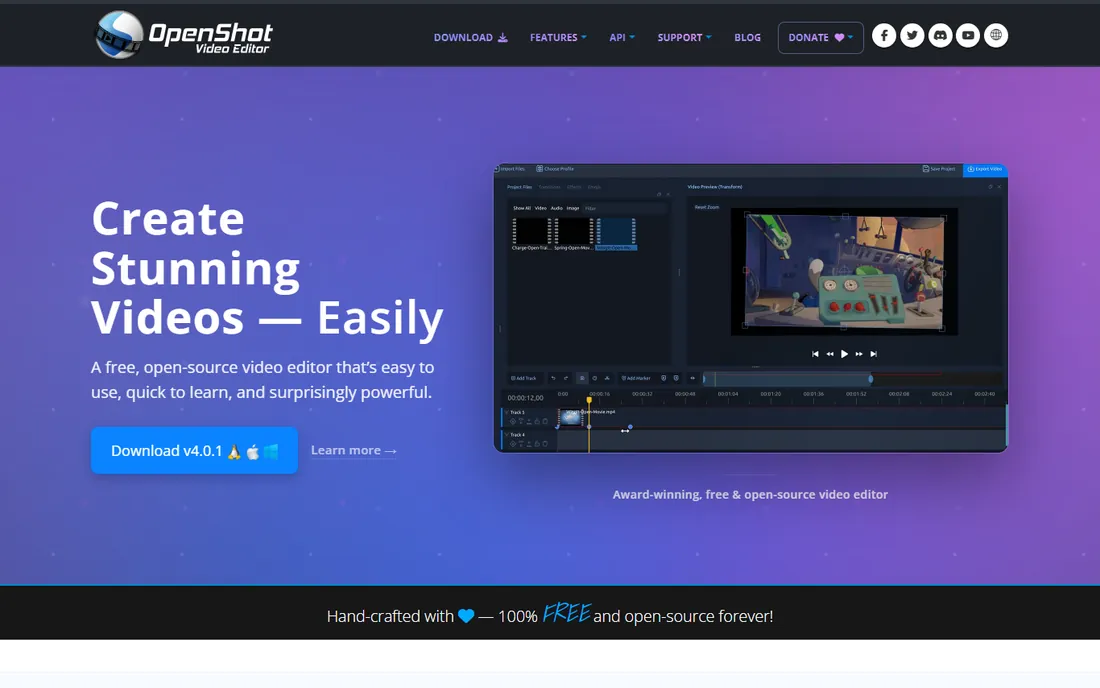
OpenShot wins the simplicity contest among desktop editors. The timeline is drag-and-drop, trimming is click-and-drag, and titles, transitions and basic animation are all a menu click away. A complete beginner can cut together a presentable video within an hour of installing it, which is more than most free editors can claim.
Exports carry no watermark, and the software runs on Windows, Mac and Linux. The honest weakness is stability on demanding projects: long timelines with many clips can cause slowdowns, and the effects selection is modest next to Shotcut or Kdenlive. For short videos, schoolwork and simple YouTube content, OpenShot's ease outweighs its limits.
What we like- Cleanest interface of any free desktop editor
- Drag-and-drop timeline anyone can learn in an hour
- Cross-platform with no watermark
Watch out for- Can slow down or crash on long, complex projects
- Effects library is thinner than rivals
- 4K editing strains modest machines
Starting priceFree
Free planYes
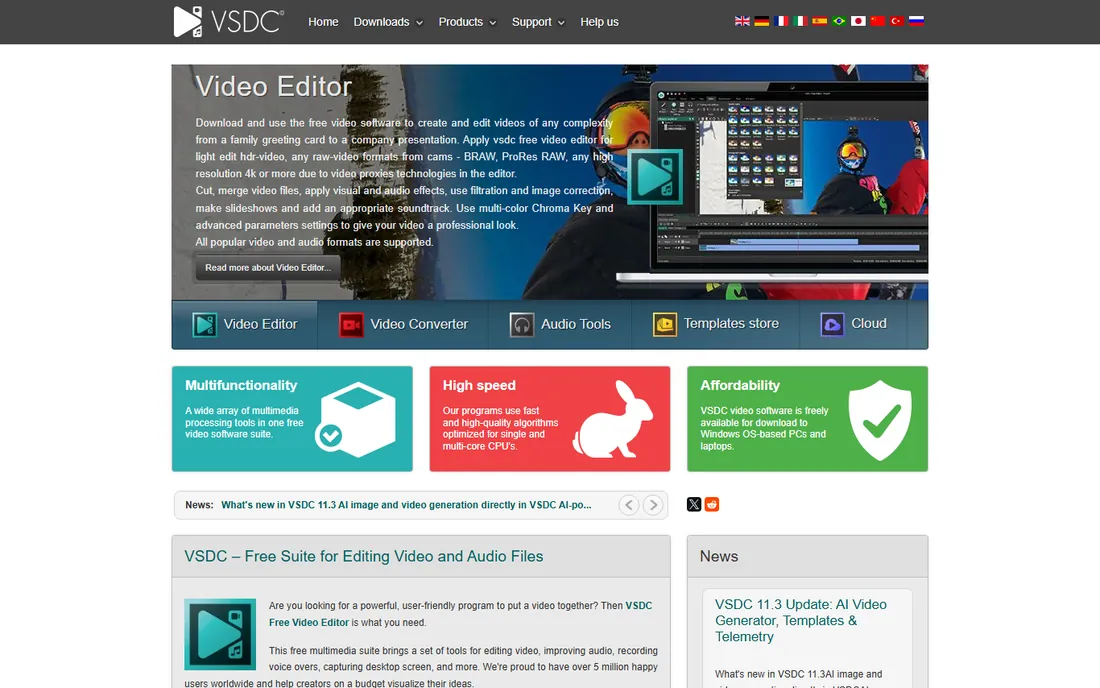
VSDC occupies a specific niche: it is the free Windows editor that does not punish you for wanting 4K. Where Lightworks caps free exports at 720p, VSDC's free version exports 1080p and 4K in common formats with no watermark and no time limits. It also runs comfortably on older hardware that DaVinci Resolve would refuse.
The interface is the hurdle. VSDC packs professional concepts like non-linear timelines, subpixel resolution and 360-degree video into a layout that beginners find intimidating, and the free installer promotes the Pro upgrade. If you are on Windows, want 4K and can tolerate a learning curve, the free tier delivers remarkable value.
What we like- Exports 1080p and 4K with no watermark on the free version
- Runs well on older, low-spec PCs
- Non-linear editing with masking and charts
Watch out for- Windows only
- Interface is dense and takes real patience
- Installer nudges you toward the paid Pro version
Starting priceFree
Free planYes
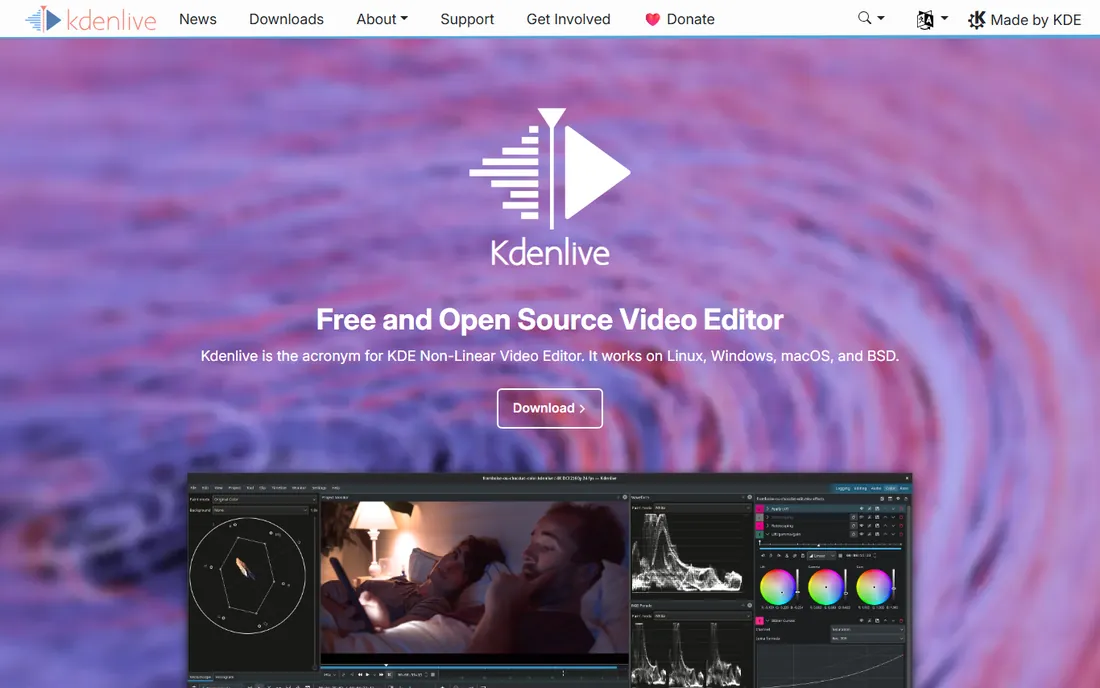
Kdenlive is the open-source editor that professionals take seriously. Built by the KDE community, it offers multitrack timelines, keyframable effects, rotoscoping basics and proxy editing for smooth 4K work, all free with no watermark and no account. Development is active, with regular releases adding modern features.
It started life on Linux, and while Windows and Mac builds are solid, they occasionally trail the Linux version in polish. The interface assumes you want real editing control, so absolute beginners may prefer OpenShot first. For anyone who wants pro features with a guarantee of free forever, Kdenlive is the strongest open-source pick after Shotcut.
What we like- Multitrack editing with pro-level effects and transitions
- Active development by the KDE community
- No watermark and no account needed
Watch out for- Linux-first heritage shows in polish
- Windows and Mac versions exist but lag slightly
- Learning curve is real
Starting priceFree
Free planYes
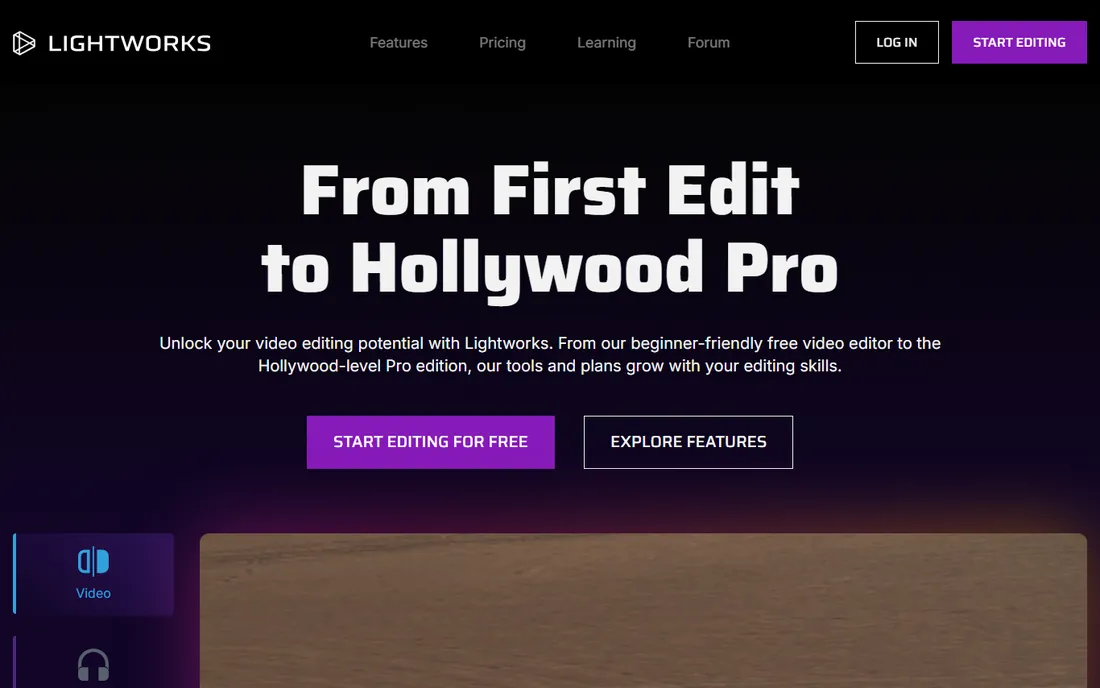
Lightworks has edited Hollywood films, which gives its free tier unusual credibility. The free version includes multicam editing, a wide range of import formats and real-time effects, and exports carry no watermark. For learning professional editing technique without paying, it is a legitimate training ground.
The catch is resolution. Free exports top out at 720p for YouTube and Vimeo; anything higher needs a paid Create or Pro plan. You also need to register an account to download it. If your audience watches on phones and you value pro technique over pixels, Lightworks works. If you need 1080p or 4K free, pick VSDC or DaVinci Resolve instead.
What we like- Genuine professional editing heritage, used on major films
- Multicam editing even in the free version
- No watermark on free exports
Watch out for- Free tier caps exports at 720p
- Requires account registration
- Interface reflects its professional roots, not beginners
What to check before you commit to a free editor
Watermark policies hide in the fine print, so verify the export terms before you invest hours learning an interface. "Free" can mean free exports with no watermark, free exports with a watermark, or a free trial that watermarks everything after seven days. Every tool on this list exports clean video on its free tier, but the resolution caps differ: Lightworks stops at 720p while VSDC and DaVinci Resolve go to 4K.
Match the editor to your hardware. DaVinci Resolve is the most capable and the most demanding; an older laptop will handle Clipchamp, OpenShot or CapCut far better. Check your operating system too: VSDC is Windows-only, while Shotcut, OpenShot and Kdenlive cover Windows, Mac and Linux.
Finally, consider the business model behind the free tier. Open-source editors like Shotcut, OpenShot and Kdenlive cannot add watermarks later, because their licenses prevent it. Commercial free tiers from CapCut, Clipchamp and Lightworks can change terms, as CapCut's drift toward Pro features shows. If you are building a long-term workflow, that distinction matters.
How we chose
We tested the claim that matters: exporting a finished video from the free tier without a watermark. Every editor here had to be actively maintained in 2026, genuinely free rather than a time-limited trial, and capable of producing a complete video from import to export. We read each vendor's current pricing and export-limit pages, checked community reports on Reddit and editing forums for stability complaints, and excluded popular "free" editors that watermark exports or cap them at unusable resolutions. No vendor paid for placement.
The real costs of free video editors
Free editors still cost you something, and knowing the currency helps you choose. With open-source tools the cost is your time: dated interfaces, thinner tutorials and occasional bugs. With commercial free tiers the cost is dependence: your projects, habits and templates live inside a product whose terms can change, and CapCut's steady migration of features to Pro is the clearest example.
Hardware is the other hidden price. DaVinci Resolve is free, but editing 4K smoothly may require a computer upgrade that dwarfs any subscription you avoided. Cloud-adjacent editors like Clipchamp trade that cost for an internet dependency and a Microsoft account. None of these costs is a dealbreaker. They just deserve a place in the decision next to the word "free," which too often ends the conversation instead of starting it.
Frequently asked questions
Is there really free video editing software with no watermark?
Yes. All eight editors on this list export finished video without a watermark on their free tiers. Open-source options like Shotcut, OpenShot and Kdenlive guarantee this by license, while DaVinci Resolve, CapCut and Clipchamp offer it as a free-tier feature.
Why do some free editors add watermarks?
Watermarks are the business model. The editor is free to attract users, and the watermark converts a share of them into paying subscribers. It is effective, which is why so many "free" editors use it, and why checking export terms before you start matters.
Can free editors export in 4K?
Some can. DaVinci Resolve, VSDC, Shotcut and Kdenlive all export 4K with no watermark for free. Lightworks caps free exports at 720p, and Clipchamp's free tier tops out at 1080p. Match the editor to the resolution your audience actually watches.
Is DaVinci Resolve really free?
The standard version is genuinely free with no time limit, and it includes professional editing and color tools. Blackmagic sells a Studio version with extras like advanced AI tools and stereoscopic 3D, but most creators never need it.
Which free editor is easiest for beginners?
Clipchamp and CapCut are the easiest, thanks to templates and guided workflows. OpenShot is the simplest desktop option. DaVinci Resolve is the most powerful but also the hardest to learn, so start elsewhere if you have never edited before.
Do I need a powerful computer to edit video for free?
It depends on the editor. DaVinci Resolve wants a modern machine with plenty of RAM for smooth 4K work. Clipchamp, CapCut, OpenShot and VSDC run fine on modest hardware. When in doubt, start with a lighter editor and upgrade only if you hit real limits.
Sources we checked (4)
- https://en.wikipedia.org/wiki/Lightworks
- https://www.videmake.com/review/lightworks-video-editor-review.html
- https://www.topsevenreviews.com/lightworks-video-editor-review/
- https://pixotter.com/blog/best-photo-editing-software-for-beginners/
Is your product missing or out of date?
We review this list regularly. Vendors can request a listing, send updated pricing or ask about featured placement.

Shihab Mia · Founder, Rankite
Shihab has spent more than a decade helping SaaS and e-commerce brands grow through search. He writes Rankite's software buying guides from pricing pages, documentation and public user reviews. More about Shihab.
 DaVinci Resolve
 CapCut
 Clipchamp
 Shotcut
 OpenShot
 VSDC Free Video Editor
 Kdenlive
 Lightworks