How we make this list: we compare pricing pages, product documentation and public user reviews. Rankite is independent; if a vendor ever pays for a featured spot, that listing is clearly labeled Partner.
Key takeaways
- Canva is the easiest starting point for most beginners, especially if your edits end up on social media or a website.
- Affinity is now completely free and gives you professional-grade desktop tools without a subscription, which makes it the best free long-term pick.
- Photopea is the closest free alternative to Photoshop, and any Photoshop tutorial on YouTube translates to it almost directly.
- If you hate subscriptions but want a desktop app, Photoshop Elements (one-time purchase) and Luminar Neo (one-time license) are the two to compare.
- Browser-based editors like Pixlr and Fotor need no installation, which makes them ideal for Chromebooks, work laptops and quick edits.
Quick comparison
| Tool | Best for | Starting price | Free plan |
|---|
 Canva Canva | Easiest start for social graphics | $144 per year | Yes |
 Pixlr Pixlr | Browser-based Photoshop-like editing | $7.99 per month | Yes |
 Fotor Fotor | One-click photo enhancement | $39.99 per year | Yes |
 Affinity Affinity | Pro desktop tools, now free | Free | Yes |
 Photopea Photopea | Free Photoshop alternative in browser | $5 per month ad-free | Yes |
 GIMP GIMP | Free open-source desktop power | Free | Yes |
 Adobe Photoshop Elements Adobe Photoshop Elements | Desktop editor, no subscription | See website | Free trial |
 Luminar Neo Luminar Neo | AI-assisted quick edits | $119 one-time | Free trial |
Is your product missing or out of date?
We review this list regularly. Vendors can request a listing, send updated pricing or ask about featured placement.
The best photo editing software for beginners
Starting price$144 per year
Free planYes
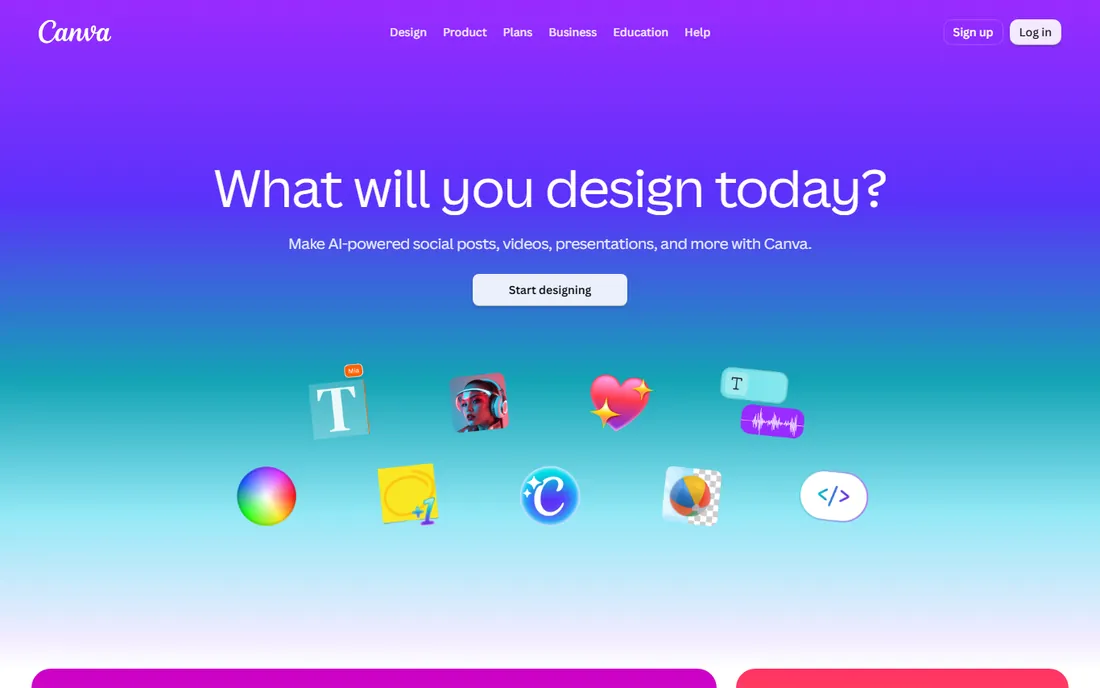
Canva is less a photo editor than a design tool that edits photos extremely well, and that is why it tops most beginner lists. You pick a format, drop in your photo, adjust brightness or apply a filter, add text, and export at the right size for Instagram or your website. The whole flow takes minutes, and you never touch a histogram unless you want to.
The free tier is generous: background removal, one-click enhance, filters and a large stock library all work without paying. Canva Pro at $144 per year adds Magic Eraser, premium templates and brand kits. The honest limitation is depth. You cannot do fine masking, curves work or RAW processing, so photographers who outgrow quick edits will eventually need a second tool. For everyone else, Canva is the fastest path from photo to published.
What we like- Thousands of templates sized for every platform
- True drag-and-drop with zero learning curve
- Background removal included in the free tier
Watch out for- No RAW support and limited pixel-level control
- Many premium assets sit behind Pro
- Needs an account and internet connection
Starting price$7.99 per month
Free planYes
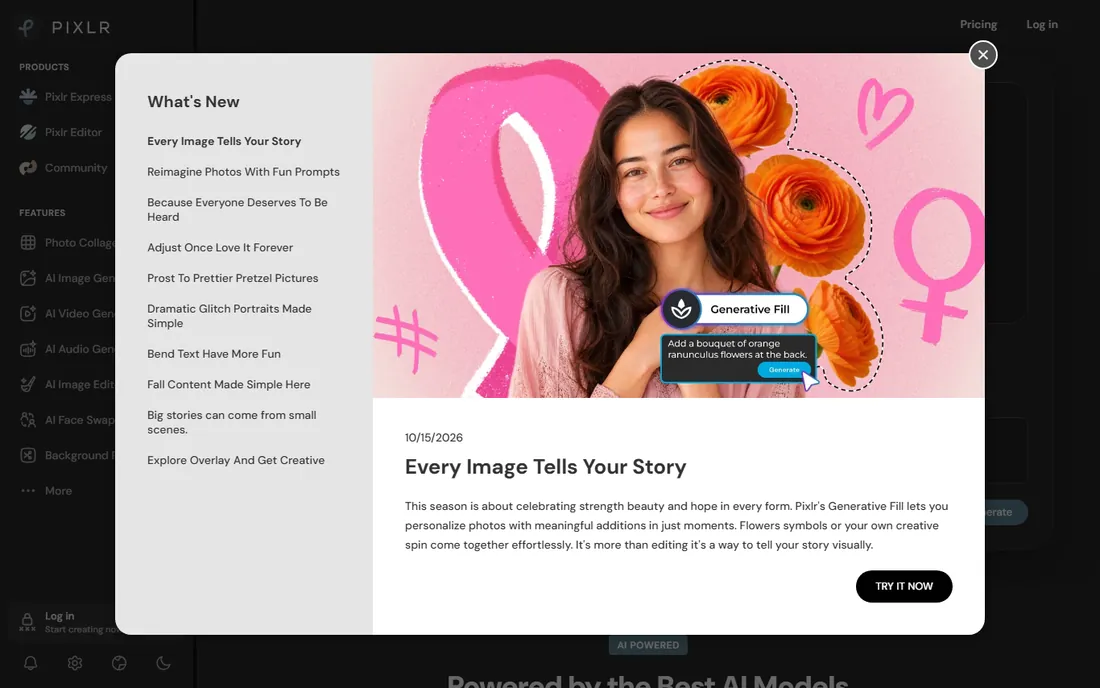
Pixlr runs entirely in your browser and feels like Photoshop with the intimidation removed. Unlike simpler web editors, it supports layers, masks and blending modes, which means skills you learn here transfer if you ever move to desktop software. The AI cutout tool removes backgrounds in one click, and the curated filters avoid the dated look of older free editors.
The free version handles most casual editing, though ads appear and some AI features carry small watermarks. Pixlr Plus at $7.99 per month removes those limits, and a Premium tier at $12.99 adds more. Because nothing installs, Pixlr is a strong pick for Chromebook users, students on shared computers, or anyone who edits across several devices during the day.
What we like- Layers, masks and blend modes in a browser tab
- AI background removal and object removal
- Opens PSD files directly
Watch out for- Free tier shows ads and watermarks some AI features
- Mobile apps lag behind the web version
- Batch editing needs a paid plan
Starting price$39.99 per year
Free planYes
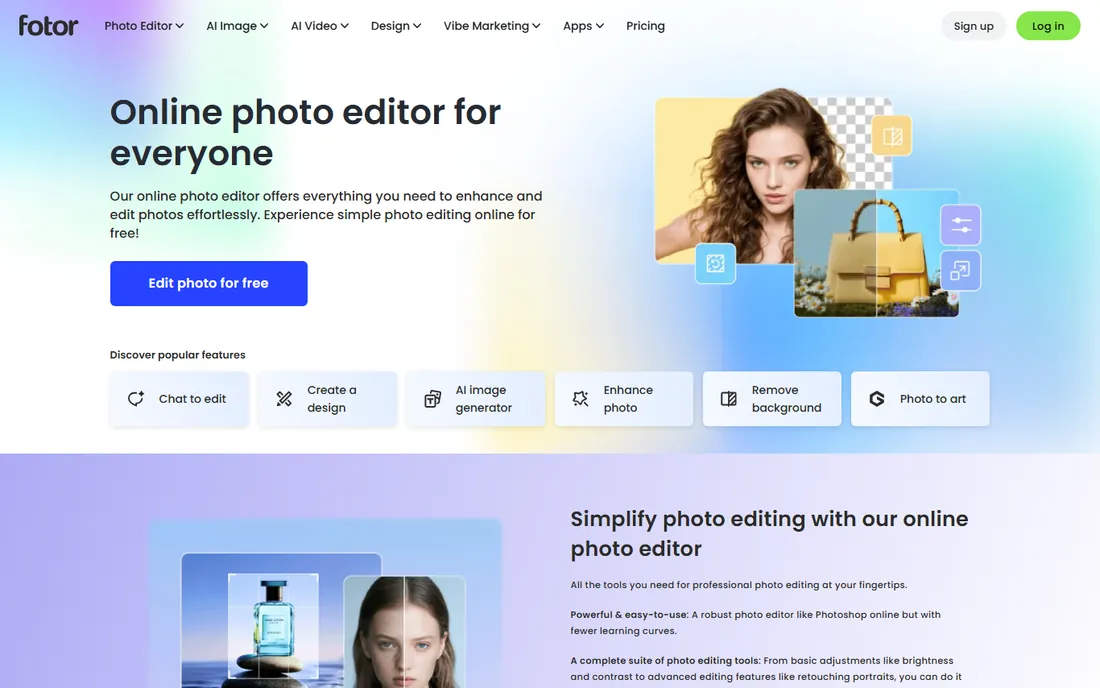
Fotor's pitch is simple: press one button and your photo looks better. The one-tap enhance analyzes exposure, contrast, saturation and sharpness together, and for vacation shots or family portraits it usually nails it. When you want more control, manual tools like curves, HSL sliders, vignette and tilt-shift are there too.
Fotor Pro costs $39.99 per year, with a Pro+ tier at $89.99 for heavier users. The free tier covers basic edits and the well-regarded collage maker, but background removal, object removal and batch editing all need Pro. Fotor suits people whose typical edit is "make this photo look better" rather than "rebuild this image layer by layer." At roughly $3.33 a month, Pro is also one of the cheapest paid ramps on this list.
What we like- One-tap enhance that genuinely improves most photos
- Excellent free collage maker
- Works on web, desktop and mobile
Watch out for- Many manual tools are locked behind Pro
- AI features require a paid plan
- Some filters feel dated
Starting priceFree
Free planYes
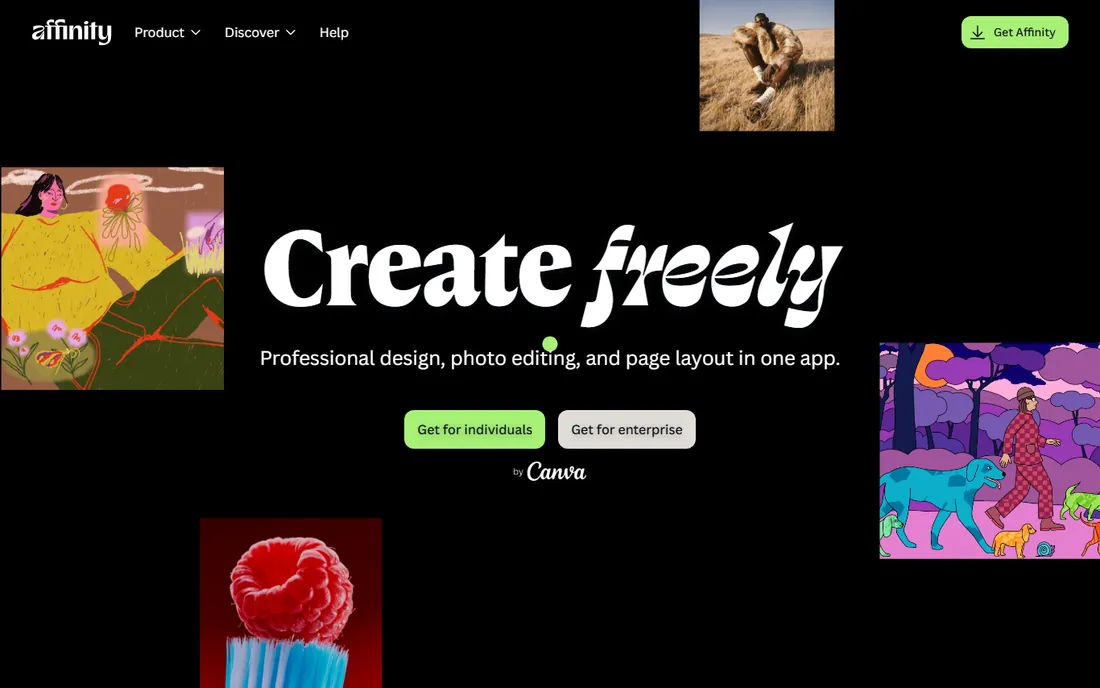
Affinity is the biggest bargain in photo editing right now. Canva bought the Affinity suite in 2024 and made it completely free in October 2025, and more than five million creatives had picked it up by April 2026 according to Business Model Analyst. You get a genuine professional desktop editor, for Mac, Windows and iPad, at a price of zero with no catch.
The interface is slick and far less intimidating than GIMP or Photoshop, which keeps it beginner-friendly despite the professional depth underneath: layers, RAW development, panorama stitching and PSD compatibility are all included. The main gap is AI. Affinity has only basic AI-assisted features, so one-click sky replacement and generative fill live elsewhere. If you want pro tools you can grow into for years without ever paying, start here.
What we like- Full professional editing suite free forever since October 2025
- Polished, non-intimidating interface
- No subscription and no ads
Watch out for- Lacks the AI features of paid rivals
- Tutorial ecosystem is smaller than Adobe's
- RAW workflow is solid but less guided
Starting price$5 per month ad-free
Free planYes
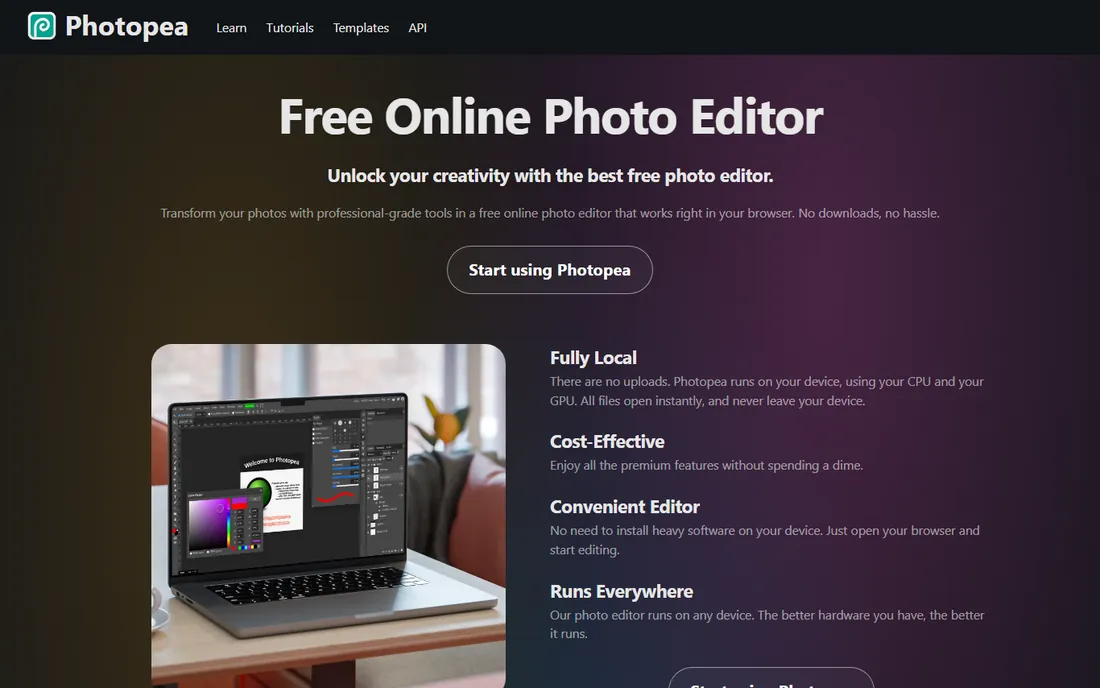
Photopea looks like Photoshop, behaves like Photoshop and opens actual PSD files, all inside a browser tab with nothing to install. It is built and maintained by a single developer, Ivan Kutskir, which explains both the fast updates and the occasional rough edge. For a beginner with ambition, its killer feature is tutorial compatibility: any Photoshop tutorial on YouTube translates to Photopea almost directly.
The free tier is fully functional with ads, and $5 per month removes them. There is no watermark on exports, which is rare for a free tool this capable. The honest warning is the learning curve. Photopea assumes you want professional controls, so absolute beginners may find Canva or Fotor kinder for the first month. Come here when you are ready to learn layers properly without paying Adobe.
What we like- Opens real PSD, XCF and Sketch files in a browser
- Full layers, masks and adjustment layers
- Exports carry no watermark
Watch out for- Photoshop-style interface is the most complex free option here
- Free tier shows ads
- Can lag with very large files
Starting priceFree
Free planYes
GIMP, the GNU Image Manipulation Program, is the most powerful free photo editor in existence. Layers, masks, paths, scriptable automation and a plugin ecosystem that adds hundreds of filters: if Photoshop can do it, GIMP can probably do it too, just differently. It costs nothing, shows no ads and will never add a paywall, because its open-source license guarantees it.
For beginners, the honest take is that GIMP demands patience. Version 3.x improved the interface with single-window mode, but it still assumes you know what a floating selection is, and you will spend evenings reading documentation. There are no AI shortcuts for background removal or sky replacement. Choose GIMP if you edit regularly, want desktop software and never want to pay for software again. Otherwise, start with something gentler and graduate here later.
What we like- Professional-grade tools free forever under an open license
- Huge plugin ecosystem
- Runs on Windows, macOS and Linux
Watch out for- Steepest learning curve on this list
- No built-in AI editing tools
- Interface still feels technical
#7
Adobe Photoshop Elements
Best for: Desktop editor, no subscription
Visit adobe.com
Starting priceSee website
Free planFree trial
Photoshop Elements is Adobe's answer to everyone who likes Photoshop's power but hates its subscription. You pay once and own it, which over two or three years works out far cheaper than any monthly plan. The 2026 version keeps the features beginners actually use: one-click fixes, object removal, background replacement and a capable RAW converter.
The standout is Guided Edits, a set of step-by-step walkthroughs that teach you real techniques like double exposures or tilt-shift effects as you perform them. It is the closest thing to a built-in tutor on this list. The trade-offs are the upfront cost, a smaller feature set than full Photoshop, and no mobile or web version. If you want a proper desktop app on your PC without a recurring charge, Elements remains the mainstream choice.
What we like- One-time purchase, no monthly bill
- Guided Edits teach techniques step by step
- Built-in organizer for large photo libraries
Watch out for- Costs money upfront unlike the free options
- Less powerful than full Photoshop
- Windows and macOS only
Starting price$119 one-time
Free planFree trial
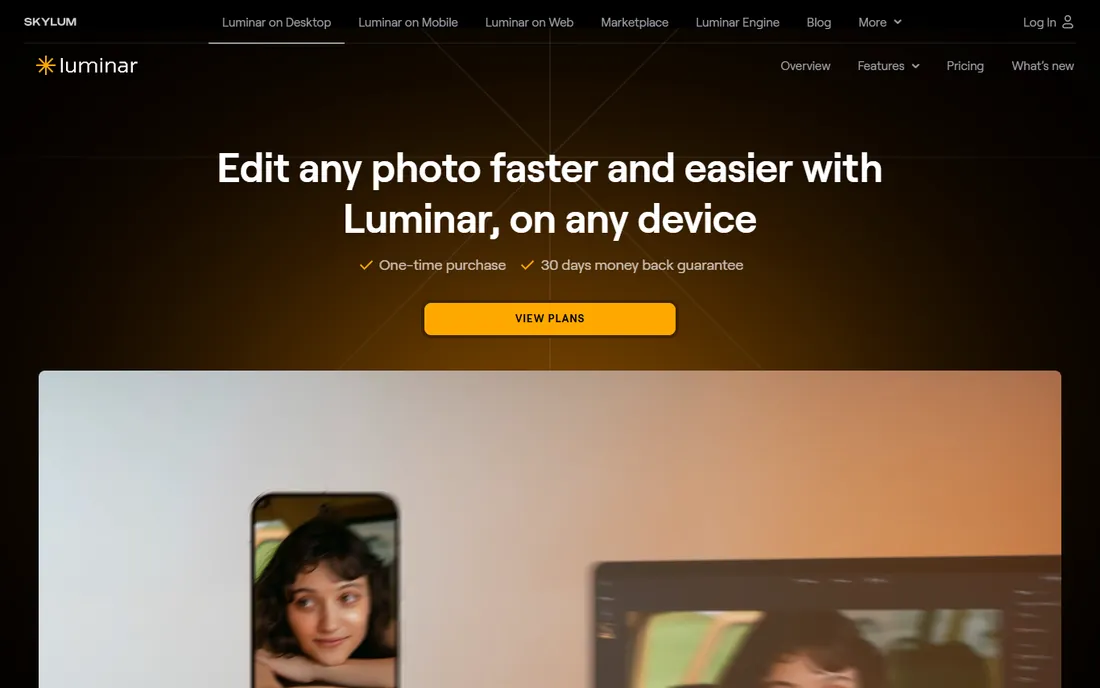
Luminar Neo takes the opposite approach from GIMP: instead of giving you every manual control, it automates the tedious ones. Sky AI swaps dull skies, Relight AI fixes exposure per depth zone, and portrait tools retouch skin without the plastic look. For beginners, this means professional-looking results before you understand what each slider does.
Skylum sells it as a $119 one-time desktop license, with subscription and cross-device options that cost more, and frequent sales change the effective price. A free trial lets you test everything first. Watch the fine print: generative tools like GenErase are only included for a year, after which an upgrade pass renews them. Luminar Neo suits hobbyists who want fast, impressive edits and would rather pay once than subscribe.
What we like- AI tools for sky replacement, relighting and portraits that genuinely save time
- Modern, approachable interface
- One-time license available
Watch out for- Not free
- Pricing and upsells change often
- Generative AI tools are limited to one year without an upgrade pass
How to pick your first photo editor
Start with where you edit. If you work on a Chromebook, a shared computer or several devices, a browser editor like Canva, Pixlr or Photopea removes installation headaches entirely. If you have your own Windows PC or Mac and edit weekly, a desktop app like Affinity, GIMP or Photoshop Elements will feel faster and work offline.
Next, match the tool to your actual edits. Social posts, thumbnails and marketing graphics point to Canva. Learning real editing technique points to Photopea or Affinity, where layers and masks work like the professional standard. Quick enhancement of family photos points to Fotor or Luminar Neo. Be honest about which of these you do most, because the easiest tool for the wrong job still feels hard.
Finally, decide your relationship with paying. Free forever is real here: Affinity, GIMP and Photopea cost nothing and have no watermark traps. One-time purchases like Photoshop Elements and Luminar Neo make sense if you dislike subscriptions. Monthly plans only pay off if you edit constantly and need the newest AI features. Whatever you choose, pick one and stick with it for a month before judging.
Free vs paid: where the paywalls actually sit
Free photo editors in 2026 are remarkably capable, but each one draws its paywall somewhere. Canva locks premium templates, Brand Kit and some AI tools behind Pro. Pixlr watermarks certain AI features and shows ads on the free tier. Fotor reserves background removal and batch editing for Pro. Photopea's only free-tier cost is ads. GIMP and Affinity have no paywall at all.
Paid plans generally buy three things: AI automation, bulk workflows and freedom from ads. Ask whether you need any of them yet. A beginner editing ten photos a month gains nothing from batch processing. The common mistake is subscribing on day one for features you will not touch for six months. Start free, learn what slows you down, then pay to remove exactly that friction.
How we chose
We focused on tools a genuine beginner can open and use within minutes, not software that requires a course first. Candidates came from current 2026 roundups, app store charts and photography communities, and each had to be actively maintained and available on mainstream platforms. We read each vendor's pricing page, checked free-tier limits and watermark policies, and weighed interface approachability over raw feature counts. Photoshop and Lightroom were deliberately excluded: both are excellent, and both are the wrong first editor for someone who just wants better photos without a subscription and a learning curve.
Frequently asked questions
What is the best photo editing software for beginners?
Canva is the easiest overall start, Affinity is the best free professional-grade option, and Photoshop Elements is the best one-time desktop purchase. Your best pick depends on whether you value speed, depth or owning your software outright.
Is there a truly free alternative to Photoshop?
Yes, three of them. Photopea runs in a browser and mirrors Photoshop's interface, GIMP is a free open-source desktop editor, and Affinity is now completely free. All three handle layers, masks and PSD files.
Can I edit photos without installing anything?
Yes. Canva, Pixlr, Fotor and Photopea all run in a modern browser. They work on Chromebooks and locked-down work computers, though very large files may feel slower than on a desktop app.
Do beginners need to shoot in RAW?
No. JPEG edits are fine while you learn composition and basic adjustments. Move to RAW when you start noticing lost detail in highlights and shadows, at which point Affinity, GIMP and Photoshop Elements all handle RAW well.
Is Photoshop Elements still available in 2026?
Yes. Adobe continues to sell Photoshop Elements as a one-time purchase with a free trial, and the 2026 version includes AI-assisted object removal and Guided Edits for learning techniques step by step.
Which is the best photo editing app for PC?
For a Windows PC, Affinity and GIMP are the strongest free desktop options, while Photoshop Elements is the mainstream one-time purchase. All three install locally, work offline and export at full resolution.
Sources we checked (6)
- https://pixotter.com/blog/best-photo-editing-software-for-beginners/
- https://beebom.com/best-photo-editing-software/
- https://www.podbase.com/blogs/canva-statistics
- https://businessmodelanalyst.com/canva-target-market/
- https://skylum.com/luminar/pricing?irpid=245060&aclid=
- https://expertphotography.com/best-photo-editing-software-beginners
Is your product missing or out of date?
We review this list regularly. Vendors can request a listing, send updated pricing or ask about featured placement.

Shihab Mia · Founder, Rankite
Shihab has spent more than a decade helping SaaS and e-commerce brands grow through search. He writes Rankite's software buying guides from pricing pages, documentation and public user reviews. More about Shihab.