How we make this list: we compare pricing pages, product documentation and public user reviews. Ratings come from G2, Capterra or Trustpilot, with the date we checked them.
Key takeaways
- DaVinci Resolve has the strongest free version for serious editing, with professional color, effects, and audio tools at no cost.
- Adobe Premiere Pro remains the common choice for client work and team pipelines, but its subscription cost adds up year after year.
- Final Cut Pro suits Mac editors who want to pay once, while Filmora and CapCut suit creators who want fast results with less learning time.
- Clipchamp and iMovie cover simple edits free, and Shotcut covers capable desktop editing free on Windows, Mac, and Linux.
- Hardware matters as much as features: check RAM, graphics, and export resolution needs before paying for a pro plan.
Quick comparison
| Tool | Best for | Starting price | Free plan |
|---|
 Adobe Premiere Pro Adobe Premiere Pro | Professional client and team editing | $22.99 per month (billed annually) | Free trial (7 days) |
 DaVinci Resolve DaVinci Resolve | Free pro-grade editing and color | $0 (Studio $315 one-time) | Yes |
 Final Cut Pro Final Cut Pro | Mac editors who want a one-time purchase | $299.99 one-time | Free trial (90 days) |
 Filmora Filmora | Beginners who want templates and AI help | $49.99 per year | Yes |
 CapCut CapCut | Short-form social video | $19.99 per month (Pro) | Yes |
 Clipchamp Clipchamp | Quick browser-based edits | $0 | Yes |
 iMovie iMovie | Free starter editing on Apple devices | $0 | Yes |
 Lightworks Lightworks | Film-style precision editing | See website | Yes |
 Shotcut Shotcut | Free open-source desktop editing | $0 | Yes |
Is your product missing or out of date?
We review this list regularly. Vendors can request a listing, send updated pricing or ask about featured placement.
The best video editing software for every level
#1Adobe Premiere Pro
Best for: Professional client and team editing4.5/5 on
G2 (1,675 reviews, checked Oct 2026)
Visit adobe.com
Starting price$22.99 per month (billed annually)
Free planFree trial (7 days)
Premiere Pro is the safe professional default, especially for editors who share projects with agencies, studios, or other freelancers. Its timeline handles multi-cam work, captions, audio mixing, and a wide range of camera formats, and round-tripping to After Effects for motion graphics or Audition for audio cleanup is a normal part of many workflows. That compatibility is often the deciding factor: clients and collaborators already use it, so project files move without conversion work.
The single-app plan costs $22.99 per month on annual billing, billed monthly, and a 7-day trial lets new users test the full editor before paying. The cost to weigh is long-term. After three years, the subscription totals far more than a one-time purchase, and stopping payment ends access to the app itself. Premiere Pro fits editors who earn from video regularly; occasional editors will usually do better with a free or one-time tool below.
What we like- Industry-standard timeline and format support
- Deep integration with After Effects and Audition
- Regular feature updates
Watch out for- Subscription never ends
- Demanding on hardware
- Some AI features sit in higher Creative Cloud plans
Starting price$0 (Studio $315 one-time)
Free planYes
DaVinci Resolve is the value outlier in professional editing. The free version includes the cut and edit pages, the Fusion effects page, Fairlight audio tools, and the color page that made the software famous, with output up to Ultra HD at 60 frames per second. For YouTube creators, corporate video teams, and students, that free tier already covers more than many paid editors offer. Multi-user collaboration is included, so small teams can work on shared projects without an extra subscription.
Studio, listed at $315 as a one-time purchase on the vendor site, adds noise reduction, stereoscopic tools, extra effects, higher resolutions and frame rates, and broader format support. The honest catch is learning time and hardware: the color page rewards study, and 4K work with effects benefits from a capable graphics card and plenty of memory. Editors willing to invest a few weeks in learning Resolve get professional power without a monthly bill.
What we like- Outstanding free version
- Best-in-class color tools
- Editing, effects, and audio in one app
Watch out for- Steep learning curve
- Needs a strong graphics card for heavy work
- Some codecs and effects require Studio
#3Final Cut Pro
Best for: Mac editors who want a one-time purchase4.4/5 on
G2 (87 reviews, checked Oct 2026)
Visit apple.com
Starting price$299.99 one-time
Free planFree trial (90 days)
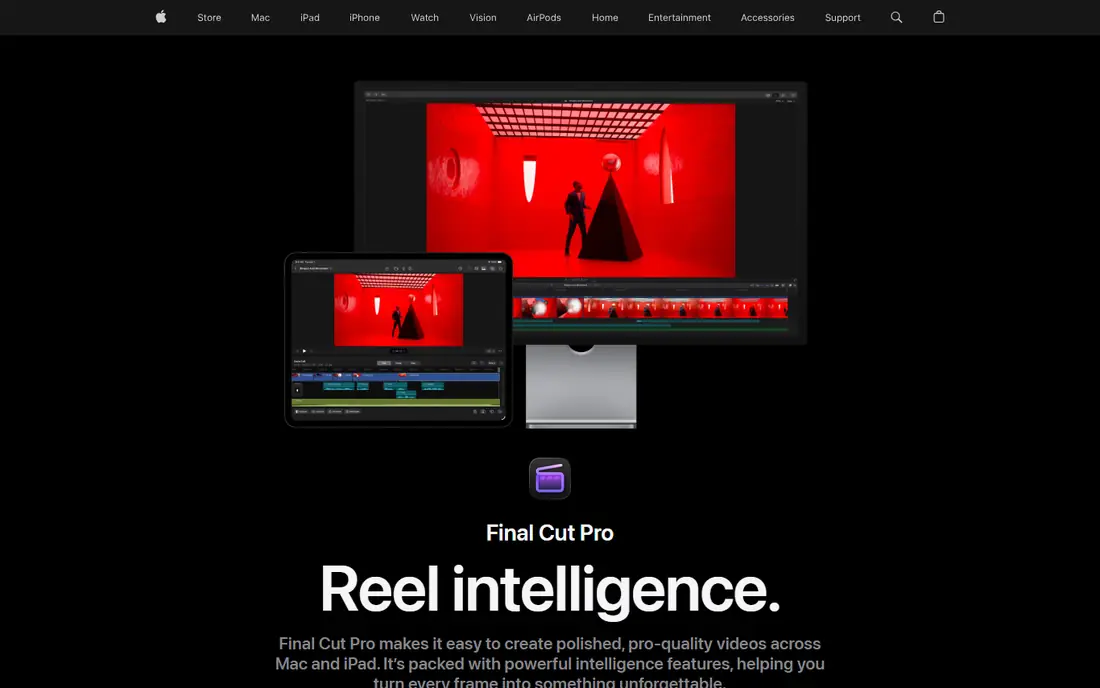
Final Cut Pro is the strongest buy-once option for Mac-based creators. Its magnetic timeline keeps clips connected as edits change, which makes assembling a rough cut noticeably faster once the approach clicks, and performance on Apple silicon is a genuine advantage for 4K work on laptops. Apple also offers a 90-day free trial, which is generous enough to finish real projects before deciding.
The Mac one-time purchase costs $299.99, and Apple confirms it will continue to be updated, though some premium content is reserved for Apple Creator Studio subscribers, who pay $12.99 per month or $129 per year. The platform limit is absolute: there is no Windows version, and editors who collaborate with Windows-based teams must plan exports and project handoffs accordingly. For a Mac-only creator, the math is simple, since the purchase pays for itself against a subscription in a little over a year.
What we like- Very fast on Apple silicon
- One-time purchase still available
- Magnetic timeline speeds rough cuts
Watch out for- Mac and iPad only
- Some premium content is reserved for Creator Studio subscribers
Starting price$49.99 per year
Free planYes
Filmora is built for creators who want a finished video today rather than a month of training. Drag-and-drop editing, titles, transitions, effects, and stock assets sit in one workspace, and AI tools handle captions, silence removal, background removal, and auto-reframe for social formats. Screen recording is included, which makes it a practical pick for tutorials and course creators as well as vloggers.
The annual plan costs $49.99 per year, and a perpetual license costs $79.99, though that perpetual license covers updates to the current major version only. The free version lets users explore the full editor, but exports carry a watermark. Filmora will not match Resolve or Premiere Pro for color depth or complex finishing, but for solo creators shipping weekly videos, its speed and low learning curve are the point.
What we like- Easy timeline and large template library
- Useful AI captions and background removal
- Screen recording included
Watch out for- Free exports carry a watermark
- Perpetual license covers only the current major version
- AI credits add limits
Starting price$19.99 per month (Pro)
Free planYes
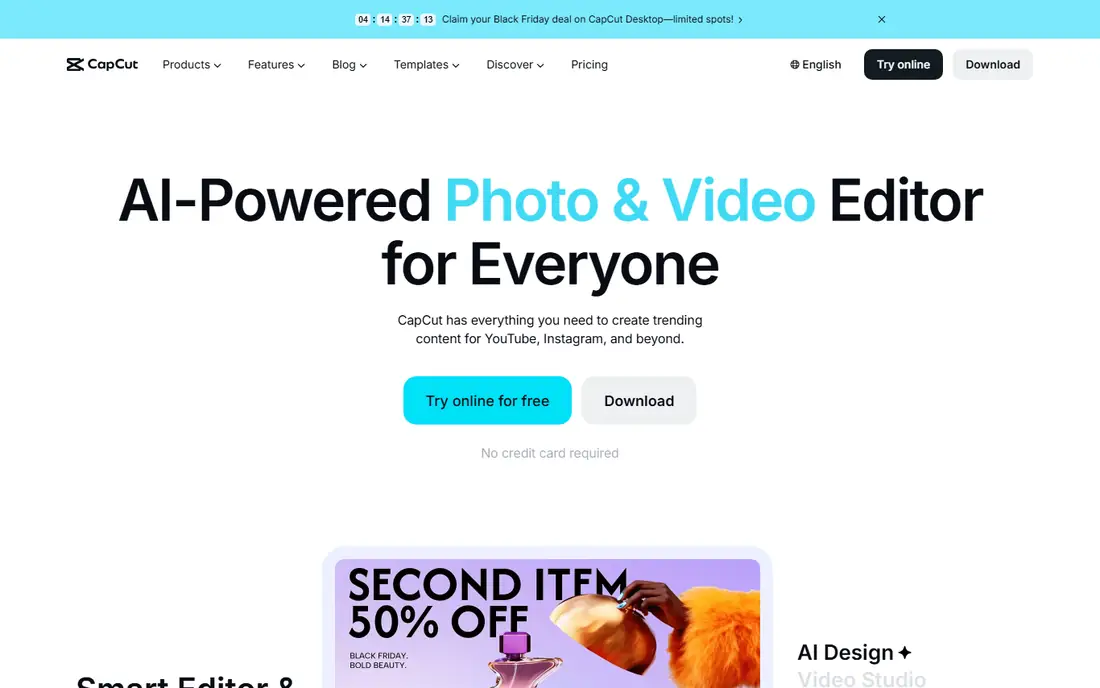
CapCut dominates short-form editing for a reason: templates, trending effects, auto-captions, and text-to-speech are tuned for TikTok, Reels, and Shorts, and the phone app lets creators shoot, cut, and post without touching a desktop. The desktop and web editors extend that workflow to longer talking-head videos, product clips, and tutorials, with 4K export on paid plans.
Pro costs about $19.99 per month on web checkout in the US, with an annual option reported near $179.99 per year, though prices vary by region, device, and app store, so the checkout total should be confirmed before subscribing. The free tier covers basic editing, but premium templates, effects, and some AI tools sit behind Pro, and AI generation draws on a monthly credit allowance. CapCut is the right tool for fast social output; long documentaries and broadcast finishing belong in Resolve or Premiere Pro.
What we like- Fast templates and auto-captions for social formats
- Works on phone, desktop, and web
- Large effects library
Watch out for- Pro pricing varies by region and store
- AI generation uses credits that can run out
- Not built for long-form finishing
#6Clipchamp
Best for: Quick browser-based edits4.1/5 on
G2 (49 reviews, checked Oct 2026)
Visit clipchamp.com
Starting price$0
Free planYes
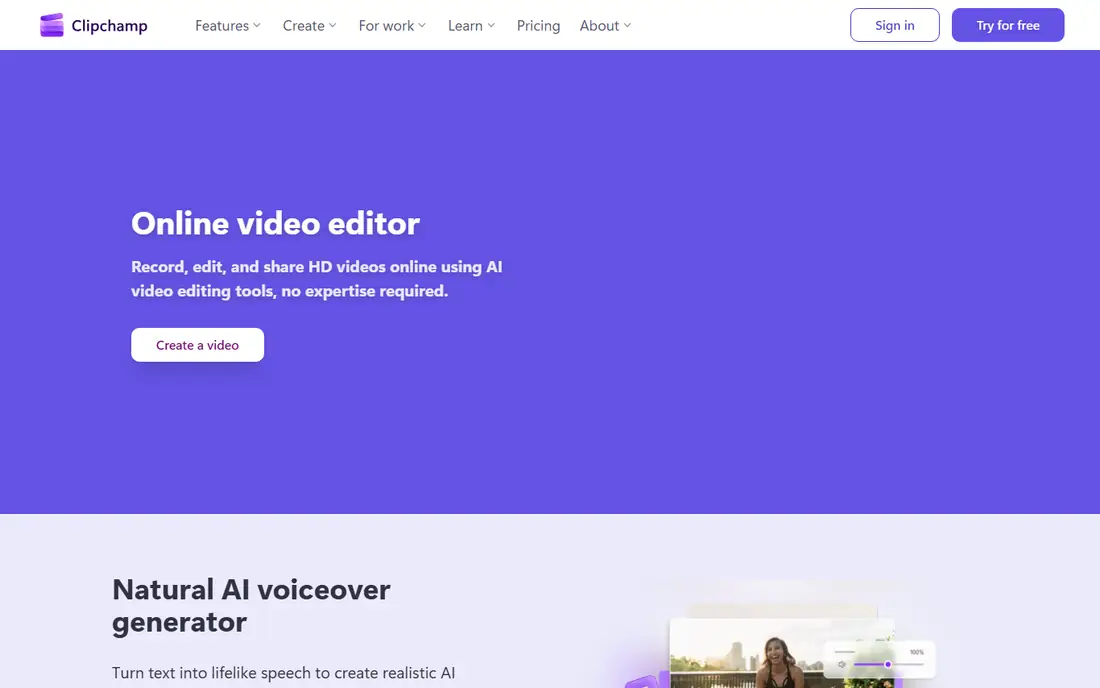
Clipchamp is the lowest-friction editor on this list for occasional work. It runs in Chrome or Edge on Windows and Mac, so a training clip, a class project, or a quick promo can be edited without installing software or learning a pro timeline. The free plan includes unlimited projects and exports up to 1080p with no watermark, plus auto-captions in many languages, text-to-speech voiceovers, silence removal, and screen and webcam recording.
Premium features, including 4K export, the full premium stock library, and a brand kit, come with Microsoft 365 Personal at $9.99 per month or $99.99 per year, or Family at $12.99 per month or $129.99 per year. The main trap is premium stock: dragging a premium clip into a free project blocks export until the plan is upgraded, so filter for free assets when staying on the free tier. For simple, fast edits, Clipchamp is hard to beat at $0.
What we like- Free watermark-free 1080p exports
- Runs in the browser with no install
- Auto-captions and screen recording included
Watch out for- Free exports top out at 1080p
- Premium stock and 4K require Microsoft 365
- No dedicated mobile editor
#7iMovie
Best for: Free starter editing on Apple devices4.3/5 on
G2 (568 reviews, checked Oct 2026)
Visit apple.com
Starting price$0
Free planYes
iMovie is the right first editor for anyone already on Apple hardware. It is free, it opens fast, and its timeline, titles, transitions, and trailer templates teach the basics of cutting, trimming, and pacing without menus full of professional options. Clips, photos, and music assemble into a finished video in an afternoon, and projects can later be opened in Final Cut Pro when more control is needed.
The limits arrive with ambition. Color grading is basic, audio mixing is limited, and there is no multi-cam editing, motion tracking, or plugin depth comparable to the pro tools above. iMovie also runs only on Mac, iPhone, and iPad, so Windows and Android households need another pick. As a free starting point, or as the editor for family videos and school projects, it remains excellent.
What we like- Free on Mac, iPhone, and iPad
- Very easy to learn
- Clean trailers and title templates
Watch out for- Limited color, audio, and effects control
- Apple devices only
- Projects move to Final Cut Pro for advanced work
#8Lightworks
Best for: Film-style precision editing3.6/5 on
G2 (31 reviews, checked Oct 2026)
Visit lwks.com
Starting priceSee website
Free planYes
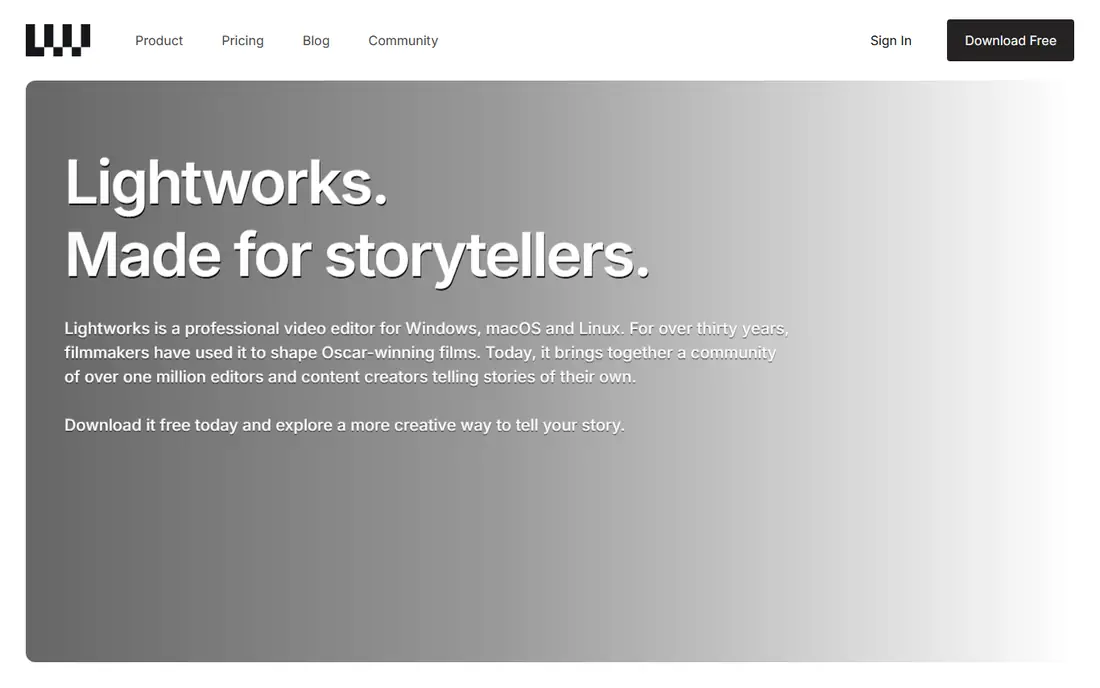
Lightworks brings a film cutting-room approach to desktop editing. Its trim tools, keyboard-driven workflow, and multi-cam support suit editors who care about the exact frame where a cut lands, and its history includes work on major feature films. The free version is not a time-limited trial, and it exports finished videos up to 1080p, including portrait formats for social platforms.
Paid Create and Pro tiers add higher resolutions, more formats, and delivery options, but published prices for those tiers have varied across sources, so the current price should be checked on the vendor site before buying, and the starting price here is listed as See website for that reason. The interface also takes longer to learn than Filmora or iMovie, since it was designed for editors rather than first-time creators. Editors who value cutting precision over templates will find that trade worthwhile.
What we like- Precise trimming and multi-cam tools
- Long film-industry track record
- Free version is not time-limited
Watch out for- Interface takes adjustment
- Paid plan pricing should be confirmed at checkout
- Audio tools are thinner than Fairlight or Audition
#9Shotcut
Best for: Free open-source desktop editing4.2/5 on
G2 (42 reviews, checked Oct 2026)
Visit shotcut.org
Starting price$0
Free planYes
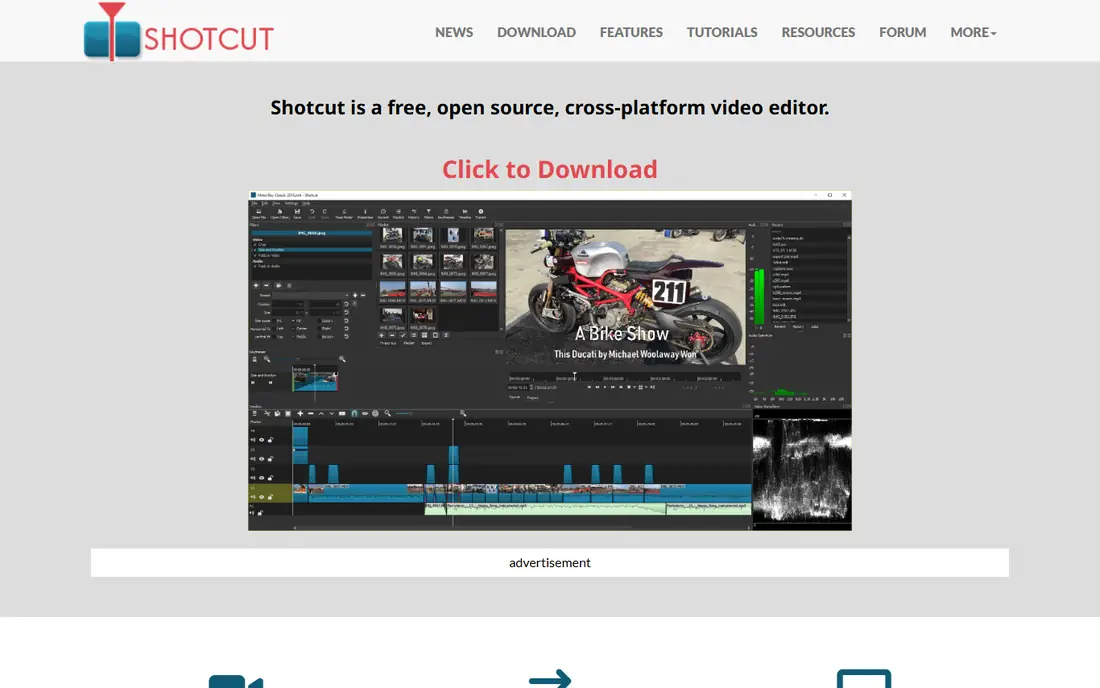
Shotcut is the open-source answer to paid desktop editing. It supports hundreds of audio and video formats through FFmpeg, with native timeline editing, multi-format timelines, filters, transitions, and resolution support up to 4K, all without a subscription, watermark, or export limit. Screen, webcam, and audio capture are included, and the app runs on Windows, Mac, and Linux, which makes it useful for mixed-device households and classrooms.
The trade-offs are polish and convenience. There are few ready-made templates, no built-in AI caption or generation tools comparable to Filmora or CapCut, and support comes from documentation and community forums rather than a paid help desk. The interface, with its dockable panels, rewards a little patience. For editors who want a capable, free desktop tool and do not need templates or AI features, Shotcut is the most complete $0 option here.
What we like- Completely free with no watermark
- Wide format support
- Runs on Windows, Mac, and Linux
Watch out for- Interface feels less polished than paid rivals
- Fewer templates and AI tools
- Community support rather than a vendor help desk
How we chose
Prices and plan details were checked against vendor pricing pages and current public pricing coverage in October 2026, and each homepage above was opened to confirm it loads and belongs to the named product. Tools were included only when they exist today as real video editors, covering free, one-time, and subscription models, and covering beginners, social creators, and professionals. Public reviews on G2, Capterra, and Reddit were used to check recurring complaints, such as watermark rules, credit limits, and learning curves, rather than as a substitute for vendor pricing. No hands-on testing is claimed here; the comparison rests on published features, limits, and prices.
Choosing by the video you actually make
Match the editor to the output, not to the longest feature list. Social creators posting several short videos a week will finish more work in CapCut or Filmora than in a pro suite, because templates, captions, and fast export matter more than color depth. YouTubers and small production teams with longer projects benefit from Resolve or Premiere Pro, where multi-cam, audio, captions, and color tools reduce round-tripping between apps.
Hardware and export checks
Before paying, check the system requirements for the chosen editor and test it with real footage, not a sample clip. A laptop that edits 1080p smoothly may struggle with 4K, effects, and noise reduction, and that gap affects Resolve, Premiere Pro, and Final Cut Pro alike. Also confirm the export side: maximum resolution on the free plan, watermark rules, caption formats, and whether the project file can move to another editor if needs change.
Subscription, one-time, or free
Subscriptions make sense when editing earns income every month, since updates, cloud features, and support are included while paying. One-time purchases suit editors with a stable workflow who dislike recurring bills, though major version upgrades may cost extra, as with Filmora perpetual. Free tools suit learners, students, and occasional editors, and Resolve proves that free does not have to mean basic. The cheapest long-term choice is usually the tool that gets used weekly, whatever its billing model.
Frequently asked questions
What is the best video editing software for beginners?
Filmora and iMovie are the easiest starts, with Filmora covering Windows and Mac and iMovie covering Apple devices free. CapCut is the best beginner pick for short-form social video, while Clipchamp is the easiest browser option. Beginners who want to learn professional skills from the start can begin with DaVinci Resolve free, accepting a longer learning curve.
What is the best free video editing software?
DaVinci Resolve has the strongest free version for serious editing, Shotcut is the most complete free open-source desktop editor, and Clipchamp is the simplest free browser editor with watermark-free 1080p exports. iMovie is the best free pick on Apple devices. The right free choice depends on whether the priority is professional depth, simplicity, or platform.
Is Adobe Premiere Pro worth the subscription?
For editors who earn from client video, share projects with other Premiere Pro users, or need After Effects and Audition integration, the $22.99 per month single-app plan is often justified. For occasional editors, the same money buys little extra over DaVinci Resolve free, Final Cut Pro one-time, or Filmora annual, so usage frequency should decide.
Can I edit 4K video without paying?
Yes, with limits. DaVinci Resolve free exports up to Ultra HD, Shotcut supports 4K editing free, and iMovie handles 4K on capable Apple devices. Clipchamp free tops out at 1080p, and CapCut 4K export requires a paid plan. Hardware matters: 4K editing with effects needs more RAM and graphics power than 1080p work.
What video editing software works on Windows and Mac?
Adobe Premiere Pro, DaVinci Resolve, Filmora, CapCut, Clipchamp, Lightworks, and Shotcut all run on Windows and Mac, with Clipchamp running in a browser. Final Cut Pro and iMovie are Apple-only. Cross-platform editors are the safer pick for teams or households with mixed computers.
How long does it take to learn video editing software?
Simple editors such as iMovie, Clipchamp, and CapCut can produce a finished video in an afternoon. Filmora usually takes a few days of regular use to feel fluent. DaVinci Resolve and Premiere Pro take weeks of practice for confident editing, and months to use color, audio, and effects tools well, though both reward that time with far more control.
Sources we checked (9)
- https://www.adobe.com/products/premiere.html
- https://www.blackmagicdesign.com/products/davinciresolve
- https://www.apple.com/final-cut-pro/
- https://filmora.wondershare.com
- https://www.capcut.com
- https://clipchamp.com
- https://www.apple.com/imovie/
- https://lwks.com
- https://www.shotcut.org
Is your product missing or out of date?
We review this list regularly. Vendors can request a listing, send updated pricing or ask about featured placement.

Shihab Mia · Founder, Rankite
Shihab has 5+ years in B2B and SaaS SEO. He writes Rankite's software buying guides from pricing pages, documentation and public user reviews. More about Shihab.