How we make this list: we compare pricing pages, product documentation and public user reviews. Rankite is independent; if a vendor ever pays for a featured spot, that listing is clearly labeled Partner.
Key takeaways
- HandBrake remains the pick for free, unlimited batch conversion on Windows, Mac and Linux, though the interface asks for patience.
- Any Video Converter and Format Factory are the other two genuinely free options here, while Freemake's free version watermarks output until you pay.
- Wondershare UniConverter is the paid all-rounder: official Wondershare pricing lists an annual plan at $39.99 with DVD tools, compression and screen recording included.
- CloudConvert is the only option that converts entirely in the browser with no install, and charges by conversion minutes instead of seats.
- For GPU-accelerated 4K work, VideoProc Converter and WonderFox HD Video Converter Factory Pro are the budget-priced paid specialists.
Quick comparison
| Tool | Best for | Starting price | Free plan |
|---|
 HandBrake HandBrake | Free unlimited batch conversion on Windows, Mac and Linux | Free (open source) | Yes (fully free) |
 Wondershare UniConverter Wondershare UniConverter | Users who want conversion plus editing, compression and DVD tools in one app | $39.99/year (annual plan, per official Wondershare pricing) | Free trial (conversions limited in trial) |
 Movavi Video Converter Movavi Video Converter | Beginners who want device presets and fast, simple conversion | See website (subscription and lifetime options) | Free trial (7 days, watermarked output) |
 Any Video Converter Any Video Converter | Users who want a genuinely free converter with a paid upgrade path | See website (free version available; Pro and Ultimate paid tiers) | Yes (Any Video Converter Free) |
 VideoProc Converter VideoProc Converter | 4K, HEVC and GoPro-style footage that needs GPU acceleration | See website (annual and lifetime licenses) | Free trial (limited media length in trial) |
 WonderFox HD Video Converter Factory Pro WonderFox HD Video Converter Factory Pro | Budget buyers who want a paid converter with AI enhancement | See website (annual and lifetime plans) | Free trial (limited) |
 Format Factory Format Factory | Free conversion of video, audio, images and documents on Windows | Free | Yes (fully free) |
 CloudConvert CloudConvert | Converting files in the browser with no install and no admin rights | See website (usage-based packages and subscriptions) | Yes (free daily conversion allowance) |
 Freemake Video Converter Freemake Video Converter | Simple Windows conversions to devices and DVD/Blu-ray | See website (free version; paid subscription and lifetime options) | Yes (free version with watermark on output) |
Is your product missing or out of date?
We review this list regularly. Vendors can request a listing, send updated pricing or ask about featured placement.
The best video converter software
You recorded a video on an iPhone, a client sent a WMV from 2011, and the editor needs ProRes. The problem is never converting one file. It is the batch of forty clips in six formats that have to land in one codec by Friday, without you watching a progress bar all afternoon. That is the actual job this category serves, and the tools below are ranked on how well they do it: real format coverage, honest pricing, and batch speed that does not fall apart on big jobs.
#1
HandBrake
Best for: Free unlimited batch conversion on Windows, Mac and Linux
Visit handbrake.fr
Starting priceFree (open source)
Free planYes (fully free)
HandBrake is the tool everything else in this list gets measured against, and it costs nothing. It converts nearly any video source to MP4, MKV or WebM with modern codecs (H.264, H.265/HEVC, AV1, VP9), and its batch queue lets you line up dozens of files with individual settings, then walk away. Presets for phones, tablets, consoles and the web mean you rarely need to touch an encoder setting unless you want to.
The honest catch is the learning curve. Terms like RF value, anamorphic and x264 presets assume you know something about encoding, and HandBrake offers no downloader, screen recorder or editing timeline. But if your job is conversion at scale on a budget of zero, nothing on this list beats it. Download only from the official site, since third-party repacks have carried malware in the past.
What we like- Completely free with no watermarks, no limits and no accounts
- Batch queue handles dozens of files with per-file settings
- Constant-quality encoding (CRF) gives excellent file size control
Watch out for- The interface intimidates first-time users
- No built-in video downloader or screen recorder, so it stays a pure transcoder
Starting price$39.99/year (annual plan, per official Wondershare pricing)
Free planFree trial (conversions limited in trial)
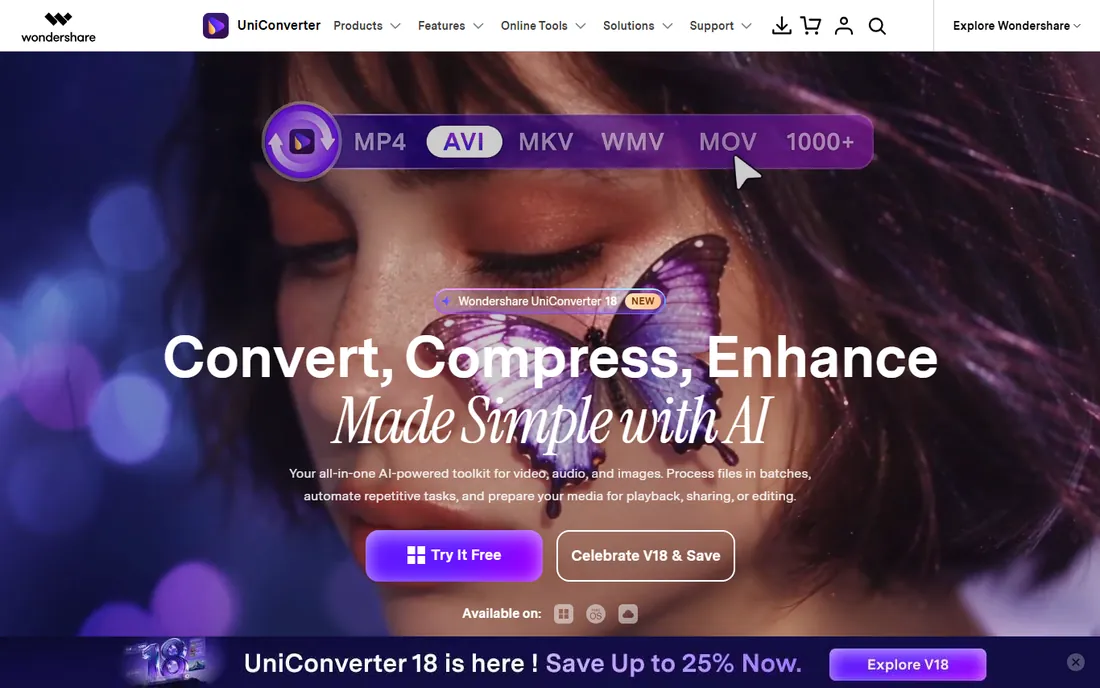
UniConverter is the closest thing to a Swiss army knife in this category. Beyond conversion it bundles DVD burning and ripping, video compression with quality preview, screen recording, GIF creation and a set of AI tools for upscaling and vocal removal. Official Wondershare pricing lists a quarterly plan at $29.99, an annual plan at $39.99 and a perpetual plan at $55.99, which makes the annual plan the sensible default for most buyers.
What holds it back is the trial. It converts only part of each file, which tells you little about batch reliability on your own footage. Discounts are also frequent, so the sticker prices shift with promotions. If you want one subscription that covers conversion, compression and light editing, this is the strongest paid pick on the list.
What we like- Covers over 1,000 formats with GPU-accelerated batch conversion
- Adds a video editor, compressor, screen recorder and DVD burner in the same license
- AI tools for enhancement, subtitles and vocal removal
Watch out for- The trial only converts a portion of each video, so you cannot properly evaluate it free
- Quarterly and perpetual plans complicate the price list
#3
Movavi Video Converter
Best for: Beginners who want device presets and fast, simple conversion
Visit movavi.com
Starting priceSee website (subscription and lifetime options)
Free planFree trial (7 days, watermarked output)
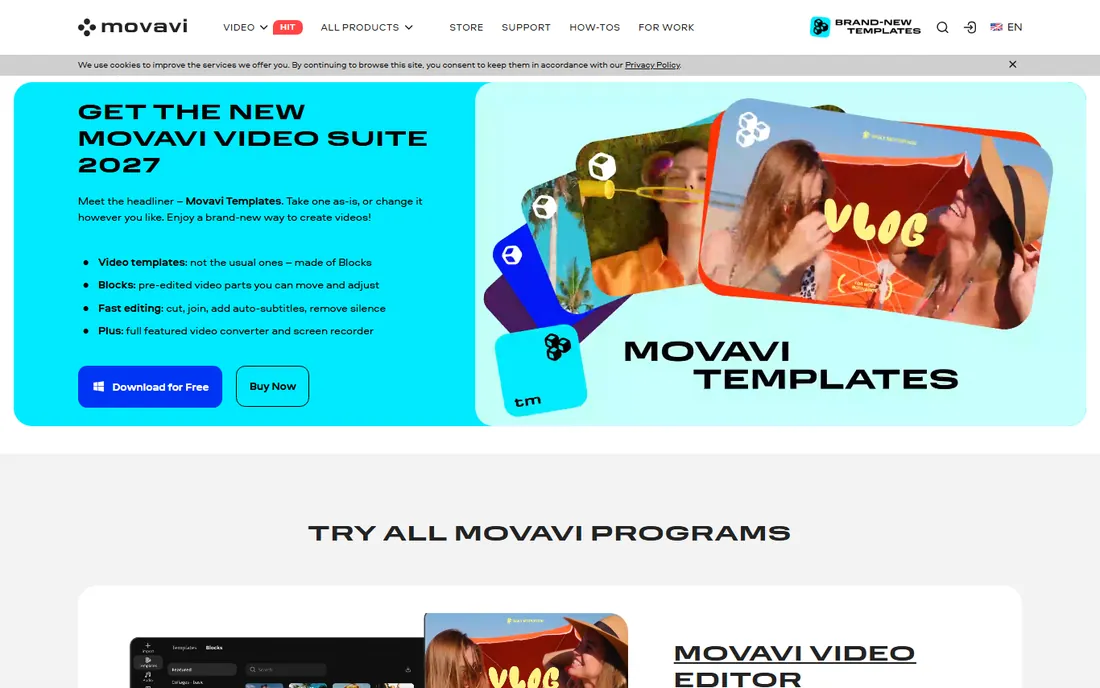
Movavi's whole pitch is that you should not need to learn video to convert video. Drag files in, pick a device preset like iPhone 15 or YouTube 4K, and convert. It also handles compression, basic trimming and merging, and the SuperSpeed mode re-encodes only what changed for much faster turnaround on compatible files. Support is responsive and the help docs are genuinely written for non-technical users.
The trial is stingy compared with some rivals: seven days, watermarked output and halved audio conversions. Paid plans come as subscriptions and lifetime licenses, but Movavi runs near-constant promos, which means comparing prices across review sites is pointless. Check the current price on the vendor's own store page before you decide. For pure ease of use in a paid converter, though, it is hard to beat.
What we like- Extremely approachable interface with presets for hundreds of devices
- AI video upscaling up to 8X on current versions
- Fast conversion with SuperSpeed mode
Watch out for- Trial output carries a watermark and converts only half of audio files
- Pricing shifts with frequent promotions, so the price you see today may not be the price tomorrow
Starting priceSee website (free version available; Pro and Ultimate paid tiers)
Free planYes (Any Video Converter Free)
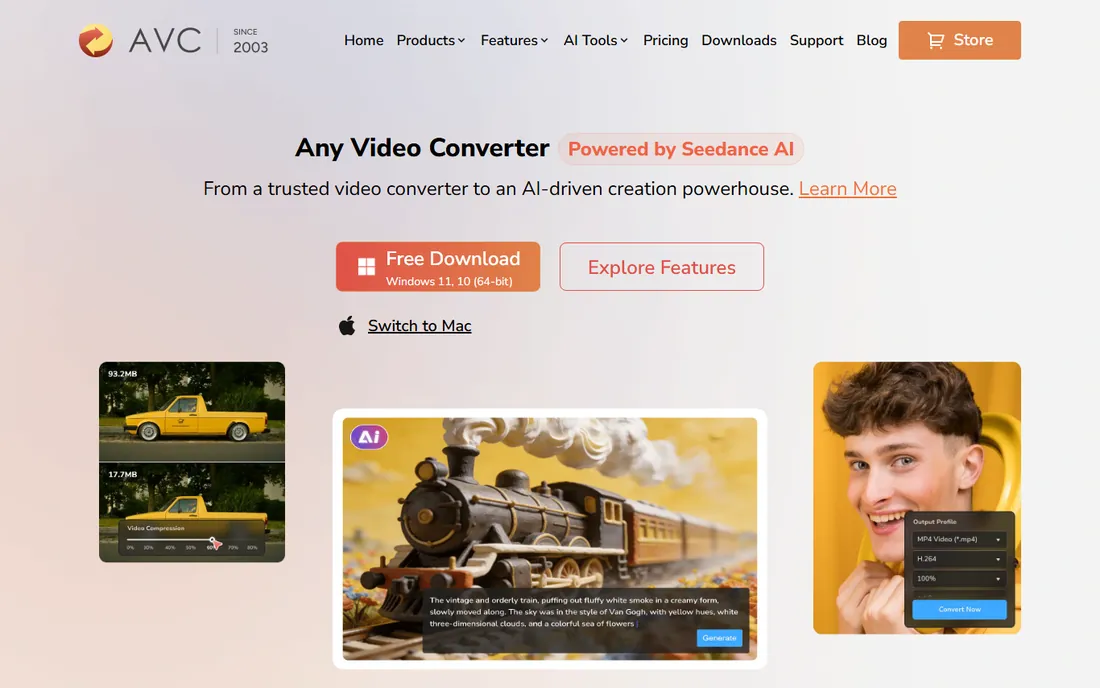
Any Video Converter has been around since 2003, and its free edition is one of the few free converters that does not stamp a watermark on your output. It covers over 1,000 formats, handles batch conversion, and includes trimming, cropping, compression and video downloading. If you outgrow the free edition, Pro and Ultimate tiers add DVD burning, HD and 4K screen recording, and AI tools like audio splitting and speech-to-text.
The tradeoff is the upgrade nagging built into the free interface. It is persistent but not malicious, and the underlying converter works fine if you ignore it. Pricing for the paid tiers has shifted over time, so confirm the current figures on the vendor's site rather than trusting older reviews. As a free starting point with room to grow, it earns its place.
What we like- The free version converts without watermarks and includes basic editing and compression
- Paid tiers add DVD tools, 4K screen recording and AI features
- Long development history with regular updates
Watch out for- The free version constantly nudges you toward paid tiers
- Paid tier pricing is not always easy to find on the vendor site
#5
VideoProc Converter
Best for: 4K, HEVC and GoPro-style footage that needs GPU acceleration
Visit videoproc.com
Starting priceSee website (annual and lifetime licenses)
Free planFree trial (limited media length in trial)
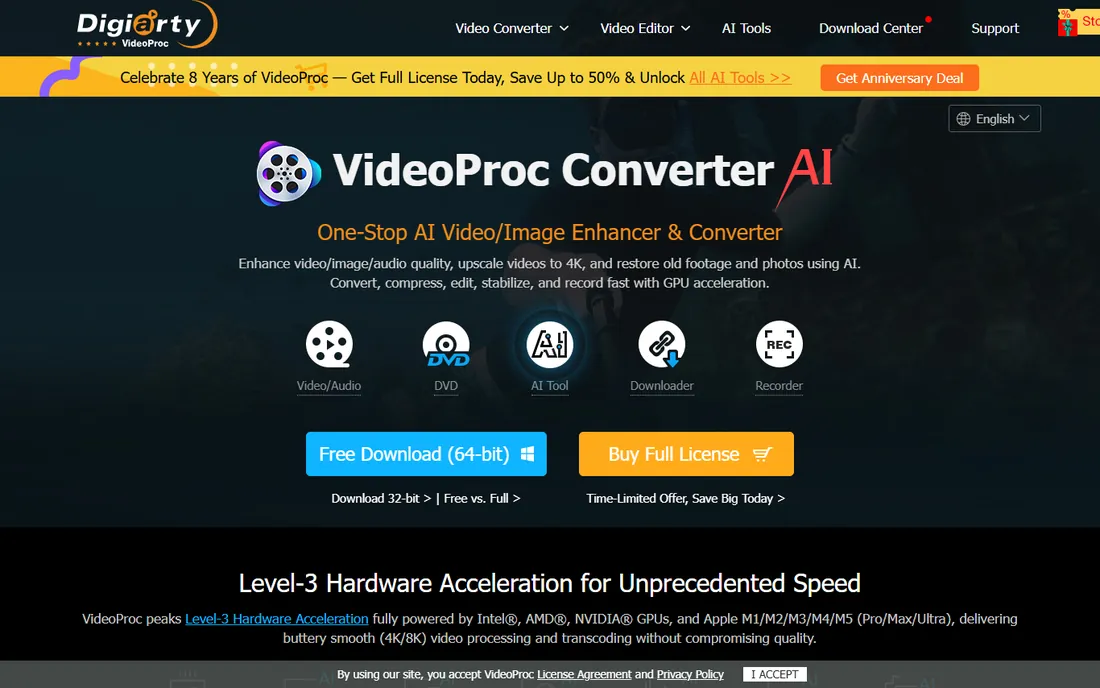
VideoProc Converter is built for heavy footage: 4K, 8K, HDR and HEVC files from GoPro cameras, DJI drones, iPhones and DSLRs. The headline feature is full GPU acceleration across Intel, NVIDIA and AMD chips, which makes a real difference on large batch jobs that would take hours on CPU-only converters. It also folds in a media downloader, screen and webcam recording, and AI tools for upscaling, stabilization and frame interpolation.
The catch is the trial, which caps you at processing short media files. That is too little to judge how it handles the big 4K batches it is designed for. Pricing comes in annual and lifetime licenses with frequent discount promos, so verify on the vendor's pricing page. If your library is mostly modern camera footage, this is the converter built for it.
What we like- Full GPU acceleration on Intel, NVIDIA and AMD hardware speeds up 4K and HEVC jobs
- Handles 370+ input and 420+ output formats
- Adds a downloader, screen recorder and AI enhancement tools
Watch out for- Trial limits processing to short media files, so big 4K jobs cannot be tested free
- Pricing changes with promotions and the official prices shift often
Starting priceSee website (annual and lifetime plans)
Free planFree trial (limited)
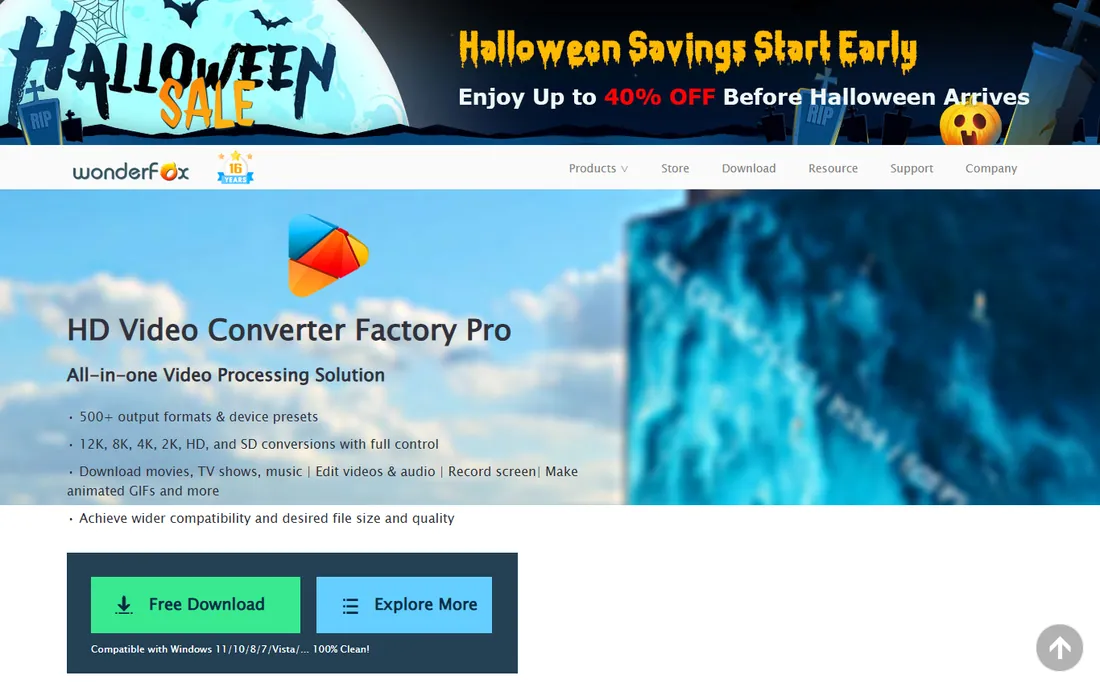
WonderFox HD Video Converter Factory Pro is the value play among paid converters. It converts, downloads, records, edits, compresses and AI-enhances video, with GPU acceleration and batch processing throughout. The format list is one of the longest in this category, covering modern codecs like AV1 and Apple ProRes alongside every legacy format you will ever need. The vendor runs frequent promotions, and lifetime licenses are often discounted heavily.
The limitations are real: it is Windows-only, and the interface has not kept pace with the prettier competition. Reviews also note that the free trial is restricted. But if you run Windows and want a capable paid converter without paying the big-brand price, the lifetime deal is usually worth waiting for. Check the vendor's site for the current promotion.
What we like- Supports 500+ output formats and devices including AV1, HEVC and ProRes
- Recent versions add AI super resolution, frame interpolation and stabilization
- Lifetime licenses are usually affordable on promotion
Watch out for- Windows only, so Mac and Linux users are out
- The interface looks dated next to Movavi or UniConverter
#7
Format Factory
Best for: Free conversion of video, audio, images and documents on Windows
Visit pcfreetime.com
Starting priceFree
Free planYes (fully free)
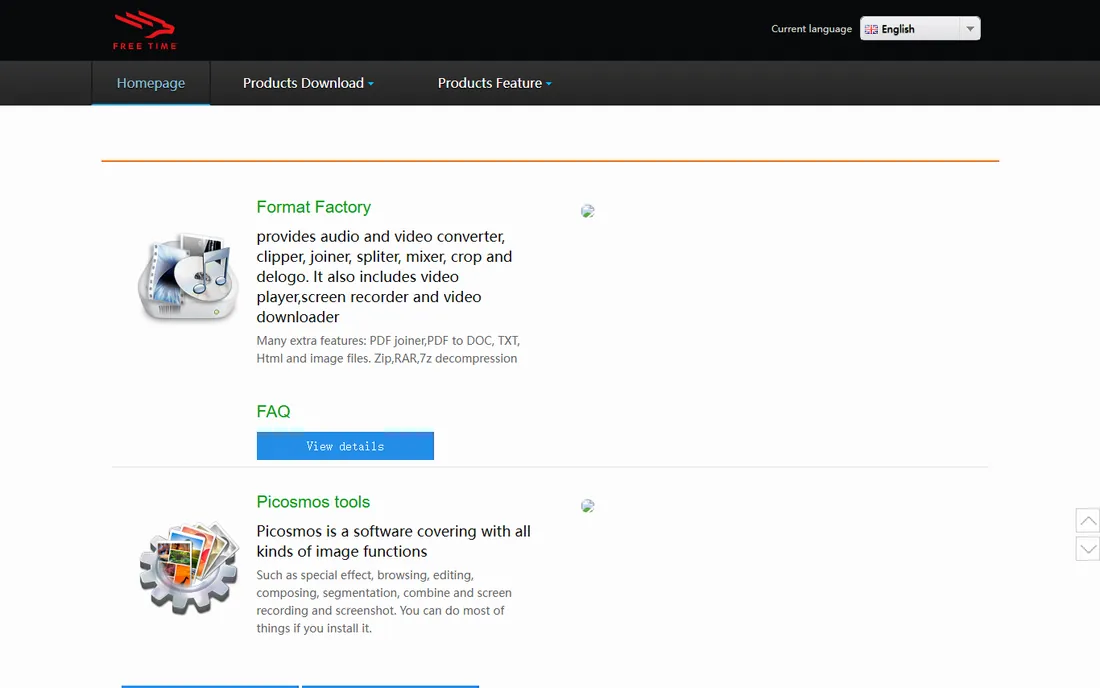
Format Factory is the free generalist. It converts between all popular video, audio and image formats, rips DVDs and music CDs, repairs damaged media files, shrinks file sizes, and even converts documents and extracts images from PDFs. It is the only tool on this list that treats video conversion as one job among many, which makes it handy as an everyday utility.
It is Windows-only, and the installer has a history of bundling extra software offers, so always choose custom installation and uncheck everything extra. Download only from the official site. If you want a free, do-everything converter and you are on Windows, this is the one. Mac and Linux users should look at HandBrake or CloudConvert instead.
What we like- Completely free with no watermarks
- Converts video, audio, images and even documents (PDF to DOC, TXT, HTML)
- Can repair damaged video and audio files
Watch out for- Windows only
- The official site and installer history have raised bundling concerns, so use custom install and decline extras
#8
CloudConvert
Best for: Converting files in the browser with no install and no admin rights
Visit cloudconvert.com
Starting priceSee website (usage-based packages and subscriptions)
Free planYes (free daily conversion allowance)
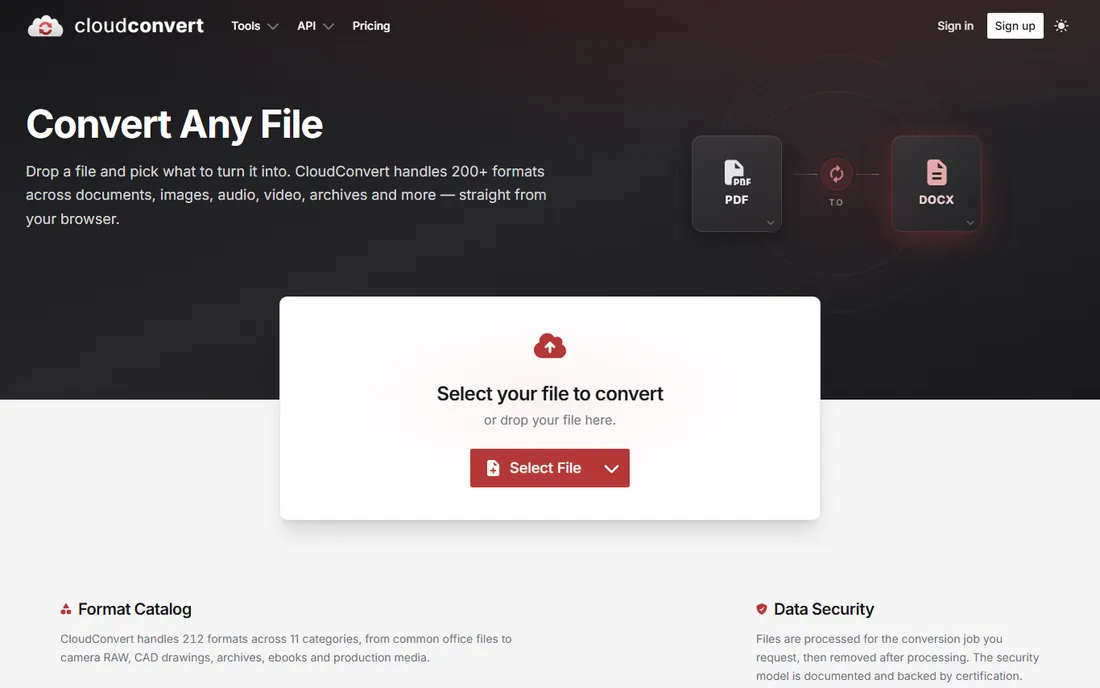
CloudConvert is the odd one out: a web service rather than a desktop app. You drop a file in the browser, pick the output, and download the result. It covers 212 formats across documents, images, audio, video, archives and ebooks, which makes it the fallback option when you are on a borrowed machine or a Chromebook. The free tier covers a daily allowance of conversions, and paid plans come as one-time credit packages or subscriptions priced by conversion minutes.
The tradeoff is inherent to the model. Big video files take time to upload and download, and some workplaces will not let proprietary footage leave the building. For occasional conversions and automation via its API, it is excellent. For a 50-file 4K batch, install HandBrake or VideoProc instead.
What we like- Nothing to install, works on any device with a browser
- Handles 200+ formats across video, audio, documents, images and archives
- Strong API for automating conversions in workflows
Watch out for- Uploading large or sensitive video files to a third party is not always acceptable
- Usage-based pricing makes heavy video use expensive compared with a desktop license
#9
Freemake Video Converter
Best for: Simple Windows conversions to devices and DVD/Blu-ray
Visit freemake.com
Starting priceSee website (free version; paid subscription and lifetime options)
Free planYes (free version with watermark on output)
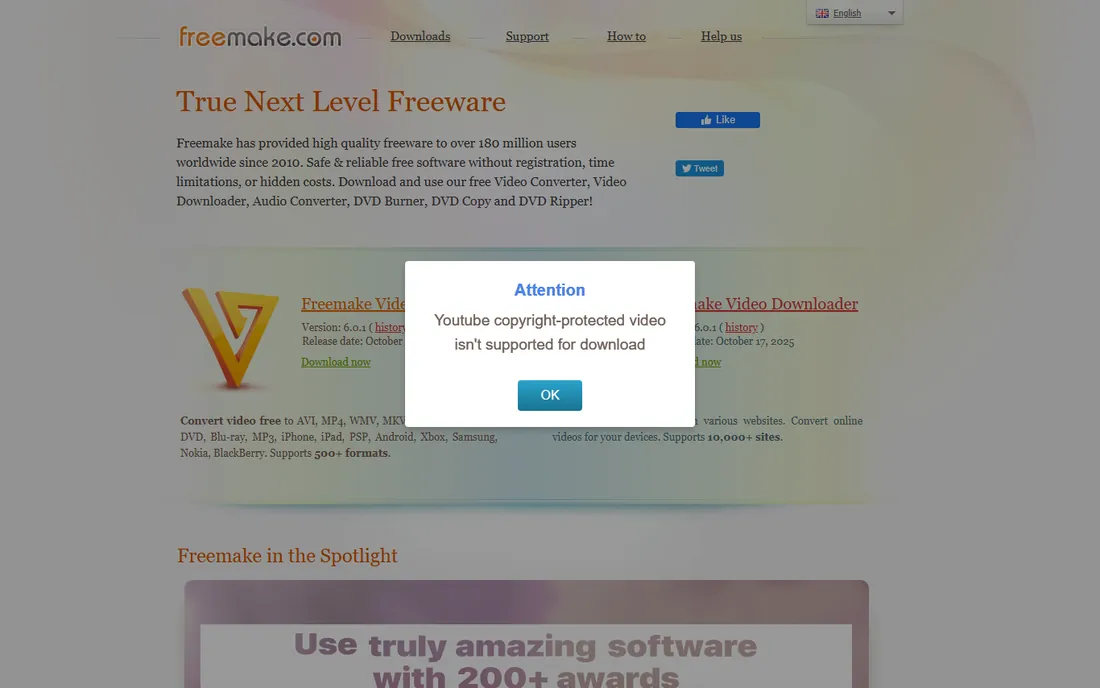
Freemake targets the least technical user on this list. The interface is minimal, the device presets cover hundreds of phones, tablets, consoles and TVs, and it rips and burns DVDs and Blu-ray discs alongside straight conversion. If your needs are modest and you are on Windows, it is easy to use.
The problem is the "free" label. The free version watermarks output prominently, which effectively forces the paid plans on anyone who wants usable files, and those plans cost more than comparable converters from Movavi or WonderFox. Frequent pop-up upgrade prompts do not help. Try it free, but compare the paid price against the rest of this list before buying.
What we like- Dead simple interface aimed at non-technical users
- Rips and burns DVDs and Blu-ray discs
- Converts to presets for hundreds of devices
Watch out for- The free version stamps a prominent watermark, which makes output unusable until you pay
- Paid plans are pricey compared with rivals for what you get
What to check before you pay for a converter
Price is the least important difference between these tools. The questions that actually decide your satisfaction are about limits. Does the trial convert full files, or only watermarks and short clips? HandBrake, Any Video Converter and Format Factory are fully free, so there is nothing to discover later. Freemake's free version watermarks, Movavi's trial watermarks, and VideoProc's trial caps file length. Test with your own footage before spending anything.
Next, check format and codec support for the files you actually own. Every tool here handles MP4 and MKV, but HEVC, AV1, ProRes and old camera formats separate the list. VideoProc and WonderFox lead on modern codecs, Format Factory leads on legacy and document formats, and CloudConvert wins on breadth across non-video file types. Match the tool to your library, not to a feature chart.
Finally, look at how you pay. HandBrake, Format Factory and the free edition of Any Video Converter cost nothing forever. CloudConvert bills by conversion minutes, which suits occasional use. The paid desktop tools (UniConverter, Movavi, VideoProc, WonderFox, Freemake) sell subscriptions and lifetime licenses, usually with heavy promotional discounts. Never pay the first price you see on a promo-driven store; check the vendor's own pricing page and compare the annual and lifetime math for how often you convert.
Free vs paid: when it makes sense to spend
For most people, a free converter is enough. HandBrake handles batch conversion with professional-grade quality control, Format Factory covers video, audio, images and documents, and Any Video Converter's free edition sits between them. If you convert files a few times a month, spending money buys you nothing you need.
Pay when you hit one of three walls. First, volume: batching hundreds of files with GPU acceleration (VideoProc, WonderFox, UniConverter) saves hours over free CPU encoding. Second, features beyond conversion: DVD ripping and burning, screen recording, AI upscaling and subtitle tools live mostly in the paid apps. Third, simplicity: Movavi and Freemake charge for interfaces that a non-technical user can operate without learning encoding. If none of those apply, keep your money and use HandBrake.
How we chose
We started with the searches buyers use: best video converter software, free video converter, MP4 converter and batch video converter. For each candidate we opened the vendor's own site, checked pricing pages and trial terms against public reviews on G2, Capterra and Reddit, and compared format support, batch handling and platform coverage. Where a price could not be verified on the vendor's own page, we wrote "See website" instead of guessing.
Frequently asked questions
What is the best free video converter software?
HandBrake. It is free, open source and unlimited, with batch queues and quality control that match paid tools. Format Factory and Any Video Converter's free edition are the other two genuinely free options, though both are Windows-only. Avoid converters whose free versions watermark output unless you plan to pay.
Do I need a paid video converter?
Probably not, unless you convert in bulk, need GPU acceleration for 4K footage, or want DVD tools, screen recording and AI enhancement in the same app. For occasional conversions, HandBrake or CloudConvert cover you. Pay when batch speed or bundled features save you real time.
Which video converter is fastest for batch jobs?
Tools with full GPU acceleration are fastest: VideoProc Converter and WonderFox HD Video Converter Factory Pro use your graphics card to cut encoding time on large batches. HandBrake is CPU-based but free, and its queue system makes unattended batch jobs easy. CloudConvert is slowest for big jobs because you upload and download every file.
Can video converters handle 4K and HEVC files?
The desktop tools on this list do. VideoProc Converter and WonderFox are built for 4K, 8K and HEVC, UniConverter and Movavi handle them well, and HandBrake encodes HEVC and AV1 for free. CloudConvert handles them too, but large files burn through usage credits fast.
Is it legal to convert DVDs with these tools?
Converting DVDs you own for personal backup is widely practiced, but breaking copy protection sits in a legal gray area that varies by country. These tools convert the files you feed them; whether ripping a commercial disc is lawful where you live is a question for local law, not for the software vendor.
Why do some free converters watermark my videos?
Watermarking is how freemium converters push you toward paid plans. Freemake's free version watermarks prominently, and Movavi's trial does the same. HandBrake, Format Factory and Any Video Converter's free edition do not watermark, which is why they are the safer free picks.
Sources we checked (9)
- https://handbrake.fr
- https://videoconverter.wondershare.com
- https://www.movavi.com/store/
- https://www.any-video-converter.com
- https://www.videoproc.com
- https://www.videoconverterfactory.com
- https://pcfreetime.com/
- https://cloudconvert.com
- https://www.freemake.com
Is your product missing or out of date?
We review this list regularly. Vendors can request a listing, send updated pricing or ask about featured placement.

Shihab Mia · Founder, Rankite
Shihab has spent more than a decade helping SaaS and e-commerce brands grow through search. He writes Rankite's software buying guides from pricing pages, documentation and public user reviews. More about Shihab.