How we make this list: we compare pricing pages, product documentation and public user reviews. Rankite is independent; if a vendor ever pays for a featured spot, that listing is clearly labeled Partner.
Key takeaways
- DVDFab Blu-ray Creator ($46.99) is the most complete authoring package for turning video files into proper Blu-ray discs with menus, chapters and subtitles.
- If you only need to burn images or data to Blu-ray, the free tools do it well: ImgBurn and AnyBurn cost nothing and handle BD-R, BD-RE and ISO workflows.
- BurnAware and Ashampoo Burning Studio both ship genuinely free editions, with paid upgrades for users who want more than basic burning.
- Menu authoring is the dividing line: DVDFab, Leawo, Wondershare and Aiseesoft design real disc menus, while the free burners only write files and images.
Quick comparison
| Tool | Best for | Starting price | Free plan |
|---|
 DVDFab Blu-ray Creator DVDFab Blu-ray Creator | Turning video files into proper Blu-ray discs, ISOs or folders with menus | $46.99 | Free trial |
 Leawo Blu-ray Creator Leawo Blu-ray Creator | Menu-heavy Blu-ray and DVD projects on Windows or Mac | See website | Free trial |
 BurnAware BurnAware | Everyday CD, DVD and Blu-ray burning without paying anything | Free (paid Premium and Professional editions available) | Yes |
 ImgBurn ImgBurn | Technical users who want a tiny, free, no-nonsense burner | Free | Yes |
 Ashampoo Burning Studio Ashampoo Burning Studio | Beginners who want guided burning with a free option | See website | Yes (Burning Studio FREE edition) |
 Nero Burning ROM Nero Burning ROM | Professional and archival burning with encryption and verification | See website | Free trial (15 days, per reviewers) |
 Wondershare DVD Creator Wondershare DVD Creator | Beginners making DVDs and Blu-rays with ready-made menu templates | See website | Free trial |
 AnyBurn AnyBurn | A free, lightweight burner for home and business use | Free | Yes |
 Aiseesoft Burnova Aiseesoft Burnova | Template-based DVD and Blu-ray creation on Windows | See website | Free trial |
Is your product missing or out of date?
We review this list regularly. Vendors can request a listing, send updated pricing or ask about featured placement.
The best blu ray creator software
Picture the situation: a wedding videographer needs to hand clients a physical Blu-ray that plays in a living-room player, with a proper menu and chapters. That job is disc authoring, and only a few of the tools below actually do it. The rest are burners: they write files, folders and ISO images to Blu-ray media, which is a different and simpler task. These nine cover both jobs, from free burners to full authoring suites.
#1
DVDFab Blu-ray Creator
Best for: Turning video files into proper Blu-ray discs, ISOs or folders with menus
Visit dvdfab.cn
Starting price$46.99
Free planFree trial
DVDFab Blu-ray Creator is the closest thing this category has to a complete authoring studio. You feed it MP4, MKV, AVI or practically anything else, design a menu from the built-in template library, set chapters and subtitles, and output a BD-R, BD-RE, ISO or folder that plays on standard Blu-ray players. The $46.99 price comes straight from the vendor's own product page, which is refreshingly transparent in a category full of quote-me pricing.
The honest catch is platform and scope. There is no Mac version, and while the trial lets you test the workflow, watermark or length limits mean serious projects need the license. It also assumes you want the full authoring experience; if you just need to burn an ISO to a BD-R, the free tools below do that in seconds. For anyone producing watchable discs with menus, this is the benchmark.
What we like- Supports over 200 input formats with BD-50, BD-25 and AVCHD output
- Rich menu templates with chapters, subtitles and multiple audio tracks
- GPU acceleration for faster encoding
Watch out for- Windows only
- The trial is limited, so full projects need the paid license
#2
Leawo Blu-ray Creator
Best for: Menu-heavy Blu-ray and DVD projects on Windows or Mac
Visit leawo.com
Starting priceSee website
Free planFree trial
Leawo takes the template-first approach to authoring. Where DVDFab leans professional, Leawo leans on its library of disc menus: pick a theme, drop in your videos, personalize backgrounds and music, and burn to BD-25 or BD-50, DVD or ISO. The built-in editor handles the small fixes (trimming heads and tails, cropping, adding watermarks) so you do not need a separate video editor for simple projects.
Pricing is the weak spot for comparison shoppers. Leawo sells through its own store with frequent promotions, which means the price you see today may not be the price next month. Check the store page before deciding, and compare against DVDFab's flat $46.99. The software itself is solid for menu-driven projects, just buy it on a day the price makes sense.
What we like- Burns to Blu-ray disc, folder or ISO with 40-plus menu templates
- Built-in video editor for trimming, cropping and effects
- 2D-to-3D conversion for compatible projects
Watch out for- No published price on the product page without going through the store
- Interface and update pace lag the newest competitors
#3
BurnAware
Best for: Everyday CD, DVD and Blu-ray burning without paying anything
Visit burnaware.com
Starting priceFree (paid Premium and Professional editions available)
Free planYes
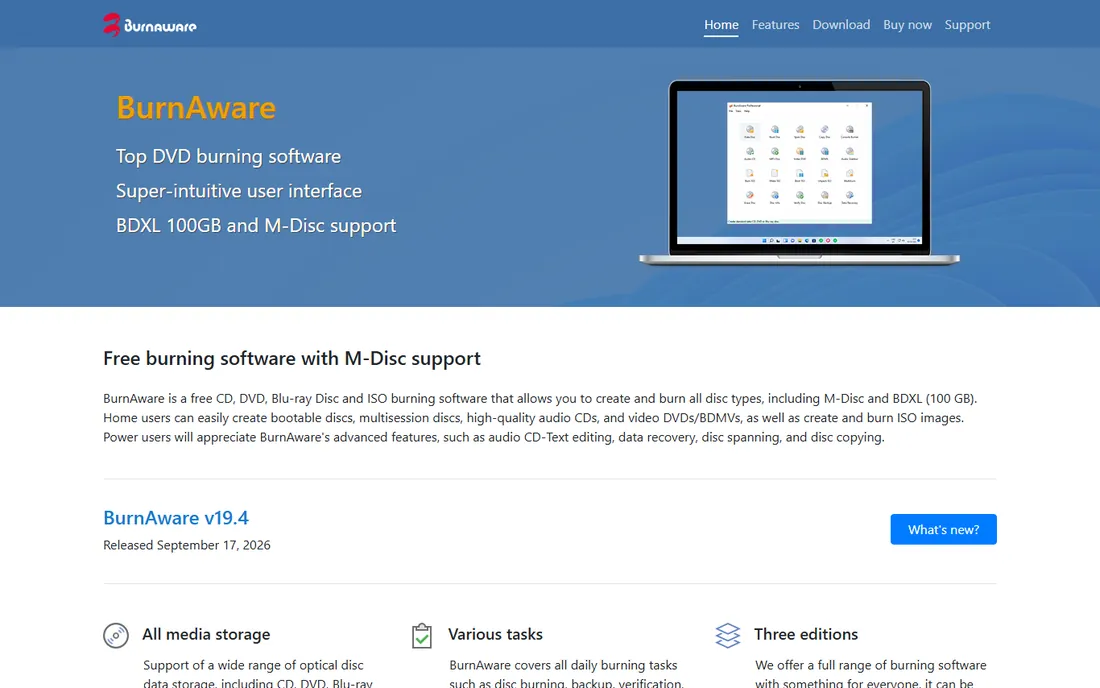
BurnAware's pitch is written on its homepage: free burning software with M-Disc and BDXL support. The Free edition handles the daily jobs (data discs, bootable discs, audio CDs, DVD-Video, Blu-ray data and ISO creation) without asking for money or installing extras. It has been around since 2007 and the interface stays out of your way, which is why it keeps showing up on best-free-burner lists year after year.
Know what it is not. BurnAware does not design Blu-ray menus or chapters; for that you need an authoring tool like DVDFab or Leawo. The paid Premium and Professional editions add the power-user features (command line, data recovery, commercial use), but the vendor does not publish those prices on the homepage, so check the store. As a free burner for getting files onto Blu-ray media, it is one of the two or three you should try first.
What we like- The Free edition covers data discs, audio CDs, video DVDs, BDMV and ISO work at no cost
- Supports M-Disc and BDXL media up to 100 GB
- Clean interface with no bundled junk in the installer
Watch out for- No disc menu authoring, it burns rather than authors
- Advanced tools like data recovery sit in the paid editions
#4
ImgBurn
Best for: Technical users who want a tiny, free, no-nonsense burner
Visit imgburn.com
Starting priceFree
Free planYes
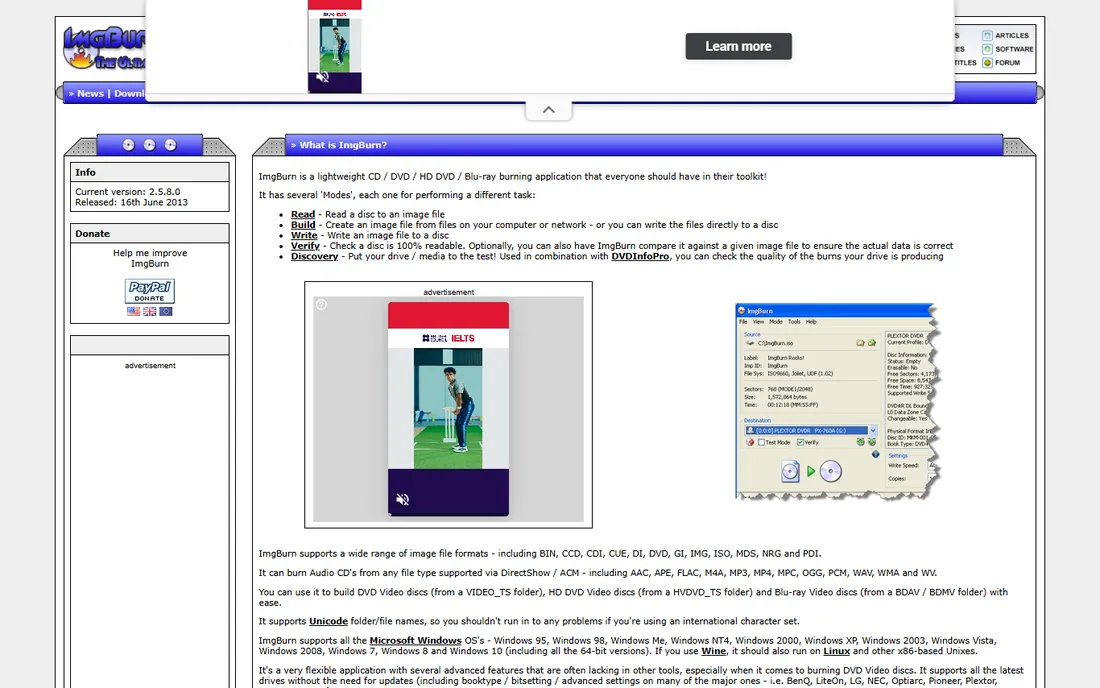
ImgBurn is the veteran of this list: a free optical disc authoring program that does exactly what it says on its site, including the line that it is 100 percent free. It reads, builds, writes and verifies disc images across CD, DVD, HD DVD and Blu-ray, supports BIN, ISO, IMG, MDS, NRG and a dozen more formats, and can build a playable Blu-ray Video disc from a BDAV or BDMV folder structure. Power users love the queue system, layer-break control and per-drive settings.
The caveats are real. The last release was version 2.5.8.0 in 2013, so the interface and the feature set are frozen in time, and there is no menu designer. Download only from the official site or a trusted mirror, since the direct installer has historically bundled adware offers. If you can live with its age and just need reliable free burning, nothing beats it on control per megabyte.
What we like- Completely free with no paid tier at all
- Builds Blu-ray Video discs from BDAV/BDMV folders and burns every major image format
- Extremely lightweight and configurable
Watch out for- No menu or chapter authoring
- The interface looks dated and development stopped in 2013, so do not expect new features
#5
Ashampoo Burning Studio
Best for: Beginners who want guided burning with a free option
Visit ashampoo.com
Starting priceSee website
Free planYes (Burning Studio FREE edition)
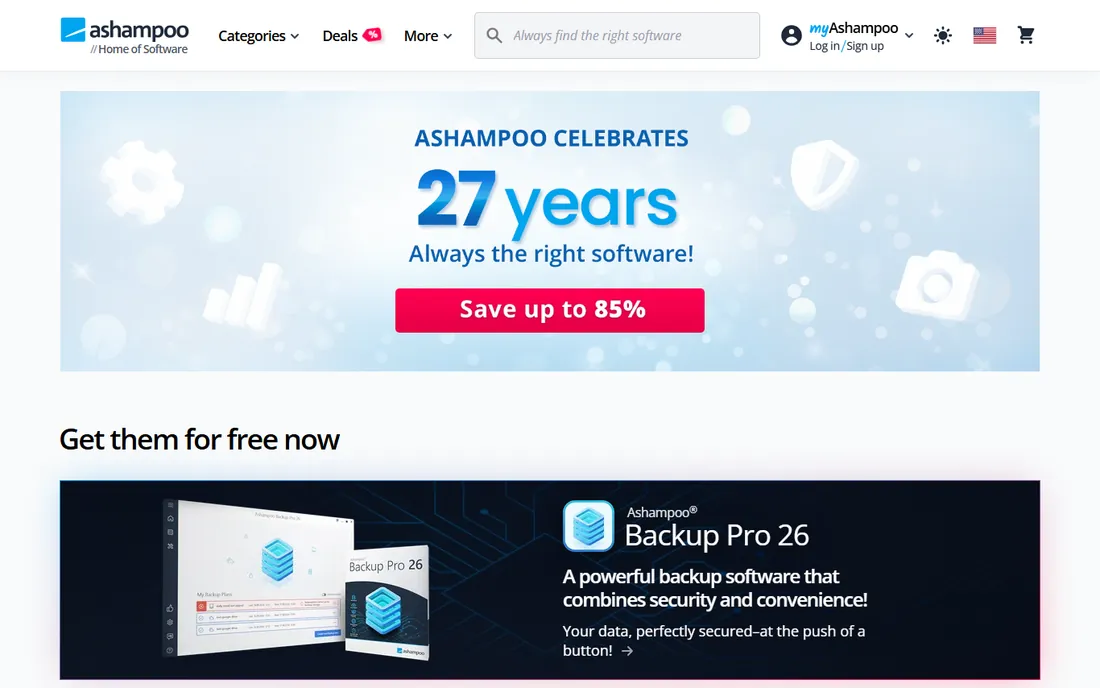
Ashampoo splits its burning line in two: Burning Studio FREE, which the vendor's own site describes as free forever, and the paid Burning Studio for users who want the full set. The free edition covers the essentials (data discs, backups, audio CDs, Blu-ray burning) with the kind of guided interface that suits people who burn discs a few times a year. The paid edition adds the extras: disc copying, music ripping with cover lookup, mobile backup and a scratch-protection feature for aging media.
The free edition is the honest pick for occasional use, and it means you can try Ashampoo's approach without paying. If you burn regularly or want the backup and design tools, check the store for the current Studio price, which third-party trackers place around the 30-dollar/euro mark but which the vendor prices dynamically. Either way, start with FREE and upgrade only if you hit its limits.
What we like- A genuinely free edition that burns data, audio and Blu-ray discs
- The paid Studio adds backup, ripping, cover design and scratch protection
- Polished, beginner-friendly interface
Watch out for- The free edition is feature-limited next to the paid Studio
- Paid pricing is only shown in the vendor's store
#6
Nero Burning ROM
Best for: Professional and archival burning with encryption and verification
Visit nero.com
Starting priceSee website
Free planFree trial (15 days, per reviewers)
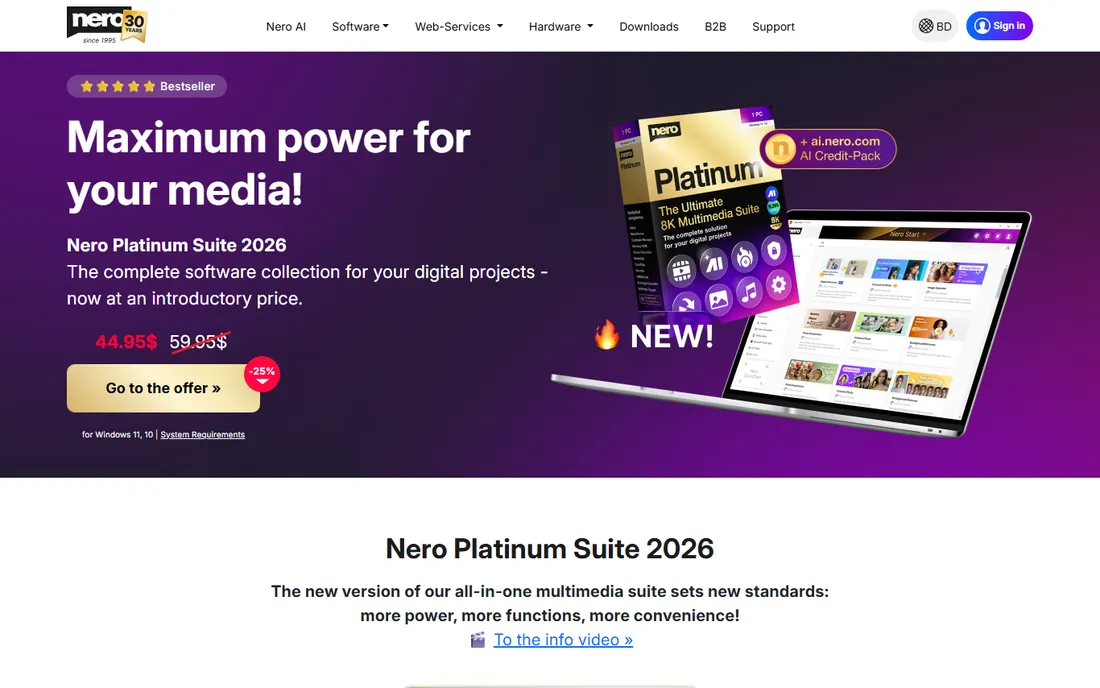
Nero Burning ROM is the professional end of the burner market. Its headline feature is SecurDisc technology: 256-bit encryption, password protection and adjustable data redundancy so scratched discs stay readable, which is why archivists and businesses still buy it. It burns CDs, DVDs and Blu-ray, rips audio, copies discs and verifies everything it writes.
You pay for that seriousness. Nero sells through its own store with frequent discounts, and reviewers cite a 15-day trial with a burn-size limit, but the vendor does not publish a stable list price on the product page. Home users who burn occasionally should start with the free tools on this list; Nero earns its keep for people burning sensitive or long-term archives where verification and encryption matter.
What we like- SecurDisc 4.0 encryption with password protection and digital signatures for sensitive archives
- Reliable burning engine with a decades-long track record
- Data recovery tools for damaged discs
Watch out for- No published price on the product page
- Overkill and overpriced for anyone who just burns the occasional ISO
Starting priceSee website
Free planFree trial
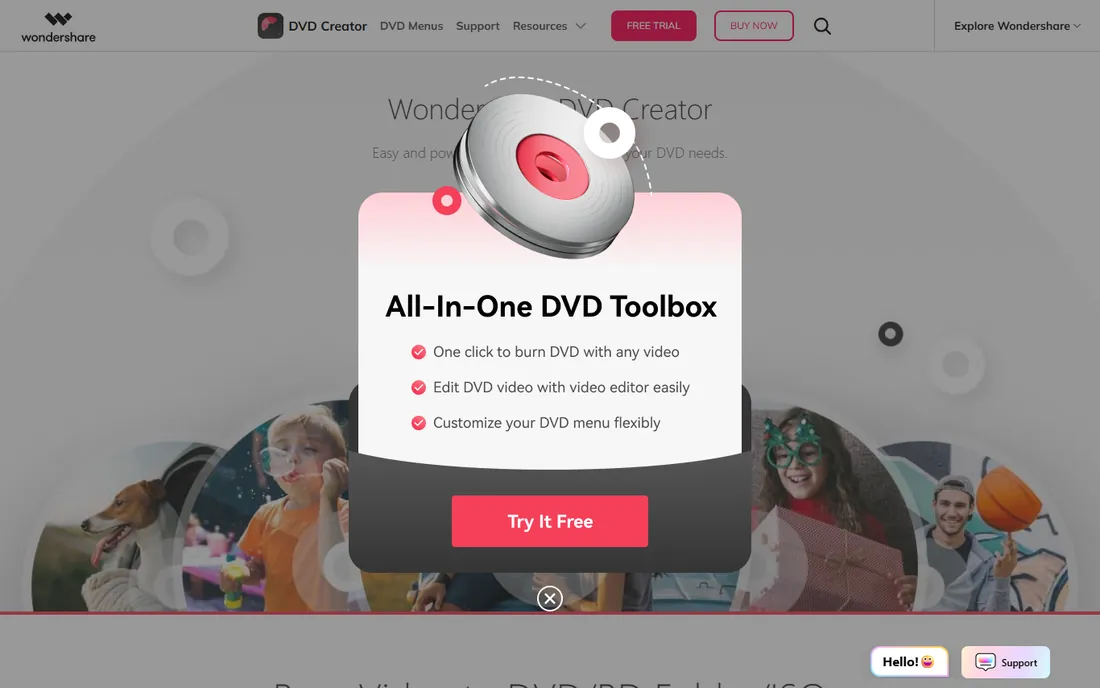
Wondershare DVD Creator is built for the user who wants a finished-looking disc without learning authoring. The template library is the selling point: more than a hundred DVD and Blu-ray menu designs across themes, with customizable backgrounds, music, thumbnails and chapters. The built-in editor trims, crops, watermarks and subtitles your videos, and it burns to just about every consumer disc type including BD-100.
The platform split matters. On Windows you get the full Blu-ray workflow; on Mac the software is DVD-only, so Mac users shopping for Blu-ray should look at Leawo instead. Pricing runs through Wondershare's store with the usual subscription and lifetime options, and the trial lets you test the workflow. For template-driven projects on Windows, it is one of the easiest paths from video files to a playable disc.
What we like- Over 100 static and dynamic menu templates
- Built-in editor with trim, crop, effects, watermarks and subtitles
- Burns to DVD, Blu-ray disc (BD-25/50/100), folder or ISO
Watch out for- Blu-ray burning is Windows-only (the Mac version does DVD only)
- Pricing is only visible in the vendor's store
#8
AnyBurn
Best for: A free, lightweight burner for home and business use
Visit anyburn.com
Starting priceFree
Free planYes
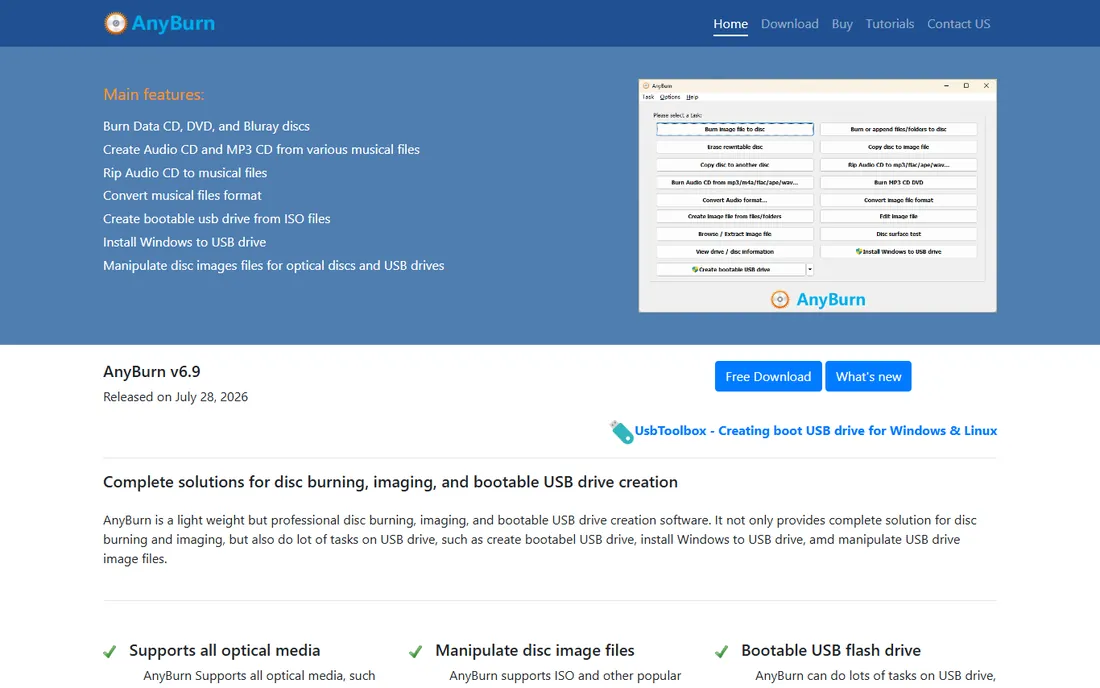
AnyBurn is the minimalist's answer to disc burning. It is free for commercial use too, which is rare in this category, and it covers the practical jobs: burning files and images to CD, DVD and Blu-ray, creating and converting image formats, copying discs, erasing rewritables and making bootable USB drives. The portable version runs without installation, and the whole program is a few megabytes.
Like ImgBurn and BurnAware, it is a burner, not an authoring tool: there are no disc menus or chapter designers here. The interface will not win design awards, but everything is one or two clicks away and the vendor keeps it updated (version 6.9 arrived in 2026). If your job is getting data or images onto Blu-ray media reliably and for free, AnyBurn belongs in the toolkit.
What we like- Completely free for both home and business use
- Burns and creates CD, DVD and Blu-ray discs and images, plus bootable USB drives
- Portable version available with a tiny footprint
Watch out for- No menu or chapter authoring
- The interface is functional rather than friendly
#9
Aiseesoft Burnova
Best for: Template-based DVD and Blu-ray creation on Windows
Visit aiseesoft.com
Starting priceSee website
Free planFree trial
Aiseesoft Burnova covers the same ground as Wondershare DVD Creator: take video files, dress them in a menu template, add light edits and subtitles, and burn to DVD or Blu-ray disc, folder or ISO. The template themes skew toward family occasions (weddings, holidays, travel), and the editor handles the usual pre-burn fixes. BD-25 and BD-50 output covers the common Blu-ray media.
It is Windows-only, so Mac users need another option, and like most vendors in this space Aiseesoft sells through its own store with rotating discounts rather than a stable list price. Compare the current store price against DVDFab's $46.99 before buying, since the two products overlap heavily. For Windows users who want guided, template-driven authoring, it is a credible alternative to the bigger names.
What we like- Menu templates across holiday, family, travel and wedding themes with custom backgrounds
- Built-in editor for rotate, clip, crop, effects and subtitles
- GPU acceleration for faster burns
Watch out for- Windows only
- Pricing is store-only with frequent discount pricing that changes
How we chose
We started with the searches buyers use: blu-ray creator software, blu-ray burner software and blu-ray authoring software. For each candidate we opened the vendor's own site, checked whether the product is still sold and maintained, and confirmed pricing on the vendor's own pages. CyberLink PowerProducer was dropped because CyberLink no longer develops it, and Xilisoft Blu-ray Creator was dropped because its last update was in 2013. Where the vendor publishes no stable price we wrote "See website" instead of quoting discount sites.
The most expensive mistake in this category is buying an authoring suite when you needed a burner, or expecting menus from a free burner. Authoring tools (DVDFab, Leawo, Wondershare, Aiseesoft) take video files and produce a finished, playable Blu-ray with menus, chapters and subtitles. Burning tools (ImgBurn, BurnAware, AnyBurn, Ashampoo's free edition, Nero) write files, folders and disc images to Blu-ray media, and can build a playable disc only if you already have the BDAV/BDMV folder structure.
Match the tool to the job. Archiving video files to BD-R media? A free burner is all you need. Handing someone a disc that opens with a menu on their Blu-ray player? That is authoring, and it costs money. Also check your drive: you need a Blu-ray writer (not just a reader) to burn BD-R or BD-RE, and BDXL triple- and quad-layer media needs a BDXL-compatible drive.
What to check before you buy
First, the operating system. Half the tools on this list are Windows-only, and Wondershare's Mac version drops Blu-ray entirely, so Mac users have fewer real options. Second, the output you need: BD-25 and BD-50 cover nearly all consumer media, but BD-100 and BDXL support varies. Third, the trial limits: most paid tools offer trials, but they commonly watermark output or limit burn size, so test with a real project before paying.
Then the pricing reality. Vendors in this category sell through their own stores with rotating discounts, which means the price you see today is rarely the price next month. DVDFab is the exception with a stable published price, which makes it the easiest to compare. For the rest, check the store on the day you buy, prefer lifetime licenses over subscriptions for software you will use for years, and remember that a free burner plus a little patience covers most burning jobs at zero cost.
Frequently asked questions
Can I create a Blu-ray with menus for free?
Not really. Free tools like ImgBurn, BurnAware and AnyBurn burn files and images to Blu-ray media, but designing playable menus with chapters requires a paid authoring tool such as DVDFab, Leawo, Wondershare or Aiseesoft. If you already have a BDAV/BDMV folder, ImgBurn can burn it to a playable disc for free.
Do I need a special drive to burn Blu-ray discs?
Yes. You need a Blu-ray writer drive (BD-R/RE capable), not just a Blu-ray reader or a DVD burner. For triple- or quad-layer BDXL media up to 128 GB, the drive must explicitly support BDXL. Check the drive specs before buying media.
What is the difference between BD-25 and BD-50?
They are single- and dual-layer recordable Blu-ray discs holding about 25 GB and 50 GB respectively. BD-25 suits shorter projects and data archiving; BD-50 fits longer videos or higher bitrates. All the authoring tools on this list support both.
Will a burned Blu-ray play on a regular Blu-ray player?
A properly authored Blu-ray (with the BDMV folder structure) burned to BD-R or BD-RE plays on most standalone players. A data disc with video files on it will not play as a movie, though many players can browse and play the files. Authoring tools create the player-compatible structure automatically.
Is Blu-ray authoring software available for Mac?
Options are thinner than on Windows. Leawo Blu-ray Creator has a Mac version with Blu-ray support; Wondershare's Mac version is DVD-only; DVDFab, BurnAware, Nero and Aiseesoft are Windows-only. ImgBurn and AnyBurn can run on Mac only through compatibility layers, which is not ideal for disc burning.
Why do Blu-ray creator prices change so often?
Most vendors sell through their own stores with rotating promotions and coupon pricing, so list prices move constantly. DVDFab publishes a stable price, which is the exception. If a tool is not urgent, watch the vendor's store for a sale rather than paying the first price you see.
Sources we checked (10)
- https://www.dvdfab.cn/blu-ray-creator.htm
- http://leawo.com/
- http://burnaware.com/
- https://imgburn.com/
- https://www.ashampoo.com/en-nz/burning-studio-free
- https://www.nero.com
- https://dvdcreator.wondershare.com/
- https://anyburn.com/tutorials/history.htm
- https://www.aiseesoft.com
- https://www.techradar.com/reviews/nero-burning-rom
Is your product missing or out of date?
We review this list regularly. Vendors can request a listing, send updated pricing or ask about featured placement.

Shihab Mia · Founder, Rankite
Shihab has spent more than a decade helping SaaS and e-commerce brands grow through search. He writes Rankite's software buying guides from pricing pages, documentation and public user reviews. More about Shihab.