How we make this list: we compare pricing pages, product documentation and public user reviews. Rankite is independent; if a vendor ever pays for a featured spot, that listing is clearly labeled Partner.
Key takeaways
- Macrium Reflect X and Acronis Cyber Protect Home Office are the most complete paid options, both around $50 per year, with Acronis adding antivirus and cloud storage.
- If you want free, Veeam Agent, Paragon Backup and Recovery Community Edition and Hasleo Backup Suite cover full system imaging without paying anything.
- Clonezilla and Rescuezilla are the picks for bootable, offline imaging, with Rescuezilla adding the friendly interface Clonezilla lacks.
- R-Drive Image is the quiet specialist: a $44.95 one-time license with a reputation for restores that simply work.
Quick comparison
Is your product missing or out of date?
We review this list regularly. Vendors can request a listing, send updated pricing or ask about featured placement.

#1
Macrium Reflect X
Best for: Enthusiasts who want the fastest imaging engine
Visit macrium.com
Starting price$49.99/year (Home)
Free planFree trial (30 days)
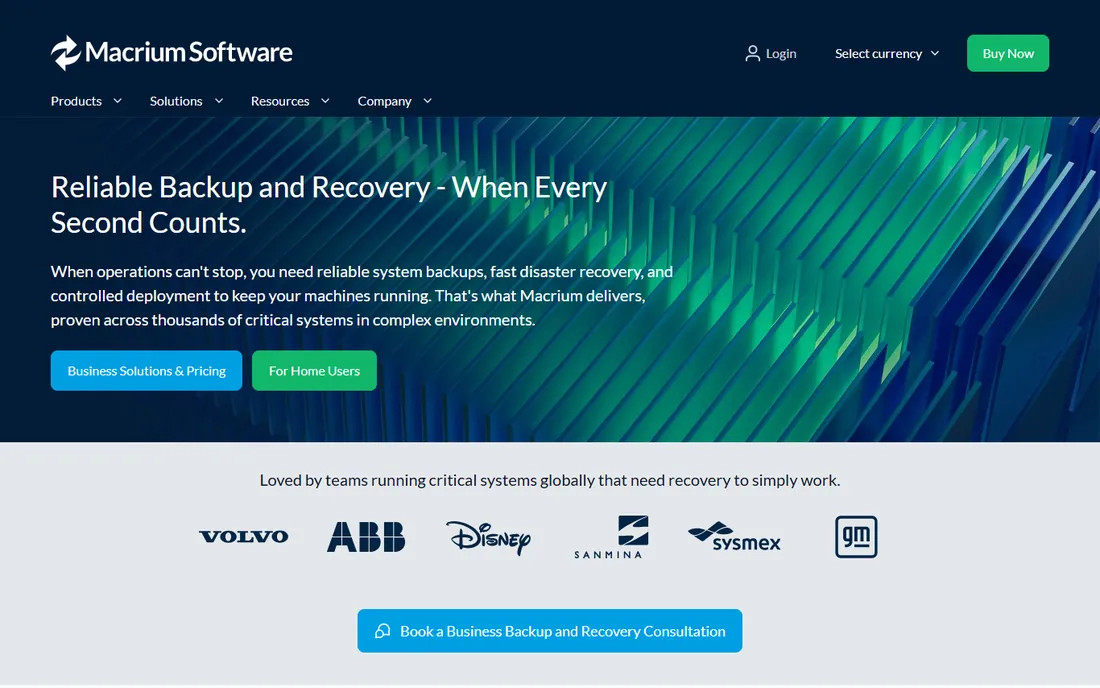
Macrium has been the benchmark for Windows disk imaging for over a decade, and Reflect X keeps that position. The backup engine is genuinely quick: incremental images that capture only changed blocks finish in minutes, and Rapid Delta Restore can bring a system back in a fraction of the time a full restore takes. Scheduling is flexible, with intra-daily backups available on the Home plan, and the WinPE rescue media is reliable when Windows will not boot.
The catch is the licensing change. Macrium discontinued the free edition with Reflect X in late 2024, so there is no longer a no-cost way in. The Home subscription runs $49.99 per year for a single PC, with multi-device bundles and a 3-year option that brings the yearly equivalent down. If you already know your way around imaging and want the most refined tool on Windows, it is worth it. If the subscription model bothers you, the free tools below cover the same core job.
What we like- Very fast incremental imaging
- Image Guardian protects backups from ransomware
- Can boot backup images as virtual machines
Watch out for- No free edition since Reflect X moved to subscription
- Home license covers one PC, extra machines cost more

#2
Acronis Cyber Protect Home Office
Best for: Backup plus security in one subscription
Visit acronis.com
Starting price$49.99/year (Essentials)
Free planFree trial (30 days)
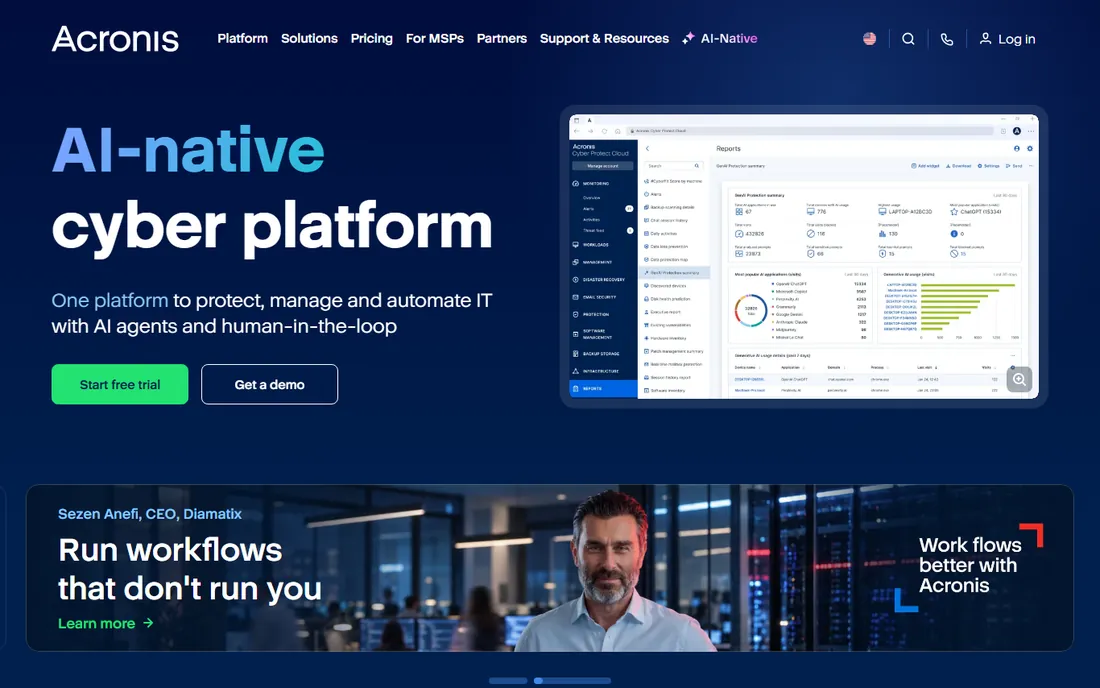
Acronis takes a different approach from the imaging purists: it treats backup as one part of device protection. Cyber Protect Home Office combines full-image backup with antivirus, vulnerability assessment and ransomware recovery, so one subscription covers the two disasters most likely to hit a home PC. The Essentials tier starts at $49.99 per year for one computer and handles local backups; Advanced adds 50 GB of Acronis cloud storage and identity protection features.
That breadth comes with weight. Acronis installs more background services than a focused tool like Macrium or R-Drive Image, and on older machines you can feel it. Pricing also climbs quickly once you add computers or cloud storage. But for a household that wants one dashboard for backup and security, especially across Windows and Mac, it is the most complete package here.
What we like- Full-disk imaging plus active anti-malware and ransomware rollback
- Cloud storage included on higher tiers
- Covers Windows, Mac, iOS and Android
Watch out for- Heavier install than pure imaging tools
- The best features sit on the pricier Advanced and Premium tiers

#3
EaseUS Todo Backup
Best for: Beginners who want a friendly interface
Visit easeus.com
Starting price$39.95/year (Home)
Free planYes
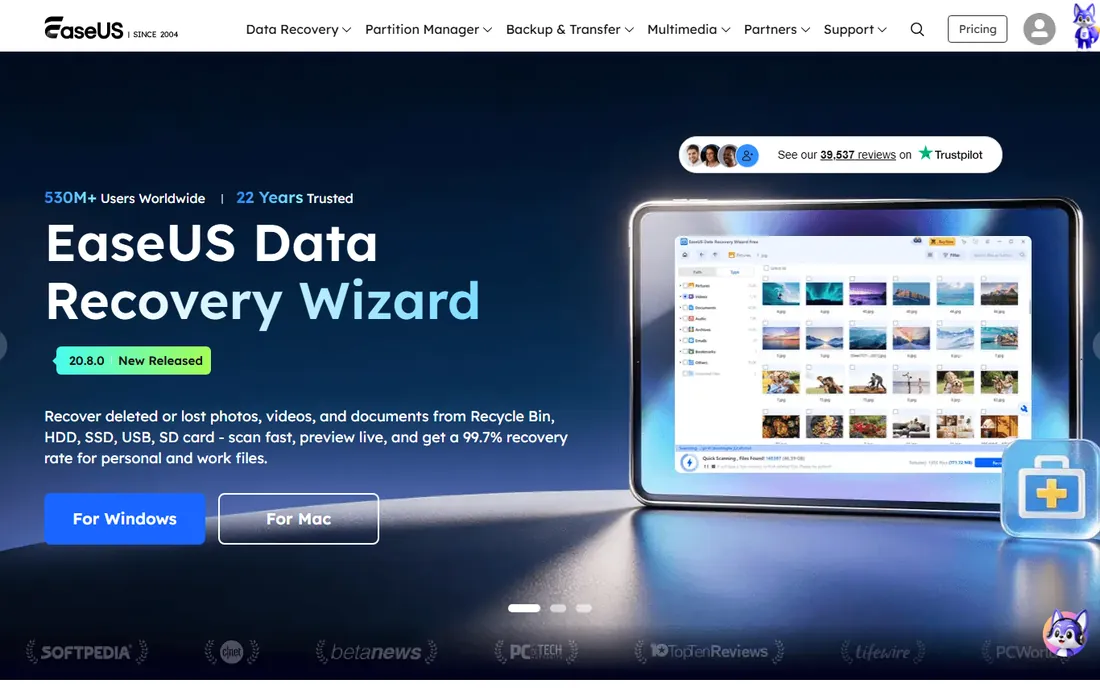
EaseUS wins on approachability. Where Clonezilla greets you with a text menu, Todo Backup opens a clean dashboard with big buttons for system backup, disk backup and cloning. The free version is unusually capable: it handles full system images, scheduled backups, encryption and WinPE recovery media. Paid Home adds disk and system cloning, universal restore to different hardware and a ransomware-proof Security Zone partition.
Pricing is straightforward at $39.95 per year for Home, with perpetual and lifetime-upgrade options that work out cheaper over time. Watch the cart at checkout, since EaseUS has a habit of pre-selecting extras. The occasional interface quirk and sync bug reported by reviewers keep it from the top spot, but for a first-time buyer it is the easiest on-ramp to real system imaging.
What we like- The clearest interface in the category
- Free version covers system, disk and file backup
- Fast backup speeds in recent versions
Watch out for- Free version lacks disk cloning and dissimilar-hardware restore
- Checkout flow has been known to pre-select add-ons
Starting priceFrom $39.95/year (Professional)
Free planYes

AOMEI Backupper has quietly become the value pick of the Windows backup world. The free Standard edition covers system, disk, partition and file backup with scheduling and bootable rescue media, which is enough for most home users. Stepping up to Professional, from $39.95 per year, adds system clone, universal restore, real-time file sync and automatic cleanup of old images. A lifetime license option exists for buyers who would rather pay once.
The tradeoffs are cosmetic and administrative. The interface works fine but looks a generation behind EaseUS, and the annual plan renews automatically unless you cancel. A 90-day money-back guarantee softens the risk. If you want the most features per dollar and do not mind an unfashionable UI, AOMEI is hard to beat.
What we like- Generous free Standard edition
- Lifetime licenses available
- Includes file sync and disk clone alongside imaging
Watch out for- Interface feels dated next to EaseUS
- Annual plans auto-renew by default

#5
Veeam Agent for Microsoft Windows
Best for: A genuinely free Windows imaging tool
Visit veeam.com
Starting priceFree
Free planYes
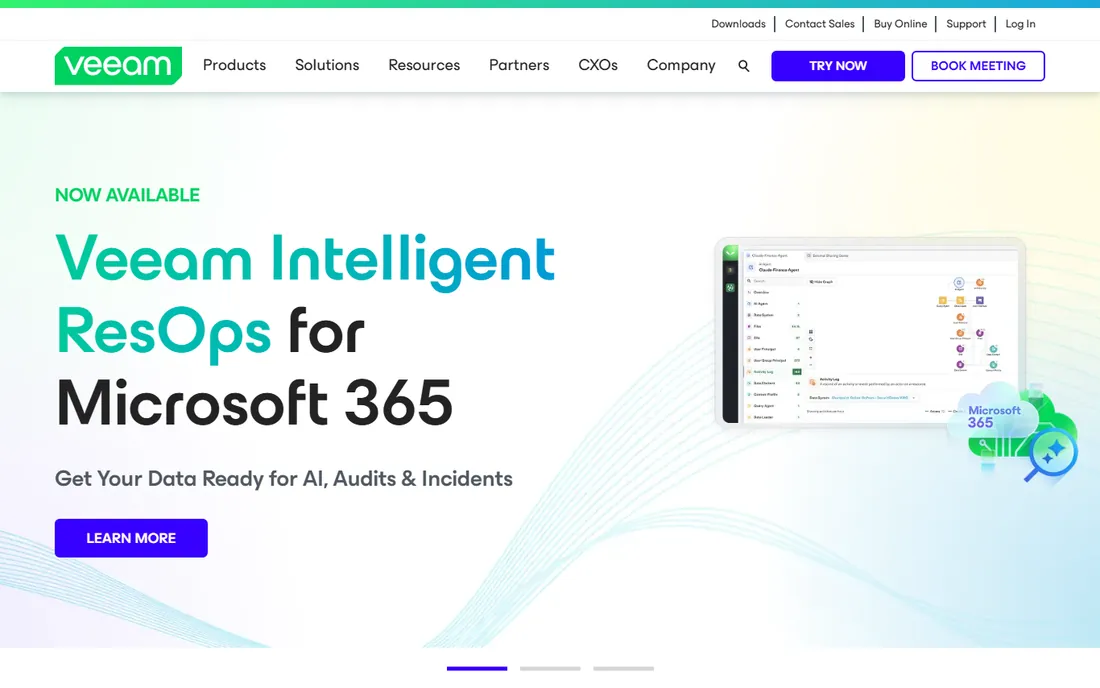
It still surprises people that Veeam, the enterprise backup giant, gives away a full-featured Windows agent for free. Veeam Agent handles entire-computer images, volume-level and file-level backup to local drives, network shares or a Veeam repository, with AES-256 encryption and bootable recovery media. The free edition is free for commercial use too, which no other vendor here matches.
There are two small frictions. You need a free Veeam account before the download link becomes available, and the interface is built for IT people rather than beginners. Once installed, though, it runs quietly and the restores are dependable. For a home lab, a small office or anyone who wants serious imaging at zero cost, this is the first tool to try.
What we like- Completely free for personal and business use
- Enterprise-grade engine from a backup market leader
- Bare-metal recovery media included
Watch out for- Requires a free Veeam account to download
- Interface assumes more technical comfort than EaseUS
Starting price$44.95 (one-time)
Free planFree trial (30 days)
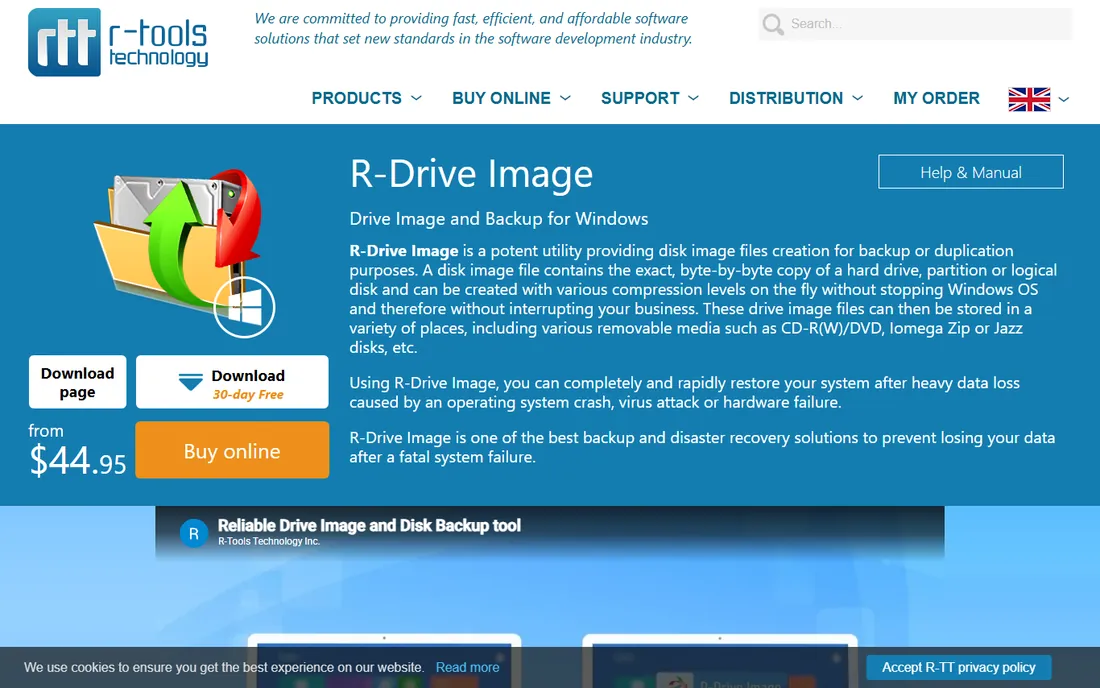
R-Drive Image is the tool reviewers reach for when the restore absolutely must work. It creates byte-level disk images with compression while Windows keeps running, supports incremental and differential chains, scheduling and scripting, and its images mount as virtual drives so you can pull individual files without a full restore. PCWorld named it an Editor's Choice for disaster recovery, and that reputation has held for years.
The $44.95 standalone license is a one-time purchase, which feels refreshing next to the subscriptions elsewhere on this list. The interface will not win design awards, especially the text-style boot environment, but everything is wizard-driven and documented. If you want to buy once and image for years, start here.
What we like- One-time license, no subscription
- Famously reliable restores
- Mounts images as virtual disks for file recovery
Watch out for- Dated, character-style interface on the boot media
- Windows-focused with limited extras
Starting priceFree (Community Edition)
Free planYes
Paragon's Community Edition is one of the best free deals in backup software: full system, disk and file backup with scheduling and WinPE-based recovery, free for non-commercial use with no expiry. It is built on the same engine as Paragon's commercial products, and it uses standard container formats rather than locking you into something proprietary.
The free edition draws a clear line: no partition creation, no disk copying, no email notifications, no server OS support. Those live in Hard Disk Manager, from $79.95. Reviewers also note that file-level backup is the Community Edition's strongest suit, with disaster recovery slightly less polished than R-Drive Image. As a free, set-and-forget imaging tool for a home PC, it is excellent.
What we like- Community Edition is free for personal use with no time limit
- Supports full, differential and incremental imaging
- WinPE recovery media
Watch out for- No partition management or disk copy in the free edition
- Commercial use requires the paid Hard Disk Manager
Starting priceFree
Free planYes
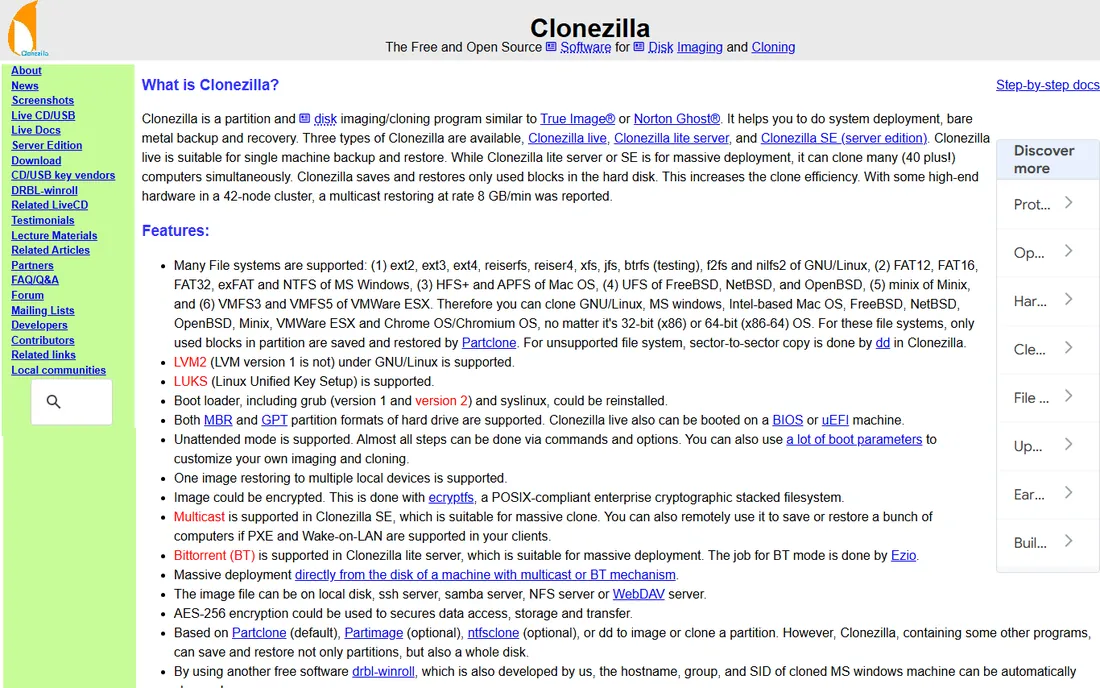
Clonezilla is the industry standard for cloning, trusted by IT departments and hobbyists alike for two decades. It images and clones disks and partitions, works with most filesystems, and its server edition can multicast a single image to forty or more machines simultaneously, which is why schools and repair shops love it. It costs nothing and the image format is an open one.
Everything about the experience is utilitarian. You boot from USB, answer a series of text menus, and there is no scheduler, no email report and no hand-holding. Used wrong, it will happily clone a blank disk over your data, so beginners should practice on a spare drive first. For technicians, it remains unmatched. For everyone else, Rescuezilla below wraps the same engine in a GUI.
What we like- Free and open source
- Multicasts one image to dozens of machines at once
- Tiny download, runs from USB
Watch out for- Text-based interface intimidates beginners
- No scheduling, it is a manual tool
Starting priceFree
Free planYes
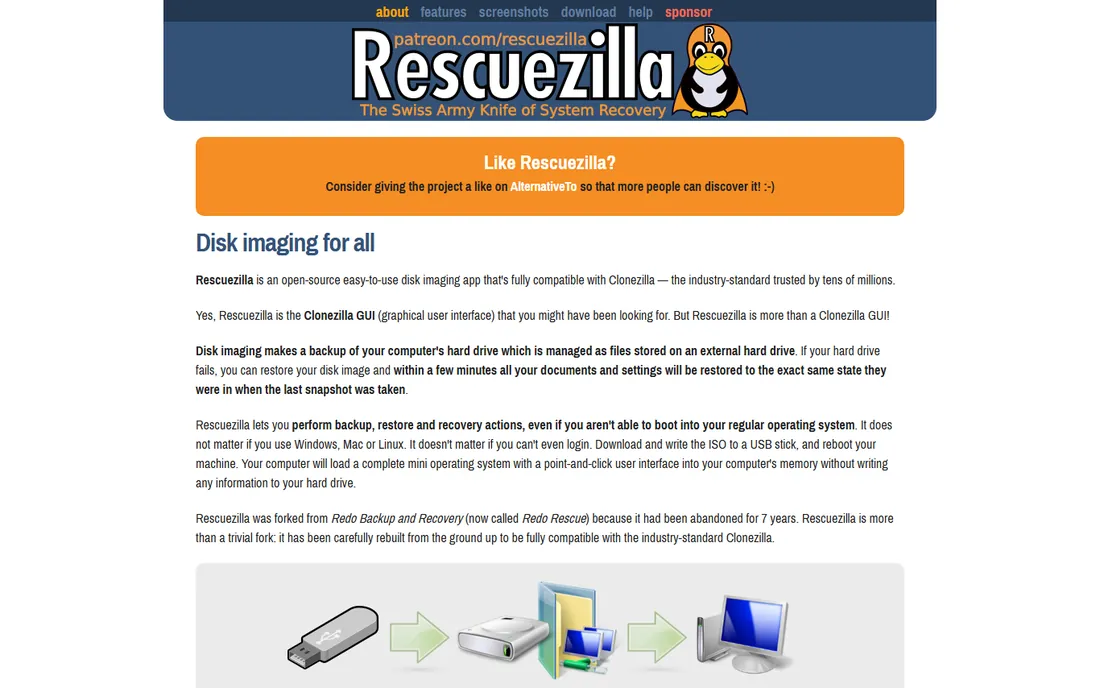
Rescuezilla answers the one big complaint about Clonezilla: the interface. It is a live USB environment with a straightforward graphical frontend for backup, restore and cloning, and because it uses the same image format as Clonezilla, images created in one tool restore in the other. It handles Windows, Mac and Linux machines, mounts images to browse files, and bundles recovery utilities like file undeletion.
Like Clonezilla, it is a manual, boot-when-you-need-it tool rather than a scheduled backup service. Development is community-driven, so updates arrive when they arrive. But as a free rescue stick that anyone in the family can operate in an emergency, it earns its place. Keep one on a USB drive in a drawer.
What we like- Graphical interface over the proven Clonezilla format
- Boots from USB, no installation
- Images are interchangeable with Clonezilla
Watch out for- No scheduling or automation
- Project moves slower than commercial tools
Starting priceFree
Free planYes
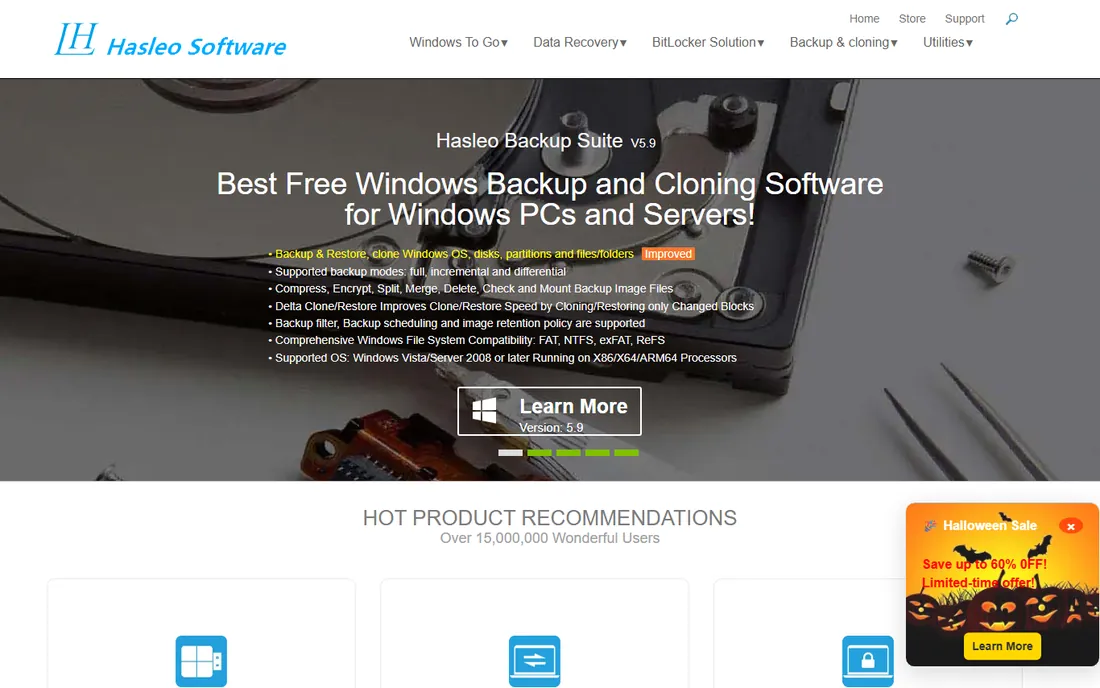
Hasleo Backup Suite is the name that keeps coming up in forums from former Macrium Reflect Free users, and the comparison is fair. The free edition covers system, disk, partition and file backup with full, incremental and differential modes, disk cloning, migration to SSD, compression, encryption, scheduled tasks, email notifications and a WinPE emergency disk. That feature list embarrasses some paid tools.
The honest caveat is provenance. Hasleo Software is a smaller vendor without the decades-long history of Macrium or Acronis, and support resources are thinner. The software itself has been stable and well-reviewed since its release. If you want a free, Windows-native imaging suite with a modern interface and no feature gates, this is currently the strongest option.
What we like- Full imaging, cloning and scheduling free
- Clean modern interface
- WinPE emergency disk builder
Watch out for- Smaller company with a shorter track record
- Documentation thinner than the big vendors
How we chose
We compared tools on the things that matter when a drive fails: image reliability, restore options (bare metal, dissimilar hardware, file-level), scheduling flexibility, rescue media quality, encryption, pricing transparency and the state of the free tier. We checked current vendor pricing pages and documentation, read recent reviews from PCWorld, TechRadar and Tom's Guide, and scanned user reports on Reddit and forums for restore failures, since a backup tool is only as good as its worst restore. We did not run hands-on restore tests; treat this as a research-based shortlist, not a lab benchmark.
Start with how you will recover, not how you will back up. If your plan is "restore the whole machine from a USB stick after a drive failure," any tool here works, and a free one like Veeam Agent or Hasleo is enough. If you need to restore to different hardware, say after a motherboard upgrade, you need universal restore, which is a paid feature in EaseUS, AOMEI and Macrium.
Next, decide how you feel about subscriptions. R-Drive Image and the lifetime licenses from AOMEI and EaseUS let you pay once. Macrium and Acronis are annual subscriptions now, which buys you continuous updates and support. For scheduling, check the fine print: free editions sometimes limit backup frequency or chain types, and that matters if you want hourly incrementals.
Storage targets matter too. Local USB drives are fastest for full images; NAS works for scheduled incrementals. Whatever you choose, test the rescue media before you need it: boot it once and confirm it sees your backup drive.
A backup routine that survives real life
The best imaging software in the world cannot help if the backups are stale. A routine that works for most home users: one full image per month, weekly differentials or daily incrementals, all automatic, stored on an external drive that stays disconnected except during backup windows. Disconnected matters, because ransomware encrypts attached drives too, which is why Macrium's Image Guardian and Acronis's protected storage exist.
Keep at least two full generations of images, so a silently corrupted backup never leaves you empty-handed. Verify images occasionally with the built-in image-check function. And keep the rescue USB somewhere you can find at midnight: a labeled drive in a desk drawer beats a perfect plan you cannot boot.
Frequently asked questions
What is the difference between a system image and a file backup?
A file backup copies selected files and folders. A system image captures the entire drive: operating system, applications, settings and files, as one snapshot. With an image you can restore a dead machine to exactly how it was; with a file backup you must reinstall Windows and every program first.
How often should I create a system image?
Monthly full images with weekly or daily incrementals is a solid default for home users. Image before big changes too: Windows feature updates, driver overhauls or hardware swaps. The schedule matters less than automation; pick a cadence your tool runs by itself.
Can I restore a system image to a different computer?
Only with universal restore, sometimes called dissimilar-hardware restore. It injects the right storage and chipset drivers during recovery. EaseUS, AOMEI and Macrium include it on paid tiers. Without it, restoring to different hardware usually produces a machine that will not boot.
Is free system image software safe to use?
The free tools on this list come from established vendors or long-running open-source projects and are widely used. Veeam Agent, Paragon Community Edition, Hasleo, Clonezilla and Rescuezilla all create verified, restorable images. Avoid random "free backup" downloads from unfamiliar sites; stick to the vendor's own download page.
How much storage does a system image need?
A compressed image of a typical Windows installation with programs runs 50 to 70 percent of the used space on the drive. A 500 GB drive with 200 GB used usually images to 100 to 140 GB. Incrementals after that are much smaller. A 1 TB external drive comfortably holds several generations for most home PCs.
Do I need cloud storage for system images?
Not necessarily. Local images restore far faster, which is what you want in an emergency. Cloud storage helps against fire and theft. A practical setup is local images for quick recovery plus your most important files synced to a cloud service. Acronis is the only tool here that bundles serious cloud storage with imaging.
Sources we checked (20)
- https://www.bestbackupreviews.com/reviews/macrium-reflect-review/
- http://alternativeto.net/software/macrium-reflect/about/
- https://www.pcworld.com/article/3204158/macrium-reflect-x-home-review-2.html
- https://www.tomsguide.com/home/home-security/acronis-cyber-protect-home-office-review
- https://www.globenewswire.com/en/news-release/2023/09/19/2745564/0/en/Acronis-Unveils-First-Ever-AI-powered-All-in-One-Cyber-Protection-Solution-for-Consumers.html
- https://sourceForge.net/software/product/Acronis-Cyber-Protect-Home-Office/
- https://thehightechsociety.com/easeus-todo-backup-review/
- https://www.pcworld.com/article/2550730/easeus-todo-backup-review.html
- http://www.aomeitech.com/ab/professional.html
- https://www.techradar.com/reviews/aomei-backupper
- https://techdows.com/download-veeam-for-pc-windows-11-10-mac.html
- https://www.bestbackupreviews.com/reviews/veeam-agent-for-windows-review/
- https://www.techradar.com/reviews/r-drive-image
- https://slashdot.org/software/comparison/MiniTool-Partition-Wizard-vs-R-Drive-Image/
- https://www.bestbackupreviews.com/reviews/paragon-backup-recovery-review/
- https://www.pcworld.com/article/825717/paragon-backup-and-recovery-review.html
- https://kb.shells.com/tutorials/Linux_Mint_Latest/Clonezilla/
- https://www.patreon.com/rescuezilla/about
- https://alternativeto.net/software/rescuezilla/about/
- https://packagestore.com/product/hasleo-backup-suite/
Is your product missing or out of date?
We review this list regularly. Vendors can request a listing, send updated pricing or ask about featured placement.

Shihab Mia · Founder, Rankite
Shihab has spent more than a decade helping SaaS and e-commerce brands grow through search. He writes Rankite's software buying guides from pricing pages, documentation and public user reviews. More about Shihab.
 AOMEI Backupper
 R-Drive Image
 Paragon Backup and Recovery
 Clonezilla
 Rescuezilla
 Hasleo Backup Suite