How we make this list: we compare pricing pages, product documentation and public user reviews. Rankite is independent; if a vendor ever pays for a featured spot, that listing is clearly labeled Partner.
Key takeaways
- Macrium Reflect and Acronis Cyber Protect Home Office are the safest picks for home users who want reliable scheduled imaging with a proper rescue environment.
- If you never want to pay, Clonezilla, Rescuezilla, Veeam Agent Free and Paragon Backup & Recovery Community Edition cover full disk imaging at zero cost.
- Perpetual and lifetime licenses still exist (EaseUS and AOMEI sell them), so you are not forced into a subscription if you plan to keep the same PC for years.
- Free editions usually skip ransomware protection, dissimilar-hardware restore and cloud backup, so check which features sit behind the paywall before you commit.
- Always test the rescue media once after installing. An image you cannot boot is just a large file.
Quick comparison
| Tool | Best for | Starting price | Free plan |
|---|
 Macrium Reflect Macrium Reflect | Reliable scheduled imaging for Windows homes | $49.99 per year (Reflect X Home) | Free trial (30 days) |
 Acronis Cyber Protect Home Office Acronis Cyber Protect Home Office | Imaging plus antivirus in one package | $49.99 per year (Essentials) | Free trial (30 days) |
 AOMEI Backupper AOMEI Backupper | Budget-friendly backup with a strong free tier | $39.95 per year (Professional yearly) | Yes (Standard edition) |
 EaseUS Todo Backup EaseUS Todo Backup | Simple imaging with a real perpetual license | $29.95 per year (Home) | Yes (Free edition) |
 Clonezilla Clonezilla | Free open-source cloning for technicians | Free | Yes |
 Rescuezilla Rescuezilla | Beginner-friendly free imaging from a bootable USB | Free | Yes |
 Paragon Backup & Recovery Paragon Backup & Recovery | No-account free imaging for personal use | Free (Community Edition for personal use) | Yes |
 Veeam Agent for Microsoft Windows Veeam Agent for Microsoft Windows | Enterprise-grade free agent for one PC | Free (Free edition; paid per-workload licenses available) | Yes |
 NovaBACKUP NovaBACKUP | Set-and-forget local backup for small offices | See website | Free trial |
Is your product missing or out of date?
We review this list regularly. Vendors can request a listing, send updated pricing or ask about featured placement.
The drive image software worth your money this year
A drive image is the one backup that saves you when Windows refuses to boot. File backups rescue your documents, but an image restores the whole system, programs, settings and all, in one pass. The tools below do exactly that, and they differ mostly in how much hand-holding you get, what the rescue environment looks like, and what it costs you over three years.
#1
Macrium Reflect
Best for: Reliable scheduled imaging for Windows homes
Visit macrium.com
Starting price$49.99 per year (Reflect X Home)
Free planFree trial (30 days)
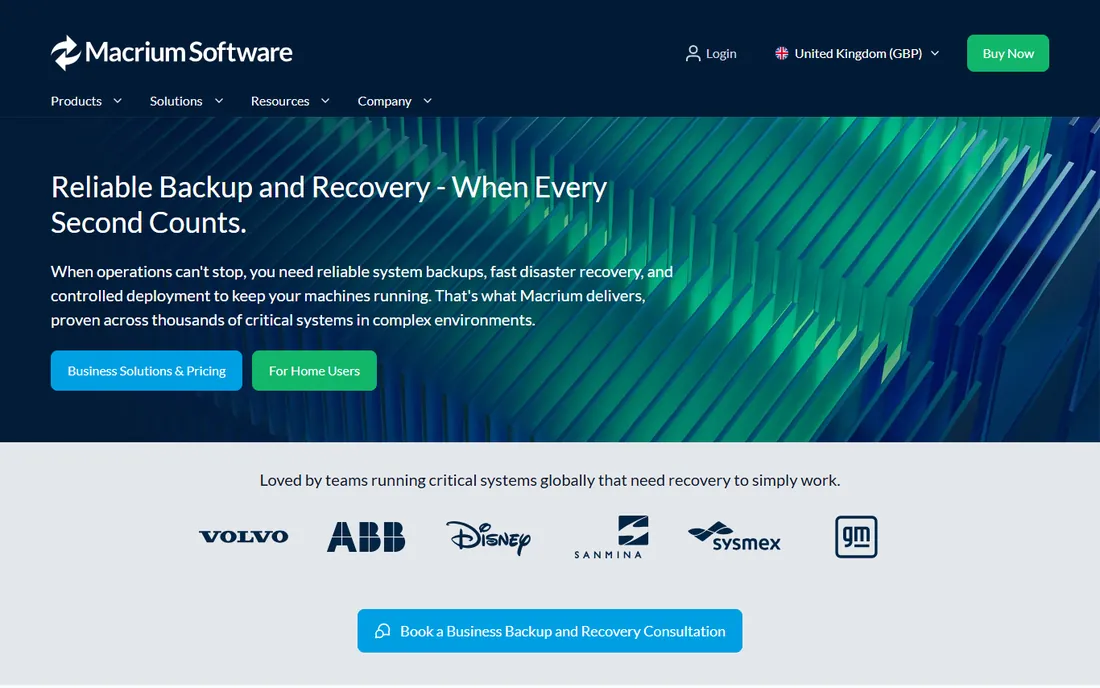
Macrium Reflect has spent years as the imaging tool IT people recommend to their families, and that reputation is earned. The imaging engine is quick, the Verify step catches corrupt images before they matter, and the rescue media builder walks you through creating a bootable USB that actually boots. Scheduling is unusually flexible, with retention rules that keep your backup drive from filling up silently.
The honest catch is the move to subscription pricing for the current Reflect X line, at $49.99 a year for one PC. If you liked the old buy-once model, that stings. There is also no Linux-based rescue environment, only Windows PE or RE, which limits options on unusual hardware. Still, if you want imaging that simply works every week without babysitting, this is the benchmark the others are judged against.
What we like- Fast, dependable imaging engine
- Excellent rescue media builder
- Granular scheduling and retention rules
Watch out for- No Linux-based rescue option
- Subscription pricing replaced the old one-time deal for the current version
#2
Acronis Cyber Protect Home Office
Best for: Imaging plus antivirus in one package
Visit acronis.com
Starting price$49.99 per year (Essentials)
Free planFree trial (30 days)
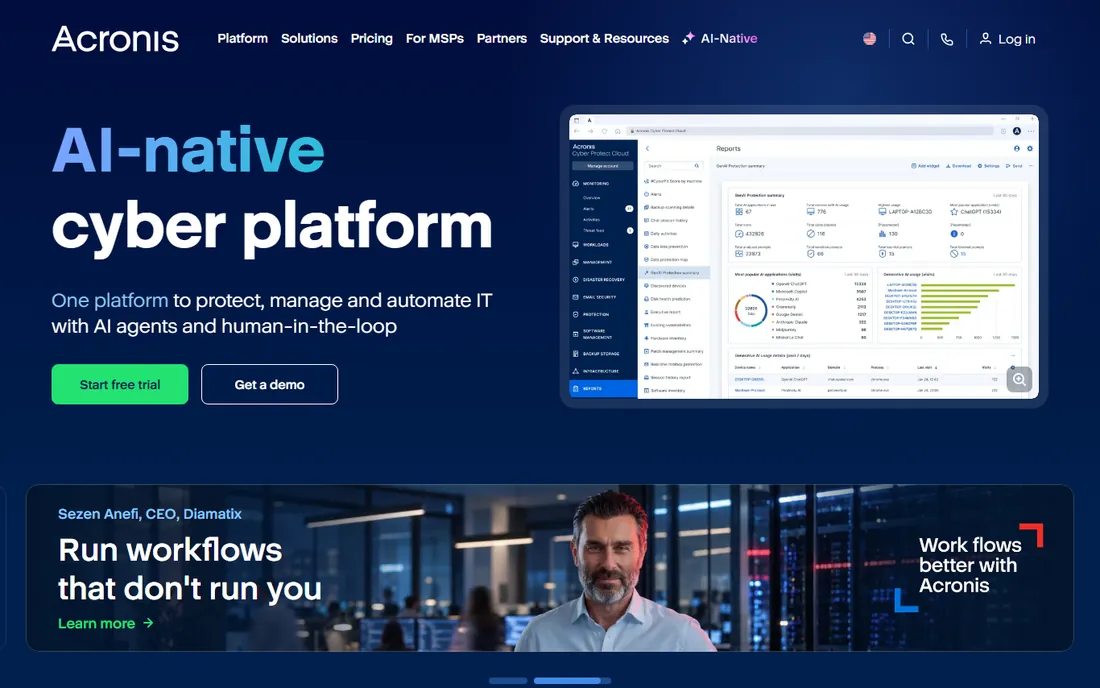
Acronis bundles disk imaging with antivirus, anti-ransomware and identity protection, so one subscription covers both disaster recovery and day-to-day security. Imaging itself is solid, with incremental backups that keep nightly runs short, and the Advanced and Premium tiers add 500 GB to 5 TB of Acronis cloud storage if you want offsite copies without managing your own NAS.
The catch is scope creep. The product tries to be a security suite, a backup tool and a cloud service at once, and the interface shows it, with constant nudges toward higher tiers. If you only want imaging, you pay for features you may never open. It fits best in households that would otherwise buy a separate antivirus subscription and like the idea of one bill.
What we like- Full disk imaging plus active ransomware defense
- Optional cloud storage
- Covers Windows and Mac
Watch out for- The interface pushes upsells
- Cloud plans get expensive as storage grows
Starting price$39.95 per year (Professional yearly)
Free planYes (Standard edition)
AOMEI Backupper is the value pick of this list. The free Standard edition already does system, disk, partition and file backup with scheduling, which covers most home users without spending anything. Step up to Professional at $39.95 a year, or grab the lifetime license for a one-time fee, and you get dissimilar-hardware restore, real-time sync and PXE boot tools for imaging across a small network.
The interface is plain and readable, a welcome change from tools that bury settings three menus deep. Downsides are real but minor: English-language support responses can take a while, and the truly pro features like image deployment to many machines live in the expensive Technician editions. For one or two home PCs, the free or Professional tiers are hard to argue with.
What we like- Genuinely useful free edition
- Clear interface
- Lifetime licenses available
Watch out for- Support can be slow
- Some advanced features need the Technician tier
#4
EaseUS Todo Backup
Best for: Simple imaging with a real perpetual license
Visit easeus.com
Starting price$29.95 per year (Home)
Free planYes (Free edition)
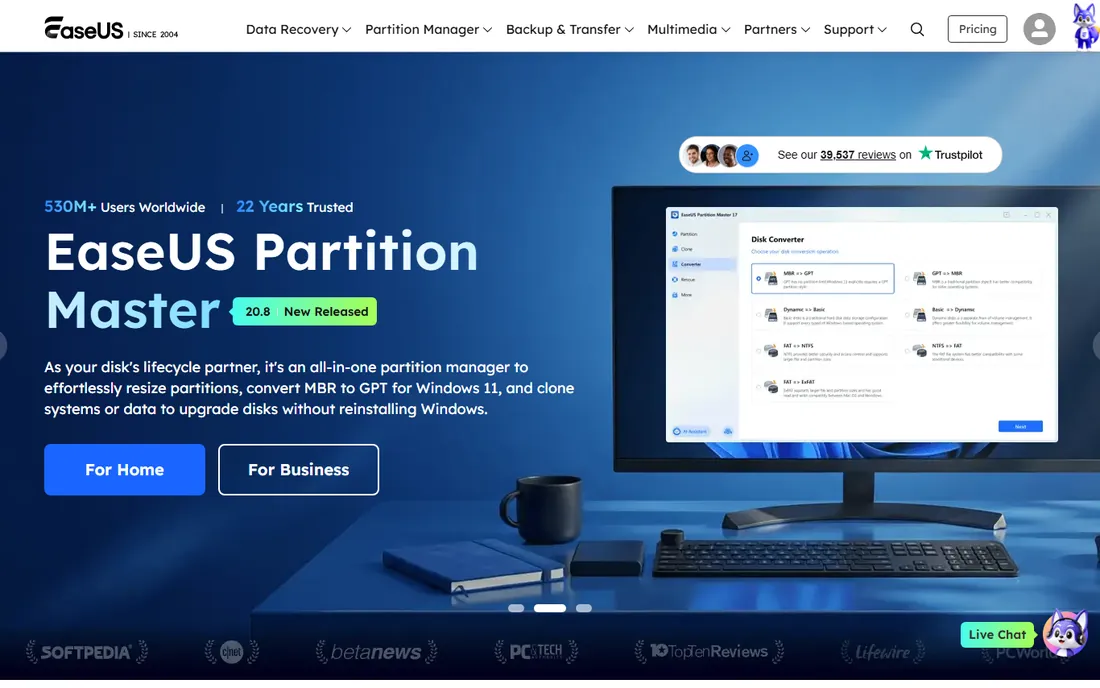
EaseUS Todo Backup wins on approachability. The wizard-driven interface gets a first image scheduled in minutes, and it backs up directly to Dropbox, Google Drive and OneDrive if you prefer cloud destinations over an external drive. The Home edition starts at $29.95 a year, and EaseUS still sells a lifetime license, a rarity in 2026.
It is not flawless. Reviewers have caught it picking silly defaults, like suggesting a backup destination on the same drive being imaged, so you should double-check its choices the first time. The free edition covers the basics well enough for many users. Pick this one if you want imaging without a learning curve and you like the idea of paying once.
What we like- Very easy for beginners
- Lifetime license option
- Backs up to major cloud drives
Watch out for- Occasional odd default settings
- Cloud storage costs extra
Starting priceFree
Free planYes
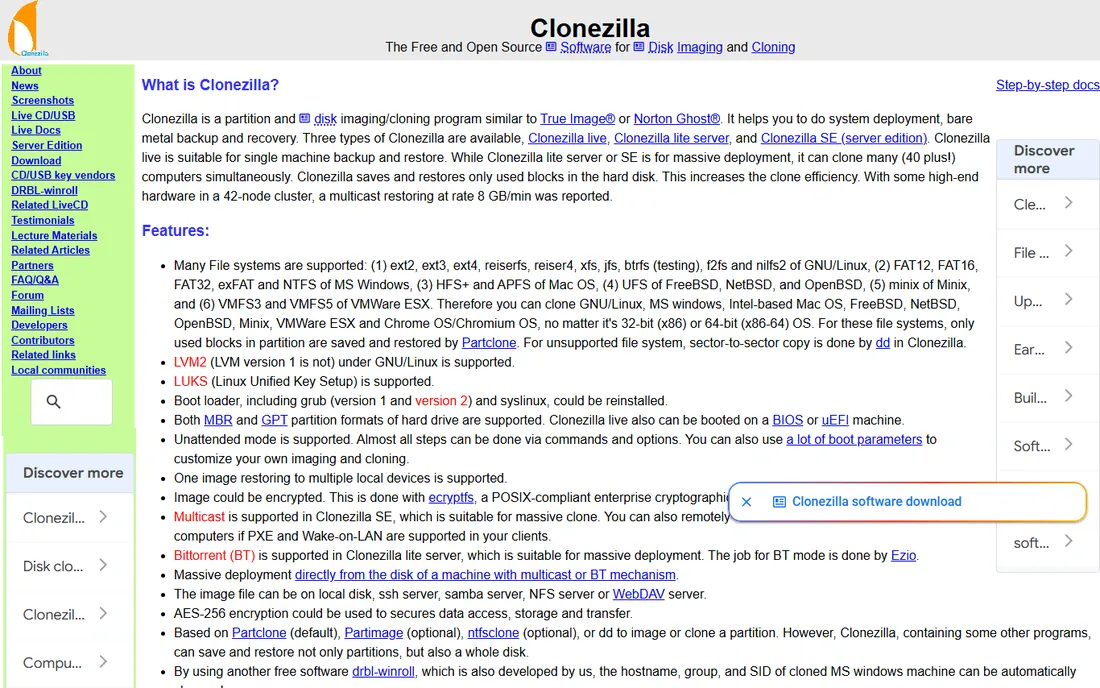
Clonezilla is the tool IT departments reach for when they need to image twenty identical machines before lunch. It boots from USB, clones disks sector by sector at high speed, and supports multicast restores that push one image to many PCs at once. It costs nothing, has no accounts, no trials and no upsells.
The price of that freedom is the interface, which is a keyboard-driven text menu that assumes you know what a partition is. There is no scheduler and no pretty dashboard; you run it when you need it. For a technician comfortable with that, it is the most capable free imaging tool in existence. For a nervous beginner, pick Rescuezilla below instead.
What we like- Completely free with no limits
- Extremely fast multicast deployment
- Runs from a USB stick
Watch out for- Text-based interface intimidates beginners
- No scheduling or incremental backups in the classic edition
Starting priceFree
Free planYes
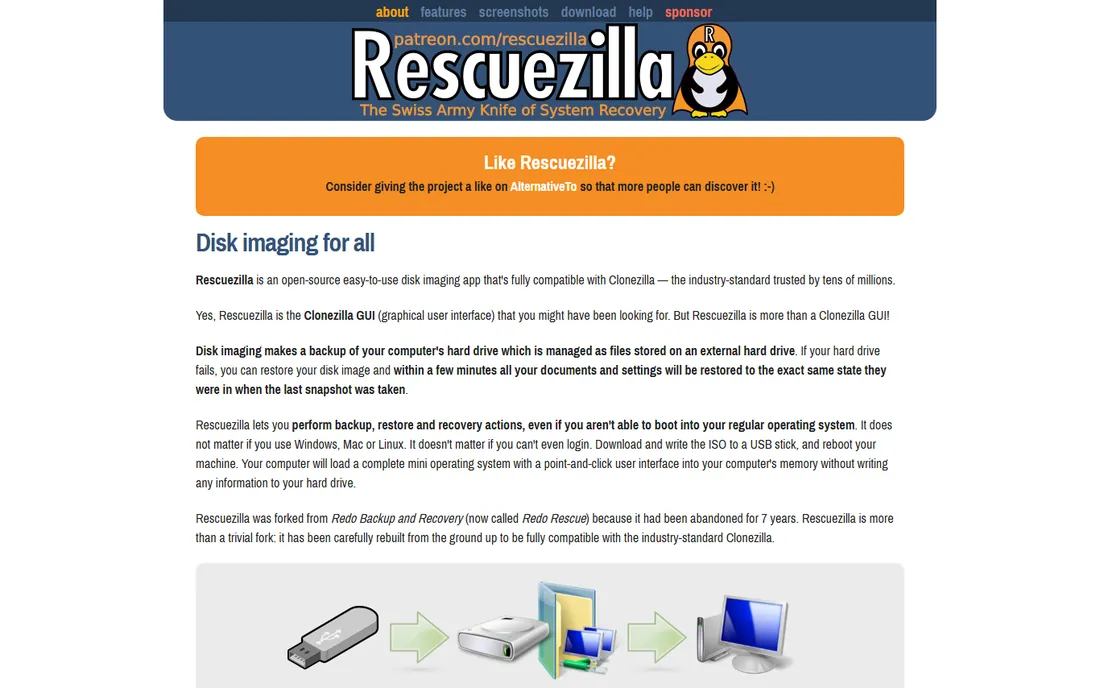
Rescuezilla is what you get when someone takes the Clonezilla engine and puts a proper graphical interface on it. You boot from USB, point and click your way through backup and restore, and it handles the messy details of partitions and bootloaders for you. It is aimed squarely at the person whose laptop just died and who needs their system back tonight.
Because it is a live-USB tool, there is no scheduling and no background service; you run it on demand. Development moves slowly, so do not expect frequent new features. As a free rescue-and-restore toolkit that a non-technical person can actually operate, though, it fills a gap nothing else covers.
What we like- Graphical interface anyone can use
- Fully free and open source
- Works on machines that will not boot
Watch out for- Fewer advanced features than Clonezilla
- Release cadence is slow
Starting priceFree (Community Edition for personal use)
Free planYes
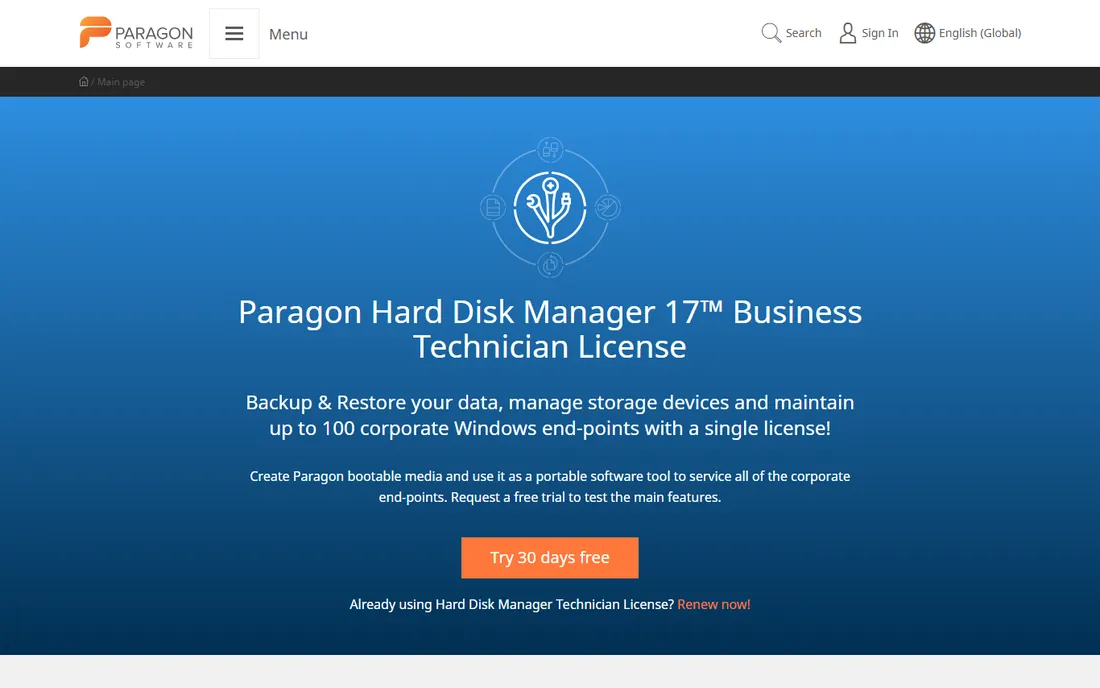
Paragon's Community Edition is free for personal use with no account, no trial clock and no registration wall, which already sets it apart. You get system, disk and partition backup, scheduling, WinPE recovery media and password-protected archives in a clean interface that looks like a paid product. Archives use standard formats, so your data is not locked into a proprietary container.
The catch, noted by reviewers, is that the disaster-recovery path is less polished than the file-backup path; test your rescue USB before you need it. Paid Hard Disk Manager editions add partition management and email notifications, but most home users will never need them. This is the best free option for someone who wants a normal Windows program rather than a bootable USB workflow.
What we like- Free with no account required
- Clean modern interface
- Uses standard backup formats
Watch out for- Community Edition lacks some recovery polish
- No Mac or Linux version of this product
#8
Veeam Agent for Microsoft Windows
Best for: Enterprise-grade free agent for one PC
Visit veeam.com
Starting priceFree (Free edition; paid per-workload licenses available)
Free planYes
Veeam built its name protecting servers, and its free Windows agent brings that same engineering to a single PC at no cost. You get whole-computer, volume and file-level backup, a proper recovery-media builder for bare-metal restores, and file-level restore that mounts any backup like a drive. It is the rare free tool that professionals trust with their own machines.
Two friction points: downloading it requires creating a free Veeam account, and the interface speaks IT, with terms like "backup repository" where competitors say "folder". The paid Workstation and Server editions add scheduling extras and central management for fleets. If you are comfortable with slightly technical software, this is the strongest free agent on the list.
What we like- Rock-solid free edition
- Bare-metal recovery media
- File-level restore from any backup
Watch out for- Download requires a Veeam account
- The interface assumes some IT knowledge
Starting priceSee website
Free planFree trial
NovaBACKUP targets small businesses that want backup configured once and then ignored. The PC and Server editions handle full system imaging alongside file backup, with local, network and cloud destinations, and setup wizards that do not assume an IT department. Support is US-based, which matters to the shops that buy this.
The weak spots are transparency and community. Pricing is not published in an obvious place, so you will need to contact sales or start a trial to see numbers, and the user community is a fraction of Macrium's or Veeam's. Consider it if you run a small office, want a human on the phone when something breaks, and prefer a simpler product over a feature-rich one.
What we like- Straightforward setup for non-technical staff
- Local and cloud targets
- US-based support
Watch out for- Pricing is not published clearly
- Smaller user community than the big names
How we chose
We started from the tools that appear most often in buyer discussions on Reddit, G2 and Capterra, then checked each vendor's own site for current pricing, free tiers and trial terms. Every price above comes from the vendor's pricing or buy page, and every "free" claim was confirmed against the vendor's edition comparison. We did not test any software hands-on, so reliability notes reflect long-term reviewer consensus rather than our own lab results.
What to check before you buy
Match the tool to your worst-case scenario. If your nightmare is a dead SSD on a work laptop, you need verified rescue media and dissimilar-hardware restore, which usually means a paid tier. If you just want a monthly safety net for a family PC, a free edition with scheduling is enough.
Three details separate good imaging tools from frustrating ones. First, confirm the rescue media boots on your actual hardware before disaster strikes. Second, check whether the license covers the number of PCs you own; per-PC subscriptions add up fast in a four-computer household. Third, look at where images can be stored. Tools that only write to local drives leave you exposed to fire and theft, while ones with cloud or NAS support cost more but protect against more.
You do not need to pay for imaging if your needs are simple. Clonezilla or Rescuezilla handle one-off clones and dead-machine recovery at zero cost, Paragon's Community Edition gives you scheduled imaging without an account, and Veeam's free agent is genuinely good enough for a single PC. Pay when you need ransomware-proof backups, cloud storage, multi-PC management or a support line to call at midnight. For everyone else, the free tier of a reputable tool beats the paid tier of a sketchy one.
Frequently asked questions
How often should I image my drive?
For a system drive, a monthly full image plus weekly or daily incrementals is a sensible baseline. If your work lives on the machine, shorten that to weekly full images. File-level backups of documents should run far more often; imaging is for the operating system and programs.
Is a drive image the same as a file backup?
No. A file backup copies selected files and folders, which is great for documents but useless if Windows will not boot. A drive image copies everything, including the operating system and boot sectors, so you can restore a dead machine to a working state in one step.
How much space does a drive image need?
With typical compression, an image of a Windows installation with programs runs 50 to 70 percent of the used space on the drive. A 500 GB SSD with 200 GB used usually images to roughly 100 to 140 GB. Keep at least two or three generations of images, so budget a destination drive two to three times that size.
Can I restore an image to a different computer?
Only if the software supports dissimilar-hardware restore, which injects the right drivers during recovery. This is usually a paid feature. Moving an image to very different hardware can also trip Windows activation, so plan for a reactivation call.
Do I need rescue media if the software runs in Windows?
Yes. If Windows will not start, the installed program cannot run either. Every tool on this list can create a bootable USB or disc; make one right after installing and test that your PC boots from it.
Are free imaging tools safe to use?
The free tools listed here come from established vendors and open-source projects with long track records, so yes. Avoid random "free disk image" downloads from unfamiliar sites; backup software runs with full system privileges, which makes it a prime target for bundling malware.
Sources we checked (9)
- https://www.macrium.com/
- https://www.acronis.com/
- https://www.aomeitech.com/ab/buy-pro.html
- https://www.easeus.com/
- https://clonezilla.org/
- https://rescuezilla.com/
- https://www.paragon-software.com/
- https://www.veeam.com/windows-cloud-server-backup-agent.html
- https://www.novabackup.com/
Is your product missing or out of date?
We review this list regularly. Vendors can request a listing, send updated pricing or ask about featured placement.

Shihab Mia · Founder, Rankite
Shihab has spent more than a decade helping SaaS and e-commerce brands grow through search. He writes Rankite's software buying guides from pricing pages, documentation and public user reviews. More about Shihab.