How we make this list: we compare pricing pages, product documentation and public user reviews. Rankite is independent; if a vendor ever pays for a featured spot, that listing is clearly labeled Partner.
Key takeaways
- Acronis Cyber Protect Home Office and Macrium Reflect X are the most complete paid options, with reliable scheduling, encryption, and bootable rescue media.
- Clonezilla and Rescuezilla are free and open source, and they are the right pick for technicians comfortable with bootable USB workflows.
- EaseUS Todo Backup and AOMEI Backupper offer genuinely usable free tiers for home users who want scheduled image backups without paying.
- Veeam Agent for Windows gives you enterprise-grade free backup, though its interface assumes more technical confidence than the home-user tools.
Nobody cares about backup software until the drive dies. Then it is the only software that matters. Disc imaging tools take a complete snapshot of your drive, operating system, programs, settings, and files, so a dead SSD or a ransomware attack means an afternoon of restoring instead of a week of rebuilding. The eight tools below all make those snapshots; they differ in price, ease of use, and how painless the restore actually is.
Quick comparison
Is your product missing or out of date?
We review this list regularly. Vendors can request a listing, send updated pricing or ask about featured placement.

#1
Acronis Cyber Protect Home Office
Best for: home users who want backup plus security in one
Visit acronis.com
Starting priceSee website
Free planFree trial
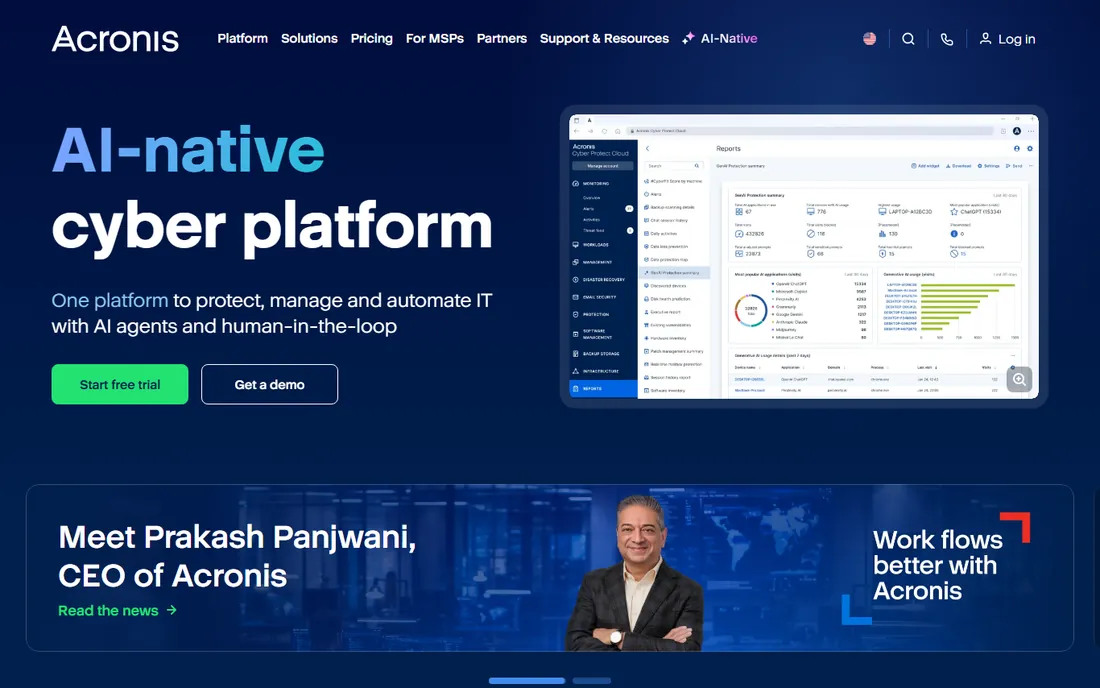
Acronis has been the household name in disc imaging for years, and the Home Office edition bundles imaging with active protection against ransomware, which is a sensible combination. You can schedule full, incremental, and differential images to a local drive, NAS, or Acronis cloud storage, create bootable rescue media, and restore individual files or the whole system. The free trial lets you test the full workflow before paying.
The honest tradeoff is cost over time. Acronis is subscription software, so a five-year habit costs meaningfully more than a one-time purchase or a free tool. For a home user protecting family photos and documents, or anyone who wants backup and anti-malware in a single console, it is a strong package. If you only need plain imaging on a schedule, the free tools below do that job for nothing.
What we like- Full-disc imaging with flexible scheduling
- Built-in anti-ransomware protection
- Cloud and local backup destinations
Watch out for- Subscription pricing adds up over the years
- The interface packs in a lot for beginners

#2
Macrium Reflect X
Best for: Windows users who want dependable scheduled imaging
Visit macrium.com
Starting priceSee website
Free planFree trial
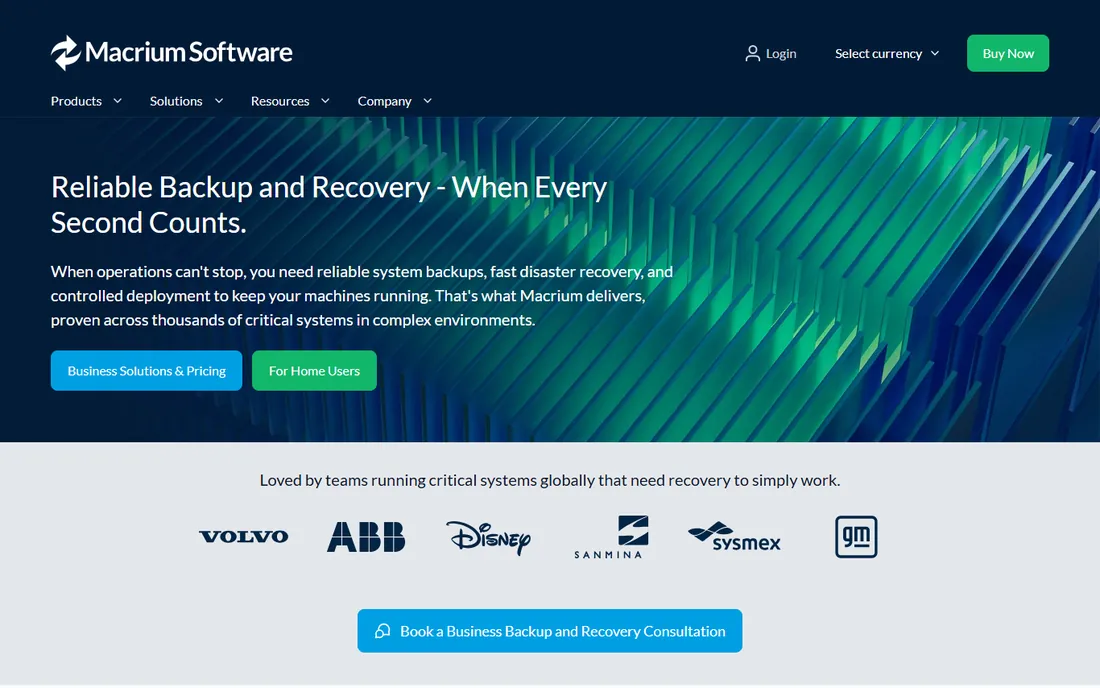
Macrium Reflect built its reputation on one thing: restores that work. Reflect X continues that with rapid imaging, granular scheduling, retention policies that manage old backups automatically, and rescue media that boots on modern UEFI systems. IT professionals have trusted it for years precisely because it is boring in the best way, it does the job every night without drama.
Note that the free edition of Macrium Reflect was retired, so this is now paid software with a trial. That stings for longtime free users, but the paid product remains one of the most reliable imaging tools on Windows. If your priority is a backup you never have to think about, and you are willing to pay for that confidence, Macrium is hard to beat.
What we like- Fast, reliable imaging engine
- Flexible scheduling and retention rules
- Excellent bootable rescue media
Watch out for- No free edition anymore
- The interface assumes some technical comfort
Starting price$0
Free planYes
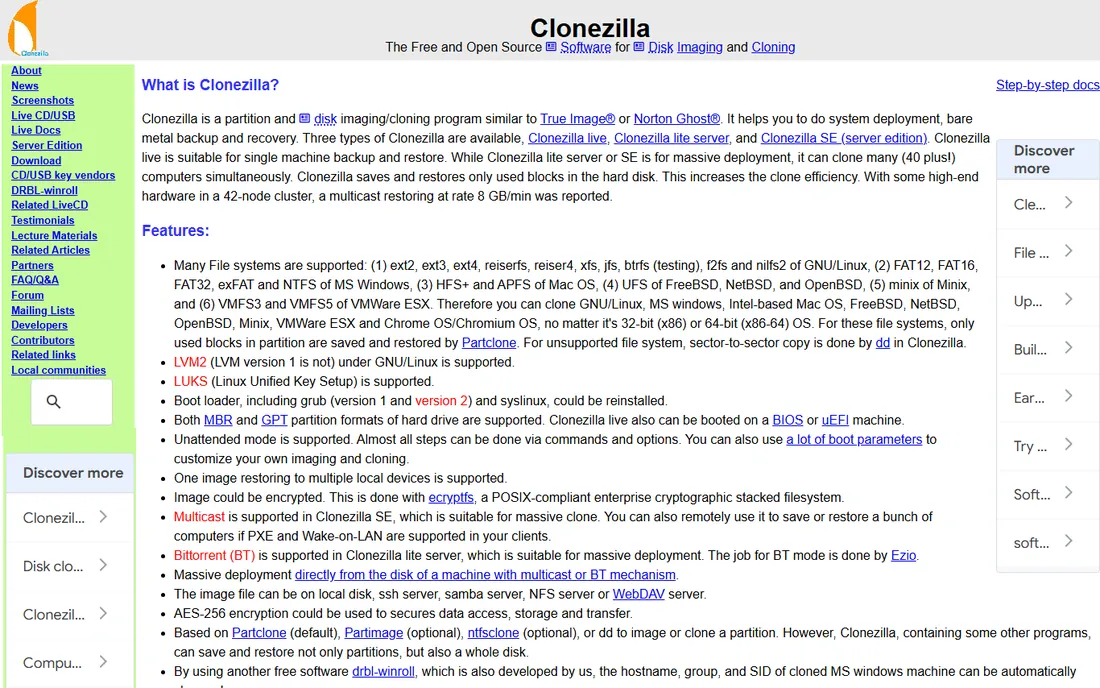
Clonezilla is the tool IT departments reach for when they need to image dozens of machines without spending a dollar. It boots from USB, clones discs and partitions efficiently, and handles just about every filesystem you will encounter. For mass deployment, its multicast mode can image a room full of PCs simultaneously, which is why schools and repair shops love it.
There is no sugarcoating the interface: it is a text-based wizard that assumes you know what a partition is. There is also no built-in scheduler, so unattended nightly backups need scripting around it. For a technician, those are non-issues. For a home user who wants to set and forget, Rescuezilla or one of the free Windows tools below will be a happier experience.
What we like- Completely free and open source
- Supports a huge range of filesystems
- Efficient multicast deployment for many machines
Watch out for- Text-based interface intimidates beginners
- No built-in scheduling for unattended backups
Starting price$0
Free planYes
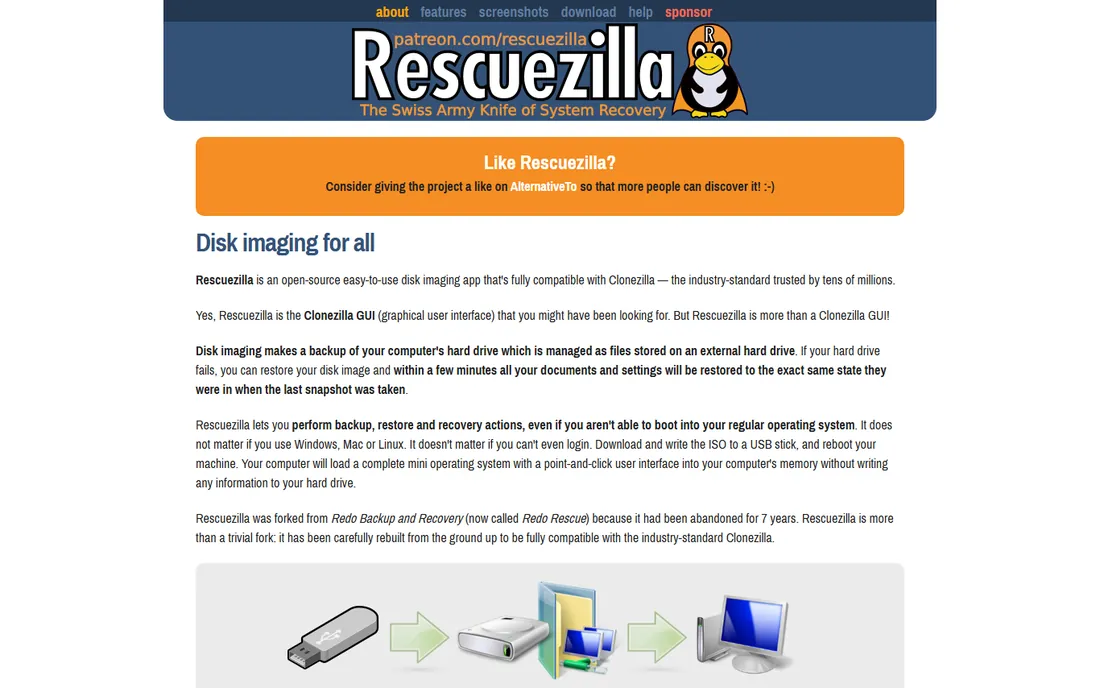
Rescuezilla is essentially the answer to Clonezilla's learning curve: a free, open-source bootable tool with a point-and-click interface for cloning and imaging discs. It can work with images made by other tools, handles the common filesystems, and walks you through backup and restore without demanding command-line comfort. For a home user who wants a free rescue USB in the drawer, it is the friendliest option available.
The tradeoff is depth. Power users will find fewer options than Clonezilla offers, and the project moves at a volunteer pace. But most people do not need multicast deployment or exotic filesystem support; they need to clone a failing drive to a new SSD on a Saturday afternoon. For that job, Rescuezilla is free, simple, and effective.
What we like- Free and open source
- Friendly graphical interface
- Boots from USB and works with many image formats
Watch out for- Fewer advanced features than Clonezilla
- Smaller community and slower release cadence

#5
EaseUS Todo Backup
Best for: home users who want free scheduled image backups
Visit easeus.com
Starting priceSee website
Free planYes
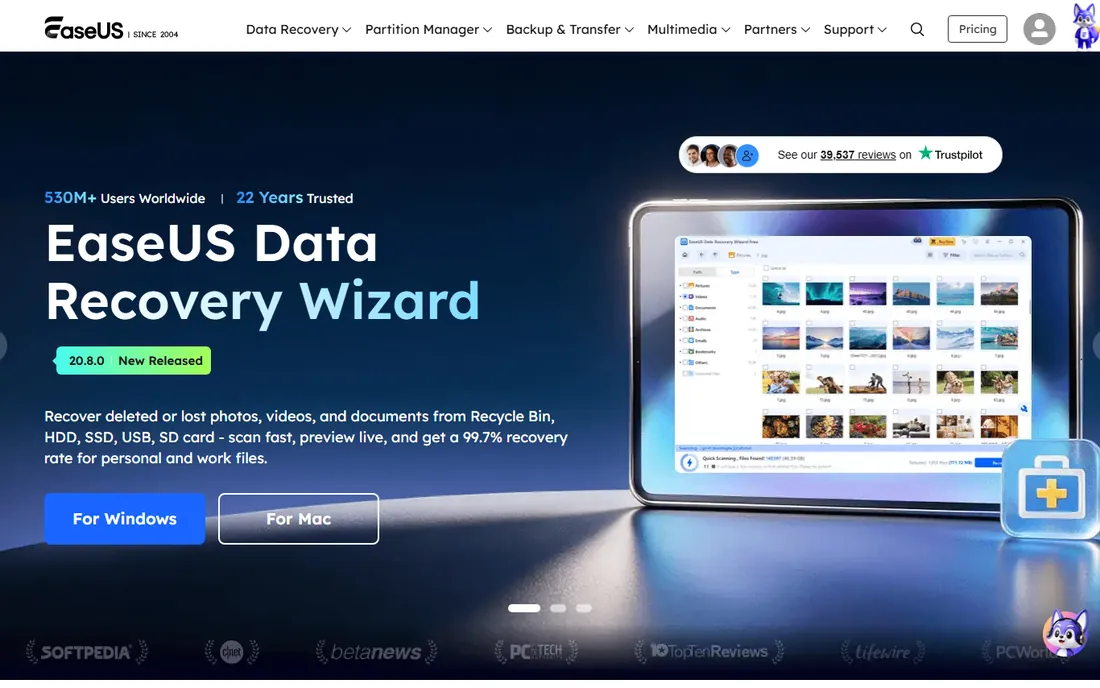
EaseUS Todo Backup is one of the few tools that gives home users scheduled disc imaging for free. The free edition covers system backup, disc and partition backup, and cloning, with scheduling so backups happen without you remembering. The interface is plain and guided, which suits the non-technical user who just wants the computer protected. Paid editions add features like faster support and advanced backup options.
Expect the free version to remind you that a paid version exists, and some advanced features are gated behind it. That is the price of free. For straightforward protection of a home PC, the free tier is honestly enough for most people, and the upgrade path is there if you later want features like universal restore to dissimilar hardware.
What we like- Genuinely useful free tier with scheduling
- Clear interface for beginners
- Disc cloning and migration tools included
Watch out for- Free tier has feature limits that nudge toward paid
- Upsell prompts in the software
Starting priceSee website
Free planYes
AOMEI Backupper's free Standard edition is generous: system backup, disc and partition backup, file backup and sync, plus disc cloning, all with scheduling. It is a Windows-focused tool with a clean interface that does not overwhelm, and it handles the core scenario, image the system drive weekly to an external disc, without charging anything. Paid editions add universal restore, command-line backup, and business features.
The main paid gate that matters is universal restore, the ability to restore a system image to different hardware. If you are restoring to the same PC after a drive failure, the free edition is fine. If you plan to migrate to a new computer, budget for the paid tier or use a tool that includes that feature. For pure backup protection on existing hardware, the free edition earns its place.
What we like- Free Standard edition covers system, disc, and file backup
- Includes cloning tools
- Straightforward interface
Watch out for- Some advanced features reserved for paid editions
- Restore to different hardware needs the paid tier

#7
Veeam Agent for Windows
Best for: free backup with enterprise DNA
Visit veeam.com
Starting price$0
Free planYes
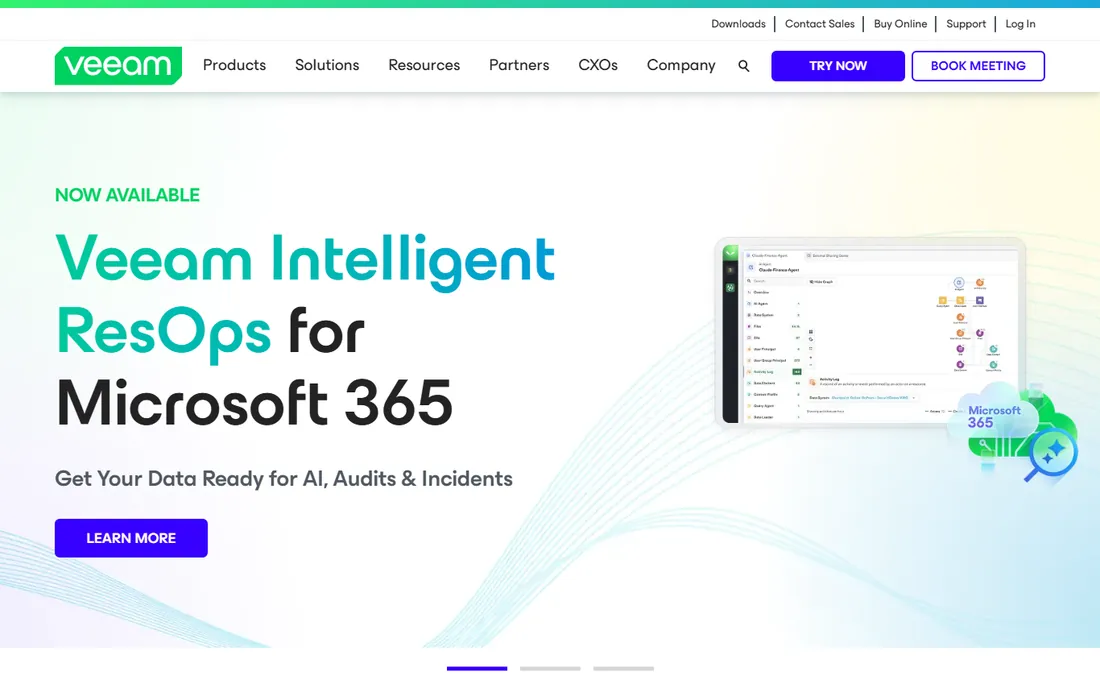
Veeam is an enterprise backup giant, and its free Agent for Windows brings that engineering to home and small-business PCs at no cost. You get volume-level and file-level backup, scheduling, bare-metal recovery media, and encryption, all solid and well-tested. For a technically comfortable user, it is arguably the most capable free backup tool on this list.
The interface and documentation assume you know what a backup repository is, which can put off pure beginners. Some advanced features, like certain application-aware processing options, sit in the paid editions. But the free agent restores reliably, which is the only metric that matters in the end, and it scales up gracefully if your needs grow into Veeam's paid ecosystem.
What we like- Free for basic use
- Reliable imaging and file-level backup
- Integrates with Veeam repositories for larger setups
Watch out for- Interface feels built for IT staff
- Some features need the paid workstation or server editions
Starting priceSee website
Free planFree trial
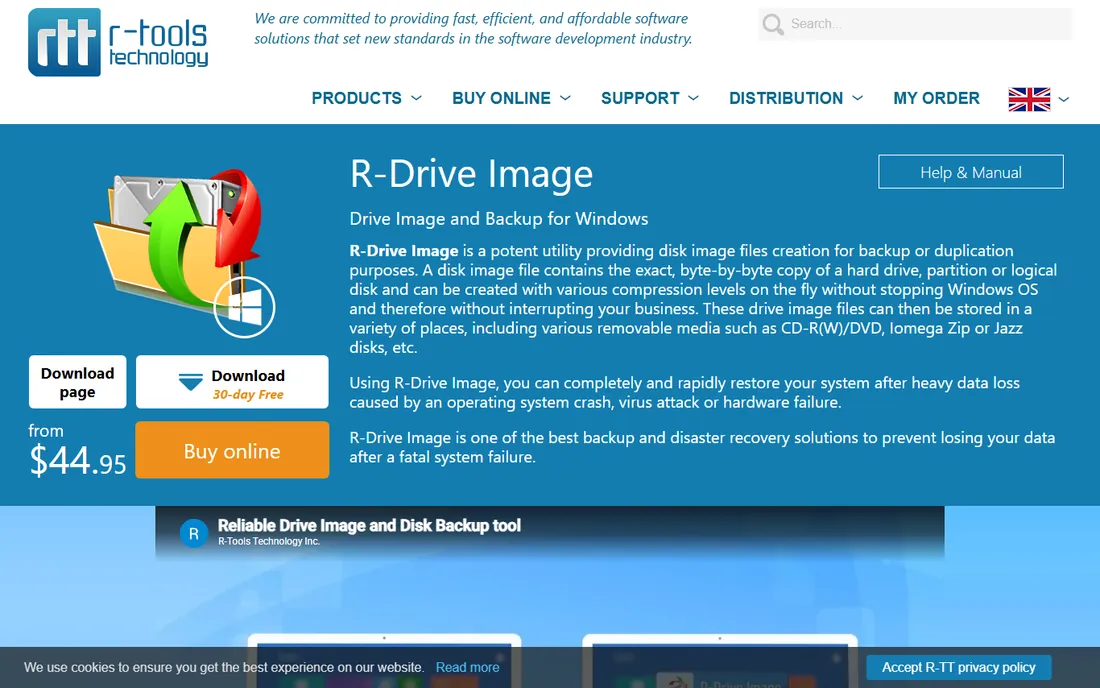
R-Drive Image is the quiet workhorse of this list: a no-nonsense disc imaging tool that creates images quickly, supports incremental backups, and includes a bootable version for bare-metal restores. It does not try to be a security suite or a cloud platform; it images discs and restores them, and it does both well. The license is a straightforward purchase rather than a subscription, which appeals to buyers tired of annual fees.
The interface looks its age, and the community is smaller, so finding tutorial help takes more digging than with Acronis or Macrium. But if you want a paid imaging tool that stays out of your way, R-Drive Image is worth evaluating during the trial. Compare its restore workflow against Macrium's before you buy, since restore reliability is where these tools are truly judged.
What we like- Compact and fast imaging engine
- Byte-by-byte and smart imaging modes
- Bootable startup version included
Watch out for- Dated interface
- Smaller user community than Acronis or Macrium
Imaging vs cloning vs file backup: what you actually need
Disc imaging creates a compressed snapshot file of your drive that you can restore later, including after replacing a dead drive. It is the best all-around protection because it captures everything: the operating system, applications, settings, and files. Schedule it weekly or monthly to an external drive, and keep a bootable rescue USB from the same tool nearby.
Cloning copies one drive directly to another, which is ideal for migrating to a bigger SSD but less useful as ongoing protection, since each clone overwrites the last. File backup copies selected folders and is great for documents and photos but cannot restore a bootable system. Most people should run scheduled imaging for disaster recovery plus file backup or cloud sync for day-to-day document safety.
Whatever you choose, the rescue media matters as much as the backup. An image you cannot boot into is just a large file. After installing any of these tools, create the bootable USB immediately and test that your PC boots from it before you need it. That five-minute test is the difference between a recovery plan and a recovery hope.
How to pick disc imaging software that restores when it counts
Judge backup software by its restore, not its backup. Every tool here can create an image; the differences show up when a drive fails at the worst moment. During the trial, do a test restore to a spare drive or virtual machine and time it. Check that the rescue media boots on your hardware, that incremental chains restore cleanly, and that you can pull a single file from an image without restoring everything.
Match the tool to your discipline level. Scheduled, automatic imaging with retention management suits anyone who will not remember to run manual backups, which is nearly everyone. If you are the kind of person who maintains a rescue USB and images before every major update, the free technician tools will serve you well. Be honest about which person you are.
Consider the ransomware scenario too. Images stored on a permanently connected drive can be encrypted along with everything else, so keep at least one backup offline or disconnected, and consider tools with immutable or cloud destinations. Acronis builds anti-ransomware in; with the other tools, the offline copy is your protection. A backup strategy with a single point of failure is not a strategy.
How we chose
We compared disc imaging tools that create restorable snapshots of entire drives, weighing restore reliability, scheduling and automation, rescue media quality, pricing transparency, and the strength of free tiers. We favored tools with long track records in real recovery scenarios over feature-heavy newcomers, consulting vendor documentation and public user discussions about restore experiences. Pricing was taken from vendor pages where published; several vendors in this category use quote or regional pricing, so we marked those as See website rather than guessing. No hands-on testing was performed; the assessments reflect documented features and reported user experience.
Frequently asked questions
What is the difference between disc imaging and disc cloning?
Imaging creates a compressed snapshot file you store and restore later, which makes it ideal for ongoing backup protection. Cloning copies one drive directly onto another drive, which is ideal for migrating to a new SSD but overwrites the destination each time. Most backup strategies should use imaging; use cloning for drive upgrades.
How often should I image my drive?
For most home users, a weekly full or incremental image to an external drive is plenty, with file-level backup or cloud sync covering daily document changes. After major system changes, like an OS upgrade or new software installation, take a manual image first. The best schedule is the one that runs automatically, because manual backups get skipped.
Can I restore a disc image to a different computer?
Sometimes, but driver and hardware differences complicate it. Some paid tools offer universal restore features designed for dissimilar hardware, while free tools generally expect the same or similar hardware. If migration to new hardware is your goal, cloning tools or a fresh OS install with file migration is often simpler than fighting a cross-hardware image restore.
Is free disc imaging software reliable?
Yes, for the core job. Clonezilla, Rescuezilla, Veeam Agent, and the free tiers of EaseUS and AOMEI all create restorable images, and free does not mean fragile here. What paid tools add is convenience: scheduling, retention management, universal restore, and support. Test any tool's restore process before trusting it, free or paid.
Do I still need disc imaging if I use cloud backup?
They solve different problems. Cloud file backup protects your documents against drive failure and is excellent for daily changes, but it cannot restore a bootable system quickly after a total drive failure or ransomware attack. Disc imaging gets you back to a working computer in hours. Running both is the standard recommendation, not either-or.
Where should I store my disc images?
On an external drive that you disconnect after backups, a NAS on your network, or both. Avoid keeping your only image on a drive that stays connected to the PC, since ransomware can encrypt connected backups too. Keep the bootable rescue USB separate from the image storage, and label both so future-you can find them in a crisis.
Sources we checked (8)
- https://www.acronis.com
- https://www.macrium.com
- https://clonezilla.org
- https://rescuezilla.com
- https://www.easeus.com
- https://www.aomeitech.com
- https://www.veeam.com
- https://www.r-driveimage.com
Is your product missing or out of date?
We review this list regularly. Vendors can request a listing, send updated pricing or ask about featured placement.

Shihab Mia · Founder, Rankite
Shihab has spent more than a decade helping SaaS and e-commerce brands grow through search. He writes Rankite's software buying guides from pricing pages, documentation and public user reviews. More about Shihab.
 Clonezilla
 Rescuezilla
 AOMEI Backupper
 R-Drive Image