How we make this list: we compare pricing pages, product documentation and public user reviews. Rankite is independent; if a vendor ever pays for a featured spot, that listing is clearly labeled Partner.
Key takeaways
- Disk Drill and EaseUS are the most approachable options for non-technical users who need to recover deleted files quickly.
- R-Studio and UFS Explorer are the professionals' picks, with deeper control over complex RAID and file system cases.
- DMDE offers serious capability at a lower price point, but the interface assumes you know what you are doing.
- If the drive has physical damage, no software on this list will help; that is a cleanroom lab job.
Quick comparison
| Tool | Best for | Starting price | Free plan |
|---|
 Disk Drill Disk Drill | easy deleted file recovery | See website | Free trial |
 EaseUS Data Recovery EaseUS Data Recovery | beginners on Windows and Mac | See website | Free trial |
 R-Studio R-Studio | professional technicians | See website | Free trial |
 Stellar Data Recovery Stellar Data Recovery | corrupted drives and partitions | See website | Free trial |
 Ontrack EasyRecovery Ontrack EasyRecovery | brand trust and support | See website | Free trial |
 DMDE DMDE | technical users on a budget | See website | Free trial |
 GetDataBack GetDataBack | simple NTFS and FAT recovery | See website | Free trial |
 UFS Explorer UFS Explorer | complex RAID and NAS cases | See website | Free trial |
 AnyRecover AnyRecover | quick scans for common loss | See website | Free trial |
Is your product missing or out of date?
We review this list regularly. Vendors can request a listing, send updated pricing or ask about featured placement.
Starting priceSee website
Free planFree trial
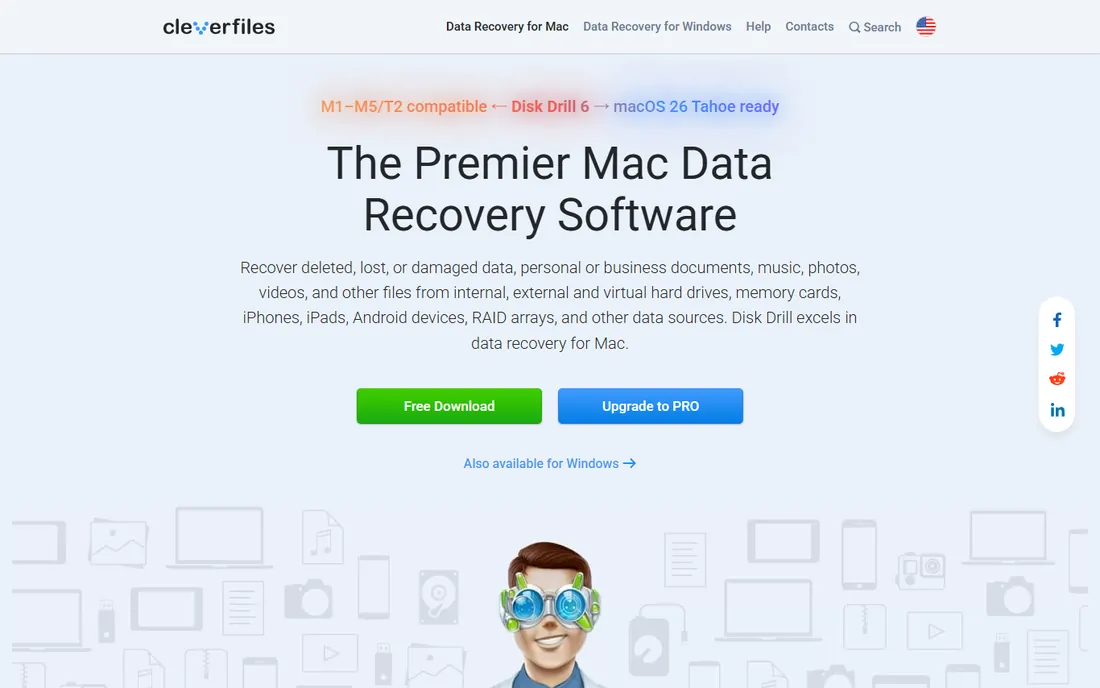
Disk Drill is the tool you hand to someone who has never done data recovery before. The interface is visual and straightforward, and the deep scan does a good job finding files deleted long ago. It also includes a Recovery Vault feature that monitors deletions going forward, which helps prevent the next disaster.
The free version lets you scan and preview, but recovering files beyond the trial limit requires a paid license. Large drives take a long time to scan, so start the process and walk away. For straightforward deleted-file cases on Mac or Windows, this is the least stressful option.
What we like- Clean intuitive interface
- Deep scan finds old files
- Recovery vault prevention
Watch out for- Full recovery requires paid license
- Scan can be slow on large drives
Starting priceSee website
Free planFree trial
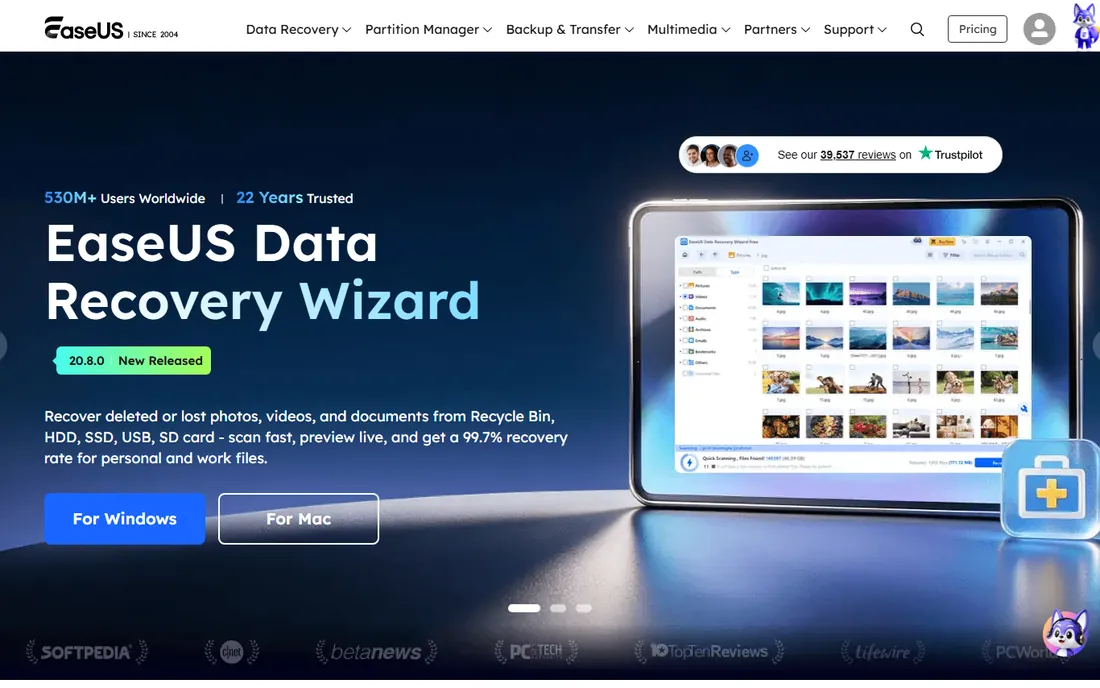
EaseUS Data Recovery Wizard follows a simple scan, preview, recover workflow that anyone can follow. The file preview is genuinely useful, letting you check documents and photos before committing to recovery. It handles the common file systems on both Windows and Mac.
The trial lets you recover a limited amount of data, after which you need a license. The software also promotes other EaseUS products during use, which some find annoying. If you want the simplest possible path from lost files to recovered files, this delivers it.
What we like- Very simple three-step process
- Good file preview
- Wide file system support
Watch out for- Free tier is limited
- Upsells other EaseUS products
Starting priceSee website
Free planFree trial
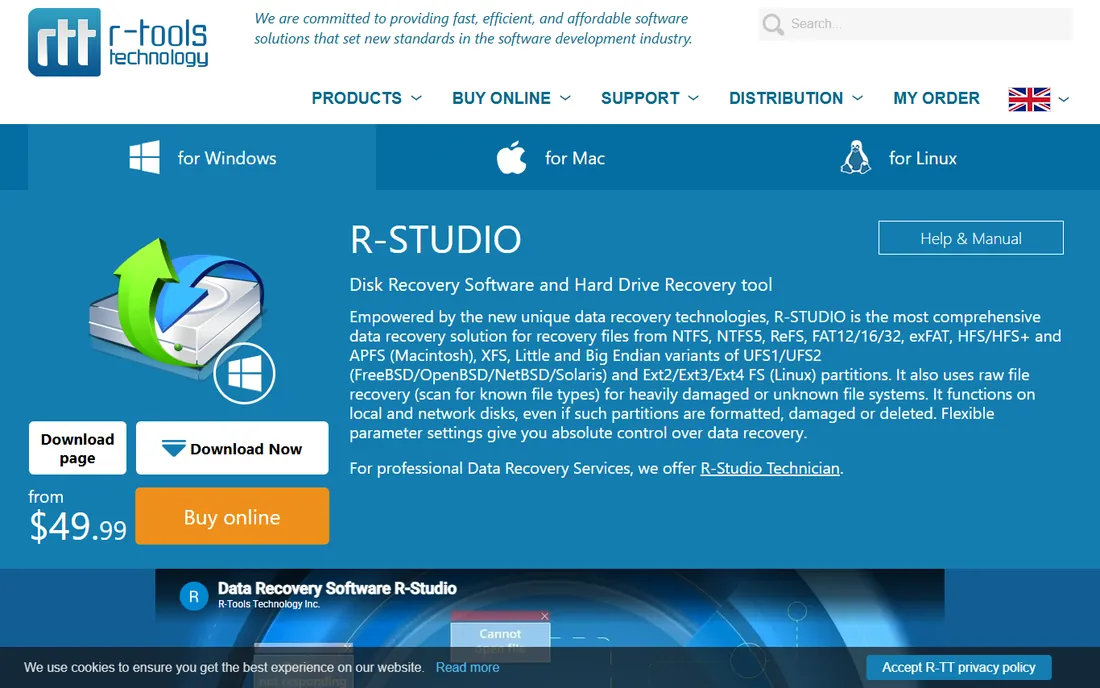
R-Studio is what data recovery professionals reach for when the case is complicated. It reconstructs damaged RAIDs, recovers over networks, and includes a hex editor for manual repair work. The demo lets you recover small files free, which is enough to verify it works before you buy.
This is not a beginner tool. The interface exposes every option at once, and using it well requires understanding file systems. If you just deleted some photos, a simpler tool will get you there faster. If you are rebuilding a failed RAID 5, this is where you belong.
What we like- Powerful RAID reconstruction
- Network recovery
- Hex editor included
Watch out for- Interface is complex
- Overkill for simple deletions
Starting priceSee website
Free planFree trial
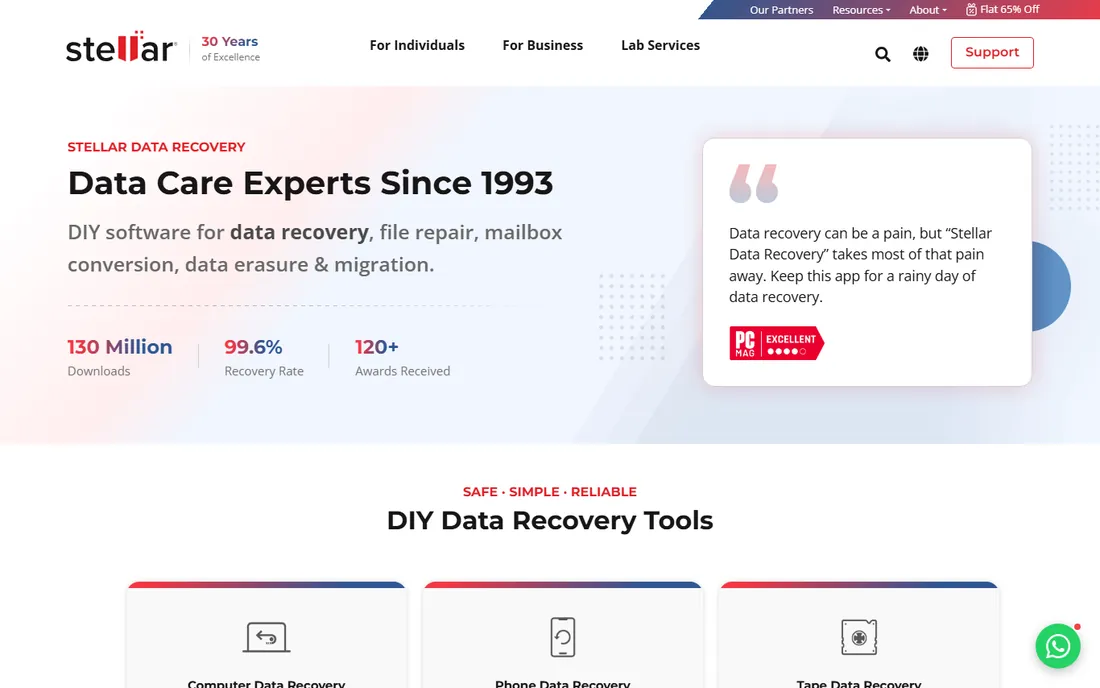
Stellar has been in the recovery business for a long time, and the software reflects that experience. It handles formatted drives, lost partitions, and corrupted volumes reliably. The toolkit editions add drive monitoring and repair features that go beyond simple file recovery.
Scan performance is inconsistent; some drives scan quickly while others crawl. RAID recovery requires the more expensive toolkit tier, not the base product. For single-drive corruption cases, though, Stellar is a dependable choice with solid support behind it.
What we like- Handles corrupted and formatted drives
- Drive monitoring included
- Good documentation
Watch out for- Scan speeds vary
- Higher tiers needed for RAID
Starting priceSee website
Free planFree trial
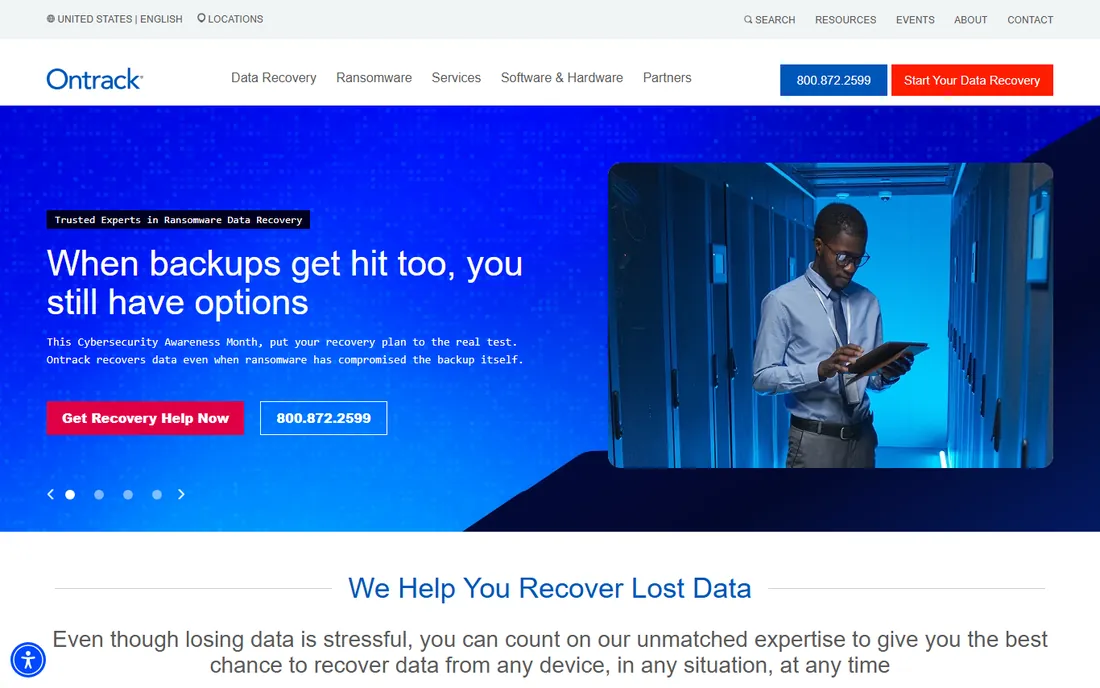
Ontrack is one of the biggest names in professional data recovery, with cleanroom labs worldwide. EasyRecovery is their software product, and it benefits from that institutional knowledge. The edition tiers are clearly defined, so you know exactly what you are buying.
You pay for the brand. Ontrack's software is priced at the higher end, and the company would honestly prefer you send the drive to their lab for difficult cases. If you value having professional support a phone call away, the premium is justified. If you just need to undelete files, cheaper options do the job.
What we like- Backed by major recovery lab
- Clear edition tiers
- Professional support
Watch out for- Premium pricing
- Software is secondary to lab services
Starting priceSee website
Free planFree trial
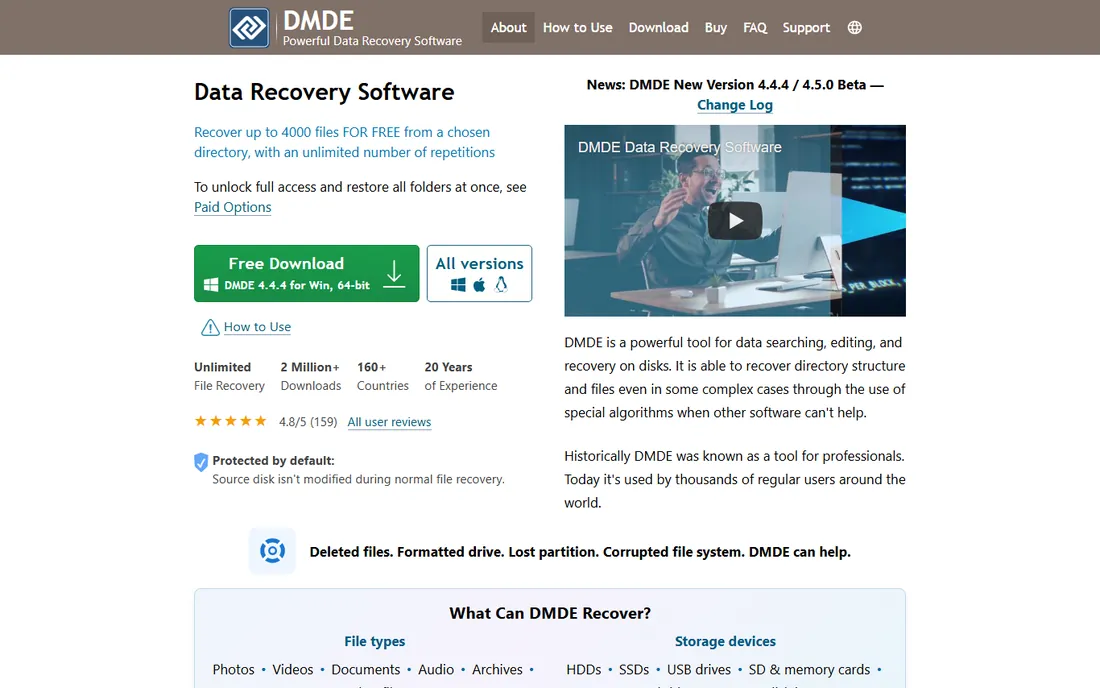
DMDE (DM Disk Editor and Data Recovery) is the quiet favorite of technical users who know what they are doing. The license costs far less than competitors while offering serious capabilities, including partition management and disk editing. There is a portable version that runs without installation, which is ideal for recovery work.
The interface looks like it time-traveled from 2005, and the documentation expects you to understand disk structures. This is a tool for people who are comfortable with hex and partition tables. If that describes you, the value is unmatched. If not, pick something friendlier.
What we like- Very affordable license
- Powerful partition tools
- Portable no-install version
Watch out for- Dated interface
- Documentation assumes expertise
Starting priceSee website
Free planFree trial
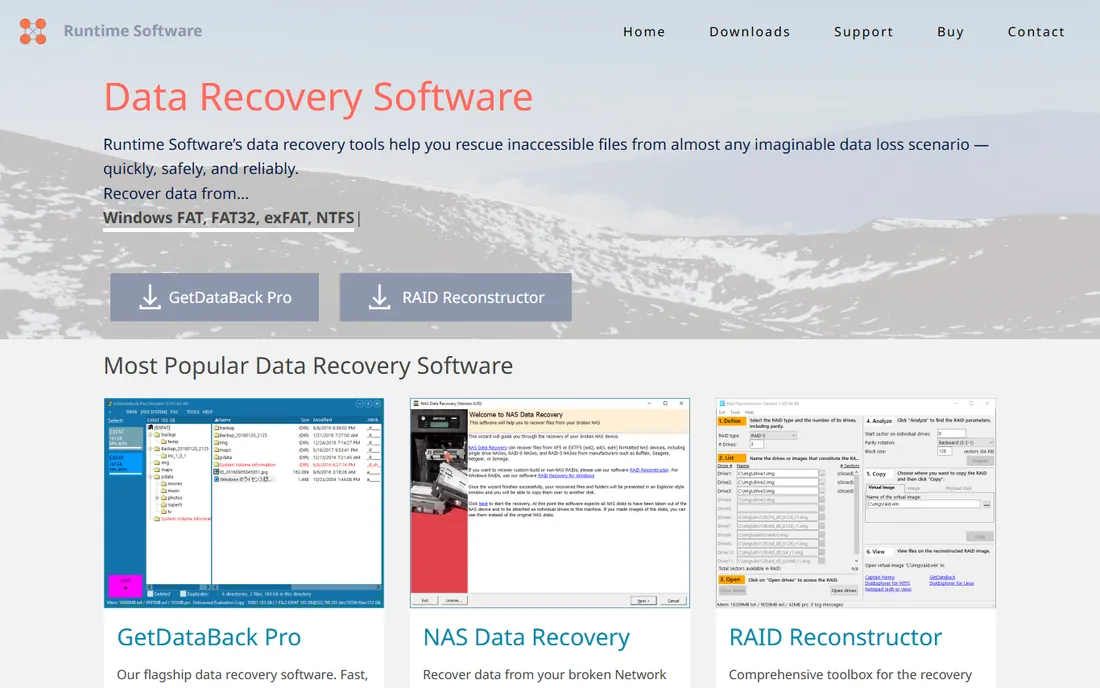
GetDataBack from Runtime Software does one thing and does it well: recovering data from NTFS and FAT file systems. There are separate versions optimized for each, which means the recovery algorithms are tuned rather than generic. The interface is plain but functional.
The narrow focus is both the strength and the limit. This is Windows only, and it does not try to handle Mac file systems, RAID, or exotic cases. If your lost data is on a Windows drive with NTFS or FAT, this focused approach works well. For anything else, look elsewhere.
What we like- Focused and reliable
- Separate versions for NTFS and FAT
- No bloat
Starting priceSee website
Free planFree trial
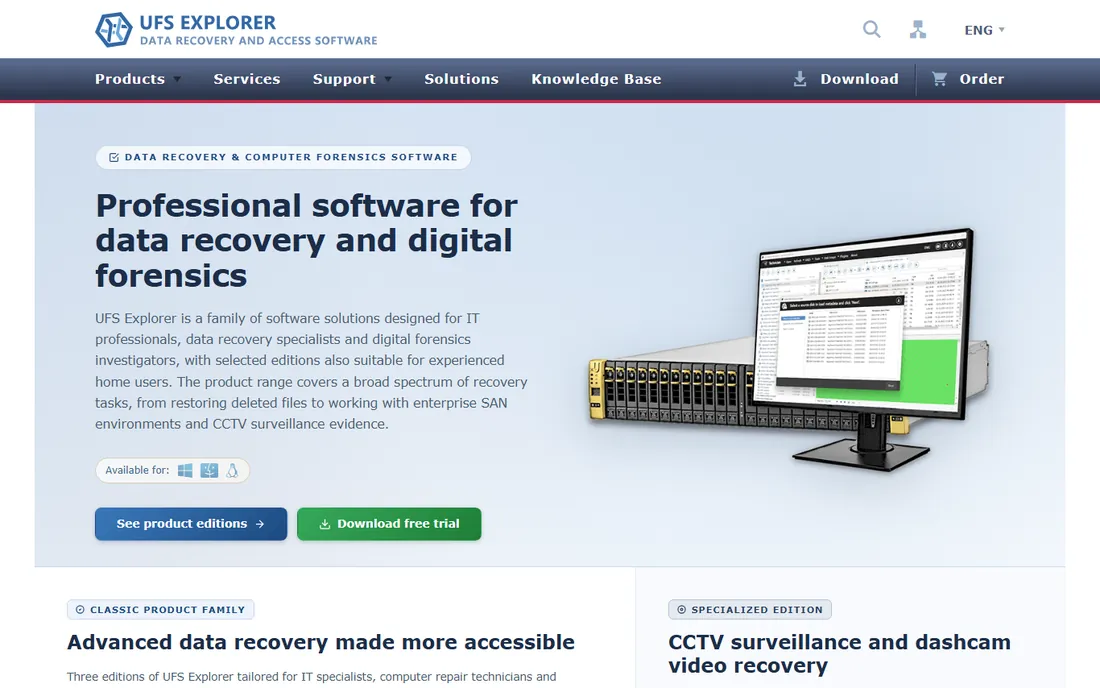
UFS Explorer is the tool professionals use for difficult cases involving RAID arrays, NAS devices, and virtual disks. It supports a wide range of file systems and handles damaged RAID configurations that simpler tools cannot touch. The recovery quality on complex cases is among the best available.
The product lineup has multiple editions with different capabilities, and figuring out which one you need takes effort. The interface is powerful but not friendly. This is a specialist tool for specialist problems. If your case involves RAID or virtualization, it earns its place. For simple deletions, it is unnecessary.
What we like- Excellent RAID and virtual disk support
- Handles many file systems
- Professional grade
Watch out for- Complex interface
- Edition differences confuse buyers
Starting priceSee website
Free planFree trial
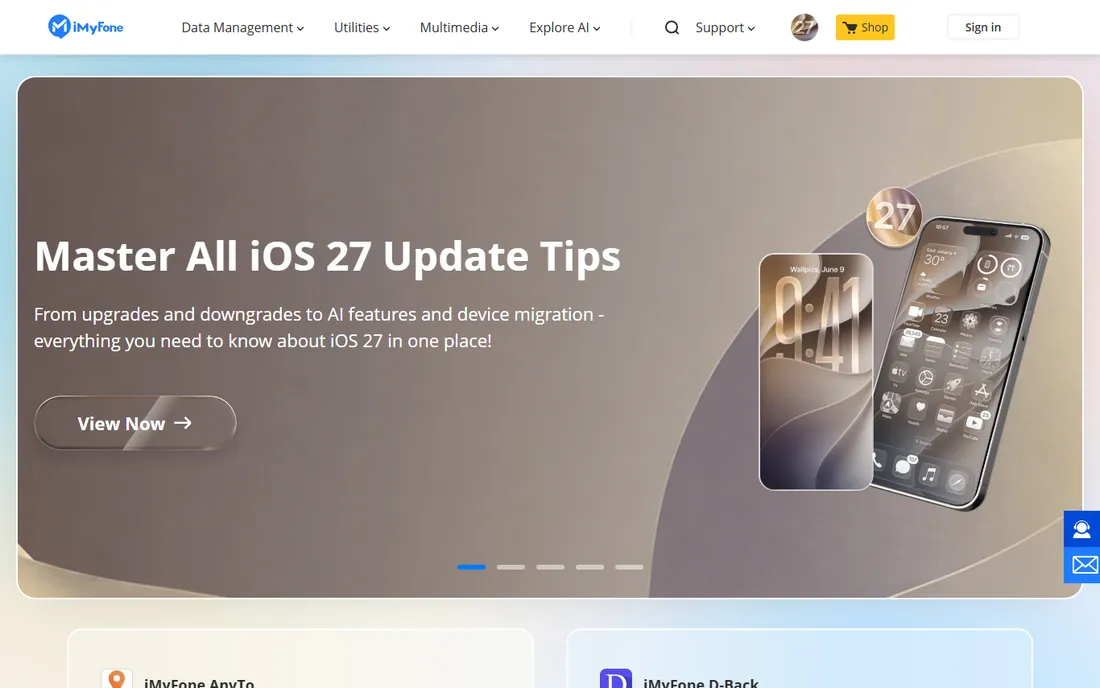
AnyRecover from iMyFone focuses on getting you from problem to recovered files quickly. The scans are fast, the interface is clean, and it covers the common scenarios: deleted files, formatted drives, lost partitions, and crashed systems. For typical consumer data loss, it handles the job.
It does not have the depth of R-Studio or UFS Explorer for complex cases, and iMyFone is a newer brand in this space compared to Ontrack or Stellar. The trial lets you scan and preview before paying. If your case is straightforward and you value speed, this is worth a look.
What we like- Fast scanning
- Simple interface
- Covers common loss scenarios
Watch out for- Less depth than specialist tools
- Newer brand with shorter track record
When software cannot help
Every tool on this list assumes the drive is physically functional. If the drive makes clicking or grinding noises, is not detected by the BIOS, or has suffered water or fire damage, stop immediately. Running recovery software on a physically damaged drive can make things worse by causing further mechanical wear.
Physical damage requires a cleanroom lab where technicians can replace heads, repair PCBs, or read platters directly. Companies like Ontrack and others on this list offer lab services for exactly this. It costs significantly more than software, but for a physically failing drive, it is the only option.
The other hard limit is overwriting. If you deleted files and then continued using the drive heavily, the old data may be permanently overwritten. No software can recover what is physically gone. This is why the first rule of data loss is to stop using the affected drive immediately.
What matters in recovery software
Match the tool to the file system first. A tool optimized for NTFS may handle Mac APFS poorly, and vice versa. Check that the software explicitly supports the file system on your lost drive before you buy. Most vendors list supported file systems on their product pages.
Preview before you pay. Every reputable tool lets you scan free and preview recoverable files. If the scan does not find your files, do not buy the license hoping the paid version works better; it uses the same scan engine. The preview is your proof.
Consider where you run the software. Never install recovery software on the same drive you are recovering from, because the installation itself can overwrite lost data. Use a portable version on a USB drive, or connect the affected drive to a different computer as a secondary disk.
Check the license terms carefully. Some licenses are per computer, some are per technician, and some expire after a year. If you are an IT professional who handles recovery regularly, a technician license makes more sense than buying per incident. Read the fine print before you pay.
Finally, set expectations honestly. Recovery software works best on recently deleted files from healthy drives. The longer you wait, the more you use the drive, and the more complex the failure, the lower the success rate. No tool guarantees 100 percent recovery, and any vendor that promises it is not being straight with you.
How we chose
We selected nine established data recovery tools based on their longevity in the market, breadth of file system support, and reputation among both consumers and professionals. We reviewed official product pages, feature lists, and documentation to understand each tool's capabilities and limitations. We also considered public reviews from G2, Capterra, and technical forums to check real-world performance. Pricing was not independently verified due to vendor page access limitations, so we list it as available on each vendor's website. No hands-on testing was performed.
Frequently asked questions
Can free data recovery software recover all my files?
Free versions and trials typically let you scan and preview files but limit how much you can actually recover. For complete recovery, a paid license is usually required. The trial is still valuable because it shows you what is recoverable before you spend money.
Should I install recovery software on the drive with lost data?
No. Installing anything on the affected drive risks overwriting the very data you are trying to recover. Use a portable version from a USB drive, or remove the drive and connect it to another computer as a secondary disk before scanning.
How long does a data recovery scan take?
It depends on the drive size and condition. A quick scan of a small SSD might take minutes. A deep scan of a large failing hard drive can take many hours or even days. Start the scan when you can leave the computer running undisturbed, and do not interrupt it.
What if the software cannot find my files?
If a deep scan does not find your files, trying a different tool sometimes helps because scan algorithms differ. But if multiple tools find nothing, the data is likely overwritten or the drive has physical damage. At that point, a professional lab is the remaining option for valuable data.
Is it safe to use data recovery software?
Reputable recovery tools are read-only during scanning, meaning they do not modify the drive. The risk comes from installing the software on the affected drive or continuing to use the drive after data loss. Follow the precautions above and the software itself is safe to run.
Sources we checked (9)
- https://www.cleverfiles.com
- https://www.easeus.com
- https://www.r-studio.com
- https://www.stellarinfo.com
- https://www.ontrack.com
- https://dmde.com
- https://www.runtime.org
- https://www.ufsexplorer.com
- https://www.imyfone.com
Is your product missing or out of date?
We review this list regularly. Vendors can request a listing, send updated pricing or ask about featured placement.

Shihab Mia · Founder, Rankite
Shihab has spent more than a decade helping SaaS and e-commerce brands grow through search. He writes Rankite's software buying guides from pricing pages, documentation and public user reviews. More about Shihab.