How we make this list: we compare pricing pages, product documentation and public user reviews. Rankite is independent; if a vendor ever pays for a featured spot, that listing is clearly labeled Partner.
Key takeaways
- Stop using the card the moment you notice the problem. Every new photo or file written to it can overwrite the data you want back.
- Disk Drill, EaseUS, and Stellar are the most approachable paid options, with free tiers that let you scan before paying.
- PhotoRec is completely free and genuinely effective, but its text-based interface is not for everyone.
- Recuva is Windows-only and cheap at $24.95 per year, while R-Studio at $80 one-time suits technically confident users.
- DMDE offers the lowest paid entry at $20 per year, and its free version recovers up to 4,000 files per folder.
Quick comparison
| Tool | Best for | Starting price | Free plan |
|---|
 Disk Drill Disk Drill | All-round recovery with a clean, modern interface | $89 per year (Pro) or $149 lifetime | Free Basic (limited recovery) |
 EaseUS Data Recovery Wizard EaseUS Data Recovery Wizard | Beginners who want the most guided experience | $69.95 per month (Pro) | Free (up to 2 GB) |
 Recuva Recuva | Windows users who want the cheapest workable option | $24.95 per year (Professional) | Yes |
 R-Studio R-Studio | Technical users and difficult recovery cases | $80 one-time | Free trial |
 PhotoRec PhotoRec | Free recovery when you are comfortable with a basic interface | Free | Yes (open source) |
 Stellar Data Recovery Stellar Data Recovery | Polished scanning with strong file previews | $59.99 per year (Standard) | Free edition (up to 1 GB) |
 DMDE DMDE | Budget recovery with professional-grade depth | $20 per year (Express) | Free (up to 4,000 files per folder) |
 Wondershare Recoverit Wondershare Recoverit | Guided recovery plus photo and video repair | $59.99 per month (Essential) | Free (up to 100 MB) |
 iBoysoft Data Recovery iBoysoft Data Recovery | Straightforward recovery on Windows and Mac | $69.95 per year (Basic) | Free trial (scan and preview) |
 Prosoft Data Rescue Prosoft Data Rescue | Mac users who want cloning and recovery in one tool | $79 (30-day Standard license) | Free trial (scan, preview, and 1 GB recovery) |
Is your product missing or out of date?
We review this list regularly. Vendors can request a listing, send updated pricing or ask about featured placement.
Starting price$89 per year (Pro) or $149 lifetime
Free planFree Basic (limited recovery)
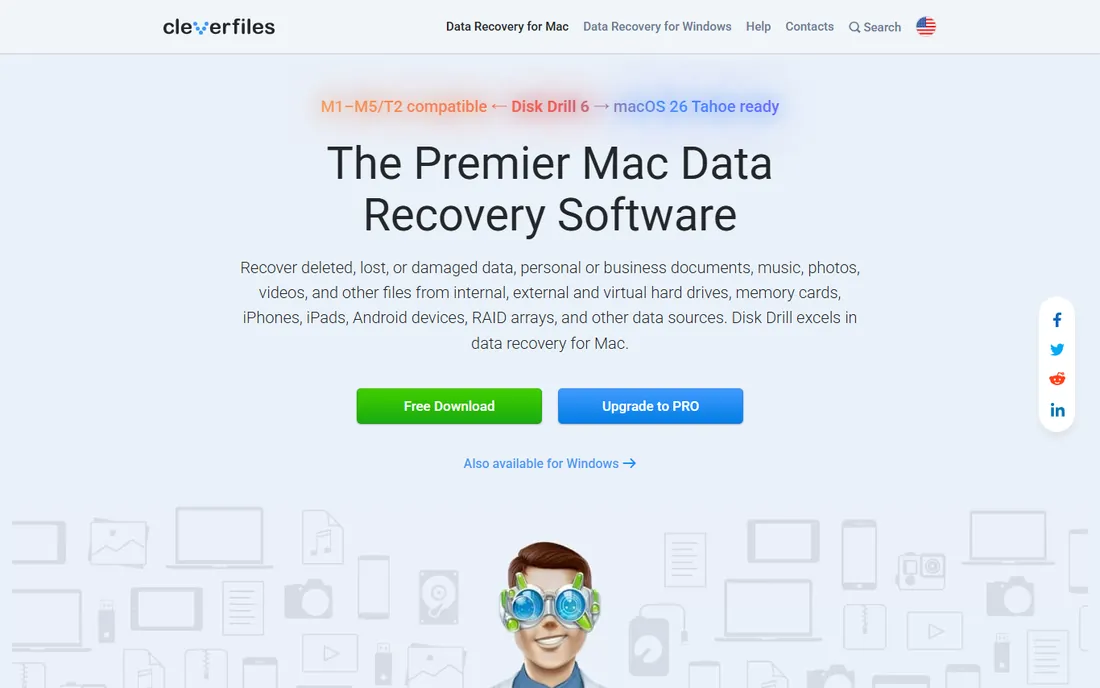
Disk Drill is the easiest recommendation for most people facing a formatted SD card. The interface walks you through selecting the card, scanning it, previewing what was found, and recovering to a different drive, which is exactly the workflow that prevents further damage. It also lets you create a byte-to-byte image of the card first, so you can attempt recovery on the copy while the original stays untouched.
Pricing is $89 per year for Pro or $149 for a lifetime license, and the free Basic version lets you scan and preview before paying. The catch is that the free tier recovers very little, so treat it as a diagnostic. If the scan finds your photos, the paid license is usually worth it for irreplaceable files.
What we like- Easy interface for non-technical users
- Byte-to-byte backup before recovery
- Wide file system support
Watch out for- Free tier is very limited
- Yearly price is mid-range
- Mac and Windows versions differ slightly
#2
EaseUS Data Recovery Wizard
Best for: Beginners who want the most guided experience
Visit easeus.com
Starting price$69.95 per month (Pro)
Free planFree (up to 2 GB)
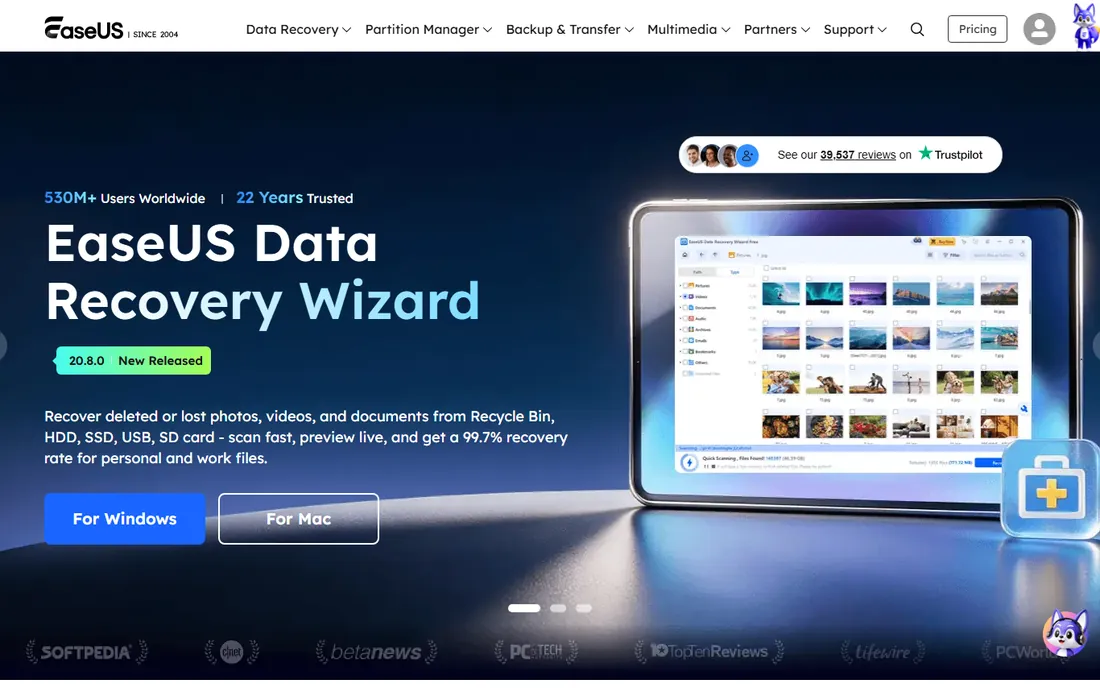
EaseUS wins on hand-holding. The wizard-style process, select the card, scan, preview, recover, is about as simple as recovery software gets, and the free version recovers up to 2 GB of data. For a formatted SD card holding a few hundred photos, that free allowance alone may finish the job without spending anything.
The paid Pro plan costs $69.95 per month, which is steep if you only need it once, though the yearly and lifetime options bring the per-use cost down. Note the license covers one PC, so plan which computer does the recovery. Start with the free 2 GB. If your files appear in the preview, you already know the software works before paying.
What we like- Generous 2 GB free recovery
- Simple three-step process
- Bootable media on paid plans
Watch out for- Monthly price is high for one-time use
- One license covers one PC
- Upsells are frequent
Starting price$24.95 per year (Professional)
Free planYes
Recuva has been the budget answer for years, and it still is. Made by the CCleaner team at Piriform, it is a small, fast Windows program that scans drives and memory cards for deleted files, with a wizard for beginners and an advanced mode for everyone else. The free version covers straightforward cases, and Professional costs just $24.95 per year.
The limits are real. There is no Mac version, the interface looks its age, and deep scans take longer than modern competitors. But for a Windows user with a formatted SD card and a tight budget, Recuva remains the cheapest credible option. Try the free version first. If it finds your files, the paid upgrade is barely more than a pizza.
What we like- Free version handles basic recovery
- Very cheap Professional tier
- Small and fast download
Watch out for- Windows only
- Interface feels dated
- Deep scans are slower than rivals
#4
R-Studio
Best for: Technical users and difficult recovery cases
Visit r-tt.com
Starting price$80 one-time
Free planFree trial
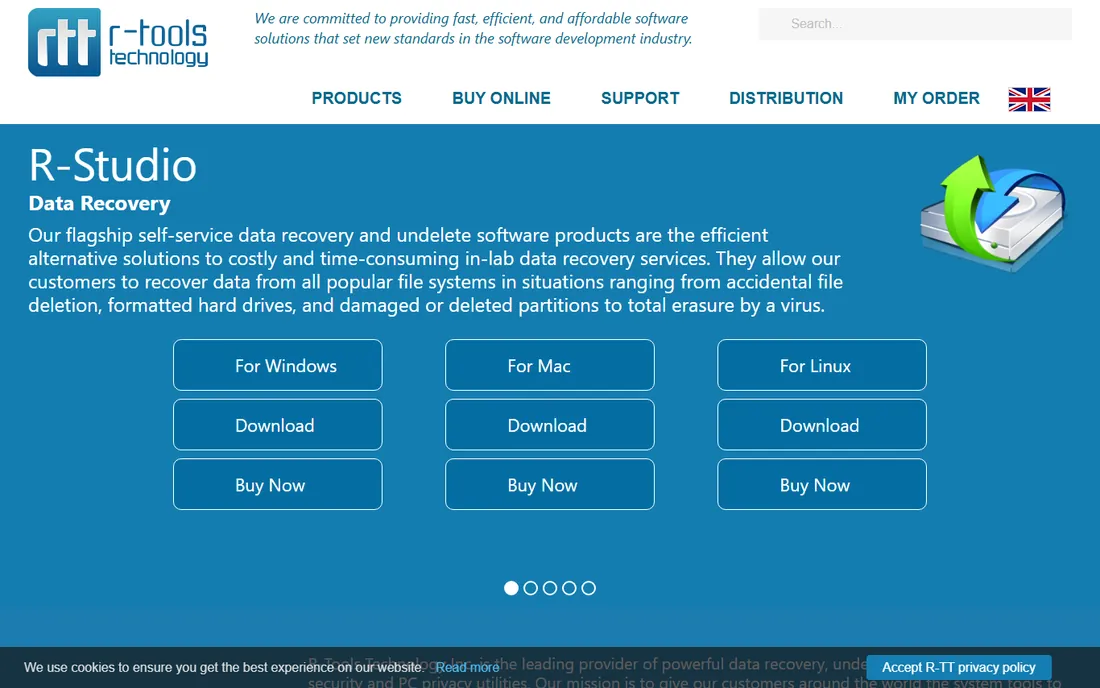
R-Studio is the tool data recovery professionals reach for when consumer apps fail. It handles damaged partitions, complex file systems, and RAID arrays alongside straightforward formatted-card recovery, and it does it for a one-time price of $80 with no subscription. For technically confident users, that combination of power and honest pricing is hard to beat.
The tradeoff is usability. The interface exposes disk sectors, hex views, and parameters that assume you know what a partition table is. If you just want your vacation photos back with minimal fuss, Disk Drill or EaseUS will get you there faster. R-Studio earns its place for difficult cases and for anyone who prefers buying software once.
What we like- One-time price, no subscription
- Powerful for damaged file systems
- Network recovery for pros
Watch out for- Interface assumes technical knowledge
- Overkill for simple deletions
- Documentation is dense
#5
PhotoRec
Best for: Free recovery when you are comfortable with a basic interface
Visit cgsecurity.org
Starting priceFree
Free planYes (open source)
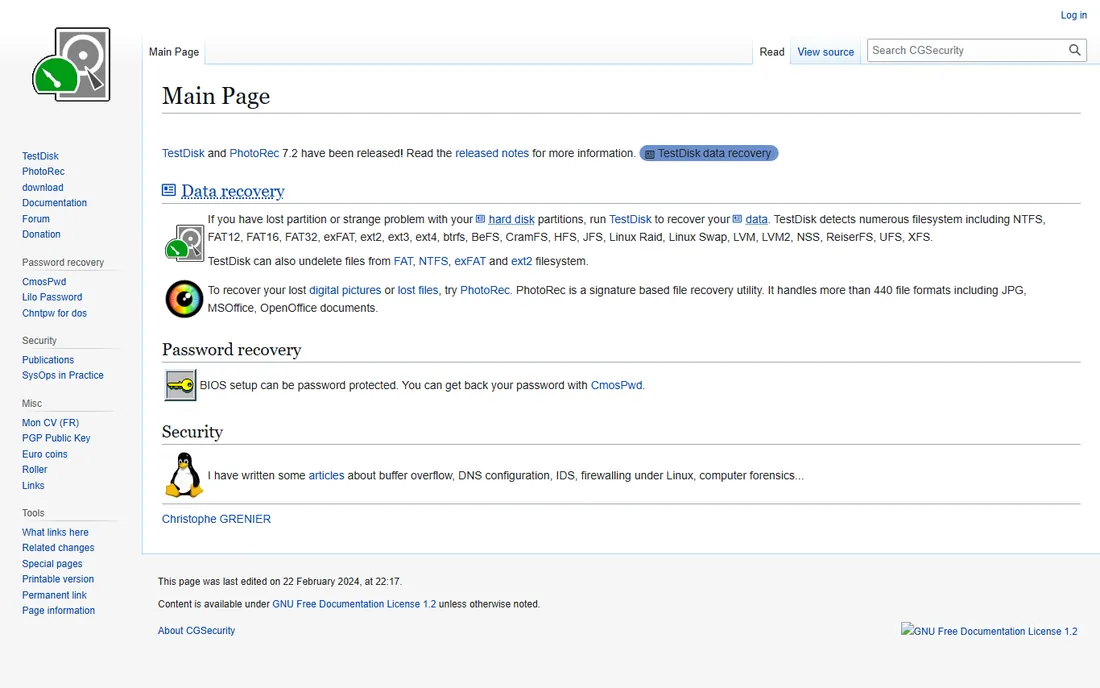
PhotoRec is the free miracle of this category. It is open-source software from CGSecurity that ignores the file system entirely and carves files out by their signatures, which makes it excellent for formatted cards where the file index is gone. It recognizes more than 480 file formats, costs nothing, and has rescued data for two decades.
The catch is the experience. PhotoRec runs in a text-based interface with no mouse-driven polish, and recovered files come back with generic names, so sorting a thousand photos takes patience. There is also no preview before recovery. If you are technically comfortable and the price of everything else stings, PhotoRec is genuinely capable. Everyone else should pay for a friendlier tool.
What we like- Completely free with no limits
- Recovers 480+ file types
- Ignores damaged file systems entirely
Watch out for- Text-based interface intimidates beginners
- Recovered files lose original names
- No preview
Starting price$59.99 per year (Standard)
Free planFree edition (up to 1 GB)
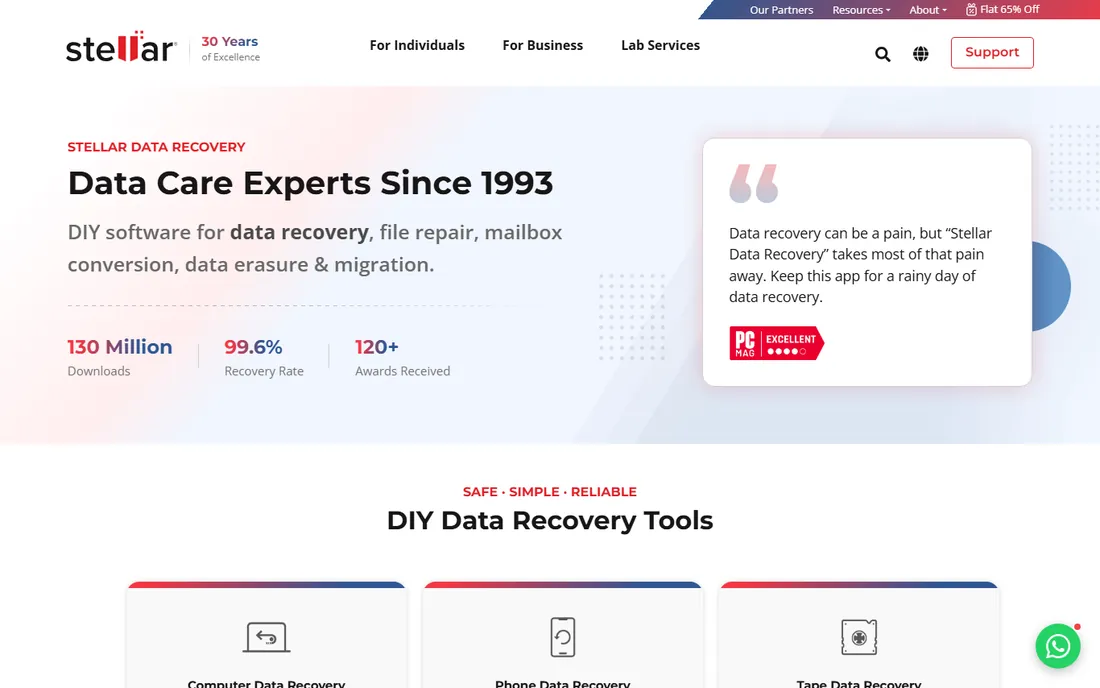
Stellar has been in data recovery since the 1990s, and its current software feels like it. The interface is clean, scans are well organized by file type, and the preview function lets you confirm your photos are intact before paying. The Standard plan starts at $59.99 per year, and the free edition recovers up to 1 GB, enough to test it on a real case.
The tiering deserves attention. Features like partition recovery and unbootable-drive recovery sit in the Professional tier at a higher price, so check which edition your situation needs. For a formatted SD card, Standard is usually sufficient. Stellar suits users who want a polished, established product and are comfortable with an annual subscription.
What we like- Clean modern interface
- Good preview before recovery
- Free edition recovers 1 GB
Watch out for- Higher tiers needed for advanced features
- Annual subscription
- Upsells to other Stellar products
#7
DMDE
Best for: Budget recovery with professional-grade depth
Visit dmde.com
Starting price$20 per year (Express)
Free planFree (up to 4,000 files per folder)
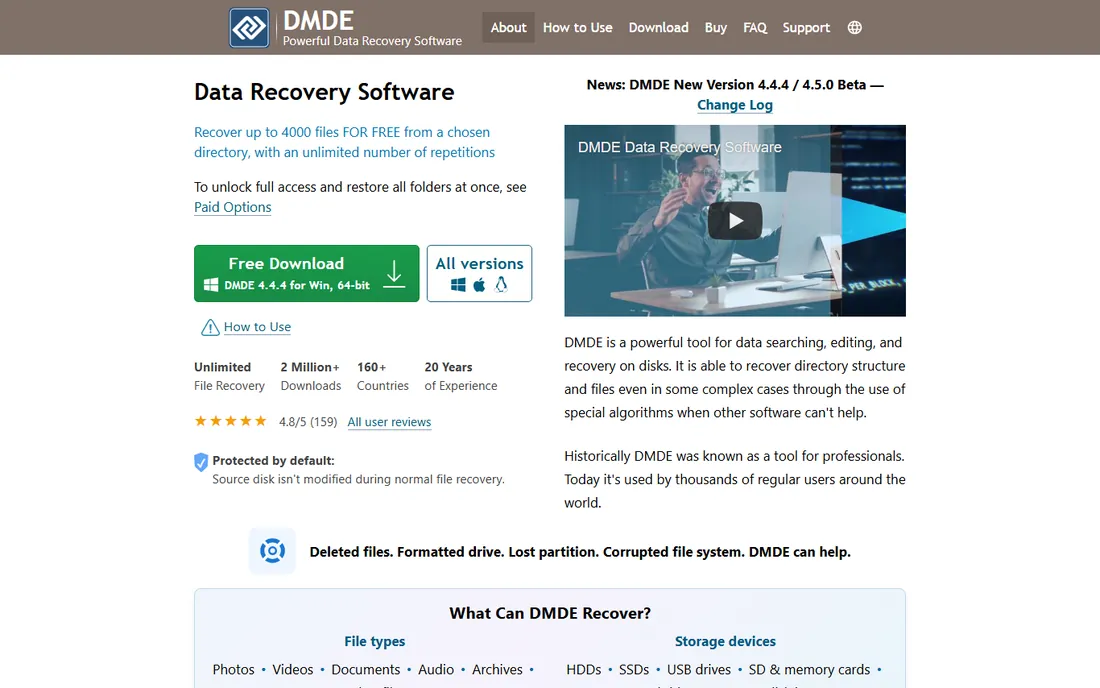
DMDE is the insider pick. It is a professional disk editor that happens to include excellent data recovery, and its pricing undercuts everything else here: $20 per year for Express, with Standard and Professional tiers for heavier needs. The free version recovers up to 4,000 files from the current folder per operation, which covers many SD card cases outright.
The interface is the barrier. DMDE looks and behaves like an engineering tool, with disk panels and terminology that assume you understand partitions. Beginners can absolutely misuse it. But if you are technically inclined and want the best recovery-per-dollar on this list, DMDE is it. Read the documentation before clicking anything that writes to the disk.
What we like- Cheapest paid option on this list
- Free version is genuinely useful
- Handles partitions and disk images
Watch out for- Interface is technical and dated
- Documentation assumes knowledge
- Easy to misuse for beginners
Starting price$59.99 per month (Essential)
Free planFree (up to 100 MB)
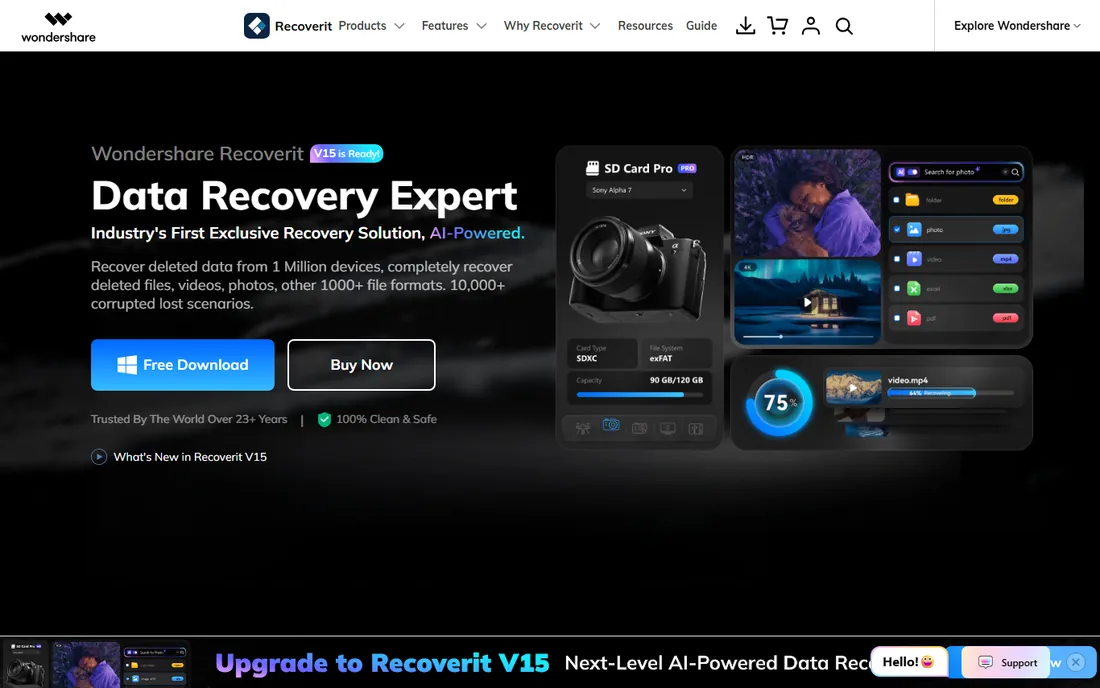
Recoverit follows the familiar wizard pattern: pick the SD card, run the scan, preview results, recover. Wondershare claims support for more than 1,000 file types, and the higher tiers add corrupted video and photo repair, which matters when recovered files come back damaged. For cameras that record video to SD cards, that repair feature is a genuine differentiator.
The pricing is the friction. Essential starts at $59.99 per month, and the free tier only recovers 100 MB, which is a taste rather than a solution. The app also pushes upgrades enthusiastically. Recoverit makes sense when you need the guided experience plus file repair, and when the monthly cost is justified by what is on the card.
What we like- Simple step-by-step workflow
- Handles 1,000+ file types
- Video repair on higher tiers
Watch out for- Monthly price is high
- Free tier only covers 100 MB
- Aggressive upselling in the app
#9
iBoysoft Data Recovery
Best for: Straightforward recovery on Windows and Mac
Visit iboysoft.com
Starting price$69.95 per year (Basic)
Free planFree trial (scan and preview)
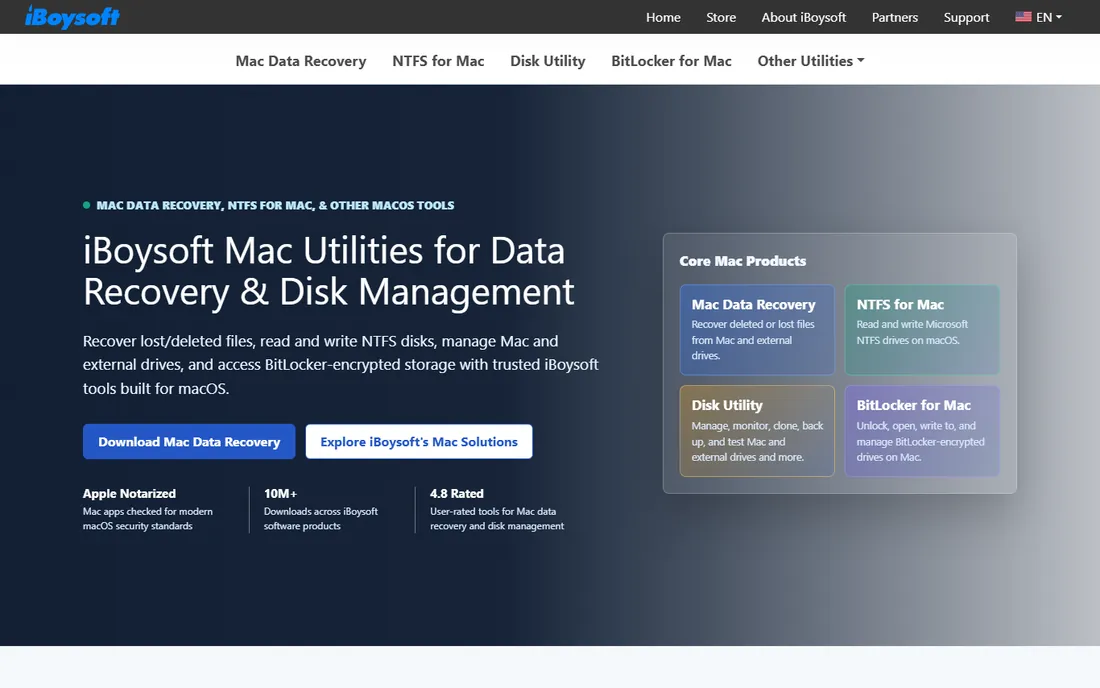
iBoysoft is a solid mid-field contender that covers both Windows and Mac with a straightforward scanning and recovery workflow. The Basic edition at $69.95 per year handles deleted, formatted, and lost-partition recovery, while the Professional and Technician tiers add BitLocker and server support for more demanding situations. The free trial scans and previews so you can verify results before buying.
There is nothing flashy here, which is both the strength and the weakness. It lacks the brand recognition of EaseUS or Stellar and the free depth of DMDE or PhotoRec. But it is a competent, fairly priced tool from an established developer, and Mac users get a native option rather than an afterthought.
What we like- Covers Windows and Mac
- Handles BitLocker and RAW partitions on higher tiers
- Clean scanning
Watch out for- Pricing varies by platform
- Advanced features need costlier editions
- Smaller brand than rivals
#10
Prosoft Data Rescue
Best for: Mac users who want cloning and recovery in one tool
Visit prosofteng.com
Starting price$79 (30-day Standard license)
Free planFree trial (scan, preview, and 1 GB recovery)
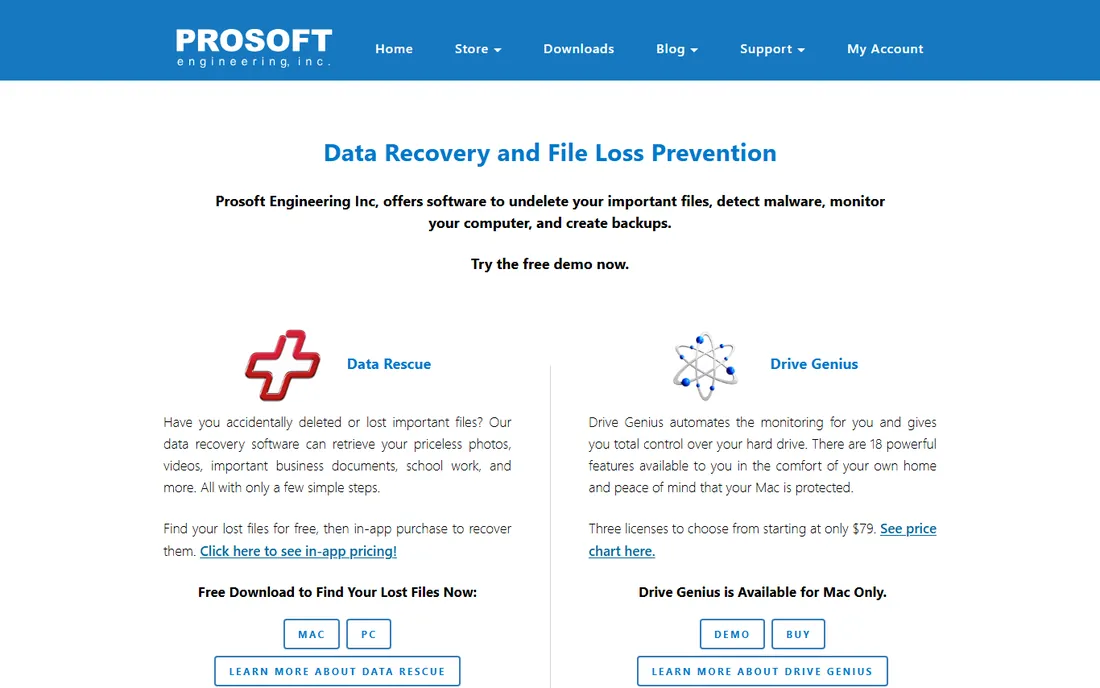
Data Rescue from Prosoft Engineering has been recovering Mac files since long before most competitors existed. Its standout feature is cloning: you can image a failing drive or flaky SD card first, then recover from the copy, which is exactly the safe workflow experts recommend. The Standard license costs $79 for 30 days, and the trial scans, previews, and recovers up to 1 GB free.
The pricing model is unusual. Seventy-nine dollars for a month is steep for a single recovery, though cheaper than a data recovery lab by orders of magnitude. The Professional tier at $399 per year targets technicians. Mac users dealing with a failing card should look here first, because the clone-first workflow is the safest approach on this list.
What we like- Strong Mac heritage
- Drive cloning protects failing media
- Pay-per-need 30-day license
Watch out for- Expensive for one-time use
- Professional tier costs much more
- Interface feels dated
What to do before you install anything
Stop writing to the card immediately. Remove it from the camera or reader and do not take new photos, save files to it, or run the camera's format function again. Every write operation risks overwriting the sectors holding your deleted files, and overwritten data is gone for good. This single step matters more than which software you choose.
Second, recover to a different drive. Every tool on this list lets you choose where recovered files go, and that destination must be your computer's hard drive, never the SD card itself. Writing recovered files back to the card can destroy the files still waiting to be found.
Third, consider imaging the card first. Tools like Disk Drill, DMDE, and Data Rescue can create a byte-for-byte copy of the card, and you then run recovery scans against the image. If the card is physically failing, read errors and disconnects included, imaging first is the professional approach. And if the card is not detected by your computer at all, software cannot help: that is a hardware problem for a recovery lab.
Frequently asked questions
Can software recover files from a formatted SD card?
Often yes. A standard format usually deletes the file index rather than the data, so recovery software can find the underlying files if they have not been overwritten. A full overwrite format or heavy reuse of the card afterward makes recovery unlikely.
Which free tool is best for a formatted SD card?
PhotoRec is the most capable free option, with no recovery limits, though its text interface takes patience. For a friendlier free start, EaseUS recovers up to 2 GB free and DMDE's free version handles up to 4,000 files per folder.
Should I keep using the card while I decide?
No. Every new photo, video, or file written to the card can overwrite the deleted data permanently. Remove the card, set it aside, and do the recovery from your computer with the card connected through a reader.
Why do recovered files sometimes have wrong names?
Tools like PhotoRec recover files by their data signatures rather than the file index, so original filenames are lost and files get generic names. Most commercial tools preserve names when the index is intact, which is one reason to try a scan with a preview feature first.
Is it safe to install recovery software on the same card?
Never install anything onto the card you are recovering from. Install the software on your computer's main drive and recover files to a different drive. Installing onto the SD card writes data over the files you are trying to save.
When should I use a professional data recovery lab?
When the card is not detected by any computer, makes the system hang, or shows physical damage, software cannot help. Labs open the hardware in clean rooms and cost hundreds to thousands of dollars, so they are the last resort for truly irreplaceable data.
How we chose
We researched each vendor's website and pricing pages, plus product documentation, review coverage, and public discussion on Reddit and tech forums. Every price above comes from the vendor's own pricing or a recent vendor-sourced listing, and every tool is actively maintained software you can download today. We weighed formatted-card and SD-specific capability, free tier generosity, interface difficulty for non-technical users, and pricing honesty, including whether free versions let you preview before paying. No vendor paid for placement, and we did not claim hands-on testing.
Mistakes that kill your chances of recovery
The biggest killer is continuing to use the card. People shoot "just a few more photos" or let the camera keep writing to it, and each new file lands on top of old ones. By the time they start recovery software, the sectors are overwritten and no tool on earth brings them back.
The second killer is recovering files back onto the same card. It feels natural to put things where they came from, but writing recovered files to the source card destroys whatever has not been recovered yet. Always recover to your computer or an external drive.
The third is choosing the wrong scan and giving up. A quick scan that finds nothing does not mean the files are gone; run the deep scan, which takes longer but reads the raw sectors. And if one tool finds nothing, try another before concluding the data is lost. Different engines find different things, which is why the free scan-and-preview tiers on this list are so useful.
Sources we checked (10)
- https://www.cleverfiles.com
- https://www.easeus.com/
- https://www.ccleaner.com/recuva
- https://www.r-tt.com
- https://www.cgsecurity.org
- https://www.stellarinfo.com/
- https://dmde.com
- https://recoverit.wondershare.com/
- https://iboysoft.com/
- https://www.prosofteng.com/
Is your product missing or out of date?
We review this list regularly. Vendors can request a listing, send updated pricing or ask about featured placement.

Shihab Mia · Founder, Rankite
Shihab has spent more than a decade helping SaaS and e-commerce brands grow through search. He writes Rankite's software buying guides from pricing pages, documentation and public user reviews. More about Shihab.