How we make this list: we compare pricing pages, product documentation and public user reviews. Rankite is independent; if a vendor ever pays for a featured spot, that listing is clearly labeled Partner.
Key takeaways
- Dragonframe is the professional standard for stop motion, with a perpetual license and three years of updates; student pricing starts at $195 on the vendor site.
- Beginners and classrooms should start free: qStopMotion, MonkeyJam and Cloud Stop Motion cost nothing.
- Stop Motion Studio is the best middle ground for hobbyists, running on phones, tablets and desktops with remote camera control.
- The camera matters as much as the software: check each tool's supported-camera list before buying a license.
Quick comparison
| Tool | Best for | Starting price | Free plan |
|---|
 Dragonframe Dragonframe | Professional stop-motion productions and serious independent animators | See website (Student $195 on the vendor site; commercial license via store) | Free trial (length unverified) |
 Stop Motion Studio Stop Motion Studio | Hobbyists who want pro features on phones, tablets and desktops | See website (paid app, price varies by platform) | No |
 iStopMotion iStopMotion | Mac users who want polished stop motion and time-lapse in one app | See website (paid license) | No |
 qStopMotion qStopMotion | Free, open-source stop motion on Windows and Linux | Free | Yes |
 MonkeyJam MonkeyJam | Absolute beginners and kids making their first animation | Free | Yes |
 iKITMovie iKITMovie | Windows animators who want guided stop motion with built-in effects | See website (paid license) | No |
 AnimaShooter AnimaShooter | Frame-by-frame capture with serious DSLR control on a budget | See website (paid license) | No |
 Cloud Stop Motion Cloud Stop Motion | Schools and clubs animating on Chromebooks in a browser | Free | Yes |
Is your product missing or out of date?
We review this list regularly. Vendors can request a listing, send updated pricing or ask about featured placement.
The best stop frame animation software
Stop motion is photography with patience: move the puppet a millimeter, take a frame, repeat a thousand times. The software's job is to remove every friction between those frames: onion-skinning the last shot over the live view, playing back the sequence instantly, and controlling the camera so exposure never drifts. These eight tools cover the craft from classroom to film set.
#1
Dragonframe
Best for: Professional stop-motion productions and serious independent animators
Visit dragonframe.com
Starting priceSee website (Student $195 on the vendor site; commercial license via store)
Free planFree trial (length unverified)
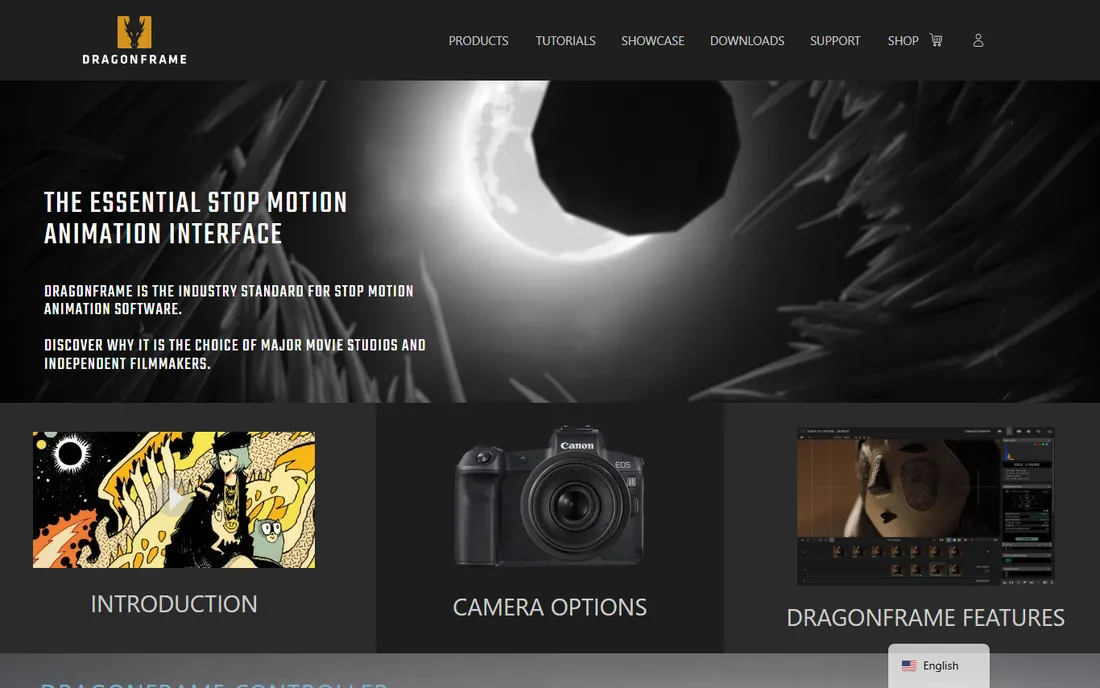
Dragonframe is what the film studios use, and it shows in every detail. It tethers to DSLRs and cinema cameras with full exposure control, overlays onion skins on the live view, programs DMX lighting changes per frame, and drives motion-control rigs for repeatable camera moves. The license is perpetual with three years of updates and support, and student pricing at $195 (per the vendor's own pricing page) makes it reachable for film students.
The price and the learning curve both say professional. A casual animator shooting Lego on a phone will never touch the DMX or motion-control features. But if you are building a real stop-motion practice, Dragonframe is the tool the industry expects you to know, and the perpetual license means no subscription treadmill.
What we like- Industry-standard capture with precise camera and DMX lighting control
- Perpetual license with three years of updates included
- Motion-control rig support for complex shots
Watch out for- Priced for professionals, not casual hobbyists
- The depth of the toolset takes real study
Starting priceSee website (paid app, price varies by platform)
Free planNo
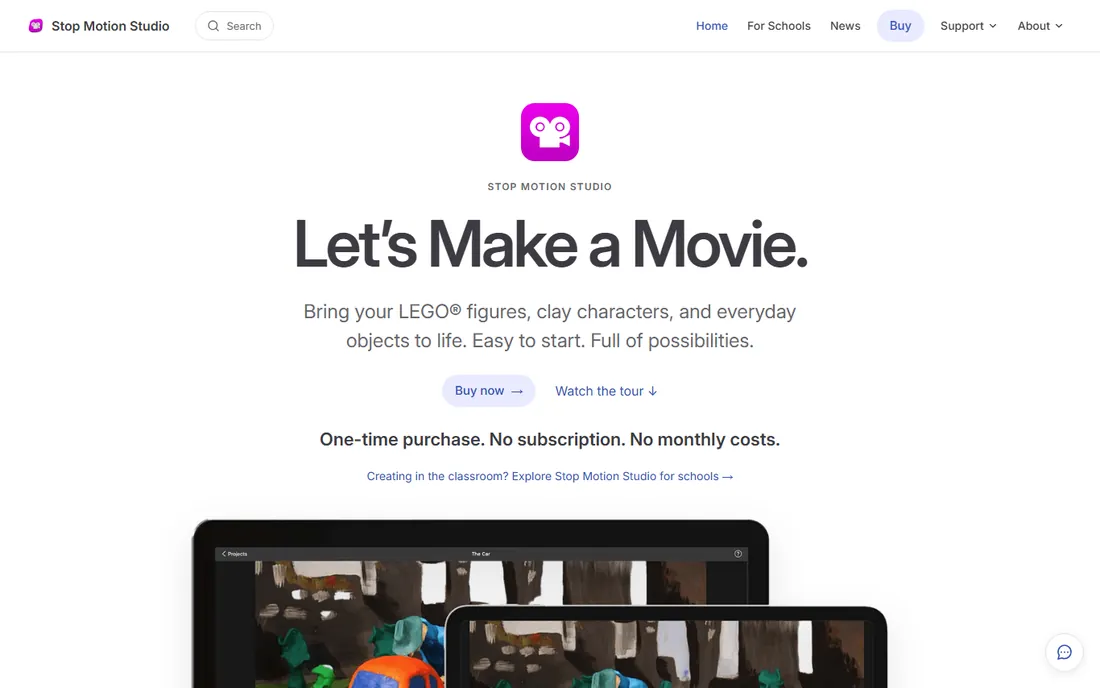
Stop Motion Studio from Cateater is the hobbyist's sweet spot. It brings serious features, onion skinning, green screen, rotoscoping, 4K capture, to phones and tablets, and the remote camera feature lets you trigger captures from a second device while the camera stays locked off. Projects move between mobile and desktop editions.
The pricing is platform-by-platform, which takes some untangling: mobile and desktop are separate purchases with different feature sets. Still, the total stays far below Dragonframe. For YouTubers, teachers and hobbyists, it is the most capable tool anywhere near its price.
What we like- Runs on iOS, Android, macOS and Windows with the same project format
- Remote camera mode turns a phone into a wireless capture rig
- Green screen, onion skinning and 4K support
Watch out for- Paid app with feature tiers that vary by platform
- The desktop version costs extra over mobile
#3
iStopMotion
Best for: Mac users who want polished stop motion and time-lapse in one app
Visit boinx.com
Starting priceSee website (paid license)
Free planNo
iStopMotion from Boinx is the Mac-native option. It captures from webcams, DSLRs and iOS devices, overlays onion skins, and plays back the animation instantly as you shoot. The time-lapse mode shares the same capture engine, so one app covers both techniques.
The Apple-only focus is the whole story: there is no Windows or Android version, and there is no free tier to try the workflow. Mac-based creators who want something simpler than Dragonframe and more polished than the free tools will find it fits. Everyone else should look at Stop Motion Studio or qStopMotion.
What we like- Clean Mac-native interface with onion skinning and instant playback
- Time-lapse mode alongside stop motion
- Direct sharing to video and social formats
Watch out for- MacOS and iOS only
- Paid license with no free tier
Starting priceFree
Free planYes
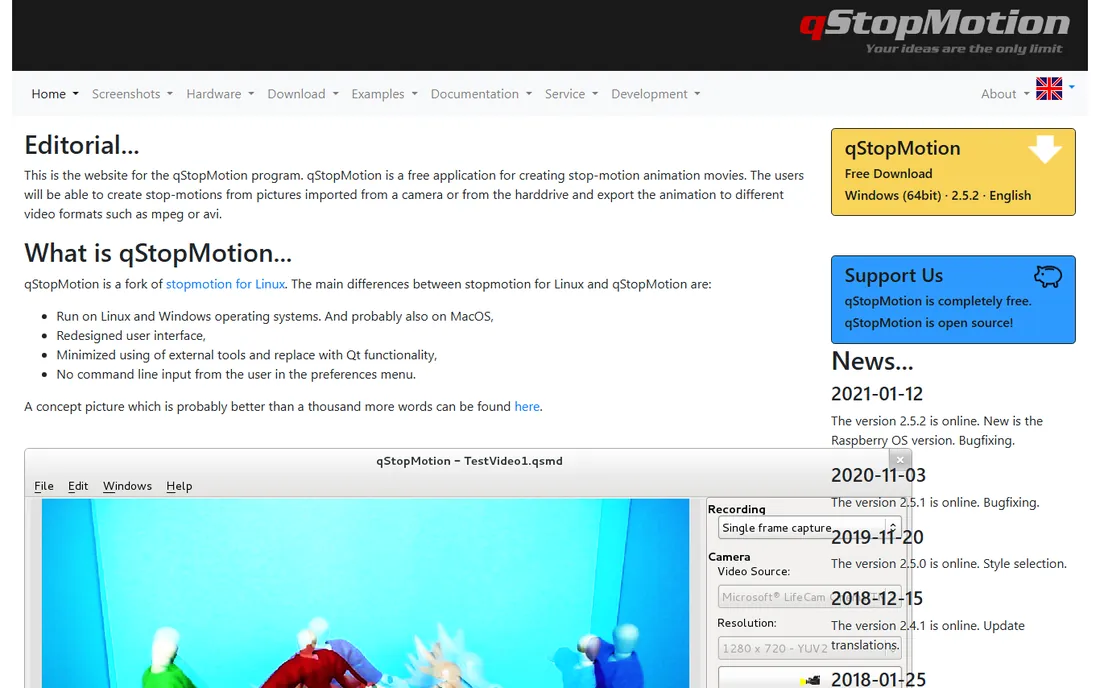
qStopMotion is the open-source workhorse. It captures frames from webcams and supported cameras, provides onion skinning for positioning, and exports finished video. For a classroom or a beginner testing whether stop motion is for them, it costs nothing and teaches the real workflow.
Expect rough edges. Updates are infrequent, the interface is utilitarian, and tethering a DSLR is less reliable than in Dragonframe or iStopMotion. But the fundamentals are all here, and the price cannot be beaten. Start here before spending money on anything.
What we like- Completely free with no paywall
- Onion skinning, video export and basic editing
- Runs on Windows and Linux
Watch out for- Development is slow and the interface shows it
- Camera support is narrower than the paid tools
#5
MonkeyJam
Best for: Absolute beginners and kids making their first animation
Visit monkeyjam.org
Starting priceFree
Free planYes
MonkeyJam has introduced more kids to stop motion than any other software. It does three things: capture frames, show onion skins, and play the result. There is nothing to configure and nothing to buy. For a rainy afternoon with clay figures and a webcam, it is perfect.
It is also frozen in time: Windows-only, minimal features, no DSLR control worth mentioning. Nobody outgrows it so much as graduates from it. But as a zero-cost, zero-friction first animation tool, it still earns its place.
What we like- Free and dead simple: capture, onion skin, play
- Tiny download that runs on old hardware
- The classic classroom starter
Watch out for- Very basic, with no camera tethering depth or editing tools
- Windows-only and long in the tooth
#6
iKITMovie
Best for: Windows animators who want guided stop motion with built-in effects
Visit ikitmovie.com
Starting priceSee website (paid license)
Free planNo
iKITMovie targets the Windows hobbyist who wants results fast. It bundles capture with green-screen compositing, animated titles, sound effects and direct upload, so a finished video can come out of one program. The one-time license keeps the cost predictable.
The training wheels are real: as your ambitions grow, you may bump into its ceilings before you are ready for Dragonframe. But for family projects, school assignments and YouTube hobby channels on Windows, it compresses the whole pipeline into an afternoon's learning.
What we like- Built-in green screen, titles and sound effects aimed at hobbyists
- Supports webcams and DSLRs
- One-time license with no subscription
Watch out for- Windows-only
- The guided approach can feel limiting as skills grow
Starting priceSee website (paid license)
Free planNo
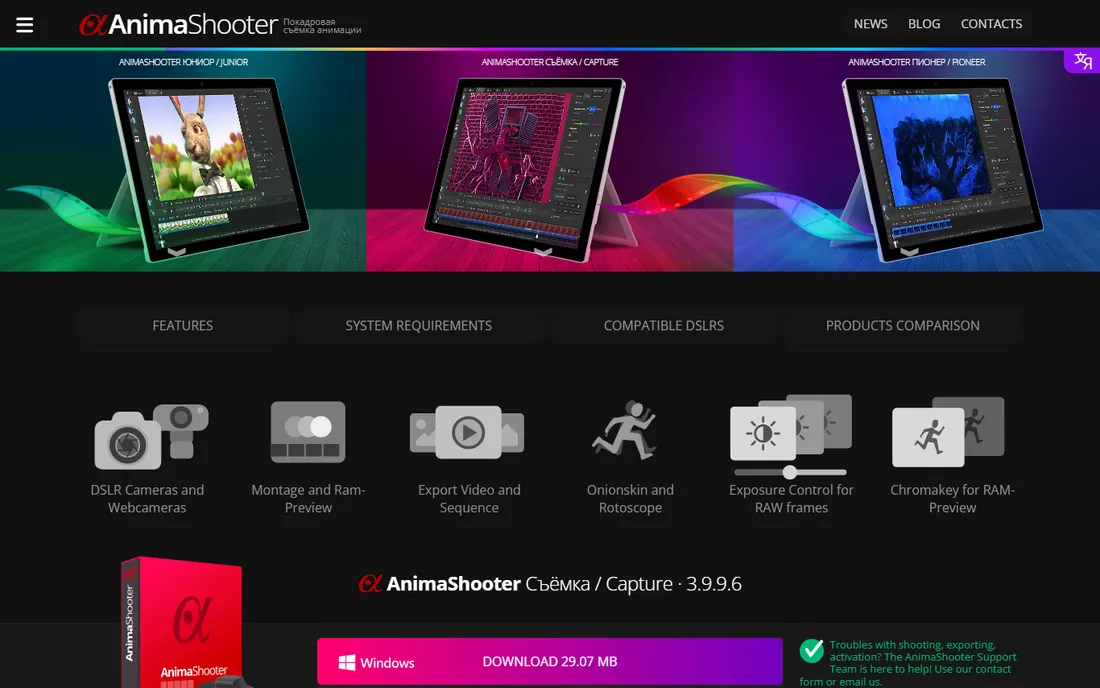
AnimaShooter is the budget tethering specialist. It controls Canon and Nikon DSLRs with live view, locks exposure across frames, and provides the onion-skinning and playback tools animators need. For the price of a dinner out, you get capture control that approaches the professional tools.
The community is small, so troubleshooting means forums and patience rather than a thousand YouTube tutorials. The interface will not win design awards. But if your camera is a DSLR and your budget is not a studio's, AnimaShooter delivers the core professional workflow.
What we like- Deep DSLR tethering with live view and exposure control
- Onion skinning and playback tools built for animators
- Cheaper than Dragonframe by a wide margin
Watch out for- Smaller user community means fewer tutorials
- The interface prioritizes function over polish
Starting priceFree
Free planYes
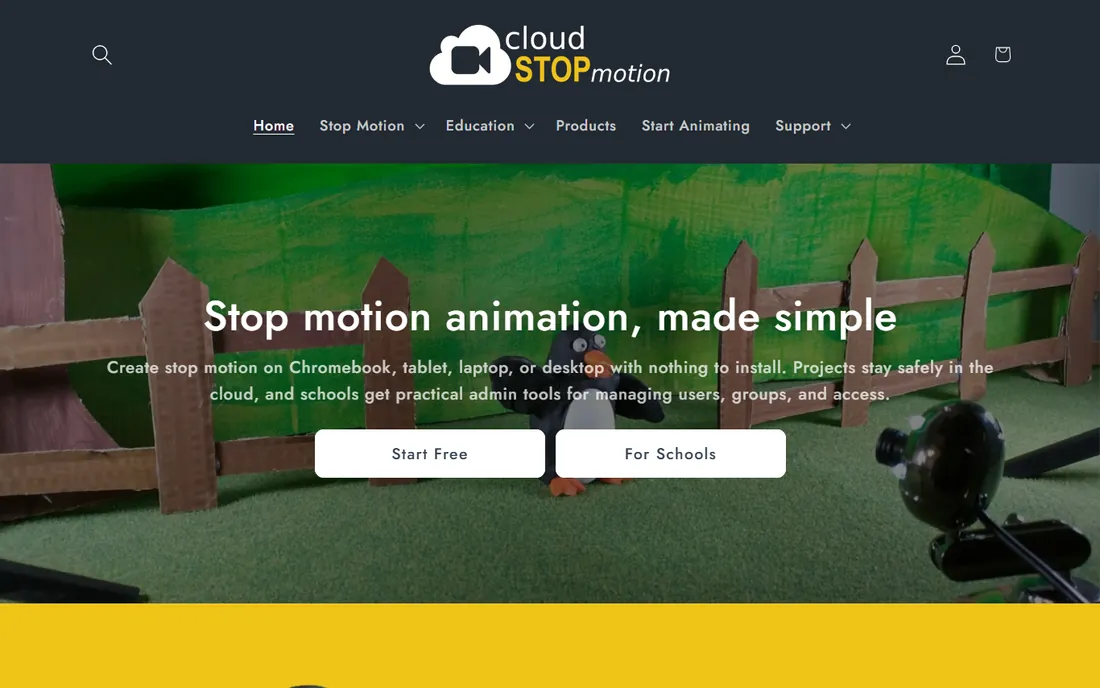
Cloud Stop Motion solves the school IT problem: no installs, no admin rights, just a browser. Students capture with webcams or Chromebooks, the teacher manages projects, and the free tier handles genuine classroom work. For clubs and schools standardized on Chromebooks, it is the practical answer.
It will not replace desktop software for serious work. Webcam capture, no DSLR tethering, no DMX lighting: the ceiling is low. But for education, the ceiling does not matter. Getting thirty students animating in one class period matters, and this is the tool that does it.
What we like- Runs entirely in the browser with nothing to install
- Built for classrooms with teacher controls
- Free tier covers real projects
Watch out for- Browser-based capture depends on webcam quality
- Advanced tethering and lighting control are absent
How we chose
We started with the terms animators search: stop motion software, stop frame animation software and claymation software. For each candidate we confirmed the product is current, checked pricing against the vendor's own pages, and compared capabilities across practitioner reviews, animation forums and educator recommendations. Where a vendor price was not published as text on the vendor's page, we wrote "See website". We weighted capture control, onion skinning quality, camera compatibility and the real needs of beginners versus professionals.
What to check before you buy
Start with the camera list. Every serious stop-motion program publishes which cameras it tethers to, and your DSLR may or may not be on it. Check before buying any license: a great program that cannot talk to your camera is useless. Webcam-only tools sidestep this but cap your image quality.
Then match the tool to the animator. A kid with clay needs MonkeyJam or Cloud Stop Motion, not Dragonframe. A YouTuber needs Stop Motion Studio's phone-to-desktop workflow. A film student needs Dragonframe's professional toolset. Buying up in complexity early just delays the first finished animation.
Finally, budget the rig, not just the software. A $0 program with a wobbly tripod produces worse animation than a $200 program on a solid copy stand. Tripod, lights and a remote shutter release matter more than the logo on the capture software. Spend on stability first.
Frequently asked questions
What is the best stop motion software for beginners?
Start free: MonkeyJam for the simplest possible start, qStopMotion for a fuller free toolset, or Cloud Stop Motion for browser-based classroom work. When you outgrow them, Stop Motion Studio is the natural paid step.
Is Dragonframe worth the price?
For professional and film-school work, yes: the camera control, DMX lighting and motion-control support have no equal, and the perpetual license means you buy once. For hobbyists, Stop Motion Studio or AnimaShooter deliver most of the practical workflow for far less.
Can I do stop motion on my phone?
Yes. Stop Motion Studio on iOS and Android is the best phone option, with onion skinning, 4K capture and remote camera mode. Cloud Stop Motion works in a mobile browser. A phone on a tripod is a legitimate stop-motion rig.
What camera do I need for stop motion?
Any camera works to start, including a webcam or phone. For quality work, a DSLR or mirrorless camera with manual exposure control, tethered to Dragonframe, AnimaShooter or iStopMotion, gives consistent frames. Lock exposure manually: auto-exposure causes flicker.
Is there free stop motion software?
Yes. qStopMotion and MonkeyJam are free desktop tools, Cloud Stop Motion is free in the browser, and several paid tools offer free trials. The free tools cover the full basic workflow: capture, onion skinning and export.
How do I avoid flicker in stop motion?
Lock everything manual: exposure, white balance and focus. Keep lighting constant and block daylight changes. In software, use the onion skin to check for accidental bumps, and deflicker tools in post for minor exposure drift.
The camera compatibility check most buyers skip
Here is the mistake that wastes the most money in stop motion: buying software before checking the camera list. Dragonframe, AnimaShooter, iStopMotion and iKITMovie each publish supported-camera lists, and they differ. A Canon body supported by one may be absent from another. Webcams are universal but produce softer images with rolling-shutter wobble.
The check takes five minutes on each vendor's site and saves a refund request. While you are there, confirm the connection method: USB tethering is standard, but some cameras need specific drivers or modes. And remember the second half of the equation: the software cannot fix a camera that hunts for focus mid-shot, so switch the lens to manual before frame one.
Sources we checked (8)
- https://www.dragonframe.com/special-pricing/
- https://www.stopmotionstudio.com/
- https://www.boinx.com/
- https://www.qstopmotion.org/
- https://monkeyjam.org/
- https://www.ikitmovie.com/
- https://www.animashooter.com/
- https://www.cloudstopmotion.com/
Is your product missing or out of date?
We review this list regularly. Vendors can request a listing, send updated pricing or ask about featured placement.

Shihab Mia · Founder, Rankite
Shihab has spent more than a decade helping SaaS and e-commerce brands grow through search. He writes Rankite's software buying guides from pricing pages, documentation and public user reviews. More about Shihab.