How we make this list: we compare pricing pages, product documentation and public user reviews. Rankite is independent; if a vendor ever pays for a featured spot, that listing is clearly labeled Partner.
Key takeaways
- If your new drive is a Samsung, use Samsung Data Migration. It is free and built for exactly that move.
- Macrium Reflect is the most trusted paid cloner for Windows, at $49.99 a year for the Home edition.
- Clonezilla and Rescuezilla are the best free options: Clonezilla for technicians, Rescuezilla for everyone else.
- Hasleo Backup Suite is a complete free backup and cloning suite that embarrasses some paid tools.
- Cloning beats a fresh Windows install when your setup is dialed in. A fresh install wins when the old system is a mess.
Quick comparison
| Tool | Best for | Starting price | Free plan |
|---|
 Macrium Reflect Macrium Reflect | Windows users who want the most trusted paid cloner | $49.99 per year (Reflect Home subscription) | Free trial (30 days) |
 Clonezilla Clonezilla | technicians who want the free standard | $0 | Yes |
 EaseUS Disk Copy EaseUS Disk Copy | one-time SSD upgrades with minimal fuss | $19.90 per month (Pro) | Yes |
 Acronis Cyber Protect Home Office Acronis Cyber Protect Home Office | users who want cloning inside a full protection suite | $49.99 per year (Essentials) | Free trial (30 days) |
 AOMEI Backupper AOMEI Backupper | Windows users who want free backup with cloning on paid tiers | $39.95 per year (Professional) | Yes |
 Hasleo Backup Suite Hasleo Backup Suite | anyone who wants a complete free cloning and backup suite | $0 | Yes |
 Rescuezilla Rescuezilla | beginners who want Clonezilla's reliability with a GUI | $0 | Yes |
 Samsung Data Migration Samsung Data Migration | anyone migrating to a Samsung SSD | $0 | Yes |
 DiskGenius DiskGenius | tinkerers who want partition management with cloning | $69.90 one-time (Standard) | Yes |
Is your product missing or out of date?
We review this list regularly. Vendors can request a listing, send updated pricing or ask about featured placement.
The best SSD cloning software
#1
Macrium Reflect
Best for: Windows users who want the most trusted paid cloner
Visit macrium.com
Starting price$49.99 per year (Reflect Home subscription)
Free planFree trial (30 days)
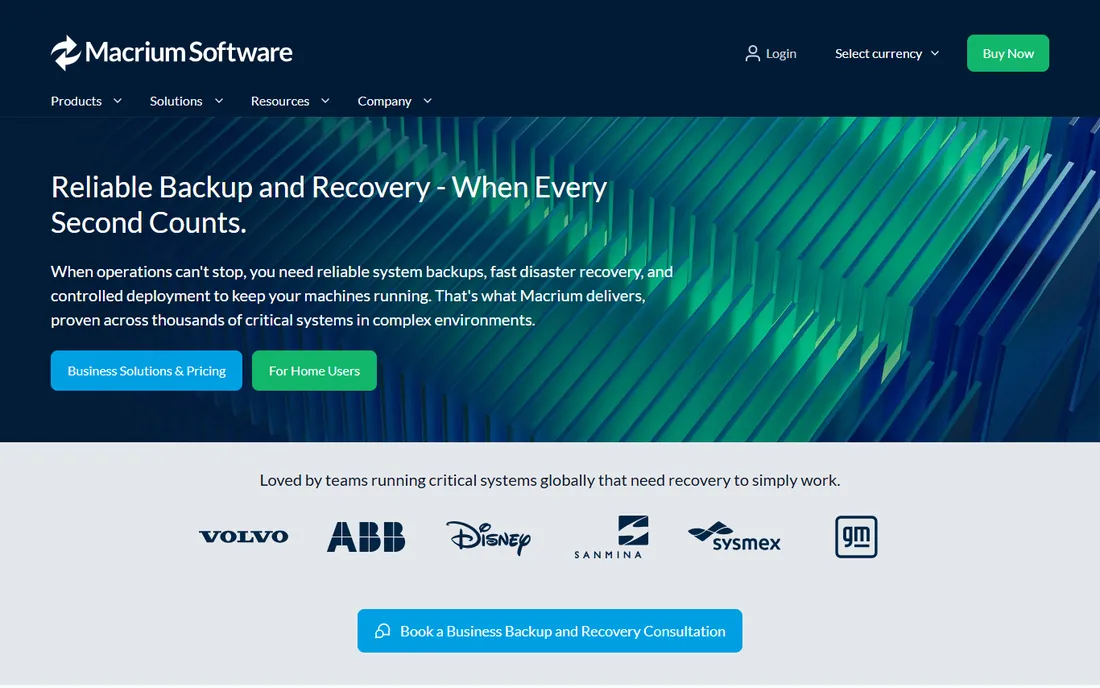
Ask IT professionals which cloner they trust, and Macrium Reflect comes up more than any other paid tool. The Home edition clones disks, migrates Windows to a new SSD and creates full disk images with incremental backups on a schedule. The cloning wizard handles partition resizing when the new SSD is a different size, which is the step where cheaper tools stumble.
Reliability is the selling point. Reflect verifies images, builds bootable rescue media for when Windows will not start, and restores to dissimilar hardware in higher editions. The interface is technical but logical, and the documentation is some of the best in the category.
The pricing changed the conversation. Macrium discontinued the old free edition and moved Home to a subscription starting at $49.99 a year, with a 30-day trial to evaluate. If you clone once and never again, that stings. If you want scheduled image backups running for years, the subscription makes more sense.
What we like- Excellent cloning and imaging engine
- Bootable rescue media
- Scheduled incremental backups
Watch out for- No free version anymore
- Subscription-only pricing annoys longtime users
Starting price$0
Free planYes
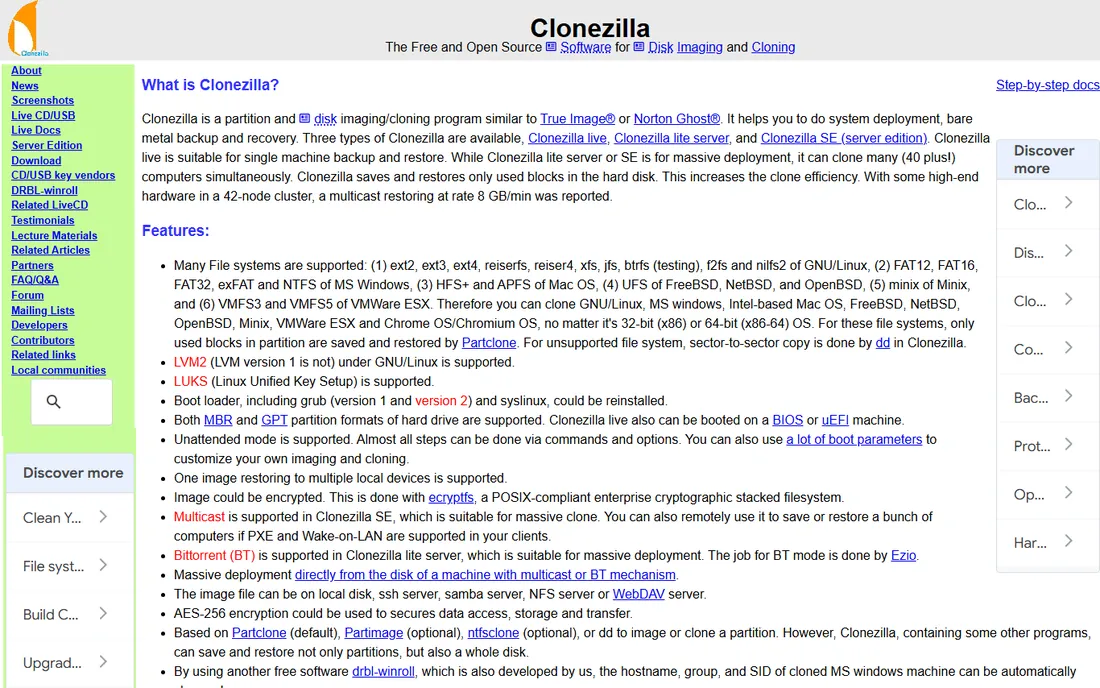
Clonezilla is the free standard everything else gets measured against. This open-source tool clones disks and partitions, creates and restores images, and deploys to many machines at once, all for nothing. It supports nearly every filesystem you will meet, from NTFS and APFS to ext4 and beyond, and it only copies used blocks, which keeps clones fast.
It runs from a bootable USB, which is both the strength and the workflow. Booting outside Windows means nothing is locked or changing during the clone, so the result is clean. The same bootable approach makes it a favorite for technicians who carry one USB stick between machines.
The interface is the price of free. Text menus and keyboard navigation assume you know what a partition is, and there is no cloning the live running system. Beginners who want the same engine with a graphical interface should look at Rescuezilla below. Everyone else gets the industry workhorse for zero dollars.
What we like- Completely free and open source
- Extremely reliable imaging
- Handles almost any filesystem
Watch out for- Text-based interface intimidates beginners
- No hot cloning of the running system
#3
EaseUS Disk Copy
Best for: one-time SSD upgrades with minimal fuss
Visit easeus.com
Starting price$19.90 per month (Pro)
Free planYes
EaseUS Disk Copy does one job and stays out of your way doing it. Where backup suites bury cloning under menus, Disk Copy opens to a wizard: pick the source disk, pick the target SSD, adjust the layout, and go. It clones while Windows runs, aligns partitions for SSDs automatically and handles MBR to GPT conversions.
That focus is the appeal for a Saturday upgrade. You do not need imaging, scheduling or cloud backup. You need your 1TB hard drive on a 1TB SSD by dinner, with Windows booting afterward. The sector-by-sector mode covers failing drives where every block matters.
The pricing fits badly for that use case. Pro costs $19.90 a month, which is a lot for software you may use twice. There is a lifetime option at $59.90 that makes more sense for repeat use. Check what the limited free edition covers before paying, since a simple same-size clone may not need Pro at all.
What we like- Simple wizard-driven cloning
- Hot cloning while Windows runs
- Sector-by-sector option
Watch out for- Monthly pricing is steep for a one-time job
- Free edition is limited
#4
Acronis Cyber Protect Home Office
Best for: users who want cloning inside a full protection suite
Visit acronis.com
Starting price$49.99 per year (Essentials)
Free planFree trial (30 days)
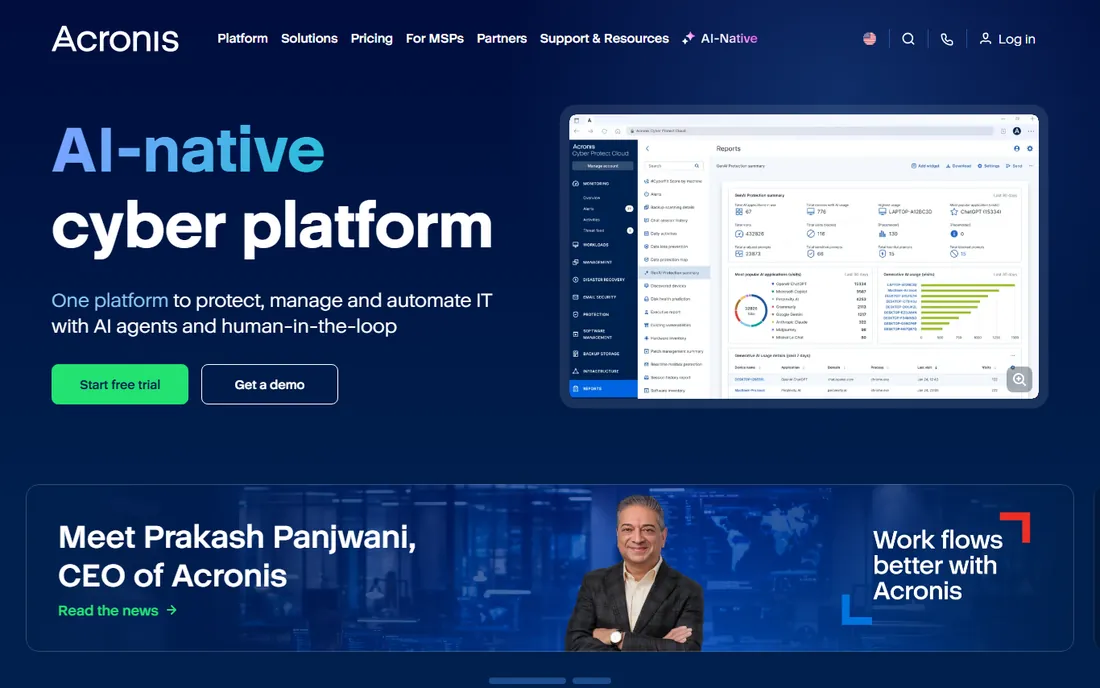
Acronis is the backup suite for people who want cloning plus full cyber protection in one subscription. Cyber Protect Home Office, the successor to True Image, clones disks and migrates systems, then keeps protecting the new drive with scheduled backups, active ransomware defense and optional cloud storage. The cloning itself is straightforward and reliable.
The interface is the most polished here, and that matters for a tool you might use under stress. Wizards guide the SSD migration, the rescue media builder is painless, and the dashboard shows backup health at a glance. The 30-day trial is fully functional, so you can complete a real migration before paying.
You pay for the suite, not just the cloner. Essentials starts at $49.99 a year, and higher tiers with more cloud storage cost more. If all you want is a one-time clone, this is overkill. If you want the new SSD cloned, imaged nightly and protected from ransomware under one roof, the bundle logic works.
What we like- Cloning plus backup, antivirus and cloud storage in one
- Polished interface
- 30-day trial
Watch out for- More suite than most cloners need
- Renewal pricing climbs on higher tiers
#5
AOMEI Backupper
Best for: Windows users who want free backup with cloning on paid tiers
Visit aomeitech.com
Starting price$39.95 per year (Professional)
Free planYes
AOMEI Backupper is the free Windows backup tool that grew a capable cloning module. The Standard edition, free for personal use, handles system, disk, partition and file backup with scheduling and bootable rescue media. The interface is clean and wizard-driven, closer to Acronis than to Clonezilla.
The catch for this list is that full disk cloning sits in the Professional edition at $39.95 a year, with a lifetime license at $69.95 for those who prefer it. Pro also adds system migration to SSD, universal restore to different hardware and automatic cleanup of old backups. The 90-day money-back guarantee is among the most generous in the category.
For pure cloning value, the free tier disappoints, since the headline feature needs Pro. But as an ongoing backup tool that can also clone when you upgrade drives, it is a strong package. Buy Pro when you want one Windows utility covering backup and the occasional migration.
What we like- Free Standard edition for basic backup
- Clean wizard interface
- 90-day money-back guarantee
Watch out for- Disk cloning needs the Pro version
- Upsells inside the app
#6
Hasleo Backup Suite
Best for: anyone who wants a complete free cloning and backup suite
Visit easyuefi.com
Starting price$0
Free planYes
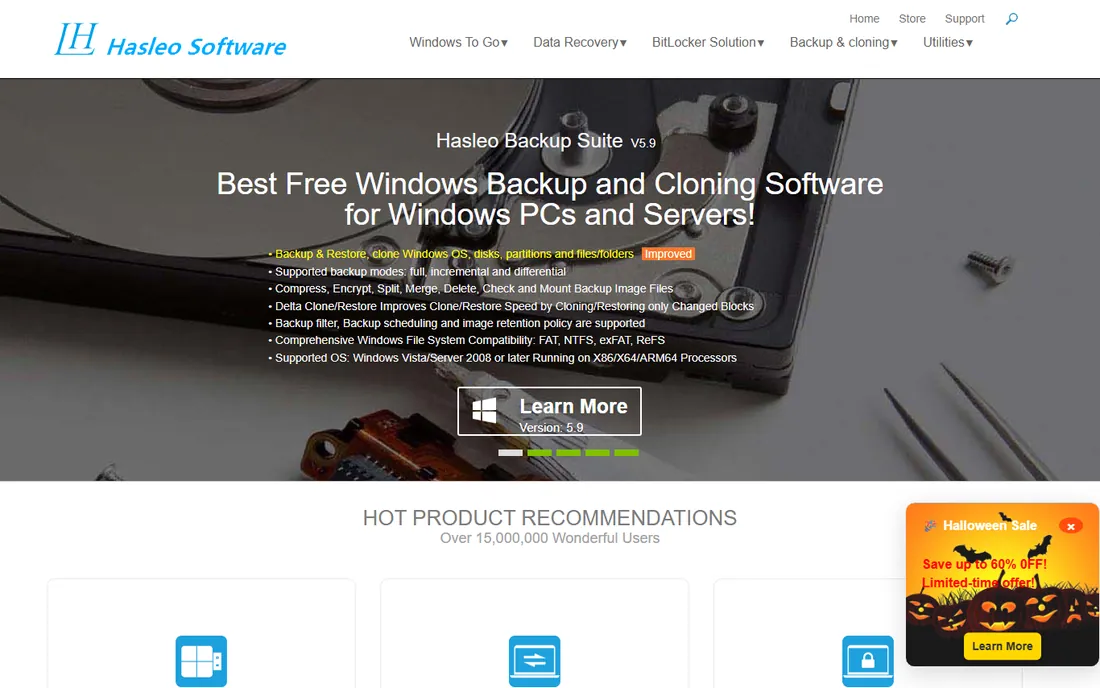
Hasleo Backup Suite is the surprise of this list: a complete backup and cloning suite that costs nothing. It is free for both personal and commercial use, with no tiered features held back. System, disk, partition and file backup, full disk cloning, incremental and differential schedules, compression and encryption, and a bootable Windows PE emergency disk all ship in the free download.
The cloning module handles the SSD upgrade job directly, migrating Windows to a new drive with a wizard interface that stays approachable. Scheduled imaging means the same install protects you after the migration too. Active development with steady releases suggests it will stay maintained.
There are gaps, naturally. It is Windows only, there is no built-in cloud storage, and the interface will not win awards. But on features per dollar, nothing here touches it. If your budget is zero and your needs are real, start here before looking at paid tools.
What we like- 100% free for personal and commercial use
- Full cloning, imaging and scheduling
- Bootable Windows PE rescue media
Watch out for- Windows only
- No cloud backup integration
Starting price$0
Free planYes
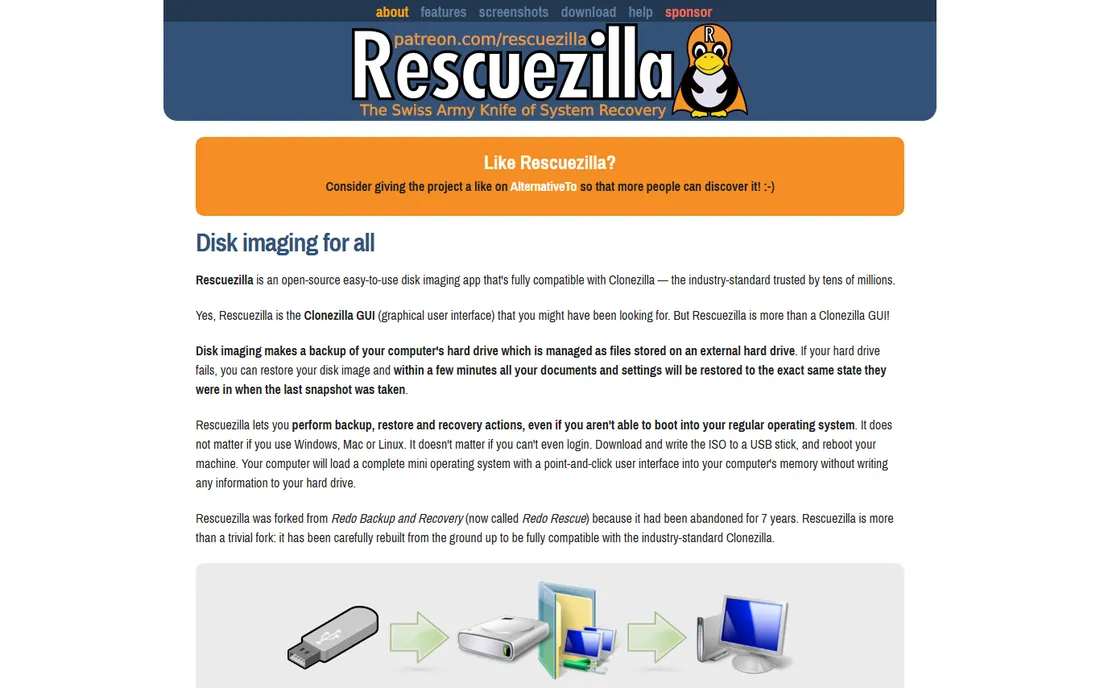
Rescuezilla is Clonezilla with the part everyone complains about removed. It wraps the same battle-tested imaging engine in a point-and-click graphical interface, boots from a USB stick, and walks you through backup, restore and cloning with plain language. It is free and open source, and the developers pledge it always will be.
Compatibility is the clever bit. Rescuezilla reads and writes the exact same image format as Clonezilla, so images made in one restore in the other. That means you get the trusted engine plus an interface your less technical friend could use. It handles Windows, Mac and Linux machines, mounts images to extract individual files, and includes partition editing and file recovery tools.
Like Clonezilla, it needs a bootable USB and a reboot, which adds ten minutes of setup. Power users may miss Clonezilla's full option set. For everyone else, this is the best cloning software for SSD upgrades when the budget is zero and the interface matters.
What we like- Free and open source
- Graphical interface over Clonezilla's engine
- Interoperable with Clonezilla images
Watch out for- Bootable USB required
- Fewer advanced options than raw Clonezilla
#8
Samsung Data Migration
Best for: anyone migrating to a Samsung SSD
Visit samsung.com
Starting price$0
Free planYes
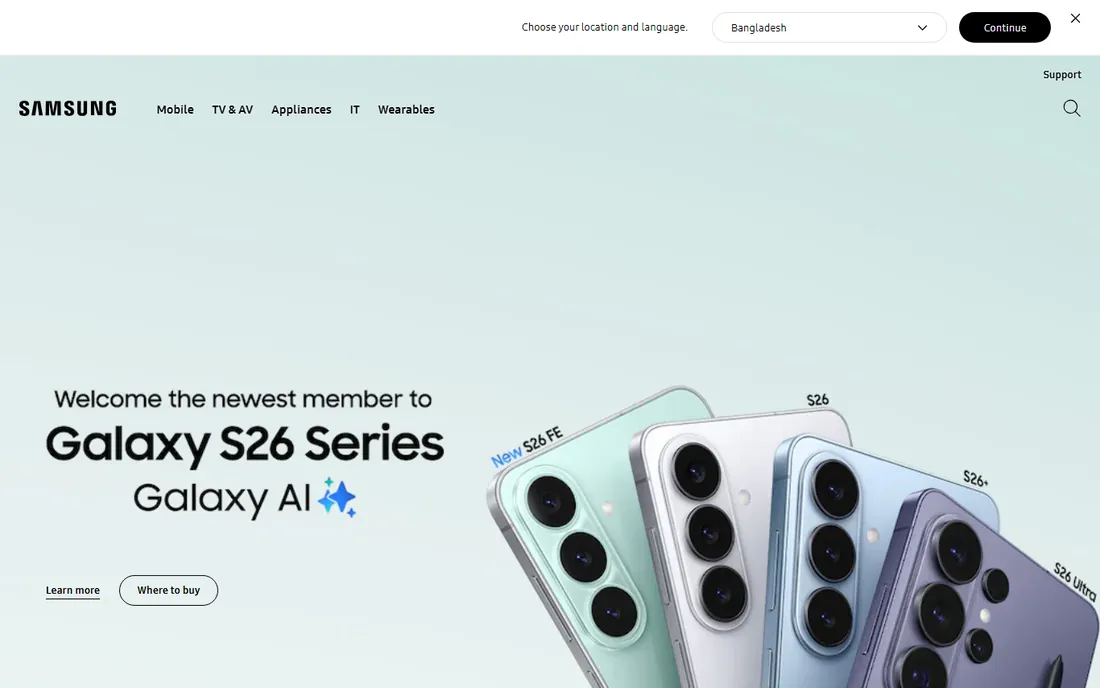
If the new drive in the box is a Samsung, the decision is already made. Samsung Data Migration is the free tool Samsung provides to its SSD owners, and it does exactly one thing: clone your current drive to the Samsung SSD. Download it from Samsung's site, run the wizard, and reboot onto the new drive.
Because it is purpose-built, the failure modes are fewer. It knows Samsung drives, handles the alignment and partition sizing for the migration, and the whole process typically takes under an hour for a few hundred gigabytes. There is no upsell, no account and no feature matrix to decode.
The limits are hard limits. The target drive must be a Samsung SSD, it runs on Windows only, and it will not help with any other brand. If you bought a Samsung drive, use it and skip this list. If you did not, every other tool here is brand-agnostic.
What we like- Free for Samsung SSD owners
- Purpose-built and simple
- Reliable for Samsung-to-Samsung moves
Watch out for- Only works with Samsung target drives
- Windows only
Starting price$69.90 one-time (Standard)
Free planYes
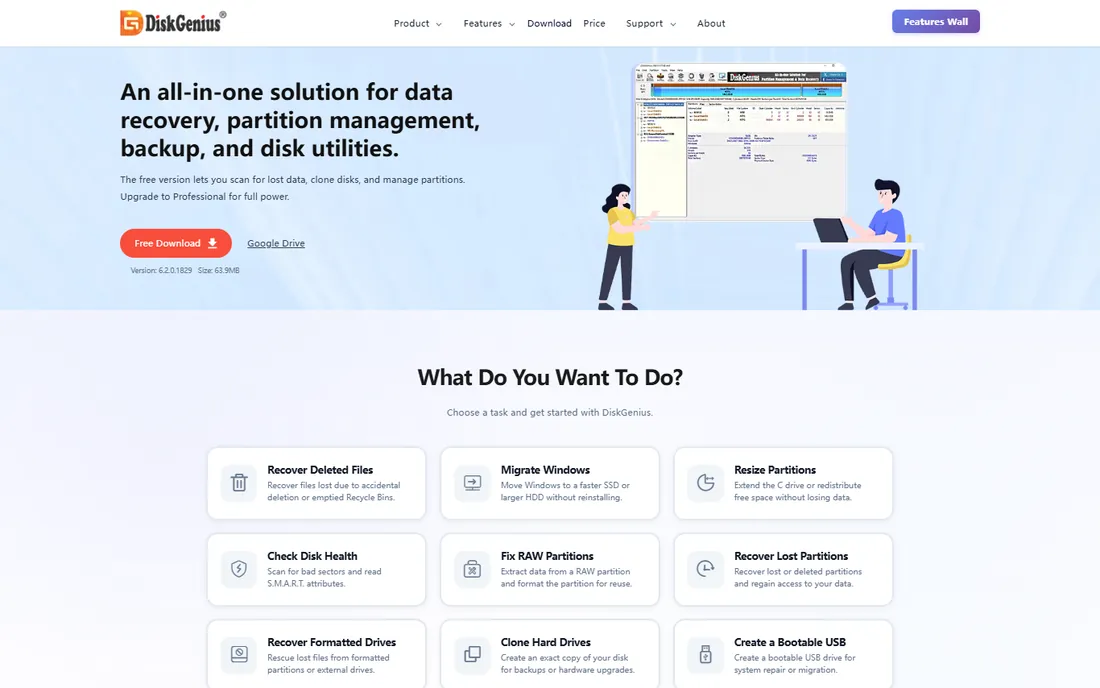
DiskGenius is a partition manager that happens to clone, which suits tinkerers. The free edition covers basic partition management, disk cloning and backup alongside data recovery for small files. Paid editions at $69.90 one-time for Standard and $99.90 for Professional add system migration, sector-level cloning, BitLocker and RAID support, and virtual disk handling.
For an SSD upgrade with complications, that toolkit earns its place. Resizing partitions around the clone, recovering data from the old drive, converting disk formats and verifying the result can all happen in one application. The sector-level clone mode is there for failing source drives.
The interface assumes comfort with disk terminology, and beginners will find Macrium or Rescuezilla friendlier. But if you already manage partitions and want the clone inside the same toolbox, the one-time pricing beats another subscription. It is the technician's second toolkit after Clonezilla.
What we like- Deep partition, recovery and disk tools in one app
- Free edition covers basic cloning
- One-time pricing
Watch out for- Technical interface
- Advanced cloning features need paid editions
Cloning versus a fresh Windows install
Cloning moves your entire system: Windows, programs, settings and files, exactly as they are. A fresh install starts clean and makes you reinstall everything. The right choice depends on the state of the old system.
Clone when the current install is healthy and dialed in. If Windows boots fast, your programs are configured and your files are organized, cloning preserves all of that in under an hour. This is the common case for a simple speed upgrade from a hard drive to an SSD.
Fresh install when the old system is the problem. Years of leftover programs, driver conflicts, malware history or mysterious slowdowns come along for the ride in a clone. A clean install with selective file migration takes an afternoon but leaves the cruft behind.
Either way, back up first. Cloning writes to the target drive and a mistake in source and target selection destroys data. Every tool here can image the old drive before you start. Do that, verify the backup, then clone.
What to look for before you buy
Four details separate a smooth migration from a support ticket.
First, partition resizing. Source and target drives are rarely the same size. The cloner must shrink or expand partitions intelligently during the copy. Macrium, Acronis, EaseUS and Hasleo all handle this. Verify it before you need it.
Second, bootability. A clone that does not boot is a failed clone. Look for tools that repair the bootloader and verify the result. Samsung Data Migration and Macrium are strong here because they specialize in the Windows migration path.
Third, hot versus cold cloning. Hot cloning runs inside Windows while you keep working. Cold cloning boots from USB, which is slower to set up but more reliable since nothing on the disk is changing. For a system drive, cold cloning with Clonezilla or Rescuezilla is the safer default.
Fourth, SSD alignment. Modern tools align partitions to SSD block boundaries automatically. Every current tool here does this, but if you are following an old tutorial with an old tool version, check. Misalignment costs performance on every read and write.
How we chose
We ranked tools on the job that matters: getting a Windows install booting on a new SSD in one pass. Every tool here is a real product available today, priced from current vendor pages and recent plan data. We weighed cloning reliability, partition resizing, rescue media, interface clarity and price, drawing on public reviews from G2, Capterra and Reddit plus vendor documentation. Free tools had to be genuinely free for cloning, not trials with the feature removed. We skipped generic backup tools without a real cloning workflow and dead products still ranking in old roundups.
Frequently asked questions
What is the best free SSD cloning software?
Clonezilla for reliability, Rescuezilla for ease of use, and Hasleo Backup Suite for a complete free package with scheduling. If your new drive is a Samsung, Samsung Data Migration is the simplest free answer. All four handle a standard HDD to SSD migration.
How long does it take to clone a drive to an SSD?
It depends on data size and connection speed rather than the software. A 500GB drive with 200GB used typically clones in 20 to 45 minutes over SATA, longer over USB. NVMe to NVMe is faster. Budget an hour including setup and verification.
Will cloning work if the new SSD is smaller than the old drive?
Yes, as long as the used data fits on the new SSD. The cloning tool shrinks partitions during the copy. Macrium Reflect, Acronis, EaseUS Disk Copy and Hasleo all handle this automatically. Clean up the old drive first to give yourself margin.
Do I need to reinstall Windows after cloning to an SSD?
No. That is the point of cloning. The new SSD boots into your existing Windows exactly as it was. You may want to check that TRIM is enabled and the partition is aligned, but modern tools handle both.
Is it safe to clone a failing hard drive?
It is safer than continuing to use it, but clone it sooner rather than later. Use sector-by-sector mode, clone to an image file first if the drive is unstable, and expect bad sectors to slow the process. If the drive is clicking or disappearing, consider professional recovery instead of DIY cloning.
Sources we checked (14)
- https://www.macrium.com
- https://clonezilla.org
- https://www.easeus.com
- https://www.easeus.com/disk-copy/clone-resource/acronis-true-image-vs-clonezilla.html
- https://www.acronis.com
- https://www.aomeitech.com
- https://www.easyuefi.com
- https://rescuezilla.com
- https://www.samsung.com
- https://www.diskgenius.com
- https://www.bestbackupreviews.com/reviews/macrium-reflect-review/
- https://www.bestbackupreviews.com/reviews/hasleo-backup-suite-free-review/
- https://techno360.in/aomei-backupper-pro-8-free-1-year-license/
- https://winningpc.com/eassos-diskgenius-professional-coupon-code/
Is your product missing or out of date?
We review this list regularly. Vendors can request a listing, send updated pricing or ask about featured placement.

Shihab Mia · Founder, Rankite
Shihab has spent more than a decade helping SaaS and e-commerce brands grow through search. He writes Rankite's software buying guides from pricing pages, documentation and public user reviews. More about Shihab.