How we make this list: we compare pricing pages, product documentation and public user reviews. Rankite is independent; if a vendor ever pays for a featured spot, that listing is clearly labeled Partner.
Key takeaways
- Merging clips is a basic feature in every video editor, so the real choice is about everything else: formats, 4K support, watermarks and export speed.
- CapCut and Clipchamp merge clips for free with no watermark on plain edits, which covers most casual use.
- DaVinci Resolve, Shotcut and OpenShot are free with no watermark at all, but they take longer to learn.
- Paid editors like Filmora, Movavi and PowerDirector earn their price through faster rendering, AI tools and polished transitions between merged clips.
Quick comparison
| Tool | Best for | Starting price | Free plan |
|---|
 CapCut CapCut | free merging with AI extras | See website | Yes |
 Clipchamp Clipchamp | Windows users who want it simple | See website | Yes |
 DaVinci Resolve DaVinci Resolve | free pro-grade editing | Free | Yes |
 Shotcut Shotcut | free open-source merging | Free | Yes |
 OpenShot OpenShot | easiest free open-source editor | Free | Yes |
 Clideo Clideo | one-off merges in a browser | See website | Yes |
 Filmora Filmora | beginners who want templates | See website | Free trial |
 Movavi Video Editor Movavi Video Editor | fast simple edits on modest PCs | See website | Free trial |
 PowerDirector PowerDirector | feature-rich merging and effects | See website | Free trial |
Is your product missing or out of date?
We review this list regularly. Vendors can request a listing, send updated pricing or ask about featured placement.
The best software to merge videos
Starting priceSee website
Free planYes
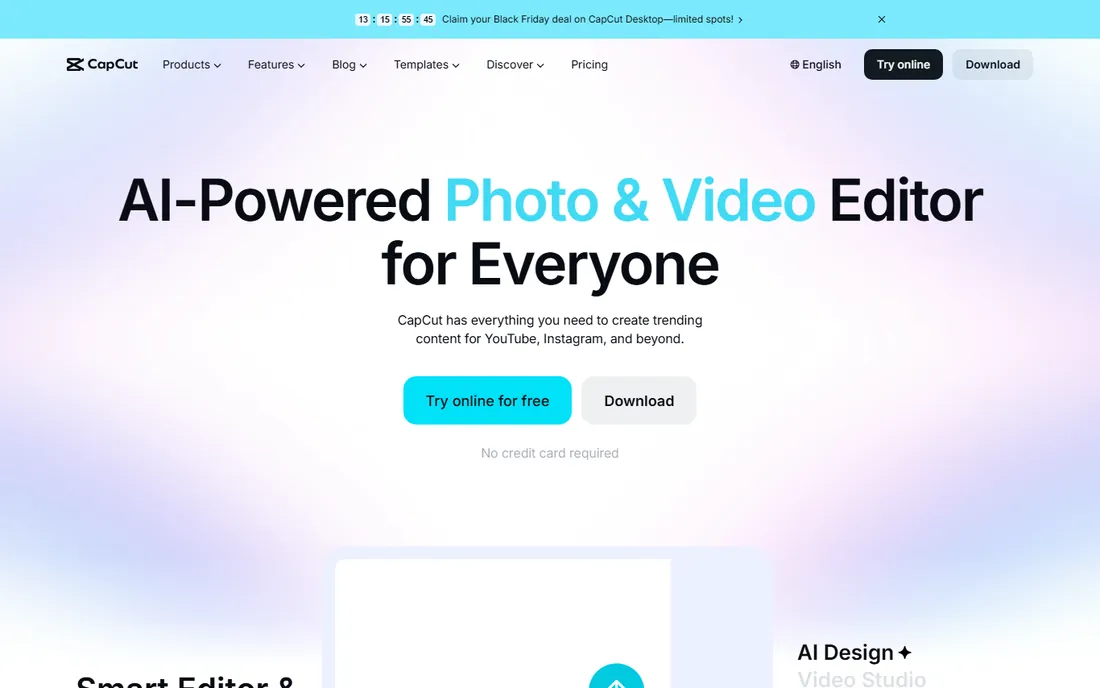
You have a folder of clips from a trip and you want one video, not fifteen. Drop them on CapCut's timeline, drag them into order, add a transition or two, and export. The whole job takes minutes, the free plan does not watermark a plain merged export, and it works in the browser if you do not want to install anything.
CapCut's business model is freemium: the core editor is free, while Pro adds 4K export, the full AI toolkit, 1 TB of cloud storage and premium templates. For straight merging, you will never touch those. The catch is feature creep: the app constantly nudges you toward Pro templates and effects. If you can ignore the upsells, it is the fastest free way to join clips.
What we like- Generous free tier with no watermark on plain edits
- Desktop, web and mobile versions
- AI tools like auto captions and background removal
Watch out for- Pro features are locked behind a subscription
- Free exports top out at 1080p
- Account required for cloud features
Starting priceSee website
Free planYes
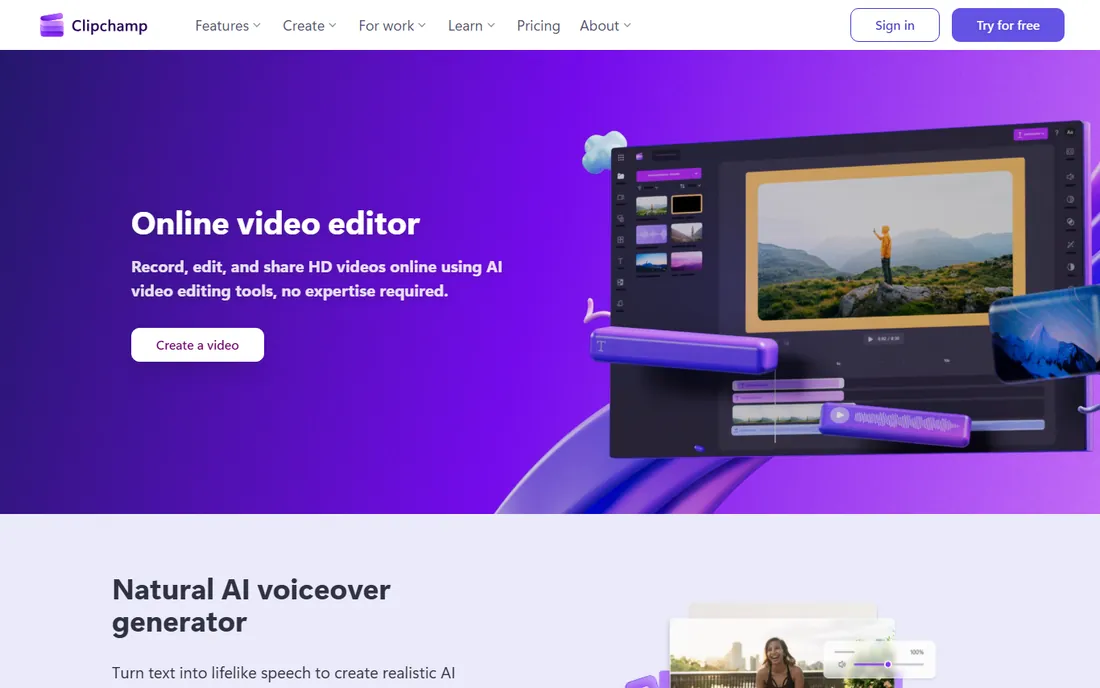
Clipchamp is already on your Windows 11 PC, sitting in the Start menu. Open it, create a project, drop in your clips, arrange them, and export in HD. There is no watermark on the free plan and no trial countdown. For someone who merges videos a few times a year, that zero-setup story is hard to beat.
Microsoft keeps the premium stock library, brand kit and some AI features behind a Microsoft 365 subscription. The free editor itself handles merging, trimming, captions and basic effects. The honest limitation is that it runs in the browser: joining a dozen 4K clips on a weak connection will test your patience. For short clips and social videos, it is fine.
What we like- Preinstalled on Windows 11
- Free plan exports HD with no watermark
- Timeline plus templates plus screen recorder in one
Watch out for- Browser-based, so big projects need a strong connection
- Premium assets need Microsoft 365
- Fewer advanced controls than desktop editors
Starting priceFree
Free planYes
DaVinci Resolve is the only tool here that Hollywood colorists and YouTubers can share without irony. The free version merges clips on a proper multi-track timeline, then lets you color grade, mix audio and add effects in the same app. There is no watermark, no export limit and no trial period. If you want to learn real editing, start here.
The price of all that power is complexity and hardware appetite. The interface assumes you know what a node is, and 4K timelines want a decent GPU and plenty of RAM. Merging alone is simple once you learn the basics: import media, drop clips on the timeline in order, deliver. The paid Studio version exists for those who need it, but merging does not require it.
What we like- Genuinely free with no watermark
- Professional color and audio tools
- Excellent 4K performance on good hardware
Watch out for- Steep learning curve
- Heavy on system resources
- Some advanced effects reserved for the paid Studio version
Starting priceFree
Free planYes
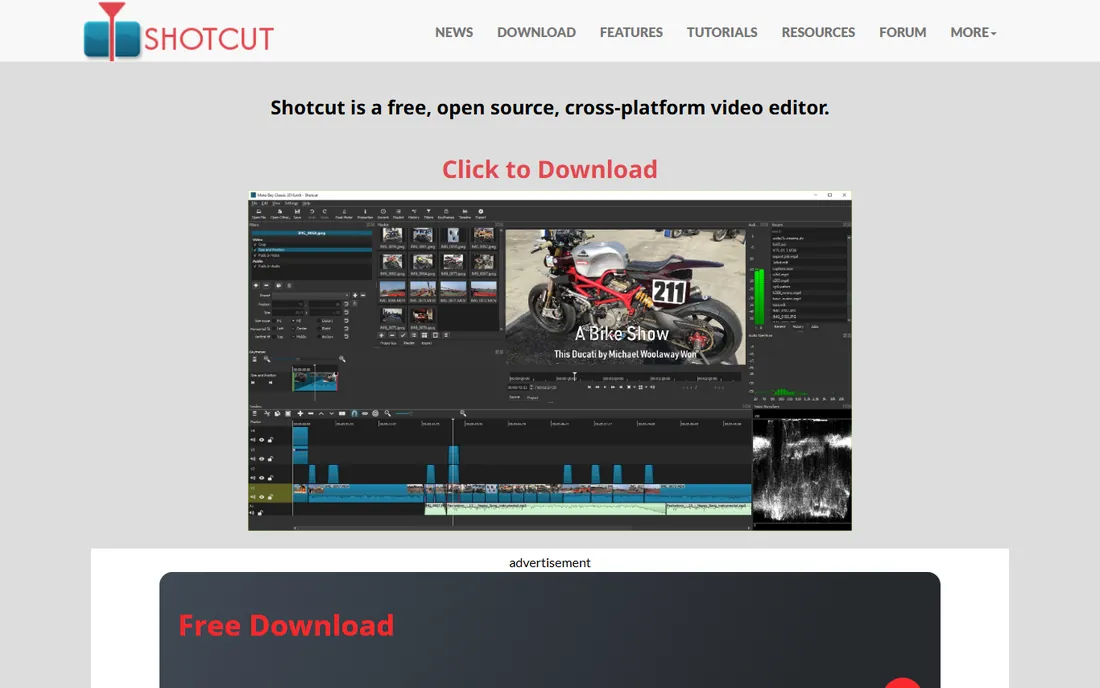
Shotcut is the workhorse of free video editing. It is open source, cross-platform, and it will open just about any format you throw at it without converting first, thanks to FFmpeg under the hood. To merge clips, you add them to a playlist, append them to the timeline, and export. No account, no watermark, no upsell.
It does not hold your hand. The interface is functional rather than friendly, and you will not find the template libraries or AI assistants of the commercial tools. But it is honest software that gets updated every couple of months and never asks for money. For straightforward joining on Windows, Mac or Linux, it is the dependable free pick.
What we like- Free and open source forever
- Wide format support via FFmpeg
- No import step, native timeline editing
Watch out for- Interface feels dated
- Fewer templates and guided workflows
- Hardware encoding setup takes some fiddling
Starting priceFree
Free planYes
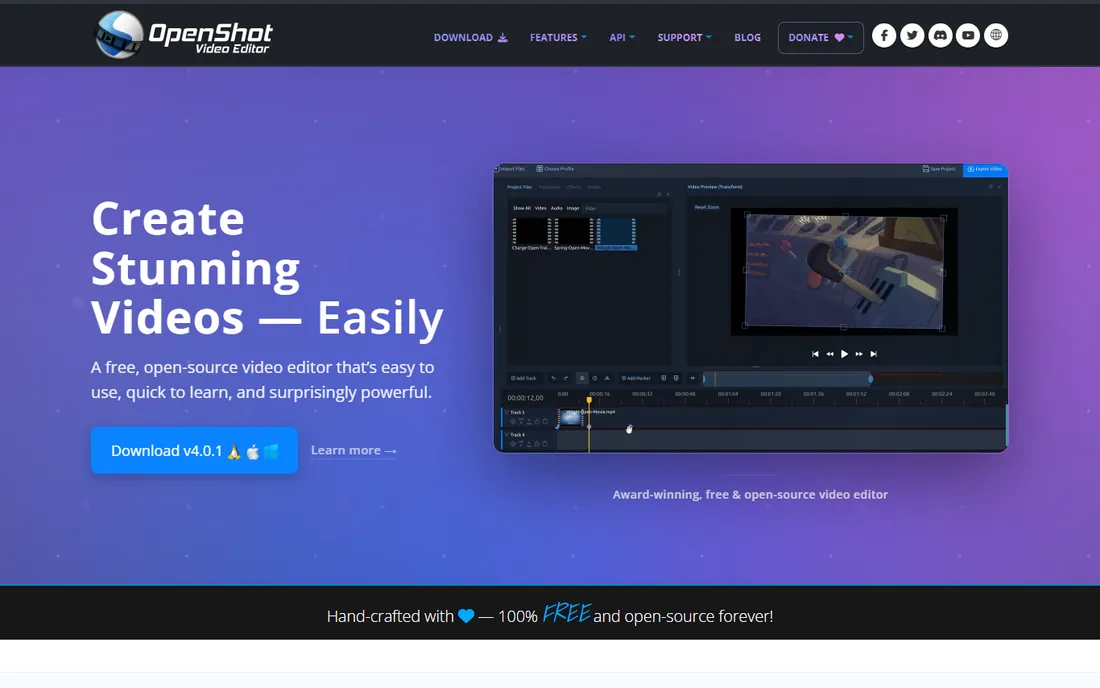
OpenShot is what you recommend to someone who found Shotcut intimidating. The timeline is drag-and-drop simple: drop clips in, trim the ends, drag a transition between them, export. It is free and open source, with no watermark and no feature locked behind a paywall, because there is no paywall.
The trade is performance. OpenShot can chug on long or high-resolution projects, and power users will miss the deeper toolsets of Shotcut or Resolve. For merging a handful of clips into one file, though, it is more than enough, and its learning curve is measured in minutes rather than days.
What we like- Simplest interface of any free editor
- Unlimited tracks
- No subscriptions, watermarks or project limits
Watch out for- Can be slow rendering long projects
- Fewer pro features than Shotcut or Resolve
- Occasional stability hiccups on huge timelines
Starting priceSee website
Free planYes
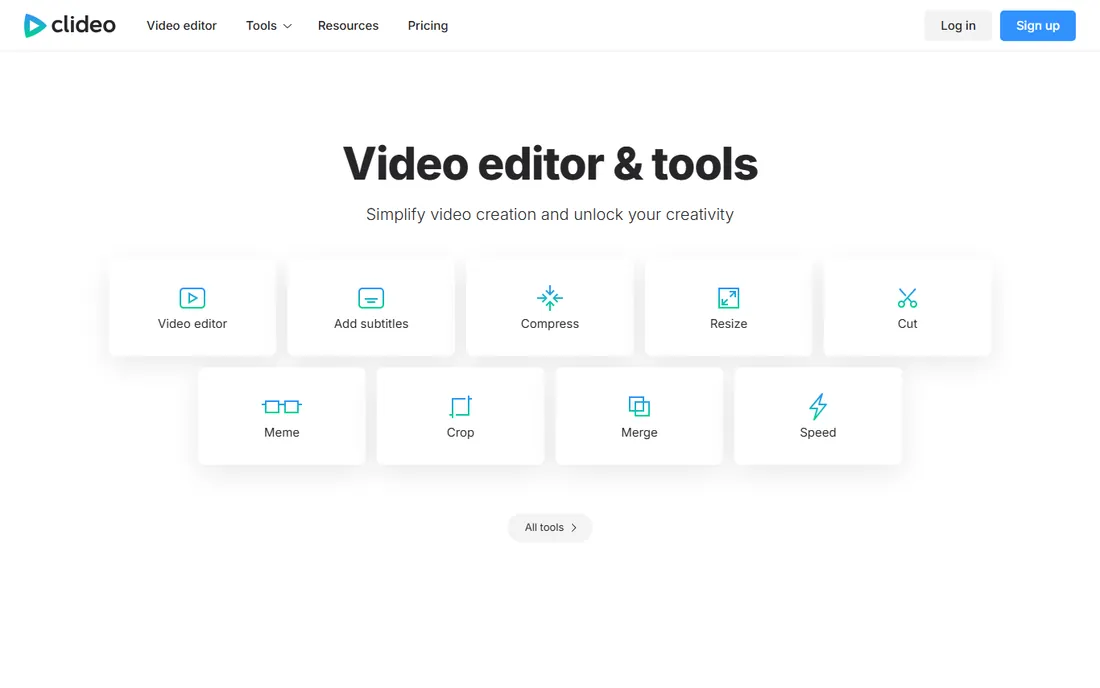
Clideo is for the merge you need done right now on a borrowed computer. Open the Merge Video tool, upload your clips, reorder them, pick a crossfade if you want one, and download the result. There is no software to install and no account needed to try it.
The free plan watermarks exports and limits some features; the paid subscription removes the watermark and raises the limits. Uploading gigabytes of 4K footage to a website is also nobody's idea of fast. But for joining a few phone clips into one file without installing anything, it is the path of least resistance.
What we like- Nothing to install
- Dedicated merge tool with crossfade option
- Works on any device with a browser
Watch out for- Free exports carry a watermark
- Upload and download times for large files
- Needs a constant internet connection
Starting priceSee website
Free planFree trial
Filmora sits between the free editors and the pro suites. Merging is trivial: import clips, snap them to the magnetic timeline, add one of thousands of transitions, export. Where it earns its keep is everything around the merge: auto captions, silence removal, motion tracking and a deep library of titles and effects that make a joined video look finished.
The free version watermarks exports, so you will need a paid plan for final videos. Plans include annual and perpetual options, and some AI features use a credit system on top. Check the current plan details on their pricing page before buying, since the tiers and credit allowances change. For creators who merge clips weekly and want polish without a learning cliff, it is a fair deal.
What we like- Huge template and effects library
- AI tools for captions, silence removal and reframing
- Gentle learning curve
Watch out for- Free exports are watermarked
- Subscription auto-renews
- Some AI features consume credits on top of the plan
#8
Movavi Video Editor
Best for: fast simple edits on modest PCs
Visit movavi.com
Starting priceSee website
Free planFree trial

Movavi's pitch is speed of learning: the company claims you can master it in under twenty minutes, and that is roughly true for merging. Cut, join, add auto-subtitles, remove silence, export. The interface stays out of your way, and it runs well on PCs that would struggle with Resolve.
The trial is genuinely limited: exports carry a watermark and are capped in length, with some advanced features locked. The full version comes as an annual subscription or lifetime license. It is not the tool for cinematic color work, but for joining clips into clean, watchable videos quickly, it does exactly what it promises.
What we like- Very easy to learn
- Fast on modest hardware
- One-click AI subtitles and silence removal
Watch out for- Trial watermarks exports and limits export length
- Advanced color tools are thin
- Upsells for effects packs
Starting priceSee website
Free planFree trial

PowerDirector has been merging videos since before some of its users were born, and it shows in the workflow. Storyboard mode lets you arrange clips like slides, while the full timeline handles precise work. The Video Collage Designer and Slideshow Creator go beyond simple joining when you want something more creative.
CyberLink clearly prefers the PowerDirector 365 subscription, which bundles AI features, premium effects, stock media and cloud storage, over the perpetual Ultimate license. The free trial lets you test the workflow but watermarks exports. Check the current subscription price on their site, since CyberLink discounts aggressively and the sticker price is rarely the real price.
What we like- Storyboard mode for quick assembly
- Hundreds of transitions and effects
- Strong AI tools and stock library on 365
Watch out for- Subscription push over the perpetual license
- Free trial watermarks output
- Interface can feel busy
What actually matters when you merge videos
Merging is the easy part; every tool here does it. The differences that matter show up around it.
Formats and resolution
If your clips come from different cameras or phones, pick a tool that handles mixed formats without forced conversion. Shotcut and DaVinci Resolve are the most forgiving. Check 4K support too: free tiers often cap exports at 1080p, which is fine for social video but not for everything.
Watermarks
This is the number one gotcha. CapCut, Clipchamp, DaVinci Resolve, Shotcut and OpenShot export without watermarks for free. Filmora, Movavi and PowerDirector watermark trial exports. Clideo watermarks free exports. If the merged video is going public, confirm the watermark situation before you invest an hour editing.
Export speed and hardware
Merging ten phone clips is light work for any tool here. Merging an hour of 4K footage is not. Hardware acceleration makes a real difference: the paid editors generally render faster, while the free open-source tools lean harder on your CPU. Match the tool to your machine, not just your budget.
Free vs paid: where the money goes
Nobody charges for the merge button. Paid plans charge for what surrounds it: watermark-free 4K export, AI captions and effects, stock libraries, cloud storage and priority support. That is why the honest question is not "which tool merges videos" but "what do I need around the merge." If the answer is "nothing," the free tier of CapCut or Clipchamp, or the fully free Resolve, Shotcut and OpenShot, will serve you indefinitely. If the answer includes weekly content, client work or 4K delivery, a paid plan starts to pay for itself in saved time.
How we chose
We looked for tools that exist today, genuinely merge video clips, and cover the real spread of buyer needs: free, freemium, open source and paid. We opened each vendor homepage to verify the product and its current positioning, checked pricing pages and plan details where they rendered, and cross-checked features against documentation and public reviews on G2, Capterra and Reddit. We did not run hands-on performance tests; the comparisons rest on published specs, license terms and long-term user feedback. Tools that were discontinued or could not be verified were excluded.
Frequently asked questions
What is the easiest way to merge two videos?
Drop both clips on a timeline in order and export. In CapCut, Clipchamp or OpenShot the whole process takes a few minutes: import, arrange, export. No special "merge" button is needed in a timeline editor; the export is the merge.
Will merging videos reduce quality?
It can, if the tool re-encodes at lower settings. To keep quality, export at the same resolution and a similar bitrate as your source clips. Tools like Shotcut and DaVinci Resolve give you full control over export settings; simpler tools pick sensible defaults.
Can I merge videos of different formats?
Yes, in most editors here. Shotcut, DaVinci Resolve, Filmora and PowerDirector all accept mixed formats on one timeline. Very old or unusual formats may need converting first, which tools like Movavi and Clideo handle with built-in converters.
Do free video mergers add watermarks?
Some do. Filmora, Movavi, PowerDirector and Clideo watermark free or trial exports. CapCut and Clipchamp do not watermark plain merged exports, and DaVinci Resolve, Shotcut and OpenShot are watermark-free entirely.
How do I merge videos on a Chromebook?
Use a browser tool. CapCut and Clipchamp both run in the browser, and Clideo's merge tool needs nothing installed. That covers Chromebooks and borrowed machines without touching the command line.
Is there a simple command-line option?
FFmpeg can concatenate clips losslessly with a single command and it is free, but it is command-line only and unforgiving of mismatched formats. It is the fastest option for technical users and the worst option for everyone else.
Sources we checked (11)
- https://www.capcut.com
- https://www.clipchamp.com
- https://www.blackmagicdesign.com
- https://www.blackmagicdesign.com/products/davinciresolve
- https://shotcut.org/
- https://openshot.org/
- https://clideo.com/
- https://clideo.com/pricing
- https://filmora.wondershare.com
- https://www.movavi.com/
- https://www.cyberlink.com
Is your product missing or out of date?
We review this list regularly. Vendors can request a listing, send updated pricing or ask about featured placement.

Shihab Mia · Founder, Rankite
Shihab has spent more than a decade helping SaaS and e-commerce brands grow through search. He writes Rankite's software buying guides from pricing pages, documentation and public user reviews. More about Shihab.