How we make this list: we compare pricing pages, product documentation and public user reviews. Rankite is independent; if a vendor ever pays for a featured spot, that listing is clearly labeled Partner.
Key takeaways
- DaVinci Resolve is the standout value: its free version edits, grades, and finishes YouTube videos with no watermark, and the $295 Studio upgrade is a one-time payment.
- Adobe Premiere remains the professional default for client work and team editing, at $22.99 a month, but most solo YouTubers will never need that much software.
- For talking-head and tutorial channels, Descript's text-based editing and CapCut's auto-captions cut editing time more than any timeline trick.
- Start free and upgrade when a specific limit bites you: iMovie, Clipchamp, Shotcut, and CapCut's free tier all produce publishable YouTube videos today.
Quick comparison
| Tool | Best for | Starting price | Free plan |
|---|
 Adobe Premiere Adobe Premiere | Professional editors, client work, and team workflows | $22.99/month (annual plan, billed monthly) | 7-day free trial |
 DaVinci Resolve DaVinci Resolve | Creators who want professional tools without a subscription | Free (DaVinci Resolve Studio $295 one-time) | Yes, the free version is a complete professional editor |
 Final Cut Pro Final Cut Pro | Mac creators who want the fastest editing experience on Apple hardware | $299.99 one-time (or Apple Creator Studio $12.99/month or $129/year) | 30-day free trial |
 CapCut CapCut | Short-form creators and anyone editing for TikTok, Reels, and Shorts | Free (Standard ~$9.99/month; Pro $19.99/month or $179.99/year) | Yes, a capable free tier |
 Filmora Filmora | Beginners who want an easy editor with templates and AI assistance | Basic $9.99/month (Advanced $34.99/year; Perpetual $49.99 one-time) | Free download, but exports carry a watermark |
 Descript Descript | Talking-head videos, tutorials, and podcast-style content | Free (Hobbyist $16/month billed annually; Creator $24/month billed annually) | Yes, with monthly media limits |
 PowerDirector PowerDirector | Windows creators who want pro features at a mid-range price | PowerDirector 365 $59.99/year or $24.99/month (perpetual license $139.99) | PowerDirector Essential, free with no time limit |
 Clipchamp Clipchamp | Quick edits in the browser with no software to install | Free (premium features via Microsoft 365 subscription) | Yes, with unlimited watermark-free HD exports |
 Shotcut Shotcut | Creators who want a free, open-source desktop editor with no strings | Free | Free forever (open source) |
 iMovie iMovie | Apple users making their first YouTube videos | Free | Free forever on Mac, iPhone, and iPad |
Is your product missing or out of date?
We review this list regularly. Vendors can request a listing, send updated pricing or ask about featured placement.
The best software to edit YouTube videos
Here is the uncomfortable truth about the best software to edit YouTube videos: the editor did not make any video go viral. Pacing, audio clarity, and a good hook did. What the software decides is how much of your week disappears into the edit. A talking-head creator and a cinematic vlogger need completely different tools, and the wrong pick can turn a two-hour edit into a two-day one. These ten editors cover every kind of YouTube channel in 2026, from free tools that are genuinely enough to professional suites worth their subscription.
Which type of YouTube editor are you?
Before the list, a quick sorting hat. If you film talking-head videos, tutorials, or podcasts, your biggest time sink is cutting pauses and adding captions, so Descript or CapCut will save you more hours than any pro timeline. If you make cinematic vlogs, travel films, or anything where color matters, DaVinci Resolve's free version is the obvious starting point. If you edit on a Mac and want the fastest render times, Final Cut Pro is built for your machine. And if clients, collaborators, or an agency workflow are involved, Adobe Premiere is the common language. Pick your category first, then pick from the tools below.
#1
Adobe Premiere
Best for: Professional editors, client work, and team workflows
Visit adobe.com
Starting price$22.99/month (annual plan, billed monthly)
Free plan7-day free trial
Adobe renamed Premiere Pro to simply Premiere in early 2026, but the software is the same professional editor that cuts a huge share of YouTube's top channels. For YouTube work, its strengths are precision and ecosystem: multicam editing, Lumetri color, Essential Sound audio cleanup, captioning, and proxy workflows for 4K footage. Text-based editing lets you cut interviews by editing a transcript, and Auto Reframe recuts horizontal videos for Shorts automatically.
The $22.99-a-month single-app price (annual plan, billed monthly) is the honest cost of admission, and there is no perpetual license. That is easy to justify when editing pays your bills and harder when you upload twice a month. Solo creators making straightforward videos should look hard at the free options below before committing to a subscription that runs forever.
What we like- The industry-standard timeline with the deepest professional toolset
- Dynamic Link with After Effects and deep Creative Cloud integration
- Strong AI features like text-based editing and auto reframe
Watch out for- Subscription only, so the cost never ends
- Overkill for simple talking-head videos
- The interface can intimidate first-time editors
Starting priceFree (DaVinci Resolve Studio $295 one-time)
Free planYes, the free version is a complete professional editor
DaVinci Resolve is the best deal in video editing, full stop. The free version is not a trial or a crippled demo: it is a complete professional editor with the best color grading tools in the business, a capable effects page, and a full audio post suite. YouTube creators get everything that matters, including direct upload presets and a Cut page designed for fast turnaround. Countless channels are edited, graded, and finished entirely in the free version.
The $295 Studio upgrade is a single payment that adds AI tools like Magic Mask and voice isolation, stereoscopic tools, and more effects, plus free upgrades to future versions. There is no subscription tier above it. The tradeoff is complexity: Resolve's pages and panels take longer to learn than CapCut or Filmora, and 4K timelines want a decent GPU. But if you are willing to spend a weekend learning it, no free tool comes close to what Resolve gives you.
What we like- The free version includes pro editing, Hollywood-grade color, Fusion effects, and Fairlight audio with no watermark
- One-time $295 Studio upgrade, never a subscription
- Excellent YouTube export presets
Watch out for- The interface is dense and the learning curve is real
- Needs a reasonably powerful computer for smooth 4K
- Some AI features and advanced codecs are Studio-only
#3
Final Cut Pro
Best for: Mac creators who want the fastest editing experience on Apple hardware
Visit apple.com
Starting price$299.99 one-time (or Apple Creator Studio $12.99/month or $129/year)
Free plan30-day free trial
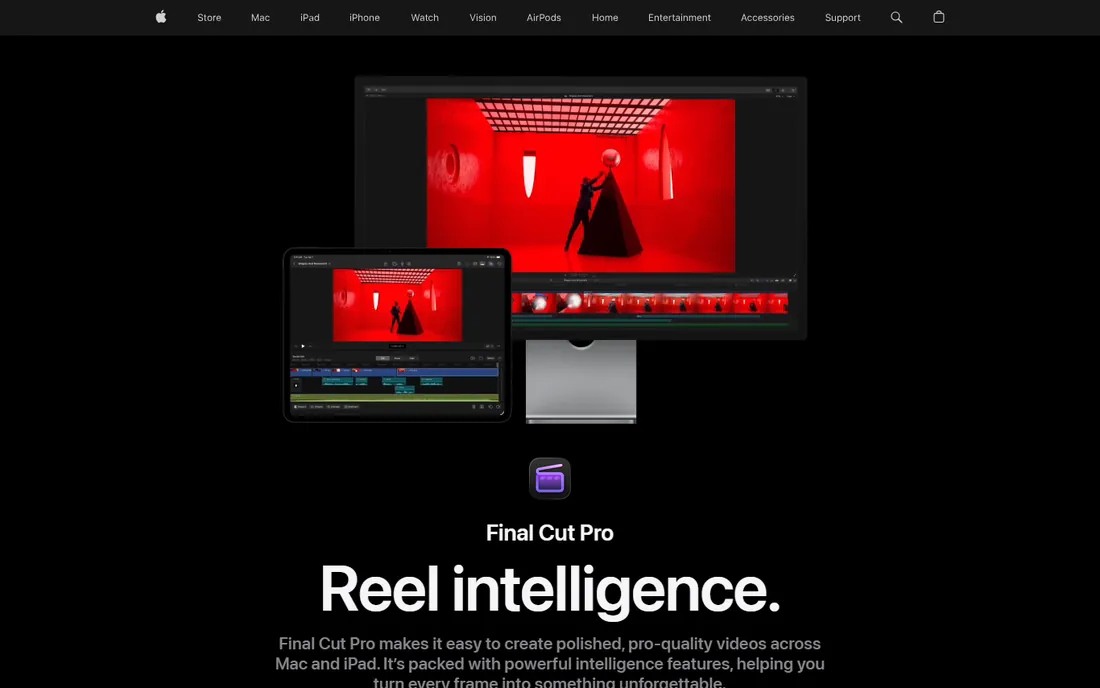
Final Cut Pro is the reason many YouTubers buy Macs. On Apple silicon it is startlingly fast: background rendering, smooth 4K multicam, and exports that finish while Premiere is still thinking. The magnetic timeline automatically closes gaps and keeps clips in sync, which makes rough cuts come together quickly once you adapt to its logic. For creators who shoot, edit, and upload on a tight schedule, that speed is the whole argument.
Apple sells it as a $299.99 one-time purchase that keeps receiving updates, or bundled in the Apple Creator Studio subscription at $12.99 a month or $129 a year with a 30-day trial. The lock-in is total: no Windows version exists, and projects do not transfer cleanly to other editors. But for Mac-only creators, it is the most pleasant editing experience on this list.
What we like- Blazing performance on Apple silicon with fast background rendering
- Magnetic timeline makes assembling edits unusually quick
- One-time purchase option with free updates
Watch out for- Mac only
- The magnetic timeline frustrates editors trained on traditional tracks
- Smaller plug-in and template ecosystem than Premiere
#4
CapCut
Best for: Short-form creators and anyone editing for TikTok, Reels, and Shorts
Visit capcut.com
Starting priceFree (Standard ~$9.99/month; Pro $19.99/month or $179.99/year)
Free planYes, a capable free tier
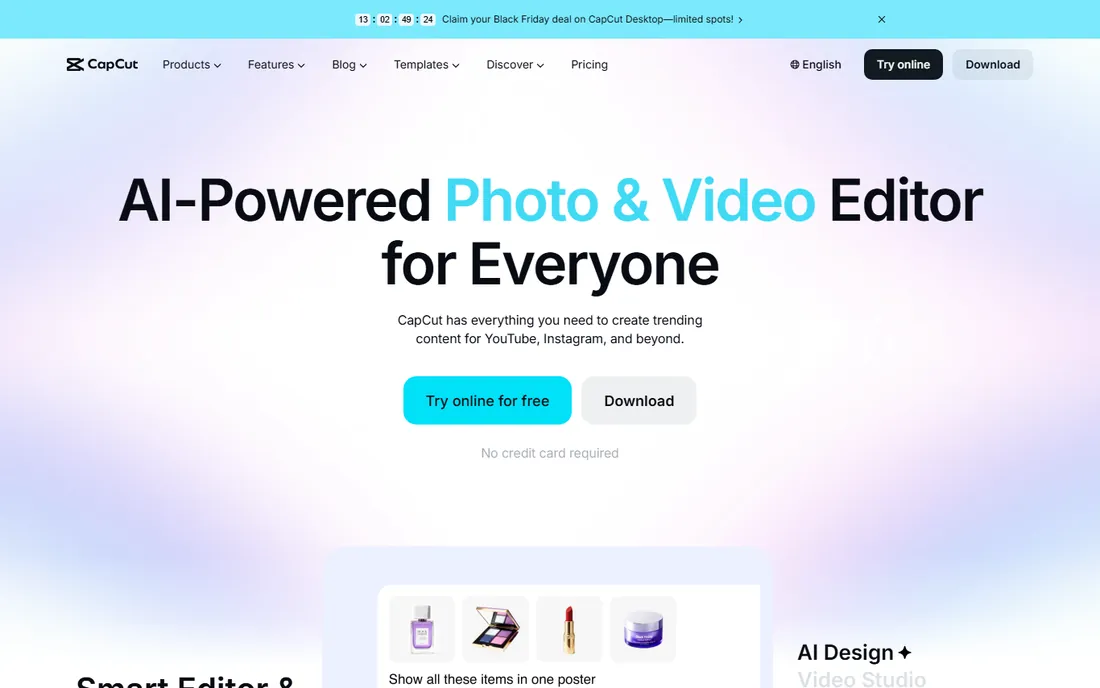
CapCut grew up with short-form video, and it shows in every design decision. The template library is unmatched for trends: pick a viral format, drop in your clips, and publish. Auto-captions are fast and accurate, the effects library tracks whatever is popular this week, and the mobile app is arguably the best phone editor ever made. For YouTube Shorts and cross-posted content, many creators never leave CapCut.
The free tier covers basic editing well, but 2026 brought a tier split: Standard at around $9.99 a month removes watermarks on assets, while Pro at $19.99 a month or $179.99 a year adds 4K export, the full AI toolkit, and a large cloud library. Check the current tiers before subscribing, since this pricing moved recently. For long-form YouTube videos, CapCut's timeline feels limited next to Resolve or Premiere, but for fast social content it is the default for a reason.
What we like- The best template and effects library for short-form video
- Excellent auto-captions and trending audio
- Works on desktop, mobile, and web with cloud sync
Watch out for- Pricing tiers changed in 2026 and the full Pro plan costs more than it used to
- Some effects and higher-resolution exports sit behind the paywall
- Desktop editing is less precise than pro timelines
Starting priceBasic $9.99/month (Advanced $34.99/year; Perpetual $49.99 one-time)
Free planFree download, but exports carry a watermark
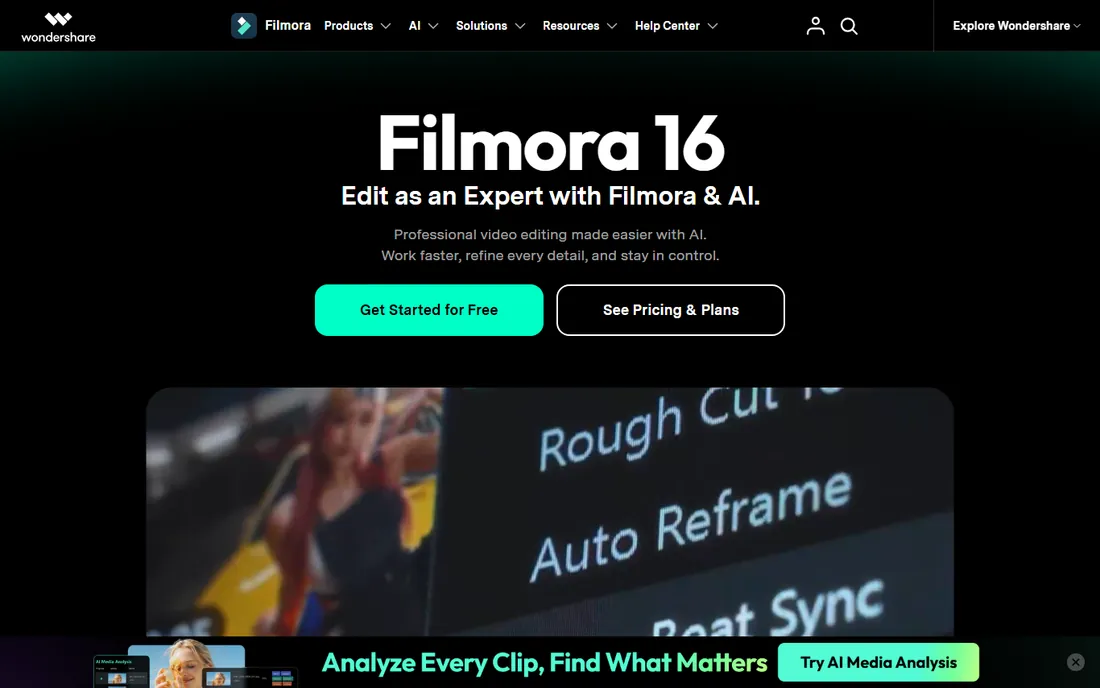
Filmora is the gentlest on-ramp to real video editing. The timeline is traditional enough to teach transferable skills, while templates, drag-and-drop effects, and AI assistants do the heavy lifting on polish. Screen recording is built in, which makes it popular with tutorial channels, and direct YouTube upload with a scheduling planner fits a consistent posting routine.
Pricing runs Basic at $9.99 a month, Advanced at $34.99 a year, or a $49.99 perpetual license for the current version. The free version lets you use everything but stamps a watermark on exports, so treat it as a trial. Power users eventually hit the ceiling: color grading and audio mixing are basic, and upsells for premium assets add up.
What we like- Friendly interface that beginners learn in an afternoon
- Huge library of templates, effects, and stock assets
- AI tools for captions, background removal, and text-based editing
Watch out for- Free exports are watermarked, so the free tier is evaluation only
- Color and audio tools are shallow next to Resolve
- Some assets and AI features cost extra on top of the plan
#6
Descript
Best for: Talking-head videos, tutorials, and podcast-style content
Visit descript.com
Starting priceFree (Hobbyist $16/month billed annually; Creator $24/month billed annually)
Free planYes, with monthly media limits
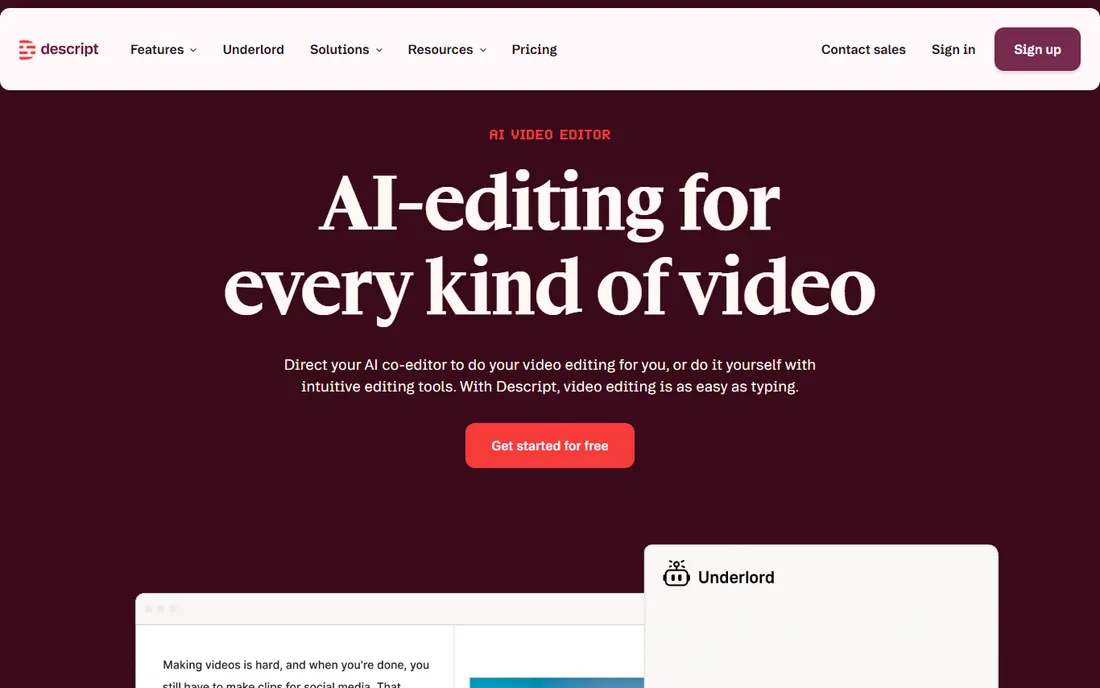
Descript reimagines editing for anyone who talks to a camera. Upload your footage, get a transcript, and edit by deleting sentences: remove an "um" from the text and it vanishes from the video. For tutorial and commentary channels, this cuts editing time dramatically compared with scrubbing a timeline. Studio Sound rescues mediocre microphone audio, and the AI assistant can turn a long video into shareable clips.
The free plan includes monthly media time and 720p exports, enough to test the workflow. Hobbyist at $16 a month billed annually ($24 month-to-month) adds 1080p watermark-free export, while Creator at $24 a month billed annually ($35 month-to-month) adds 4K and more AI credits. The metered model means heavy uploaders should watch their hours. Descript will not replace Premiere for cinematic work, but for talking-head YouTube, it is the fastest path from recording to upload.
What we like- Edit video by editing a transcript, which makes cutting interviews radically fast
- Studio Sound cleans up bad audio with one click
- Great for repurposing long videos into clips
Watch out for- Not a traditional timeline editor, so cinematic editing feels constrained
- Usage is metered by media hours and AI credits
- 4K export requires the Creator plan
#7
PowerDirector
Best for: Windows creators who want pro features at a mid-range price
Visit cyberlink.com
Starting pricePowerDirector 365 $59.99/year or $24.99/month (perpetual license $139.99)
Free planPowerDirector Essential, free with no time limit
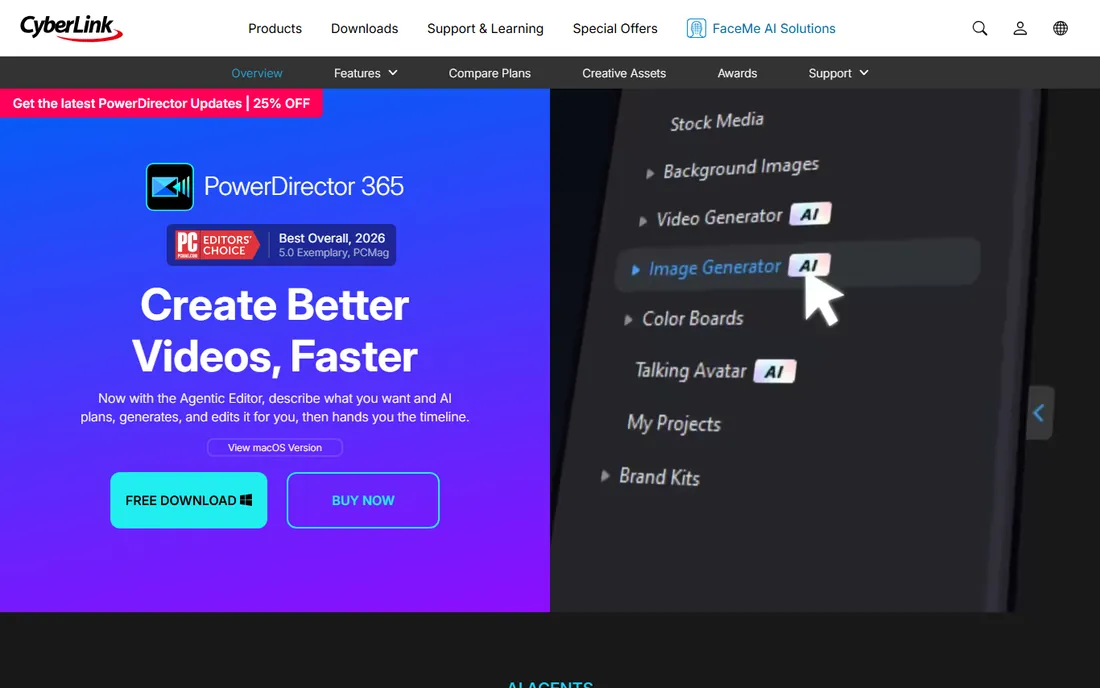
PowerDirector is the quiet value pick for Windows YouTubers. It covers the full editing job: precision timeline, keyframes, multicam, motion tracking, AI object removal, background removal, and speech-to-text captions, plus a stock library powered by Getty Images. The AI features speed up common YouTube tasks like reframing for Shorts and cleaning up noisy footage.
CyberLink sells it as PowerDirector 365 at $59.99 a year or $24.99 a month, or as a $139.99 perpetual license for the current version, with a free Essential version covering core editing. The perpetual license does not include future major versions, so compare carefully. For creators who want more than Filmora but less than Premiere's subscription, PowerDirector sits in a sensible middle.
What we like- Deep feature set with AI tools, multicam, and strong color tools for the price
- Fast rendering engine
- Large royalty-free stock library included
Watch out for- The interface packs in a lot and can feel busy
- Mac version lags the Windows version in features
- Subscription pushes hard despite the perpetual option
#8
Clipchamp
Best for: Quick edits in the browser with no software to install
Visit clipchamp.com
Starting priceFree (premium features via Microsoft 365 subscription)
Free planYes, with unlimited watermark-free HD exports
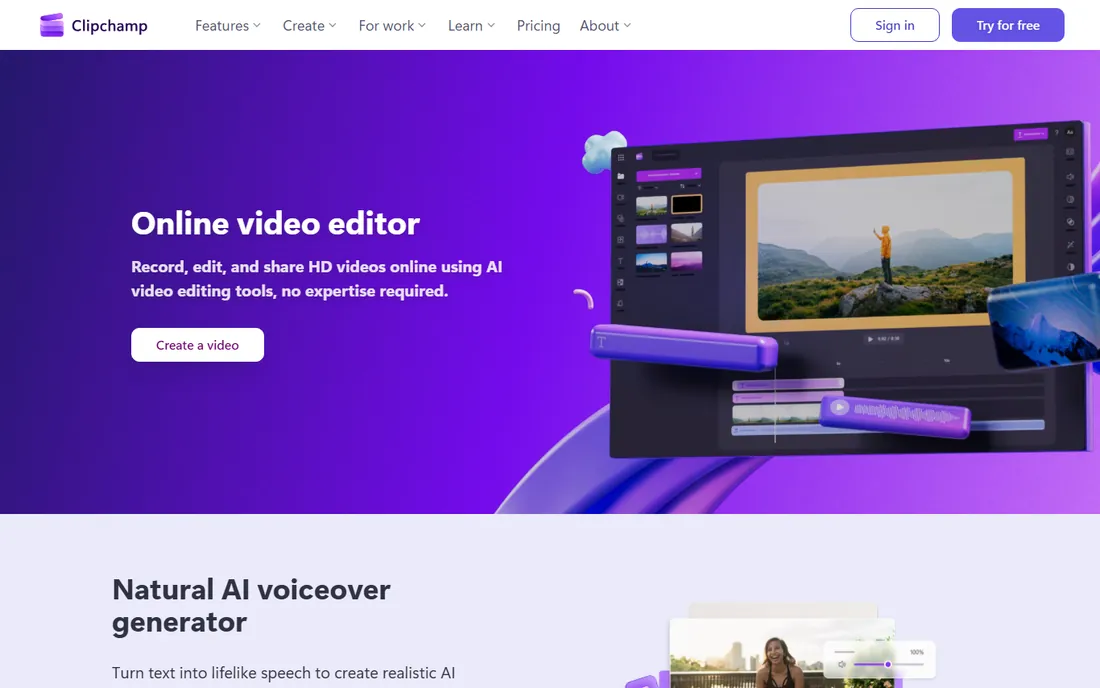
Clipchamp is Microsoft's answer to quick YouTube editing, and its free tier is surprisingly generous: unlimited exports in HD with no watermark, AI captions in over 80 languages, text-to-speech voiceovers, and a stock library. Because it runs in the browser, there is nothing to install, and it ships built into Windows 11. Screen, webcam, and voice recording are integrated, which suits tutorial and presentation-style channels.
The tradeoff is depth. This is an editor for straightforward videos, not cinematic projects: color tools, effects, and audio mixing are basic, and heavy timelines can strain a browser. Premium features come with a Microsoft 365 subscription rather than a Clipchamp-specific plan. For a creator who needs to turn around simple videos fast on any computer, especially a Windows machine, the free tier is one of the best zero-cost options available.
What we like- Runs entirely in the browser
- Free tier exports unlimited HD videos with no watermark
- Built into Windows 11 with screen and webcam recording
Watch out for- Browser-based editing depends on your connection and machine
- Advanced color and effects are thin
- Premium features require a Microsoft 365 subscription
#9
Shotcut
Best for: Creators who want a free, open-source desktop editor with no strings
Visit shotcut.org
Starting priceFree
Free planFree forever (open source)
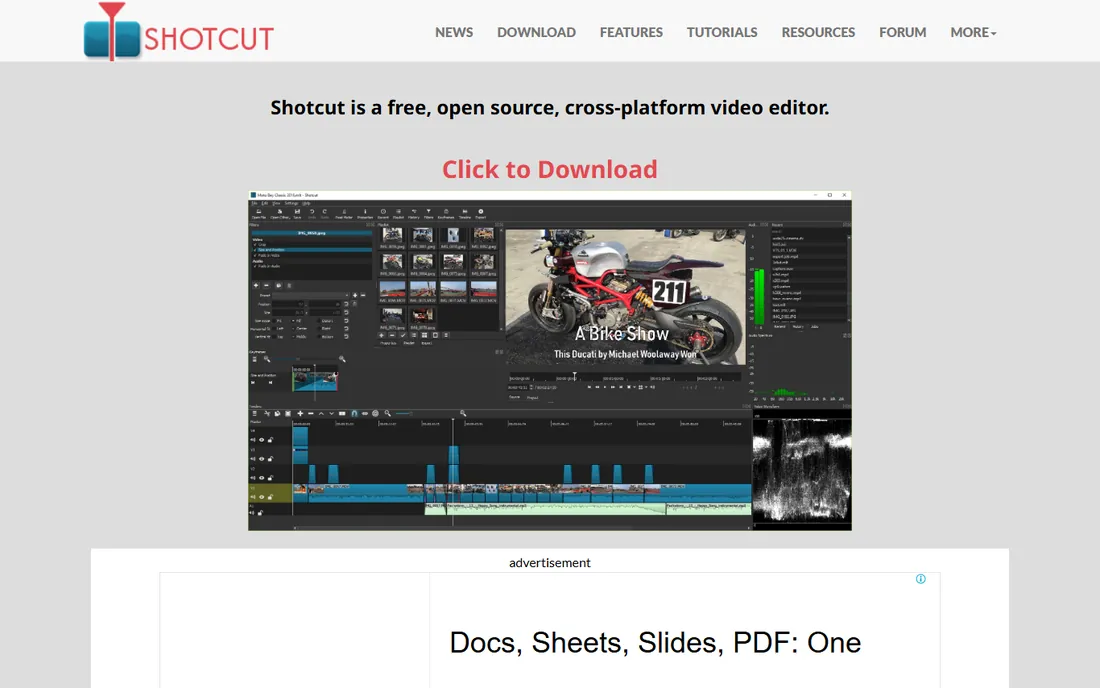
Shotcut is the free editor for people who distrust free editors. It is open source, costs nothing, watermarks nothing, and asks for no account. Under the plain interface sits a capable timeline editor with wide format support, 4K timelines, audio scopes, and keyframeable filters, all built on the FFmpeg and MLT frameworks. It runs on Windows, macOS, and Linux, which makes it one of the only serious free options for Linux YouTubers.
What it lacks is polish and hand-holding. The interface looks dated and the learning resources are thinner than for Resolve or Premiere. But the editing engine is honest and the price is zero forever. For a new channel testing whether YouTube is worth the effort, Shotcut plus a phone camera is a complete starter kit with no financial commitment.
What we like- Completely free with no watermark, no account, and no upsells
- Wide format support with native timeline editing
- Runs on Windows, macOS, and Linux
Watch out for- The interface is utilitarian and less polished than commercial editors
- Fewer tutorials and templates
- Some advanced features require manual setup
#10
iMovie
Best for: Apple users making their first YouTube videos
Visit apple.com
Starting priceFree
Free planFree forever on Mac, iPhone, and iPad
iMovie is where an enormous number of YouTube careers started. It is free on every Mac, iPhone, and iPad, and it does the fundamentals well: trim clips, add titles and transitions, layer a soundtrack, and export in 4K. The trailer templates are genuinely fun, and the storyboard mode helps beginners structure a video. For a first channel, it removes every excuse related to software cost.
The ceiling arrives quickly: two video tracks, no multicam, basic color correction, and limited audio control. But the upgrade path is the real feature. iMovie projects open directly in Final Cut Pro, so nothing is wasted when you outgrow it. If you own Apple devices and are starting your first channel, begin here.
What we like- Free on every Apple device with an interface anyone can learn in minutes
- Surprisingly capable trailers, titles, and 4K export
- Projects open directly in Final Cut Pro when you outgrow it
Watch out for- Very limited compared with real editors: two video tracks, basic color, no multicam
- Apple devices only
- Experienced editors will outgrow it fast
Do you actually need paid editing software?
For most YouTube channels, no, not at first. DaVinci Resolve's free version handles professional editing and color grading with no watermark. CapCut's free tier covers short-form content. Clipchamp exports unlimited watermark-free HD videos from a browser. Shotcut and iMovie cost nothing forever. Between them, these free tools cover talking-head videos, vlogs, tutorials, and Shorts completely.
Paid software earns its keep in three situations. First, when a specific limit blocks you: you need 4K export, multicam, or advanced color that the free tier withholds. Second, when time is money: Descript's transcript editing or Premiere's ecosystem can save hours weekly for high-volume creators. Third, when clients or collaborators expect it. Until one of those applies, the free tier is the smart choice.
Buying guide: match the software to your channel
Start with your content type. Talking-head, tutorial, and commentary channels should prioritize Descript for transcript editing or CapCut for captions and speed; traditional timelines add little for this format. Cinematic vlog, travel, and filmmaking channels should start with DaVinci Resolve's free version for its color tools, moving to Studio or Premiere if client work arrives. Short-form creators live in CapCut, and there is no shame in that.
Next, consider your computer. Mac owners get iMovie free, Final Cut Pro's speed on Apple silicon, and Resolve's free version. Windows creators get the widest choice: Premiere, Resolve, PowerDirector, Filmora, Clipchamp, and Shotcut all run well. Linux creators should look at Resolve, Shotcut, or Kdenlive. Check the free tier's export limits before committing to a workflow: watermark policies, resolution caps, and monthly upload limits are where free plans actually differ.
Finally, think about growth. If you plan to hire editors, learn Premiere, since freelancers know it. If you plan to stay solo, pick the tool you enjoy opening every day, because consistency beats features. And whatever you choose, budget for audio before software: a decent microphone improves perceived video quality more than any editor upgrade.
How we chose the best software to edit YouTube videos
We judged every tool on what YouTube creators actually do: cut talking-head footage, add captions, grade color, handle multicam, export for the platform, and repurpose long videos into Shorts. Every product here is real, maintained, and verified on its official site above. We weighted the free tier honestly, since most new channels start at zero budget, alongside export quality, learning curve, and long-term cost. We excluded discontinued editors and mobile-only apps, and we list current product names where rebrands happened, as with Adobe Premiere.
Frequently asked questions
What is the best free software to edit YouTube videos?
DaVinci Resolve's free version is the strongest free option: a complete professional editor with top-tier color grading and no watermark. For simpler needs, CapCut's free tier, Clipchamp's unlimited watermark-free HD exports, Shotcut, and iMovie all produce publishable videos at zero cost.
Is Adobe Premiere worth it for YouTubers?
It depends on volume and income. At $22.99 a month, Premiere makes sense for full-time creators, client editors, and teams who use its ecosystem and collaboration tools. Solo creators uploading a few videos a month usually get everything they need from DaVinci Resolve's free version or Final Cut Pro's one-time purchase.
Which editor is best for YouTube Shorts?
CapCut is the default for Shorts: its templates, trending effects, and auto-captions are built for vertical video, and the mobile app is excellent. Premiere's Auto Reframe and PowerDirector's AI reframe also convert horizontal videos to vertical, and Descript can clip highlights from long videos for Shorts.
Can I edit YouTube videos on my phone?
Yes. CapCut's mobile app is the strongest phone editor, and it syncs with desktop. iMovie on iPhone and Final Cut Pro on iPad cover Apple users, while Filmora and PowerDirector also offer mobile apps. For serious long-form editing, a desktop still wins on precision and screen space.
Do I need a powerful computer for video editing?
For 1080p editing, most modern laptops cope, especially with Final Cut Pro on Apple silicon or proxy workflows in Premiere and Resolve. 4K timelines, multicam, and heavy effects want a discrete GPU and 16GB of RAM or more. If your machine struggles, try proxy editing or a lighter tool like Clipchamp or Shotcut before buying new hardware.
What happened to Premiere Pro's name?
Adobe dropped "Pro" from the name with version 26 in early 2026, rebranding it as Adobe Premiere. It is the same full professional editor, not a lite version. The subscription pricing and feature set carried over unchanged.
Sources we checked (10)
- https://www.adobe.com/products/premiere.html
- https://www.blackmagicdesign.com/products/davinciresolve
- https://www.apple.com/final-cut-pro/
- https://www.capcut.com/
- https://filmora.wondershare.com
- https://www.descript.com/
- https://www.cyberlink.com/products/powerdirector-video-editing-software/overview_en_US.html
- https://www.clipchamp.com/
- https://www.shotcut.org/
- https://www.apple.com/imovie/
Is your product missing or out of date?
We review this list regularly. Vendors can request a listing, send updated pricing or ask about featured placement.

Shihab Mia · Founder, Rankite
Shihab has spent more than a decade helping SaaS and e-commerce brands grow through search. He writes Rankite's software buying guides from pricing pages, documentation and public user reviews. More about Shihab.