How we make this list: we compare pricing pages, product documentation and public user reviews. Rankite is independent; if a vendor ever pays for a featured spot, that listing is clearly labeled Partner.
Key takeaways
- HandBrake and Shutter Encoder are the best free video compression software for most people, with no cost and no watermarks.
- FFmpeg powers half the tools on this list and rewards technical users with total control.
- VideoProc and UniConverter justify their prices with GPU acceleration and beginner-friendly presets.
- CloudConvert is the pick when you cannot or will not install desktop software.
Quick comparison
| Tool | Best for | Starting price | Free plan |
|---|
 HandBrake HandBrake | free batch compression | Free (open source) | Yes, fully free with no limits |
 Shutter Encoder Shutter Encoder | editors who want pro codecs | Free (donationware) | Yes, fully free with no limits |
 FFmpeg FFmpeg | scripted and server-side compression | Free (open source) | Yes, fully free with no limits |
 VLC VLC | quick one-off conversions | Free (open source) | Yes, fully free with no limits |
 UniConverter UniConverter | beginners who want one-click presets | From $49.99/year | Free trial with limited conversion length |
 Movavi Video Converter Movavi Video Converter | fast compression with light editing | From $19.95/month | 7-day free trial with watermark |
 VideoProc Converter VideoProc Converter | GPU-accelerated 4K compression | From $29.95 (lifetime, 1 PC) | Free trial with limited processing length |
 CloudConvert CloudConvert | compressing without installing anything | From $8/month (1,000 conversion minutes) or $8 one-time package | Yes, limited free conversions per day |
Is your product missing or out of date?
We review this list regularly. Vendors can request a listing, send updated pricing or ask about featured placement.
The best video compression software
Starting priceFree (open source)
Free planYes, fully free with no limits
HandBrake has been the answer to "how do I make this video smaller" for twenty years. It is free, open source and trusted by professionals who need reliable H.264 and H.265 encodes. Drop in a file, pick a preset, and get a dramatically smaller video with quality you have to squint to distinguish from the original.
The batch queue is where HandBrake earns its keep for regular work. Point it at a folder of recordings and walk away; it processes them one by one with the same settings. Presets cover common targets like web video, devices and archiving, so you rarely need to touch the advanced tabs.
Beginners do face a learning curve. Terms like RF values and encoder tunes assume some background, and picking wrong settings can produce huge files or mushy quality. Spend twenty minutes with a guide once, and you will never need to think about it again.
What we like- Excellent H.264 and H.265 encoding
- Batch queue for folders
- No watermarks or caps
Watch out for- Interface intimidates beginners
- No GPU encoding on some systems
Starting priceFree (donationware)
Free planYes, fully free with no limits
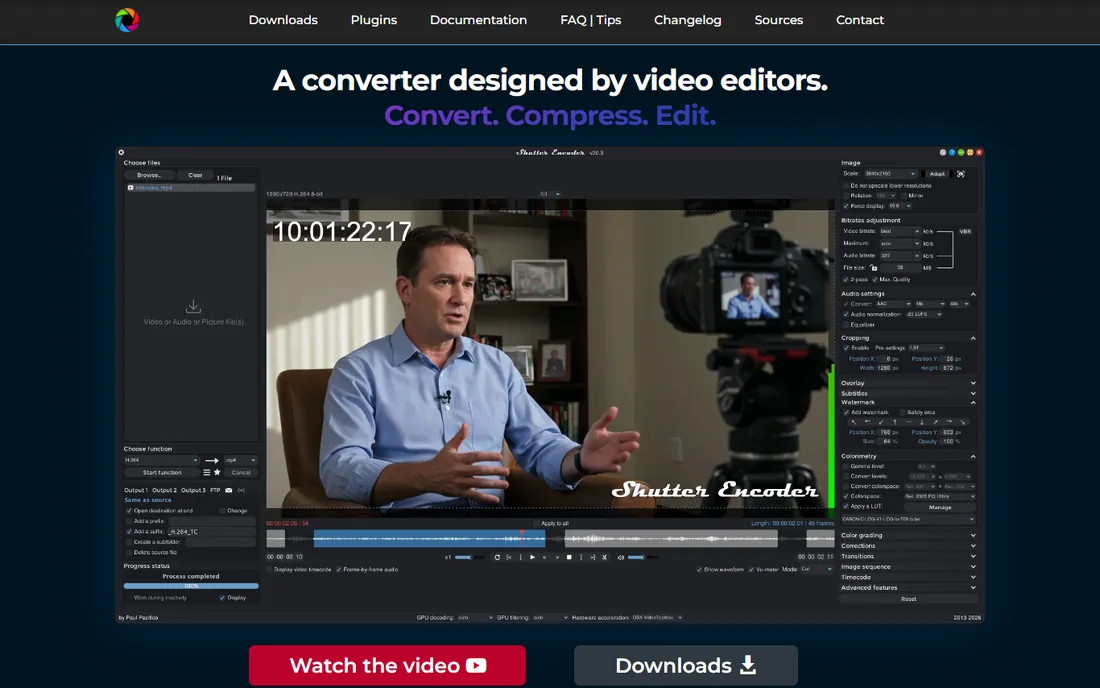
Editors who outgrow HandBrake usually land here. Shutter Encoder is built on FFmpeg but wrapped in a workflow designed by working video editors, with professional codecs like ProRes, DNxHD and DNxHR alongside web formats. It handles compression, conversion and light editing in one free application.
The standout trick is cutting without re-encoding. Trim a clip and Shutter Encoder rewrites the container instead of recompressing the video, which is nearly instant and loses zero quality. For rough cuts and quick trims before compression, that feature alone justifies the download.
The function-based interface lists dozens of operations, which can paralyze new users. Pick one function, learn it, and ignore the rest until you need them. Donations keep the project alive, so consider contributing if it becomes part of your daily workflow.
What we like- Professional codecs like ProRes and DNx
- Cut without re-encoding
- Function-based workflow
Watch out for- Function list can overwhelm
- Documentation is thinner than HandBrake's
Starting priceFree (open source)
Free planYes, fully free with no limits
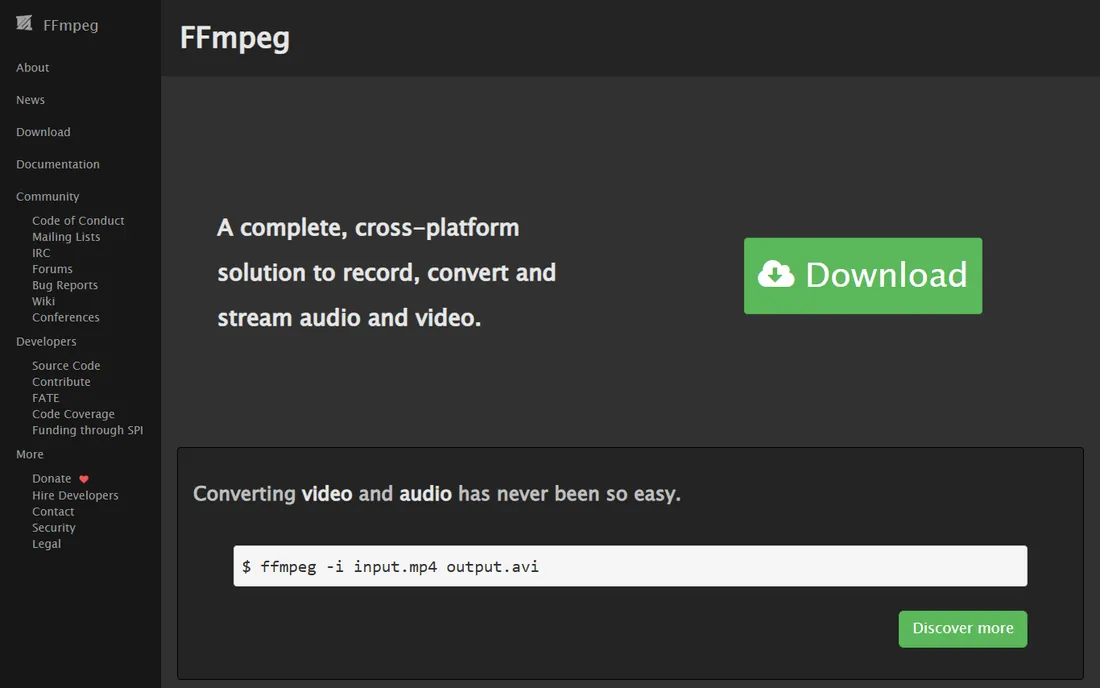
Almost every tool on this list uses FFmpeg under the hood. This is the engine itself. It is a command-line program that converts, compresses and streams virtually any format, and it is the reason free compression software can match paid tools: the math is identical.
Automation is the reason to use it directly. Write a script once, and every video that lands in a folder gets compressed, renamed and moved without human touch. Servers, render pipelines and batch workflows all run on FFmpeg because nothing else is as scriptable or as reliable at scale.
The price of that power is the command line. There is no interface, no preset browser and no undo button for a bad command. Beginners should start with HandBrake or Shutter Encoder and graduate to FFmpeg when they find themselves repeating the same task weekly.
What we like- Total control over every encoding parameter
- Scriptable for automation
- Runs anywhere
Watch out for- Command-line only
- Easy to pick bad settings without experience
Starting priceFree (open source)
Free planYes, fully free with no limits
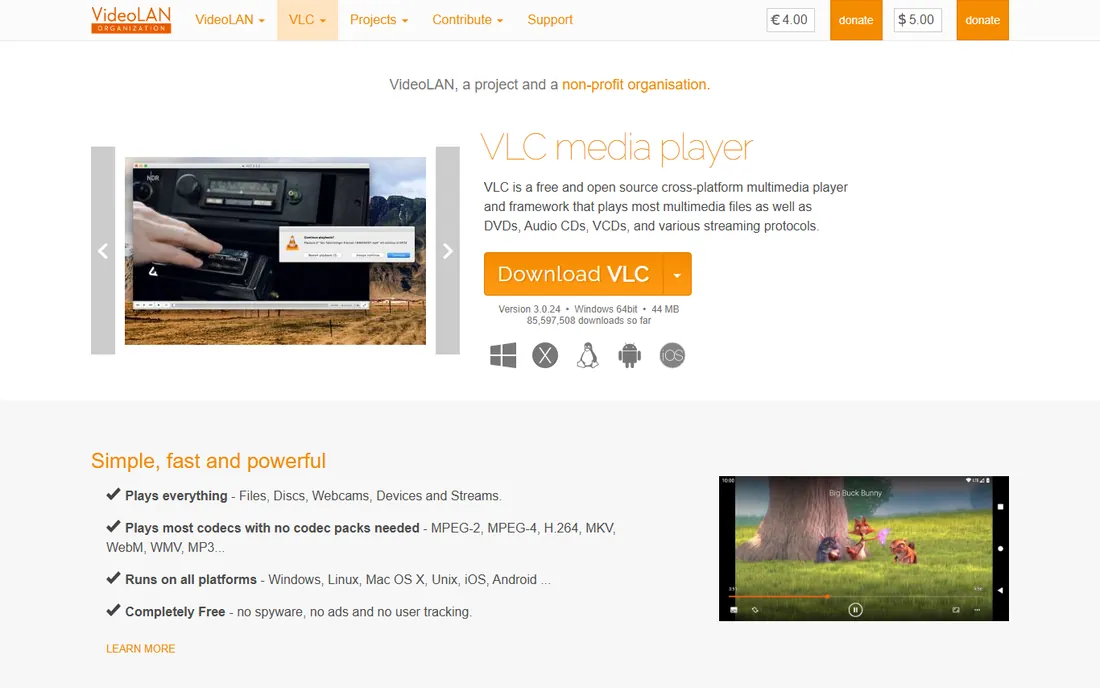
You already have VLC installed for watching videos. It compresses them too. The conversion dialog hides under the Media menu, and it handles the same codecs as the dedicated tools because it shares their DNA. For a one-off "make this file smaller" job, it works fine.
The real advantage is availability. On a borrowed laptop or a locked-down office machine, VLC is often already there, which beats downloading and installing something new. It also opens damaged or unusual files that other tools refuse, then converts them into something usable.
Nobody should choose VLC as their primary compressor. The interface was designed for playback, and the conversion options feel bolted on. Batch processing is painful and preset control is thin. Use it for emergencies and quick jobs, and keep a real tool for regular work.
What we like- Already installed on millions of machines
- Handles odd formats
- No extra download
Watch out for- Conversion interface is buried and clunky
- Limited preset control
Starting priceFrom $49.99/year
Free planFree trial with limited conversion length
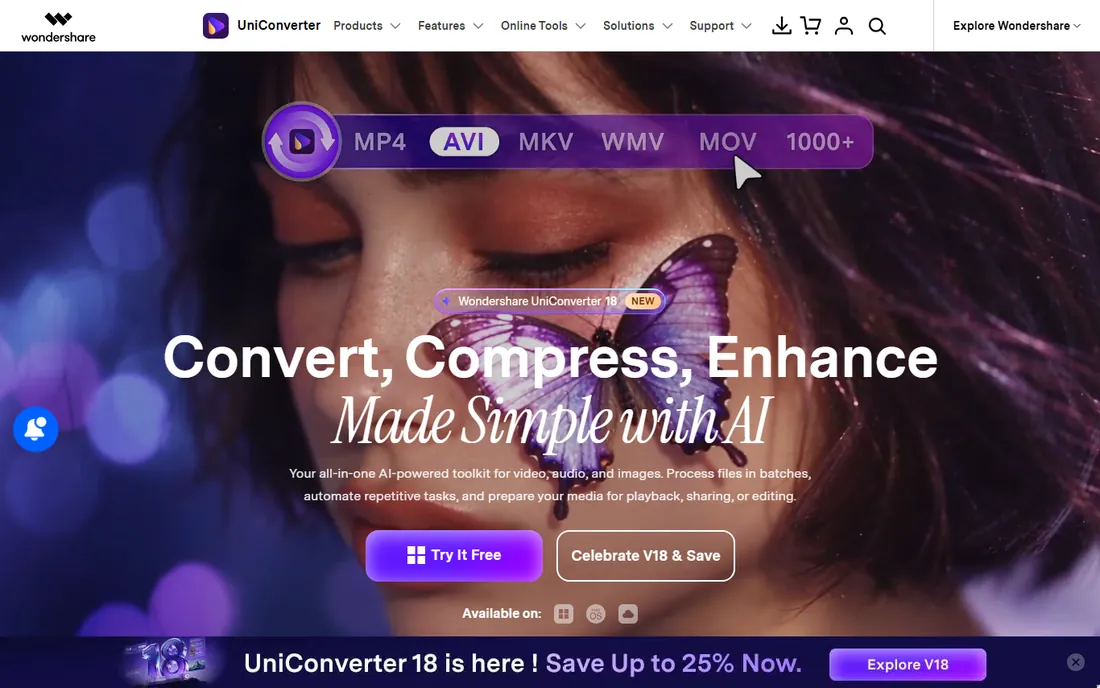
Not everyone wants to learn what a bitrate is, and UniConverter is built for those people. Pick your target, like "YouTube 1080p" or "iPhone", and it handles the codec math behind the scenes. The interface is the most polished on this list, and everything is labeled in plain language.
Beyond compression, it bundles downloading, DVD burning, screen recording and basic editing. For creators who want one application for all video chores, that breadth has value. The conversion engine is genuinely fast, and format support covers essentially everything you will encounter.
The catch is that compression this good is free elsewhere. You are paying for convenience and hand-holding, which is fair if you value your time, but hard to justify if you compress occasionally. The trial converts only part of each file, so test with short clips before deciding.
What we like- Polished interface with clear presets
- 1,000+ format support
- Fast conversion engine
Watch out for- Subscription pricing for basic compression
- Trial limits push you to pay quickly
#6
Movavi Video Converter
Best for: fast compression with light editing
Visit movavi.com
Starting priceFrom $19.95/month
Free plan7-day free trial with watermark
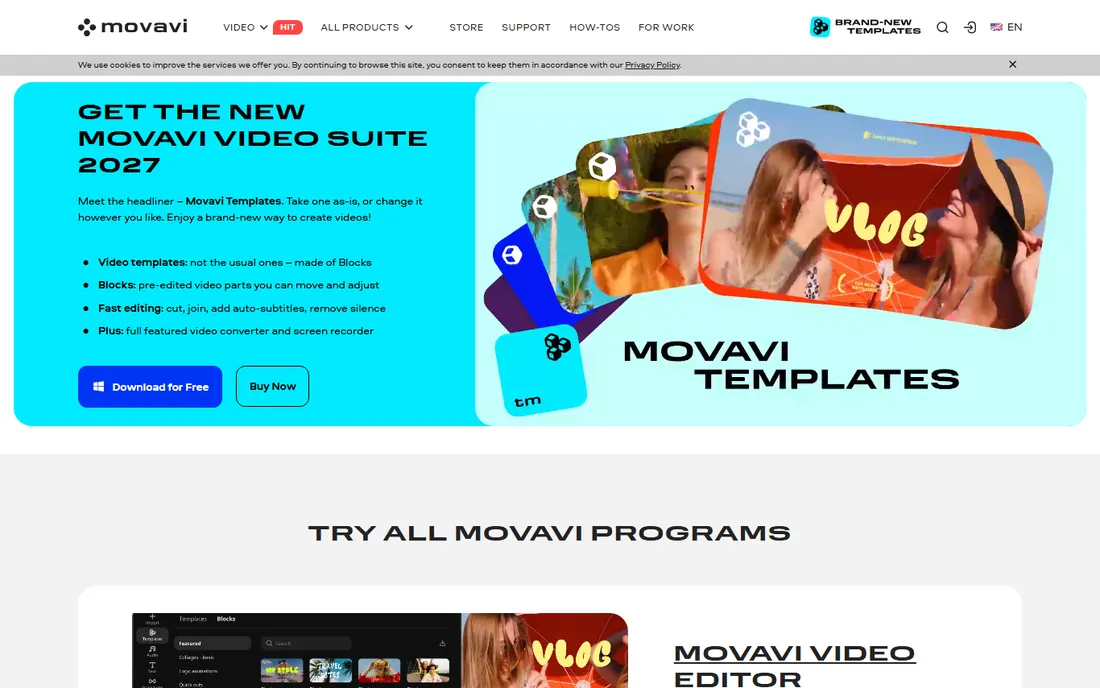
Movavi sells speed and simplicity, and its converter delivers both. The SuperSpeed mode recompresses only changed parts of a video, which makes supported conversions dramatically faster than full re-encodes. For creators processing footage on deadline, that speed is the whole pitch.
The workflow needs no manual. Drag files in, pick a preset or a target size, and convert. Built-in trimming lets you cut unwanted sections before compressing, which saves encoding time on long recordings. Device presets cover phones, tablets and consoles without guesswork.
Trial exports carry a watermark, so evaluate the speed and interface rather than the output quality during your seven days. The monthly subscription is the most expensive way to buy occasional compression on this list; the lifetime license makes more sense if you commit.
What we like- Very fast SuperSpeed mode
- Simple drag-and-drop workflow
- Built-in trimming
Watch out for- Watermark on trial exports
- Subscription adds up for occasional use
Starting priceFrom $29.95 (lifetime, 1 PC)
Free planFree trial with limited processing length
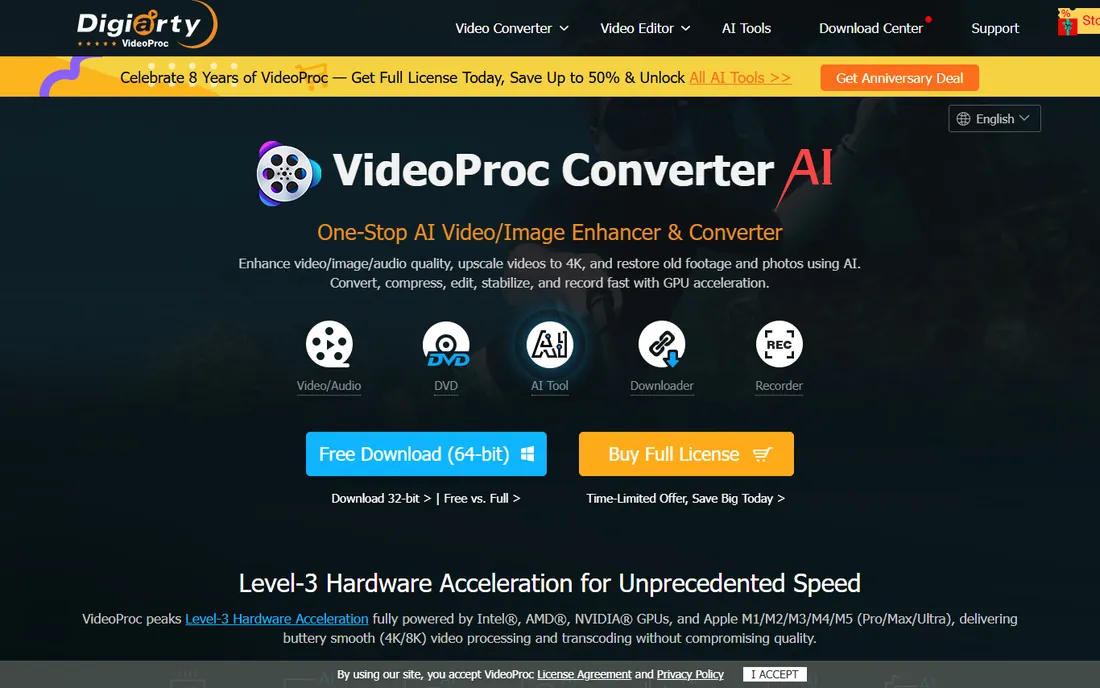
VideoProc's pitch is GPU acceleration, and on 4K footage the difference is real. It leans on your graphics card for encoding, which cuts compression time dramatically compared to CPU-only tools. If your camera shoots 4K and your hard drive is always full, this is the paid tool that earns its price.
The compression quality backs up the marketing. Its presets genuinely shrink large files by large percentages with minimal visible loss, and the auto-copy mode rewraps some formats without re-encoding at all. A lifetime license around $29.99 removes the subscription treadmill that competitors ride.
The interface packs in conversion, downloading, recording and editing, which makes the compression workflow feel busier than it needs to be. The trial caps media length, so test with representative footage. For heavy 4K users, though, the speed alone justifies a look.
What we like- Full GPU acceleration for fast 4K encodes
- 90% size reduction claims hold up
- Lifetime license option
Watch out for- Interface feels busy
- Trial limits media length
Starting priceFrom $8/month (1,000 conversion minutes) or $8 one-time package
Free planYes, limited free conversions per day
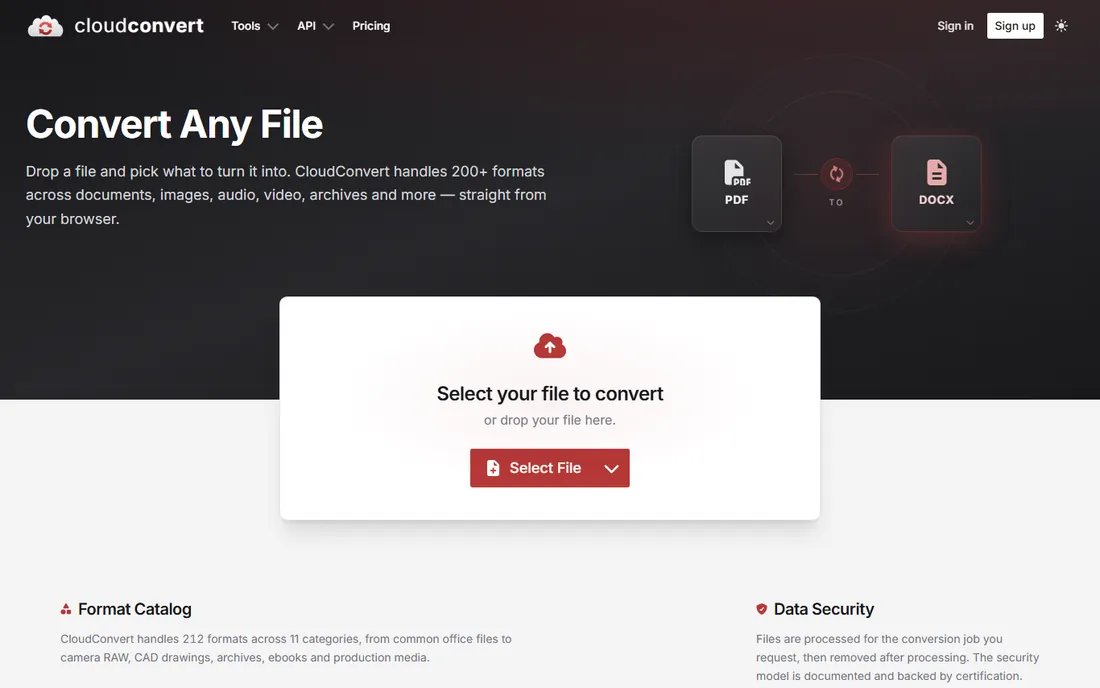
Sometimes installing software is the obstacle, and CloudConvert removes it. Upload a video in your browser, choose compression settings, and download the smaller file. It supports over 200 formats, and the quality controls cover resolution, bitrate and codec choice for those who want them.
The pricing model is unusual: you buy conversion minutes rather than a flat subscription. The $8 monthly plan includes 1,000 minutes, and one-time packages start at $8 for 500 minutes. Light users can stay on the free tier indefinitely, since a daily allowance of free conversions covers occasional jobs.
Video consumes minutes quickly, so heavy users should do the math before committing. Uploading and downloading large files also adds round-trip time that desktop tools skip. But for Chromebook users, locked-down work machines and quick one-off jobs, the no-install convenience is unmatched.
What we like- Nothing to install
- 200+ formats
- API for automated workflows
Watch out for- Large videos eat conversion minutes fast
- Upload and download add wait time
Codec basics you actually need
You only need to understand three codecs to make good compression decisions. H.264 is the universal choice: it plays everywhere and every tool here handles it. H.265 (HEVC) cuts file sizes roughly in half at the same quality, but older devices and some browsers struggle with it. AV1 compresses even better and is royalty-free, though encoding is slower and support is still spreading.
For most sharing in 2026, H.264 remains the safe default. Use H.265 when you control the playback environment, like your own archive or a modern streaming setup. The container matters less than people think: MP4 works essentially everywhere, so default to it unless you have a specific reason not to.
Bitrate is the other dial that matters. Higher bitrate means bigger files and better quality, but the returns diminish fast past a certain point. Presets in these tools encode sensible bitrates already; only go manual when a preset gives you visibly bad results.
We verified every product is real, current and actually sold or maintained in 2026, using each vendor's own site. Free tools had to be genuinely free for compression, not time-limited trials. Paid tools had to justify their price with speed, presets or features the free options lack.
Pricing came from vendor pricing pages, and we noted where trials watermark output or cap file length. Public reviews on G2, Capterra and Reddit told us which tools real users keep installed and which ones they abandon after a week. No vendor paid for placement.
Mistakes that shrink quality without shrinking size
The most common error is compressing an already-compressed file repeatedly. Every re-encode throws away detail, so always compress from the highest-quality source you have. If you only have the compressed copy, accept some quality loss and compress once, gently.
The second mistake is chasing tiny file sizes with low bitrates. A 90 percent reduction sounds impressive until faces turn to mush. For talking-head video, moderate compression looks identical to aggressive compression on screen while keeping file sizes reasonable. Test on your actual viewing device, not just your editing monitor.
Finally, do not upscale before compressing. Converting 1080p to 4K and then compressing wastes bits encoding fake detail. Compress at the source resolution, and let playback devices handle upscaling.
Frequently asked questions
What is the best completely free video compression software?
HandBrake is the safest answer for most people: free, open source, no watermarks and excellent quality. Shutter Encoder is the pick if you also want professional codecs or lossless cutting. Both handle everyday compression better than many paid tools.
How much can I shrink a video without visible quality loss?
With H.265, a 50 to 70 percent reduction is often invisible on typical screens. H.264 manages 30 to 50 percent comfortably. Past those ranges, you start trading visible detail for bytes. The right amount depends on your content: animation compresses far better than grainy low-light footage.
Does compressing a video reduce its resolution?
Not necessarily. Compression usually means lowering the bitrate while keeping the same resolution, which preserves sharpness while shrinking the file. Downscaling the resolution is a separate step. Good tools let you control both independently, so you can keep 4K resolution at a lower bitrate.
Why is my compressed video still huge?
Usually one of three causes: the source was extremely high bitrate, you picked a lossless or near-lossless preset by accident, or the content itself resists compression. Check your bitrate setting first, then confirm you selected an actual compression preset rather than a remux or passthrough option.
Is online compression safe for private videos?
Your file uploads to someone else's server, so treat it accordingly. CloudConvert deletes files after 24 hours and uses encrypted transfers, but truly sensitive footage belongs in a desktop tool like HandBrake or FFmpeg where nothing leaves your machine.
H.264 or H.265: which should I choose?
Choose H.264 if the video must play everywhere, including older phones, TVs and browsers. Choose H.265 if you control playback and want smaller files, such as personal archives or modern streaming setups. When in doubt, H.264 is the choice you will never regret.
Sources we checked (8)
- https://handbrake.fr/
- https://www.shutterencoder.com/
- https://ffmpeg.org/
- https://www.videolan.org/vlc/
- https://videoconverter.wondershare.com/
- https://www.movavi.com
- https://videoproc.com/
- https://cloudconvert.com/
Is your product missing or out of date?
We review this list regularly. Vendors can request a listing, send updated pricing or ask about featured placement.

Shihab Mia · Founder, Rankite
Shihab has spent more than a decade helping SaaS and e-commerce brands grow through search. He writes Rankite's software buying guides from pricing pages, documentation and public user reviews. More about Shihab.