How we make this list: we compare pricing pages, product documentation and public user reviews. Rankite is independent; if a vendor ever pays for a featured spot, that listing is clearly labeled Partner.
Key takeaways
- Most STL fixes (holes, flipped normals, non-manifold edges) are free to fix: MeshLab, Blender and OrcaSlicer cost nothing and handle the common repairs.
- Autodesk Fusion at $680 per year is the best choice when you need to turn a mesh back into editable CAD geometry, and hobbyists get it free for personal use.
- Materialise Magics remains the professional standard for print bureaus, but it is quote-priced and overkill for a home printer.
- Beginners should start with Tinkercad (free, browser-based) or SelfCAD ($14.99 per month) before spending money on anything else.
- Slicers like OrcaSlicer now include basic mesh repair, so check your slicer before buying a dedicated mesh tool.
Quick comparison
| Tool | Best for | Starting price | Free plan |
|---|
 Blender Blender | Free sculpting, remeshing and creative mesh edits | Free (open source, forever) | Yes |
 Autodesk Fusion Autodesk Fusion | Converting STL meshes into editable solid models | $680 per year (commercial); free for personal use | Free personal-use license; 30-day commercial trial |
 MeshLab MeshLab | Free repair, cleaning and analysis of mesh files | Free (open source) | Yes |
 Materialise Magics Materialise Magics | Print bureaus and professional service providers | See website (quote-based) | Demo on request |
 Tinkercad Tinkercad | First-time 3D designers and classrooms | Free | Yes, completely free |
 FreeCAD FreeCAD | Free parametric modeling for functional parts | Free (open source) | Yes |
 Simplify3D Simplify3D | Users who want one paid tool for prep and slicing | $199 one-time | No (paid only) |
 SelfCAD SelfCAD | Beginners who want modeling, sculpting and slicing in one place | $14.99 per month (or $139.99 per year) | Free trial; free plan for students and hobbyists |
 SketchUp SketchUp | Fast concept models and simple geometric edits | Free web plan; SketchUp Go $119 per year | Yes (SketchUp Free, web-based) |
 OrcaSlicer OrcaSlicer | Free slicing with built-in mesh repair | Free (open source) | Yes |
Is your product missing or out of date?
We review this list regularly. Vendors can request a listing, send updated pricing or ask about featured placement.
The best software to edit STL files
Tinkercad says more than 100 million people have used it to bring over 800 million designs to life. That number says a lot about how mainstream 3D printing has become, and how many of those prints started as an STL file that needed fixing first. STL is a dumb format: just triangles, no history, no parameters. Editing it well means choosing between free mesh tools, real CAD, and professional repair software. I compared the ten options that matter in 2026, checking current pricing, documentation and community feedback.
#1
Blender
Best for: Free sculpting, remeshing and creative mesh edits
Visit blender.org
Starting priceFree (open source, forever)
Free planYes
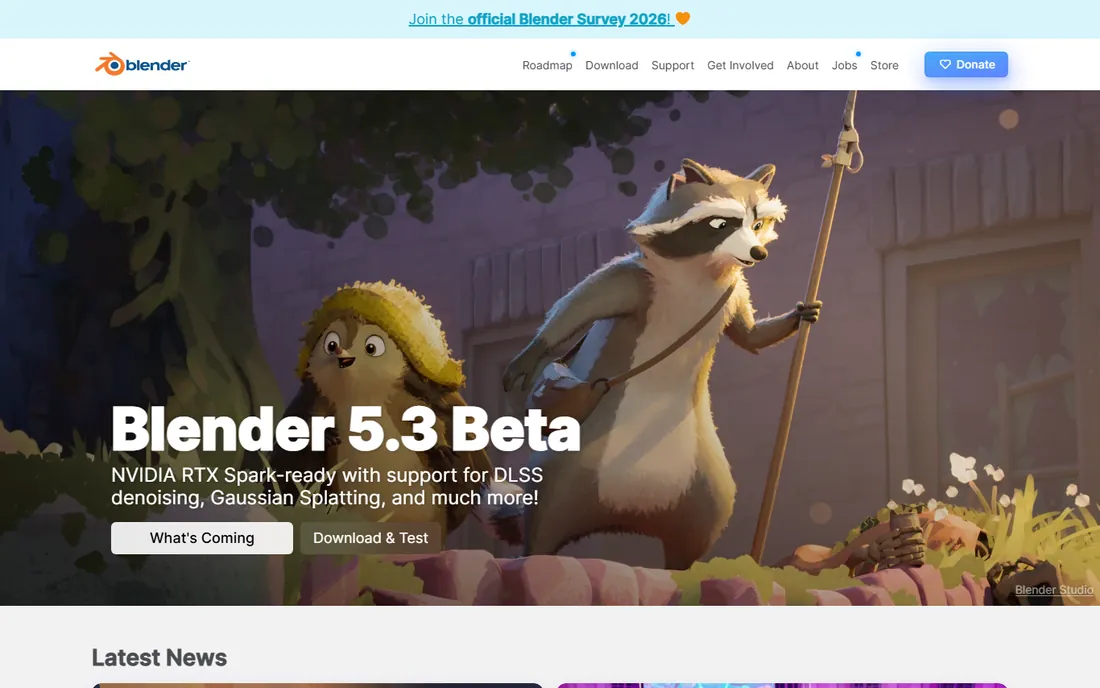
Blender is the closest thing to a free do-everything 3D tool. For STL work, its sculpt mode reshapes organic models, the remesh modifiers clean up ugly topology, and boolean operations combine parts reliably. The 3D Print Toolbox add-on checks wall thickness and manifold errors before you export.
The learning curve is the price of admission. Expect a weekend of tutorials before it feels natural. But for makers who sculpt miniatures, remix downloaded models or clean up scans, nothing free comes close. Pair it with your slicer and you may never pay for mesh software.
What we like- Full sculpt mode, modifiers and geometry nodes
- Huge tutorial library
- Imports and exports every mesh format
Watch out for- Interface overwhelms first-timers
- Not parametric, so precise dimensions take work
- Overkill if you only repair files
#2
Autodesk Fusion
Best for: Converting STL meshes into editable solid models
Visit autodesk.com
Starting price$680 per year (commercial); free for personal use
Free planFree personal-use license; 30-day commercial trial
Fusion earns its place for one trick the free tools cannot match: turning a triangle mesh into a solid body you can dimension, cut and modify like real CAD. Its mesh workspace converts STLs to BRep solids, after which every sketch and extrude behaves normally. For functional parts that must fit other components, this is transformative.
The catch is licensing. The free personal license covers hobbyists with limits, but commercial work needs the $680 annual subscription. If your STL edits are artistic rather than dimensional, Blender does more for nothing. If they are mechanical, Fusion pays for itself the first time a printed part fits.
What we like- Mesh-to-BRep conversion gives you real parametric features
- Excellent for functional parts
- Strong 3D print export workflow
Watch out for- $680 a year stings for hobbyists who outgrow the free tier
- Cloud-based, needs a connection
- Mesh editing itself is weaker than Blender
#3
MeshLab
Best for: Free repair, cleaning and analysis of mesh files
Visit meshlab.net
Starting priceFree (open source)
Free planYes
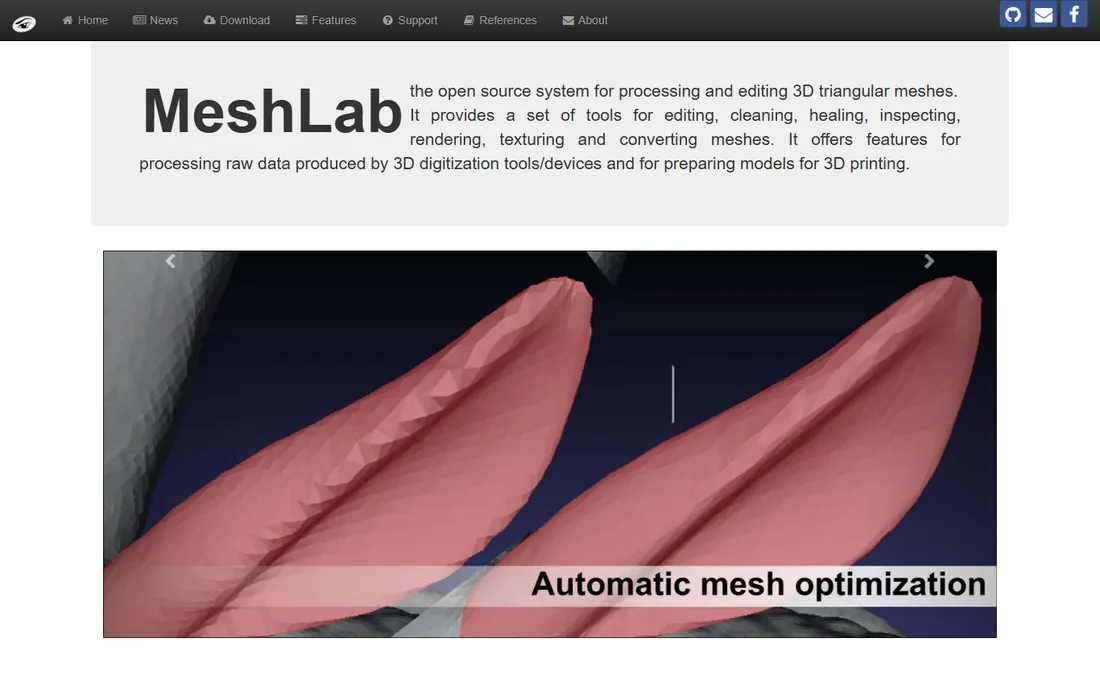
MeshLab is the specialist surgeons keep in the drawer. It does not model anything, but it repairs almost everything: fill holes, remove duplicate faces, fix normals, reduce triangle counts and measure geometry. The 2025.07 release added ARM64 support and 3MF import, so it stays current.
Think of it as a filter pipeline rather than an editor. You load a broken STL, apply a sequence of repair filters, and export a clean file. The interface will not win design awards, and beginners should follow a written recipe the first time. For the specific job of making a downloaded STL printable, it is the best free tool available.
What we like- Powerful filters for holes, normals and simplification
- Scriptable through PyMeshLab
- Tiny download, runs anywhere
Watch out for- Dated interface
- Not a modeler, only a mesh processor
- Documentation assumes technical users
Starting priceSee website (quote-based)
Free planDemo on request
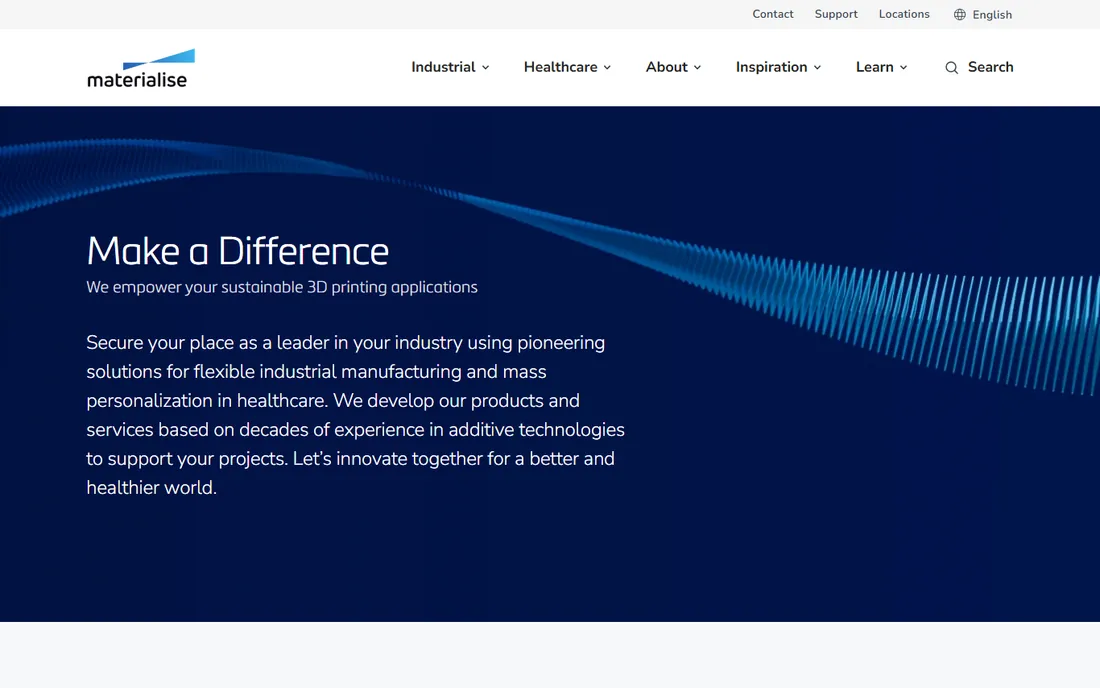
Magics is what professional print bureaus run when failed prints cost real money. Its automatic fix wizard repairs the pathological files that crash free tools, and the build preparation tools handle nesting, supports and slicing strategy for production machines. If you run printers for paying clients, this is the benchmark.
Everyone else should look away. Pricing is quoted per configuration and sits firmly in professional territory. The evaluation process is consultative, not a download button. Home users and small shops get 95 percent of the value from the free tools above at zero cost.
What we like- Industry-standard fix wizard and build preparation
- Lattice and support generation
- Handles massive files reliably
Watch out for- Enterprise pricing with no public numbers
- Steep learning curve
- Far more than a hobbyist needs
Starting priceFree
Free planYes, completely free
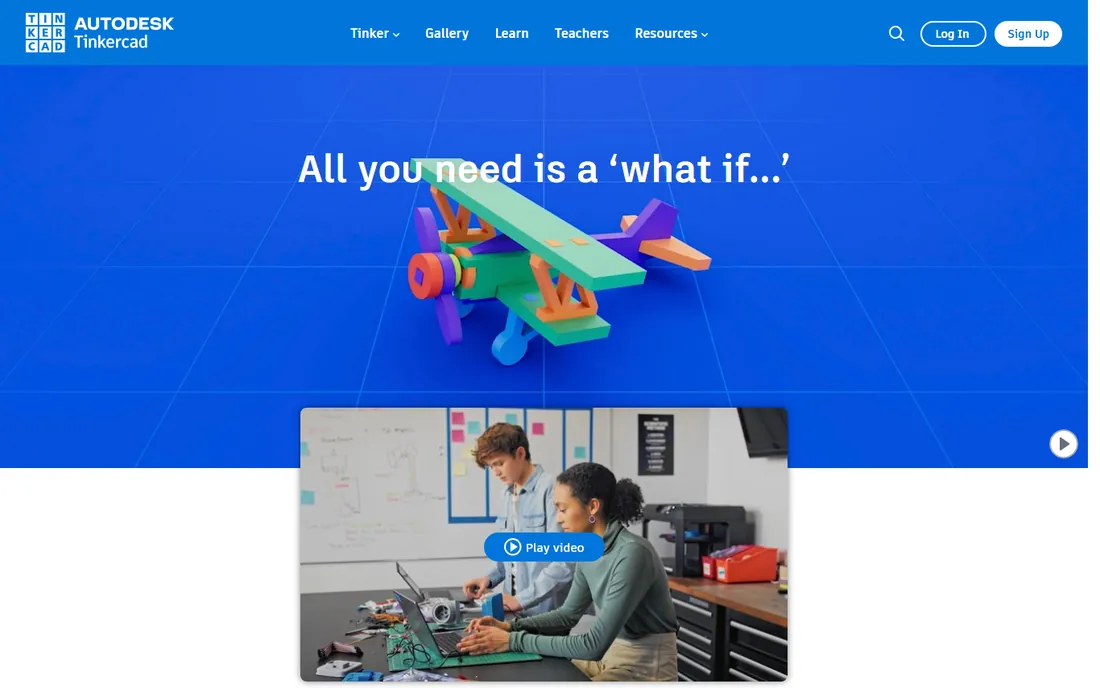
Tinkercad is where most people meet 3D design. Its shape-combining approach lets a beginner build a phone stand or a replacement knob in one sitting, entirely in the browser. For simple STL edits like adding a base, merging two parts or cutting a hole, it is genuinely enough.
It is not a mesh editor in the technical sense. You cannot repair normals or decimate triangles here. But as the on-ramp to the category, its value is enormous: free, safe for kids, and the skills transfer when you graduate to Fusion. Start here if you have never touched 3D software.
What we like- Runs in the browser, nothing to install
- Learnable in an hour
- Direct export to STL for printing
Watch out for- Too simple for complex edits
- No real mesh repair tools
- Autodesk account required
Starting priceFree (open source)
Free planYes
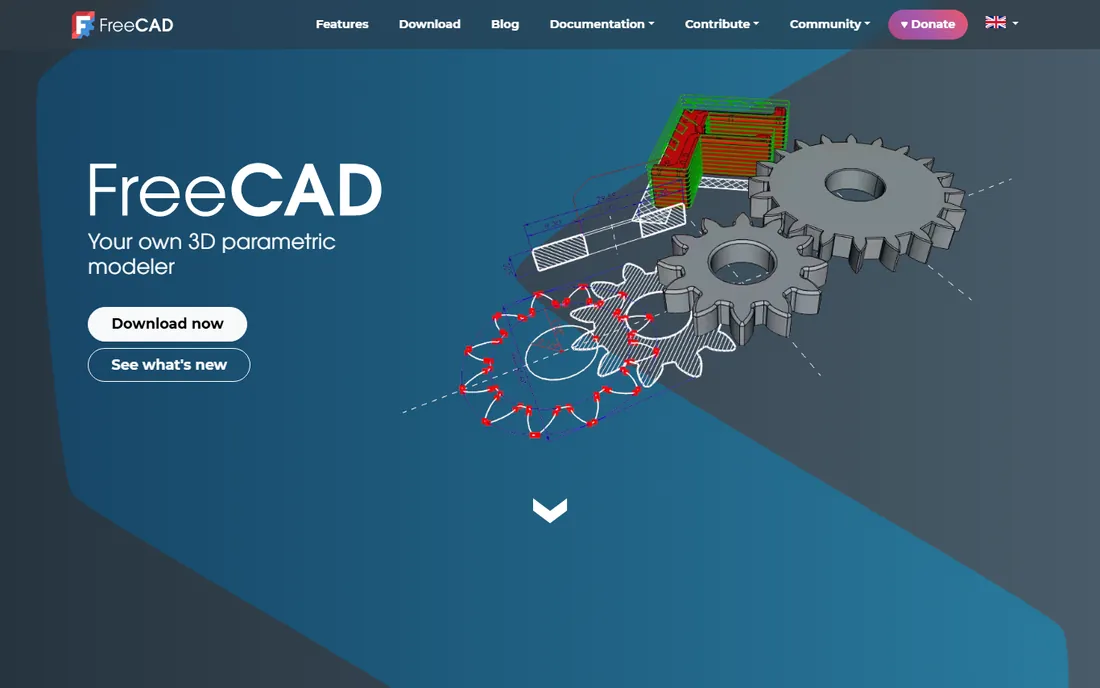
FreeCAD is the free answer to Fusion for people who design parts rather than sculpt them. Its parametric workbenches let you sketch, constrain and extrude with real dimensions, and the mesh workbench imports STL files for conversion to solids. Recent releases have improved stability meaningfully.
The trade-off is refinement. Operations that take two clicks in Fusion sometimes take five here, and the mesh repair capabilities are thin, so pair it with MeshLab for broken files. For hobbyists building functional prints on a zero budget, the combination of FreeCAD plus MeshLab covers nearly everything Fusion does.
What we like- True parametric CAD at zero cost
- Mesh workbench imports and converts STLs
- Active development and add-ons
Watch out for- Interface less polished than commercial CAD
- Mesh tools are basic next to Blender
- Occasional stability quirks
Starting price$199 one-time
Free planNo (paid only)
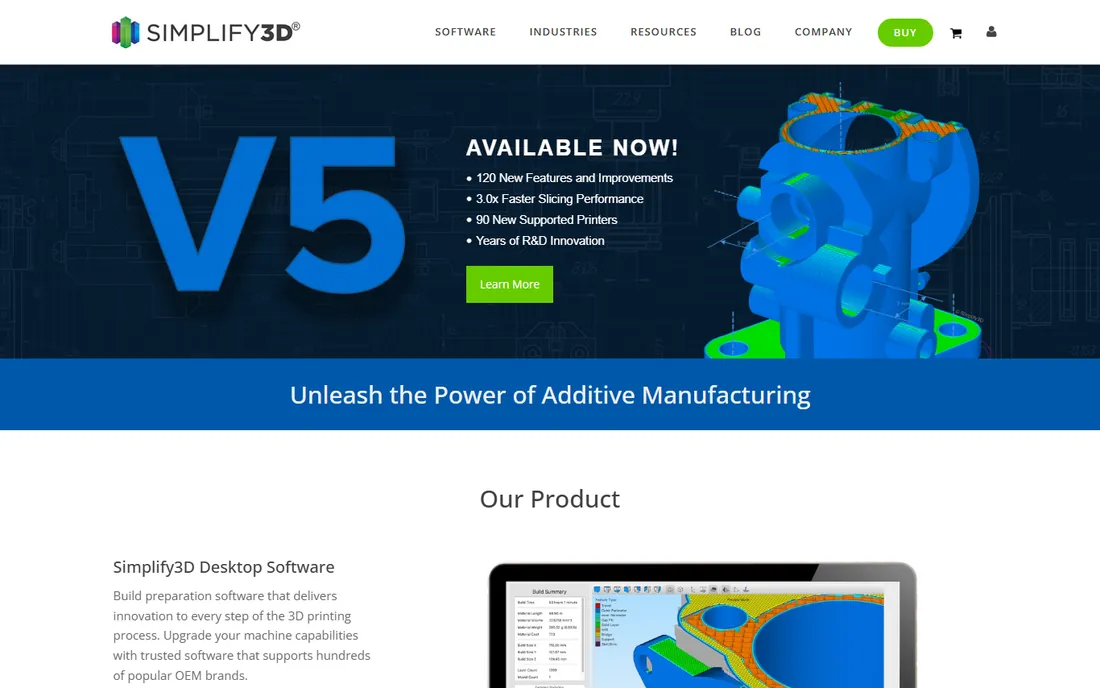
Simplify3D was the premium slicer before the free options caught up. Version 5 brought a new slicing engine, better supports and faster performance, and its animated preview remains one of the best ways to catch print problems before they happen. It includes basic mesh repair and model manipulation.
The honest question is whether it is worth $199 when OrcaSlicer and PrusaSlicer are free and excellent. For most users in 2026, the answer is no. Simplify3D still suits print farms that value its specific workflow and support, but try the free slicers first. You will probably keep your money.
What we like- Excellent support generation and preview
- Fast slicing engine
- Strong machine profiles out of the box
Watch out for- $199 with free slicers this good is a hard sell
- Mesh editing features are basic
- Internet connection required to launch
#8
SelfCAD
Best for: Beginners who want modeling, sculpting and slicing in one place
Visit selfcad.com
Starting price$14.99 per month (or $139.99 per year)
Free planFree trial; free plan for students and hobbyists
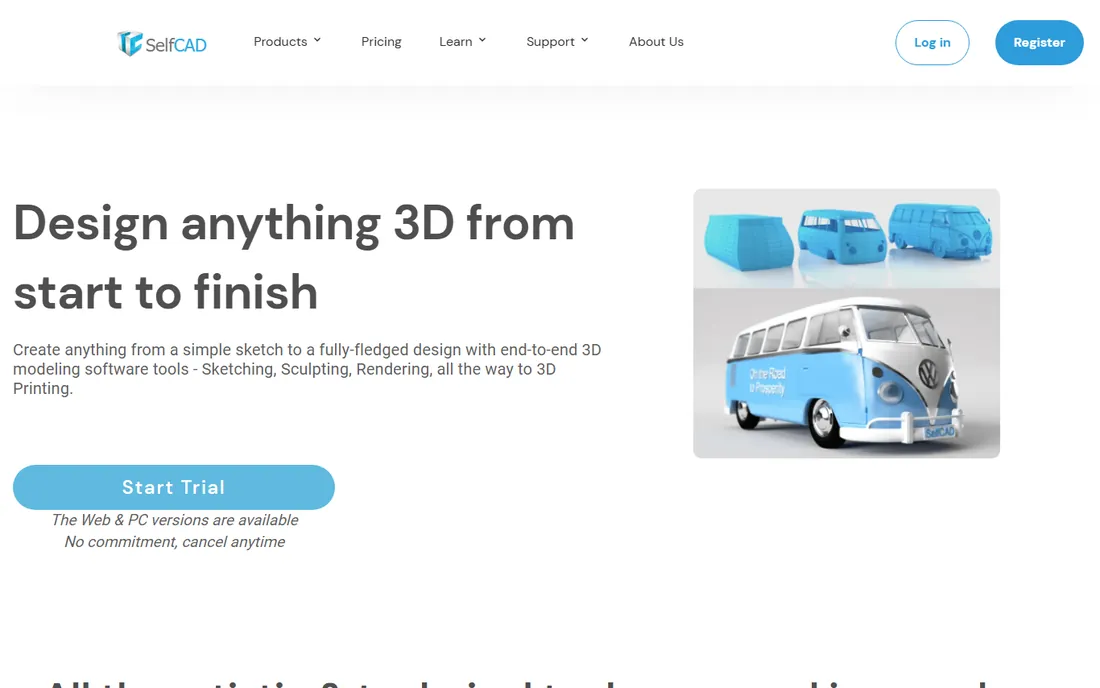
SelfCAD positions itself as the friendly middle ground: easier than Blender, more capable than Tinkercad, running in your browser. It combines sketching, sculpting and slicing, and its interactive tutorials are genuinely good for self-teaching. A free tier covers students and hobbyists.
At $14.99 a month it competes with free tools that do more, so the value depends on how much you prize the guided experience. For a classroom or a beginner who wants one subscription instead of three free apps, it makes sense. Power users will outgrow it within a year.
What we like- Browser-based with desktop option
- Built-in tutorials teach as you go
- Includes an STL slicer
Watch out for- Less powerful than Blender or Fusion
- Subscription adds up
- Smaller community for help
Starting priceFree web plan; SketchUp Go $119 per year
Free planYes (SketchUp Free, web-based)

SketchUp's push-pull modeling remains the fastest way to turn an idea into a boxy 3D model. For simple STL edits, resizing a bracket, adding mounting holes, combining primitives, it is quick and pleasant. The 3D Warehouse offers millions of starting points.
It was built for architecture, not 3D printing, so watertight STLs need attention: check the free Solid Inspector extension before exporting. The web-based free plan handles personal projects; Go at $119 a year adds desktop and offline work. Use it for speed, then verify the mesh in your slicer.
What we like- Fastest way to model simple geometry
- Huge 3D Warehouse of ready models
- Gentle learning curve
Watch out for- STL export needs care with manifold geometry
- Free web version has limits
- Not a mesh repair tool
Starting priceFree (open source)
Free planYes
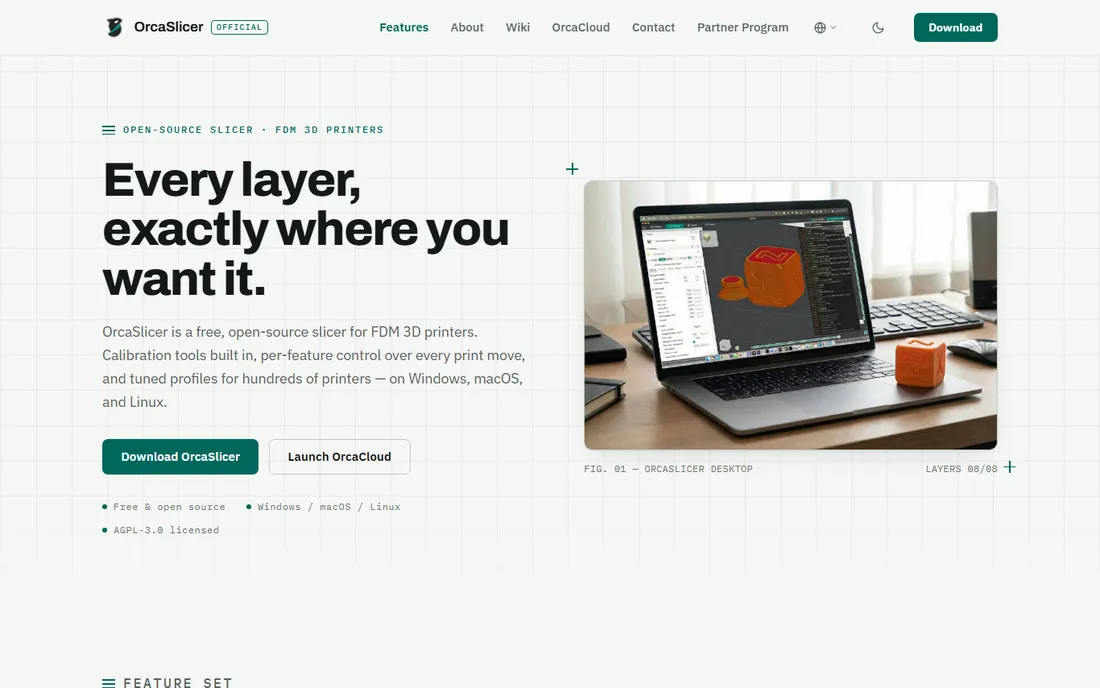
OrcaSlicer earns its place because most STL problems surface at slicing time, and it fixes many on the spot. Its mesh repair handles flipped normals and minor holes during import, and the built-in calibration suite tunes your printer without separate test files. It is free, open source and actively developed.
Do not expect a modeler. You cannot sculpt or redesign here, only repair and prepare. But since you need a slicer anyway, OrcaSlicer's repair tools may eliminate the need for a separate mesh app entirely. Check the fix report after import; if it is clean, you are done.
What we like- Repairs common mesh errors on import
- Excellent calibration tools
- Profiles for hundreds of printers
Watch out for- Mesh editing is repair-only, not creative
- Interface dense for beginners
- Bambu network features need the plugin
How we chose
We started from what 3D printing communities actually recommend: Reddit's r/3Dprinting and r/FixMyPrint, Prusa and Bambu forums, and review coverage from 3D printing press. Every price comes from the vendor's own site or current documentation, checked in October 2026. We weighted real STL capabilities (repair, conversion, remeshing) over general 3D features, and we favored tools with active development, which is why discontinued classics like Meshmixer did not make the list. We did not test-print with every tool for this guide.
Pick the right STL editor for your skill level
Beginners should start free and browser-based. Tinkercad teaches 3D thinking in an afternoon, and SelfCAD's tutorials carry you further. Do not buy anything until you have printed ten models and know what frustrates you.
Intermediate makers need repair plus creativity. Blender handles sculpting and remeshing, MeshLab fixes broken downloads, and OrcaSlicer catches what remains. This free trio covers nearly every hobbyist workflow.
Professionals and engineers need CAD. Fusion's mesh-to-solid conversion justifies its price when parts must fit, and Magics justifies its quote when prints must not fail. Match the tool to the cost of being wrong: a failed hobby print wastes filament, a failed client print wastes the client.
STL repair checklist before you hit print
Run this sequence on every downloaded STL before slicing. First, check manifoldness: every edge should belong to exactly two faces. MeshLab's filters or your slicer's fix report will tell you. Second, verify normals point outward; flipped normals confuse slicers into printing solid where they should print air.
Third, confirm wall thickness. Features thinner than your nozzle width will vanish or print as fragile threads. Fourth, check the scale: STL files carry no units, so a model modeled in inches opens ten times too small in a millimeter workflow. Fifth, look at triangle count. Millions of triangles slow slicing without improving a 0.2mm layer print; decimate in MeshLab first. Five minutes of checks saves five hours of failed prints.
Frequently asked questions
What is the best free software to edit STL files?
Blender for creative edits and sculpting, MeshLab for repair and cleanup, and OrcaSlicer for last-mile fixes at slicing time. Together they cover everything most makers need at zero cost. Add FreeCAD when your parts need exact dimensions.
Can I edit an STL file like a CAD model?
Not directly, since STL stores only triangles with no parametric history. Autodesk Fusion and FreeCAD can convert meshes to solid bodies, after which you can edit dimensions and features normally. Conversion works best on geometric parts; organic sculpts convert poorly.
Why does my STL file fail to slice?
The usual causes are non-manifold edges, holes in the mesh, flipped normals, zero-thickness walls, or wrong scale. Run the file through MeshLab's repair filters or let OrcaSlicer auto-repair on import, then re-check the slicer preview layer by layer before printing.
Is Meshmixer still available?
Autodesk discontinued Meshmixer and it receives no updates, so we do not recommend starting with it in 2026. Blender and MeshLab cover its repair and sculpting roles with active development. Old tutorials referencing it still work conceptually in the newer tools.
Do I need paid software for 3D printing?
No. The free toolchain of Blender, MeshLab, FreeCAD and OrcaSlicer handles design, repair and slicing for most users. Pay for Fusion when you do commercial mechanical design, for Magics when you run a print bureau, or for SelfCAD when you want guided learning in one subscription.
Sources we checked (14)
- https://www.blender.org
- https://www.autodesk.com
- https://www.autodesk.com/products/fusion-360/blog/fusion-subscription-types/
- https://meshlab.net
- https://materialise.com
- https://tinkercad.com
- https://freecad.org
- https://simplify3d.com
- https://www.sainsmart.com/collections/3d-printing/products/simplify3d-professional-3d-printing-software
- https://www.selfcad.com
- https://www.selfcad.com/blog/10-best-3d-character-design-software
- https://sketchup.com
- https://www.orcaslicer.com
- https://github.com/SoftFever/OrcaSlicer
Is your product missing or out of date?
We review this list regularly. Vendors can request a listing, send updated pricing or ask about featured placement.

Shihab Mia · Founder, Rankite
Shihab has spent more than a decade helping SaaS and e-commerce brands grow through search. He writes Rankite's software buying guides from pricing pages, documentation and public user reviews. More about Shihab.