How we make this list: we compare pricing pages, product documentation and public user reviews. Rankite is independent; if a vendor ever pays for a featured spot, that listing is clearly labeled Partner.
Key takeaways
- Tinkercad is the fastest way from zero to a printed part, and it costs nothing, but you will outgrow it within a few months of serious designing.
- Autodesk Fusion has the most generous free tier in pro-grade CAD, free for hobbyist use, with the catch that commercial work needs the $680 per year subscription.
- FreeCAD gives you professional parametric modeling for free forever, but the learning curve is steep and the interface still feels rough around the edges.
- Shapr3D and Plasticity are the two modern picks worth watching: Shapr3D if you design on an iPad, Plasticity if you want a one-time purchase instead of another subscription.
- Check STL export limits on free plans before you commit: some free tiers cap export resolution or lock high-quality exports behind a paid plan.
Quick comparison
| Tool | Best for | Starting price | Free plan |
|---|
 Tinkercad Tinkercad | absolute beginners printing their first parts | Free | Yes |
 Autodesk Fusion Autodesk Fusion | hobbyists who want professional-grade tools | $680/year (billed annually) | Yes, personal use for hobbyists |
 FreeCAD FreeCAD | learners who want free parametric CAD forever | Free | Yes |
 Onshape Onshape | learners who want CAD with zero installation | $1,500/user/year (Standard) | Yes, free plan for hobbyists |
 SketchUp SketchUp | fast visual modeling of simple parts and enclosures | $129/year (Go) | Yes, SketchUp Free for personal use |
 Shapr3D Shapr3D | designing on iPad or tablet with a pencil | $29/month (billed annually) | Yes, Basic plan with 2 designs |
 SelfCAD SelfCAD | beginners who want modeling and slicing in one place | $14.99/month | Yes, free plan for students and hobbyists |
 3D Slash 3D Slash | kids and total beginners who think in blocks | $2/month (Premium, billed annually) | Yes |
 Plasticity Plasticity | buyers who want pro CAD without a subscription | $175 one-time (Indie) | Free trial (30 days) |
Is your product missing or out of date?
We review this list regularly. Vendors can request a listing, send updated pricing or ask about featured placement.
The best beginner CAD software for 3D printing
Starting priceFree
Free planYes
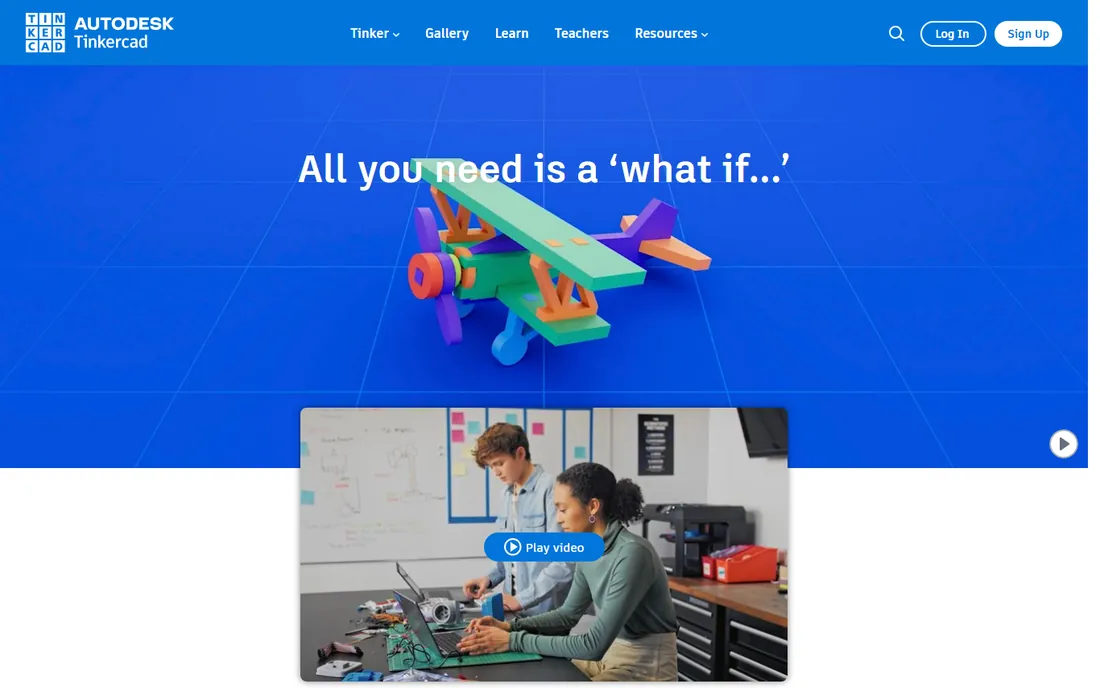
If you have never touched CAD before, start here. Tinkercad turns 3D design into stacking and combining simple shapes, and its built-in lessons walk you through your first designs in under an hour. Export to STL is one click, which is exactly what a beginner needs when the goal is a printed part, not a CAD education.
The tradeoff is precision. Tinkercad is a shape-combining toy, not a parametric modeler, so designing a bracket with exact hole spacing takes workarounds. Most people use it for three to six months, print dozens of useful things, and then graduate to Fusion or FreeCAD when they need real dimensions. For that first stretch, nothing beats it.
What we like- Runs in the browser with no install
- Drag-and-drop shapes make first designs possible in minutes
- Huge library of free lessons for classrooms
Watch out for- No parametric history, so editing old designs is painful
- Struggles with complex or precise mechanical parts
#2
Autodesk Fusion
Best for: hobbyists who want professional-grade tools
Visit autodesk.com
Starting price$680/year (billed annually)
Free planYes, personal use for hobbyists
Fusion sits in an odd spot on a beginner list, because it is genuinely professional software. Autodesk keeps it here by offering a free personal-use license to hobbyists whose making earns under $1,000 a year, which covers almost every beginner with a home printer. You get parametric sketches, assemblies, and even basic CAM for CNC work.
Beginners should know the interface has real depth, and the first week feels like drinking from a fire hose. Stick with it through a few guided projects and the parametric workflow starts paying off: change one dimension and the whole part updates. Just keep the document limit in mind and archive finished projects as you go.
What we like- Full parametric modeling, CAM, and simulation in one package
- Free personal-use license is remarkably capable
- Massive tutorial community
Watch out for- Free tier caps active documents at 10 and limits some exports
- Commercial use requires the paid subscription
Starting priceFree
Free planYes
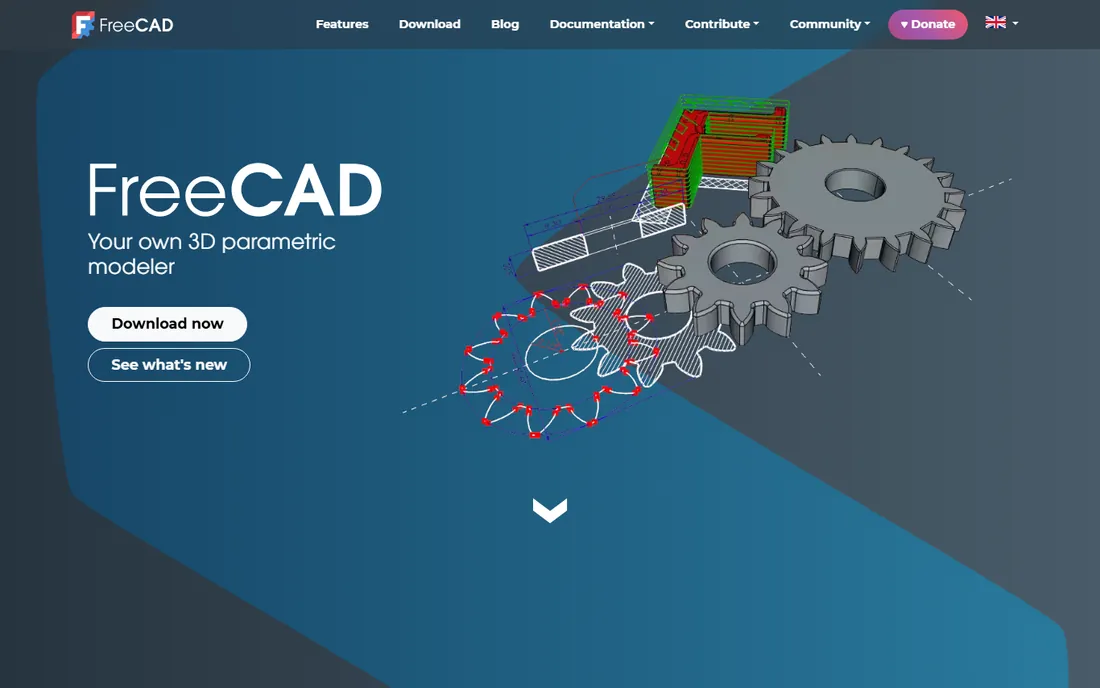
FreeCAD is the only tool on this list that is completely free with no tier, no account, and no commercial-use restriction. Under the hood it does real parametric modeling: sketch with constraints, extrude, fillet, assemble. The 1.x releases have closed much of the gap with paid tools, and it reads and writes STEP, IGES, and STL natively.
The honest catch is polish. The workbench system confuses newcomers, and you will hit forum threads to solve problems that a commercial tool would guide you through. If you are patient and methodical, FreeCAD can carry you from first print to serious mechanical design without ever paying a cent.
What we like- True parametric modeling with no cost or account needed
- Runs on Windows, Mac, and Linux
- Active community and add-on workbenches
Watch out for- Interface and workflow feel dated next to commercial tools
- Occasional stability quirks on complex models
Starting price$1,500/user/year (Standard)
Free planYes, free plan for hobbyists
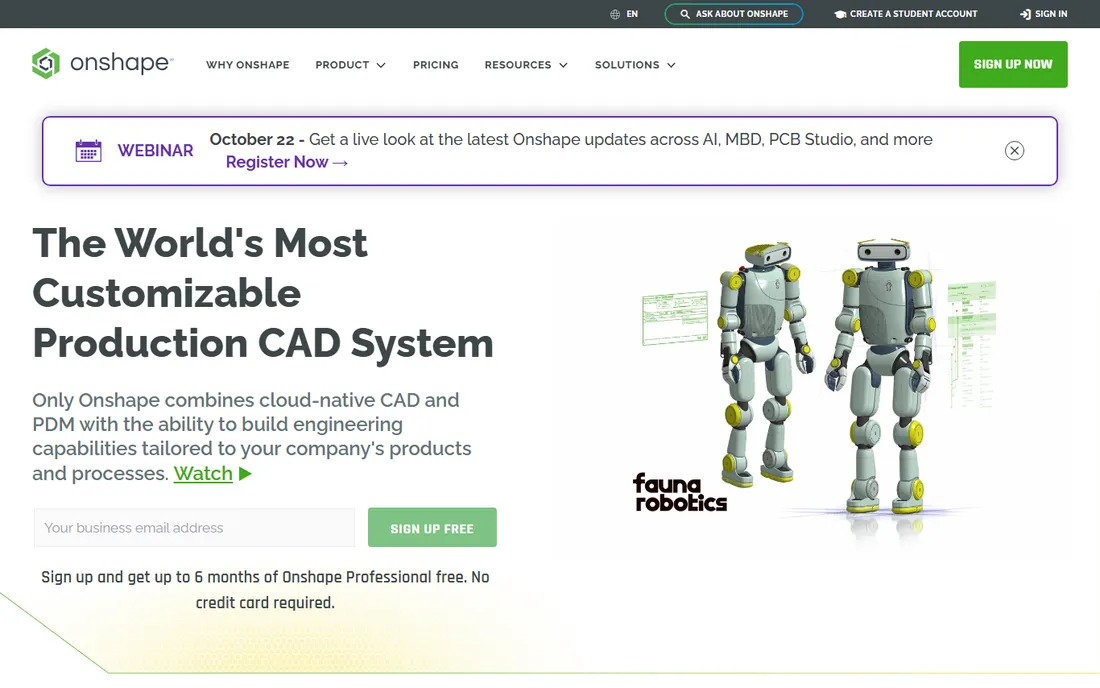
Onshape brings the Google Docs model to CAD: everything lives in the cloud, every change is versioned, and you can open your models on a Chromebook at the library. For a beginner, the appeal is that there is nothing to install and nothing to lose when a laptop dies. The parametric modeling itself is solid and modern.
The free hobbyist plan keeps costs at zero, but your documents are public, which rules out anything proprietary. Paid plans start at professional prices, so treat Onshape as a superb learning platform and a fine hobby tool, and only pay when a business justifies it.
What we like- Full CAD in the browser on any device, including Chromebooks
- Built-in version control like Google Docs for parts
- Free hobbyist tier
Watch out for- Free tier makes your designs public
- Paid plans are priced for professionals, not hobbyists
#5
SketchUp
Best for: fast visual modeling of simple parts and enclosures
Visit sketchup.com
Starting price$129/year (Go)
Free planYes, SketchUp Free for personal use
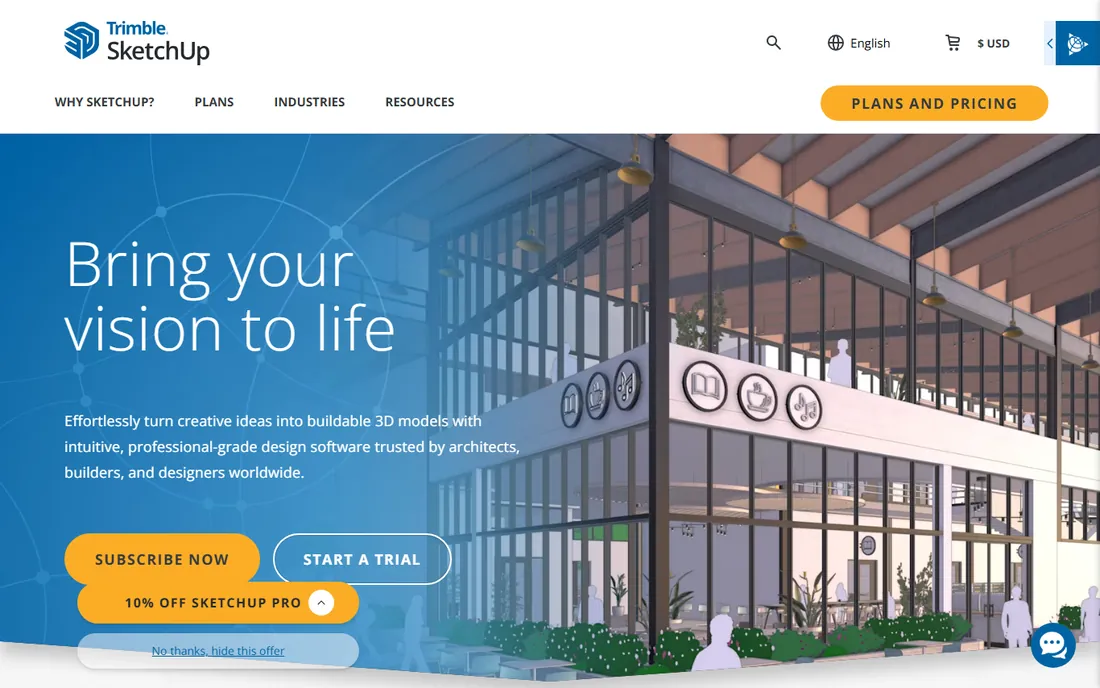
SketchUp built its reputation on being the CAD tool that non-engineers could actually learn. Push and pull faces, and a box becomes a bracket. For 3D printing, it shines at enclosures, brackets, organizers, and anything where visual modeling beats dimension-driven sketches. The free web version handles personal projects fine.
Precision is the weakness. SketchUp thinks in faces and edges, not parametric features, so revising a dimensioned part means remodeling. It also exports STL through an extension rather than natively, so install the SketchUp STL extension before your first print. Use it for quick, visual designs, and reach for Fusion when tolerances matter.
What we like- Famously easy push-pull modeling
- Huge 3D Warehouse of ready-made models
- Free web version for personal projects
Watch out for- Not parametric, so precise mechanical design is awkward
- STL export needs an extension on some plans
Starting price$29/month (billed annually)
Free planYes, Basic plan with 2 designs
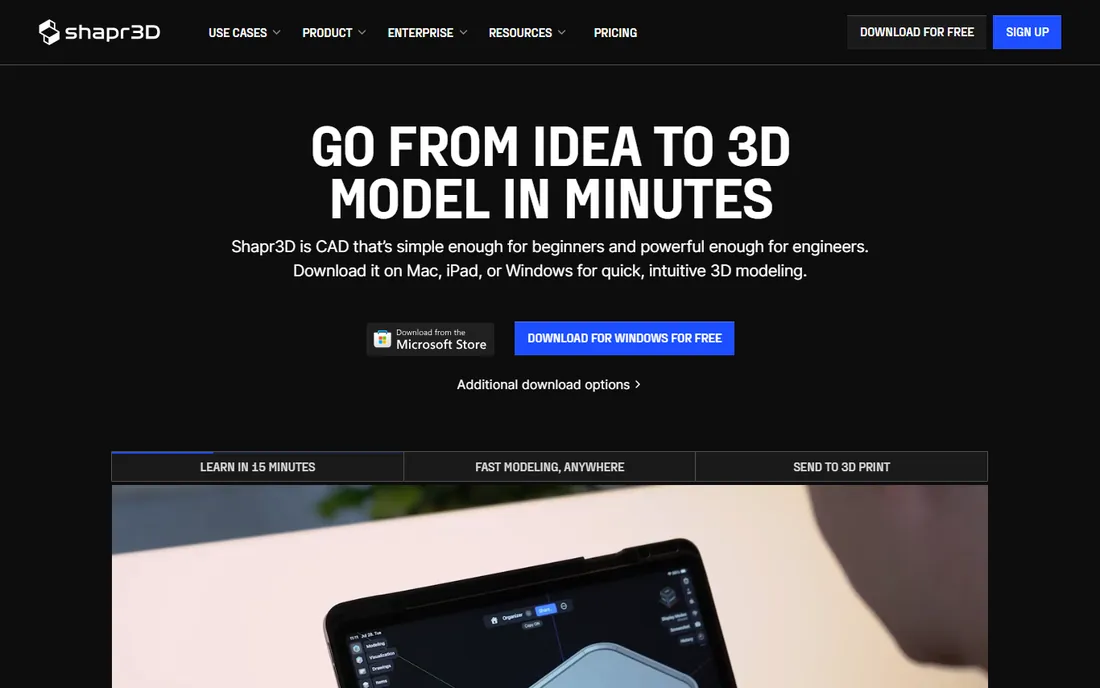
Shapr3D is the rare CAD tool that feels designed for this decade. Sketch directly on an iPad with the Pencil, push and pull solid geometry, and the Parasolid kernel underneath keeps everything manufacturable. It runs natively on iPad, Mac, and Windows, and it works fully offline, which matters in a workshop with bad wifi.
The free Basic plan is a genuine trial, not a product: two designs and low-resolution STL export will push you toward Pro quickly. At $29 a month on annual billing, it is a considered purchase for a hobbyist. But if you design on the couch or at the workbench instead of a desk, nothing else comes close.
What we like- Best-in-class touch and Apple Pencil modeling
- Real Parasolid CAD kernel, not a toy
- Works offline and syncs across devices
Watch out for- Free plan limits you to 2 designs and low-resolution STL export
- Subscription is pricey for casual hobbyists
#7
SelfCAD
Best for: beginners who want modeling and slicing in one place
Visit selfcad.com
Starting price$14.99/month
Free planYes, free plan for students and hobbyists
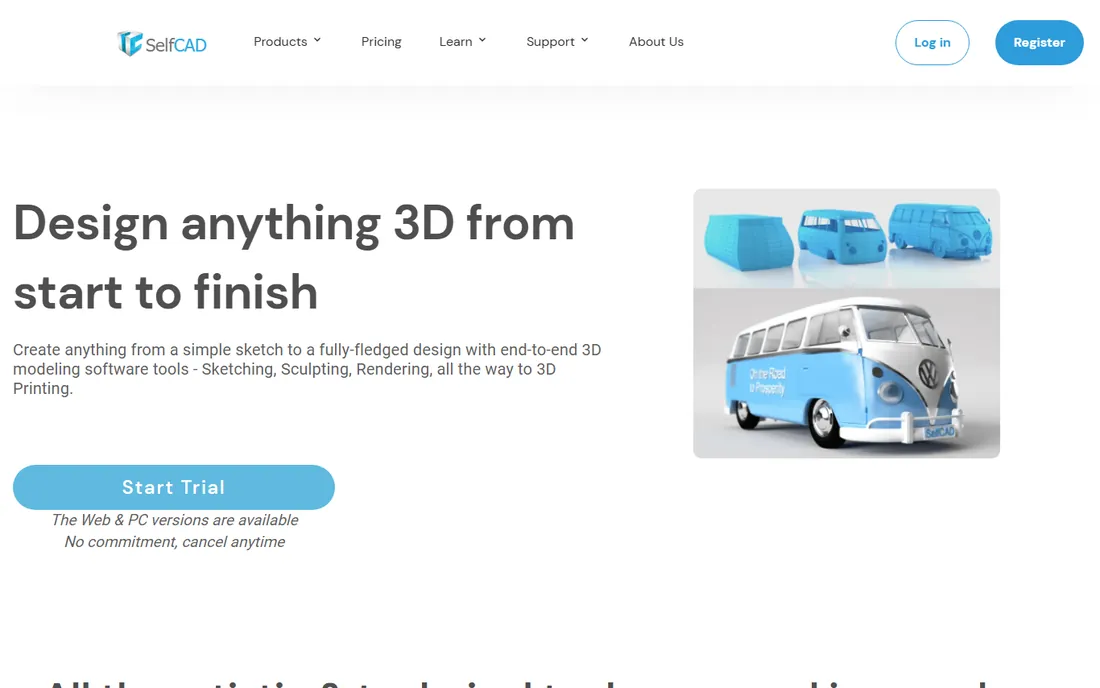
SelfCAD takes the unusual step of bundling a slicer with the modeler, so you can design a part and prepare it for printing without leaving the app. It covers sketching, sculpting, and rendering too, which makes it a decent single subscription for a beginner who wants to explore. The built-in interactive tutorials are genuinely helpful.
The ecosystem is the tradeoff. When you get stuck in Fusion, ten thousand forum posts have your answer. In SelfCAD, you are more dependent on official support and documentation. At $14.99 a month with a free tier for students and hobbyists, it is priced to be your first paid step up from free tools.
What we like- Combines modeling, sculpting, and a built-in slicer
- Interactive in-app tutorials shorten the learning curve
- Affordable next to big-name CAD
Watch out for- Smaller community means fewer third-party tutorials
- Interface tries to do a lot and can feel busy
Starting price$2/month (Premium, billed annually)
Free planYes
3D Slash turns 3D modeling into a building game: start with a block and carve away cubes until your object appears. Kids take to it instantly, and teachers love the classroom management tools. For a young beginner, the jump from playing with blocks to holding a printed object is pure magic.
Adults will feel the limits fast. Everything is cuboid at heart, so smooth curves and organic shapes are out of reach. The free plan works, though STL exports go through a queue, and Premium at $2 a month removes the wait and adds finer resolution. Think of it as the on-ramp for young makers, not a long-term design home.
What we like- Minecraft-like building mechanic anyone can grasp in minutes
- Strong classroom and education features
- Cheapest paid tier on this list
Watch out for- Blocky workflow limits smooth or organic shapes
- Free export makes you wait in a queue
Starting price$175 one-time (Indie)
Free planFree trial (30 days)
Plasticity is the anti-subscription pick. Pay $175 once for the Indie license and you own it, with a year of updates included. It is a direct modeler rather than a parametric one, which makes it feel fast and fluid: push, pull, and blend geometry without fighting a feature tree. Artists coming from Blender adapt especially quickly.
Beginners should understand the tradeoff clearly. Without parametric history, changing a dimension deep in a complex part can mean remodeling. Plasticity suits people who design by feel and iterate visually, and it pairs well with a 3D printer because STL export is straightforward. The 30-day trial is the honest way to decide.
What we like- One-time purchase, no subscription
- Fast direct-modeling workflow artists love
- Excellent fillets and surfacing for the price
Watch out for- Not parametric, so design history editing is limited
- Smaller community and fewer learning resources
How we chose
We started with the tools beginners actually mention in 3D printing communities on Reddit, YouTube, and maker forums, then filtered for software that is actively maintained and exports printable files. Prices come from each vendor's own pricing page, checked in October 2026, and free-tier limits come from the vendors' plan comparisons. We did not accept vendor claims at face value: where a free plan restricts STL export or document counts, we say so, because that is the detail that matters most to someone with a printer waiting.
Match the tool to how you think, not to a feature list. If you think in measurements and precise parts, a parametric tool like Fusion or FreeCAD will reward the learning effort. If you think visually and want quick results, Tinkercad, SketchUp, or Shapr3D will get parts off the printer faster. There is no wrong answer for a first tool; there is only the tool you will actually open twice a week.
Check the export story before you invest time. Your slicer needs STL or 3MF files, and some free tiers limit export resolution or make you wait. Shapr3D's free plan caps STL resolution, 3D Slash queues free exports, and SketchUp needs an extension. These are small hurdles, but discovering them at 11 p.m. before a print is annoying.
Think about where you will be in a year. Tinkercad and 3D Slash are wonderful starting points with visible ceilings. Fusion, FreeCAD, and Onshape have no ceiling at all, which is why so many makers start simple and migrate. Pick the tool that fits this month, and do not feel guilty about switching when your skills outgrow it.
The STL export trap: free plans that limit printing
The most common beginner frustration is not modeling, it is exporting. A tool can be free to model in and still charge you, in time or money, to get a printable file out. Shapr3D limits free exports to low resolution, which shows up as faceted curves on round parts. 3D Slash puts free exports in a queue, which is fine until you are iterating on a design. Onshape's free tier is fully capable but makes your designs public, which matters if you ever sell prints.
None of these are deal-breakers, but they should factor into your choice. If your whole workflow is design, export, slice, and print, test the full loop on the free tier before you invest twenty hours learning the tool. Export one test cube, slice it, and print it. That ten-minute test tells you more than any review.
Frequently asked questions
What is the easiest CAD software for 3D printing beginners?
Tinkercad is the easiest starting point. It runs in the browser, teaches through interactive lessons, and exports STL files in one click. Most beginners design and print their first part within an hour.
Is there really free CAD software good enough for 3D printing?
Yes. Tinkercad, FreeCAD, Blender, and the free tiers of Fusion, Onshape, and SketchUp all produce printable files. FreeCAD and Fusion's personal-use tier are capable enough for serious mechanical parts, not just toys.
Do I need parametric CAD as a beginner?
Not at first. Parametric modeling, where you define dimensions and the model updates, becomes valuable when you design parts that must fit together precisely. Start with direct modeling in Tinkercad or SketchUp, and move to Fusion or FreeCAD when you find yourself remodeling the same part repeatedly.
What file format does my 3D printer need?
Your slicer software, such as Bambu Studio, PrusaSlicer, or Cura, takes STL or 3MF files and converts them into printer instructions. Every tool on this list can export STL, though some free tiers limit resolution or require an extra step.
Should I learn Fusion or FreeCAD?
Learn Fusion if you want the largest tutorial library and the smoothest path to professional work, and the free hobbyist tier covers you. Learn FreeCAD if you want software that is free forever with no account, no document limits, and no commercial restrictions. Both teach transferable parametric skills.
Can I design for 3D printing on an iPad?
Yes. Shapr3D is the standout, with Apple Pencil support and a real CAD kernel. Tinkercad, Onshape, and 3D Slash also run in the iPad browser. Just check the free tier's export limits before committing to a design.
Sources we checked (10)
- https://tinkercad.com/
- https://www.autodesk.com/products/fusion-360
- https://www.autodesk.com/products/fusion-360/blog/fusion-for-personal-use-vs-autodesk-fusion/
- https://freecad.org/
- https://www.onshape.com/en/
- https://sketchup.com/
- https://shapr3d.com/
- https://www.selfcad.com/
- https://3dslash.net/
- https://plasticity.xyz/
Is your product missing or out of date?
We review this list regularly. Vendors can request a listing, send updated pricing or ask about featured placement.

Shihab Mia · Founder, Rankite
Shihab has spent more than a decade helping SaaS and e-commerce brands grow through search. He writes Rankite's software buying guides from pricing pages, documentation and public user reviews. More about Shihab.