How we make this list: we compare pricing pages, product documentation and public user reviews. Rankite is independent; if a vendor ever pays for a featured spot, that listing is clearly labeled Partner.
Key takeaways
- FireAlpaca reports over 23 million downloads worldwide, which shows how far free drawing apps have come from hobbyist toys.
- Krita is the closest thing to a free Photoshop for painters, with brush engines, animation and CMYK support at zero cost.
- Every app here is genuinely free to download and use; the tradeoffs are interface polish, platform support and advanced features, not trial clocks.
- Match the app to the job: Krita and MyPaint for painting, MediBang and FireAlpaca for comics, Inkscape for vector work, Drawpile for drawing with others.
Quick comparison
| Tool | Best for | Starting price | Free plan |
|---|
 Krita Krita | serious digital painting and 2D animation | Free | Yes |
 GIMP GIMP | photo editing that doubles as a painting tool | Free | Yes |
 MediBang Paint MediBang Paint | comics and manga with cloud sync across devices | Free | Yes |
 FireAlpaca FireAlpaca | beginners and clean line art | Free | Yes |
 Inkscape Inkscape | vector illustration, logos and scalable art | Free | Yes |
 Paint.NET Paint.NET | fast, light editing and sketching on Windows | Free | Yes |
 MyPaint MyPaint | distraction-free sketching and natural-media painting | Free | Yes |
 Pinta Pinta | simple drawing and quick edits on any desktop OS | Free | Yes |
 Drawpile Drawpile | drawing together with others in real time | Free | Yes |
 Kleki Kleki | sketching instantly with no install | Free | Yes |
Is your product missing or out of date?
We review this list regularly. Vendors can request a listing, send updated pricing or ask about featured placement.
The best free computer drawing software
#1
Krita
Best for: serious digital painting and 2D animation
Visit krita.org
Starting priceFree
Free planYes
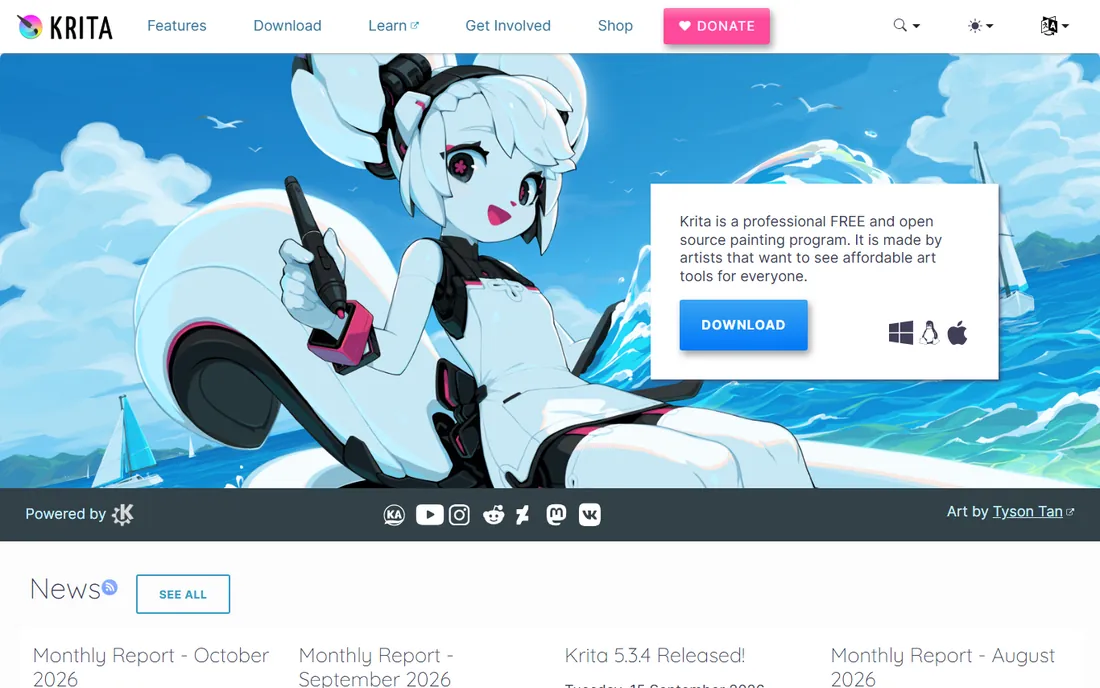
No free painting program comes closer to replacing paid software than Krita. It ships with over a hundred brushes, nine brush engines, drawing assistants for perspective and vanishing points, and a real animation workflow with timelines and onion skinning. It opens PSD files, supports HDR painting and vector layers, and the Python scripting lets technical users extend it. All of it is free and open source under the GPL, maintained by artists and volunteers, with monthly development reports still landing in 2026.
The cost is complexity. Krita's panels, dockers and options assume you want control over everything, which can bury a beginner who just wants to sketch. It also asks more of your computer than FireAlpaca or MyPaint, so very old machines will feel it. But if you want one free app that grows from first sketch to finished illustration to short animation, Krita is the obvious home base.
What we like- Professional brush engines with stabilizers
- Full animation timeline with onion skins
- Open source with no ads or upsells
Watch out for- Interface can overwhelm beginners
- Heavier on system resources than lighter apps
- Some tools feel unintuitive at first
#2
GIMP
Best for: photo editing that doubles as a painting tool
Visit gimp.org
Starting priceFree
Free planYes
Ask painters and they will tell you GIMP is an image editor first. They are right, and that is exactly why it belongs here: many artists sketch, paint and finish in the same program they use for photo work. GIMP's selection tools, layer masks, filters and color management are genuinely powerful, and decades of community plugins cover everything from brush packs to animation helpers. Version 3 brought a modernized interface that finally feels like this decade.
For pure painting, Krita's brush engines are smoother and more purpose-built. GIMP's painting tools work fine for sketching and concept work, but the stroke feel and stabilizers are a step behind. Where GIMP earns its place is the all-rounder workflow: paint the illustration, retouch the reference photos, prep the web export and lay out the portfolio page without leaving the app or paying a cent.
What we like- Deep image editing toolkit rivaling paid editors
- Huge plugin and script ecosystem
- Runs on Windows, Mac and Linux
Watch out for- Brush engine lags behind Krita for painting
- Interface still shows its age
- CMYK support needs a plugin
Starting priceFree
Free planYes
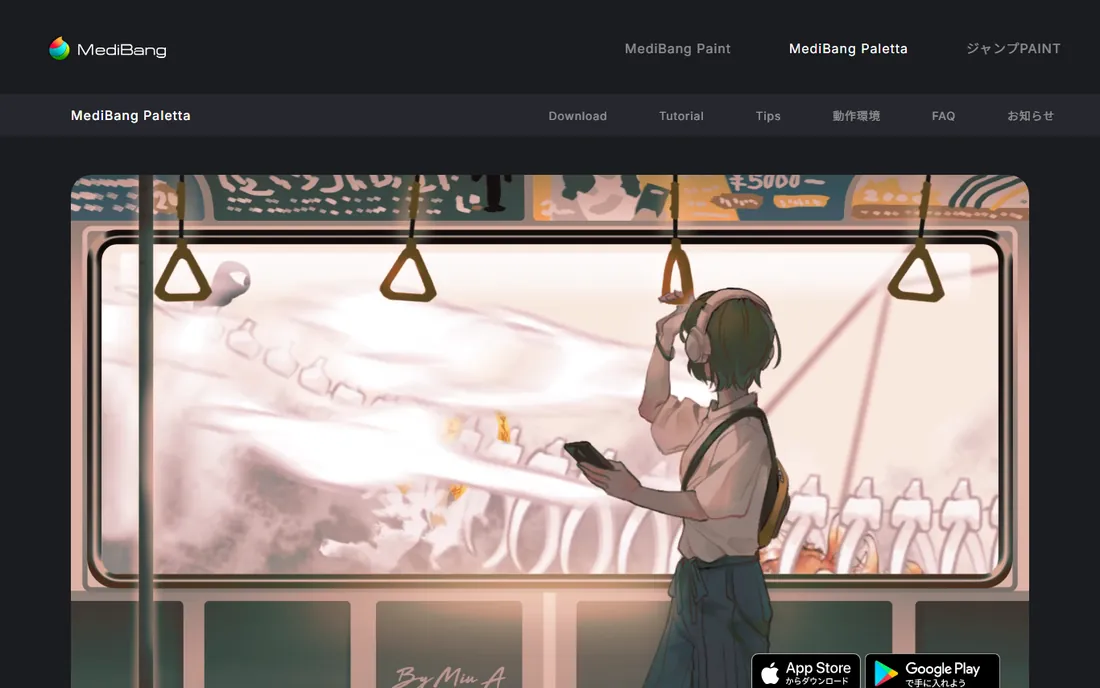
MediBang Paint Pro has been the quiet workhorse of free manga software for years, and it still holds that crown on desktop. Panel creation tools, screentones, comic fonts and page management are built for sequential art rather than bolted on. Cloud sync means a page started on the PC can continue on a phone, and the materials library offers thousands of free tones, backgrounds and brushes.
The honest tradeoff is the business model. The desktop app is free but shows ads, and removing them means paying for the premium version. Note also that MediBang's energy is moving toward its newer iPad app, Paletta, which the homepage now leads with. For a PC comic artist who wants focused manga tools without Krita's learning curve, MediBang remains a strong pick, just go in knowing the desktop version is mature rather than actively reinvented.
What we like- Comic panel tools, screentones and cloud sync built in
- Lightweight on modest PCs
- Big free material and brush library
Watch out for- Ads in the free version unless you upgrade
- Interface feels dated next to Krita
- Company focus is shifting toward mobile apps
Starting priceFree
Free planYes
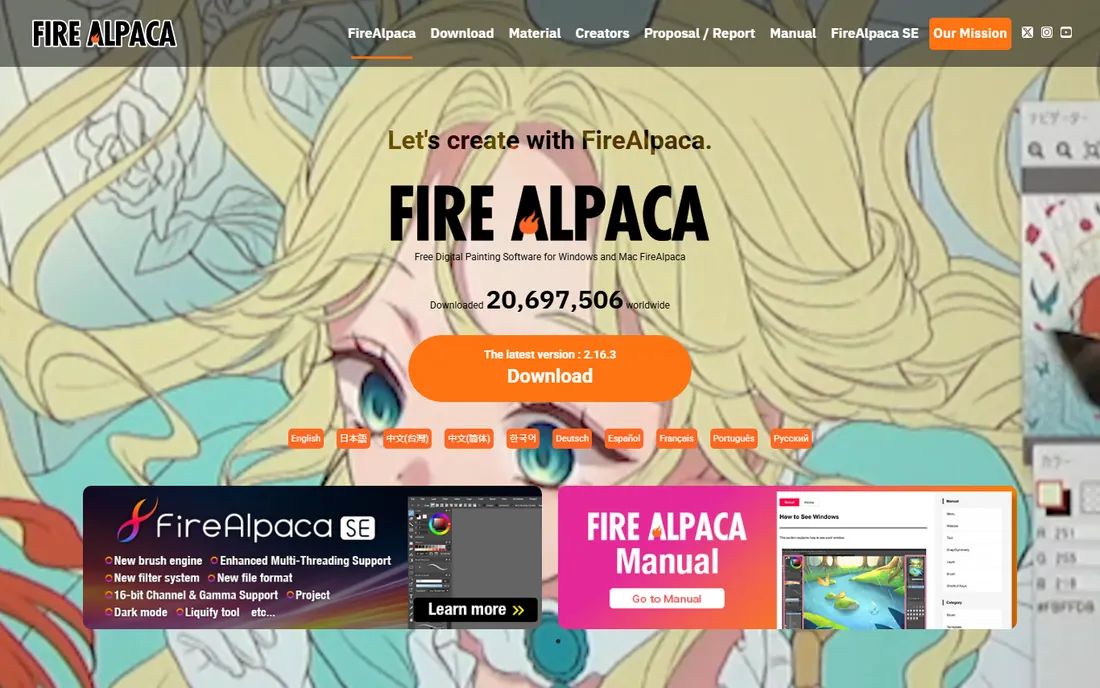
FireAlpaca's pitch is that you can open it and start drawing immediately, and it delivers. The interface is spare, the tools are where you expect them, and the line stabilizer is one of the best in any free app, which is why so many anime-style artists swear by it for inking. The developers release original brushes every week, from watercolor textures to lace patterns, keeping the toolkit fresh without any payment.
It is deliberately not Krita. There is no animation timeline worth mentioning, no deep color management, and power users will hit the ceiling quickly. There is also a paid FireAlpaca SE with more features if you outgrow the free version. But as a first drawing program, or a lightweight inking tool alongside something heavier, FireAlpaca's simplicity is a feature, not a gap.
What we like- Simple interface you can learn in an afternoon
- Excellent brush stabilizer for line art
- New original brushes released weekly
Watch out for- Fewer advanced features than Krita
- No real CMYK or print prepress tools
- MacOS and Windows only
Starting priceFree
Free planYes
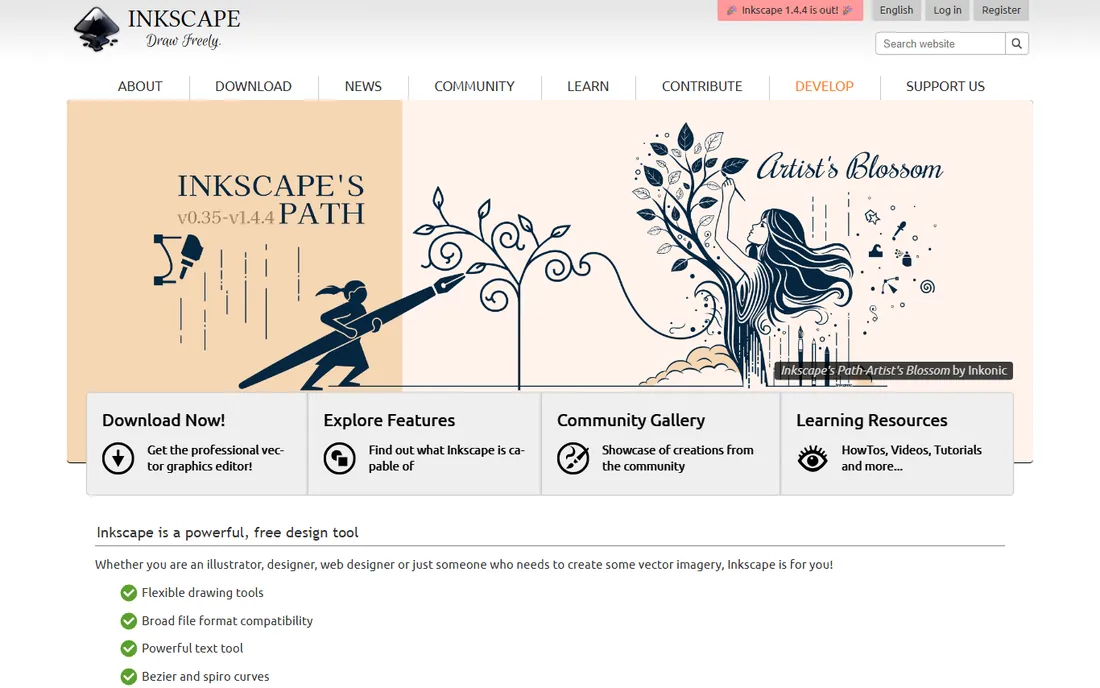
Every other app on this list paints with pixels. Inkscape draws with math, and that difference matters the moment you need a logo, an icon set or an illustration that must scale from favicon to billboard. Its Bezier and spiro tools, boolean path operations, clones and filters cover serious vector work, and because SVG is the native format, your files open anywhere without conversion drama.
It is not a painting program. If you want textured brushwork, look at Krita or MyPaint. But for line art that stays crisp, typography-heavy illustration and web graphics, Inkscape is the free answer, and it pairs naturally with the raster apps here: sketch in Krita, trace and refine in Inkscape, finish wherever you like.
What we like- Professional vector tools rivaling paid illustrators
- Native SVG format keeps files portable
- Strong text and path operations
Watch out for- Raster painting tools are minimal
- Performance dips on very complex documents
- Learning curve for Bezier mastery
Starting priceFree
Free planYes
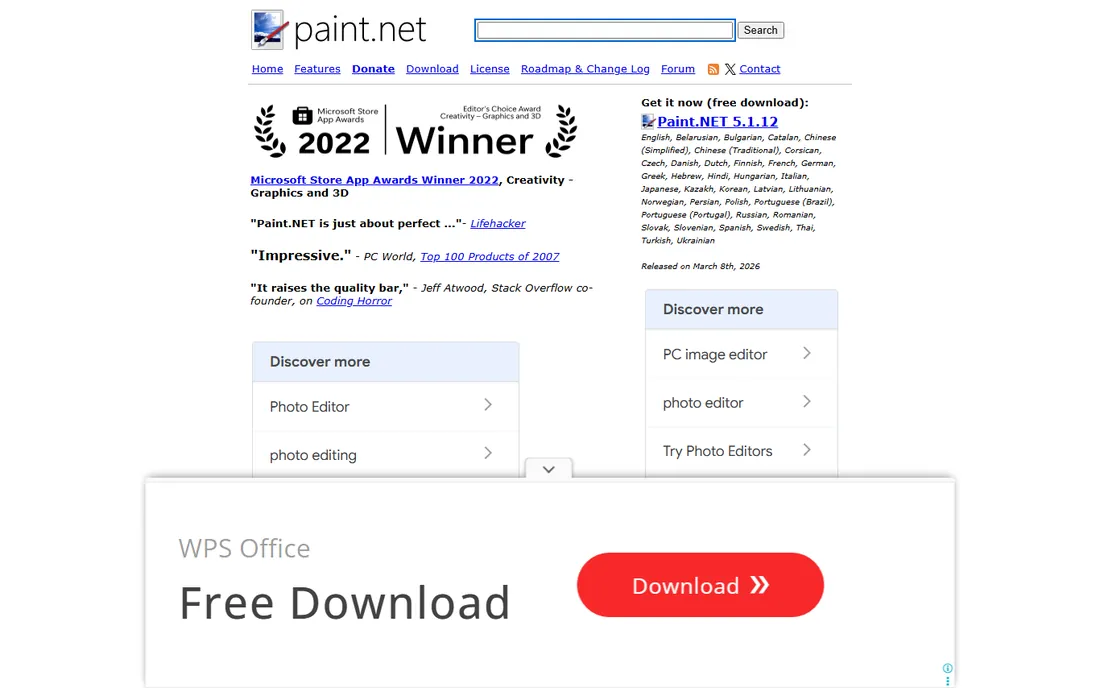
Paint.NET started as a college project to replace Microsoft Paint and grew into the sensible middle ground between Paint and Photoshop. It opens instantly, handles layers, unlimited undo, special effects and photo adjustments without fuss, and the plugin community adds everything from new brushes to file format support. For quick sketches, comic cleanup, sprite edits and meme-grade compositing, it is often the fastest tool in this list.
Windows-only is the hard limit: Mac and Linux users should look at Pinta instead. The painting tools are serviceable rather than inspiring, and print professionals will miss CMYK. But on a modest Windows PC, Paint.NET's combination of speed and simplicity is unmatched, and the free download from getpaint.net costs nothing to try.
What we like- Launches fast and stays light on old hardware
- Layers, unlimited undo and effects out of the box
- Active plugin community
Watch out for- Windows only
- Painting tools are basic next to Krita
- No CMYK or advanced color management
#7
MyPaint
Best for: distraction-free sketching and natural-media painting
Visit mypaint.app
Starting priceFree
Free planYes
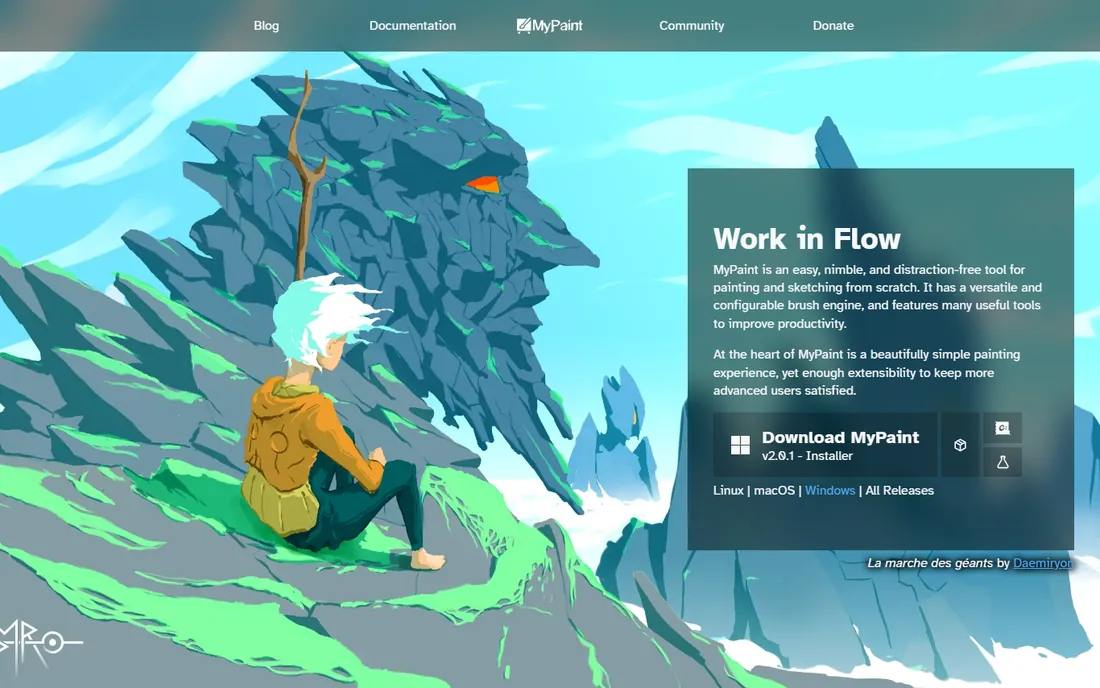
MyPaint is built around one idea: the interface should disappear while you draw. Hit fullscreen and it is just you, the canvas and a brush that behaves like charcoal, ink or paint. The in-house brush engine is genuinely lovely for sketching, with pressure response that feels closer to traditional media than most free apps manage.
It is not a general editor. There is little here for photo manipulation, typography or precise vector work, and development moves at a volunteer pace. Think of MyPaint as a digital sketchbook rather than a studio: open it to draw, export the result, and finish elsewhere if you need to. For artists who find full-featured apps noisy, that focus is the whole appeal.
What we like- Brush engine tuned for natural, expressive strokes
- Fullscreen mode removes all interface clutter
- Very light on system resources
Watch out for- Minimal photo editing or text tools
- Development pace is slow
- File compatibility with other apps needs export
Starting priceFree
Free planYes
Pinta is what you recommend to someone who finds GIMP intimidating and Paint.NET unavailable. It covers the essentials, drawing tools, selections, layers, adjustments and effects, in an interface that anyone who has used basic image software will understand in minutes. It runs on Windows, Mac, Linux and BSD, which makes it the easy cross-platform answer for classrooms and casual users.
Professionals will outgrow it. There is no advanced brush engine, no animation, no CMYK, and the feature list is deliberately modest. But Pinta never pretended to be more than it is: a free, open-source program that makes basic drawing and image editing painless on whatever computer you own.
What we like- Clean, familiar interface on Windows, Mac and Linux
- Layers, effects and unlimited undo
- Genuinely easy for beginners
Watch out for- Feature set is intentionally shallow
- Not suited to professional illustration
- Small development team
Starting priceFree
Free planYes
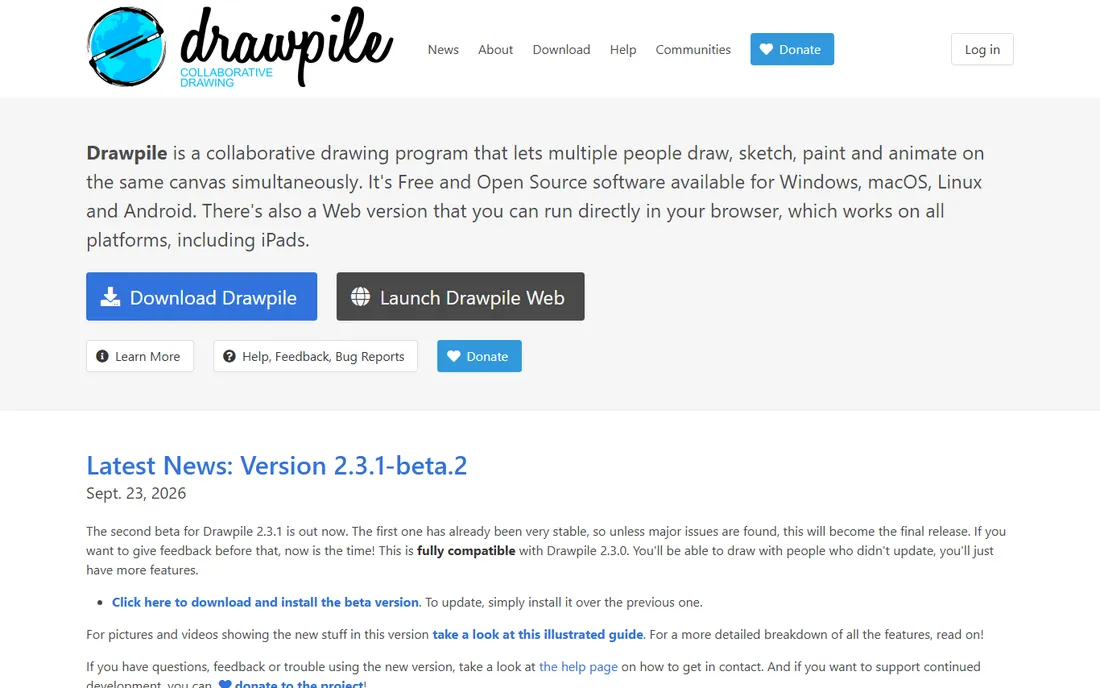
Drawpile does the one thing no other app here attempts: it lets multiple people paint on the same canvas at the same time. Host a session and friends join with their own brushes and layers, watching strokes appear live. Art teachers use it for lessons, friends use it for draw-togethers, and communities run public servers. Underneath the networking is a capable program in its own right, with brushes, layers, animation support and timelapse recording.
The tradeoff is that you are joining a smaller ecosystem. The brush library cannot match Krita's, the interface prioritizes function over polish, and public sessions vary in quality. But if you have ever wanted to sketch with someone across the country as if you shared a table, Drawpile is free, open source and ready now.
What we like- Real-time collaborative canvas with friends or the public
- Solid brushes, layers and animation tools
- Runs on desktop and Android
Watch out for- Collaboration needs hosting a session or finding a server
- Interface is functional rather than beautiful
- Smaller brush library than Krita
Starting priceFree
Free planYes
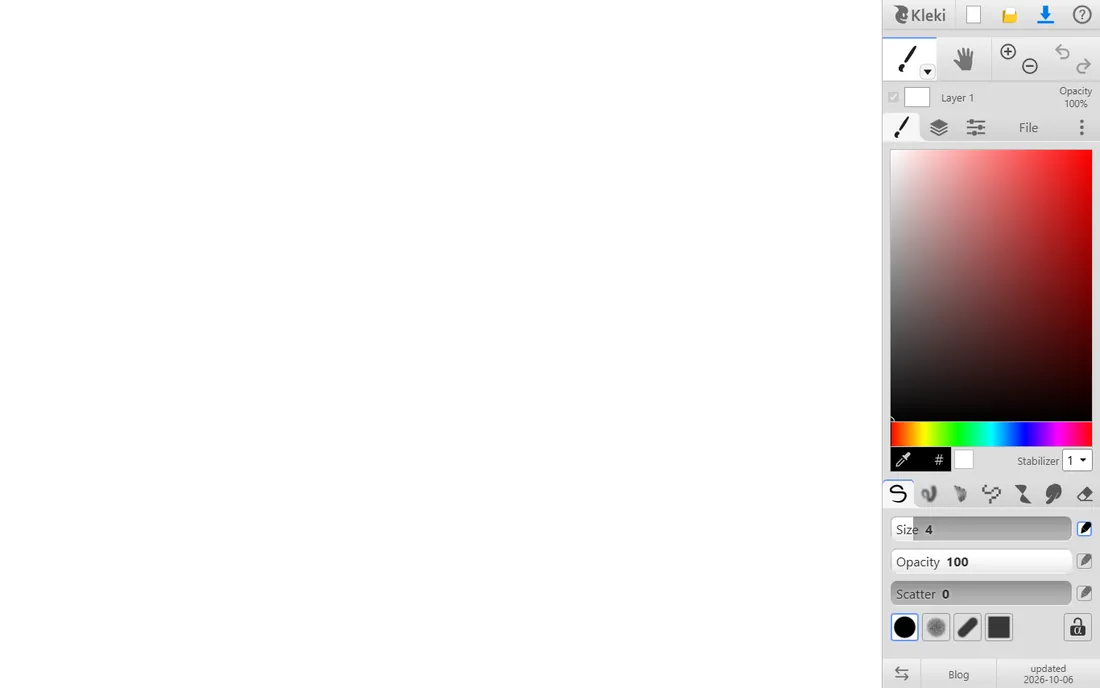
Kleki is the answer to "I need to draw something right now on this computer." Open the site and you are painting in seconds: layers, blend modes, filters, textured brushes and a symmetry mode, all in a browser tab. It is a favorite on locked-down school and office machines where installing software is not an option, and it handles quick sketches, thumbnails and edits surprisingly well.
It is not a studio replacement. Big canvases and print-resolution work will strain it, and you need to be online. But as a zero-friction sketchpad that follows you to any computer, Kleki earns its place, especially paired with a heavier desktop app for finished work.
What we like- Runs entirely in the browser, nothing to install
- Layers, filters and textured brushes included
- Works on school and work computers
Watch out for- Needs an internet connection
- Fewer features than desktop apps
- Not suited to large or print-resolution work
How we chose
We focused on programs a PC owner can download or open today and draw with for free, with no trial clock and no mandatory payment. For each app we opened the vendor's own website, confirmed it is actively maintained in 2026, and checked what the free version actually includes versus what sits behind an upsell. We cross-checked reputations against artist communities on Reddit, G2 and Capterra, and favored apps with distinct strengths, painting, comics, vector, collaboration, over near-duplicates. We did not test the software hands-on; findings reflect vendor-published information and artist consensus.
Picking the right free drawing app
Start with what you want to make
Painters should start with Krita or MyPaint. Comic and manga artists get more from MediBang Paint or FireAlpaca, which include panel tools and screentones Krita lacks. Logo and illustration work that must scale belongs in Inkscape. If you mostly clean up sketches and photos, GIMP or Paint.NET will serve you better than any brush engine.
Check your operating system first
Most apps here cover Windows and Mac, but the edges matter. Paint.NET is Windows-only, Inkscape and GIMP cover Linux too, and Drawpile even runs on Android. Kleki sidesteps the question entirely by living in the browser. Verify the download page lists your OS before you get attached.
Free does not mean identical
Free apps differ in where they ask for money or patience. MediBang shows ads unless you upgrade. Paint.NET is free on its site but paid in the Microsoft Store. Krita, GIMP, Inkscape, MyPaint, Pinta, Drawpile and Kleki are free with no upsell in the app. If "free forever with no strings" matters to you, the open-source options are the safest bet.
Mind the file formats
If you collaborate, check what the app can open and save. Krita reads PSD files, Inkscape speaks SVG natively, and GIMP handles most raster formats. Proprietary or obscure formats make sharing work painful, so prefer apps that export to common formats like PNG, JPG, PSD or SVG.
What free apps cannot do yet
No free app here matches a paid subscription suite feature for feature. Advanced CMYK prepress workflows, cloud font libraries, and AI-assisted tools like generative fill are thin or absent. Plugin ecosystems are smaller, so a niche workflow you rely on in Photoshop or Clip Studio may have no free equivalent.
Support is community-based. When something breaks at midnight before a deadline, you are reading forums, not calling a help desk. For hobbyists, students and freelancers starting out, that tradeoff is usually worth it. For professionals billing clients, the time saved by paid software often pays for itself, which is worth saying plainly in a guide to free tools.
Frequently asked questions
What is the best free drawing software for beginners?
FireAlpaca and Pinta are the gentlest starting points, with simple interfaces you can learn in an afternoon. MediBang Paint is best if you want to draw comics specifically. Once you outgrow them, Krita is the natural next step up.
Is Krita really free?
Yes. Krita is free and open-source software licensed under the GPL, maintained by the Krita Foundation and volunteers. There are no paid tiers, no ads and no locked features. Donations fund development, but the download costs nothing.
Can free drawing software open Photoshop files?
Krita opens PSD files with good fidelity for layers and common adjustments, and it is the strongest free option for PSD compatibility. GIMP also opens PSDs. Complex smart objects and adjustment layers may not survive the trip perfectly in any free app.
Which free drawing app is best for comics and manga?
MediBang Paint, with its panel tools, screentones and cloud sync. FireAlpaca is a strong second choice with an excellent stabilizer for inking. Krita has added comic templates and works well if you want one app for everything.
Do any of these work on Linux?
Yes. Krita, GIMP, Inkscape, MyPaint, Pinta and Drawpile all run on Linux. Paint.NET is Windows-only and FireAlpaca covers Windows and Mac. Kleki runs in any modern browser regardless of OS.
Can I use these for commercial work?
Mostly yes. Krita, GIMP, Inkscape, MyPaint, Pinta, Drawpile and Kleki are open source or free with no commercial restriction. MediBang Paint and FireAlpaca are free to use including for commercial work, though you should check their current terms of service for details.
Sources we checked (10)
- https://krita.org
- https://www.gimp.org/
- https://medibangpaint.com/
- https://firealpaca.com/
- https://inkscape.org/
- https://getpaint.net/
- https://mypaint.app
- https://pinta-project.com/
- https://drawpile.net
- https://kleki.com/
Is your product missing or out of date?
We review this list regularly. Vendors can request a listing, send updated pricing or ask about featured placement.

Shihab Mia · Founder, Rankite
Shihab has spent more than a decade helping SaaS and e-commerce brands grow through search. He writes Rankite's software buying guides from pricing pages, documentation and public user reviews. More about Shihab.