How we make this list: we compare pricing pages, product documentation and public user reviews. Rankite is independent; if a vendor ever pays for a featured spot, that listing is clearly labeled Partner.
Key takeaways
- DaVinci Resolve's free version is the most capable $0 editor available, though it demands a decent computer and patience to learn.
- CapCut and Clipchamp are genuinely free with no watermark on basic exports, which is rare.
- Most paid budget editors cost $30 to $60 per year; one-time purchases from Pinnacle Studio and DaVinci Resolve Studio avoid subscriptions.
- Watermarks, export resolution caps, and missing 4K support are the usual limits on free tiers, so check those before you commit.
Quick comparison
| Tool | Best for | Starting price | Free plan |
|---|
 DaVinci Resolve DaVinci Resolve | pro-grade editing for free | Free; Studio $295 one-time | Yes |
 CapCut CapCut | fast social video with AI tools | Free; Pro $19.99/month | Yes |
 Clipchamp Clipchamp | browser editing with no watermark | Free; premium via Microsoft 365 | Yes |
 OpenShot OpenShot | free open-source desktop editing | Free | Yes |
 Wondershare Filmora Wondershare Filmora | beginner-friendly with AI features | $49.99/year | Free trial |
 Movavi Video Editor Movavi Video Editor | simple templates and fast exports | From $49.95/year | Free trial |
 PowerDirector 365 PowerDirector 365 | feature-packed subscription editor | $59.99/year | Free trial |
 Pinnacle Studio Pinnacle Studio | one-time purchase for Windows | From $29.99 one-time | Free trial |
 WeVideo WeVideo | cloud editing for teams and schools | See website | Free trial |
Is your product missing or out of date?
We review this list regularly. Vendors can request a listing, send updated pricing or ask about featured placement.
The best inexpensive video editing software
CapCut's homepage cites 100 million downloads and a 4.7-star App Store rating. That kind of scale explains why free and cheap video editors keep getting better: the audience for them is enormous, and the competition for that audience is fierce. For a small business, the practical result is that you no longer need a $300-a-year subscription to produce clean, professional video. The nine editors below prove it.
Starting priceFree; Studio $295 one-time
Free planYes
DaVinci Resolve is the anomaly that makes this entire list possible. Its free version includes professional editing, color correction, visual effects, and audio post-production in a single app, with no watermark and no export restrictions. Independent filmmakers and YouTubers cut real client work on the free tier. Nothing else at $0 comes close in raw capability.
The cost is measured in time and hardware instead of money. Resolve has a genuine learning curve, especially the color and Fusion effects pages, and it wants a modern multi-core CPU, plenty of RAM, and a decent GPU to feel responsive. The paid Studio version is a $295 one-time purchase that adds advanced AI tools, stereoscopic 3D, and more effects. Support runs through forums and documentation, with paid support options for Studio users. If you are willing to learn, this is the best value in video editing, full stop.
What we like- Free version rivals paid pro software
- Industry-leading color grading
- No watermark or export limits
Watch out for- Steep learning curve
- Needs a powerful computer to run smoothly
Starting priceFree; Pro $19.99/month
Free planYes
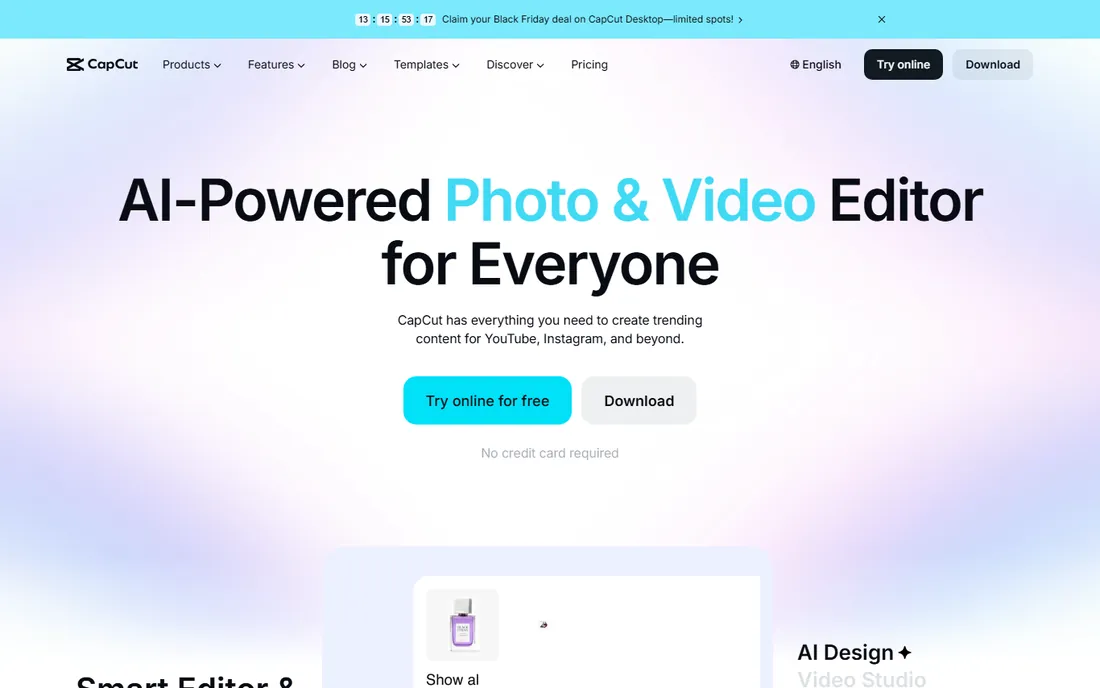
CapCut grew up as a phone app for short-form video, and it shows in the best way. The free tier covers timeline editing, effects, transitions, auto-captions, background removal, and HD export without a watermark, which is more than most paid budget editors offered a few years ago. The desktop and web versions extend the same workflow to longer projects, and templates make trendy social formats nearly instant.
The upsell pressure is real, though. Pro features, 4K export, the full AI toolkit, and 1TB of cloud storage sit behind the Pro subscription at $19.99 per month or $179.99 per year, and the exact price you see can vary by app store, region, and promotions. Free cloud storage for new web projects is limited, so heavy users end up paying. Still, for social content, product clips, and quick marketing videos, the free tier alone outperforms several paid tools on this list. Support is through help articles and in-app channels.
What we like- Generous free tier with no watermark on basic exports
- Strong auto-captions and AI tools
- Works on phone, desktop, and web
Watch out for- 4K export and premium AI features need Pro
- Pricing varies by platform and region
Starting priceFree; premium via Microsoft 365
Free planYes
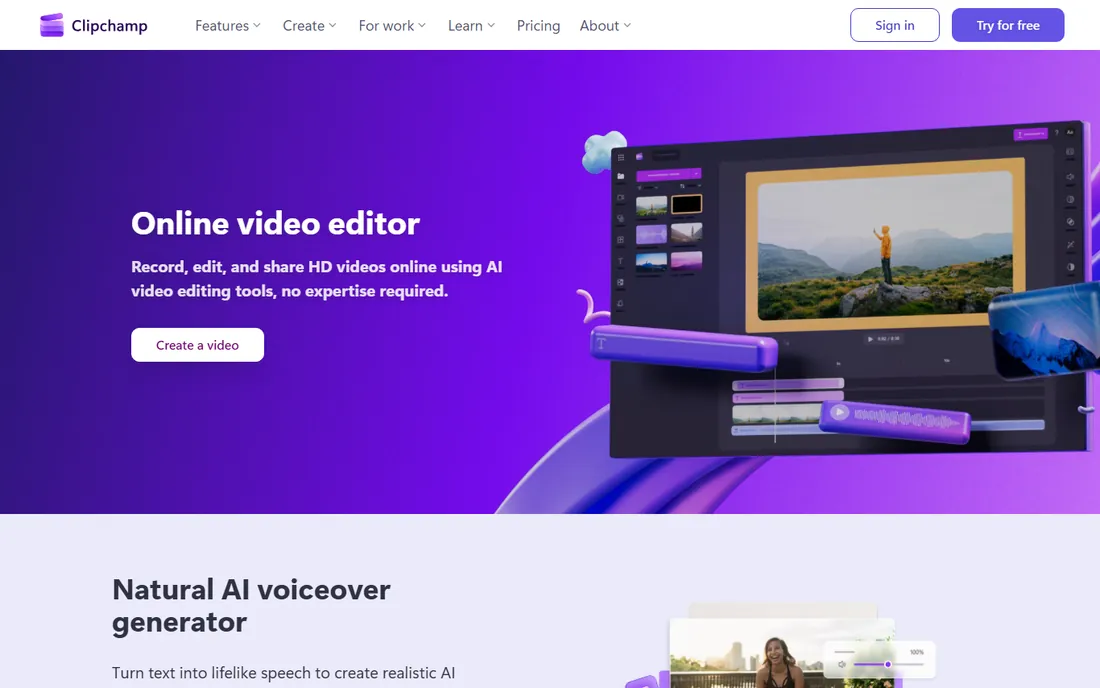
Clipchamp is Microsoft's answer to casual video editing, and its free tier is unusually honest. You get unlimited HD exports with no watermark, screen and webcam recording, AI-generated voiceovers, automatic subtitles in dozens of languages, and a stock asset library, all running in the browser. For internal training videos, quick explainers, and social clips, it covers the job without asking for a credit card.
The catch is the ceiling. Premium templates, brand kits, and advanced features are tied to Microsoft 365 subscriptions rather than a standalone Clipchamp plan, so the real cost depends on what your business already pays Microsoft. As a browser app, it also needs reliable internet and can feel slower than desktop editors on long timelines. But if your team already lives in Microsoft 365, Clipchamp is effectively a free video editor with business-grade sharing built in. Support follows Microsoft's standard help channels.
What we like- Free HD exports with no watermark
- Runs in the browser, nothing to install
- AI voiceover and subtitle tools included
Watch out for- Advanced features require a Microsoft 365 subscription
- Needs a stable internet connection
Starting priceFree
Free planYes
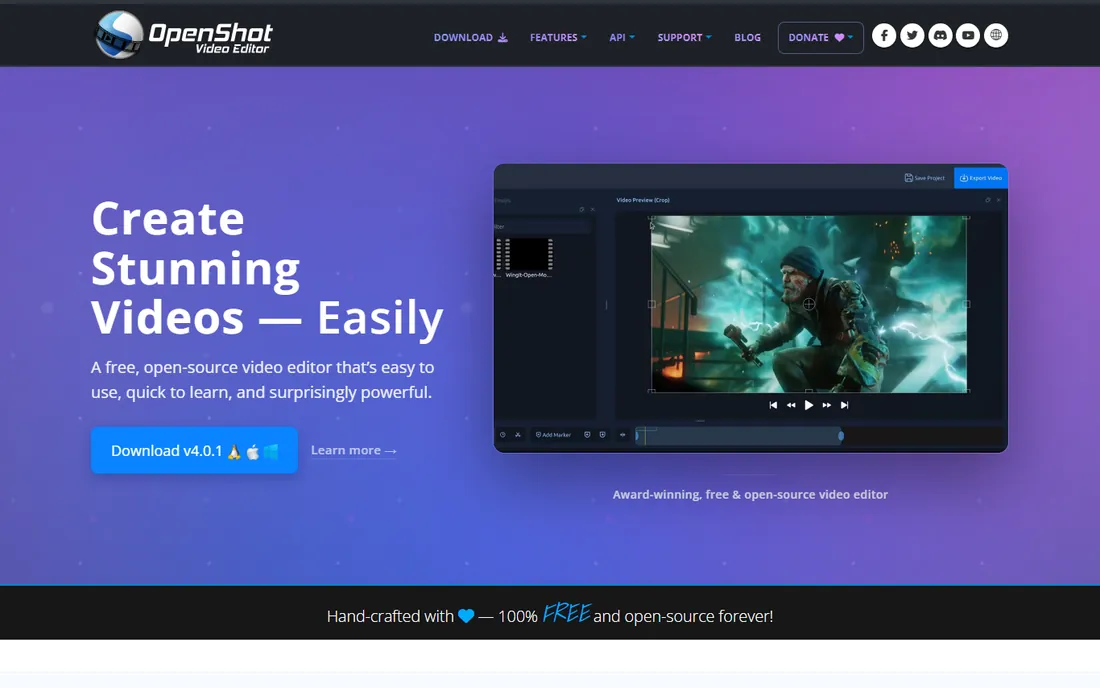
OpenShot is the open-source option for buyers who want a real desktop editor with zero cost and zero strings. It offers unlimited tracks, keyframe animation, 3D animated titles, chroma key, and audio editing, with no watermark, no export limits, and no account required. For simple to moderate projects on any major operating system, it gets the job done without spending a cent.
Stability is the honest weakness. OpenShot can crash or slow down on long timelines with many effects, and it lacks the AI tools, templates, and stock libraries that make commercial editors faster for social content. Development is community-driven, so new features arrive slower than at a venture-backed company. Support comes from documentation and community forums rather than a help desk. It is the right pick when the budget is literally zero and the projects are straightforward.
What we like- Completely free with no watermark or limits
- Runs on Windows, Mac, and Linux
- No account or subscription needed
Watch out for- Can be unstable on very long or complex projects
- Fewer AI and template features than commercial rivals
Starting price$49.99/year
Free planFree trial
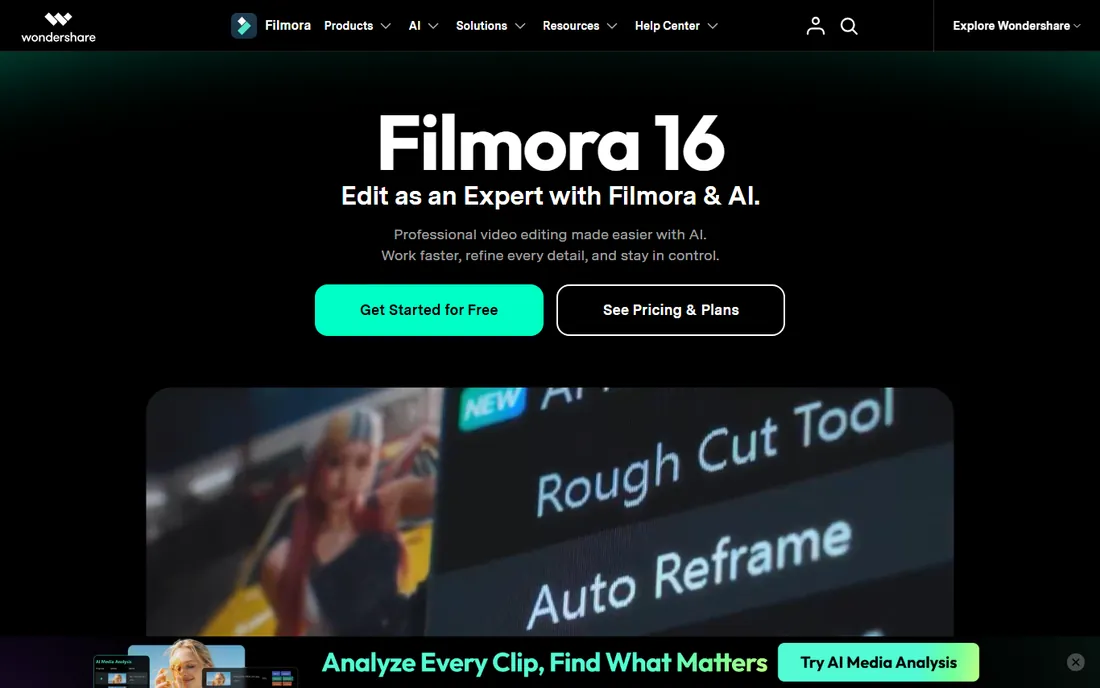
Filmora has spent years refining the beginner-friendly editor formula, and the current version shows it. The timeline is approachable, AI features handle tedious work like generating captions, removing silences, and cleaning up audio, and the built-in library of effects, transitions, and stock media keeps projects moving. It runs on Windows and Mac, with mobile apps for quick edits on the go.
Pricing is subscription-first. Plans start at $9.99 per month or $49.99 per year, with a perpetual license option for buyers who dislike subscriptions. The free trial lets you test everything but watermarks exported videos, so factor the paid plan into your budget from the start. Filmora's ratings on G2 and Capterra sit around 4.5 out of 5, reflecting broad satisfaction tempered by complaints about upsells and renewal pricing. Support runs through help articles, chat, and email. It is a strong pick for marketers and creators who want capable software without a learning cliff.
What we like- Easy to learn with room to grow
- Strong AI tools for captions, silence removal, and effects
- Large template and stock library
Watch out for- Free version watermarks exports
- Subscription needed for the full experience
#6
Movavi Video Editor
Best for: simple templates and fast exports
Visit movavi.com
Starting priceFrom $49.95/year
Free planFree trial
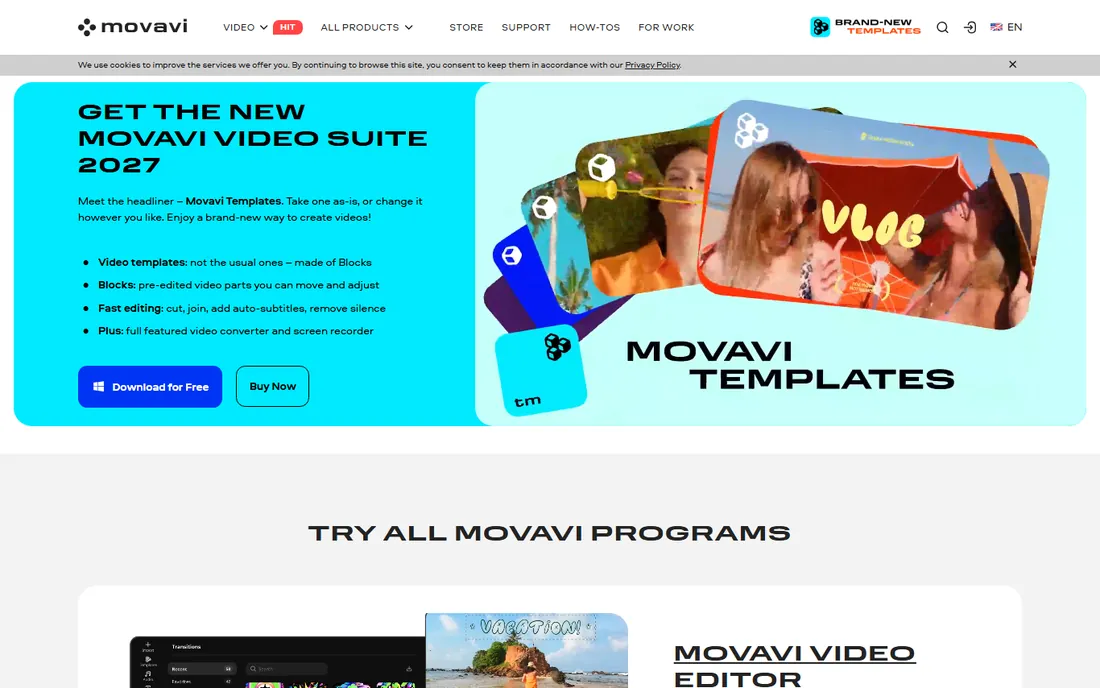
Movavi aims at the person who has never edited video before and wants a finished result today. Templates built from pre-edited blocks let you assemble vlogs, promos, and family videos quickly, while AI tools handle subtitles, noise removal, and motion tracking with one click. The interface is deliberately simple, and the company claims most users are editing confidently within minutes.
The free trial comes with real limits: exported videos carry a watermark and longer projects get cut short, so consider it a demo rather than a usable free tier. Paid plans start from $49.95 per year on the company's site, with monthly options and a full suite bundle for buyers who also want Movavi's converter and screen recorder. Advanced color grading and audio mixing are thinner here than in DaVinci Resolve or PowerDirector. Support includes help articles and ticket-based help. Buy Movavi when speed and simplicity matter more than depth.
What we like- Very easy for complete beginners
- Template-driven workflow speeds up common projects
- Fast rendering
Watch out for- Trial watermarks exports and limits project length
- Fewer advanced color and audio tools
Starting price$59.99/year
Free planFree trial
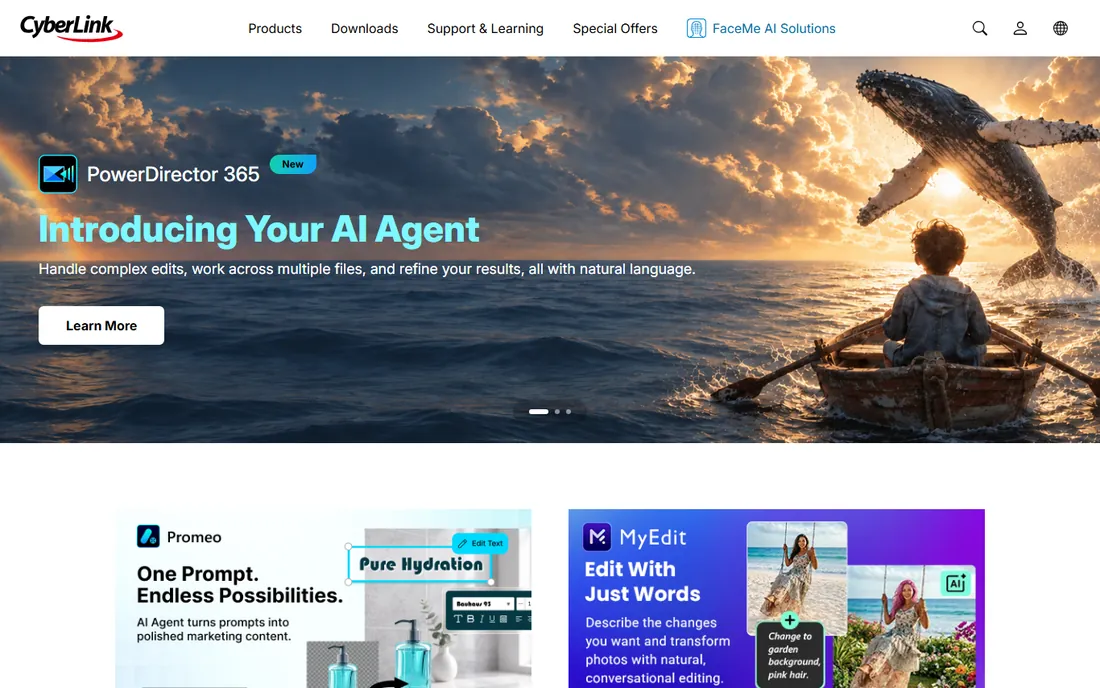
PowerDirector 365 is the choice for buyers who want nearly everything. CyberLink packs in multi-track editing, motion tracking, chroma key, 360-degree video, and a growing set of AI tools, including a natural-language editing assistant in recent versions. It is one of the few budget editors that feels comfortable with longer, more complex projects, and the subscription includes ongoing updates and new effect packs.
The subscription model is the trade-off. At $59.99 per year, there is no one-time purchase option, so the cost never stops. The interface, while powerful, can overwhelm someone coming from a simpler tool, and the sheer number of features means a longer learning period. A free trial lets you evaluate it before paying. Support runs through CyberLink's help center and tickets. It suits enthusiastic amateurs and small production teams who will actually use the depth on offer.
What we like- Deep feature set rivaling pro tools
- Strong AI features including an editing assistant
- Regular updates with new effects
Watch out for- Subscription only, no perpetual license
- Interface can overwhelm beginners
Starting priceFrom $29.99 one-time
Free planFree trial
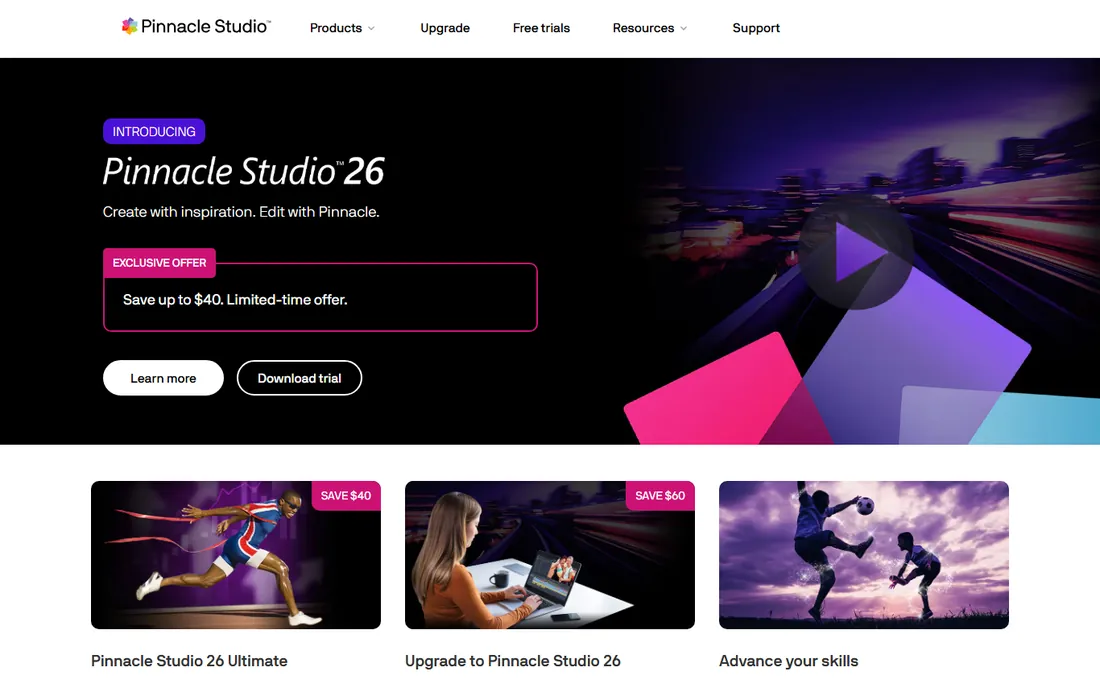
Pinnacle Studio is one of the last budget editors still sold as a one-time purchase. Starting from $29.99, you pay once and own the version you bought, which appeals to buyers tired of subscriptions. Despite the low price, it includes multi-camera editing, keyframe animation, screen recording, and a solid effects library. The Ultimate tier adds more effects and premium features for users who outgrow the base version.
The limitations are platform and polish. Pinnacle Studio runs on Windows only, so Mac-based teams should look elsewhere. The interface, while functional, feels a generation behind Filmora and CapCut, and the learning curve is steeper than the price suggests. Upgrades to new versions cost extra, so the one-time price is per major version rather than forever. Support is ticket-based with tutorials for all skill levels. It is the pick for Windows users who want to pay once and edit for years.
What we like- True one-time purchase, no subscription
- Multi-camera editing and keyframe controls
- Good value at the entry tier
Watch out for- Windows only
- Interface feels dated next to newer rivals
Starting priceSee website
Free planFree trial
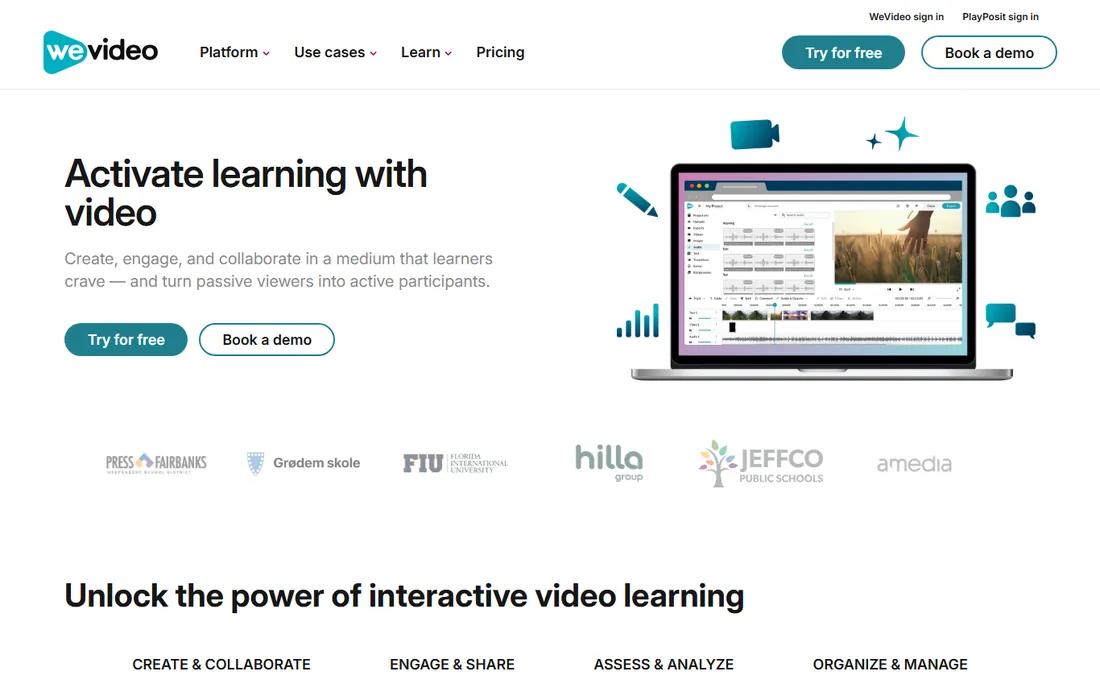
WeVideo takes a different approach: everything runs in the cloud. There is nothing to install and no powerful computer required, since rendering happens on WeVideo's servers. That makes it practical for teams on Chromebooks or older laptops. The company now focuses heavily on education, with integrations for Google Classroom, Canvas, and other learning platforms, plus interactive video features for teaching.
For a small business, the fit depends on your needs. Cloud editing means an internet connection is mandatory, and heavy 4K work can feel slower than on a desktop app. Pricing is not published as a simple consumer tier on the main site anymore, so check the current plans before comparing; the business has moved toward education and team licensing. A free trial is available. If your team needs collaborative, device-independent editing and already works in education-adjacent workflows, WeVideo is worth a look. Solo creators on a budget will find better value elsewhere on this list.
What we like- Fully cloud-based, edit from any device
- Strong collaboration and education features
- No installation or powerful hardware needed
Watch out for- Needs constant internet
- Pricing is oriented toward education and teams rather than solo creators
How we chose
We started with the budget video editors that small businesses and creators actually use in 2026, keeping only products that exist today and accept new users. For each one we checked the vendor's own pricing page, read the feature documentation and export limitations, and reviewed public feedback on G2, Capterra, and Reddit to see where users praise value or complain about watermarks and upsells. We compared price, free-tier limits, export quality, learning curve, platform support, and fit for a small team producing marketing and social video. We did not claim hands-on testing; every fact here comes from vendor pages and public sources.
Common mistakes buyers make
Most bad video-editor purchases come from skipping the obvious checks. These are the ones we see most.
Ignoring the watermark
Several "free" editors watermark every export until you pay. That is fine for learning, but unusable for client work. Before you invest hours learning a tool, export a test video and look at the result. DaVinci Resolve, CapCut, Clipchamp, and OpenShot do not watermark basic exports, which is a major reason they lead this list.
Buying more editor than you need
A $60-a-year subscription is wasted if you publish two videos a quarter. Match the tool to your output: casual creators do fine with free tiers, while weekly publishers benefit from templates, AI tools, and faster rendering. Be honest about your volume before you pay.
Forgetting the hardware
Free does not mean light. DaVinci Resolve's free version needs a capable computer to run well, and browser editors need solid internet. Check the system requirements against the machine you actually own, not the one you wish you owned.
What to check before you buy
Once you have a shortlist, run through these practical checks.
Export limits on the plan you will actually use
Resolution caps, watermarking, and monthly export limits usually apply to free and trial tiers. Confirm the maximum export resolution, whether 4K costs extra, and how the trial restricts output. These limits decide whether the tool works for real deliverables.
Subscription versus one-time purchase
Subscriptions like Filmora, PowerDirector 365, and CapCut Pro spread the cost but never end. One-time purchases like Pinnacle Studio and DaVinci Resolve Studio cost more up front and nothing after. If you edit steadily for years, one-time pricing usually wins. If your needs change often, subscriptions make more sense.
Learning curve and support
A powerful editor you never learn is money wasted. Budget an evening to test-drive your top two choices with real footage. Check what support exists: community forums for free tools, chat and email for paid ones. The best editor is the one your team will actually open.
Frequently asked questions
What is the best completely free video editor?
DaVinci Resolve's free version is the most capable, with no watermark and no export limits, though it needs a strong computer. CapCut, Clipchamp, and OpenShot are also genuinely free for basic work. Pick Resolve for depth, CapCut for social speed, Clipchamp for browser convenience, or OpenShot for open-source simplicity.
Do I need 4K export?
Only if you deliver in 4K. Most social platforms and client work still ship in 1080p, which every free tier here handles. Do not pay for 4K capability until a real project requires it.
Can I use these editors for commercial client work?
Yes, with attention to licensing. The software licenses allow commercial use, but stock music, templates, and footage inside some editors carry their own terms. Check the asset license for anything you publish, especially in Filmora and CapCut, where some resources are marked for non-commercial use.
Is a subscription or one-time purchase better?
It depends on your horizon. Subscriptions keep you on the latest version and suit changing needs. One-time purchases cost less over several years if you are happy to skip upgrades. DaVinci Resolve Studio at $295 one-time is the standout long-term value among paid options.
Will these run on an older laptop?
Lightweight options like Clipchamp, WeVideo, and CapCut are the most forgiving, since browser and cloud tools offload the heavy work. DaVinci Resolve and PowerDirector need modern hardware. When in doubt, use the free trial or free tier as a performance test before spending money.
How long does it take to learn video editing?
Basic cuts, titles, and exports take an evening in Filmora, Movavi, CapCut, or Clipchamp. DaVinci Resolve and PowerDirector take weeks to use well. Plan your choice around how much learning time you can actually spare.
Sources we checked (9)
- https://www.blackmagicdesign.com/products/davinciresolve
- https://filmora.wondershare.com/
- https://www.capcut.com/
- https://www.movavi.com/
- https://www.clipchamp.com/
- https://www.cyberlink.com/
- https://pinnaclesys.com/
- https://www.wevideo.com/
- https://openshot.org/
Is your product missing or out of date?
We review this list regularly. Vendors can request a listing, send updated pricing or ask about featured placement.

Shihab Mia · Founder, Rankite
Shihab has spent more than a decade helping SaaS and e-commerce brands grow through search. He writes Rankite's software buying guides from pricing pages, documentation and public user reviews. More about Shihab.