How we make this list: we compare pricing pages, product documentation and public user reviews. Rankite is independent; if a vendor ever pays for a featured spot, that listing is clearly labeled Partner.
Key takeaways
- If your team already pays for Microsoft 365 or Google Workspace, you already own good screen sharing. Buying a separate tool only makes sense for specific jobs.
- Zoom remains the default for scheduled meetings; its Pro plan starts at $13.33 per user per month with annual billing.
- TeamViewer and AnyDesk are remote-access tools first: they give full control of another computer, which is what IT support needs and what a meeting app cannot do.
- CrankWheel is the odd one out in a good way: it shares a screen during a phone call with zero downloads for the viewer, built for sales.
- Whereby is the simplest pick for browser-only meetings, with a free plan and Pro at $5.82 a month billed annually.
Quick comparison
| Tool | Best for | Starting price | Free plan |
|---|
 Zoom Zoom | scheduled meetings with screen sharing | $13.33/user/month (billed annually) | Yes |
 Microsoft Teams Microsoft Teams | companies already on Microsoft 365 | $4.00/user/month (billed annually) | Yes |
 Google Meet Google Meet | Google Workspace teams | $7/user/month (billed annually) | Yes |
 TeamViewer TeamViewer | IT support with full remote control | $24.90/month (billed annually) | Yes (personal use) |
 AnyDesk AnyDesk | low-latency remote access | $28.90/month (billed annually) | Yes (personal use) |
 Whereby Whereby | browser-only meetings with no downloads | $5.82/month (billed annually) | Yes |
 CrankWheel CrankWheel | sharing screens on live sales calls | $29/month (Solo) | Yes (15 meetings/month) |
 Webex Webex | regulated industries and larger organizations | $14.50/user/month (Meet plan) | Yes |
Is your product missing or out of date?
We review this list regularly. Vendors can request a listing, send updated pricing or ask about featured placement.
The best screen share software
#1
Zoom
Best for: scheduled meetings with screen sharing
Visit zoom.com
Starting price$13.33/user/month (billed annually)
Free planYes
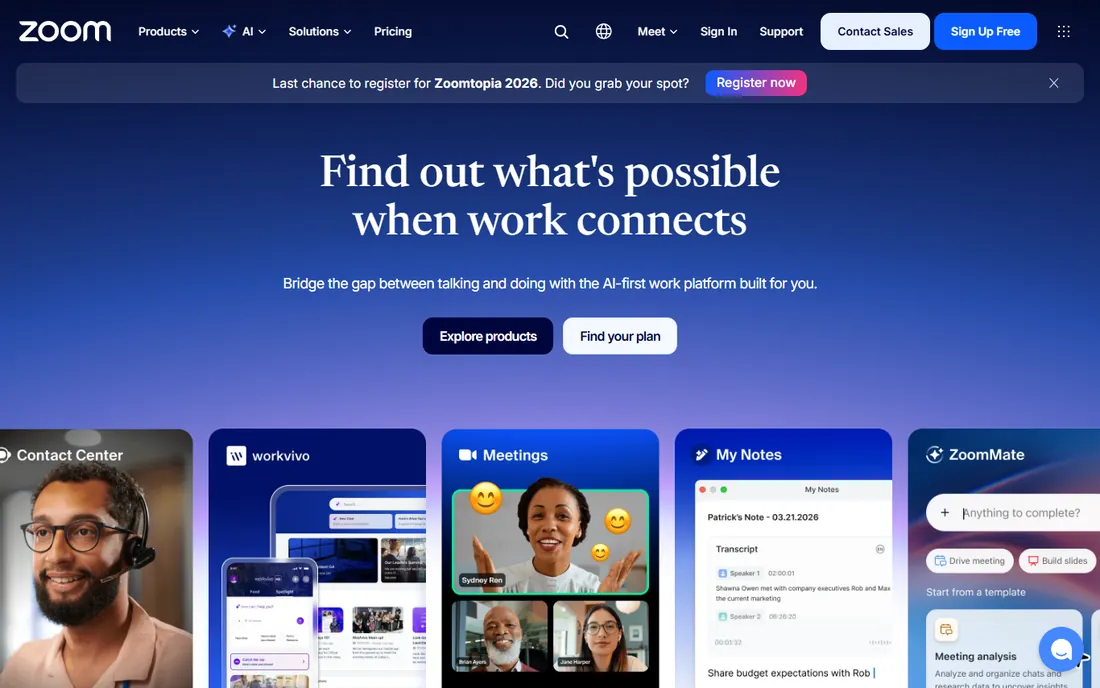
Zoom is still the safe default for one reason: everyone already knows how to join one. Screen sharing supports full desktop, single app windows or a portion of the screen, and the host can hand remote control to a participant, which is useful for walking a customer through a fix. Annotations, a built-in whiteboard and cloud recording round it out. The free Basic plan is fine for short internal calls; the 40-minute group cap is the main reason small businesses upgrade.
The Pro plan at $13.33 per user per month with annual billing ($16.99 month to month) removes the time cap and adds 5 GB of cloud storage, AI Companion summaries and longer cloud recording. Per-user pricing is the thing to model: a 12-person team pays about $160 a month before add-ons. If your meetings are mostly internal and short, the free plan plus a calendar integration may be all you need.
What we like- Screen sharing with annotation, remote control and whiteboard
- Free plan covers 40-minute meetings
- Strong integrations with calendars and CRMs
Watch out for- Free plan caps group meetings at 40 minutes
- Per-user pricing adds up on bigger teams
- Security settings need attention on public links
Starting price$4.00/user/month (billed annually)
Free planYes
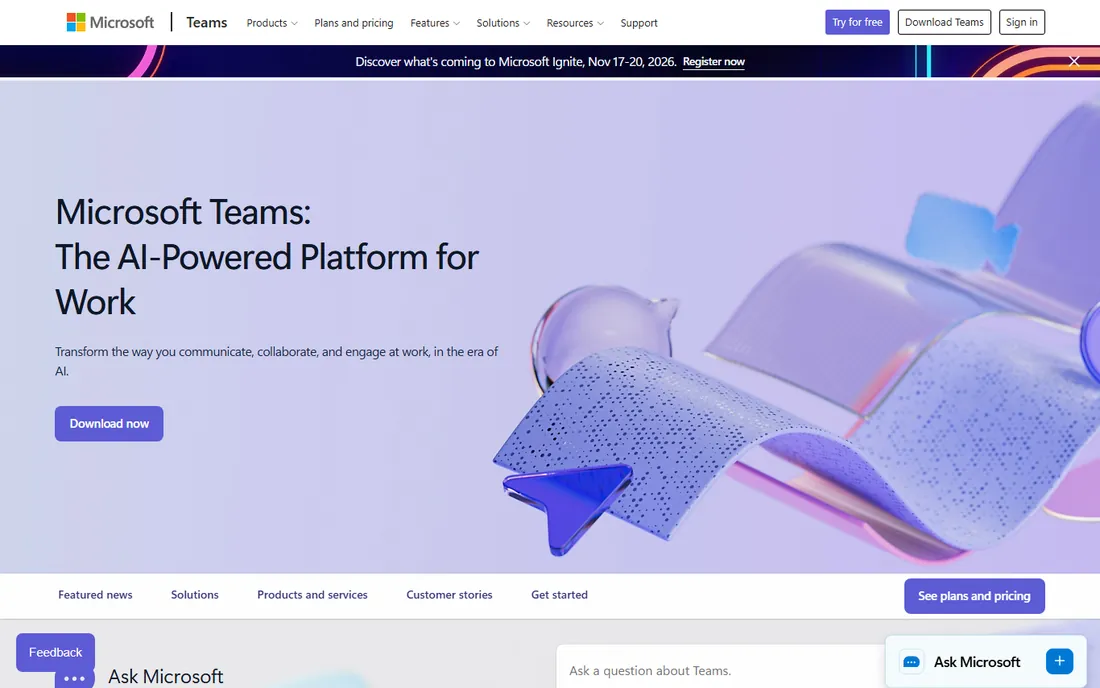
If your company already pays for Microsoft 365, stop reading and use Teams. Screen sharing works in one-to-one calls, scheduled meetings and inside channel chats, with options for full screen, single window or PowerPoint Live presentations. Guest access lets outside clients join without a Microsoft account. Most businesses on Business Basic ($7) or Business Standard get all of this as part of the bundle they already pay for.
Teams Essentials at $4.00 per user per month with annual billing is the standalone option for businesses that want Teams without Office apps. It covers unlimited 30-hour meetings with up to 300 participants and 10 GB of storage per user. The honest downsides: the desktop app is resource-hungry, finding old chat messages is a common complaint, and the pricing page takes real effort to decode. Buy it for the bundle, not for the chat.
What we like- Screen sharing built into chat, calls and meetings
- Deep Office and OneDrive integration
- Teams Essentials is cheap as a standalone
Watch out for- The client is heavy on system resources
- Chat and search lag behind Slack
- Little reason to choose it outside the Microsoft world
Starting price$7/user/month (billed annually)
Free planYes
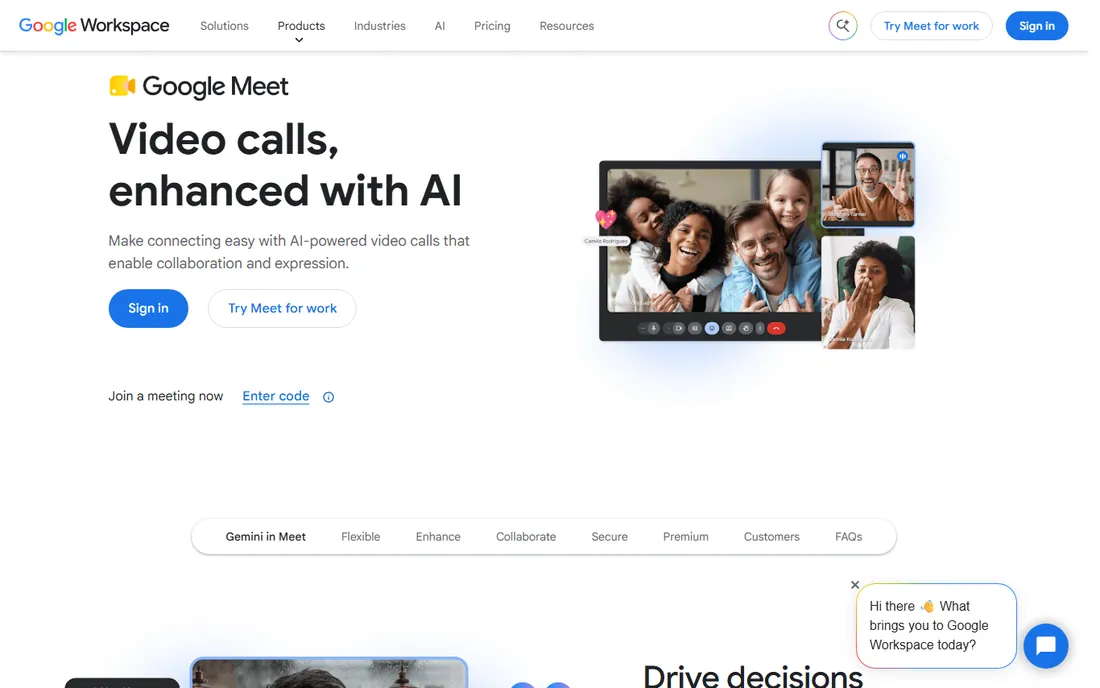
Google Meet is the frictionless choice for teams living in Gmail and Google Calendar. Every calendar invite can carry a Meet link, guests join from the browser with no download, and screen sharing covers full screen, a window or a browser tab with a present mode optimized for slides and video. The free tier allows 60-minute meetings with up to 100 participants, which covers a surprising amount of small-business use.
Paid features arrive through Google Workspace: Business Starter at $7 per user per month with annual billing raises the basics and adds custom email and 30 GB of pooled storage, while Standard ($14) adds recording and 150-participant meetings. Meet's weakness is the high end: webinars, large events and advanced moderation are thinner than Zoom's or Webex's. For day-to-day team screen sharing inside the Google ecosystem, it is hard to beat on simplicity.
What we like- Runs entirely in the browser with no install
- Screen sharing from a Calendar invite in one click
- Free tier covers 60-minute meetings
Watch out for- Advanced features need a Workspace plan
- Fewer webinar tools than Zoom or Webex
- No desktop app, browser only
Starting price$24.90/month (billed annually)
Free planYes (personal use)
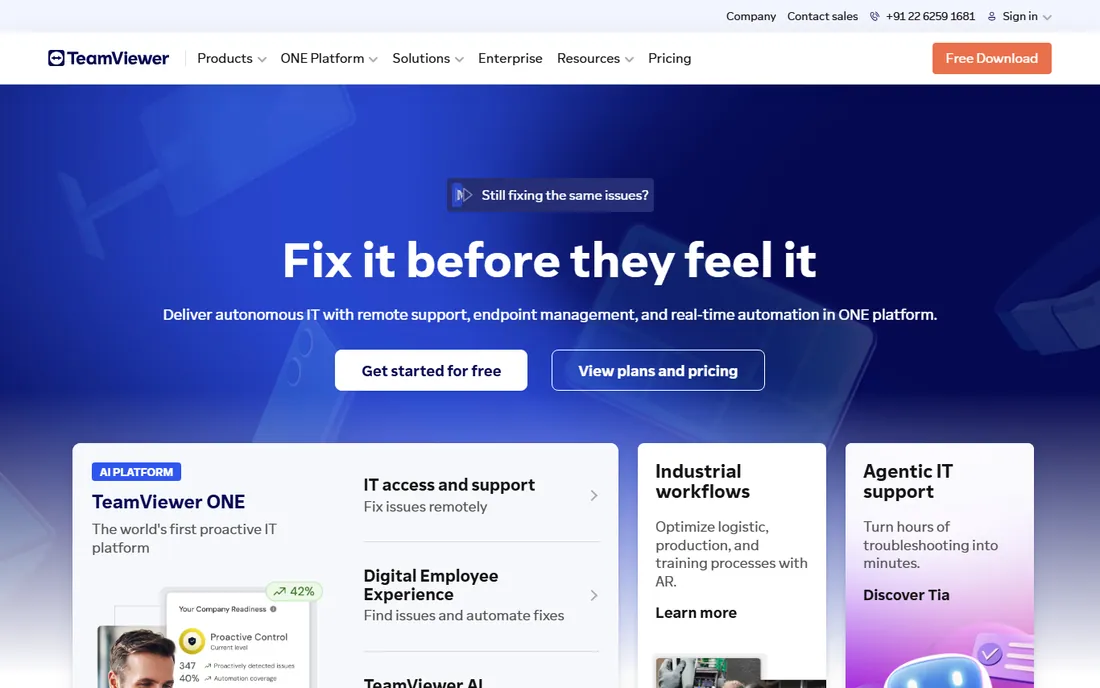
TeamViewer is not a meeting app. It is a remote-access tool that happens to show screens, and the difference matters. With permission, a support technician can take full control of a customer's computer: move the mouse, type, transfer files, restart the machine. That is exactly what IT support and MSPs need, and no meeting app does it. Unattended access lets you connect to office machines or servers without anyone on the other end.
Pricing starts at $24.90 a month with annual billing for the Remote Access plan (one user, three managed devices), rising to $50.90 for Business with 200 managed devices and phone support. Contracts auto-renew yearly and need 28 days' notice to cancel, so calendar that. Free use is strictly for personal, non-commercial sessions. Buy TeamViewer when the job is fixing computers. Buy a meeting app when the job is talking to people.
What we like- Full remote control across Windows, Mac, Linux and mobile
- Unattended access to managed devices
- Session recording and file transfer built in
Watch out for- Commercial pricing is steep and billed annually
- Auto-renews with strict cancellation terms
- Overkill if you only need to show your screen
Starting price$28.90/month (billed annually)
Free planYes (personal use)
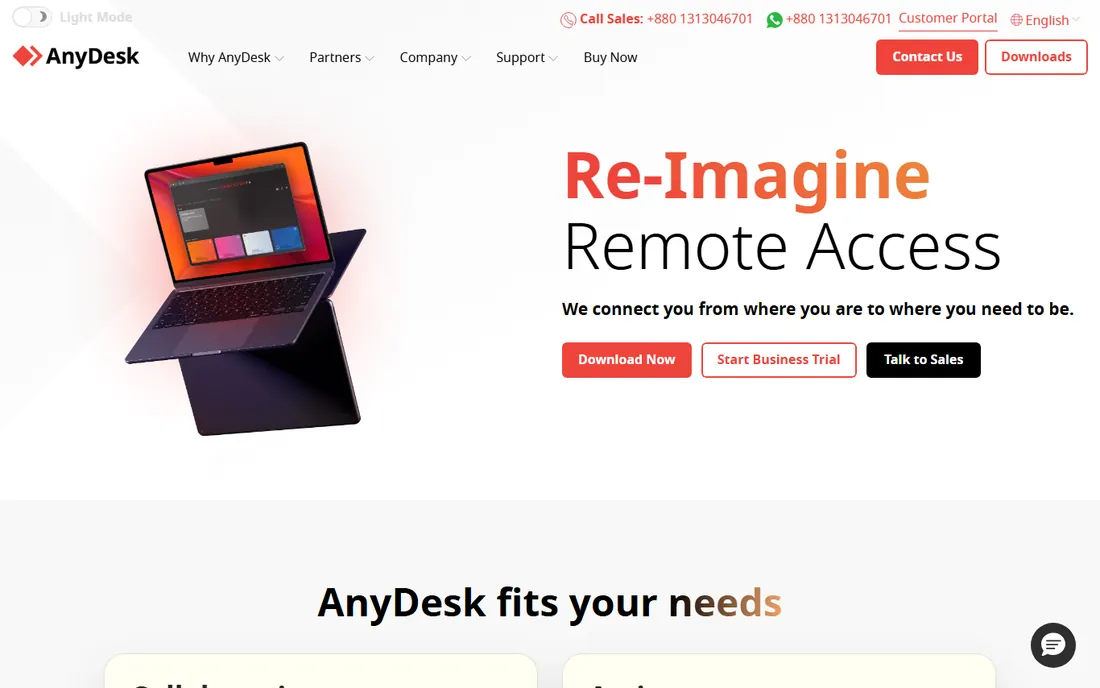
AnyDesk competes directly with TeamViewer on remote access and wins on two fronts: speed and weight. Its DeskRT codec keeps sessions responsive on poor connections, and the client is a few megabytes that can run portable without installation. For technicians supporting users on bad hotel Wi-Fi or old hardware, that matters more than any feature list. File transfer, session recording, whiteboarding and remote printing are all included.
The Solo plan at $28.90 a month with annual billing covers a single user with one connection and 100 managed devices for unattended access. Standard at $49.90 scales to small teams with 500 managed devices, and there is an on-premises Ultimate tier for organizations that cannot let session data leave their network. All commercial plans bill annually with no monthly option. Like TeamViewer, it is free for personal use only.
What we like- Fast connections even on weak networks thanks to the DeskRT codec
- Tiny installer that runs without admin rights
- On-premises option for strict environments
Watch out for- Commercial plans are all annual billing, no monthly option
- Session limits on lower tiers
- Interface is functional rather than friendly
Starting price$5.82/month (billed annually)
Free planYes
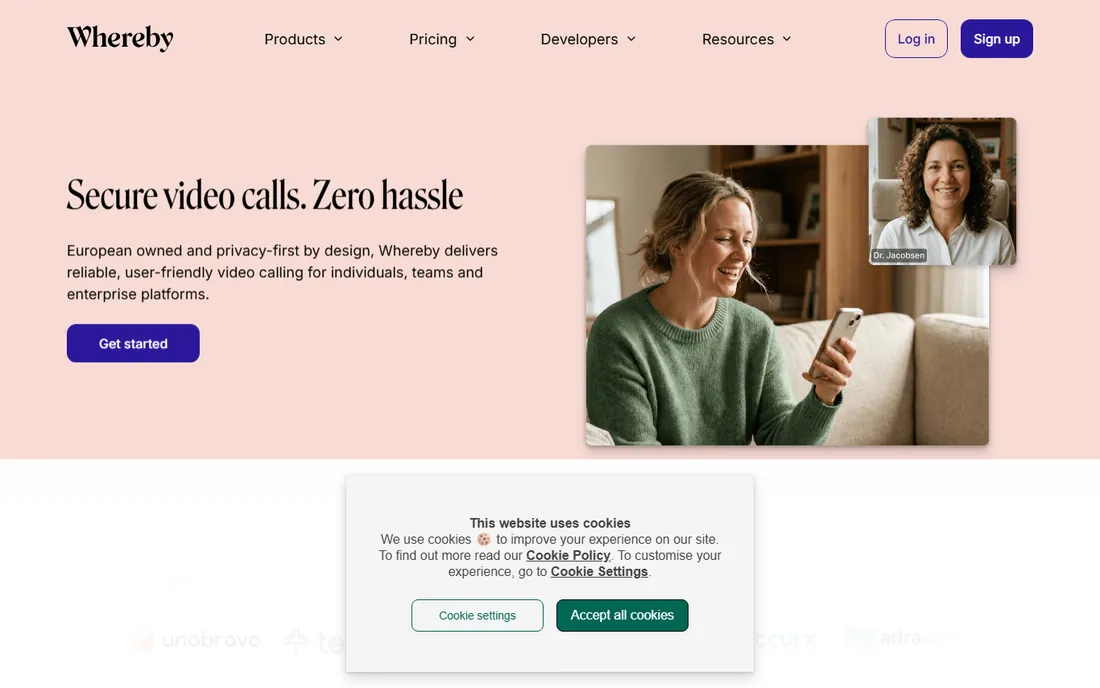
Whereby's whole pitch is the absence of friction. You get a permanent room link, you send it to a client, they click it and they are in: no download, no account, no "can you hear me" troubleshooting. Screen sharing, recording and custom branding are included, and the interface is the simplest in this list. For consultants, coaches and small agencies who meet clients in the browser all day, that simplicity is the product.
The free plan covers one room and unlimited one-on-one meetings, with group meetings capped at 45 minutes. Pro at $5.82 a month with annual billing ($6.99 month to month) removes the time limit, adds three rooms, unlimited recording and custom branding. Business at $9.99 a month adds more hosts and 200 attendees. Whereby will not replace Zoom for a 200-person all-hands. It will make your Tuesday client calls noticeably easier.
What we like- Guests join from a link with no install or account
- Permanent room links that feel like your own office
- Simple pricing and a real free plan
Watch out for- Smaller feature set than Zoom or Teams
- Fewer native integrations
- Best suited to small teams, not large webinars
Starting price$29/month (Solo)
Free planYes (15 meetings/month)
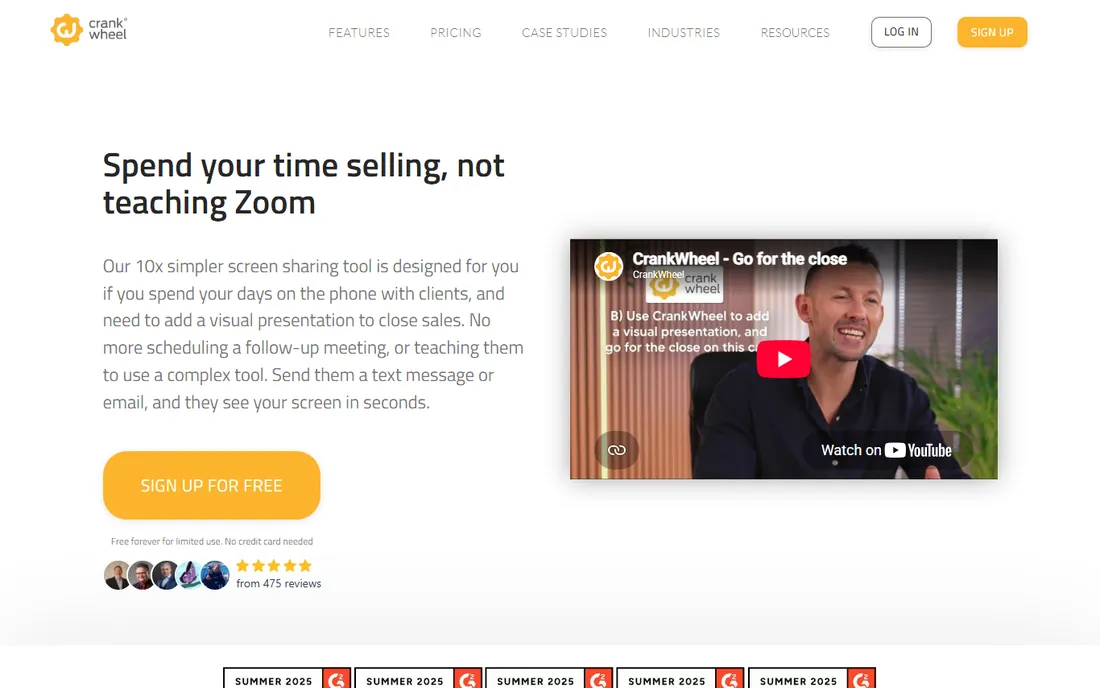
CrankWheel solves a narrow problem better than anyone: you are on a phone call with a prospect and want to show them your screen right now. You send a link by text or email, they tap it, and your screen appears in their browser. No download, no app, no registration, and it works on old phones and obscure browsers that choke on Zoom. Sales teams in insurance, mortgages, solar and agencies use it to turn voice calls into visual presentations mid-conversation.
The free plan covers 15 meetings a month, which is enough to test it in real calls. Solo at $29 a month ($180 a year) gives one user unlimited meetings, and Team plans scale from there. Note what it is not: there is no video of faces, no VoIP audio, no meeting scheduling. It adds screen sharing to the phone call you are already on. If your team sells over the phone, that focus is the point. If you need full meetings, look elsewhere.
What we like- Viewer needs nothing but a browser link, works on old devices
- Built to add visuals mid-phone-call
- Attention tracking shows if the prospect is watching
Watch out for- No two-way video or audio, it is screen sharing only
- Priced for sales use, not general meetings
- The prospect experience depends on their connection
#8
Webex
Best for: regulated industries and larger organizations
Visit webex.com
Starting price$14.50/user/month (Meet plan)
Free planYes
Webex is Cisco's enterprise meeting platform, and it shows in both the strengths and the weight. Security and compliance are the headline: end-to-end encryption options, detailed admin controls and a compliance story that satisfies healthcare, finance and government buyers. Screen sharing includes annotation and remote desktop control, meetings scale to 1,000 participants on Enterprise, and Slido polling plus closed captions come standard on paid plans.
The Meet plan at $14.50 per user per month covers 24-hour meetings with up to 200 participants and 10 GB of cloud recording. A free plan with 40-minute meetings exists for evaluation. For a ten-person startup, Webex is usually more tool than needed at a higher price than Zoom. For a company where the security team has veto power over software purchases, Webex's compliance credentials often make it the easiest approval in the room.
What we like- Strong security, compliance and admin controls
- Reliable at large scale with up to 1,000 participants
- Slido polling and translated captions built in
Watch out for- More expensive than Zoom or Meet for the same basics
- Interface feels enterprise-heavy for small teams
- Best features sit in higher tiers
How we chose
We did not claim hands-on testing. We compared each vendor's own pricing page, feature documentation and admin guides, plus public reviews on G2, Capterra and Reddit, focusing on what a small or mid-size business buyer needs: how screen sharing actually works (full screen, app window, remote control), what the free tier allows, per-user versus flat pricing, contract terms, and how guests join. We split the field into meeting apps and remote-access tools because they solve different jobs, and we checked that every product listed is current and supported in 2026. Where a price could not be verified on the vendor's own page, we wrote "See website".
What to check before you sign a contract
Three contract details cause the most regret. First, billing terms: TeamViewer and AnyDesk bill annually with auto-renewal, and TeamViewer needs 28 days' notice to cancel. Put renewal dates in your calendar the day you buy. Second, the per-user math: Zoom, Teams, Meet and Webex all charge per user or per host, so model your real headcount including part-timers before comparing headline prices. Third, the free tier limits: 40-minute caps (Zoom, Webex) and participant limits decide whether the free plan covers your actual meetings.
Beyond contracts, check the guest experience. Your clients will join from old laptops, phones and locked-down corporate networks. Tools where guests need nothing but a link (Whereby, CrankWheel, Meet) create fewer support headaches than tools needing downloads. Also confirm recording storage: free and cheap plans often include only local recording, and cloud storage is where the upsell lives. Finally, verify security defaults: waiting rooms on, links not guessable, and screen sharing restricted to the host until you say otherwise.
Buyers mix these up, so here is the dividing line. Meeting apps (Zoom, Teams, Meet, Whereby, Webex) connect people: video, audio, chat and screen sharing for conversations. Remote-access tools (TeamViewer, AnyDesk) connect computers: full control of another machine for fixing it. CrankWheel sits between, adding one-way screen sharing to a phone call.
The practical rule: if the job is talking with someone while showing your screen, buy a meeting app. If the job is fixing someone's computer, buy remote access. Some teams need both: a sales team on Zoom plus an IT contractor on AnyDesk is a normal setup. Do not pay remote-access prices for meeting-app needs. A $50-a-month TeamViewer license is wasted on a manager who just wants to share slides.
Frequently asked questions
What is the cheapest good screen sharing software?
If you already pay for Microsoft 365 or Google Workspace, your cheapest option is $0 extra: Teams or Meet is included. As a standalone purchase, Whereby Pro at $5.82 a month billed annually is the cheapest real meeting tool in this list, and both Zoom and Meet have usable free tiers. CrankWheel's free 15 meetings a month covers light sales use.
Can guests join without downloading anything?
Yes with Whereby, Google Meet, Microsoft Teams (web), Zoom (web client) and CrankWheel: the guest clicks a link and joins in the browser. TeamViewer and AnyDesk require the remote party to run a small client, which is fine for planned support sessions but friction for first-time clients. For the lowest-friction client meetings, browser-first tools win.
Is free screen sharing safe for business use?
The free tiers of Zoom, Teams, Meet and Webex use the same encryption as their paid plans, so the transport is fine. The risks are settings, not tiers: public meeting links, screen sharing enabled for all participants, and recordings saved to personal accounts. Turn on waiting rooms, lock sharing to the host, and keep recordings in company storage. For regulated industries, check whether you need the admin controls that only paid plans provide.
Zoom vs Teams vs Meet: which should a small business pick?
Pick the one that matches the tools you already pay for. On Microsoft 365, Teams is the obvious choice. On Google Workspace, Meet wins on simplicity. If you use neither, Zoom is the most universally recognized by clients. Feature differences at the small-business level are smaller than the switching cost of making everyone learn a new app.
Do I need TeamViewer or is Zoom screen sharing enough?
Zoom's screen sharing lets someone see your screen and, with permission, control it during the meeting. That covers demos and walkthroughs. TeamViewer and AnyDesk go further: unattended access to machines with nobody present, file transfer outside meetings, and session management across many devices. If you support computers rather than present to people, you need the remote-access tool.
How does CrankWheel differ from Zoom?
CrankWheel does one thing: it puts your screen in front of someone you are already talking to on the phone, with zero setup on their side. Zoom is a full meeting with video, audio and scheduling. Sales reps use CrankWheel to add visuals to a call already in progress; they use Zoom when both sides need to be on camera. The tools complement each other more than they compete.
Sources we checked (14)
- https://zoom.com/
- https://www.microsoft.com/en-us/microsoft-teams/essentials
- https://meet.google.com/
- https://www.teamviewer.com/
- https://anydesk.com/
- https://whereby.com/
- https://crankwheel.com/
- https://www.webex.com/
- https://getvoip.com/blog/zoom-workplace/
- https://www.g2.com/products/zoom-workplace/pricing
- https://www.saasworthy.com/product/whereby/pricing
- https://www.saasworthy.com/product/cisco-webex-meetings/pricing
- https://www.saasworthy.com/product/teamviewer
- https://sourceforge.net/software/product/CrankWheel/
Is your product missing or out of date?
We review this list regularly. Vendors can request a listing, send updated pricing or ask about featured placement.

Shihab Mia · Founder, Rankite
Shihab has spent more than a decade helping SaaS and e-commerce brands grow through search. He writes Rankite's software buying guides from pricing pages, documentation and public user reviews. More about Shihab.