How we make this list: we compare pricing pages, product documentation and public user reviews. Ratings come from G2, Capterra or Trustpilot, with the date we checked them.
Key takeaways
- Edits by Instagram is the strongest free starting point if you post only to Instagram, since it exports in up to 4K with no watermark.
- CapCut suits creators who post the same short video to several platforms and want templates, auto captions, and a large effects library.
- VN Video Editor gives advanced timeline control at no cost, which makes it a strong pick for creators who want clean exports without a subscription.
- InShot and Canva suit quick, simple edits, while KineMaster and Filmora suit creators who want deeper manual control on a phone.
- Check the watermark rules before you commit, because several free plans add a logo to exports that only a paid plan removes.
Quick comparison
| Tool | Best for | Starting price | Free plan |
|---|
 Edits by Instagram Edits by Instagram | Creators who post mainly to Instagram | Free | Yes |
 CapCut CapCut | Creators posting to several platforms | Free | Yes |
 VN Video Editor VN Video Editor | Creators who want advanced tools for free | Free | Yes |
 InShot InShot | Quick trims, captions, and resizing on a phone | Free | Yes |
 Canva Canva | Brands and teams that reuse templates | Free | Yes |
 Adobe Express Adobe Express | Quick polished clips with Adobe fonts and assets | Free | Yes |
 KineMaster KineMaster | Creators who want desktop-style layers on a phone | Free | Yes |
 Filmora Filmora | Beginners who want guided effects and AI help | Free | Yes |
Is your product missing or out of date?
We review this list regularly. Vendors can request a listing, send updated pricing or ask about featured placement.
The best reels app for every kind of creator
Starting priceFree
Free planYes
Edits arrived in April 2025 as Meta's standalone video app for Instagram creators, and it remains free with no paid tier described on its official pages. The app centers on a frame-accurate timeline with filters, speed controls, green screen, and auto captions, plus an ideas tab that surfaces trending audio. Because it is built by the Instagram team, safe-zone guides show where interface elements will cover text, which helps avoid a common beginner mistake.
The trade-off is scope. Edits is built for Instagram first, so creators who publish mainly to TikTok or YouTube Shorts may still want a second editor. There is also no desktop version, so longer or more complex projects stay on a phone. For an Instagram-only creator, though, the combination of free access, clean exports, and direct publishing is hard to beat.
What we like- No watermark on exports
- Exports in up to 4K
- Built-in insights for Instagram performance
Watch out for- Mobile only, with no desktop version
- Tied closely to an Instagram account
- Fewer templates than CapCut
Starting priceFree
Free planYes
CapCut is the most widely used short video editor in this list, and its strength is range. One account covers a phone app, a desktop app, and a browser editor, so a project started on a commute can be finished at a desk. The template library is a genuine time saver for trends, and auto captions, beat sync, and background removal cut down the repetitive parts of editing.
The free plan covers a lot, including editing and exports without a watermark on most features. Paid plans add premium templates, extra AI tools, and more cloud storage, with prices shown on CapCut's own pricing pages and in app stores. Creators who care about data privacy should note that CapCut is owned by ByteDance, the parent company of TikTok, and weigh that when choosing.
What we like- Large template and effects library
- Auto captions and background removal
- Mobile, desktop, and web versions
Watch out for- Some premium templates and AI features need a paid plan
- Template exports can carry an ending clip to delete
#3
VN Video Editor
Best for: Creators who want advanced tools for free
Visit vlognow.me
Starting priceFree
Free planYes
VN stands out because it charges nothing for its core strengths. The free version includes a multi-track timeline, keyframe animation, curve speed controls, filters, and LUT support, all without stamping a watermark on the finished video. That combination is rare, and it explains why VN shows up in nearly every creator roundup for serious mobile editing.
The catch is that VN expects more from the user. There is no large trend template library to lean on, so ideas and pacing come from the creator rather than the app. Beginners may need a few sessions before the interface feels natural. Once it clicks, VN handles work that many paid apps reserve for subscribers, including 4K exports and detailed color work.
What we like- No watermark on free exports
- Multi-track timeline with keyframes
- Exports in up to 4K at 60 frames per second
Watch out for- Fewer ready-made templates than CapCut
- Learning curve is steeper for complete beginners
#4
InShot
Best for: Quick trims, captions, and resizing on a phone
Visit inshot.com
Starting priceFree
Free planYes
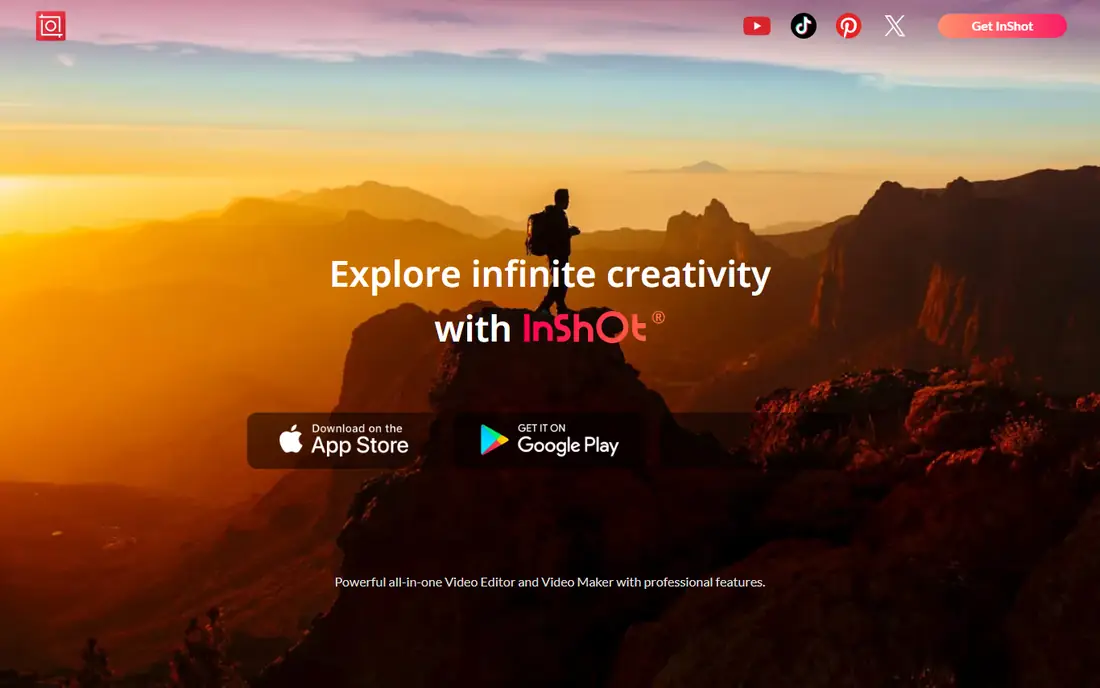
InShot has been a phone editing staple since 2014, and its appeal has not changed: open the app, trim a clip, add text or music, and export. The controls are plain and the layout stays out of the way, which makes it a good first editor for someone who finds timeline apps intimidating. It also handles photo collages and canvas resizing, so one clip can be reframed for a Reel, a story, and a feed post.
Free users should expect two limits. Exports carry an InShot watermark, and ads appear during use. A Pro subscription removes both and adds premium assets. InShot has no desktop app, so it suits short, simple projects rather than long edits. For daily posting with minimal fuss, that trade is often worth it.
What we like- Very easy to learn
- Fast trimming, merging, and resizing
- Exports in up to 4K
Watch out for- Free exports carry a watermark
- Ads appear in the free version
- Fewer advanced tools than VN or KineMaster
#5Canva
Best for: Brands and teams that reuse templates4.7/5 on
G2 (7,678 reviews, checked Oct 2026)
Visit canva.com
Starting priceFree
Free planYes
Canva approaches Reels as a design task rather than a pure editing task. Templates cover announcements, product clips, quotes, and promos, and a team can lock in brand colors, fonts, and logos so every Reel looks related. Because Canva runs in a browser as well as on phones, a social media manager can draft on a laptop and tweak on a phone before posting.
The editor itself is less deep than CapCut or VN. There is no advanced keyframe system and no multi-track audio mixing of the same kind. Canva Pro, listed at $12 per user per month billed yearly on Canva's pricing page, removes premium element limits and adds the brand kit and extra storage. For a business that values a consistent look over complex edits, Canva is a practical pick.
What we like- Huge template library for social video
- Brand kit keeps colors and fonts consistent
- Works in a browser
Watch out for- Video editing is simpler than a dedicated editor
- Premium elements need a Pro plan
#6Adobe Express
Best for: Quick polished clips with Adobe fonts and assets4.5/5 on
G2 (855 reviews, checked Oct 2026)
Visit adobe.com
Starting priceFree
Free planYes
Adobe Express is Adobe's browser and mobile tool for fast social content, and it fits creators who already like Adobe's font and asset libraries. Templates, text effects, and resize options make it easy to turn one idea into a Reel, a story, and a thumbnail. The free plan is genuinely usable, and Adobe lists Premium at $9.99 per month for extra assets, fonts, and planning tools.
Editors who need precise audio work or layered timelines will hit limits sooner here than in VN or KineMaster. Adobe Express is built for speed and polish, not for long, detailed projects. Small businesses and solo creators who post a few times a week and want a clean, consistent result will get the most from it.
What we like- Adobe Fonts and stock assets included
- Templates for social sizes
- Free plan exports without a watermark on most work
Watch out for- Less timeline control than a dedicated editor
- Best features sit behind Premium
Starting priceFree
Free planYes
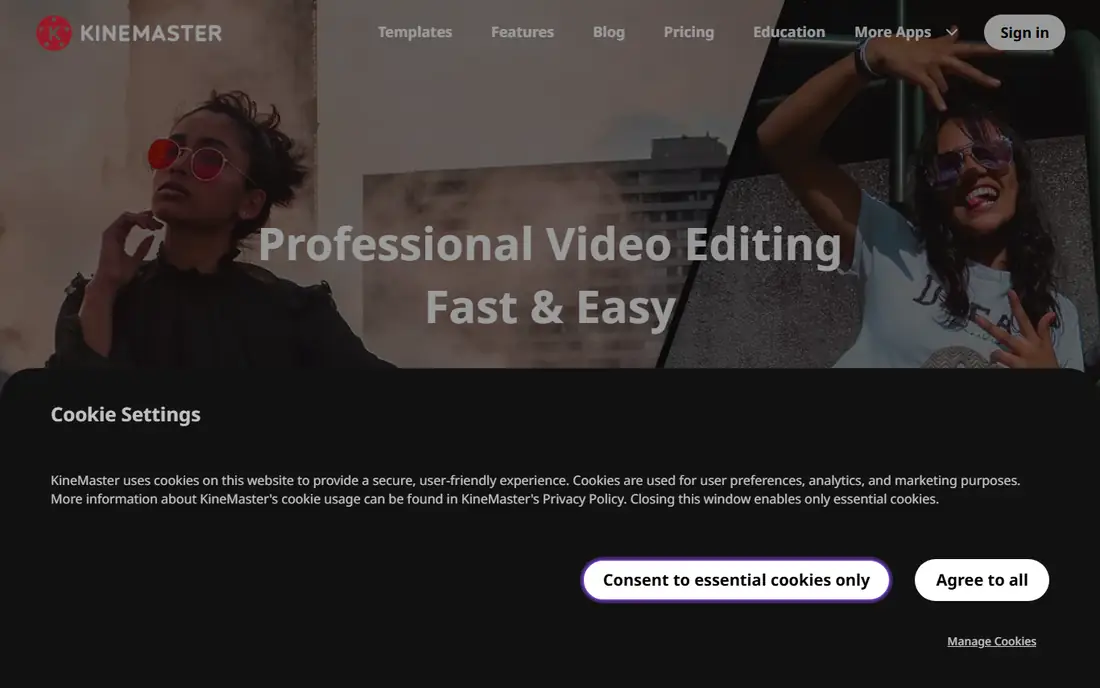
KineMaster is the closest thing to a desktop editor in this list for Android and iOS users. Layers stack freely, so text, stickers, handwriting, and extra clips can sit above the main video, and blend modes plus audio envelopes give careful creators real control. It also supports chroma key and speed controls, which cover most effects a Reel creator needs.
The free version leaves a watermark on exports, and removing it plus adding premium assets needs a subscription. The interface packs a lot onto a phone screen, so beginners may prefer InShot for the first few edits. Creators who already know timeline editing and want that control in a pocket will find KineMaster worth the learning time.
What we like- True multi-layer video, image, and audio tracks
- Blend modes and volume envelopes
- Exports in up to 4K
Watch out for- Free exports carry a watermark
- Premium subscription costs more than some rivals
- Interface can feel crowded on small screens
Starting priceFree
Free planYes
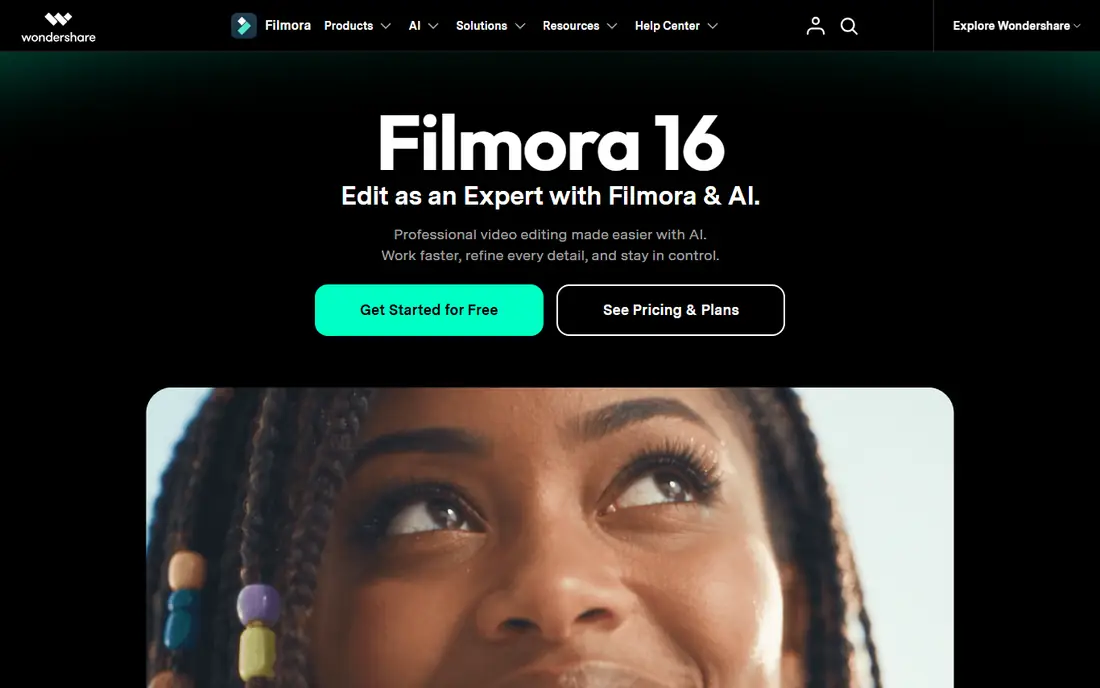
Filmora from Wondershare sits between simple apps and pro editors. The mobile app offers a clear timeline, title presets, music, stickers, and transitions, plus AI tools such as auto captions and smart cutout. A creator can start on a phone and move to the desktop version later, which shares the same design language and adds room for bigger projects.
The free version adds a watermark, and the more useful AI features sit behind paid plans, so the price depends on which platform and plan you choose. Check Filmora's own pricing page before buying, since mobile and desktop pricing are not the same. For creators who want guidance and a gentle path toward more advanced editing, Filmora is a solid middle ground.
What we like- Clear timeline with title presets and transitions
- AI captions and smart cutout
- Mobile and desktop versions
Watch out for- Free exports carry a watermark
- Many AI features need a paid plan
- Desktop and mobile plans differ
How we chose
We compared pricing pages, app store listings, documentation, and public reviews from creators and roundups, and we kept only editors that exist today and handle vertical short video well. Price and watermark rules came from vendor pages and store listings where available, and we marked anything we could not confirm as free with paid options rather than guessing a number. We favored a mix of free tools and paid options, simple apps and deeper editors, so the list covers a casual poster and a daily creator alike. No hands-on testing is claimed here, and features change often, so confirm the current plan terms on the vendor site before you subscribe.
What to check before you pick a Reels editor
Start with where you publish. If Instagram is your only platform, Edits removes a whole class of problems, from watermarks to safe zones, at no cost. If you post to TikTok and Shorts as well, CapCut or VN will save repeated work, since one export can serve every platform. Brand accounts should weigh templates and brand kits more heavily, which pushes Canva and Adobe Express up the list.
Watermarks and export quality
A watermark matters more than most feature lists suggest. A logo in the corner signals a free tool and can look out of place on a business account. VN and Edits export clean video for free, while InShot, KineMaster, and Filmora need a paid plan to remove theirs. Export resolution matters too: 1080p is enough for most Reels, but 4K gives headroom if Instagram recompresses the file.
Captions, audio, and templates
Captions are now expected on Reels, since many viewers watch without sound. CapCut, Edits, and Filmora all generate captions automatically, though you should proofread them before posting. For audio, remember that trending sounds are safest when added inside Instagram itself, since music licensed in an editor may not carry over. Templates speed up trend posts, but a template-heavy feed can start to look alike, so mix templated posts with original edits.
Cost over a year
Free plans are generous in this category, so a paid plan should earn its place. Add up the monthly cost over twelve months and compare it with what you actually use: premium templates, watermark removal, cloud storage, or AI tools. If only watermark removal matters, VN or Edits may remove the need to pay at all. If templates drive your posting schedule, CapCut Pro or Canva Pro may pay for themselves in saved time.
Frequently asked questions
What is the best free app for editing Reels?
Edits by Instagram and VN Video Editor are the strongest free picks. Edits exports in up to 4K with no watermark and publishes straight to Instagram, while VN adds a deeper timeline and keyframes, also with no watermark on free exports. CapCut's free plan is also strong if you want templates and cross-platform posting.
Do I need a paid plan to remove watermarks?
It depends on the app. Edits, VN, and Adobe Express export without a watermark on their free versions for most work, while InShot, KineMaster, and Filmora add a watermark that a paid plan removes. CapCut may add an ending clip on some templates, which you can delete from the timeline before exporting.
Can I edit one video for Reels, TikTok, and Shorts?
Yes, since all three use vertical 9:16 video. CapCut, VN, InShot, and Filmora all export in that shape, so one edit can serve every platform. Add trending audio inside each app after export where possible, since licensed music does not always transfer between platforms.
Which app is best for beginners?
InShot is the easiest starting point for simple trims and text, while Canva suits beginners who want templates. Edits is also friendly if you post only to Instagram, since its layout follows the Reels format closely. Move to VN or KineMaster once you want layered timelines and keyframes.
Is CapCut still a good choice in 2026?
Yes, for most creators. Its template library, auto captions, and cross-platform apps remain a strong combination, and the free plan covers a lot. Creators who want a fully free, watermark-free workflow may prefer VN, and Instagram-only creators may prefer Edits.
Should I edit on a phone or a computer?
A phone is faster for short daily Reels, and every app here works well on mobile. A computer helps for longer projects, precise audio work, and batch editing, and CapCut, Canva, Adobe Express, and Filmora all offer desktop or browser versions for that workflow.
Sources we checked (8)
- https://www.capcut.com/tools/online-video-editor
- https://inshot.com/
- https://vlognow.me/
- https://creators.instagram.com/edits
- https://www.canva.com
- https://www.adobe.com/express/
- https://www.kinemaster.com
- https://filmora.wondershare.com
Is your product missing or out of date?
We review this list regularly. Vendors can request a listing, send updated pricing or ask about featured placement.

Shihab Mia · Founder, Rankite
Shihab has 5+ years in B2B and SaaS SEO. He writes Rankite's software buying guides from pricing pages, documentation and public user reviews. More about Shihab.