How we make this list: we compare pricing pages, product documentation and public user reviews. Ratings come from G2, Capterra or Trustpilot, with the date we checked them.
Key takeaways
- CapCut and VN suit phone-first creators who want a full timeline, captions, and effects without a desktop setup.
- Canva is the better pick when a Reel must match brand colors, fonts, and templates used elsewhere in marketing.
- Descript and VEED suit talking-head and repurposed content, where captions and transcript editing save the most time.
- Check watermark and export rules before you commit, since free plans differ sharply on what leaves the app clean.
Quick comparison
| Tool | Best for | Starting price | Free plan |
|---|
 CapCut CapCut | Trend-led phone and web editing | $19.99 per month | Yes |
 Canva Canva | Branded templates and design | See website | Yes |
 VN Video Editor VN Video Editor | No-watermark phone editing | $7.99 per month | Yes |
 Filmora Filmora | Desktop control with AI tools | $9.99 per month | Yes |
 Descript Descript | Transcript-based reel editing | $16 per month | Yes |
 Clipchamp Clipchamp | Browser editing on Windows | See website | Yes |
 KineMaster KineMaster | Layered mobile editing | See website | Yes |
 VEED VEED | Browser reels and captions | $12 per user per month | Yes |
Is your product missing or out of date?
We review this list regularly. Vendors can request a listing, send updated pricing or ask about featured placement.
The best reel maker app
Starting price$19.99 per month
Free planYes
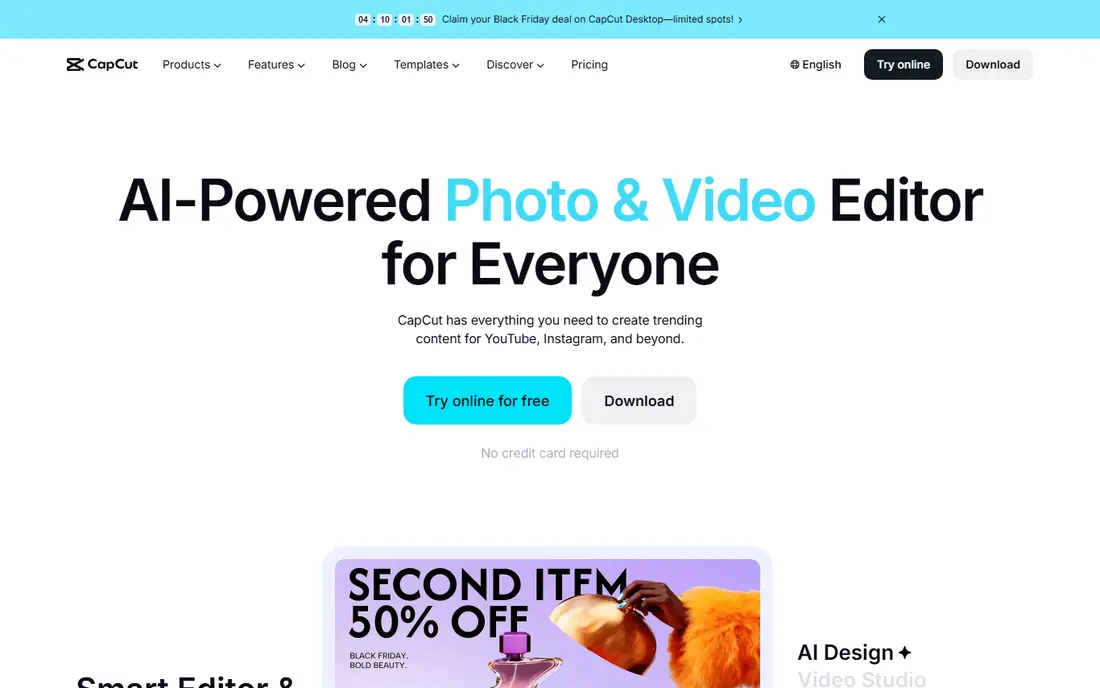
CapCut remains the default starting point for many Reel creators because it covers the whole short-form workflow in one place. You can trim clips, add captions, apply trending effects, and export in vertical format without moving between apps. The template library helps when speed matters more than a fully custom look, and the web version suits creators who prefer a larger screen.
The honest catch is the paywall pattern. Free editing is strong, but premium effects, higher-quality exports, and some AI features require a paid plan, and prices shown in app stores can differ from web prices. Check the plan inside your own account before budgeting. For creators who post often and follow trends closely, CapCut is still a practical first choice.
What we like- Large template library
- Auto captions and effects
- Phone, desktop, and web versions
Watch out for- Some premium features sit behind Pro
- Template endings can add branding
- Pricing varies by platform
#2Canva
Best for: Branded templates and design4.7/5 on
G2 (7,678 reviews, checked Oct 2026)
Visit canva.com
Starting priceSee website
Free planYes

Canva suits small businesses and creators who need every Reel to look like it came from the same brand. Start from a template, swap in your own clips and text, apply brand colors and fonts, and resize the same design for Stories or other formats. That consistency is hard to match in a pure video editor, and the learning curve is low for non-editors.
Where Canva falls short is precise editing. Frame-level cuts, complex layering, and advanced audio work are weaker than in CapCut or Filmora, so editors with ambitious projects may feel boxed in. Paid assets also appear inside free projects, so check each element before export. For brand-led Reels made at volume, Canva earns its place.
What we like- Huge template and stock library
- Brand kit controls
- Easy resizing across formats
Watch out for- Video timeline is simpler than a dedicated editor
- Some assets need a paid plan
- Pricing varies by region
Starting price$7.99 per month
Free planYes
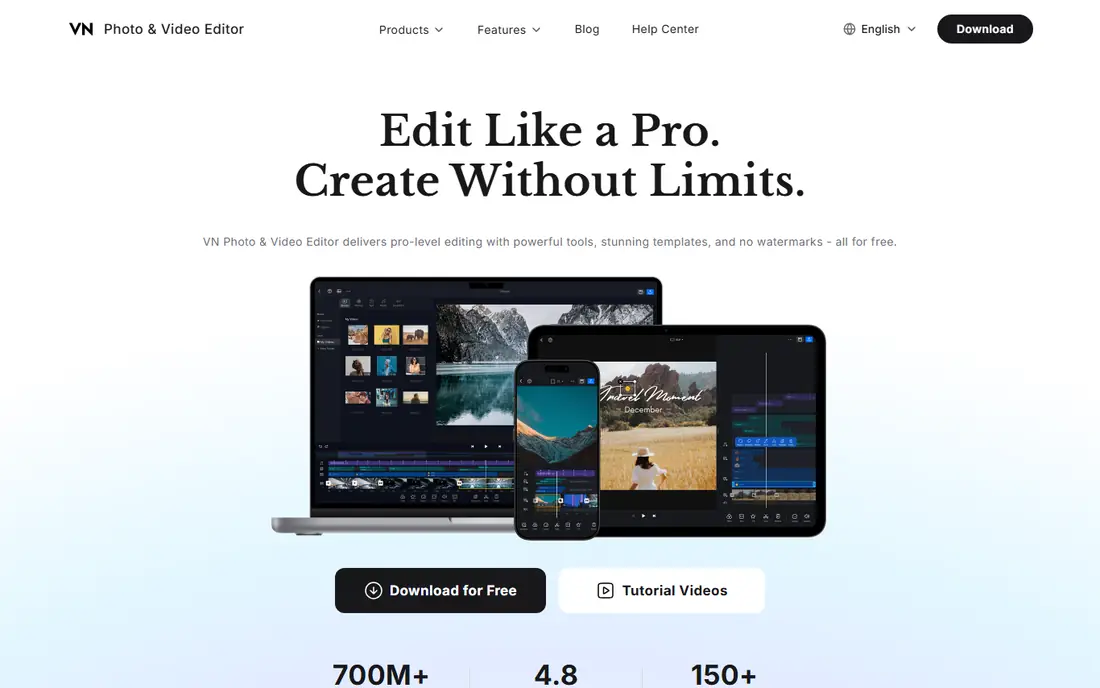
VN has built a loyal following among phone editors who want professional controls without a watermark on free exports. The multi-track timeline, keyframe animation, and speed curves give creators room to build polished Reels entirely on a phone. Its own site stresses free editing without watermarks, which is a clear advantage for beginners on a tight budget.
The trade-off is polish around the edges. Templates and trending effects are thinner than in CapCut, and creators who rely on viral templates may miss that feed. The interface also rewards a little patience at first, since the depth that makes VN powerful is not all obvious on day one. For creators who value clean exports and control, VN is a strong pick.
What we like- Multi-track timeline on mobile
- No watermark on free exports
- Keyframes and speed curves
Watch out for- Smaller template library than CapCut
- Desktop version is limited
- Advanced tools take time to learn
Starting price$9.99 per month
Free planYes
Filmora bridges phone Reels and desktop editing. Creators who start on a phone can move to a desktop timeline for longer or more detailed projects, with captions, color tools, and effects in the same workspace. The asset library is large, and AI tools help with captions, background removal, and rough cuts when time is short.
Free users should note the watermark on exports, which is the main reason to pay. Some AI features also run on credits, so heavy AI use can add cost beyond the subscription. For creators who want one editor that grows from quick Reels to longer videos, Filmora is a sensible middle ground.
What we like- Full timeline on desktop and mobile
- AI captions and effects
- Large asset library
Watch out for- Free exports carry a watermark
- Some AI features use credits
- Heavier than a phone-only app
#5Descript
Best for: Transcript-based reel editing4.6/5 on
G2 (928 reviews, checked Oct 2026)
Visit descript.com
Starting price$16 per month
Free planYes
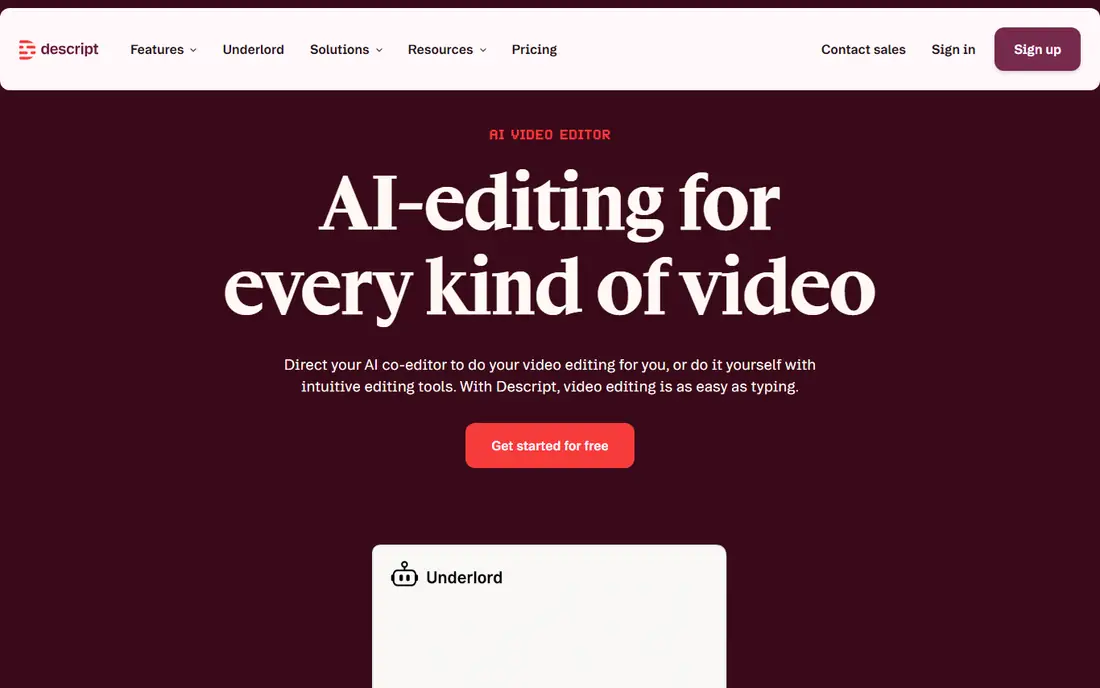
Descript takes a different route that suits talking-head creators. Record or upload a clip, get a transcript, and cut the video by deleting words in the text. That method makes it fast to turn a podcast, webinar, or long video into short Reels with accurate captions. Filler-word removal and studio sound tools help spoken content sound cleaner.
Effects-heavy creators will find Descript less playful than CapCut, since its strength is words and structure rather than transitions and templates. The free plan covers basic editing, with watermark and resolution limits that push serious users toward a paid tier. For creators whose Reels start as speech, Descript saves real time.
What we like- Edit video by editing text
- Fast captioning
- Good for repurposing long content
Watch out for- Less suited to effects-heavy Reels
- Free exports are limited
- Timeline purists may miss fine control
#6Clipchamp
Best for: Browser editing on Windows4.1/5 on
G2 (49 reviews, checked Oct 2026)
Visit clipchamp.com
Starting priceSee website
Free planYes
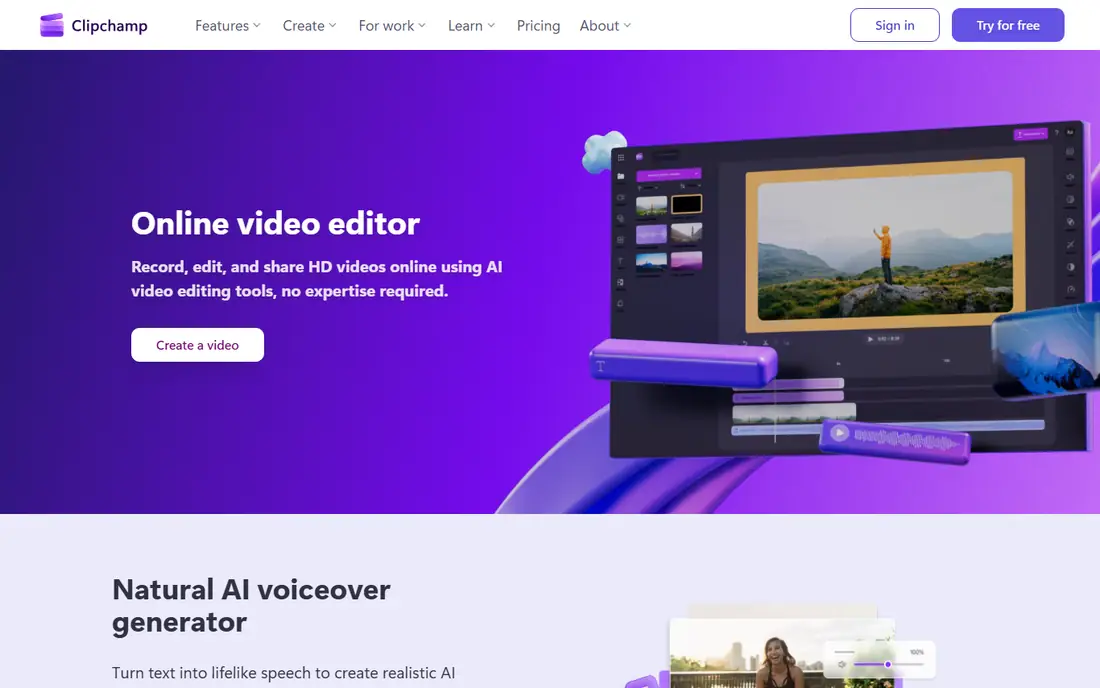
Clipchamp, from Microsoft, suits creators who edit on a Windows computer and prefer not to install another app. The browser editor handles trimming, captions, stock assets, and HD export, and premium features come through Microsoft 365 for subscribers who already pay for that bundle. Auto captions in many languages help creators who publish to varied audiences.
The gap is trend coverage. Clipchamp has fewer viral Reel templates than CapCut, and some creators will miss that shortcut. Performance also depends on browser and machine, so very large projects can feel slower than in a desktop app. For Windows users who want a clean, no-install editor, Clipchamp is worth a trial.
What we like- No install needed in a browser
- Auto captions in many languages
- Included with some Microsoft 365 plans
Watch out for- Premium features need a Microsoft 365 subscription
- Fewer trending templates
- Browser performance varies
Starting priceSee website
Free planYes
KineMaster gives phone editors a layered timeline with video, images, text, stickers, and effects stacked in one project. Keyframes, chroma key, and speed controls support more ambitious Reels than a simple trim-and-caption app, and 4K export is available on capable devices. The asset store adds music, effects, and templates for creators who want variety.
Free exports include a watermark, so creators who publish often will likely need Premium. There is also no Windows version, which matters for teams that mix phone and desktop editing. For Android and iOS creators who want depth on a phone, KineMaster remains a solid choice.
What we like- Multi-layer timeline
- 4K export support
- Large asset store
Watch out for- Free exports carry a watermark
- No Windows version
- Asset costs add up
#8VEED
Best for: Browser reels and captions4.6/5 on
G2 (2,175 reviews, checked Oct 2026)
Visit veed.io
Starting price$12 per user per month
Free planYes
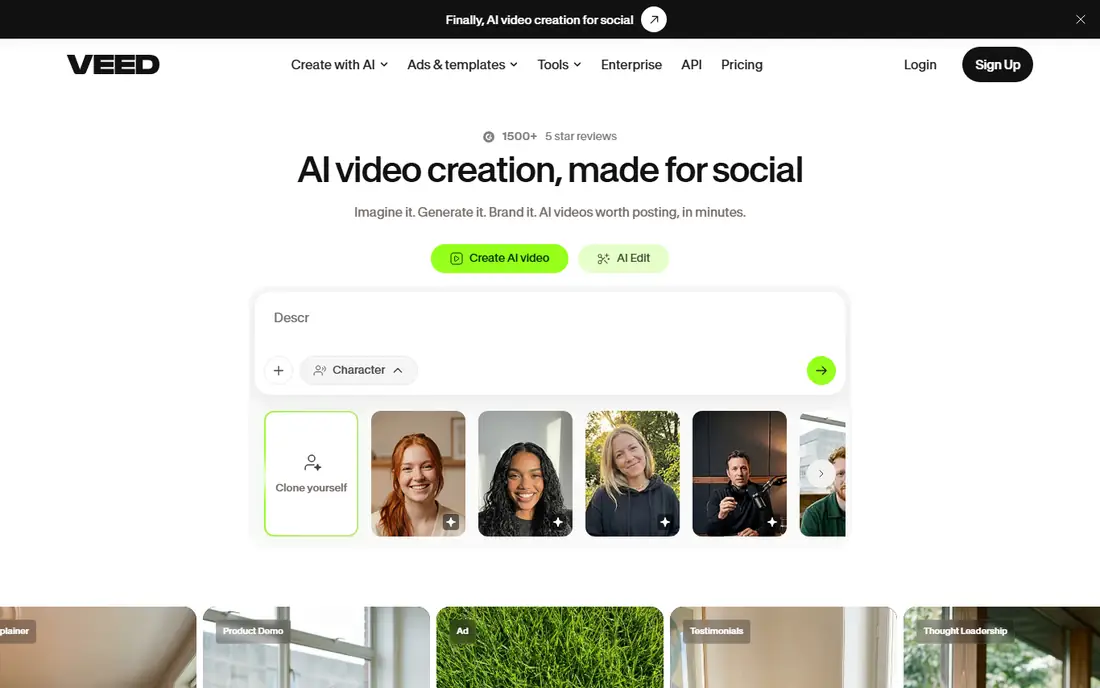
VEED suits creators and small teams who edit in a browser and need captions fast. Upload a clip, generate subtitles, style them, and export a vertical Reel without installing software. Team workspaces, shared projects, and brand controls make it useful for businesses that publish Reels on a schedule rather than as one-off posts.
The free plan is best treated as a trial, since exports carry a watermark and some features are limited. A stable internet connection is also required, which rules out offline editing on planes or poor connections. For teams that value captions, collaboration, and browser access, VEED is a practical option.
What we like- Browser-based editing
- Strong auto subtitles
- Team-friendly workspace
Watch out for- Free exports carry a watermark
- Advanced features need paid tiers
- Internet connection required
How we chose
We compared apps on Reel-specific fit, including vertical export, captions, templates, watermark rules, and device coverage, alongside pricing from vendor pages and public reviews. Prices were taken from vendor pricing pages where they were clear, and marked as See website where plans varied by platform, region, or account type. We did not claim hands-on testing. App store listings, documentation, and review sites were used to check features such as watermark behavior and export limits.
How to pick the right reel maker
Start with where you edit, not with the longest feature list. Phone creators need a strong mobile timeline and clean exports, while desktop creators can trade portability for precision. Brand-led teams need templates and shared assets, while talking-head creators need captions and transcript tools above all.
Check exports before you build a habit
Export one test Reel from any free plan before you invest hours in templates or projects. Confirm the watermark, resolution, and caption styling on the exported file, not only in the preview. A tool that looks free in the editor can still add a watermark or limit resolution at export, and that changes the real cost.
Match the tool to your posting rhythm
Daily posters benefit from templates, saved presets, and fast captioning, since small time savings compound across many posts. Weekly posters can afford a slower, more precise editor with better color and audio controls. If you publish in batches, look for project duplication, brand kits, and scheduling support rather than single-clip speed.
Watch the subscription math
Compare monthly and annual prices, and check whether pricing is per user, per account, or per seat for teams. Some apps charge more in app stores than on the web, so check both before subscribing. Cancel and export rules also matter, since losing project files after cancellation is a common frustration.
Frequently asked questions
What is the best free reel maker app?
VN is a strong free option because its site states free exports without watermarks, while CapCut and Canva also offer generous free plans. The right free pick depends on whether you need templates, captions, or layered editing most. Export a test Reel from each free plan before you settle.
Do free reel apps add a watermark?
Some do and some do not. VN states no watermark on free exports, while Filmora, KineMaster, and VEED add watermarks on free plans. Always check the exported file, since preview screens do not always show the final watermark.
Can I make Reels on a computer instead of a phone?
Yes. CapCut, Canva, Filmora, Descript, Clipchamp, and VEED all offer web or desktop editing, with vertical export for Reels. Desktop editing suits longer projects and precise cuts, while phone editing suits fast, on-the-go posts.
Which app is best for captions?
Descript and VEED are strong for captions, since both generate subtitles from speech and let you style them. CapCut and Clipchamp also offer auto captions, with language coverage and styling options varying by plan. Test caption accuracy with your own voice and accent before committing.
How long should a Reel be?
Most Reels perform best when they are short and focused, often under 90 seconds, with the main point clear in the first few seconds. Longer Reels can work for tutorials or stories, but they need a clear structure to hold attention. Cut anything that does not serve the opening hook.
Sources we checked (8)
- https://www.capcut.com
- https://www.canva.com
- https://www.vlognow.me
- https://filmora.wondershare.com
- https://www.descript.com
- https://www.clipchamp.com
- https://kinemaster.com
- https://www.veed.io
Is your product missing or out of date?
We review this list regularly. Vendors can request a listing, send updated pricing or ask about featured placement.

Shihab Mia · Founder, Rankite
Shihab has 5+ years in B2B and SaaS SEO. He writes Rankite's software buying guides from pricing pages, documentation and public user reviews. More about Shihab.