How we make this list: we compare pricing pages, product documentation and public user reviews. Rankite is independent; if a vendor ever pays for a featured spot, that listing is clearly labeled Partner.
Key takeaways
- R-Studio at $79.99 one-time is the favorite of IT professionals for automatic RAID parameter detection and deep control, though its interface assumes experience.
- UFS Explorer RAID Recovery ($149.95) offers the most polished balance of automation and manual tools, with a free trial to test before paying.
- Disk Drill ($89 per year or $149 lifetime) is the friendliest option for small businesses that lost a simple RAID 0 or RAID 5 on an external enclosure.
- ReclaiMe's free RAID Recovery utility can recover array parameters (disk order, parity, block size) at no cost; you only pay when you save recovered files.
- Never install or save anything to the failed array's drives: every tool here works best when recovering to a separate healthy disk.
Quick comparison
| Tool | Best for | Starting price | Free plan |
|---|
 R-Studio R-Studio | IT professionals handling damaged or exotic RAID setups | $79.99 one-time (Standard license) | Free demo (recovers files smaller than 1MB) |
 UFS Explorer UFS Explorer | Serious recoveries that need automation with manual fallback | $149.95 one-time (RAID Recovery edition) | Free trial |
 Disk Drill Disk Drill | Small businesses recovering simple RAID 0 or RAID 5 setups | $89 per year (subscription) or $149 lifetime license | Yes (free version with limited recovery) |
 Stellar Data Recovery Stellar Data Recovery | Non-technical users who want a guided, well-supported tool | $59.99 per year (Standard edition) | Yes (free edition recovers up to 1GB) |
 EaseUS Data Recovery Wizard EaseUS Data Recovery Wizard | Beginners who want the simplest possible scan-and-preview flow | $69.95 per month (Pro) | Yes (free version recovers up to 2GB) |
 DMDE DMDE | Technical users who want professional power at the lowest price | $20 per year (Express license) | Yes (recovers up to 4,000 files from one folder, unlimited repetitions) |
 ReclaiMe File Recovery ReclaiMe File Recovery | Simple recoveries where you want to verify everything before paying | $89.95 one-time (lifetime license) | Free demo (scans and previews; saving files requires a license) |
 GetDataBack Pro GetDataBack Pro | Windows shops that want a dependable one-time purchase | $79 one-time (lifetime license) | Free demo (shows recoverable files; license required to save) |
Is your product missing or out of date?
We review this list regularly. Vendors can request a listing, send updated pricing or ask about featured placement.
The best RAID recovery software
A regional distributor of building materials kept its order history and accounting files on a five-disk RAID 5 attached to an aging server. When two drives degraded within the same week, the array went offline and the office froze. The IT consultant they called tried three different utilities before one of them reconstructed the virtual array and pulled the data back onto a fresh NAS. That kind of outcome is what this guide is about: which tools actually rebuild failed arrays, and which ones fit your skill level.
#1
R-Studio
Best for: IT professionals handling damaged or exotic RAID setups
Visit r-studio.com
Starting price$79.99 one-time (Standard license)
Free planFree demo (recovers files smaller than 1MB)
R-Studio is the tool most data recovery technicians reach for when a RAID array will not reassemble. Its standout capability is automatic RAID parameter recognition: where other tools ask you to supply disk order, block size and parity rotation by hand, R-Studio can detect these values itself, which is often the hardest part of a recovery. If the operating system cannot see the array at all, you can build a virtual RAID from the member disks and work with it as though it were a real one.
The standard license covers RAID levels 0, 1, 4, 5 and 6 plus nested and non-standard layouts like 10, 1E and 5E. File-system support is among the broadest available, spanning Windows, Mac, Linux and Unix file systems. There is also an advanced multi-pass imaging engine for failing drives, which matters because the first step with degraded hardware should always be a sector-by-sector image.
The honest catch is usability. The interface is menu-heavy and assumes you understand what a parity delay or stripe size is. The demo will scan and preview but only restores files under 1MB, so it is useful for checking that your data is visible, not for testing a real recovery. For teams with a competent IT person, though, this is the best value in the field.
What we like- Automatic RAID parameter recognition for RAID 5 and 6
- Virtual RAID construction from component disks
- Wide file-system support including ReFS, APFS, EXT4 and XFS
Watch out for- Dense, technical interface that assumes experience
- Demo only restores tiny files
#2
UFS Explorer
Best for: Serious recoveries that need automation with manual fallback
Visit ufsexplorer.com
Starting price$149.95 one-time (RAID Recovery edition)
Free planFree trial
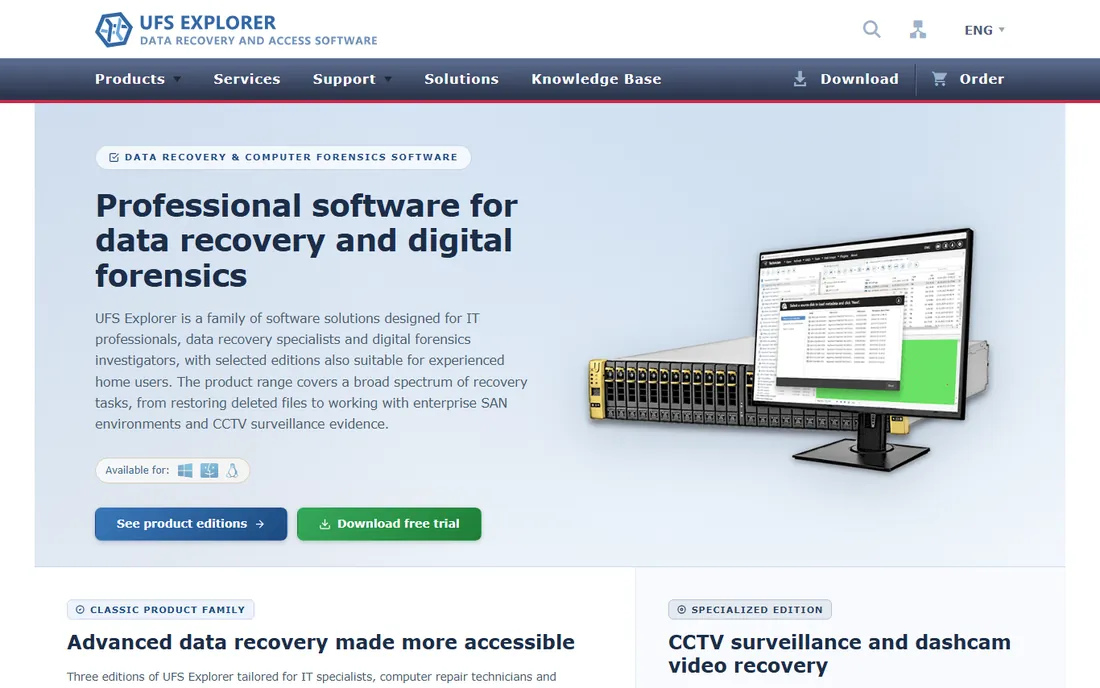
UFS Explorer sits in the middle ground between wizard-style tools and engineering workstations. Its RAID Recovery edition walks you through assembling a virtual array from member disks, offering automatic detection of parameters with the option to adjust them manually when the auto-detection guesses wrong. That combination is exactly what you want when a controller metadata block is damaged and the array needs educated help.
The edition ladder is straightforward: Standard Recovery starts at $69.95, while RAID Recovery at $149.95 adds the array reconstruction tools, and Network RAID at $229.95 targets professionals recovering from network-attached or remote storage. A free trial is included with each edition, so you can confirm the software sees your files before spending anything.
Where UFS Explorer earns its keep is in messy real-world cases: out-of-order disks, partially overwritten metadata, drives that need imaging before they fail completely. It is less beginner-friendly than Disk Drill or EaseUS, but more approachable than R-Studio, which makes it a sensible pick for an IT generalist who handles one or two RAID recoveries a year.
What we like- Guided RAID builder with automatic and manual parameter entry
- Handles RAID 0, 1, 5, 6 and nested levels
- Can work from disk images of failing drives
Watch out for- Price jumps between editions
- Interface still technical for first-timers
Starting price$89 per year (subscription) or $149 lifetime license
Free planYes (free version with limited recovery)
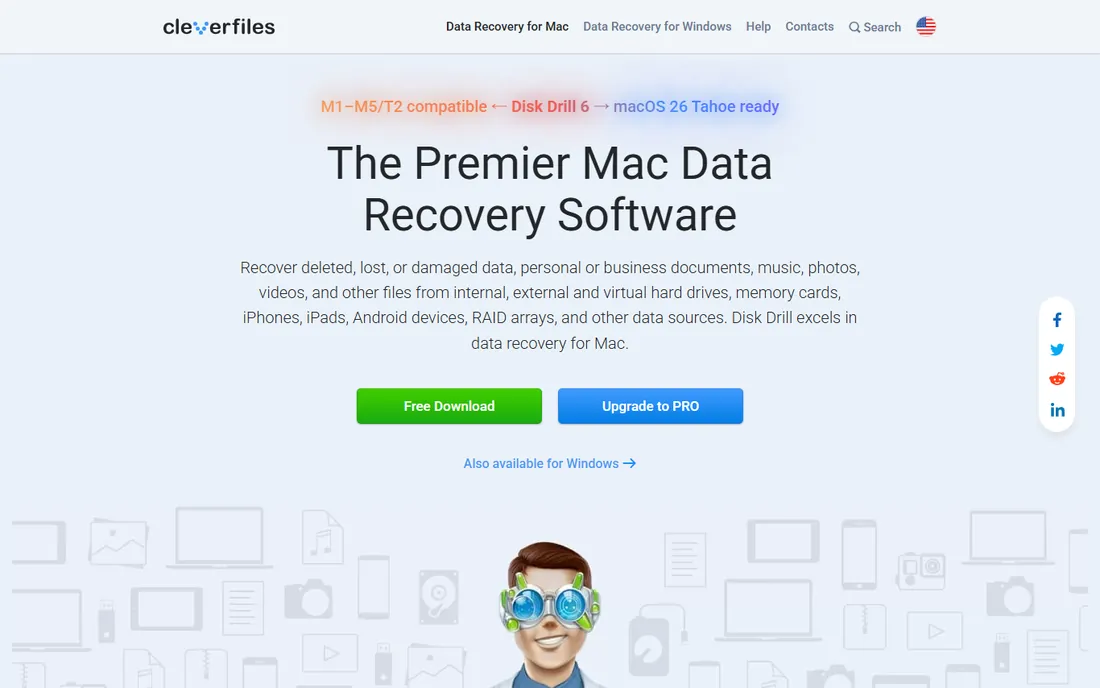
Disk Drill is the easiest tool on this list to actually use. Where R-Studio presents you with hexadecimal editors and imaging parameters, Disk Drill shows you a device list and a scan button. For a straightforward case, such as a two-disk RAID 0 on a desktop or a degraded four-disk RAID 5 in an external enclosure, that simplicity is a genuine advantage. The free version scans and previews, with limited recovery before you need the Pro license.
Pricing is $89 per year on subscription or $149 for a lifetime license that covers one user on up to three devices, with both Windows and Mac on the same license. That is friendly if you expect repeat use, but worth weighing against a one-time license elsewhere if you only ever need one recovery.
The limitation is depth. Disk Drill handles standard array types well, but when parameters are damaged or the layout is exotic, it lacks the manual reconstruction controls of R-Studio or UFS Explorer. For simple cases it is the fastest path from panic to files; for complex ones, start with a specialist tool.
What we like- Clean, approachable interface that needs no training
- One license covers Windows and Mac
- Supports Windows and Linux RAID arrays and disk images
Watch out for- Subscription pricing is steep for a one-off recovery
- Less manual control than specialist tools
#4
Stellar Data Recovery
Best for: Non-technical users who want a guided, well-supported tool
Visit stellarinfo.com
Starting price$59.99 per year (Standard edition)
Free planYes (free edition recovers up to 1GB)
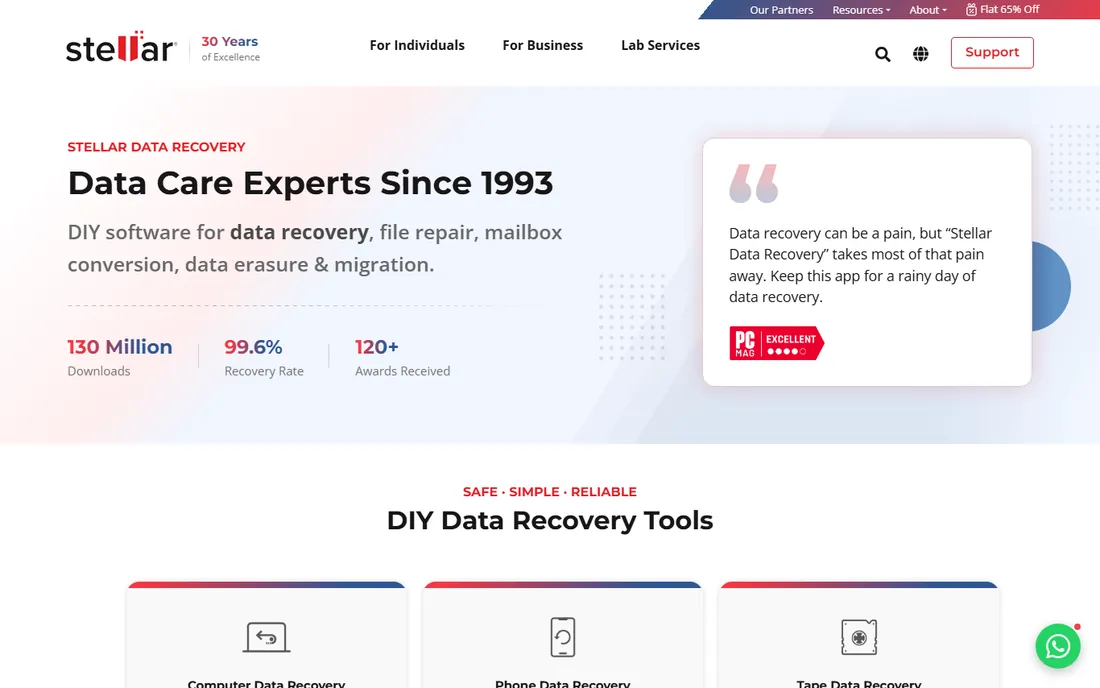
Stellar is one of the longest-established names in consumer data recovery, and it shows in the polish. The free edition recovers up to 1GB of data, which is genuinely useful for small losses and for verifying that a scan finds what you expect. The guided workflow walks you through selecting drives, scanning and previewing before anything is saved, which reduces the chance of a panicked user making things worse.
For RAID specifically, note that the Standard and Professional editions cover deleted files, lost partitions and unbootable systems, while dedicated RAID recovery and NAS support sit in the higher Technician and Toolkit editions. That means the advertised $59.99 starting price does not include RAID features; check the edition comparison before buying.
The trade-off is cost structure. Everything is subscription-based (Standard $59.99 per year, Professional $89.99 per year), and the free tools Stellar bundles for online repair and conversion are nice extras rather than core recovery. For a small business that wants hand-holding and is dealing with a simple lost volume rather than a true array failure, Stellar is a reasonable pick.
What we like- Genuine free edition that recovers up to 1GB
- Technician edition adds RAID recovery and NAS support
- Clean guided workflow with SMART drive monitoring
Watch out for- RAID features live in the pricier Technician tier
- Annual subscription pricing adds up over time
#5
EaseUS Data Recovery Wizard
Best for: Beginners who want the simplest possible scan-and-preview flow
Visit easeus.com
Starting price$69.95 per month (Pro)
Free planYes (free version recovers up to 2GB)
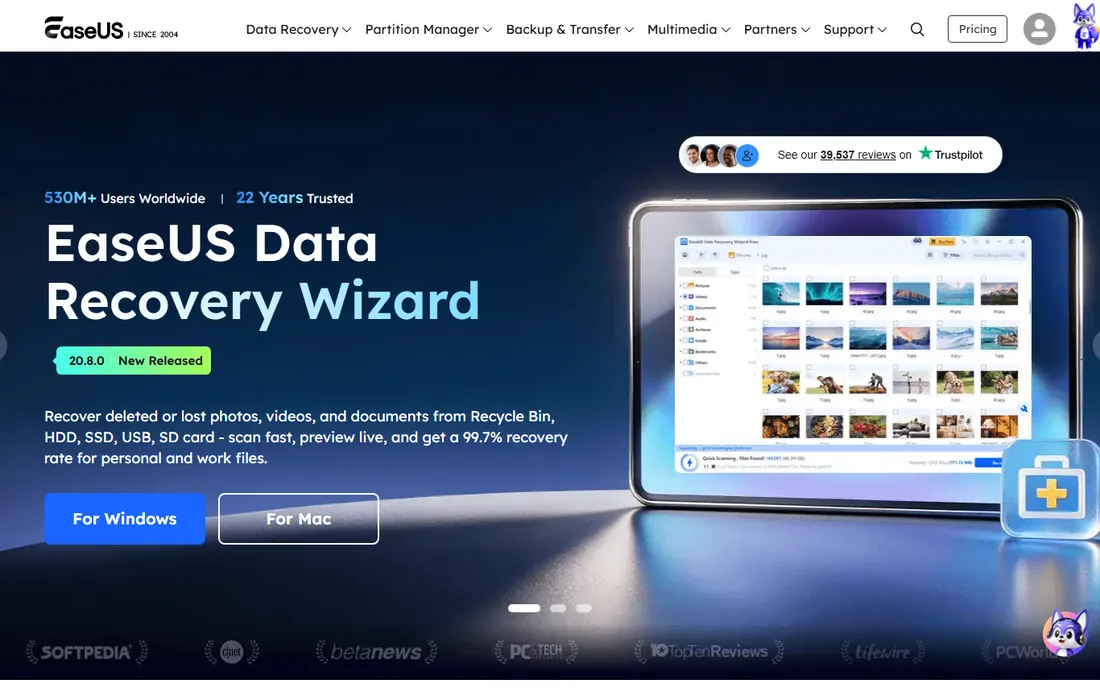
EaseUS has built its reputation on being the least intimidating recovery tool available, and its wizard holds that line. You pick a drive, click scan, preview what it finds, and recover. The free version restores up to 2GB of data, which covers many accidental deletions outright and lets you verify scan quality on larger cases before paying.
Paid plans run $69.95 per month, $99.95 per year or $149.95 for lifetime upgrades, all for a single computer. The monthly plan stings for what is usually a one-time emergency, so the annual or lifetime tiers make more sense unless you are certain this is a one-week problem.
For RAID and NAS recovery specifically, EaseUS covers standard scenarios rather than deeply damaged arrays. Its strengths are speed of scanning, a clear preview system and the bootable WinPE media for recovering from a crashed PC. If your situation is a failed mirror or a lost volume on a home NAS, it will likely do the job. If two disks in a RAID 5 failed, call a specialist tool first.
What we like- Free version recovers up to 2GB, generous for small jobs
- Wizard-style interface anyone can follow
- Bootable media option for crashed systems
Watch out for- Monthly pricing is the most expensive per-day option here
- License covers only one computer
#6
DMDE
Best for: Technical users who want professional power at the lowest price
Visit dmde.com
Starting price$20 per year (Express license)
Free planYes (recovers up to 4,000 files from one folder, unlimited repetitions)
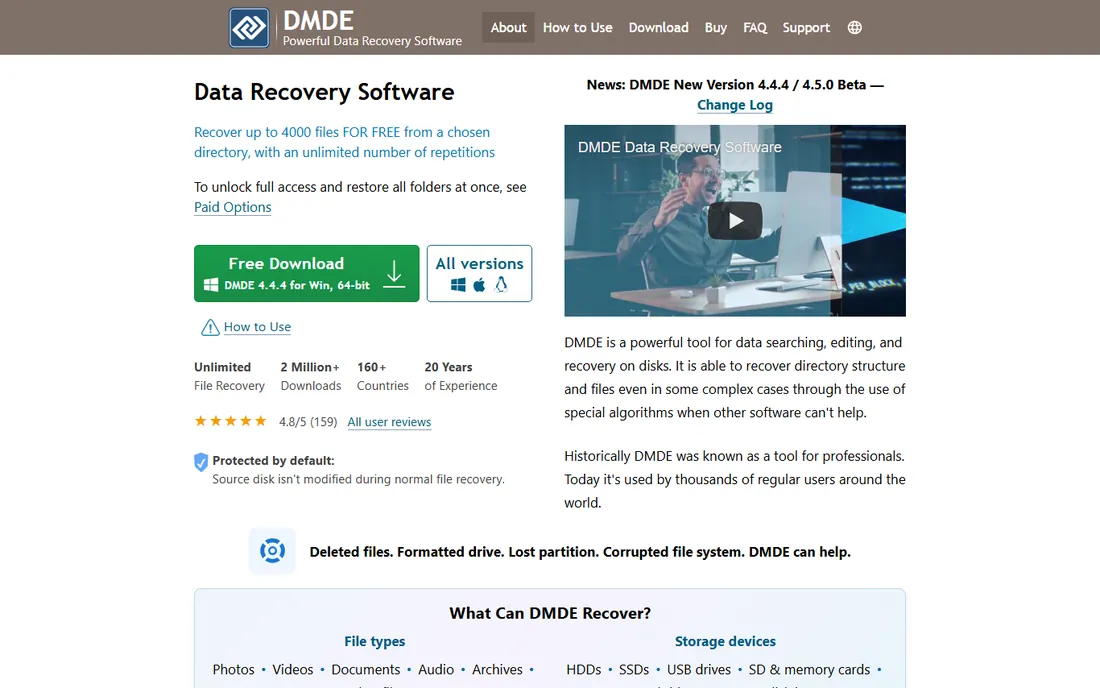
DMDE is the value pick that recovery professionals quietly recommend. The free version lets you recover up to 4,000 files from a chosen directory with unlimited repetitions, which is enough to actually rescue meaningful data without paying. Paid licenses start at $20 per year for Express or $48 for a perpetual Standard license, with Professional tiers at $95 to $133 for commercial use.
Under the spare interface sits serious capability: a RAID constructor supporting RAID 0, 1, 4, 5 and 6 with automatic configuration detection, a full disk editor, partition tools and disk cloning with bad-sector handling. Reviewers consistently find it recovers files where pricier tools fail, particularly from formatted or corrupted volumes.
The catch is the learning curve. DMDE looks like an engineering tool from another decade because it is one, and it will not hold your hand. But for a technical person on a budget, it delivers capability that costs three to five times more elsewhere. If you know what a stripe size is, start here.
What we like- Extremely generous free tier
- Perpetual licenses from $48
- Includes RAID constructor, disk editor and cloning tools
Watch out for- Minimalist interface that intimidates non-experts
- Documentation assumes you know the concepts
#7
ReclaiMe File Recovery
Best for: Simple recoveries where you want to verify everything before paying
Visit reclaime.com
Starting price$89.95 one-time (lifetime license)
Free planFree demo (scans and previews; saving files requires a license)
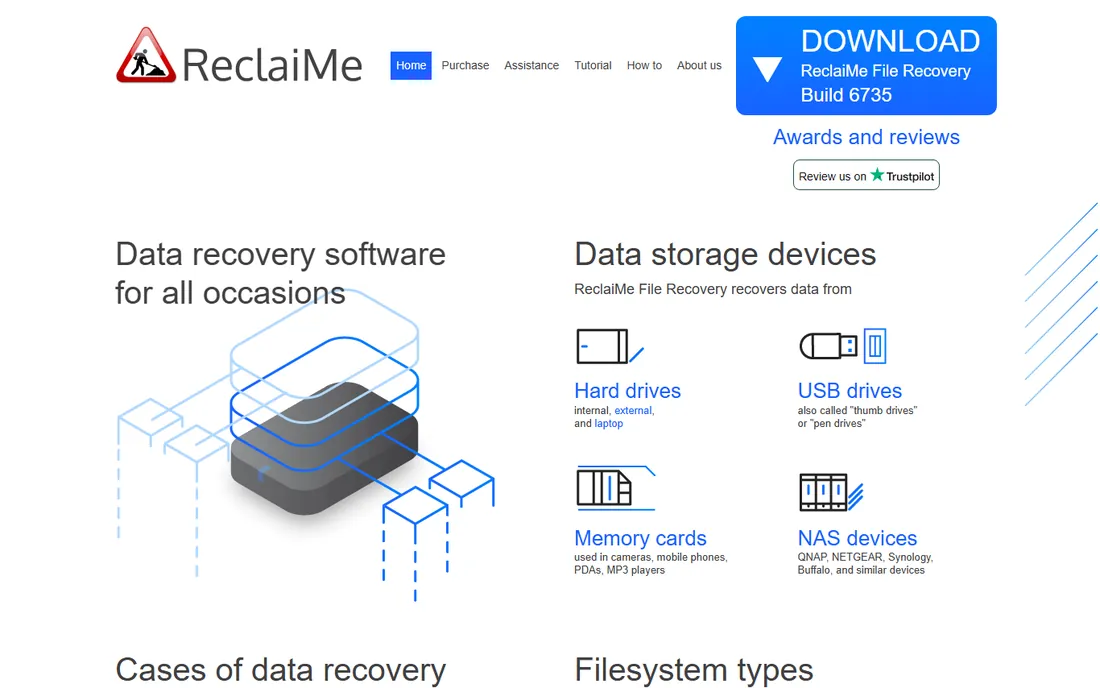
ReclaiMe is built around a simple promise: preview everything before you spend a dollar. The demo scans your storage, shows you the files it can recover and lets you preview them, but saving requires the $89.95 lifetime license. That try-before-you-buy model removes the worst gamble in data recovery, which is paying for software that cannot see your data.
Its secret weapon for this guide is the free RAID Recovery add-on, a separate free utility that reconstructs array parameters such as disk order, block size and parity rotation for RAID 0, 5, 0+1, 1+0 and 6. You can recover the layout at no cost and then use ReclaiMe File Recovery to pull the data out.
Limitations are real: the software runs on Windows only, so Mac-formatted arrays need to be connected to a Windows PC, and it is aimed at straightforward recoveries rather than forensic work. But for a small business owner who lost a NAS volume and wants the least technical path to their files, ReclaiMe is hard to beat.
What we like- Extremely simple interface with no technical knowledge needed
- Free RAID Recovery add-on rebuilds array parameters
- Lifetime license with free updates
Watch out for- Runs only on Windows
- Demo cannot save any recovered files
#8
GetDataBack Pro
Best for: Windows shops that want a dependable one-time purchase
Visit runtime.org
Starting price$79 one-time (lifetime license)
Free planFree demo (shows recoverable files; license required to save)
Runtime Software has been selling GetDataBack for over two decades, and the pricing reflects an older, fairer model: $79 once, with free lifetime updates, no subscription. The current GetDataBack Pro combines NTFS, FAT, exFAT, EXT, HFS+ and APFS recovery so you do not need to know your file system in advance, and its four-level recovery engine escalates automatically until it gets results.
The design is deliberately read-only: the software never writes to the drive you are recovering, which is exactly the safety behavior you want when hardware is failing. The free demo scans and shows you what it can recover, so there is no guessing about whether a purchase will work.
The main caveat for this list is that RAID reconstruction is handled by separate Runtime products such as RAID Reconstructor, which can be bundled with GetDataBack Pro for $249. For single-drive recoveries and lost partitions on Windows machines, GetDataBack Pro is excellent value. For true array failures, factor in the bundle or choose a tool with built-in RAID reconstruction.
What we like- One-time license with free lifetime updates
- Read-only design that never writes to the damaged drive
- Guided wizard suitable for non-experts
Watch out for- RAID-specific tools are separate products
- Windows-only focus with limited appeal for mixed environments
How we chose
We started with each vendor's own product and pricing pages, checking edition features, listed RAID levels, free-plan limits and current prices, and we opened every homepage to confirm the tool is live and sold under its current name. We then compared those claims against public reviews on TechRadar, Digital Trends, PCWorld and TopConsumerReviews, plus community discussion on Reddit and recovery forums, looking for consistent reports about which tools actually complete RAID reconstructions. We weighted real RAID capability over marketing language, excluded tools that had been shut down or folded into other products, and checked that each option fits a different user: professional technicians, IT generalists and non-technical small business owners.
What to know before you buy RAID recovery software
A failed array is not a normal software purchase, and a few practical points save both money and data.
Image first, recover second
If any member disk is making noise, throwing SMART warnings or dropping off the bus, create a sector-by-sector image of each disk before running any reconstruction. Several tools here include imaging features. Never install recovery software on the failed array itself, and always recover files to a separate healthy disk.
Match the tool to the failure
A lost volume on a healthy NAS is a different problem from two failed disks in a RAID 5 with damaged controller metadata. Wizard-style tools handle the first case well. The second needs automatic parameter detection and manual array construction, which means R-Studio, UFS Explorer, DMDE or ReclaiMe's free RAID utility.
Use the free scan before paying
Every tool on this list lets you scan and preview before purchase, whether through a free version, demo or trial. Run the scan first. If the software cannot see your files or cannot detect the array parameters, paying will not fix that.
Know when to call a lab
Software cannot help with physically damaged drives, failed RAID controller hardware or arrays where multiple disks have mechanical faults. If imaging fails or drives are clicking, stop and send the disks to a professional recovery lab. Continuing to power-cycle failing hardware can make a recoverable case permanent.
The free options are better than you think
One pleasant surprise in this category is how much you can accomplish without spending anything. DMDE's free tier genuinely recovers up to 4,000 files per folder with unlimited repetitions, which covers a surprising number of real recoveries. ReclaiMe's free RAID Recovery utility reconstructs array parameters at no cost. Stellar and EaseUS both include free recovery quotas (1GB and 2GB respectively), and Disk Drill's free version handles small jobs. For a small business facing its first data loss, running these free scans first is both the cheapest diagnostic and, sometimes, the complete fix.
Frequently asked questions
Can RAID recovery software rebuild an array with two failed drives?
It depends on the RAID level. A RAID 1 mirror or RAID 10 can usually survive with recovery software as long as one good copy of the data exists. RAID 5 with two failed drives has lost parity protection, and RAID 6 can survive two failures in theory, but success depends on whether the remaining disks are readable and the metadata is intact. If imaging the surviving disks fails, software alone will not work.
Should I rebuild the array in the RAID controller first?
No. Rebuilding or reinitializing in the controller can overwrite the metadata that recovery software needs to reconstruct the array. Image the member disks individually first, then work on copies or virtual reconstructions. This is the single most common way a recoverable case becomes permanent.
Do I need to know my RAID parameters?
Not necessarily. The better tools here detect disk order, stripe size and parity rotation automatically. When automatic detection fails, you can enter parameters manually if you know them, or use ReclaiMe's free RAID Recovery utility to derive them.
Will recovery software work on a NAS device?
Often yes, but usually not by running software on the NAS itself. The standard approach is to remove the NAS drives, connect them to a Windows or Linux PC, and run the recovery tool there. Some tools, including Stellar's higher editions, include dedicated NAS recovery modes.
How long does a RAID recovery take?
Scanning a multi-terabyte array can take many hours, and the scan is only the first step. Plan for a full day or more for large arrays, plus the time to copy recovered data to a new destination. Imaging failing drives first adds time but is worth it.
Is it safe to keep using the failed array while I decide?
No. Every write to a degraded array risks overwriting data that recovery tools could otherwise restore. Power the array down, do not run repairs or rebuilds, and decide on your recovery approach before touching it again.
Sources we checked (16)
- https://r-studio.com/
- https://www.ufsexplorer.com/
- https://cleverfiles.com/
- https://www.cleverfiles.com/pro.html
- https://dmde.com/
- https://dmde.com/buy.html
- https://reclaime.com/
- https://www.reclaime.com/library/external-drive-recovery-review-2023.aspx
- https://stellarinfo.com/
- http://runtime.org/
- http://runtime.org/data-recovery-software.htm
- https://www.easeus.com/
- https://www.topconsumerreviews.com/best-data-recovery-products/detailed-reviews.php
- https://www.topconsumerreviews.com/best-data-recovery-products/reviews/stellar
- https://www.dealarious.com/blog/easeus-data-recovery-wizard-pro-review/
- https://www.techradar.com/reviews/getdataback-pro-review
Is your product missing or out of date?
We review this list regularly. Vendors can request a listing, send updated pricing or ask about featured placement.

Shihab Mia · Founder, Rankite
Shihab has spent more than a decade helping SaaS and e-commerce brands grow through search. He writes Rankite's software buying guides from pricing pages, documentation and public user reviews. More about Shihab.