How we make this list: we compare pricing pages, product documentation and public user reviews. Rankite is independent; if a vendor ever pays for a featured spot, that listing is clearly labeled Partner.
Key takeaways
- Loom remains the default for quick async video messages, with a free Starter plan (25 videos, 5 minutes each) and Business at $15 per user per month billed annually.
- Camtasia ($179.88 per year) is the pick when recordings need real editing: a multi-track timeline, effects and quizzes for training content.
- OBS Studio is completely free and open source, and it is the most capable option for live streaming and complex multi-source recording.
- ScreenPal ($4 per month billed annually) is the budget all-rounder: recording, editing, hosting and AI captions in one affordable package.
- If you only need quick annotated captures rather than videos, Snagit ($39 per year) is cheaper and faster than any video editor.
Quick comparison
| Tool | Best for | Starting price | Free plan |
|---|
 Loom Loom | Fast async video messages for teams | $15 per user/month (billed annually; $18 monthly) | Yes (Starter: 25 videos, 5 minutes per recording, 720p) |
 Camtasia Camtasia | Polished tutorials and training videos that need real editing | $179.88 per year (Essentials) | Free trial |
 OBS Studio OBS Studio | Free professional-grade recording and live streaming | Free | Yes |
 ScreenPal ScreenPal | Affordable all-in-one recording, editing and hosting | $4 per month (billed annually, Solo Deluxe) | Yes (15-minute recordings, 10 hosted videos, basic editing) |
 Snagit Snagit | Quick annotated screenshots and simple clips | $39 per year (Individual) | Free trial (15 days) |
 Descript Descript | Editing recordings by editing a transcript | $16 per person/month (billed annually; $24 monthly) | Yes (free plan with monthly media limits) |
 Movavi Screen Recorder Movavi Screen Recorder | Simple scheduled and lightweight recordings | $34.95 per year | Free trial (7 days, watermarked exports) |
 Screencastify Screencastify | Browser-based recording for classrooms and quick demos | $7 per user/month (billed annually) | Yes (limited free videos and recording length) |
Is your product missing or out of date?
We review this list regularly. Vendors can request a listing, send updated pricing or ask about featured placement.
The best screencasting software
A customer support lead at a SaaS company was spending two hours a day on repetitive demo calls. She started recording answers to the ten most common questions with a screencasting tool and linked the videos in her help center. Within a month, ticket volume for those questions dropped by a third, and new hires onboarded by watching the same clips. That is the core value of screencasting: record once, explain forever. This guide compares the tools that do it best.
Starting price$15 per user/month (billed annually; $18 monthly)
Free planYes (Starter: 25 videos, 5 minutes per recording, 720p)
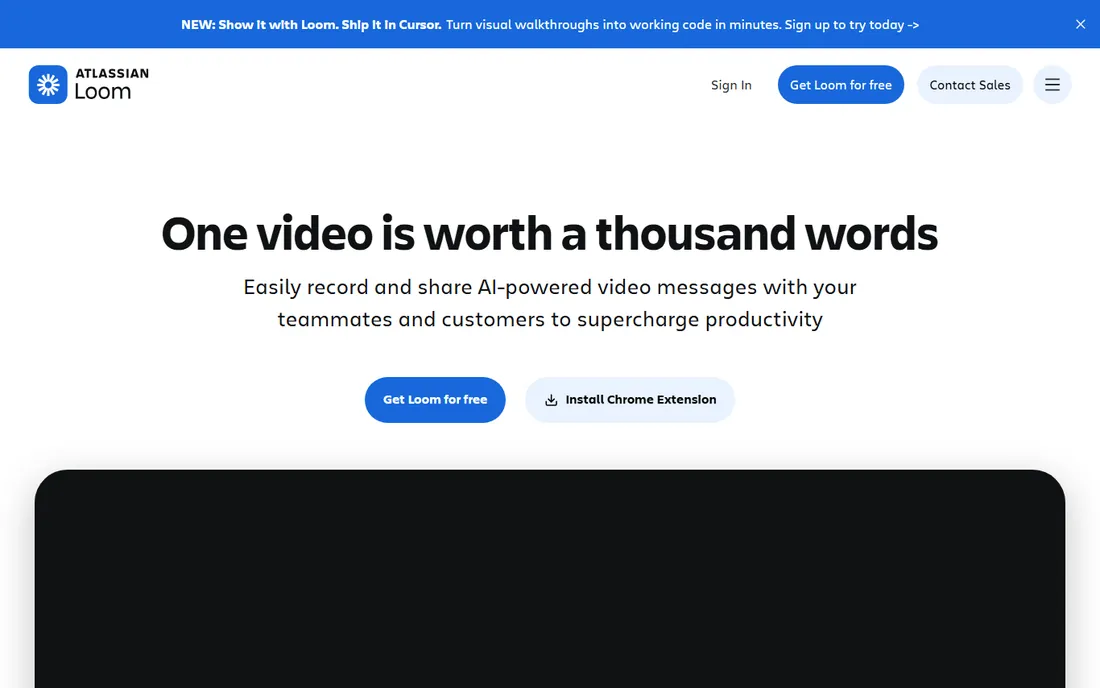
Loom defined the async video category, and its workflow is still the fastest: record your screen, camera or both, and a shareable link appears instantly. No rendering, no uploading, no file management. Recipients watch in a browser, comment at timestamps and reply with their own videos. For replacing status meetings and quick walkthroughs, nothing beats it for speed.
The free Starter plan includes 25 videos per person at up to 5 minutes each and 720p quality, with no watermark. Business at $15 per user per month billed annually ($18 monthly) removes all limits, adds 4K recording, trim and stitch editing, branding and downloads. Business + AI at $20 per user per month billed annually adds AI summaries, chapters and filler-word removal.
The honest limitation is depth. Loom is a communication tool, not a video editor. If your tutorials need multi-track editing, animations or quizzes, pair Loom with Camtasia or Descript rather than forcing it. For everyday team communication, though, it is the tool everything else is compared to.
What we like- Fastest path from record to shareable link
- Viewer comments and emoji reactions
- Transcripts in 50+ languages on every plan
Watch out for- Free plan caps videos at 5 minutes and 25 total
- Editing beyond trim and stitch needs higher tiers
#2
Camtasia
Best for: Polished tutorials and training videos that need real editing
Visit techsmith.com
Starting price$179.88 per year (Essentials)
Free planFree trial
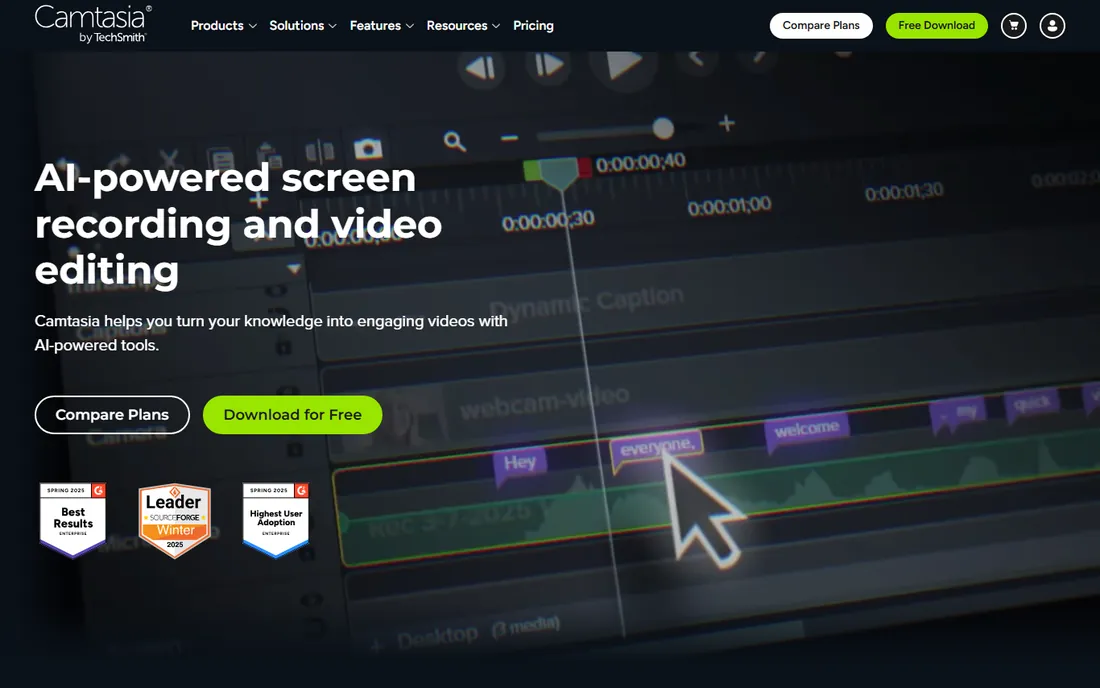
Camtasia is what you graduate to when Loom's trim tool is not enough. It pairs a capable screen recorder (screen, webcam and system audio at once, 4K at 60fps) with a genuine multi-track video editor: transitions, animations, green screen, audio cleanup and noise removal. Quizzes, clickable links and chapter markers turn recordings into interactive training content.
TechSmith moved Camtasia to subscription with the 2025 release. Essentials at $179.88 per year is the tier that opens up the full editor; Starter at $39 per year covers advanced screen capture with watermarked editor exports; Create ($249) and Pro ($599) add AI creation tools and production features. A free trial lets you test the full editor.
The trade-off is complexity and cost. Camtasia is heavier than Loom or ScreenPal, and casual users can find it overwhelming. But for course creators and training teams producing polished content regularly, it is the most complete screen-recording-plus-editing package available.
What we like- Full multi-track video editor built around screen recordings
- Quizzes, captions and interactive elements
- Templates and asset library speed up production
Watch out for- Subscription-only since Camtasia 2025
- Overkill for simple quick recordings
Starting priceFree
Free planYes
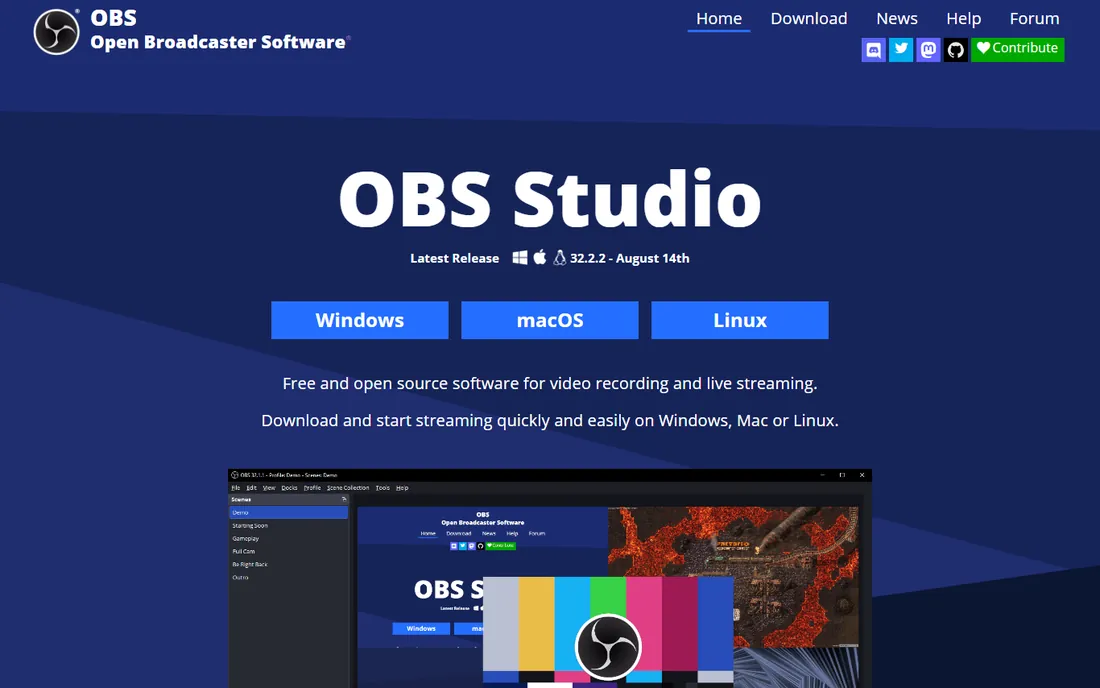
OBS Studio is the remarkable free outlier in this category. It is open source, has no paid tier, no watermarks and no recording limits, yet it powers everything from Twitch streams to corporate webinars. Scenes let you compose screen captures, webcams, images and text into professional layouts, switch between them live, and record or stream in high quality.
For pure screencasting, OBS handles multi-source recording that paid tools charge for: picture-in-picture demos, live annotations through plugins, and separate audio tracks for clean editing later. The plugin ecosystem adds everything from virtual backgrounds to automatic captions.
The catch is approachability. OBS assumes you know what a scene, source and encoder are, and its settings panels can overwhelm a first-timer. There is also no cloud hosting: you get a file, and sharing is your job. For anyone willing to spend an afternoon learning it, OBS is the most capable free recording tool in existence.
What we like- Completely free and open source with no limits
- Scenes, sources and transitions rival paid broadcast tools
- Huge plugin ecosystem and community
Watch out for- Learning curve is steep for beginners
- No built-in video hosting or sharing
Starting price$4 per month (billed annually, Solo Deluxe)
Free planYes (15-minute recordings, 10 hosted videos, basic editing)
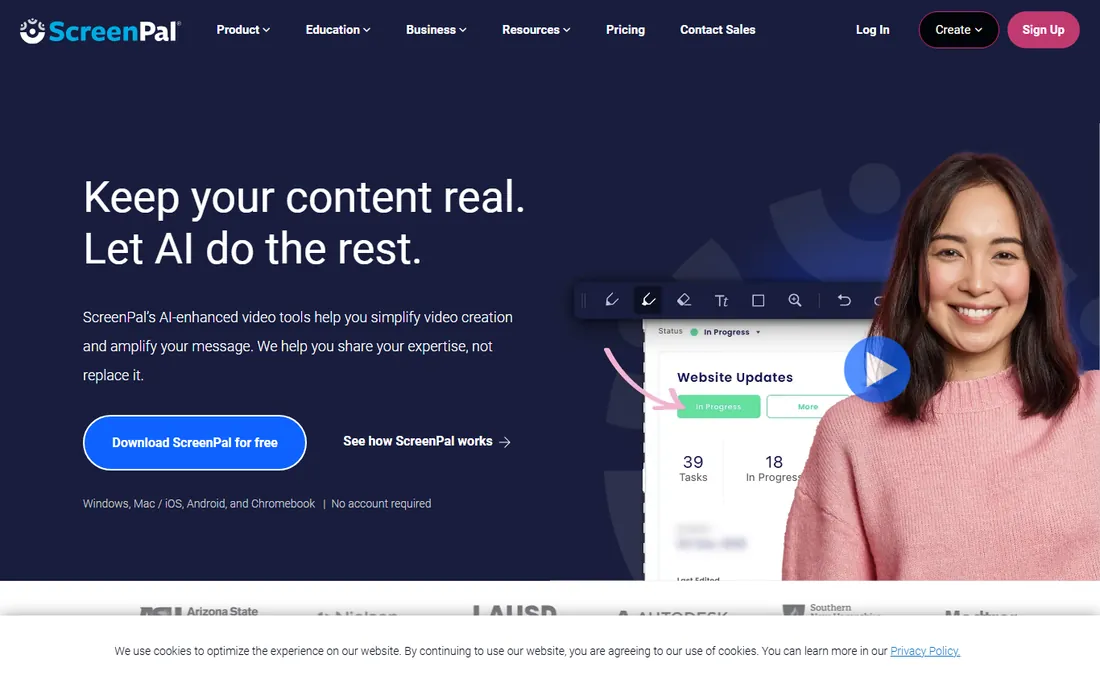
ScreenPal, formerly Screencast-O-Matic, is the value play that keeps winning over educators and small teams. The free plan records up to 15 minutes per video with basic editing and hosts 10 videos. Solo Deluxe at $4 per month billed annually removes the limits and adds the full editor, AI speech-to-text captions and stock media. Solo Max at $10 per month adds AI narration, translation and interactive quizzes.
What stands out is how much is bundled at that price: recording, a real editor with overlays and music, secure cloud hosting with share links and embeds, analytics, and AI features like background removal and caption translation in 100+ languages. The cross-platform support, including Chromebook, explains its popularity in schools.
The editor will not replace Camtasia for complex productions, but for the vast middle ground of tutorials, demos and training clips, ScreenPal delivers the most complete package per dollar in this roundup.
What we like- Recording, editor, hosting and AI captions in one cheap package
- Works on Windows, Mac, Chromebook, iOS and Android
- Strong education following
Watch out for- Editor is simpler than Camtasia's
- Free tier caps recordings at 15 minutes
Starting price$39 per year (Individual)
Free planFree trial (15 days)
Snagit is not really a video tool, and that is its strength. For the daily work of explaining things visually, annotated screenshots, step-by-step guides, quick GIFs, it is faster than recording, editing and sharing a video. Capture a region, add arrows and callouts, blur sensitive data, and share. The scrolling capture grabs full web pages, and text recognition pulls copy straight out of images.
Video recording exists for simple needs: screen plus voice, webcam overlay, basic trimming and GIF export. When a clip needs real editing, Snagit hands off to Camtasia.
At $39 per year for individuals (business plans from $48 per user per year), it is cheap for the time it saves anyone who documents processes, reviews software or answers visual questions all day. If your screencasting needs are mostly quick explanations, start here before buying a video tool.
What we like- Fastest capture-to-annotated-image workflow available
- Scrolling capture for full web pages
- Searchable library of everything you capture
Watch out for- Video features are basic compared to dedicated recorders
- Subscription-only since Snagit 2025
Starting price$16 per person/month (billed annually; $24 monthly)
Free planYes (free plan with monthly media limits)
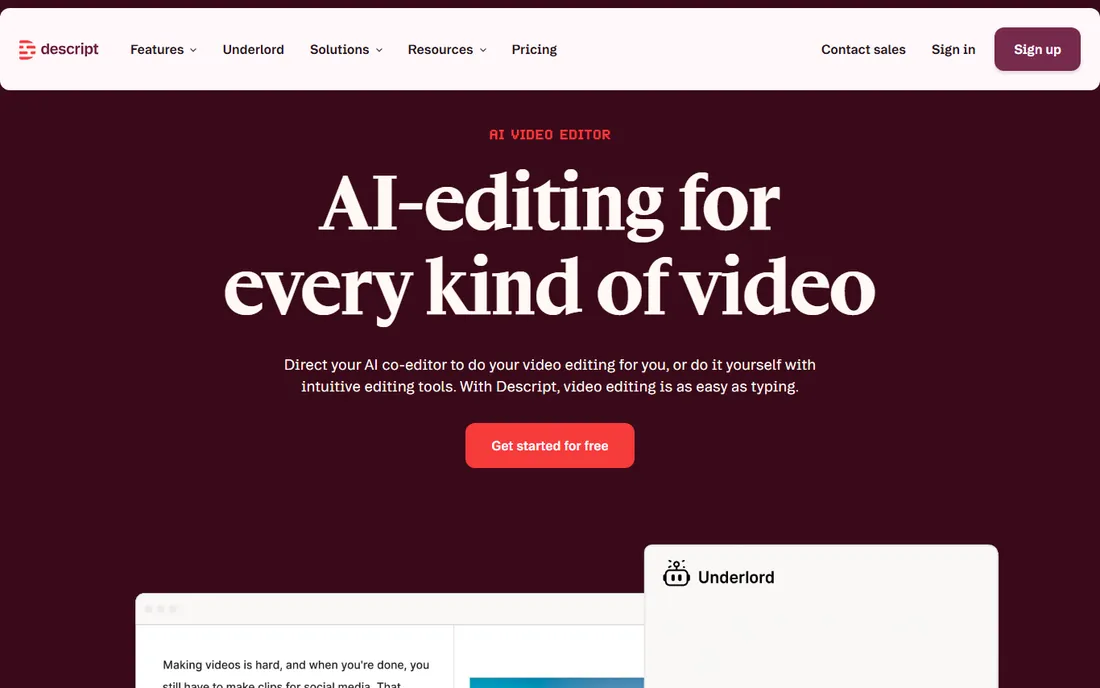
Descript flips video editing on its head: it transcribes your recording, and you edit the video by editing the text. Delete a sentence in the transcript and it disappears from the video. It sounds like a gimmick until you use it on a 20-minute tutorial full of ums and tangents, and the edit takes minutes instead of an hour.
The screen recorder captures with automatic transcription, and the AI tools go further: Overdub clones your voice to fix flubbed words by typing, Studio Sound cleans up noisy audio, and filler-word removal is one click. For tutorial creators and podcasters who record their screens, the workflow is transformative.
Pricing starts at $16 per person per month billed annually ($24 monthly), with a free plan for light use. The catch is that the magic depends on transcription accuracy, and heavy effects work still belongs in a traditional editor. But for spoken-word screencasts, nothing edits faster.
What we like- Edit video by deleting words in a transcript
- AI voice cloning and filler-word removal
- Screen recording with automatic transcription built in
Watch out for- Transcript-based editing has a learning curve
- Pricing is per person and adds up for teams
#7
Movavi Screen Recorder
Best for: Simple scheduled and lightweight recordings
Visit movavi.com
Starting price$34.95 per year
Free planFree trial (7 days, watermarked exports)
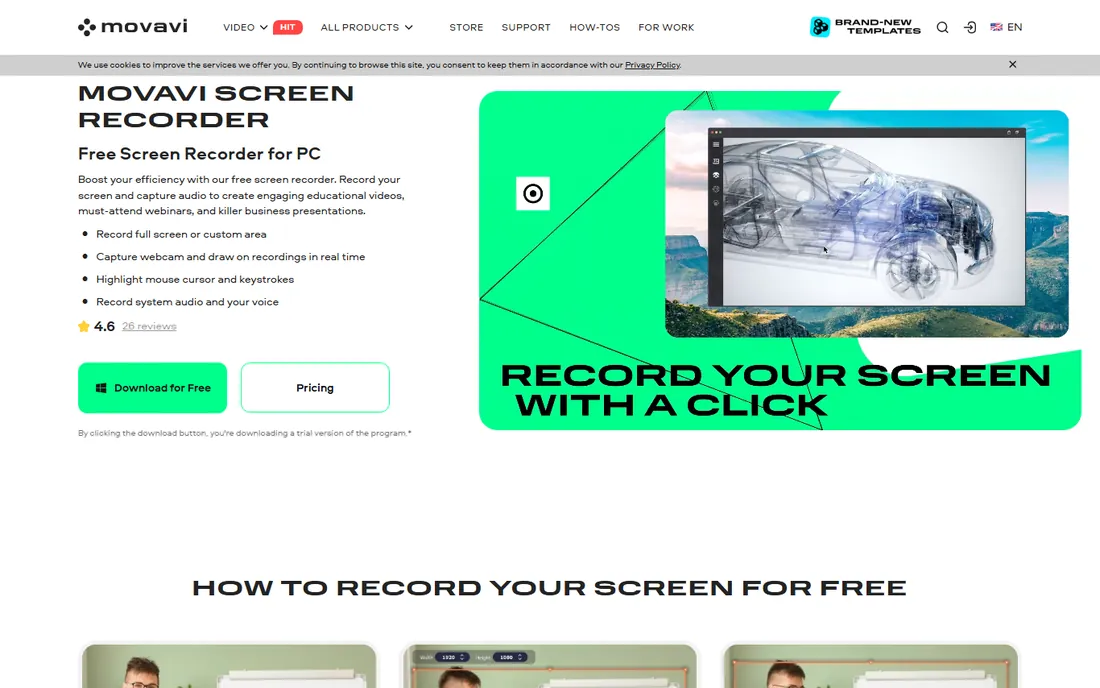
Movavi Screen Recorder targets the user who finds OBS intimidating and Camtasia excessive. It records screen, webcam and audio with a clean interface, offers scheduled recording (handy for capturing webinars or streams you cannot attend live), and stays light on system resources during long captures.
At $34.95 per year, it sits between free tools and premium editors in price, and the 7-day trial lets you test it, though trial exports carry a watermark. The editing is basic: trim, cut and simple annotations.
This is a straightforward pick for straightforward needs. If you record the occasional demo, webinar or tutorial and want something that just works without a learning curve, Movavi is a reasonable middle-ground choice.
What we like- Clean, simple interface anyone can use
- Scheduled recording for webinars and streams
- Lightweight on system resources
Watch out for- Editing features are minimal
- Trial watermarks exports
Starting price$7 per user/month (billed annually)
Free planYes (limited free videos and recording length)
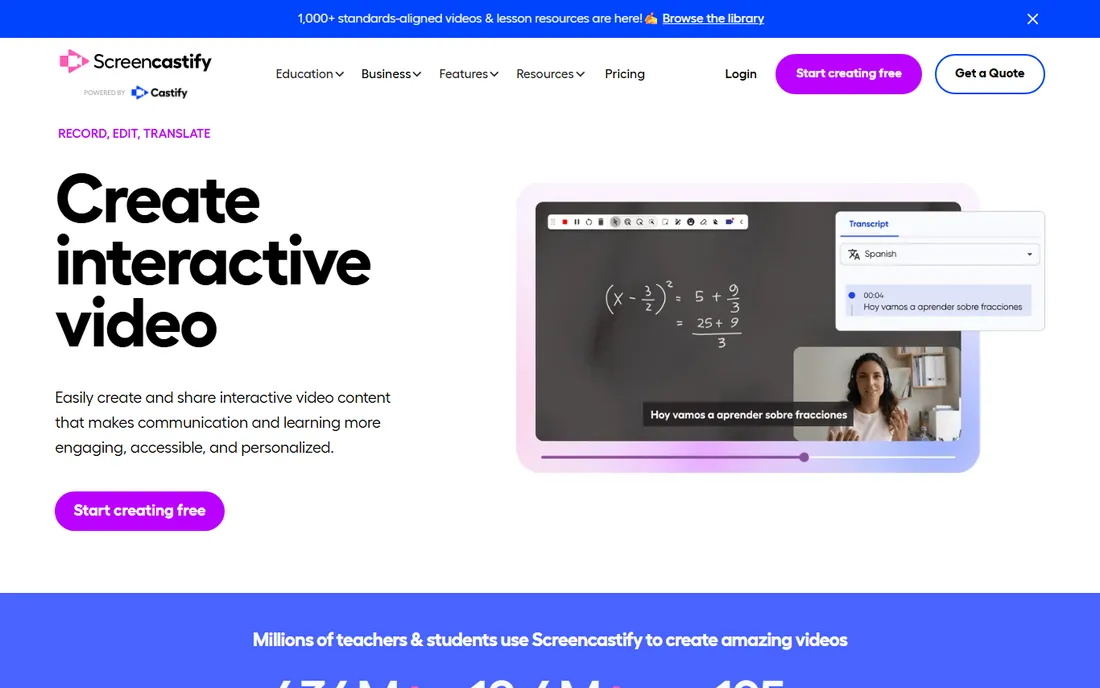
Screencastify lives in the browser. As a Chrome extension, it records tabs, desktop or webcam with no desktop software to install, which is why it caught on in education: students and teachers can record from Chromebooks and share instantly. The workflow is simple: record, trim in the built-in editor, share a link.
The free plan covers a handful of videos with length limits, enough to test the workflow. Paid plans start at $7 per user per month billed annually, adding unlimited videos, longer recordings and more storage.
The limitation is the browser-first design. Recording desktop applications works, but the tool shines for web-based demos and classroom content. For teams standardized on Chrome and Google Workspace, it is the lowest-friction option here.
What we like- Runs entirely in Chrome with no desktop install
- Popular with teachers and students
- Simple editor and sharing workflow
Watch out for- Chrome-centric, less suited to desktop-app demos
- Free tier is quite limited
How we chose
We verified pricing on each vendor's own pricing pages and public documentation, checking plan limits, trial terms and what the free tiers actually include, and opened every homepage to confirm each product is live under its current name. We then compared those claims against 2026 reviews from TechRadar, PCMag and education-technology reviewers, plus community discussion on Reddit, focusing on real recording workflows rather than feature lists. We made sure the list covers the main jobs: quick async messages, polished tutorials, live streaming, classroom recording and transcript-based editing, and we excluded tools that had been discontinued or folded into other products.
Screencasting tools look interchangeable until you match them to the actual job.
Quick explanations and async updates
Loom or ScreenPal. Speed from record to shareable link matters more than editing power. If the video needs no edits, the tool with the fastest sharing workflow wins.
Tutorials and training courses
Camtasia or Descript. Multi-track editing, captions, quizzes and clean audio separate a professional tutorial from a raw recording. Descript's transcript editing is fastest for spoken content; Camtasia's timeline is better for visual effects.
Live streaming and complex setups
OBS Studio. Nothing else free handles multi-source scenes, live switching and streaming. The learning curve pays off the first time you run a polished live demo.
Classrooms and Chromebooks
Screencastify or ScreenPal. Browser-based recording with no installs, simple sharing, and education-friendly pricing.
Screenshots with occasional video
Snagit. Most visual explanations do not need video at all, and Snagit's annotated captures are faster to make and easier to skim than any recording.
The async video habit that actually sticks
Buying a screencasting tool is easy; getting a team to use it is the hard part. The teams that succeed follow a pattern: they start with one use case, usually replacing a recurring meeting or documenting a repeated process, and they make watching effortless with timestamped comments and short videos under five minutes. They keep a shared library organized by topic so recordings become a searchable knowledge base instead of a pile of links. And they accept imperfection: a slightly rough video shipped today beats a polished one that never gets recorded. Pick the tool your team will actually open, not the one with the longest feature list.
Frequently asked questions
What is the difference between screencasting and screen recording?
Screen recording is the act of capturing what is on your screen. Screencasting adds the sharing and presentation layer: webcam overlays, narration, editing and a shareable link or video file. Every tool here does both, but they emphasize different parts of that pipeline.
Do I need to download software to record my screen?
Not always. Screencastify runs as a Chrome extension, Loom offers a Chrome extension and web recording, and ScreenPal has browser-based options. Desktop apps like Camtasia, OBS and Snagit need installation but offer more power and work offline.
Can I record my screen for free?
Yes. OBS Studio is completely free with no limits, Loom's Starter plan is free with caps, and ScreenPal, Screencastify and Descript all offer free tiers. For occasional recording, the free options are genuinely sufficient.
How long can I record with free plans?
It varies widely. OBS Studio has no limit at all. Loom Starter caps recordings at 5 minutes each. ScreenPal's free plan allows 15-minute recordings. Check the specific limits before planning a long tutorial on a free tier.
Which tool is best for recording tutorials?
For polished tutorials, Camtasia's editor or Descript's transcript-based editing. For quick informal tutorials, Loom or ScreenPal. For free, OBS Studio plus a free editor. The right answer depends on how much editing the tutorial needs.
Can viewers watch without installing anything?
With cloud-based tools like Loom, ScreenPal and Screencastify, yes: recipients get a link and watch in a browser. Desktop tools like OBS and Camtasia produce video files you share however you like, through your own hosting, LMS or file sharing.
Sources we checked (14)
- https://www.loom.com/
- https://www.techsmith.com/camtasia/
- https://obsproject.com
- https://screenpal.com/
- https://www.techsmith.com/screen-capture.html
- https://www.descript.com
- https://www.movavi.com/screen-recorder/
- https://www.screencastify.com/
- https://www.videoconverterfactory.com/record-screen/loom-reviews.html
- https://www.learningrevolution.net/best-screen-recording-software/
- https://www.learningrevolution.net/screenpal-review/
- https://makethatseachange.com/snagit-review/
- https://www.screensnap.pro/blog/snagit-vs-camtasia
- https://www.elitecontentmarketer.com/deals/camtasia-black-friday/
Is your product missing or out of date?
We review this list regularly. Vendors can request a listing, send updated pricing or ask about featured placement.

Shihab Mia · Founder, Rankite
Shihab has spent more than a decade helping SaaS and e-commerce brands grow through search. He writes Rankite's software buying guides from pricing pages, documentation and public user reviews. More about Shihab.