How we make this list: we compare pricing pages, product documentation and public user reviews. Rankite is independent; if a vendor ever pays for a featured spot, that listing is clearly labeled Partner.
Key takeaways
- GIMP and darktable give you professional-grade manual sharpening for zero dollars, but both demand real learning time before they pay off.
- Upscayl is the best no-cost AI option: it runs on your own computer, has no watermarks or upload limits, and needs a Vulkan-compatible GPU.
- VanceAI, Fotor, PicWish and HitPaw FotorPea all sharpen through AI in your browser or on desktop, but the free tiers are credit-based and run out fast.
- PhotoScape X sits in the middle: free, simple and good for beginners, though its best masking tools are reserved for the paid Pro version.
- Free sharpening cannot rescue a photo that never had detail. It works best on slight softness, mild motion blur and images worth upscaling.
Quick comparison
| Tool | Best for | Starting price | Free plan |
|---|
 GIMP GIMP | manual sharpening with full control | Free (open source) | Yes |
 Upscayl Upscayl | free AI upscaling on your own computer | Free (open source) | Yes |
 darktable darktable | sharpening inside a free RAW workflow | Free (open source) | Yes |
 VanceAI VanceAI | quick AI deblur in a browser | See website | Free credits (10 to start) |
 PhotoScape X PhotoScape X | beginners who want easy edits on Windows or Mac | See website | Yes |
 Fotor Fotor | one-click fixes plus design templates | See website | Yes |
 PicWish PicWish | AI enhancement with batch processing | See website | Free trial (credits) |
 HitPaw FotorPea HitPaw FotorPea | AI sharpening and upscaling on desktop | $22.39/month (Windows) | Free trial |
Is your product missing or out of date?
We review this list regularly. Vendors can request a listing, send updated pricing or ask about featured placement.
Starting priceFree (open source)
Free planYes
GIMP is the honest free pick for people who want to sharpen photos by hand instead of trusting a one-click button. Its Unsharp Mask filter uses the same core technique as the paid editors: it blurs a copy of the image, compares it to the original, and boosts the edge difference above a threshold you set. You get manual control over radius, amount and threshold, plus a High Pass option for more advanced work. For a free tool, that level of control is unmatched.
The trade is patience. GIMP looks and feels like software from another era, and the first evening with it is mostly spent finding where things live. There is also no AI reconstruction, so a photo with serious motion blur stays blurry. But if your photo is slightly soft and you are willing to learn the filters, GIMP gives you everything a paid editor does for sharpening, including color management and 16-bit support for serious photo work.
What we like- Completely free with no tiers or watermarks
- Unsharp Mask with radius, amount and threshold controls
- Huge plugin ecosystem and community tutorials
Watch out for- Interface feels dated and takes time to learn
- No AI deblur for heavy motion or focus blur
- Batch sharpening needs plugins or scripts
Starting priceFree (open source)
Free planYes
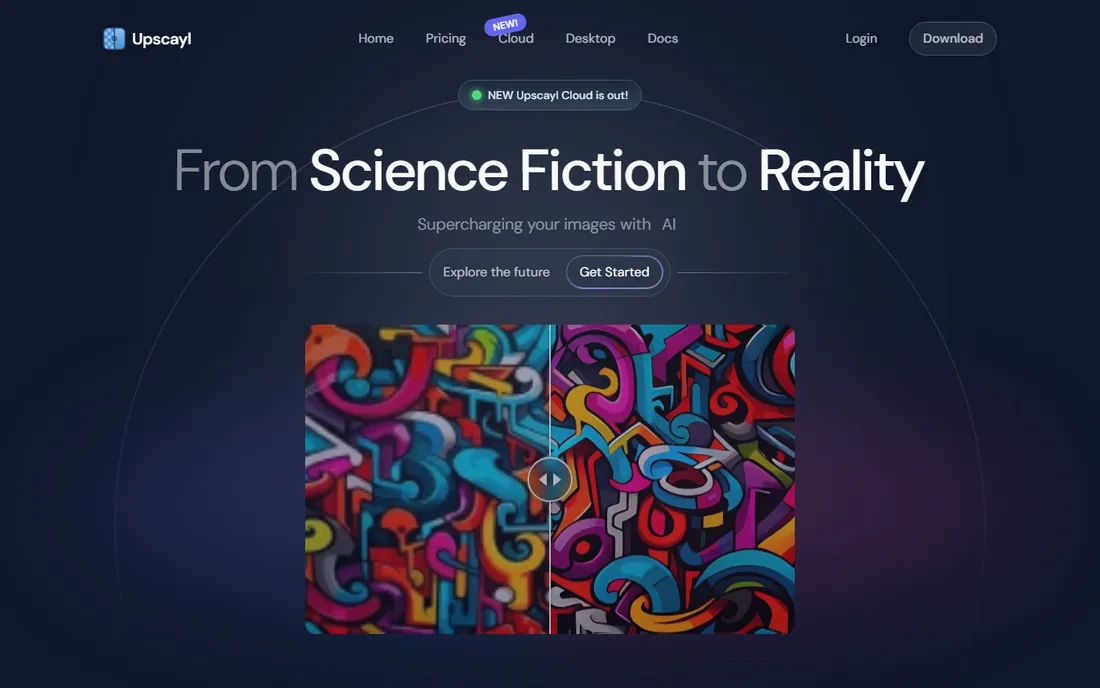
Upscayl takes the opposite approach from GIMP: instead of manual filters, it uses AI models to rebuild detail while enlarging the image. It is free and open source, runs on Windows, macOS and Linux, and processes everything locally. That means no uploads to a server, no credits to burn through, and no watermark stamped on your result. Drop in an old family photo or a compressed web image, pick a model, and export at 2x, 4x or higher.
The catch is hardware. Upscayl needs a Vulkan-compatible graphics processor, and integrated graphics on older machines may struggle or refuse to run it. It is also an upscaler first, so there are no brightness, crop or retouch tools: you sharpen and enlarge here, then edit elsewhere. On moderately soft photos the results can be striking. On photos that are badly out of focus, expect the AI to invent plausible-looking texture rather than recover real detail.
What we like- No watermarks, no upload limits and no account
- Runs locally so photos stay private
- Multiple AI models with up to 16x upscaling
Watch out for- Needs a Vulkan-compatible GPU to run well
- It upscales rather than offering editing tools
- Results can look artificial on very blurry originals
Starting priceFree (open source)
Free planYes
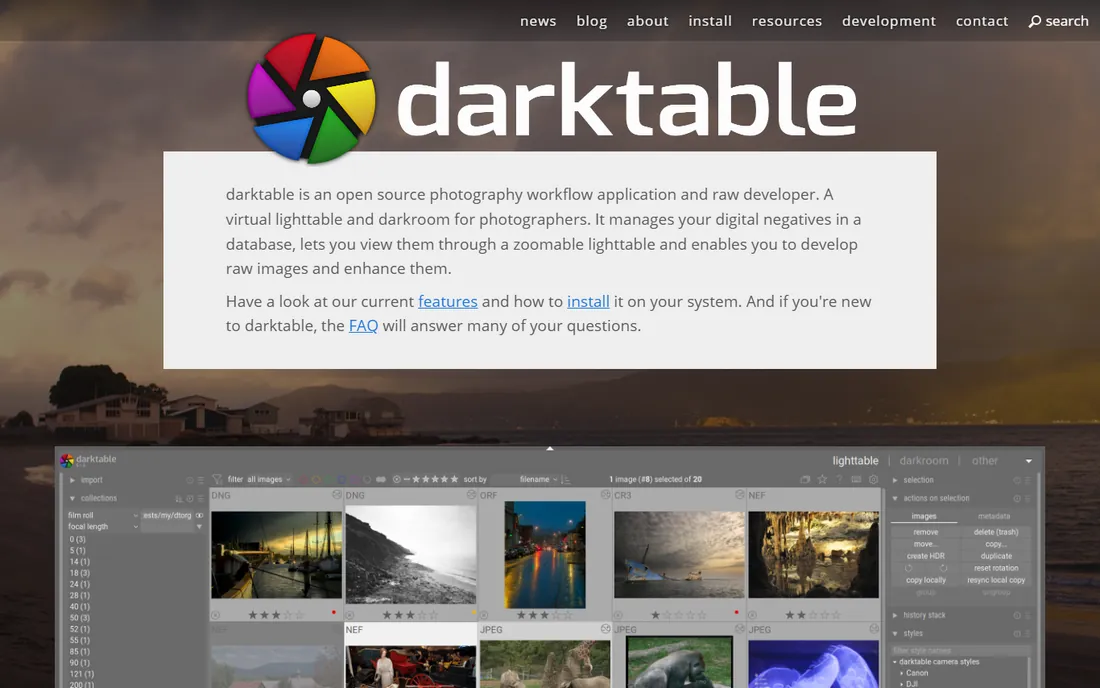
darktable is the free answer to Adobe Lightroom: a full photography workflow with a lighttable for organizing and a darkroom for developing RAW files. Sharpening lives inside that workflow rather than standing alone. The sharpen module handles output sharpening, the contrast equalizer recovers local detail, and masking keeps the effect on edges instead of smooth skies and skin. Everything is non-destructive, so the original file is never touched.
This is the right tool if you shoot RAW and process photos by the dozen or hundred. The batch tools, tethered shooting support and camera profiles for 400+ models make it a genuine professional pipeline. For a single soft JPEG, though, darktable is overkill: you will spend longer learning the interface than fixing the photo. Photographers who invest the time get a sharpening workflow that rivals paid software. Casual users should pick something simpler.
What we like- Non-destructive editing with dedicated sharpen and contrast-equalizer modules
- GPU acceleration for faster exports
- Batch processing for large shoots
Watch out for- One of the steepest learning curves in this list
- Desktop only, no browser or mobile version
- The module list can overwhelm newcomers
Starting priceSee website
Free planFree credits (10 to start)
VanceAI is a browser-based AI sharpener built for speed. Upload a soft portrait, an action shot with motion blur or a slightly out-of-focus product photo, choose from the General, Motion Blur, Lens Blur or Soft Blur models, and get a result in seconds. The free tier starts you with 10 credits, and each sharpened result costs one credit. For the occasional rescue job, that is enough to test whether the tool earns a place in your workflow.
The honest catch is the credit economy. Ten credits go fast, and once they are gone you are on a paid plan or waiting for a refresh. There is also a privacy angle worth a thought: your photos upload to VanceAI's servers for processing, so think twice before sending client work or anything sensitive. The desktop app, VanceAI for PC, does batch sharpening locally on Windows, which solves both problems if you process product photos in volume.
What we like- Four sharpening models including dedicated motion-blur and lens-blur modes
- Desktop app available for offline batch work
- Processes in seconds
Watch out for- Free credits run out after a handful of images
- Uploaded photos go to their servers
- Each result costs one credit whether you like it or not
Starting priceSee website
Free planYes
PhotoScape X is the friendliest free editor in this list. It opens with tabs for viewer, editor, batch, collage, GIF and more, and each tab does exactly what its name says. Sharpening is a slider, not a science project: open the editor tab, find the sharpen control, and adjust until the image looks right. The batch tab applies the same edit to a folder of photos, which is genuinely useful for cleaning up a batch of listings or social images.
What you do not get is precision. There is no unsharp-mask dialog with radius and threshold, no masking to protect skin tones, and the more advanced batch options belong to PhotoScape X Pro, the paid upgrade. That is fine for its audience. If you want a free tool that a non-technical teammate can learn in an afternoon and use to sharpen product shots, screenshots and family photos, PhotoScape X is the easiest recommendation here.
What we like- Simple tabbed interface that beginners learn fast
- Batch editor, collage maker and GIF tools included
- Free version covers the basics well
Watch out for- Best masking and batch tools are reserved for the paid Pro version
- Less fine control than GIMP or darktable
- Windows and Mac only
Starting priceSee website
Free planYes
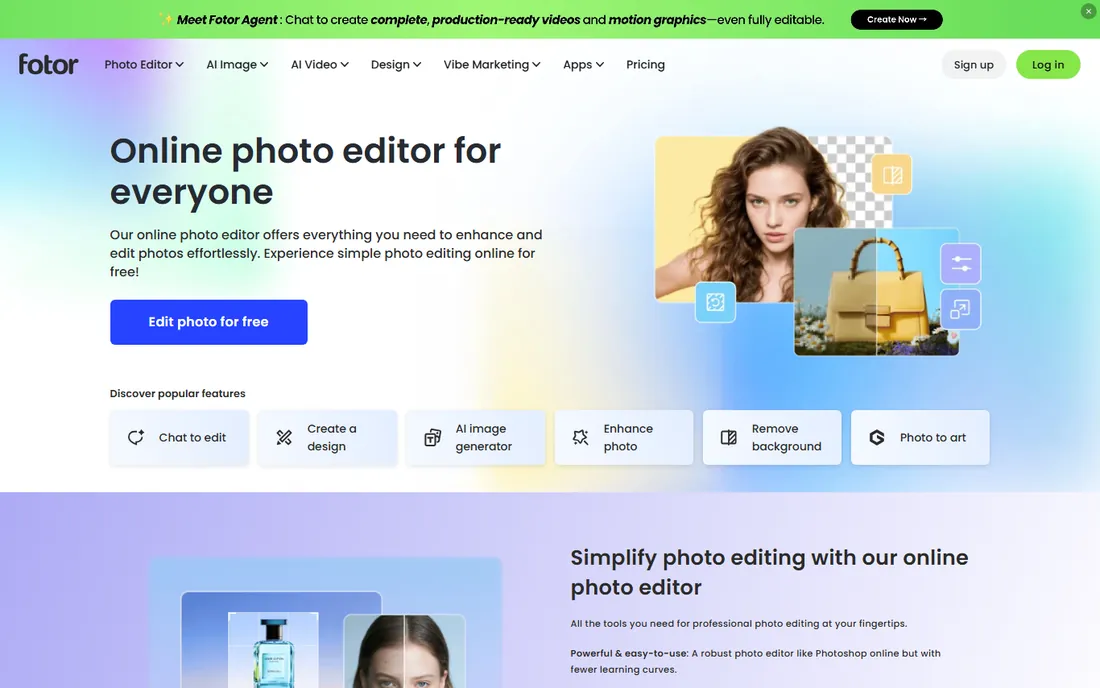
Fotor is a freemium photo editor and design platform, and sharpening is one small part of a much bigger toolkit. The free tier includes a one-tap AI enhancer that sharpens and cleans up a photo in a single click, alongside crop, resize, filters and a large template library for social media, posters and marketing graphics. For a small business owner who also needs to make Instagram posts and flyers, the combination is practical.
The catch is the upsell pressure. Many of the newer AI tools, higher export quality and batch features require Fotor Pro, and the free experience nudges you toward it regularly. Sharpening itself is fully automatic: you get a before-and-after comparison, not sliders. If you like that simplicity and want design templates in the same tab, Fotor works. If you want to control exactly how sharpening is applied, GIMP or darktable will serve you better.
What we like- Generous free tier with one-tap AI enhancer
- Works in the browser, on desktop and on mobile
- Templates for social posts, collages and marketing
Watch out for- The best AI features sit behind Fotor Pro
- Free exports carry limits and upgrade prompts
- Sharpening is automatic with little manual control
Starting priceSee website
Free planFree trial (credits)
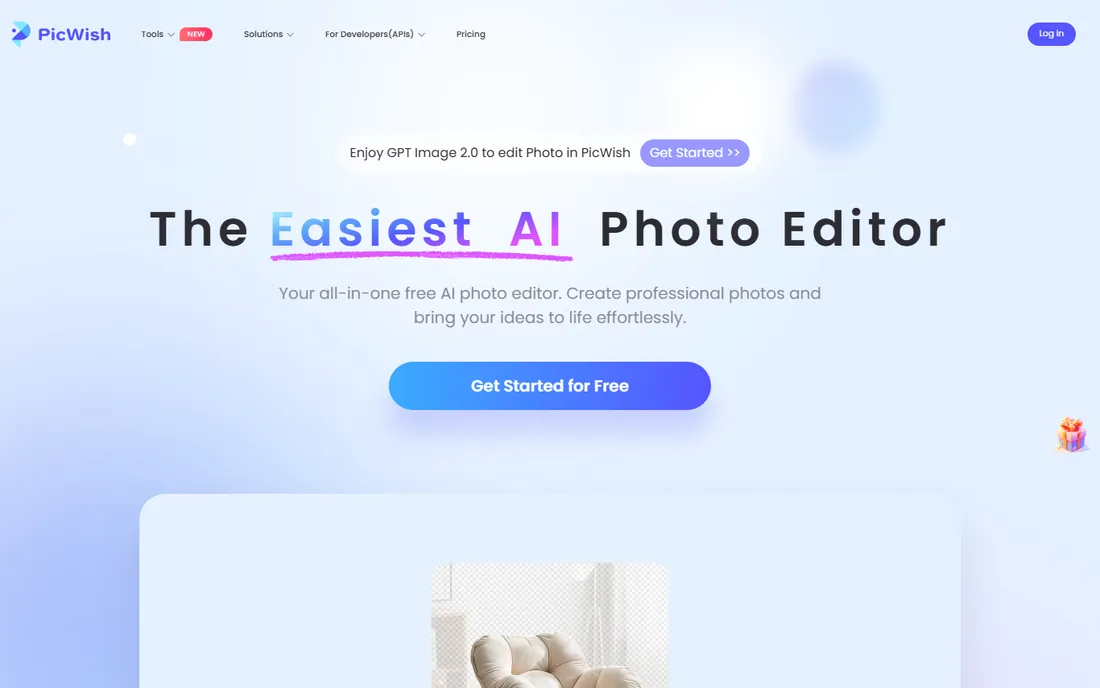
PicWish positions its AI Photo Enhancer as more than a sharpener: it sharpens blurry photos, restores facial detail in portraits affected by blur or low light, and upscales in HD or Ultra HD modes. The workflow is drag, drop and download, and batch processing makes it viable for teams cleaning up product catalogs or real-estate listings. A free trial with credits lets you test the quality before committing.
The credit model is the thing to watch. Every processed image costs credits, and batches of hundreds add up fast, so price it against your monthly volume before adopting it. Free trial exports are watermarked, which makes the trial fine for evaluation but useless for client work. Treat PicWish as a strong candidate when you need AI quality at volume and can budget for credits, not as a permanently free tool.
What we like- Strong results on portraits with face restoration
- Batch processing for high-volume workflows
- HD and Ultra HD export modes
Watch out for- Credit-based pricing that burns quickly on batches
- Free outputs carry a watermark
- Browser uploads mean slower turnaround on big files
#8
HitPaw FotorPea
Best for: AI sharpening and upscaling on desktop
Visit hitpaw.com
Starting price$22.39/month (Windows)
Free planFree trial
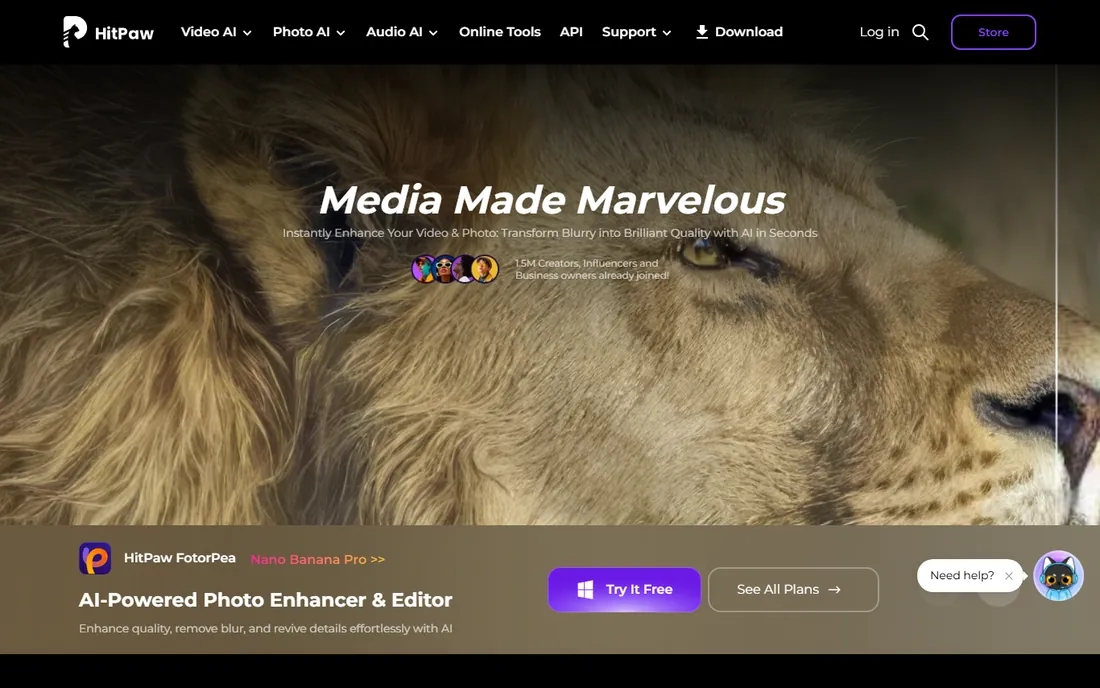
HitPaw FotorPea (formerly HitPaw Photo Enhancer) is a desktop AI toolkit for enhancement, restoration and upscaling, with an online version for quick one-off jobs. It offers general, denoise and face-restoration models, upscales up to 8K, and handles batches, which suits photographers and sellers processing product shots. The interface is modern and the before-and-after preview makes it easy to compare models.
The honest catch is cost. At $22.39 a month for Windows ($25.59 for Mac, per the company's pricing), it is one of the priciest tools in this list, and the free version is a trial with watermarked exports rather than a real free tier. It earns its price only if you sharpen and upscale in real volume. For a few photos a month, the free tools above do the job without the subscription.
What we like- Multiple AI models including denoise, sharpen and face restoration
- Batch processing on Windows and Mac
- Online tool available for quick jobs
Watch out for- The monthly price is steep for occasional use
- The Mac plan costs more than Windows
- Trial exports are watermarked
How we chose
We did not claim hands-on testing. We compared pricing pages, feature lists and official documentation for each vendor, plus public reviews on G2, Capterra, Reddit and app stores, and filtered for what a small business buyer actually needs: a real free tier or free plan (not just a trial), sharpening that is either manual and precise or AI-assisted, and tools that still exist and are maintained in 2026. We favored tools with clear free limits over vague "free" labels, and we checked that desktop apps still support current operating systems. Where prices could not be verified on the vendor's own pricing page, we wrote "See website" instead of guessing.
What free sharpening can and cannot do
Free sharpening tools are genuinely good at two jobs: making a slightly soft photo look crisp, and enlarging a small image without it falling apart. Unsharp Mask and its cousins boost edge contrast, which reads as sharpness. AI tools go further and rebuild plausible detail. Both work best when the original photo already contains decent information: a product shot that is a touch soft, a screenshot that needs enlarging, an old photo with mild blur.
What they cannot do is recover what was never captured. Heavy motion blur, missed focus on a face, or a thumbnail-sized image will not become a sharp print no matter which free tool you use. AI sharpeners in particular can invent texture that looks like detail but is not: hair, grass and fabric get synthetic-looking repeats at high magnification. Use free sharpening to polish good-enough photos, not to rescue disasters. For paid client work where accuracy matters, keep expectations honest with the client before you start.
The split that matters most is where the processing happens. Desktop apps like GIMP, Upscayl, darktable and PhotoScape X process on your computer: no uploads, no credits, no watermarks, and no privacy questions. The price is installation, disk space and, for Upscayl, a capable GPU. They are the right choice for sensitive photos, large batches and anyone who dislikes subscriptions.
Browser tools like VanceAI, Fotor and PicWish need no installation and work from any computer, which is convenient for a quick fix on a borrowed laptop. The trade is that your photos upload to someone else's servers, free tiers are credit-limited, and outputs may be watermarked or resolution-capped. Pick the browser route for occasional one-off fixes. Pick desktop for volume, privacy and long-term cost control. Many buyers end up with one of each.
Frequently asked questions
Is free photo sharpening software really free?
The open-source tools in this list (GIMP, Upscayl, darktable) are free with no tiers, no watermarks and no time limits. The freemium tools (Fotor, PhotoScape X) give you a genuinely useful free tier and charge for advanced features. The AI tools (VanceAI, PicWish, HitPaw FotorPea) use credits or trials, so "free" means a limited number of images. Read the free limits before you commit your workflow to one.
Can free software fix a blurry photo?
Slightly soft photos, mild motion blur and low-resolution images: yes, often impressively. Severely out-of-focus or heavily motion-blurred photos: no free tool recovers what the sensor never captured. AI sharpeners can make such photos look cleaner, but the "detail" is partly invented. For a photo that matters, test on a copy first and zoom in to 100 percent before judging.
Which is better, GIMP or Upscayl?
They solve different problems. GIMP gives you manual, precise sharpening inside a full editor: best when the photo is basically good and needs a careful touch. Upscayl uses AI to upscale and rebuild detail: best for small, compressed or old photos that need enlarging. Many people keep both installed and use them for different jobs.
Do I need to install anything to sharpen photos for free?
No. VanceAI, Fotor and PicWish all work in the browser with no installation. The trade is credit limits, possible watermarks and uploading your photos to their servers. If you sharpen often or care about privacy, installing GIMP or Upscayl once is the better long-term setup.
Will free sharpening work on RAW photos?
Yes, with the right tool. darktable is built for RAW files and includes sharpening as part of its developing workflow. GIMP can open RAW files with the right plugins. The browser AI tools generally want JPEG or PNG, so convert first. For a RAW-heavy workflow, darktable is the strongest free option in this list.
Are there watermarks on free sharpened photos?
GIMP, Upscayl, darktable and PhotoScape X export without watermarks. Fotor's free tier has no watermark on basic edits but limits some AI exports. VanceAI, PicWish and HitPaw FotorPea watermark their free or trial outputs. If watermark-free output matters, stick with the open-source and free-tier tools.
Sources we checked (12)
- https://www.gimp.org/
- https://upscayl.org/
- https://www.darktable.org/
- https://vanceai.com/sharpen-ai/
- https://x.photoscape.org/
- https://www.fotor.com/
- https://picwish.com/photo-enhancer
- https://www.hitpaw.com/fotorpea-photo-enhancer.html
- https://www.softorbits.net/how-to/sharpen-image.html
- https://www.picwand.ai/enhance-photos/best-photo-sharpening-software-free/
- https://blog.skylum.com/best-free-ai-photo-enhancers-online/
- https://www.pcworld.com/article/3187353/fix-blurry-images-with-my-favorite-free-ai-upscalers.html
Is your product missing or out of date?
We review this list regularly. Vendors can request a listing, send updated pricing or ask about featured placement.

Shihab Mia · Founder, Rankite
Shihab has spent more than a decade helping SaaS and e-commerce brands grow through search. He writes Rankite's software buying guides from pricing pages, documentation and public user reviews. More about Shihab.