How we make this list: we compare pricing pages, product documentation and public user reviews. Rankite is independent; if a vendor ever pays for a featured spot, that listing is clearly labeled Partner.
Key takeaways
- Adobe Acrobat Pro remains the reference point for PDF editing, and every other desktop editor is priced and positioned against it.
- Foxit PDF Editor and Nitro PDF Pro are the serious business alternatives, with team deployment and licensing aimed at IT departments.
- If you work mostly on Mac, iPhone or iPad, PDF Expert gives you the smoothest experience of any Apple-focused editor.
- For occasional jobs like merging, compressing or signing, the free web tools (Smallpdf, Sejda, iLovePDF) handle it without installing anything.
- Price models split three ways: subscriptions (Adobe, Foxit, Nitro), one-time or perpetual licenses (PDF-XChange, Master PDF Editor), and free-with-limits web tools.
Quick comparison
| Tool | Best for | Starting price | Free plan |
|---|
 Adobe Acrobat Pro Adobe Acrobat Pro | The full-featured industry standard | See website | See website |
 Foxit PDF Editor Foxit PDF Editor | Business teams wanting an Acrobat alternative | See website | See website |
 Nitro PDF Pro Nitro PDF Pro | Windows-centered offices and IT deployment | See website | See website |
 PDFelement PDFelement | Affordable desktop editing with AI extras | See website | See website |
 PDF-XChange Editor PDF-XChange Editor | Lightweight Windows editing, perpetual license | See website | See website |
 PDF Expert PDF Expert | Mac, iPhone and iPad users | See website | See website |
 Smallpdf Smallpdf | Quick web-based PDF tasks | See website | See website |
 Sejda Sejda | Browser editing with a privacy pitch | See website | See website |
 Master PDF Editor Master PDF Editor | Low-cost editing with a one-time license | See website | See website |
 iLovePDF iLovePDF | Free everyday conversions and merges | See website | See website |
Is your product missing or out of date?
We review this list regularly. Vendors can request a listing, send updated pricing or ask about featured placement.
Ten PDF editors compared feature by feature
#1
Adobe Acrobat Pro
Best for: The full-featured industry standard
Visit adobe.com
Starting priceSee website
Free planSee website
Nobody buys Acrobat Pro by accident. It is the program the PDF format was built around, and it shows in the details: text reflows properly when you edit a paragraph, scanned pages get accurate OCR, forms can be built with validation and calculations, and redaction is genuinely secure rather than cosmetic. If your work involves contracts, print production or regulated documents, this is the safe choice.
The honest catch is cost and weight. A subscription that never ends adds up, and most users touch a fraction of the feature set. Buy it when PDF work is central to your job and someone else's workflow depends on your files being exactly right.
What we like- The deepest editing, conversion and form features of any PDF tool
- Integrates with Microsoft 365, Google Drive and Adobe's document cloud
- Recognized output that clients and printers accept without questions
Watch out for- Subscription pricing makes it the most expensive option over time
- The interface carries years of accumulated features and can feel heavy
- Overkill if you only merge and sign occasionally
#2
Foxit PDF Editor
Best for: Business teams wanting an Acrobat alternative
Visit foxit.com
Starting priceSee website
Free planSee website
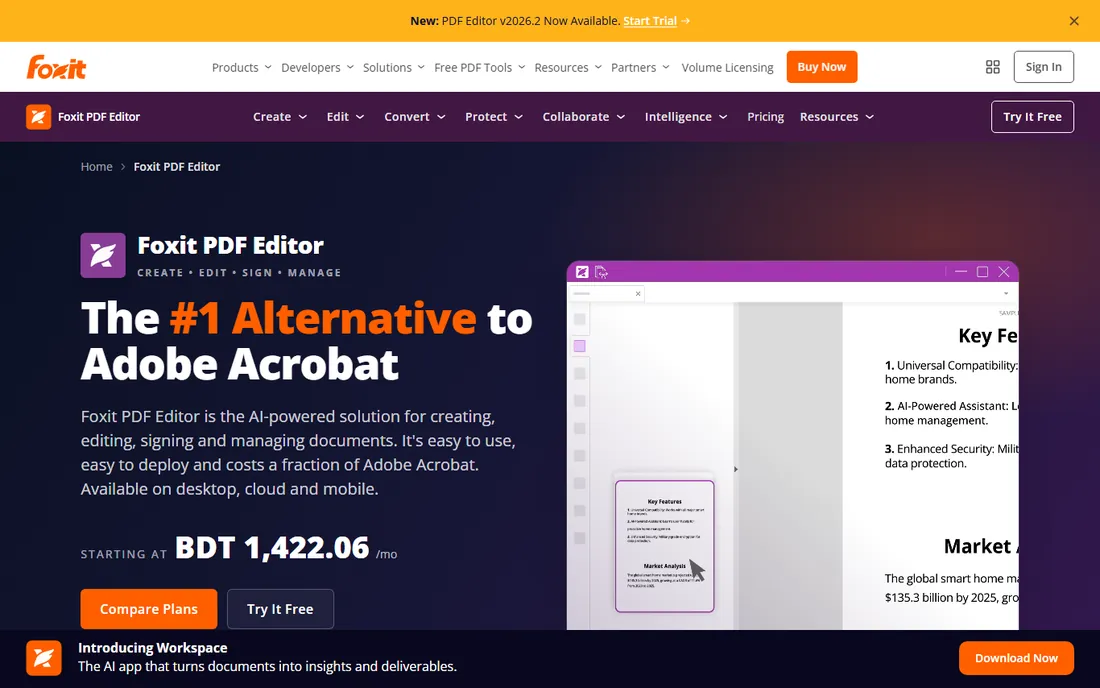
Foxit has spent years positioning itself as the business alternative to Acrobat, and for most office work it succeeds. Text editing, annotation, form filling, signing and conversion between PDF and Office formats all work well, and the ribbon-style interface feels familiar to anyone coming from Word. IT departments like the centralized license management and deployment options.
Where it falls short is at the edges: high-end print production and some accessibility workflows still favor Adobe. For everyday business documents most users will not notice the difference, and the savings per seat are real at team scale. It suits companies standardizing on a PDF editor that is not Adobe.
What we like- Editing and conversion features close to Acrobat at a lower price
- Deployment and license management built for IT teams
- Lighter install that opens large files quickly
Watch out for- Some advanced prepress features lag behind Acrobat
- The interface borrows heavily from Microsoft Office, which divides opinion
- AI features are newer and less proven
#3
Nitro PDF Pro
Best for: Windows-centered offices and IT deployment
Visit gonitro.com
Starting priceSee website
Free planSee website
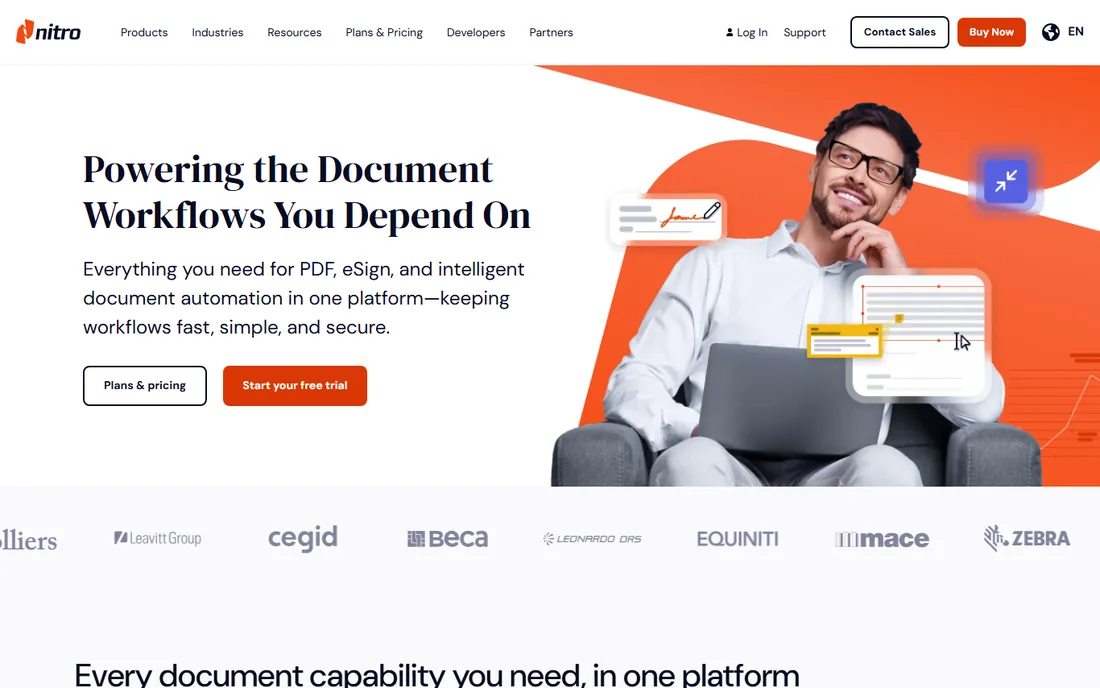
Nitro aims squarely at the corporate Windows desktop. The interface deliberately mirrors Microsoft Office, so training costs stay low when rolling it out to a whole department. Conversion quality from PDF to Word and Excel is genuinely good, and batch processing handles the unglamorous work of converting hundreds of files at once.
The trade is platform focus. If your team is all Windows, that is a strength; mixed Mac and Windows shops should test the Mac version carefully before committing. Nitro also moved to subscription licensing, so the old appeal of buying once is gone. It fits IT managers equipping Windows-heavy offices who want deployment controls without Adobe pricing.
What we like- Familiar Office-style interface shortens the learning curve
- Strong batch conversion and document comparison tools
- Analytics help IT see how licenses are used
Watch out for- Mac support exists but the product is Windows-first
- Subscription model replaced the old perpetual licenses
- Smaller ecosystem of integrations than Adobe
Starting priceSee website
Free planSee website
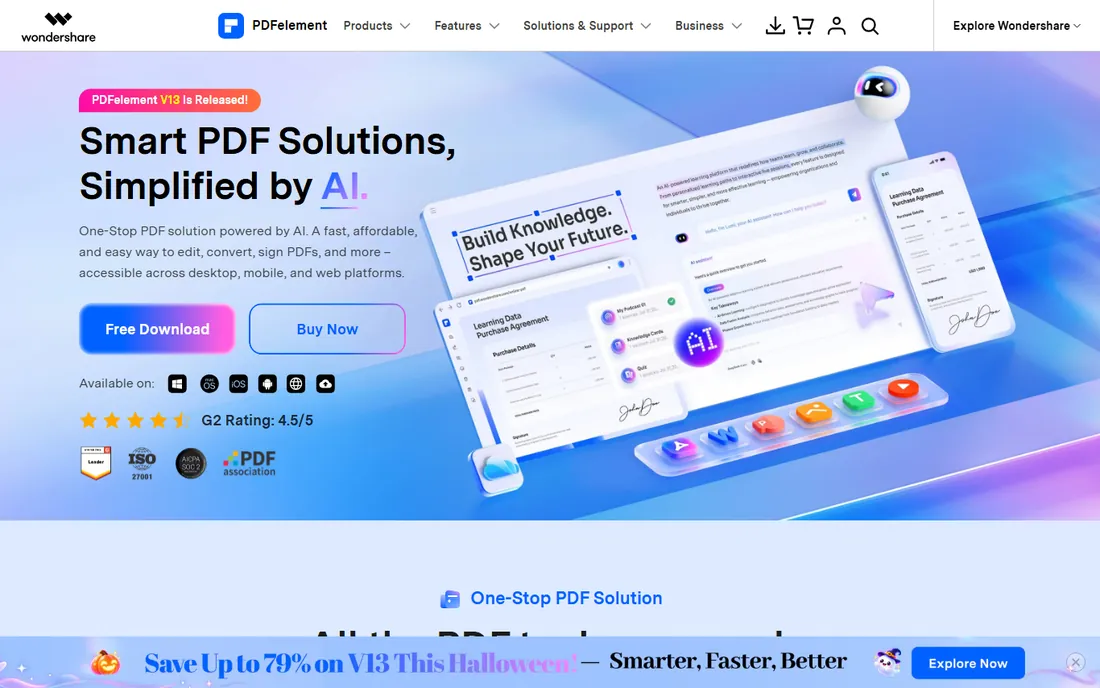
PDFelement is Wondershare's answer to the question of what a capable PDF editor costs when it is not Adobe. The feature list is long: edit text and images directly, run OCR on scans, build fillable forms, batch convert, and redact. Recent versions add AI tools that summarize long documents or answer questions about their contents.
The honest weakness is polish and positioning. The app works, but the interface nudges you toward Wondershare's other products, and enterprise buyers rarely shortlist it. For freelancers, students and small businesses who want desktop-class editing without the top-tier price, it is one of the better values here.
What we like- Full editing, OCR, forms and batch tools at a mid-range price
- AI features for summarizing and interacting with documents
- Available on Windows, Mac, iOS and Android
Watch out for- The interface can feel busy with upsells for other Wondershare products
- Perpetual licenses have become harder to find as subscriptions take over
- Brand recognition lags behind Adobe and Foxit
Starting priceSee website
Free planSee website
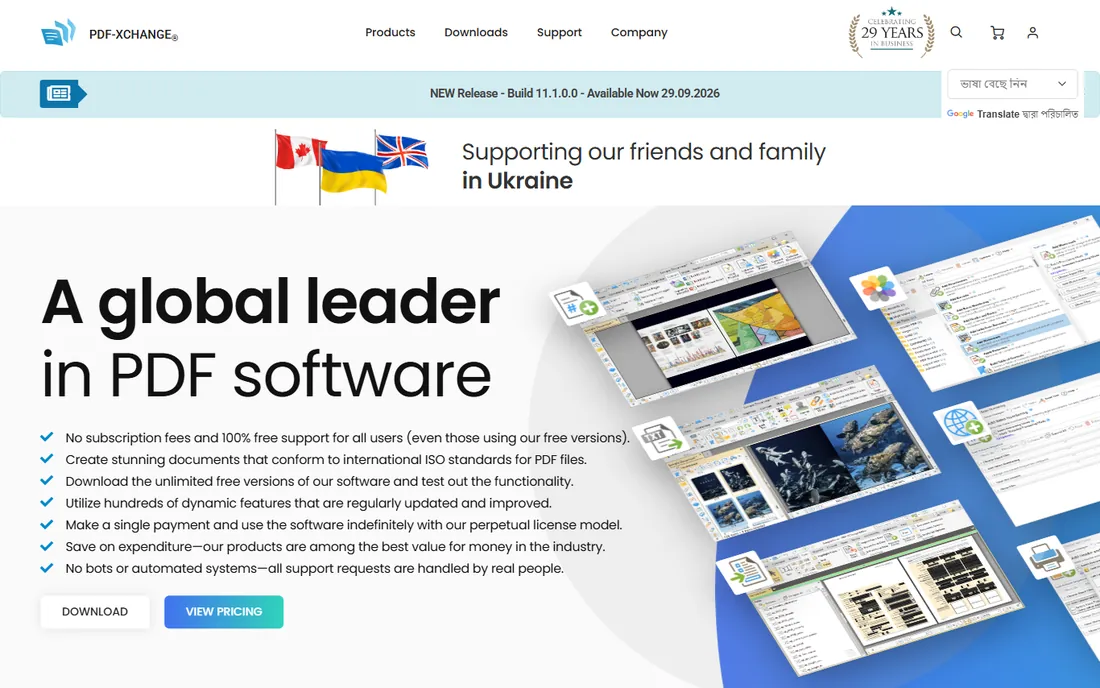
Ask in any forum which PDF editor Windows power users actually like, and PDF-XChange Editor comes up constantly. It is fast in a way the big suites are not: large documents open quickly, navigation stays responsive, and the editing tools are precise.
The catch is that it is unapologetically a Windows product with an interface from another era. If you can live with that, the perpetual license is the attraction: pay once, use it for years. OCR costs extra via the Pro version.
What we like- Fast and light, opens large PDFs without fuss
- Perpetual licenses available for those avoiding subscriptions
- Precise editing tools that power users respect
Watch out for- Windows only, no Mac version
- The interface looks dated next to modern rivals
- OCR and some advanced features require the Pro bundle
Starting priceSee website
Free planSee website
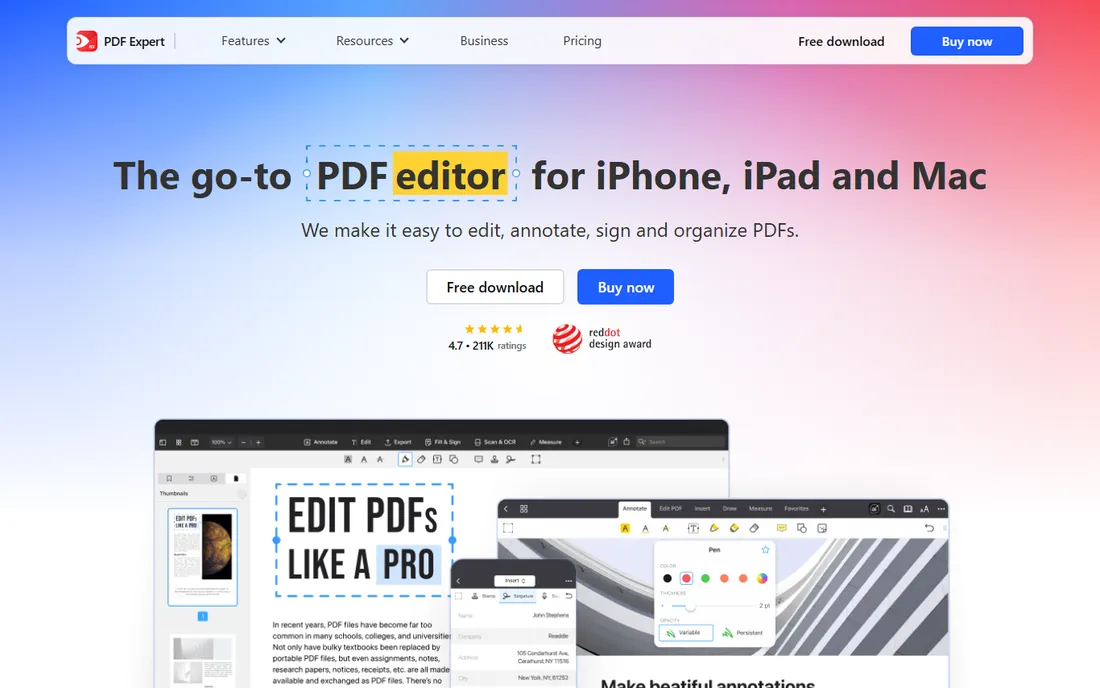
PDF Expert is the editor Apple users recommend to each other, and using it for five minutes explains why. Reading, annotating, highlighting and signing feel native to the platform in a way cross-platform tools never quite manage.
The limitation is scope. This is a reader, annotator and light editor first; complex form building and production preflight are not its job, and there is no Windows version. For people inside the Apple ecosystem who mostly read, mark up and sign, it is the obvious pick.
What we like- The most polished PDF experience on Apple devices
- Fast rendering with thoughtful annotation and signing tools
- Syncs work across Mac, iPad and iPhone
Watch out for- No Windows or Android version
- Advanced form creation trails the desktop giants
- Subscription pricing for the full feature set
Starting priceSee website
Free planSee website
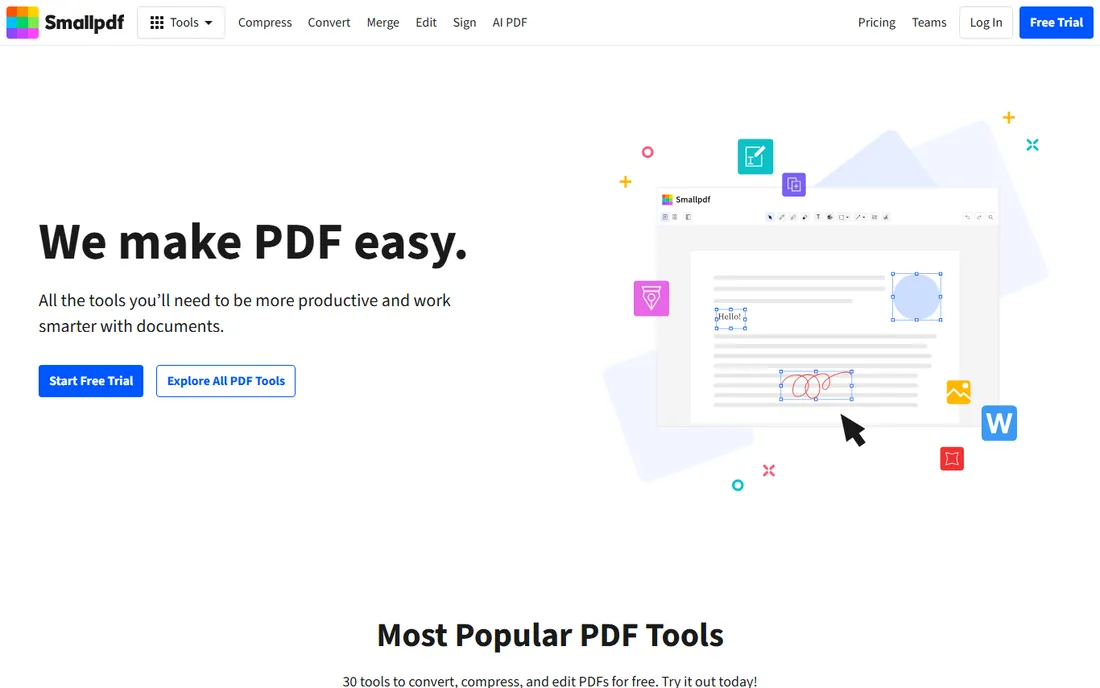
Smallpdf is the tool you reach for when a PDF needs one quick thing. Compress it for email, merge three scans, convert it to Word, add a signature: each job is a drag-and-drop page, and the result downloads in seconds.
The free tier rations daily tasks, which is fair; the paid plan exists for people who do this all day. Deep text editing is not the point here. The usual web-tool caution applies: fine for ordinary documents, think twice for anything confidential.
What we like- Nothing to install, works in any browser
- Covers the common jobs: compress, merge, split, convert, sign
- Clean interface that non-technical users grasp immediately
Watch out for- Free tier limits how many tasks you can run per day
- Heavy editing of text inside PDFs is limited
- Uploading sensitive documents to any web service needs thought
Starting priceSee website
Free planSee website
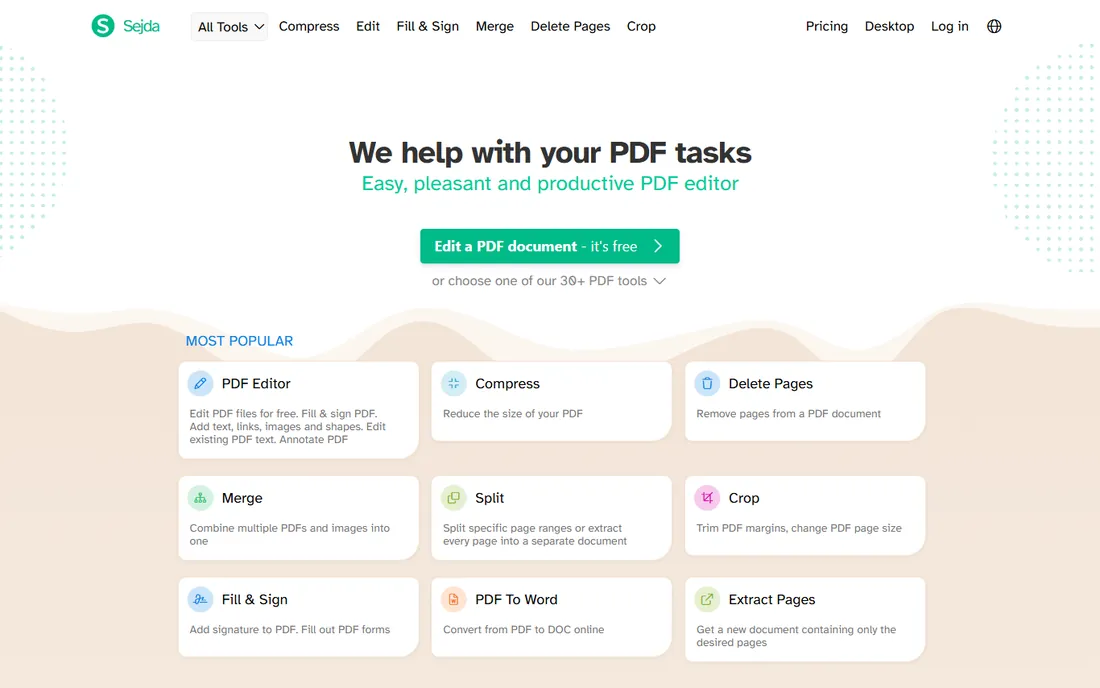
Sejda takes the web-tool idea further than most, offering dozens of PDF operations from a single site: editing text, whiteout, annotations, forms, watermarks, page management and conversions. The free tier is generous enough for real work rather than just a demo, which is why it has a loyal following among students and freelancers.
The limits are the usual web-tool ones: caps on tasks per hour and file sizes on the free plan, and a browser tab is not the place for a 500-page manual. Sejda's pitch includes deleting uploaded files from its servers after a few hours, which is better than nothing but still means sensitive documents travel to someone else's computer. For everyday PDF chores without installing software, it is one of the strongest free options.
What we like- Runs entirely in the browser with a wide tool selection
- Free tier covers genuinely useful daily work
- Positions itself on files being deleted from servers after processing
Watch out for- Free use has hourly and file-size limits
- Very large documents can strain a browser tab
- The interface is functional rather than beautiful
Starting priceSee website
Free planSee website
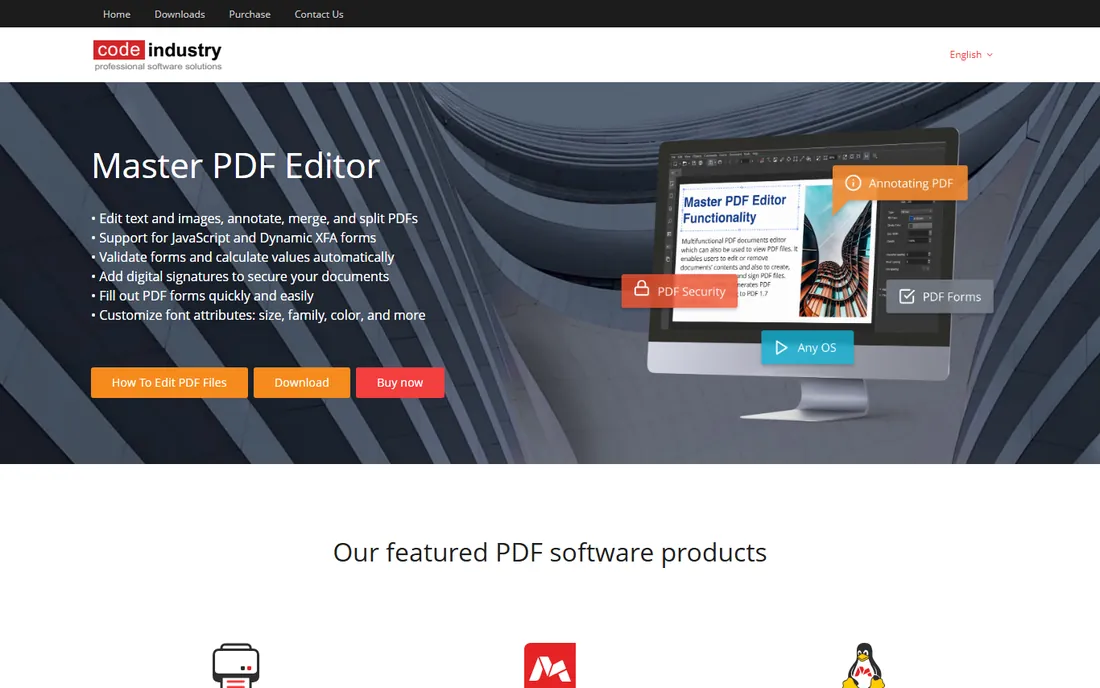
Master PDF Editor from Code Industry is the quiet value pick of the desktop category. It edits text and images, handles forms, runs OCR, applies digital signatures and redacts, on Windows, Mac and Linux, for a one-time price that undercuts a single year of most subscriptions. The Linux version alone makes it notable in a field that mostly ignores that platform.
Expectations need calibrating: this is not Acrobat with a discount sticker. Rendering fidelity on complex files and interface polish are a step behind, and new features arrive slowly. But for straightforward editing work on a tight budget, especially for users who refuse subscriptions on principle, it delivers the essentials at a price that is hard to argue with.
What we like- One-time pricing far below the big subscriptions
- Covers editing, annotation, forms, OCR and digital signatures
- Runs on Windows, Mac and Linux
Watch out for- The interface and rendering polish trail the leaders
- Linux support is a plus for few and irrelevant to most
- Smaller company means slower feature development
Starting priceSee website
Free planSee website
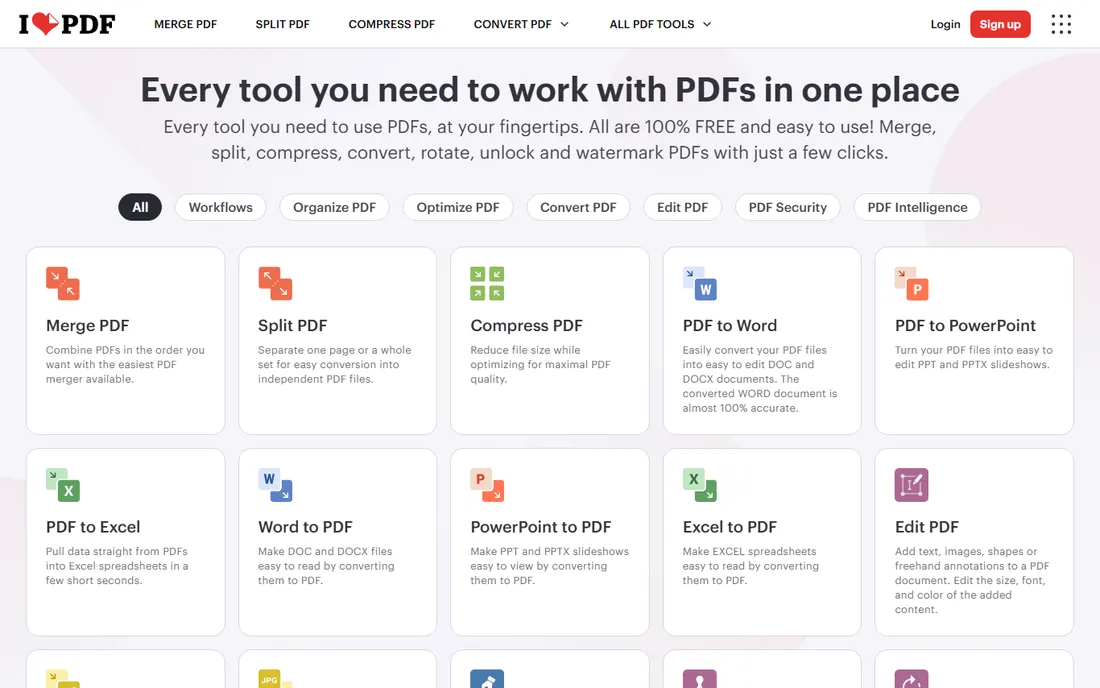
iLovePDF rounds out the list as the friendliest free starting point. Merge, split, compress, convert to and from Office formats, add page numbers or watermarks: the free tier handles a real workload, and the task-based layout means no manual is ever needed. Desktop and mobile apps exist for people who outgrow the browser.
It shares the category's honest limits. Editing the actual text of a PDF beyond small fixes is not what it is for, and free accounts are rationed. Confidential documents should stay on desktop software. For everyone else with everyday PDF chores, it is the fastest path from problem to finished file.
What we like- Generous free tier for merging, splitting, compressing and converting
- Simple task-based pages anyone can use
- Desktop and mobile apps extend it beyond the browser
Watch out for- True text editing inside PDFs is minimal
- Free accounts have task and size limits
- Like all web tools, not the place for confidential files
Buying guide: matching the editor to your workload
Start with how often you touch PDFs. A few times a month, the web tools win: Smallpdf, Sejda or iLovePDF handle merges, compressions, conversions and signatures with no install and no cost at typical volumes. Paying for a desktop editor you open quarterly is wasted money.
Weekly PDF work changes the calculation. If you edit text inside documents, build forms, run OCR on scans or apply real redactions, you need a desktop editor. Apple-only users should look at PDF Expert first; Windows users get the widest choice, from Acrobat Pro down through Foxit, Nitro, PDFelement, PDF-XChange and Master PDF Editor.
Then comes the licensing question, which matters more than most buyers expect. Subscriptions (Adobe, Foxit, Nitro) cost more over three years but include updates and cloud features. Perpetual licenses (PDF-XChange, Master PDF Editor) cost once and keep working, but major new versions may cost extra. If your employer pays, pick the best tool; if you pay, do the three-year math before deciding.
Finally, check the two dealbreakers people discover late: platform and file fidelity. Mixed Mac and Windows teams should verify the Mac version is a real product, not an afterthought. And if your PDFs go to printers, courts or regulators, test how each candidate renders your actual files before committing; free trials exist for exactly this.
How we chose
We compared vendor pricing pages, product documentation and published feature lists, then cross-checked against user discussion on G2, Capterra and Reddit. Every tool on this list exists today and edits PDFs as a core function rather than a side feature. We did not claim hands-on testing. Prices, plan names and free-tier limits change frequently, so the vendor's own pricing page is the final authority; verify there before you buy.
Most PDF anxiety comes from overbuying. If your actual jobs are merging scans, compressing a file for email, converting to Word, or collecting a signature, a desktop editor adds nothing except a bill. The web tools on this list do those jobs in seconds, and their free tiers cover normal personal volumes.
The line appears when the document itself must change. Rewriting paragraphs, reflowing layout after an edit, building a fillable form with validation, running OCR on a hundred scanned pages, or redacting text so it cannot be recovered: those need installed software with real editing engines. A useful rule is the five-minute test. If the job takes less than five minutes in a web tool, stay there. If you find yourself fighting the tool, that is the signal to buy the desktop editor.
One more honest note: free web tools process your file on someone else's server. For contracts, medical records, financial statements and anything with personal data, keep the work on your own machine with a desktop editor. Convenience is not worth a data question you cannot answer later.
Frequently asked questions
What is the best PDF editor for Windows?
For most Windows users the choice is between Adobe Acrobat Pro for the deepest feature set, Foxit PDF Editor or Nitro PDF Pro for business use at lower cost, and PDF-XChange Editor or Master PDF Editor for one-time pricing. If you only need occasional merges and conversions, the free web tools work fine on Windows too.
What is the best PDF editor for Mac?
PDF Expert is the most polished option built specifically for Mac, iPhone and iPad. Adobe Acrobat Pro and PDFelement also run well on Mac with broader feature sets, including form building and advanced OCR. For light jobs, the web tools work identically on any platform.
Can I edit a PDF for free?
Yes, within limits. Sejda, Smallpdf and iLovePDF let you do common tasks free in the browser, and some desktop editors offer limited free versions. Heavy text editing, advanced OCR and batch processing generally require a paid product.
Is there a PDF editor with a one-time purchase instead of a subscription?
PDF-XChange Editor and Master PDF Editor are the best-known options with perpetual licenses. Adobe, Foxit and Nitro have moved to subscription pricing. Always confirm the license type on the vendor's pricing page before paying, since vendors change these terms.
How do I choose between Acrobat Pro and Foxit?
For everyday business documents most users will not feel a difference, and Foxit usually costs less per seat with friendlier IT deployment. Acrobat Pro keeps the edge in print production, accessibility workflows and advanced form features. If your files go to printers or regulators, Acrobat is the safer default.
Are online PDF editors safe for sensitive documents?
They are convenient but not ideal. Your file is uploaded to a third-party server for processing, and while reputable services delete files afterward, you cannot verify that yourself. For contracts, financial or medical documents, use a desktop editor that processes everything on your machine.
Sources we checked (0)
Is your product missing or out of date?
We review this list regularly. Vendors can request a listing, send updated pricing or ask about featured placement.

Shihab Mia · Founder, Rankite
Shihab has spent more than a decade helping SaaS and e-commerce brands grow through search. He writes Rankite's software buying guides from pricing pages, documentation and public user reviews. More about Shihab.