How we make this list: we compare pricing pages, product documentation and public user reviews. Rankite is independent; if a vendor ever pays for a featured spot, that listing is clearly labeled Partner.
Key takeaways
- The only tools built specifically for old-PC-to-new-PC migration are Laplink PCmover, EaseUS Todo PCTrans and Zinstall WinWin ($129 one-time); everything else here clones disks or images systems.
- The free options that actually work are Clonezilla and Rescuezilla, both free and open source, but they clone drives rather than migrating installed programs.
- AOMEI Backupper (from $39.95/year) is the middle ground: system cloning and backup with a free trial, easier than Clonezilla.
- If you need your installed applications moved, not just files, buy a dedicated migration tool; disk cloners will not reinstall your apps on the new PC.
Quick comparison
| Tool | Best for | Starting price | Free plan |
|---|
 Laplink PCmover Laplink PCmover | Moving everything to a new PC automatically | See website (Laplink's store price was not extractable from its pages) | No |
 EaseUS Todo PCTrans EaseUS Todo PCTrans | App, file and account migration for Windows | See website (EaseUS store price not extractable from its pages) | See website |
 Zinstall WinWin Zinstall WinWin | Wireless transfer between two live PCs | $129 one-time | No |
 Acronis Cyber Protect Home Office Acronis Cyber Protect Home Office | Full-system backup with migration features | See website (Acronis store price not extractable from its pages) | Free trial |
 Macrium Reflect Macrium Reflect | Reliable disk imaging and cloning | See website (Macrium store price not extractable from its pages) | See website |
 Clonezilla Clonezilla | Free, no-nonsense disk cloning | Free | Yes |
 AOMEI Backupper AOMEI Backupper | Backup plus system and disk clone | From $39.95/year | Free trial |
 Rescuezilla Rescuezilla | Free graphical cloning for non-technical users | Free | Yes |
Is your product missing or out of date?
We review this list regularly. Vendors can request a listing, send updated pricing or ask about featured placement.
The best pc transfer software
Here is the blunt truth about this category: most "PC transfer software" does not transfer your PC. It copies files, or clones a disk, and leaves you reinstalling every application by hand. True migration, where your installed programs, settings and user profiles land on the new machine working, is done by exactly three products on this list. The rest are disk imagers and backup tools, which are excellent at what they do but solve a different problem. Know which problem you have before you pay.
Starting priceSee website (Laplink's store price was not extractable from its pages)
Free planNo
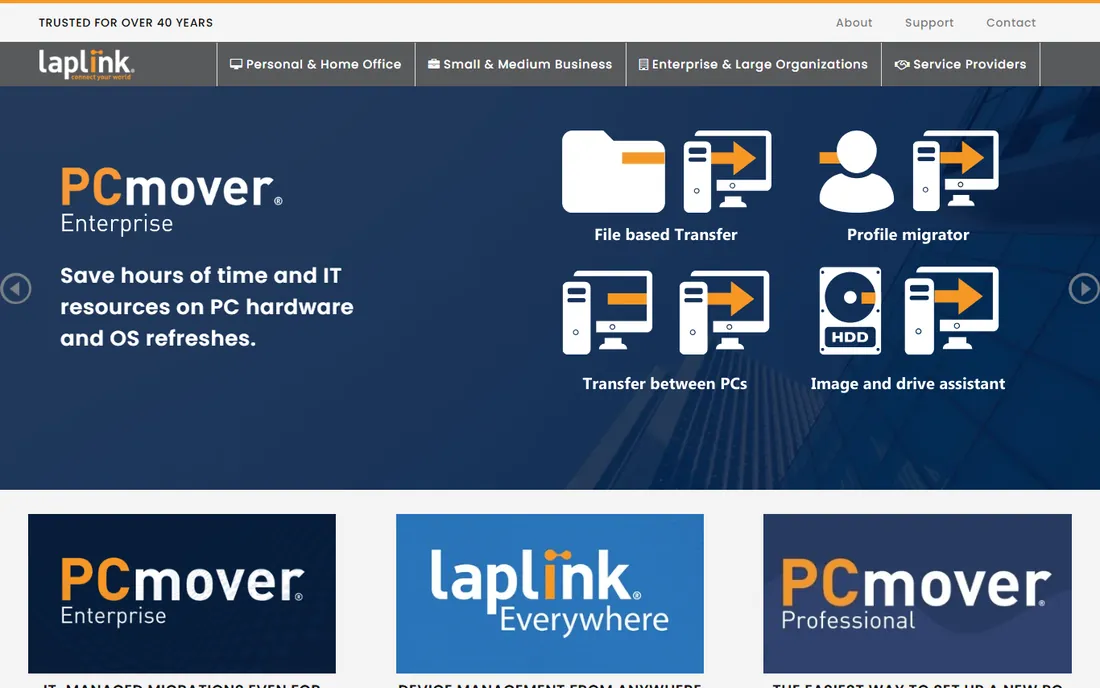
PCmover is the closest thing to a "move my whole computer" button. Laplink's site positions it as the complete migration tool: install it on both PCs, and it transfers applications, files, folders, settings and user profiles over network, cable or Wi-Fi. The free 24/7 transfer assistance, a real migration expert on the phone, is unique in this category and matters when a transfer stalls at midnight before a workday.
The honest catch is pricing opacity: Laplink does not show the price in its page text, so you will see it at checkout. It is also strictly a Windows-to-Windows product. If your need is "new laptop Friday, everything working Monday," this is the tool. If you just need files moved, it is overkill.
What we like- The only Microsoft-recommended migration tool, with free 24/7 transfer assistance
- Moves applications, files, settings and user profiles, not just data
- Undo feature reverses the migration if something goes wrong
Watch out for- Price is not published in the vendor's page text
- Windows-only, with no Mac migration path
#2
EaseUS Todo PCTrans
Best for: App, file and account migration for Windows
Visit easeus.com
Starting priceSee website (EaseUS store price not extractable from its pages)
Free planSee website
Todo PCTrans is EaseUS's answer to PCmover: move installed programs, files and accounts from an old PC to a new one, or from an old Windows install to a new one on the same machine. The interface is friendlier than Laplink's, and the image-transfer mode (migrate via a file rather than a live connection) helps when the two PCs cannot be networked. It covers the three migration scenarios most buyers face: new PC, new drive, new OS.
The catch is verification: EaseUS's pricing pages did not yield extractable prices or free-tier terms in our checks, so confirm both on easeus.com before comparing. Like all migration tools, it cannot defeat per-machine software licensing; some apps will ask for reactivation on the new PC no matter what the tool does.
What we like- Migrates applications, files and user accounts between PCs
- Also handles in-place OS upgrades and transfers via image files
- Simpler interface than PCmover
Watch out for- Neither price nor free-tier details were verifiable on the vendor's pages
- Some applications with complex licensing still need manual reactivation
Starting price$129 one-time
Free planNo
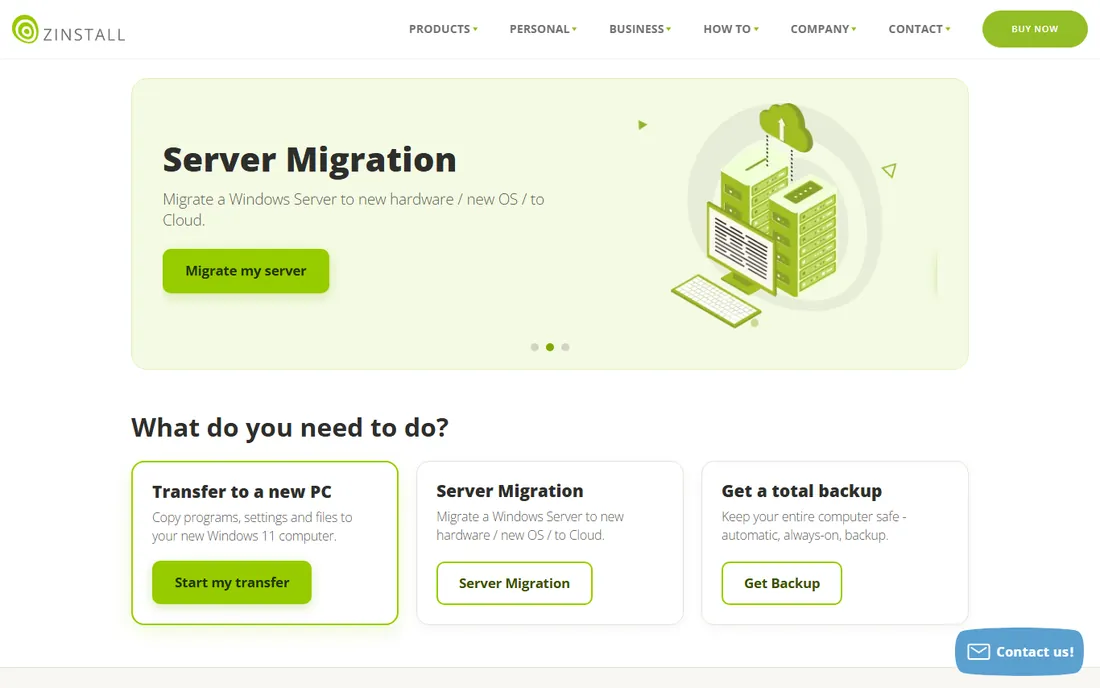
Zinstall WinWin does the migration over your wireless network: both PCs on, WinWin running on each, and everything moves. Its site lists $129 one-time for a transfer from one live computer to another. The selling point is completeness of the user environment: not just apps and files but the profile, settings and customizations that make the new PC feel like the old one. No subscription, no per-year renewal for a job you do once.
The catch is the price for a one-time job and the live-connection requirement. If either PC is dead, WinWin cannot help; you need an image-based tool instead. For a working old PC and a new PC on the same desk, it is the simplest wireless option, but $129 stings if you migrate once every five years.
What we like- Transfers programs, settings, profiles and files over Wi-Fi with no cables
- One-time $129 price with no subscription
- Handles the whole user profile including desktop layout
Watch out for- $129 is the highest outright price here for a single migration
- Both PCs must be running and on the same network
#4
Acronis Cyber Protect Home Office
Best for: Full-system backup with migration features
Visit acronis.com
Starting priceSee website (Acronis store price not extractable from its pages)
Free planFree trial
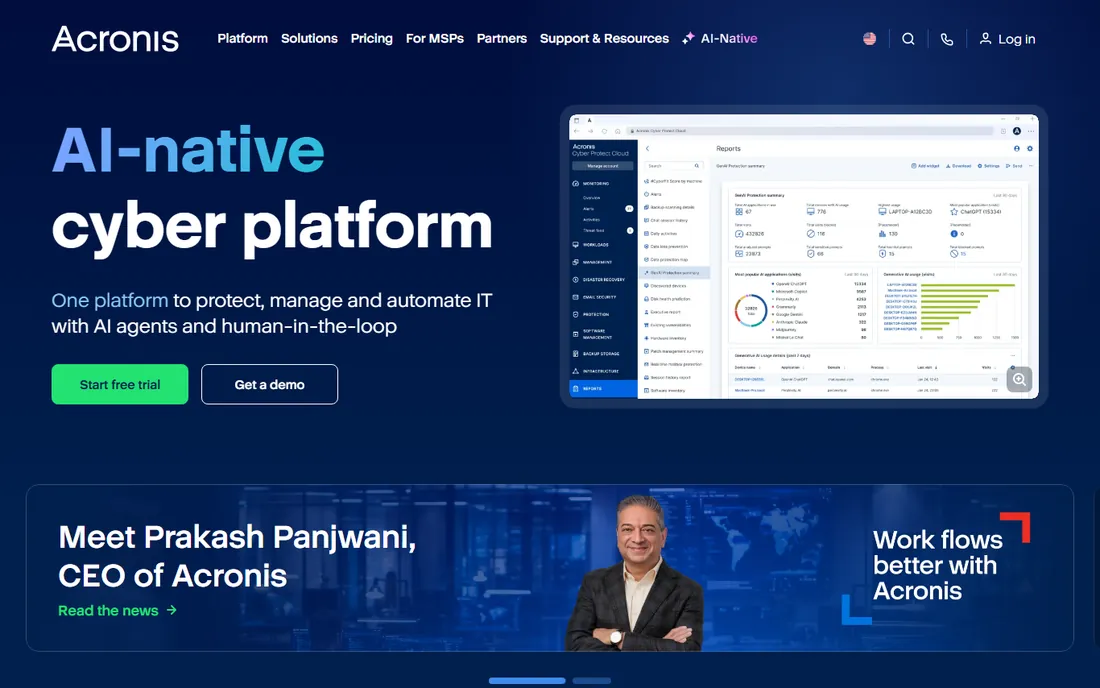
Acronis approaches migration through backup: image the old system completely, then restore it to the new hardware with universal restore handling driver differences. Its site offers a free trial, and the product bundles antivirus-style active protection with the backup engine. For buyers who want one product that backs up continuously and can also move them to new hardware, it is the most complete package here.
The catch is the model. This is a subscription backup suite, not a $50 migration utility; you pay annually for continuous protection. The price was not extractable from Acronis's pages, so check the store. Buy it if you want backup plus migration. Do not buy it if you only need a one-time move.
What we like- Complete backup suite (local, cloud, mobile) with universal restore to dissimilar hardware
- Active ransomware protection built into the backup
- Free trial to test restores
Watch out for- Subscription-only
- Price not verifiable from the vendor's page text
Starting priceSee website (Macrium store price not extractable from its pages)
Free planSee website
Macrium Reflect is the technician's choice for disk imaging: clone a drive, image a system, restore to new hardware with ReDeploy adjusting for hardware differences. It is fast, the images verify, and IT departments have relied on it for years. For moving to a larger SSD or an identical replacement machine, it is the most reliable tool on this list.
The catch is the category mismatch. Reflect images disks; it does not migrate installed applications between different Windows installations the way PCmover does. Pricing and current free-tier status were not verifiable from macrium.com's pages, so confirm both there. Choose it for drive cloning and system imaging, not for app migration.
What we like- The most trusted disk imager among IT professionals
- ReDeploy restores Windows images to dissimilar hardware
- Fast, verified imaging engine
Watch out for- Imaging-focused, not an application migrator
- Pricing and free-tier status not verifiable from the vendor's pages
Starting priceFree
Free planYes
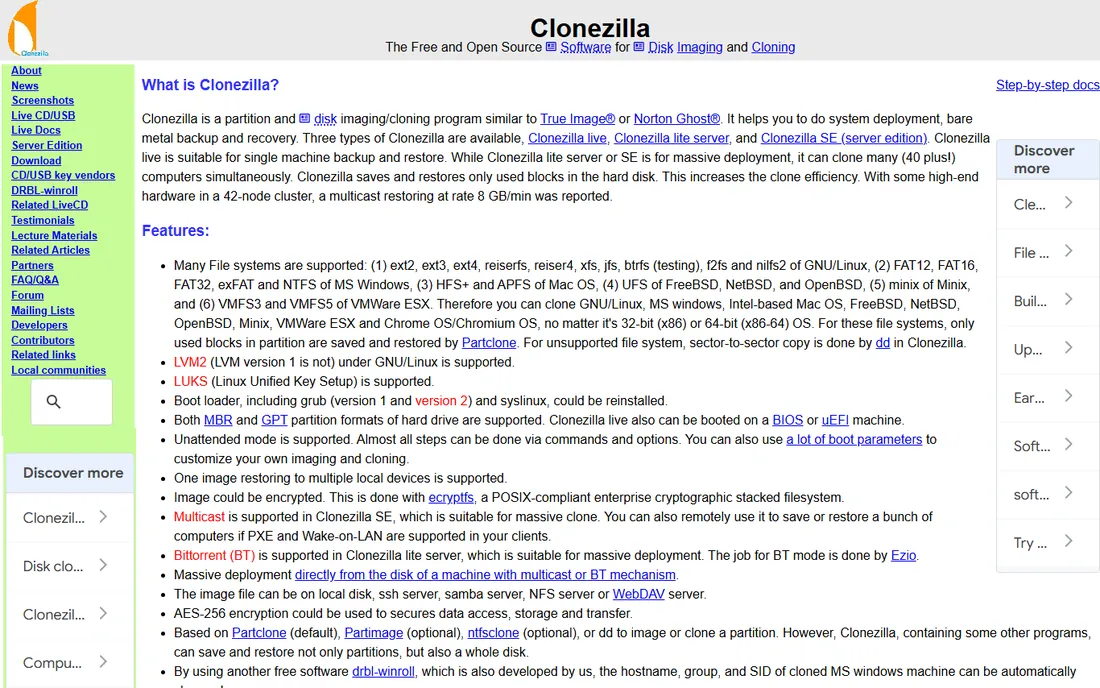
Clonezilla is the free workhorse: boot from USB, clone the disk, done. It costs nothing, it is open source, and it handles disk-to-disk and disk-to-image workflows that cover most hardware upgrades. For moving to a bigger drive or duplicating a setup across identical machines, it is all you need and the price cannot be beaten.
The catch is the experience and the scope. The interface is text menus, not a friendly wizard, and Clonezilla copies disks at the sector level: it will not help you move installed programs from an old Windows install to a fresh one. If you are comfortable with bootable USB tools and your job is cloning, it is perfect. If you want hand-holding, look at Rescuezilla or AOMEI.
What we like- Completely free and open source
- Clones disks and partitions efficiently
- Runs from USB with no installation
Watch out for- Text-based interface intimidates non-technical users
- No application-level migration, it copies sectors
Starting priceFrom $39.95/year
Free planFree trial
AOMEI Backupper sits between the free cloners and the enterprise backup suites. Its site lists plans from $39.95/year with a free trial, covering system backup, disk clone, file sync and partition management in a graphical interface. For a home user or small office that wants reliable cloning without Clonezilla's learning curve and without Acronis's subscription weight, it is the balanced pick.
The catch is the subscription for occasional use. If you clone a drive once a year, $39.95/year feels steep next to free Clonezilla. The vendor's page confirms a free trial rather than a permanent free edition, so test the clone workflow during the trial. Buy it for ongoing backup plus cloning; skip it for a single one-time clone.
What we like- Covers backup, sync, system clone and disk clone in one interface
- Friendlier than Clonezilla for the same jobs
- Free trial to test before paying
Watch out for- Annual subscription for a tool many use occasionally
- The free trial, not a permanent free tier, is what the vendor's page confirms
Starting priceFree
Free planYes
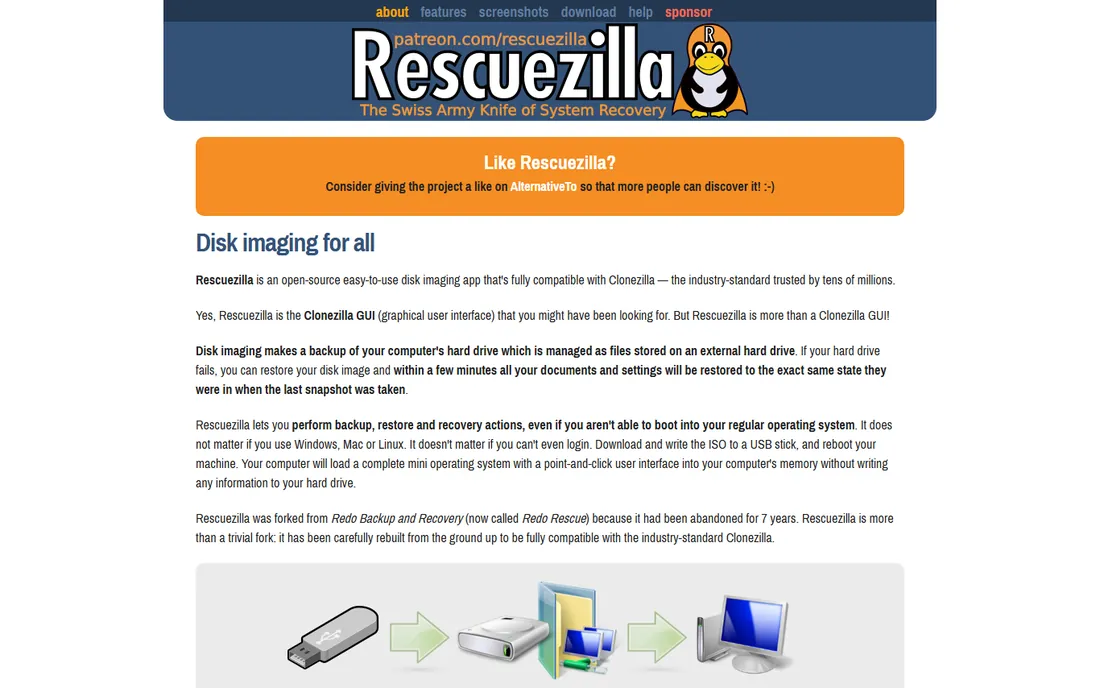
Rescuezilla is Clonezilla made friendly: the same free, open-source disk cloning and imaging, but with a graphical interface that does not scare non-technical users. Boot from USB, click through the wizard, clone or image the drive. For a family member's PC upgrade or a small office without IT staff, it removes the Clonezilla intimidation factor at zero cost.
The catch is maturity and scope. The community and documentation are thinner than Clonezilla's, and like all imagers it clones disks rather than migrating applications between Windows installs. If the job is "bigger SSD, same system," Rescuezilla is the easiest free path. If the job is "old laptop to new laptop with all my programs," you need PCmover, Todo PCTrans or Zinstall instead.
What we like- Free and open source with a graphical interface anyone can use
- Boots from USB like Clonezilla without the text menus
- Handles backup, restore and cloning
Watch out for- Smaller project than Clonezilla with less documentation
- Still a disk cloner, not an app migrator
How we chose
We started with the searches buyers run: PC transfer software, migrate old PC to new PC, and move programs to a new computer. For each candidate we opened the vendor's own site and store pages. Prices that could not be extracted from the vendor's pages are marked "See website" rather than guessed. We split the category honestly: true application migrators versus disk imagers and backup tools, because recommending a cloner for an app-migration job wastes the buyer's money.
Migration versus cloning: buy the right category
This distinction decides everything. Migration tools (PCmover, Todo PCTrans, Zinstall WinWin) move installed applications, settings and profiles from one Windows installation to another. Cloning tools (Macrium, Clonezilla, Rescuezilla, AOMEI's clone features) copy a disk sector by sector, which is perfect for drive upgrades but useless for moving apps onto a fresh Windows install.
Ask one question: is the destination a fresh Windows install or the same system on new hardware? Fresh install means migration software. Same system on a bigger SSD means a cloner, and the free ones are excellent. Backup suites (Acronis, AOMEI) add continuous protection on top, which justifies their subscriptions only if you actually run backups. Buyers who mix these up either overpay for backup they never run or discover at 11pm that their "transfer" did not include their applications.
The license reactivation problem nobody mentions
No migration tool defeats software licensing. Applications tied to hardware fingerprints, like some Adobe, CAD and accounting products, will demand reactivation on the new PC regardless of how perfectly the files transferred. Deactivate or sign out of license-managed apps on the old PC before migrating; it is faster than fighting activation servers afterward.
Also plan the connection. Wireless migration is convenient but slow for hundreds of gigabytes; a wired network or direct cable cuts transfer time dramatically. And keep the old PC untouched for a week after migration. Every tool here offers some form of undo or leaves the source intact, but the real safety net is not wiping the old machine until the new one has survived real work.
Frequently asked questions
What is the best PC transfer software for moving to a new computer?
Laplink PCmover, EaseUS Todo PCTrans or Zinstall WinWin ($129 one-time). These three migrate installed applications, not just files. Disk cloners like Clonezilla will not move your programs to a fresh Windows install.
Is there free PC migration software?
For disk cloning, yes: Clonezilla and Rescuezilla are free and excellent. For true application migration (moving installed programs), there is no fully free equivalent; the migration tools are paid.
Can I transfer programs from one PC to another without reinstalling?
Yes, with PCmover, Todo PCTrans or Zinstall WinWin. They move installed applications with their settings. Some license-managed apps will still need reactivation on the new PC.
How long does a PC migration take?
It depends on data size and connection: 100GB over Wi-Fi can take several hours; a wired connection is much faster. Application-heavy migrations take longer than file copies. Start the transfer when you can leave both PCs alone.
Will my files be safe during the transfer?
Migration tools leave the source PC intact, so the originals remain until you delete them. Keep the old PC for a week after migrating as a safety net, and back up irreplaceable files separately first.
Do I need to buy new software licenses for the new PC?
Usually not for the migration itself, but per-machine licensed apps (Adobe, some CAD and accounting tools) may require deactivation on the old PC and reactivation on the new one. Subscription software tied to your account generally just needs a fresh sign-in.
Sources we checked (8)
- https://go.laplink.com/
- https://www.easeus.com/pc-transfer-software/
- https://www.zinstall.com/products/zinstall-winwin
- https://www.acronis.com/en/products/true-image/
- https://www.macrium.com/products/home
- https://www.clonezilla.org/
- https://www.aomeitech.com/ab/
- https://rescuezilla.com/
Is your product missing or out of date?
We review this list regularly. Vendors can request a listing, send updated pricing or ask about featured placement.

Shihab Mia · Founder, Rankite
Shihab has spent more than a decade helping SaaS and e-commerce brands grow through search. He writes Rankite's software buying guides from pricing pages, documentation and public user reviews. More about Shihab.