How we make this list: we compare pricing pages, product documentation and public user reviews. Rankite is independent; if a vendor ever pays for a featured spot, that listing is clearly labeled Partner.
Key takeaways
- Every tool on this list clones drives for free, verified in October 2026. No trials disguised as free editions, and no Macrium Reflect (its free edition was retired in 2024).
- Windows users who want a guided wizard should start with AOMEI Backupper Standard, EaseUS Disk Copy or MiniTool Partition Wizard Free.
- Clonezilla is the most powerful free cloner but has a text interface; Rescuezilla gives you the same engine with a point-and-click GUI.
- Cloning to a smaller SSD works with most tools here as long as your data fits; only used sectors get copied.
- Always verify the clone boots before wiping the old drive, and keep a backup. Cloning is reliable, but a power cut mid-clone is not.
Quick comparison
Is your product missing or out of date?
We review this list regularly. Vendors can request a listing, send updated pricing or ask about featured placement.
Nine free ways to move to a faster drive
Priya's five-year-old laptop took nine minutes to boot, and she had a new 1TB SSD sitting on her desk. What she dreaded was the reinstall: Windows, drivers, her accounting software, license keys, a decade of settings. Cloning promised to move everything bit for bit, no reinstall required. The catch was finding cloning software that was actually free, not a trial with the clone button paywalled. Every tool below passed that test in October 2026.
Starting priceFree
Free planYes
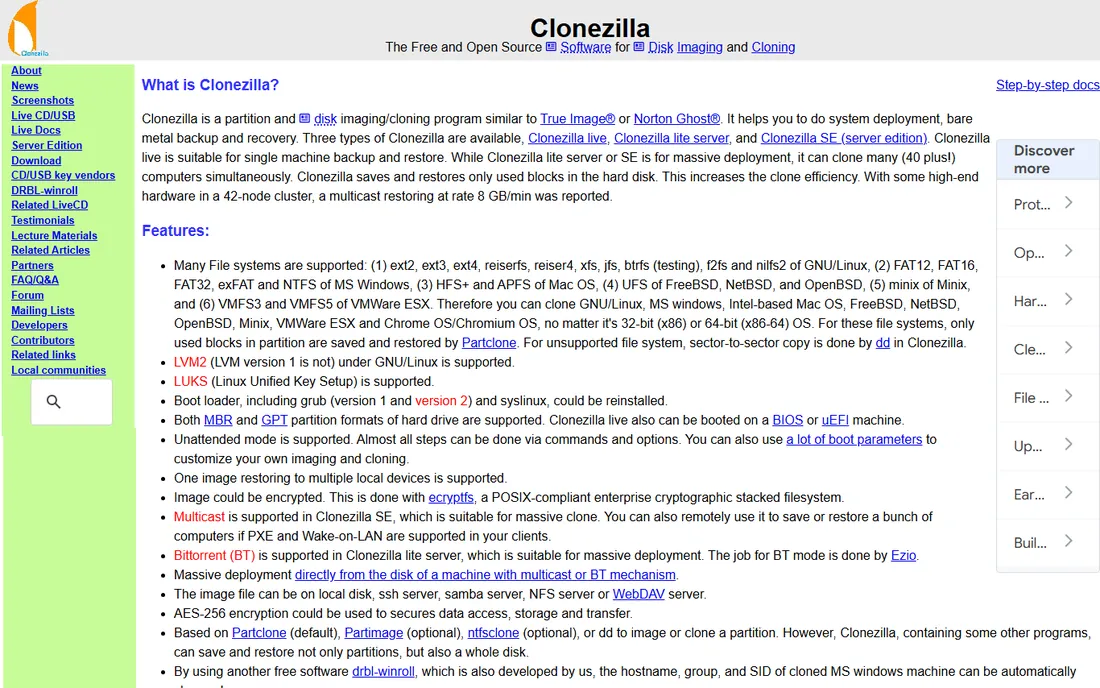
Clonezilla is the industry standard free disk cloning tool, trusted by IT departments for two decades. Boot it from USB, and it images or clones disks and partitions across Windows, Linux and Mac filesystems, copying only used blocks so a half-empty 1TB drive clones in a fraction of the time. The server edition can deploy to dozens of machines simultaneously.
The honest price is the learning curve. The menus are text-based, the options assume you know what a partition table is, and mistakes are possible if you rush. Patient beginners succeed with a good tutorial; impatient ones should pick Rescuezilla below, which wraps this same engine in a GUI.
What we like- Completely free and open source (GPL)
- Copies only used blocks for speed
- Clones 40+ machines at once over network
Watch out for- Text-based interface intimidates beginners
- Destination partition must be equal or larger than source
Starting priceFree
Free planYes
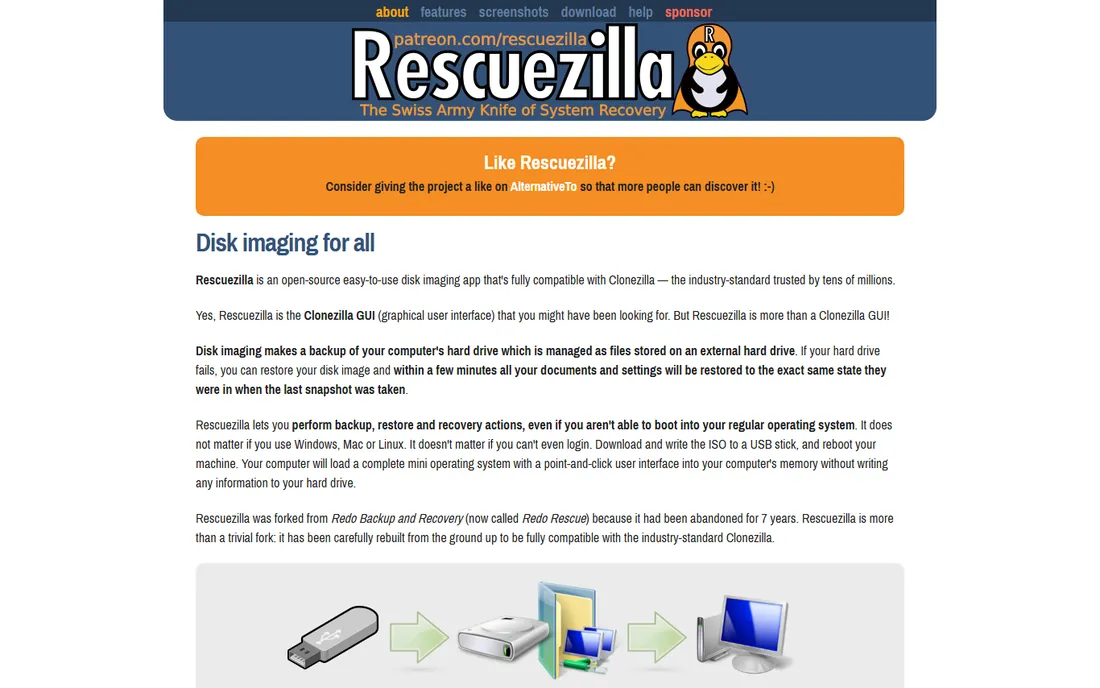
Rescuezilla answers the most common Clonezilla complaint: give me buttons. Boot the USB stick and you get a familiar graphical interface for backup, restore and disk cloning across Windows, Mac and Linux machines. Images it creates are fully compatible with Clonezilla, so you are never locked into one tool.
It was rebuilt from the abandoned Redo Backup project specifically to be the Clonezilla GUI people asked for. You lose Clonezilla's mass-deployment server features, which home users never need anyway. For a first-time cloner who wants free and friendly, start here.
What we like- Point-and-click interface, no Linux knowledge needed
- Fully compatible with Clonezilla images
- Runs from USB without installing
Watch out for- Fewer advanced deployment features than Clonezilla
- Smaller project with community support
Starting priceFree
Free planYes
AOMEI Backupper Standard is the best free SSD cloning software for Windows users who want hand-holding. The disk clone wizard walks through source, destination and options in plain language, with intelligent clone (used sectors only, so larger-to-smaller works) and SSD alignment to keep the new drive fast. Version 8.5.0 is current as of October 2026.
The free edition covers cloning fully; the paid Pro tier adds system backup schemes and universal restore to different hardware. For the standard job, old HDD to new SSD in the same laptop, the free Standard edition is complete. Just be sure to download from the official site, as fake AOMEI installers circulate.
What we like- Guided wizards for disk, partition and OS cloning
- SSD alignment option
- Runs inside Windows, no USB boot needed for basic clones
Watch out for- Windows only
- Advanced features (universal restore, merging) need the paid Pro edition
Starting priceFree
Free planYes
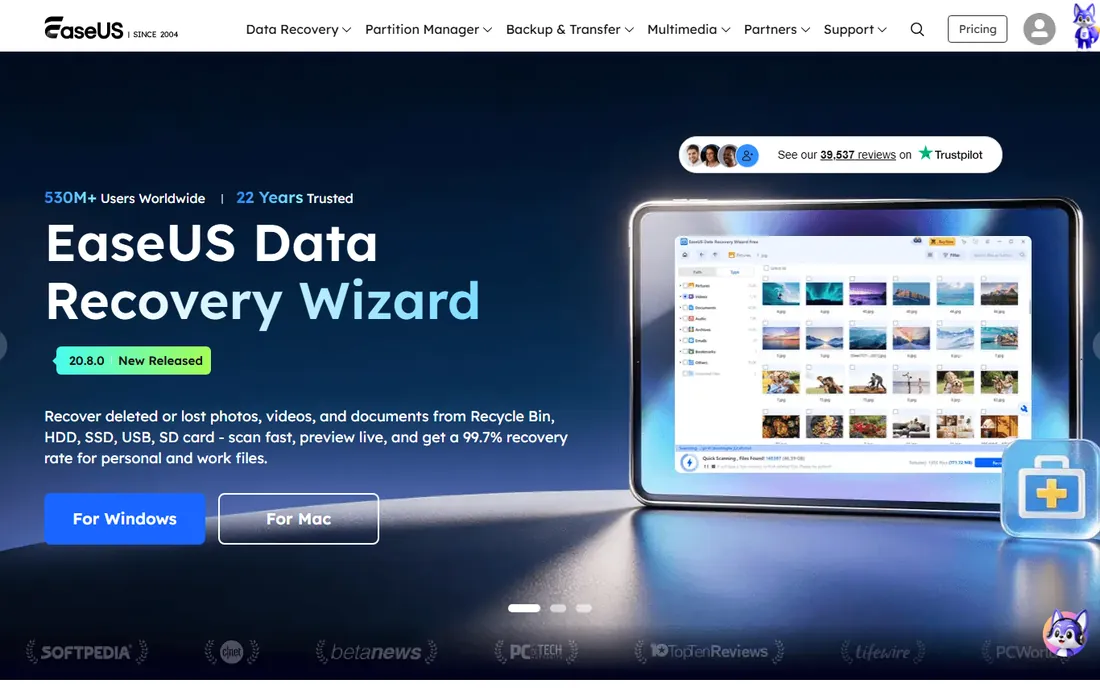
EaseUS Disk Copy does one job: move everything from one disk to another. The interface is about as simple as cloning gets, pick source, pick destination, start. It handles HDD to SSD, SSD to SSD and larger-to-smaller (data permitting), and can build bootable media for cloning a drive Windows is running from.
EaseUS is a big company with many products, and the installer will suggest its siblings. Ignore the upsells; the free Disk Copy edition performs the core clone without payment. It is a solid pick when you want the smallest possible learning curve on Windows.
What we like- Dedicated cloning tool with a minimal interface
- Sector-by-sector and used-sector modes
- Bootable media builder included
Watch out for- Free edition has feature limits vs paid tiers
- EaseUS upsells other products aggressively

#5
MiniTool Partition Wizard Free
Best for: Partitioning plus OS migration
Visit minitool.com
Starting priceFree
Free planYes
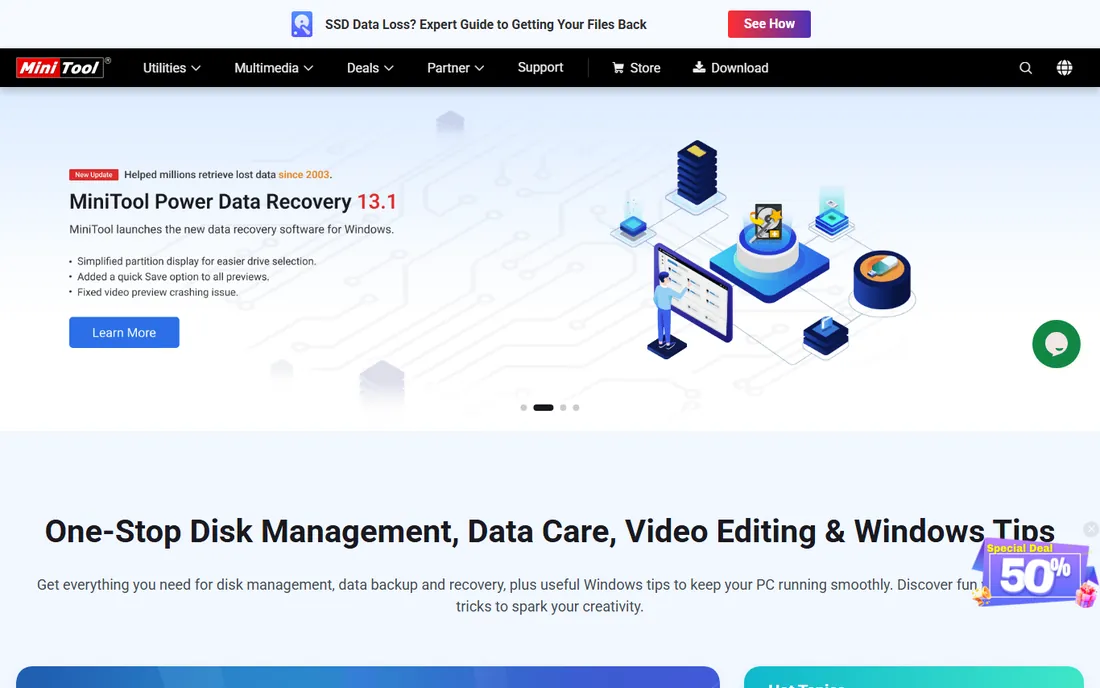
MiniTool Partition Wizard Free earns its place because cloning is often step two. Step one is shrinking partitions, aligning, or checking the disk, and this tool does all of it. The Migrate OS to SSD/HD wizard moves just your system to the new drive, handy when you want Windows on the SSD and files on the old HDD.
The free edition includes disk copy and OS migration; fancier operations like dynamic disk conversion need Pro. During install, decline the bundled extras. As the best cloning software free option that also fixes partition problems, it is the practical all-rounder for Windows.
What we like- Excellent partition manager bundled with cloning
- Dedicated Migrate OS to SSD wizard
- Free edition covers the core clone
Watch out for- Windows only
- Some advanced partition features are Pro-only
- Installer bundles offers, read screens carefully
Starting priceFree
Free planYes
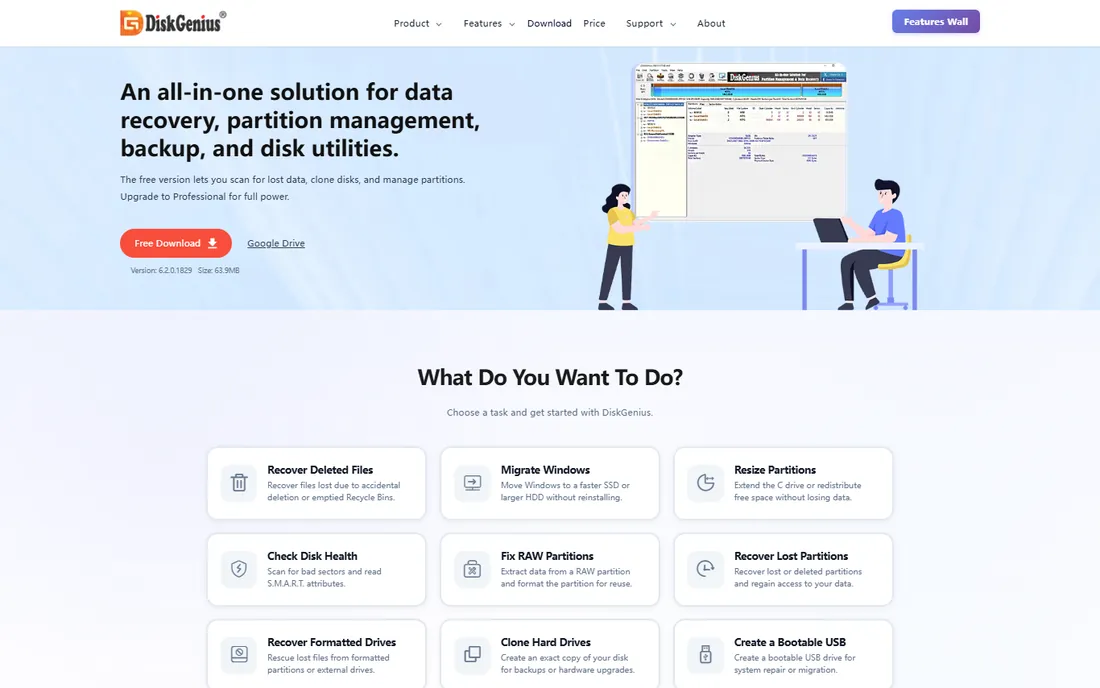
DiskGenius Free is unusually transparent: its site states plainly that the free edition covers disk cloning and Windows migration, with Pro ($69.90+) adding full recovery and advanced tools. Beyond cloning you get partition management, bad-sector checks, boot repair and file recovery scanning, a genuine toolkit.
The interface packs a lot into one window, which can overwhelm on first open. But for the user who wants one free download that clones the drive today and fixes partition trouble tomorrow, it is the deepest free option on Windows. Version 6.2 is current as of mid-2026.
What we like- Free edition includes disk/partition clone and OS migration
- Also does recovery and partition repair
- Clear free-vs-Pro comparison
Watch out for- Windows only
- Data recovery of larger files needs Pro
- Interface is dense
Starting priceFree
Free planYes
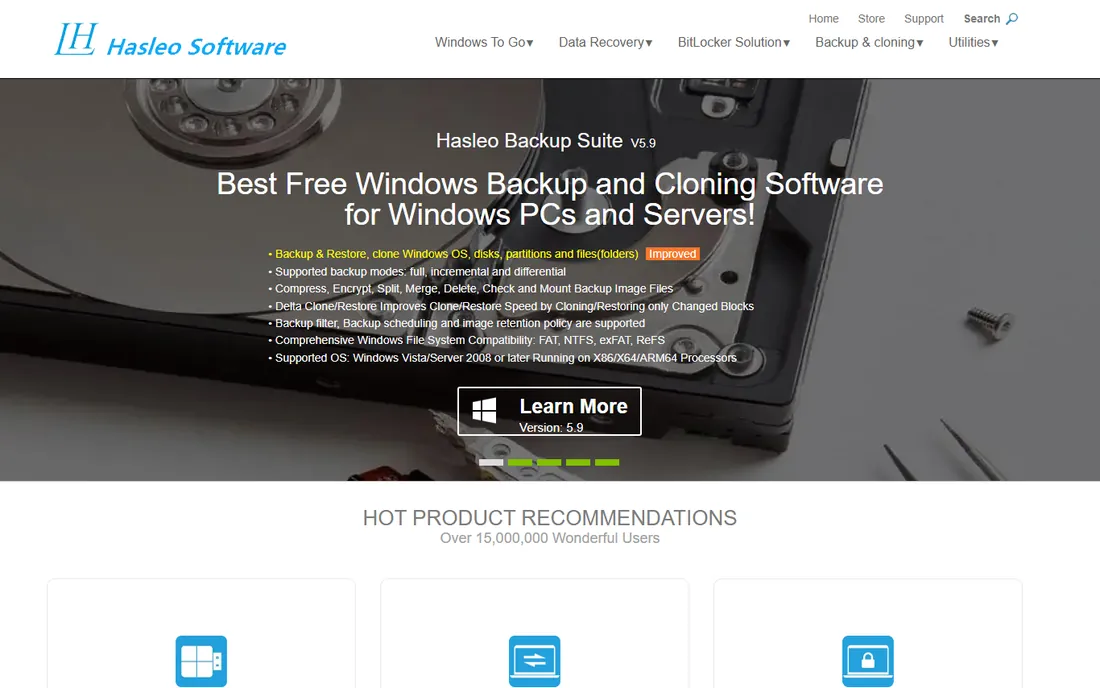
Hasleo Backup Suite Free comes from Hasleo, the company behind WinToUSB and WinToHDD, tools with long track records. The free suite covers Windows, disk, partition and file backup plus cloning, in an interface that feels more modern than most free competitors.
It is less battle-tested at scale than AOMEI or Macrium-era veterans, simply because it is newer. For a straightforward free clone with backup features to grow into, though, it is a legitimate pick. Download from hasleo.com; the product pages live under their EasyUEFI brand family.
What we like- Free backup suite with disk and partition cloning
- Clean modern interface
- From the makers of the respected WinToUSB
Watch out for- Windows only
- Newer product with a smaller user community than AOMEI or EaseUS
Starting priceFree
Free planYes
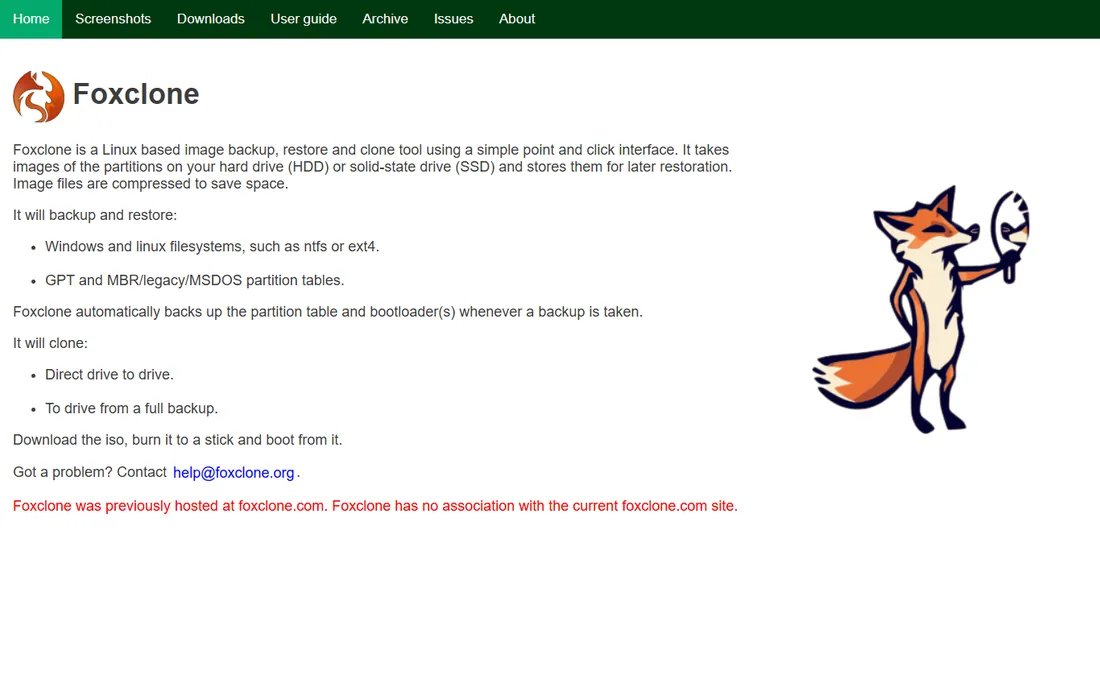
Foxclone is a small, focused, free tool: boot the ISO from USB, click through a simple interface, clone drive to drive or restore from a compressed backup. It handles NTFS and ext4, GPT and MBR, and automatically preserves the partition table and bootloaders, the details beginners forget.
It will not match Clonezilla's feature list, and it is essentially a one-person project (note: the real site is foxclone.org; an unrelated foxclone.com exists). For a no-drama free clone with minimal decisions, its simplicity is the feature.
What we like- Dead-simple point-and-click cloning
- Backs up partition table and bootloader automatically
- Compressed images save space
Watch out for- Linux-based USB boot required
- Fewer filesystem extras than Clonezilla
- One-maintainer project
Starting priceFree
Free planYes
Redo Rescue (version 3.0) is the friendliest bare-metal backup tool in the free world: boot from USB or CD, click backup or restore, done. It handles full system images that restore to a blank replacement drive, which covers the "my drive died" scenario as well as planned migrations. Over two million downloads attest to its staying power.
It thinks in backups rather than direct disk-to-disk clones, so the workflow is image-then-restore rather than one-step cloning. For novices who want the safest possible free path, that two-step is actually reassuring: you verify the backup exists before touching the original.
What we like- Beautiful simple interface anyone can follow
- Free and open source
- Bare-metal restore to a blank drive in minutes
Watch out for- Backup-focused rather than a dedicated cloner
- Fewer scheduling and automation options
How we chose
The rule for this list was strict: the free edition must perform a real disk or OS clone today, with no payment, verified in October 2026. We checked each vendor's site and current version. Macrium Reflect was excluded because its free edition was retired in January 2024; several roundups still list it, and they are out of date. Sources included vendor documentation, version histories and community reports from Level1Techs and similar forums. No hands-on cloning was claimed; assessments rest on features, licenses and documented limits.
Cloning to a smaller SSD
The most common question: can I clone a 1TB HDD to a 500GB SSD for free. Yes, with every tool above, provided your actual data fits the smaller drive. Use intelligent or used-sector cloning (not sector-by-sector), shrink or clean up the source first, and let the tool expand the partition afterward. If your data exceeds the SSD, no software fixes that; move files off first.
Before you wipe the old drive
Cloning is reliable, but verify before you commit. Boot from the new drive at least once and open your key programs. Keep the old drive untouched for a week as a fallback. Disconnecting the old drive during the first boot avoids bootloader confusion. And clone on wall power with nothing else running; an interrupted clone is the one real way this goes wrong.
Frequently asked questions
What is the best free hard drive cloning software?
For Windows beginners, AOMEI Backupper Standard or Rescuezilla. For power users, Clonezilla. For a full free toolkit, DiskGenius Free or MiniTool Partition Wizard Free. All nine tools above clone for free; pick by your comfort level, not by brand.
Is Macrium Reflect still free?
No. Macrium retired the free edition in January 2024; only paid editions (Reflect X and later) are offered now. Many older guides still list Macrium Reflect Free, but downloading it today gets you a trial. The tools on this list are the current free alternatives.
Can I clone a hard drive to an SSD for free?
Yes. Connect the SSD (via SATA, M.2 slot or USB adapter), run any tool above, select the old drive as source and the SSD as destination, and start. Enable SSD alignment if offered. The clone is bootable, so you can swap the drives afterward.
How long does cloning take?
Roughly 30 to 90 minutes for a typical 500GB drive with 200GB used, depending on the connection (NVMe fastest, USB 2.0 slowest) and whether the tool copies only used sectors. Sector-by-sector clones take longer. Start it and walk away.
Will cloning copy my Windows license?
Yes, cloning copies everything including activation, drivers and installed programs, which is the whole point. Windows usually stays activated on the same machine. Moving to a very different PC may trigger reactivation; that is a licensing matter, not a cloning failure.
Do I need to format the new SSD before cloning?
No. The cloning software prepares the destination itself. Just make sure no data you need is on the target drive, because cloning overwrites it completely.
Sources we checked (10)
- https://clonezilla.org/
- https://rescuezilla.com/
- https://www.aomeitech.com/
- https://www.easeus.com/
- https://www.minitool.com/
- https://www.diskgenius.com/
- https://www.hasleo.com/
- https://foxclone.org/
- https://redorescue.com/
- https://tech-insider.org/clone-hard-drive-to-ssd-2026/
Is your product missing or out of date?
We review this list regularly. Vendors can request a listing, send updated pricing or ask about featured placement.

Shihab Mia · Founder, Rankite
Shihab has spent more than a decade helping SaaS and e-commerce brands grow through search. He writes Rankite's software buying guides from pricing pages, documentation and public user reviews. More about Shihab.
 Clonezilla
 Rescuezilla
 AOMEI Backupper Standard
 EaseUS Disk Copy
 DiskGenius Free
 Hasleo Backup Suite Free
 Foxclone
 Redo Rescue